change time CITROEN C4 CACTUS 2023 Owner's Manual
[x] Cancel search | Manufacturer: CITROEN, Model Year: 2023, Model line: C4 CACTUS, Model: CITROEN C4 CACTUS 2023Pages: 196, PDF Size: 6.12 MB
Page 140 of 196
138
CITROËN Connect Radio
Playlists are updated whenever the ignition
is switched off or a USB memory stick is
connected. The audio system memorises these
lists, which will subsequently load faster if they
have not been changed.
Auxiliary (AUX) jack socket
Depending on equipmentConnect a portable device (MP3 player,
etc.) to the auxiliary jack socket using an
audio cable (not supplied).
This source is only available if "Auxiliary input"
has been selected in the audio settings.
First adjust the volume on the portable device
(to a high level). Then adjust the volume of the
audio system.
Controls are managed via the portable device.
Selecting the source
Press Radio Media to display the main
page.
Press the "SOURCES" button.
Select the source.
BluetoothStreaming®
Streaming allows you to listen to the audio feed
from your smartphone.
The Bluetooth profile must be activated.
First adjust the volume on the portable device
(to a high level). Then adjust the volume of the
system.
If play does not start automatically, it may be
necessary to start the audio playback from the
smartphone.
Control is from the portable device or by using
the system's touch buttons.
Once connected in Streaming mode, the
smartphone is considered to be a media
source.
Connecting Apple® players
Connect the Apple® player to the USB socket
using a suitable cable (not supplied).
Play starts automatically.
Control is via the audio system.
The classifications available are those of the portable device connected (artists/
albums/genres/playlists/audio books/
podcasts). It is also possible to use a
classification structured in the form of a
library.
The default classification used is by artist. To
modify the classification used, return to the
first level of the menu then select the desired
classification (playlists for example) and
confirm to go down through the menu to the
desired track.
The version of software in the audio system may
not be compatible with the generation of the
Apple
® player.
Information and advice
The system supports USB mass storage
devices, BlackBerry® devices or Apple® players
via the USB ports. The adapter cable is not
supplied.
Devices are managed using the audio system
controls.
Other devices, not recognised on connection,
must be connected to the auxiliary socket using
a jack cable (not supplied) or via Bluetooth
streaming, if compatible.
To protect the system, do not use a USB hub.
The audio system will only play audio files with
".wav", ".wma", ".aac", ".ogg" and ".mp3" file
extensions, at bit rates between 32 Kbps and
320 Kbps.
It also supports VBR (Variable Bit Rate) mode.
No other file types (".mp4", etc.) can be read.
All ".wma" files must be standard WMA 9 files.
The supported sampling rates are 11, 22, 44 and
48 KHz.
To avoid reading and display problems, we
recommend choosing file names less than 20
characters long that do not contain any special
characters (e.g. “ ? .
; ù).
Use only USB memory sticks in FAT32 format
(File Allocation Table).
We recommend using the original USB
cable for the portable device.
Telephone
USB sockets
Depending on equipment, for more information
on the USB sockets compatible with the
CarPlay
®, MirrorLinkTM or Android Auto
applications, refer to the "Ease of use and
comfort" section.
The synchronisation of a smartphone allows users to display applications
adapted to the CarPlay
®, MirrorLinkTM or
Android Auto technology of the smartphone
on the vehicle screen. For the CarPlay
®
technology, the CarPlay® function must be
activated on the smartphone beforehand.
For the communication process between
the smartphone and the system to work, it is
essential in all cases that the smartphone is
unlocked.
As the principles and standards are
constantly changing, it is recommended
that you keep the smartphone's operating
system up-to-date, as well as the date and
time of the smartphone and of the system .
For the list of eligible smartphones, go to the
Brand's national website.
Page 142 of 196
140
CITROËN Connect Radio
Press "CarPlay" to display the CarPlay®
interface.
On connecting the USB cable, the
CarPlay® function deactivates the
system's Bluetooth® mode.
When the USB cable is disconnected
and the ignition is switched off then back
on, the system will not automatically switch to
Radio Media mode; the source must be
changed manually.
The CarPlay® navigation can be accessed
at any time by pressing the system's
Navigation button.
Android Auto smartphone connection
On the smartphone, download the
Android Auto application.
The "Android Auto" function requires the
use of a compatible smartphone and
applications.
Telephone not connected by
Bluetooth®
Connect a USB cable. The smartphone
charges when connected by a USB cable.
From the system, press "Telephone" to
display the main page.
Press "Android Auto" to start the
application in the system.
Depending on the smartphone, it may be
necessary to activate the "Android Auto"
function.
During the procedure, several screen
pages relating to certain features are
displayed.
Accept to start and complete the connection.
When connecting a smartphone to the
system, we recommend enabling
Bluetooth
® on the smartphone.
Telephone connected by Bluetooth®
From the system, press "Telephone" to
display the main page.
Press the "PHONE" button to display the
secondary page.
Press "Android Auto" to start the
application in the system.
Access to the different audio sources remains
available in the margin of the Android Auto
display, using the touch buttons located in the
upper bar.
Access to the menus for the system is possible
at any time using the dedicated buttons.
There may be a pause before applications become available,
depending on the quality of the network.
Pairing a Bluetooth®
telephone
The services available depend on the
network, the SIM card and the
compatibility of the Bluetooth devices used.
Consult the telephone user guide and the
service provider to check which services are
available.
The Bluetooth function must be activated and the telephone configured as "Visible
to all” (in the telphone settings).
To complete the pairing, whichever procedure is
used (from the telephone or from the system),
ensure that the code is the same in the system
and in the telephone.
If the pairing procedure fails, we
recommend deactivating and then
reactivating the Bluetooth function on the
telephone.
Procedure from the telephone
Select the name of the system in the list
of detected devices.
In the system, accept the connection request
from the telephone.
Procedure from the system
Press Telephone to display the main
page.
Press "Bluetooth search".
The list of detected telephones is
displayed.
Select the name of the chosen telephone
in the list.
Connection sharing
The system offers to connect the telephone with
3 profiles:
– "Telephone" (hands-free kit, telephone only),
– “Streaming" (streaming: wireless playing of
audio files on the telephone),
– "Mobile internet data ".
Select one or more profiles.
Press "OK" to confirm.
Depending on the type of telephone, you may by
prompted to accept the transfer of contacts and
messages.
The ability of the system to connect just one profile depends on the telephone.
All three profiles may connect by default.
The profiles compatible with the system are: HFP, OPP, PBAP, A2DP, AVRCP,
MAP and PAN.
Page 145 of 196
143
CITROËN Connect Radio
10Press the "System info" tab to display the
versions of the various modules installed in the
system.
Press the "Privacy" tab,
or
Press Settings to display the main page.
Press "Privacy " to activate or deactivate
the private data mode.
Activate or deactivate:
–
"No sharing (data, vehicle position) ".
–
"Only data sharing ”
–
"Data and vehicle position sharing "
Press the back arrow to confirm.
Press Settings to display the main page.
Press "Configuration" to access the
secondary page.
Press "Screen configuration ".
Press "Brightness".
Move the slider to adjust the brightness of
the screen and/or the instrument panel
(depending on version).
Press the back arrow to confirm.
Press "Animation".
Activate or deactivate: “Automatic scrolling ”.
Select "Animated transitions".
Press the back arrow to confirm.
Selecting the language
Press Settings to display the main page.
Press "Configuration " to access the
secondary page.
Select "Language" to change the
language.
Press the back arrow to confirm.
Setting the time
Press Settings to display the main page.
Press "Configuration " to access the
secondary page.
Press "Date and time".
Select "Time".
Press this button to set the time using the
virtual keypad.
Press "OK" to save the time.
Press this button to set the time zone.
Select the display format for the time
(12h/24h).
Activate or deactivate summer time (+1 hour).
Activate or deactivate GPS synchronisation (UTC).
Press the back arrow to save the settings.
The system may not automatically manage the change between winter and
summer time (depending on the country of
sale).
Setting the date
Press Settings to display the main page.
Press "Configuration " to access the
secondary page.
Press "Date and time".
Select "Date".
Press this button to set the date.
Press the back arrow to save the date.
Select the display format for the date.
Press the back arrow again to confirm.
Time and date setting is only available if
"GPS Synchronisation:" is deactivated.
Page 146 of 196
144
CITROËN Connect Radio
Frequently asked
questions
The following information groups together the answers to the most frequently asked questions
concerning the system.
Radio
The reception quality of the tuned radio
station gradually deteriorates or the station
presets are not working (no sound, 87.5 MHz
is displayed, etc.).
The vehicle is too far from the selected station’s
transmitter, or no transmitter is present in the
geographical area.
►
Activate the "RDS" function in the upper bar
to enable the system to check whether there is
a more powerful transmitter in the geographical
area.
The environment (hills, buildings, tunnels,
basement car parks, etc.) is blocking reception,
including in RDS mode.
This is a perfectly normal phenomenon, and is
not indicative of an audio system malfunction.
The aerial is missing or has been damaged
(for example while entering a car wash or
underground car park).
►
Have the aerial checked by a dealer
.
I cannot find some radio stations in the list of
received stations.
The name of the radio station changes.
The station is no longer received or its name has
changed in the list. ►
Press the round arrow on the "List" tab on the
"Radio" page.
Some radio stations send other information
in place of their name (the title of the song for
example).
The system interprets these details as the station
name.
►
Press the round arrow on the "List" tab on the
"Radio" page.
Media
Playback of my USB memory stick starts only
after a very long wait (around 2 to 3 minutes).
Some files supplied with the memory stick may
greatly slow down access to reading the memory
stick (multiplication by 10 of the cataloguing
time).
►
Delete the files supplied with the memory
stick and limit the number of sub-folders in the
file structure on the memory stick.
Some characters in information about the
currently playing media are not displayed
correctly
.
The audio system is unable to process certain
types of character.
►
Use standard characters to name tracks and
folders.
Playback of streaming files does not start.
The connected device does not automatically
launch playback.
►
Start playback from the device.
T
rack names and playing times are not
displayed on the audio streaming screen. The Bluetooth profile does not allow the transfer
of this information.
Telephone
I cannot connect my Bluetooth telephone.
The telephone's Bluetooth function may be
switched off or the telephone may not be visible.
►
Check that the telephone has Bluetooth
switched on.
►
Check in the telephone settings that it is
"visible to all".
The Bluetooth telephone is not compatible with
the system.
►
Check the compatibility of the telephone on
the Brand's website (services).
Android
Auto and CarPlay do not work.
Android Auto and CarPlay may not activate if the
USB cables are of poor quality.
►
Use genuine USB cables to ensure
compatibility
.
The volume of the telephone connected in
Bluetooth mode is inaudible.
The volume depends on both the system and the
telephone.
►
Increase the volume of the audio system, to
maximum if required, and increase the volume of
the telephone if necessary
.
Ambient noise affects the quality of the
telephone call.
►
Reduce ambient noise (close windows,
reduce ventilation, slow down, etc.).
The contacts are not listed in alphabetical
order
.
Some telephones offer display options.
Depending on the settings chosen, contacts can
be transferred in a specific order.
► Modify the telephone directory display
settings.
Settings
When the treble and bass settings are
changed, the ambience is deselected.
When the ambience is changed, the treble
and bass settings are reset.
Selecting an ambience imposes the treble and
bass settings, and vice versa.
► Modify the treble and bass or ambience
settings to obtain the desired musical ambience.
When the balance settings are changed, the
distribution is deselected.
When the distribution setting is changed, the
balance settings are deselected.
Selecting a distribution setting imposes the
balance settings, and vice versa.
► Modify the balance setting or the distribution
setting to obtain the desired sound quality.
There is a difference in sound quality
between audio sources.
To allow for optimal listening quality, the sound
settings can be tailored to different audio
sources, which can generate audible differences
when changing source.
► Check that the sound settings are appropriate
to the sources listened to. Adjust the sound
functions to the middle position.
Page 147 of 196

145
CITROËN Connect Radio
10Some telephones offer display options.
Depending on the settings chosen, contacts can
be transferred in a specific order.
►
Modify the telephone directory display
settings.
Settings
When the treble and bass settings are
changed, the ambience is deselected.
When the ambience is changed, the treble
and bass settings are reset.
Selecting an ambience imposes the treble and
bass settings, and vice versa.
►
Modify the treble and bass or ambience
settings to obtain the desired musical ambience.
When the balance settings are changed, the
distribution is deselected.
When the distribution setting is changed, the
balance settings are deselected.
Selecting a distribution setting imposes the
balance settings, and vice versa.
►
Modify the balance setting or the distribution
setting to obtain the desired sound quality
.
There is a difference in sound quality
between audio sources.
To allow for optimal listening quality, the sound
settings can be tailored to different audio
sources, which can generate audible differences
when changing source.
►
Check that the sound settings are appropriate
to the sources listened to.
Adjust the sound
functions to the middle position. When the engine is off, the system switches
off after several minutes of use.
When the engine is switched off, the system's
operating time depends on the state of charge of
the battery.
The switch-off is normal: the system
automatically goes into energy economy mode
and switches off to maintain an adequate charge
in the battery.
►
Start the vehicle’
s engine to increase the
charge of the battery.
Page 149 of 196
147
CITROËN Connect Nav
11
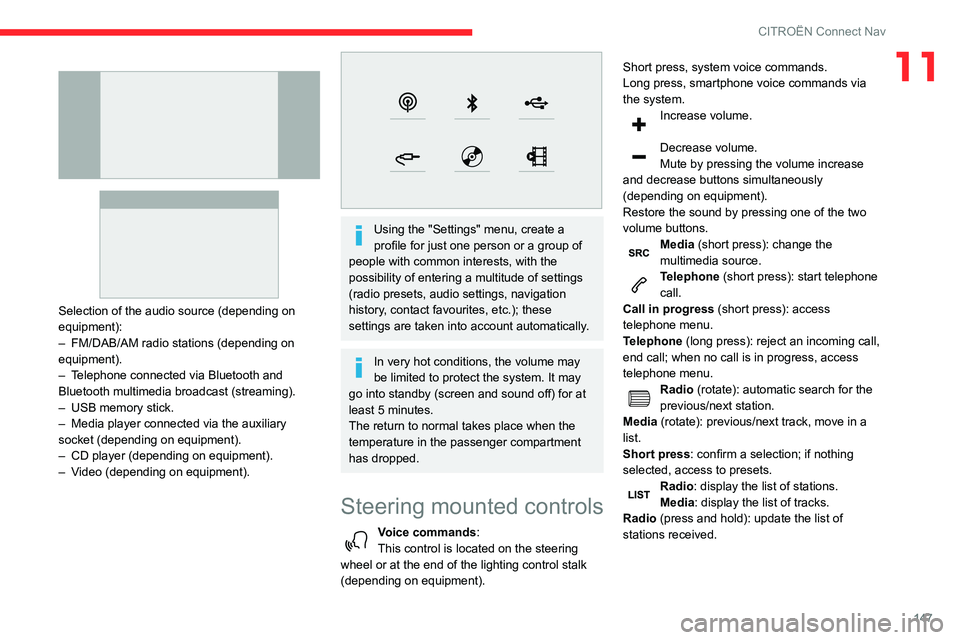
Selection of the audio source (depending on
equipment):
–
FM/DAB/AM radio stations (depending on
equipment).
–
T
elephone connected via Bluetooth and
Bluetooth multimedia broadcast (streaming).
–
USB memory stick.
–
Media player connected via the auxiliary
socket (depending on equipment).
–
CD player (depending on equipment).
–
V
ideo (depending on equipment).
Using the "Settings" menu, create a
profile for just one person or a group of
people with common interests, with the
possibility of entering a multitude of settings
(radio presets, audio settings, navigation
history, contact favourites, etc.); these
settings are taken into account automatically.
In very hot conditions, the volume may
be limited to protect the system. It may
go into standby (screen and sound off) for at
least 5 minutes.
The return to normal takes place when the
temperature in the passenger compartment
has dropped.
Steering mounted controls
Voice commands:
This control is located on the steering
wheel or at the end of the lighting control stalk
(depending on equipment). Short press, system voice commands.
Long press, smartphone voice commands via
the system.
Increase volume.
Decrease volume.
Mute by pressing the volume increase
and decrease buttons simultaneously
(depending on equipment).
Restore the sound by pressing one of the two
volume buttons.
Media (short press): change the
multimedia source.
Telephone (short press): start telephone
call.
Call in progress (short press): access
telephone menu.
Telephone (long press): reject an incoming call,
end call; when no call is in progress, access
telephone menu.
Radio (rotate): automatic search for the
previous/next station.
Media (rotate): previous/next track, move in a
list.
Short press: confirm a selection; if nothing
selected, access to presets.
Radio: display the list of stations.
Media: display the list of tracks.
Radio (press and hold): update the list of
stations received.
Page 159 of 196
157
CITROËN Connect Nav
11The temperature displayed at 6 a.m. will be the maximum temperature for the day.
The temperature displayed at 6 p.m. will be
the minimum temperature for the night.
Applications
USB sockets
Depending on equipment, for more information
on the USB sockets compatible with the
CarPlay
®, MirrorLinkTM or Android Auto
applications, refer to the "Ease of use and
comfort" section.
The synchronisation of a smartphone allows users to display applications
adapted to the CarPlay
®, MirrorLinkTM or
Android Auto
technology of the smartphone
on the vehicle screen. For the CarPlay
®
technology, the CarPlay® function must be
activated on the smartphone beforehand.
For the communication process between
the smartphone and the system to work, it is
essential in all cases that the smartphone is
unlocked.
As the principles and standards are
constantly changing, it is recommended
that you keep the smartphone's operating
system up-to-date, as well as the date and
time of the smartphone and of the system .
For the list of eligible smartphones, go to the
Brand's national website.
Connectivity
Press Applications to display the primary
page.
Press "Connectivity" to go to the CarPlay
®,
MirrorLinkTM or Android Auto functions.
CarPlay® smartphone
connection
Connect a USB cable. The smartphone
charges when connected by the USB
cable.
Press "Telephone" to display the
CarPlay® interface.
Or
Connect a USB cable. The smartphone
charges when connected by the USB
cable.
From the system, press "Applications " to
display the primary page.
Press "Connectivity" to go to the CarPlay
®
function.
Press "CarPlay " to display the CarPlay®
interface.
On connecting the USB cable, the
CarPlay® function deactivates the
system's Bluetooth® mode.
When the USB cable is disconnected
and the ignition is switched off then back
on, the system will not automatically switch to
Radio Media mode, a change of source will
have to be done manually.
MirrorLinkTM smartphone
connection
The "MirrorLinkTM" function requires the
use of a compatible smartphone and
compatible applications.
When connecting a smartphone to the
system, it is recommended that
Bluetooth
® be started on the smartphone.Connect a USB cable. The smartphone
charges when connected by the USB
cable.
From the system, press "Applications " to
display the primary page.
Press "Connectivity" to go to the MirrorLink
TM
function.
Press "MirrorLinkTM" to start the
application in the system.
Depending on the smartphone, it may be
necessary to activate the "MirrorLink
TM"
function.
During the procedure, several screen
pages relating to certain functions are
displayed.
Accept to start and complete the connection.
Once the connection is established, a page
is displayed with the applications already
Page 163 of 196
161
CITROËN Connect Nav
11DAB (Digital Audio
Broadcasting) radio
Terrestrial Digital Radio
Digital radio provides higher quality
sound.
The different "multiplexes/ensembles"
offer a choice of radio stations arranged in
alphabetical order.
Press Radio Media to display the primary
page.
Press "Band…" at the top right of the screen to
display the " DAB" waveband.
DAB-FM tracking
"DAB" does not cover 100 % of the
territory .
When the digital radio signal is poor,
"DAB-FM auto tracking" allows you to
continue listening to the same station, by
automatically switching to the corresponding
FM analogue station (if there is one).
Press Radio Media to display the primary
page.
Press the "OPTIONS " button to go to the
secondary page.
Select "Radio settings".
Select "General".
Activate/deactivate "FM-DAB tracking".
Activate/deactivate "Station tracking".
Press "OK".
If "DAB-FM auto tracking" is activated,
there may be a difference of a few
seconds when the system switches to "FM"
analogue radio with sometimes a variation in
volume.
Once the digital signal quality is restored, the
system automatically changes back to "DAB".
If the "DAB" station being listened to is
not available on FM (" DAB-FM" option
greyed out), or "DAB-FM auto tracking" is not
activated, the sound will cut out while the
digital signal is too weak.
Media
USB port
Insert the USB memory stick into the USB
port or connect the USB device to the
USB port using a suitable cable (not supplied).
To protect the system, do not use a USB hub. The system builds playlists (in temporary
memory); this operation can take from a
few seconds to several minutes at the first
connection.
Reduce the number of non-music files and the
number of folders to reduce the waiting time.
Playlists are updated whenever the ignition
is switched off or a USB memory stick is
connected. The audio system memorises these
lists, which will subsequently load faster if they
have not been changed.
Auxiliary socket (AUX)
Depending on equipmentConnect a portable device (MP3 player,
etc.) to the auxiliary jack socket using an
audio cable (not supplied).
This source is only available if "Auxiliary input"
has been selected in the audio settings.
First adjust the volume on the portable device
(to a high level). Then adjust the volume of the
audio system.
Controls are managed via the portable device.
CD player
Depending on equipment
Insert the CD in the player.
Selecting the source
Press Radio Media to display the primary
page.
Select "Source".
Choose the source.
Page 168 of 196
166
CITROËN Connect Nav
Or
"Ringtone".
Press "OK" to save the settings.
The balance/distribution (or spatialisation
with the Arkamys© system) is audio
processing that allows the quality of the
sound to be adapted according to the number
of passengers in the vehicle.
Available only with the front and rear
speakers configuration.
The Ambience (6 optional ambiences) and Bass , Medium and Treble audio
settings are different and independent for
each audio source.
Activate or deactivate "Loudness".
The settings for "Position " (All passengers,
Driver and Front only) are common to all
sources.
Activate or deactivate "Touch tones ",
"Volume linked to speed " and "Auxiliary
input ".
On-board audio: the Arkamys Sound
Staging© optimises the distribution of
sound in the passenger compartment.
Setting the profiles
Press Settings to display the primary
page.
Press the "OPTIONS " button to go to the
secondary page.
Select "Setting of the profiles ".
Select "Profile 1" or "Profile 2" or "Profile 3" or
"Common profile ".
Press this button to enter a name for the
profile using the virtual keypad.
Press "OK" to confirm.
Press this button to add a photograph to
the profile.
Insert a USB memory stick containing the
photograph in the USB socket.
Select the photograph.
Press "OK" to accept the transfer of the
photograph.
Press "OK" again to save the settings.
The location for the photograph is square; the system reshapes the original
photograph if in another format.
Press this button to reinitialise the profile
selected.
Reinitialisation of the profile selected
activates the English language by
default.
Select a "Profile" (1 or 2 or 3) to associate the
"Audio settings " with it.
Select "Audio settings ".
Select "Ambiences".
Or
"Position ".
Or
"Sound ".
Or
"Voice".
Or
"Ringtone ".
Press "OK" to save the settings.
Modifying system settings
Press Settings to display the primary
page.
Press the "OPTIONS " button to go to the
secondary page.
Select "Screen configuration".
Select "Animation".
Activate or deactivate: "Automatic text scrolling ".
Select "Brightness".
Move the slider to adjust the brightness of
the screen and/or of the instrument panel.
Press Settings to display the primary
page.
Press the "OPTIONS " button to go to the
secondary page.
Select "System settings".
Select "Units" to change the units of distance,
fuel consumption and temperature.
Select "Factory settings" to return to the initial
settings.
Resetting the system to "Factory
settings" activates English by default, as
well as degrees Fahrenheit, and turns off
summer time.
Select "System info" to display the versions of
the different modules installed in the system.
Selecting the language
Press Settings to display the primary
page.
Press the "OPTIONS " button to go to the
secondary page.
Select "Languages" to change the
language.
Setting the date
Press Settings to display the primary
page.
Press the "OPTIONS " button to go to the
secondary page.
Select "Set time-date".
Select "Date".
Press this button to define the date.
Press "OK" to confirm.
Page 169 of 196
167
CITROËN Connect Nav
11Select "Units" to change the units of distance,
fuel consumption and temperature.
Select "Factory settings" to return to the initial
settings.
Resetting the system to "Factory
settings" activates English by default, as
well as degrees Fahrenheit, and turns off
summer time.
Select "System info" to display the versions of
the different modules installed in the system.
Selecting the language
Press Settings to display the primary
page.
Press the "OPTIONS " button to go to the
secondary page.
Select "Languages" to change the
language.
Setting the date
Press Settings to display the primary
page.
Press the "OPTIONS " button to go to the
secondary page.
Select "Set time-date".
Select "Date".
Press this button to define the date.
Press "OK" to confirm.
Select the display format of the date.
Adjustment of the time and date is only available if "GPS synchronisation" is
deactivated.
Setting the time
Press Settings to display the primary
page.
Press the "OPTIONS " button to go to the
secondary page.
Select "Set time-date".
Select "Time".
Press this button to adjust the time using
the virtual keypad.
Press "OK" to confirm.
Press this button to define the time zone.
Select the display format for the time
(12h/24h).
Activate or deactivate summer time (+1
hour).
Activate or deactivate synchronisation with GPS (UTC).
Press "OK" to confirm.
The system does not automatically manage the change between winter and
summer time (depending on the country of
sale).
Colour schemes
Depending on equipment/Depending on version.
As a safety measure, the procedure for changing the colour scheme is only
possible when the vehicle is stationary.
Press Settings to display the primary
page.
Select "Colour schemes".
Select a colour scheme in the list then
press "OK" to confirm.
Every time the colour scheme is
changed, the system restarts, temporarily
displaying a black screen.
Frequently asked
questions
The following information groups together the answers to the most frequently asked questions
concerning the system.
Navigation
I cannot enter the navigation address.
The address is not recognised.