service CITROEN C4 CACTUS 2023 Owner's Guide
[x] Cancel search | Manufacturer: CITROEN, Model Year: 2023, Model line: C4 CACTUS, Model: CITROEN C4 CACTUS 2023Pages: 196, PDF Size: 6.12 MB
Page 158 of 196
156
CITROËN Connect Nav
These settings must be made according to each
profile.
Select "Alerts".
Activate or deactivate:
–
"Advise of car park nearby ", "Filling station
alert", "Risk areas alert ", "Accident black spot
alert" then select the alert symbol, "Give an
audible warning ", "Advise proximity of POI 1 ",
"Advise proximity of POI 2 ".
To have access to connected navigation,
select the option: "Authorise sending
information" in "Settings".
It is possible to access the "Notifications"
at any time in the upper bar.
The display of danger zones depends on the legislation in force and subscription
to the service.
Notification of "Danger
zones"
To issue notification of danger zones, select the option: "Allow notification of
danger zones".
Press Navigation to display the primary
page.
Press the "Report a new danger zone "
button located in the side bars or the upper bar of the touch screen (depending on
equipment).
Select the option "Type" to choose the
type of "Danger zone".
Select the "Speed" option and enter it
using the virtual keypad.
Press "OK" to save and distribute the
information.
Authorising sending
information
Press Settings to display the primary
page.
Press the "OPTIONS " button to go to the
secondary page.
Select "System settings".
Select the "Privacy mode" tab.
Activate or deactivate:
–
"No sharing (data, vehicle position) ".
–
"Data sharing only"
–
"Sharing data and the vehicle position "
"Danger zones" pack
updates
Press Settings to display the primary
page.
Press the "OPTIONS " button to go to the
secondary page.
Select "System settings".
Select the "System info" tab.
Select "View" to display the versions of
the different modules installed in the
system.
Select "Update(s) due".
It is possible to download system and
map updates from the Brand’s website.
The update procedure is also available there.
After the updates have downloaded, installation on the vehicle must be done
with the engine running and vehicle
stationary.
Displaying the weather
Press Navigation to display the primary
page.
Press this button to display the list of
services.
Select "View map".
Select "Weather".
Press this button to display primary
information.
Press this button to display the detailed
weather information.
The temperature displayed at 6 a.m. will be the maximum temperature for the day.
The temperature displayed at 6 p.m. will be
the minimum temperature for the night.
Applications
USB sockets
Depending on equipment, for more information
on the USB sockets compatible with the
CarPlay
®, MirrorLinkTM or Android Auto
applications, refer to the "Ease of use and
comfort" section.
The synchronisation of a smartphone allows users to display applications
adapted to the CarPlay
®, MirrorLinkTM or
Android Auto technology of the smartphone
on the vehicle screen. For the CarPlay
®
technology, the CarPlay® function must be
activated on the smartphone beforehand.
For the communication process between
the smartphone and the system to work, it is
essential in all cases that the smartphone is
unlocked.
As the principles and standards are
constantly changing, it is recommended
that you keep the smartphone's operating
system up-to-date, as well as the date and
time of the smartphone and of the system .
For the list of eligible smartphones, go to the
Brand's national website.
Page 160 of 196
158
CITROËN Connect Nav
downloaded to the smartphone and compatible
with the MirrorLinkTM technology.
Access to the different audio sources remains
available in the margin of the MirrorLink
TM
display, using the touch buttons located in the
upper bar.
Access to the menus for the system is possible
at any time using the dedicated buttons.
There may be a wait for the availability of applications, depending on the quality of
the network.
Android Auto smartphone connection
The "Android Auto" function requires
the use of a compatible smartphone and
applications.
Connect a USB cable. The smartphone
charges when connected by the USB
cable.
From the system, press "Applications " to
display the primary page.
Press "Connectivity" to go to the "Android Auto"
function.
Press "Android Auto" to start the
application in the system.
During the procedure, several screen
pages relating to certain functions are
displayed.
Accept to start and complete the connection.
Different audio sources remain accessible in the
margin of the Android Auto display, using touch
buttons in the upper bar.
Access to the menus for the system is possible
at any time using the dedicated buttons.
In Android Auto mode, the function to
display the menus by pressing the
screen briefly with three fingers is
deactivated.
There may be a wait for the availability of applications, depending on the quality of
the network.
Vehicle apps
Press Applications to display the primary
page.
Press "Vehicle apps" to display the applications
home page.
Internet browser
Press Applications to display the primary
page.
Press "Connectivity" to go to the "Internet
browser" function.
Press "Internet browser" to display the browser
home page.
Select the country of residence.
Press "OK" to save and start the browser.
Connection to the internet is via one of
the network connections provided by the
vehicle or the user.
Bluetooth connection®
Activate the Bluetooth function on the telephone and ensure that it is "visible to
all" (telephone configuration).
Procedure from the telephone
Select the system name in the list of
devices detected.
In the system, accept the connection request
from the telephone.
To complete the pairing, whichever procedure used (from the telephone or
from the system), ensure that the code is the
same in the system and in the telephone.
Procedure from the system
Press Applications to display the primary
page.
Press the "OPTIONS " button to go to the
secondary page.
Press "Bluetooth connection ".
Select "Search".
The list of telephones detected is
displayed.
If the pairing procedure fails, it is
recommended that you deactivate and
then reactivate the Bluetooth function on the
telephone.
Select the name of the chosen telephone
in the list.
Depending on the type of telephone, the
option is given to accept or not accept
the transfer of contacts and messages.
Connection sharing
The system offers to connect the telephone with
3 profiles:
– "Telephone" (hands-free kit, telephone only),
– "Streaming" (streaming: wireless playing of
the audio files on the telephone),
– "Mobile internet data ".
The "Mobile internet data " profile must
be activated for connected navigation
(where the vehicle does not have "Emergency
and assistance call" services), having first
activated sharing of this connection on the
smartphone.
Select one or more profiles.
Press "OK" to confirm.
Wi-Fi connection
Network connection by the smartphone's Wi-Fi.
Page 161 of 196
159
CITROËN Connect Nav
11If the pairing procedure fails, it is
recommended that you deactivate and
then reactivate the Bluetooth function on the
telephone.
Select the name of the chosen telephone
in the list.
Depending on the type of telephone, the
option is given to accept or not accept
the transfer of contacts and messages.
Connection sharing
The system offers to connect the telephone with
3 profiles:
–
"Telephone" (hands-free kit, telephone only),
–
"Streaming" (streaming: wireless playing of
the audio files on the telephone),
–
"Mobile internet data ".
The "Mobile internet data " profile must
be activated for connected navigation
(where the vehicle does not have "Emergency
and assistance call" services), having first
activated sharing of this connection on the
smartphone.
Select one or more profiles.
Press "OK" to confirm.
Wi-Fi connection
Network connection by the smartphone's Wi-Fi.
Press Applications to display the primary
page.
Press the "OPTIONS " button to go to the
secondary page.
Select "Wi-Fi network connection ".
Select the "Secured" or "Not secured" or
"Stored" tab.
Select a network.
Using the virtual keypad, enter the " Key"
for the Wi-Fi network and the
"Password".
Press "OK" to start the connection.
The Wi-Fi connection and the sharing of the Wi-Fi connection are exclusive.
Wi-Fi connection sharing
Creation of a local Wi-Fi network by the system.Press Applications to display the primary
page.
Press the "OPTIONS " button to go to the
secondary page.
Select "Wi-Fi connection sharing ".
Select the "Activation" tab to activate or
deactivate sharing of the Wi-Fi connection.
And/or
Select the "Settings" tab to change the name of
the system network and the password.
Press "OK" to confirm.
To protect against unauthorised access and to make the set of systems as
secure as possible, the use of a security code
or a complex password is recommended.
Managing connections
Press Applications to display the primary
page.
Press the "OPTIONS " button to go to the
secondary page.
Select "Manage connection".
With this function, you can view the access to
connected services, the availability of connected
services and modify the connection mode.
Radio
Selecting a station
Press Radio Media to display the primary
page.
Press "Frequency".
Press one of the buttons for an automatic
search for radio stations.
Or
Move the slider for a manual search for
frequencies up or down.
Or
Page 165 of 196
163
CITROËN Connect Nav
11In the particular case of a multi-session CD, the
Joliet standard is recommended.
Telephone
Pairing a Bluetooth®
telephone
Activate the Bluetooth function on the
telephone and ensure that it is "visible to
all" (telephone configuration).
Procedure from the telephone
Select the system name in the list of
devices detected.
In the system, accept the connection request
from the telephone.
To complete the pairing, whichever procedure used (from the telephone or
from the system), ensure that the code is the
same in the system and in the telephone.
Procedure from the system
Press Telephone to display the primary
page.
Press "Bluetooth search".
Or
Select "Search".
The list of telephones detected is displayed.
If the pairing procedure fails, it is
recommended that you deactivate and
then reactivate the Bluetooth function on the
telephone.
Select the name of the chosen telephone
in the list.
Connection sharing
The system offers to connect the telephone with
3 profiles:
–
"Telephone" (hands-free kit, telephone only),
–
"Audio streaming" (streaming: wireless
playing of the audio files on the telephone),
–
"Mobile internet data ".
Activation of the "Mobile internet data "
profile is obligatory for connected
navigation having first activated sharing of
this connection on the smartphone.
Select one or more profiles.
Press "OK" to confirm.
Depending on the type of telephone, the
option is given to accept or not accept
the transfer of contacts and messages.
Automatic reconnection
On return to the vehicle, if the last
telephone connected is present again, it
is automatically recognised and within about
30 seconds of switching on the ignition, the
pairing is established automatically (Bluetooth
activated).
To modify the connection profile:
Press Telephone to display the primary
page.
Press the "OPTIONS " button to go to the
secondary page.
Select "Bluetooth connection " to display
the list of paired devices.
Press the "details" button.
Select one or more profiles.
Press "OK" to confirm.
The ability of the system to connect to
just one profile depends on the
telephone.
All three profiles may connect by default.
The services available depend on the network, the SIM card and the
compatibility of the Bluetooth devices used.
Check the user guide for the telephone and
with the service provider for the available
services.
Page 167 of 196
165
CITROËN Connect Nav
11In the "Telephone" tab, enter the telephone
numbers for the contact.
In the "Address" tab, enter the addresses for the
contact.
In the "Email" tab, enter the email addresses for
the contact.
The "Email" function allows email addresses to be entered for a contact,
but the system is not able to send emails.
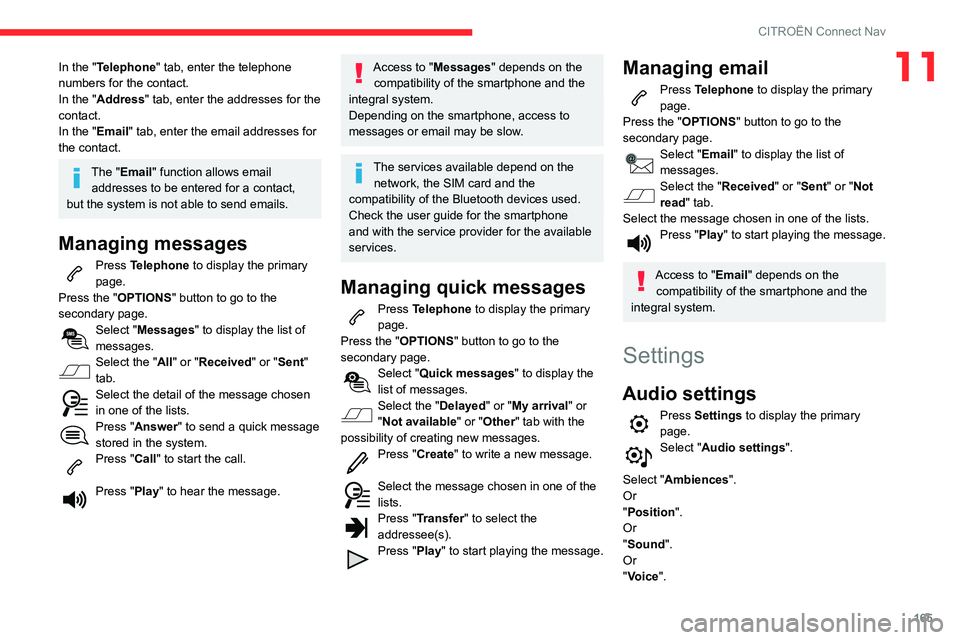
Managing messages
Press Telephone to display the primary
page.
Press the "OPTIONS " button to go to the
secondary page.
Select "Messages " to display the list of
messages.
Select the "All" or "Received" or "Sent"
tab.
Select the detail of the message chosen
in one of the lists.
Press "Answer" to send a quick message
stored in the system.
Press "Call" to start the call.
Press "Play" to hear the message.
Access to "Messages " depends on the
compatibility of the smartphone and the
integral system.
Depending on the smartphone, access to
messages or email may be slow.
The services available depend on the network, the SIM card and the
compatibility of the Bluetooth devices used.
Check the user guide for the smartphone
and with the service provider for the available
services.
Managing quick messages
Press Telephone to display the primary
page.
Press the "OPTIONS " button to go to the
secondary page.
Select "Quick messages " to display the
list of messages.
Select the "Delayed" or "My arrival" or
"Not available" or "Other" tab with the
possibility of creating new messages.
Press "Create " to write a new message.
Select the message chosen in one of the
lists.
Press "Transfer" to select the
addressee(s).
Press "Play" to start playing the message.
Managing email
Press Telephone to display the primary
page.
Press the "OPTIONS " button to go to the
secondary page.
Select "Email" to display the list of
messages.
Select the "Received " or "Sent" or "Not
read" tab.
Select the message chosen in one of the lists.
Press "Play" to start playing the message.
Access to "Email" depends on the compatibility of the smartphone and the
integral system.
Settings
Audio settings
Press Settings to display the primary
page.
Select "Audio settings ".
Select "Ambiences".
Or
"Position ".
Or
"Sound ".
Or
"Voice".
Page 170 of 196
168
CITROËN Connect Nav
► Use the "intuitive method" by pressing
the "Search…" button at the bottom of the
"Navigation” page.
The route calculation is not successful.
The route settings may conflict with the current
location (for example, if toll roads are excluded
but the vehicle is on a toll road).
►
Check the route settings in the "Navigation"
menu.
I do not receive "Danger zone” alerts.
Y
ou have not subscribed to the online services
option.
►
If you have subscribed to the option:
- a few days may elapse before the service is
activated,
- services may not be selected in the system
menu,
- online services are not active ("T
OMTOM
TRAFFIC" not shown on the map).
The POIs do not appear.
The POIs have not been selected.
►
Set the zoom level to 600 ft (200 m) or select
POIs in the POI list.
The "Danger zone" audible warning feature is
not working.
The audible warning is not active or the volume
is too low
.
►
Activate the audible warning in the
"Navigation" menu and check the voice volume
in the sound settings.
The system does not suggest a detour
around an incident on the route. The route settings do not take account of
TMC
messages.
►
Configure the "T
raffic info " function in
the route settings list (Without, Manual or
Automatic).
I receive a warning about a "Danger area"
that is not on my route.
As well as providing guided navigation, the
system announces all "Danger areas" positioned
in a cone located in front of the vehicle. It may
provide an alert for "Danger areas" located on
nearby or parallel roads.
►
Zoom the map to show the exact location
of the "Danger area".
You can select "On the
route" to stop receiving warnings or decrease the
warning duration.
Certain traffic jams along the route are not
indicated in real time.
On starting, a few minutes may elapse before
the system begins to receive traffic information.
►
W
ait until traffic information is being received
correctly (traffic information icons shown on the
map).
In certain countries, only major routes
(motorways, etc.) are listed for the traffic
information.
This is perfectly normal. The system is
dependent on the traffic information available.
The altitude is not displayed.
On starting, GPS initialisation may take up to
3 minutes to receive more than 4 satellites
correctly. ►
W ait until the system has started up
completely so that there is GPS coverage by at
least 4
satellites.
Depending on the geographical environment
(tunnel, etc.) or the weather, the conditions of
reception of the GPS signal may vary.
This behaviour is normal. The system is
dependent on the GPS signal reception
conditions.
My navigation is no longer connected.
During start-up and in certain geographical
areas, the connection may be unavailable.
►
Check that the online services are activated
(settings, contract).
Radio
The reception quality of the tuned radio
station gradually deteriorates or the station
presets are not working (no sound, 87.5 MHz
is displayed, etc.).
The vehicle is too far from the selected station’s
transmitter, or no transmitter is present in the
geographical area.
►
Activate the "RDS" function by means of the
short-cut menu to enable the system to check
whether there is a more powerful transmitter in
the geographical area.
The aerial is missing or has been damaged
(for example while entering a car wash or
underground car park).
►
Have the aerial checked by a dealer
.
The environment (hills, buildings, tunnels,
basement car parks, etc.) is blocking reception,
including in RDS mode.
This is a perfectly normal phenomenon, and is
not indicative of an audio system malfunction.
I cannot find some radio stations in the list of
stations received.
The name of the radio station changes.
The station is no longer received or its name has
changed in the list.
Some radio stations send other information
in place of their name (the title of the song for
example).
The system interprets these details as the station
name.
► Press the "Update list" button in the "Radio
stations” secondary menu.
Media
Playback of my USB memory stick starts only
after a very long wait (around 2 to 3 minutes).
Some files supplied with the memory stick may
greatly slow down access to reading the memory
stick (multiplication by 10 of the cataloguing
time).
► Delete the files supplied with the memory
stick and limit the number of sub-folders in the
file structure on the memory stick.
The CD is systematically ejected or is not
played.
The CD is upside down, cannot be read, does
not contain audio files or contains audio files of a
format not recognised by the audio system.
Page 171 of 196
169
CITROËN Connect Nav
11The environment (hills, buildings, tunnels,
basement car parks, etc.) is blocking reception,
including in RDS mode.
This is a perfectly normal phenomenon, and is
not indicative of an audio system malfunction.
I cannot find some radio stations in the list of
stations received.
The name of the radio station changes.
The station is no longer received or its name has
changed in the list.
Some radio stations send other information
in place of their name (the title of the song for
example).
The system interprets these details as the station
name.
►
Press the "Update list" button in the "Radio
stations” secondary menu.
Media
Playback of my USB memory stick starts only
after a very long wait (around 2 to 3 minutes).
Some files supplied with the memory stick may
greatly slow down access to reading the memory
stick (multiplication by 10 of the cataloguing
time).
►
Delete the files supplied with the memory
stick and limit the number of sub-folders in the
file structure on the memory stick.
The CD is systematically ejected or is not
played.
The CD is upside down, cannot be read, does
not contain audio files or contains audio files of a
format not recognised by the audio system. ►
Check that the CD is inserted in the player
the right way up.
►
Check the condition of the CD: the CD cannot
be played if it is too badly damaged.
The CD has been burned in a format that is not
compatible with the player (udf, etc.).
►
Check the content if it is a burned CD:
consult the advice in the "AUDIO" section.
►
The audio system CD player does not play
DVDs.
The CD is protected by an anti-pirating system
not recognised by the audio system.
►
Due to poor quality
, certain burned CDs will
not be played by the audio system.
There is a long waiting period following the
insertion of a CD or connection of a USB
memory stick.
The system reads a variety of data (folder, title,
artist, etc.). This can take from a few seconds to
a few minutes.
This is perfectly normal.
The CD audio quality is poor.
The CD is scratched or of poor quality.
►
Insert good quality CDs and store them in
suitable conditions.
The audio settings (bass, treble, ambience) are
unsuitable.
►
Return bass and treble settings to 0, without
selecting an ambience.
Some characters in the information about
the media
currently being played are not
displayed correctly. The audio system is unable to process certain
types of character.
►
Use standard characters to name tracks and
folders.
Playback of files in audio streaming mode
does not start.
The connected device does not automatically
start playback.
►
Start playback from the device.
The names of tracks and playing times
are not displayed on the screen in audio
streaming mode.
The Bluetooth profile does not allow the transfer
of this information.
Telephone
I cannot connect my Bluetooth telephone.
The telephone's Bluetooth function may be
switched off or the telephone may not be visible.
►
Check that the telephone has Bluetooth
switched on.
►
Check in the telephone settings that it is
"visible to all".
►
Deactivate then reactivate the telphone’
s
Bluetooth function.
The Bluetooth telephone is not compatible with
the system.
►
Y
ou can check that your telephone is
compatible on the Brand's website (services).
The volume of the telephone connected in
Bluetooth mode is inaudible.
The volume depends on both the system and the
telephone.
Page 177 of 196
175
Alphabetical index
S
Safety, children 56–60, 63–64, 65
Saturation of the particle filter (Diesel)
103
Screen, cold climate
96
Screen menu map
139
Screenwash, front
46
Screenwash, rear
46
SCR (Selective Catalytic Reduction)
13, 104
Seat angle
27
Seat belts
53–54, 60
Seat, rear bench
30–31
Seats, front
27
Seats, heated
28
Seats, rear
30–31, 58
Sensors (warnings)
79
Serial number, vehicle
130
Service indicator
11
Servicing
11, 102
Settings, equipment
13–14
Settings, system
142, 166
Sidelamps
42–44, 116–117
Snow chains
76, 96
Socket, 12 V accessory
37–38
Socket, auxiliary
138, 161
Socket, Jack
161
Speed limiter
81–83
Speed limit recognition
80
Speedometer
79
Stability control (ESC)
52
Starting a Diesel engine
94
Starting the engine
68
Starting the vehicle 68–70
Starting using another battery
71, 122
Station, radio
135–136, 159–160
Stay, bonnet
99–100
Steering mounted controls, audio
133, 147
Steering wheel, adjustment
29
Stopping the vehicle
68–70
Stop & Start
15, 32, 35, 77–78, 94, 99, 102, 124
Storage
38–39
Sunshine sensor
32
Sun visor
37
Switching off the engine
68
Synchronising the remote control
22
T
Tables of engines 128–129
Tables of fuses
119–121
Tank, fuel
94–95
Technical data
128–129
Telephone
140–142, 163–165
Three flashes (direction indicators)
43
Time (setting)
143, 167
TMC (Traffic info)
154
Tools
111 , 111 – 11 2
Topping-up AdBlue®
105
Total distance recorder
15–16
Touch screen
13–14
Touch screen tablet
13–14
Towbar
97
Towed loads 127
Towing another vehicle
125–126
Towing eye
40
Traction control (ASR)
52
Traffic information (TMC)
154
Trailer
97
Trajectory control systems
52
Triangle, warning
40, 108
Trip computer
14–15
Trip distance recorder
15–16
Tyres
103, 131
Tyre under-inflation detection
75–76, 111
U
Under floor storage 40
Under-inflation (detection)
75
Unlocking
17–19
Unlocking from the inside
20
Unlocking the boot
18
Unlocking the doors
18, 20–21
Updating the date
143, 167
Updating the time
143, 167
USB
137–138, 161
V
Ventilation 31–32, 34
Visibility
35
Voice commands
149–152