phone CITROEN C4 DAG 2013 User Guide
[x] Cancel search | Manufacturer: CITROEN, Model Year: 2013, Model line: C4 DAG, Model: CITROEN C4 DAG 2013Pages: 340, PDF Size: 28.95 MB
Page 225 of 340
11
PRACTICAL INFORMATION
223
Installation of radio
communication transmitters
Before installing any after-market
radio communication transmit-
ter, you can contact a CITROËN
dealer for the specifi cation of
transmitters which can be fi tted
(frequency, maximum power, aer-
ial position, specifi c installation re-
quirements), in line with the Vehicle
Electromagnetic Compatibility
Directive (2004/104/EC).
Depending on the legislation in
force in the country, it may be
compulsory to have a high vis-
ibility safety vest, warning tri-
angle, breathalyzers and spare
bulbs and fuses available in the
vehicle.
The fi tting of electrical equip-
ment or accessories which are
not recommended by CITROËN
may result in a failure of your ve-
hicle's electronic system and ex-
cessive electrical consumption.
Please note this precaution.
You are advised to contact a
CITROËN representative to be
shown the range of recommend-
ed equipment and accessories.
"Multimedia":
audio systems, steering mounted au-
dio controls, speakers, Hi-Fi module,
Bluetooth hands-free system, port-
able satellite navigation system, semi-
integral support bracket for portable
navigation system, mapping update
CD, driving assistant, portable video
screen, portable video support bracket,
230 V/50 Hz socket, 230 V/50 Hz adap-
tor, iPhone
® compatible mobile phone
charger, mobile phone/smartphone
bracket, Wi-Fi on board...
By going to a CITROËN dealer, you
can also obtain cleaning and mainte-
nance products (interior and exterior) -
including ecological products in the
"TECHNATURE" range -, products for
topping up (screenwash...), touch-up
pens and paint aerosols for the exact
colour of your vehicle, recharges (car-
tridge for the temporary puncture repair
kit...), ...
Page 237 of 340
235
The system is protected in such a way that it will only
operate in your vehicle.
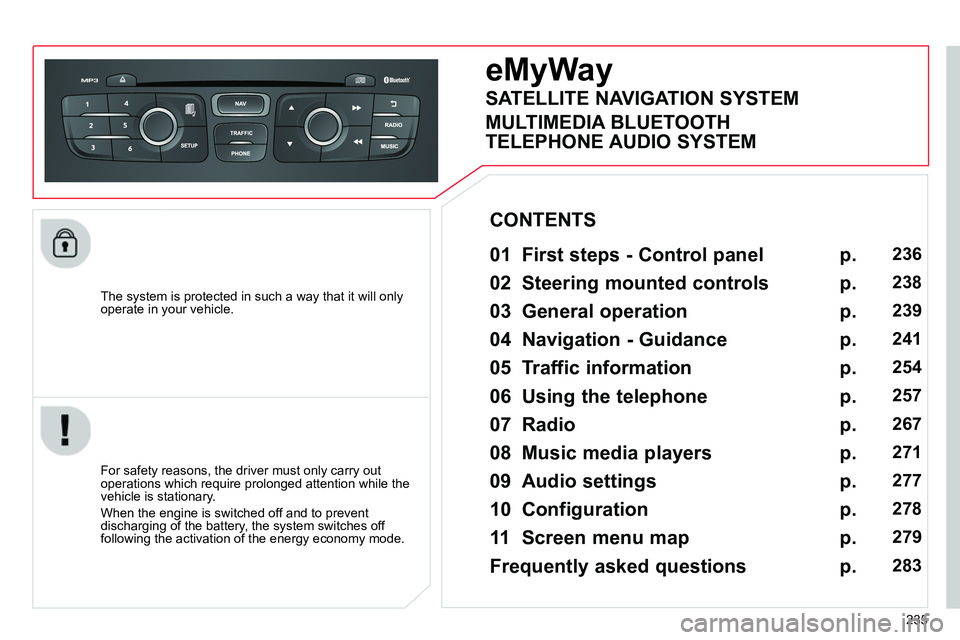
eMyWay
01 First steps - Control panel
For safety reasons, the driver must only carry out
operations which require prolonged attention while the
vehicle is stationary.
When the engine is switched off and to prevent
discharging of the battery, the system switches off
following the activation of the energy economy mode.
CONTENTS
02 Steering mounted controls
03 General operation
04 Navigation - Guidance
05 Traffic information
06 Using the telephone
07 Radio
08 Music media players
09 Audio settings
10 Configuration
11 Screen menu map
Frequently asked questions p.
p.
p.
p.
p.
p.
p.
p.
p.
p.
p.
p.
236
238
239
241
254
257
267
271
277
278
279
283
SATELLITE NAVIGATION SYSTEM
MULTIMEDIA BLUETOOTH
TELEPHONE AUDIO SYSTEM
Page 238 of 340
01
236
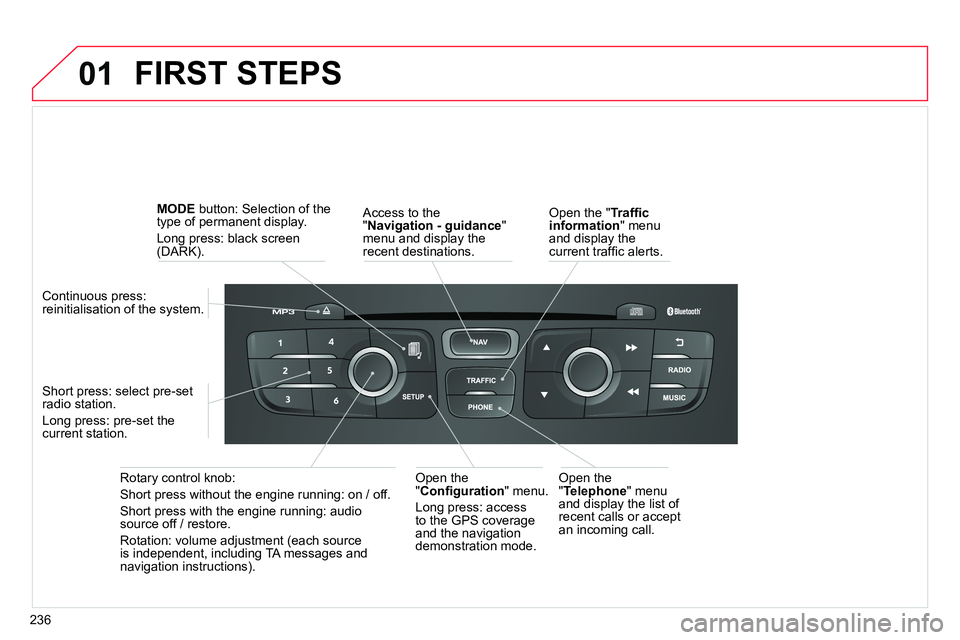
FIRST STEPS
Access to the
" Navigation - guidance
"
menu and display the
recent destinations.
Rotary control knob:
Short press without the engine running: on / off.
Short press with the engine running: audio
source off / restore.
Rotation: volume adjustment (each source
is independent, including TA messages and
navigation instructions).
Continuous press:
reinitialisation of the system.
Short press: select pre-set
radio station.
Long press: pre-set the
current station.
MODE
button: Selection of the
type of permanent display.
Long press: black screen
(DARK).
Open the
" Telephone
" menu
and display the list of
recent calls or accept
an incoming call.
Open the
" Confi guration
" menu.
Long press: access
to the GPS coverage
and the navigation
demonstration mode.
Open the " Traffi c
information
" menu
and display the
current traffi c alerts.
Page 240 of 340
02
238
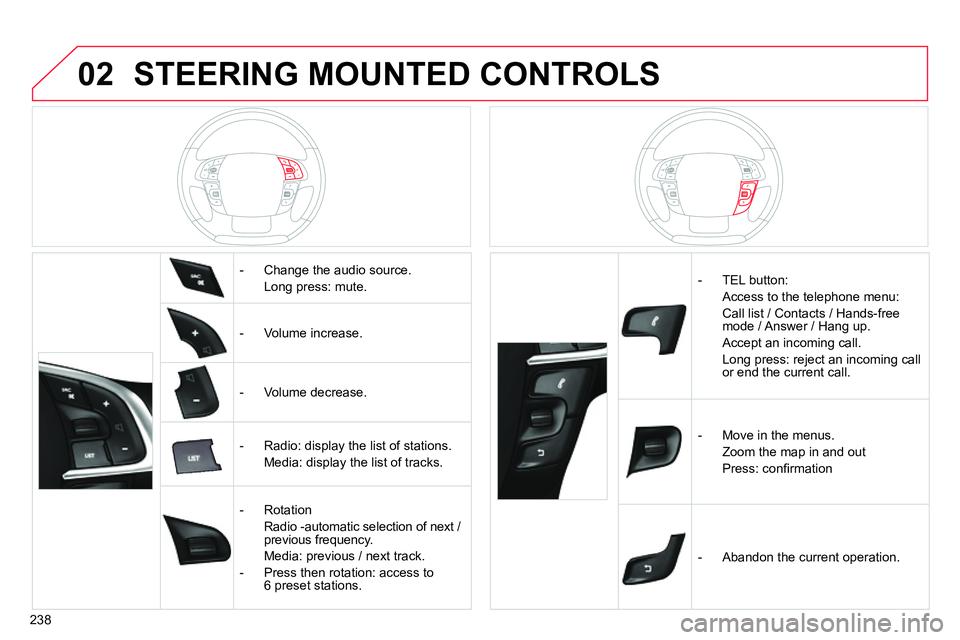
STEERING MOUNTED CONTROLS
- Change the audio source.
Long press: mute.
- Volume increase.
- Volume decrease.
- Radio: display the list of stations.
Media: display the list of tracks.
- Rotation
Radio -automatic selection of next /
previous frequency.
Media: previous / next track.
- Press then rotation: access to
6 preset stations.
- TEL button:
Access to the telephone menu:
Call list / Contacts / Hands-free
mode / Answer / Hang up.
Accept an incoming call.
Long press: reject an incoming call
or end the current call.
- Move in the menus.
Zoom the map in and out
Press: confi rmation
- Abandon the current operation.
Page 242 of 340
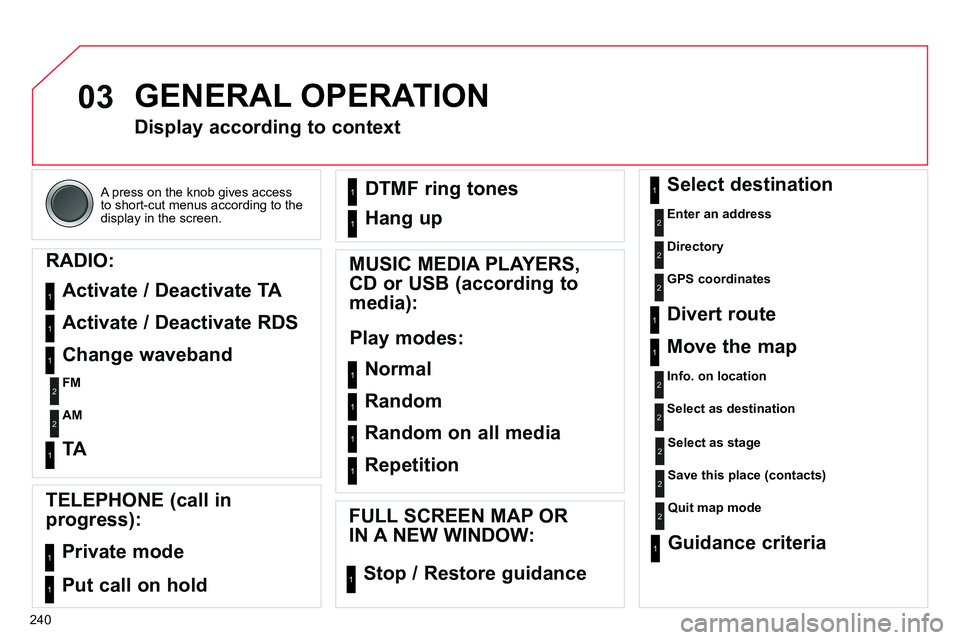
03
240 A press on the knob gives access
to short-cut menus according to the
display in the screen.
GENERAL OPERATION
Display according to context
RADIO:
Activate / Deactivate TA
Activate / Deactivate RDS
MUSIC MEDIA PLAYERS,
CD or USB (according to
media):
Play modes:
Normal
Random
Random on all media
Repetition
TELEPHONE (call in
progress):
Private mode
FULL SCREEN MAP OR
IN A NEW WINDOW:
Stop / Restore guidance Select destination
Enter an address
Directory
GPS coordinates
Divert route
Move the map
Info. on location
Select as destination
Select as stage
Save this place (contacts)
Quit map mode
Guidance criteria
Put call on hold DTMF ring tones
Hang up
1
1
1
1
1
1
1
1
2
2
2
2
2
1
2
2
2
1
1
1
1
1
1
Change waveband
FM
AM
2
2
1
TA 1
Page 259 of 340
06
257
USING THE TELEPHONE
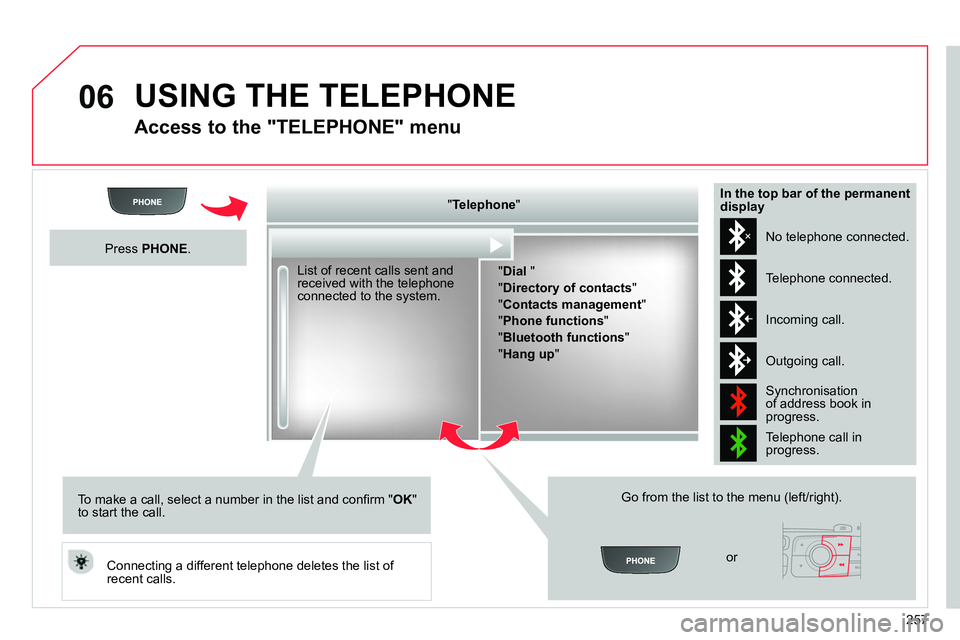
Access to the "TELEPHONE" menu
" Telephone
"
" Dial
"
" Directory of contacts
"
"Contacts management
"
" Phone functions
"
" Bluetooth functions
"
" Hang up
"
Go from the list to the menu (left/right).
or
List of recent calls sent and
received with the telephone
connected to the system.
Press PHONE
.
To make a call, select a number in the list and confi rm " OK
"
to start the call.
Connecting a different telephone deletes the list of
recent calls. No telephone connected.
Telephone connected.
Incoming call.
Outgoing call.
Synchronisation
of address book in
progress.
Telephone call in
progress.
In the top bar of the permanent
display
Page 260 of 340
06
258
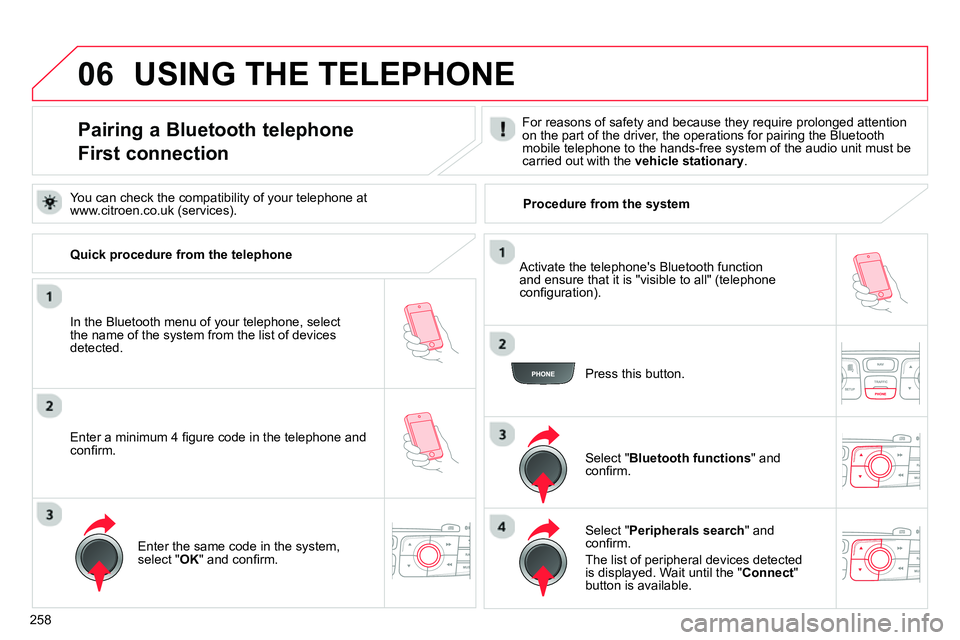
Pairing a Bluetooth telephone
First connection
For reasons of safety and because they require prolonged attention
on the part of the driver, the operations for pairing the Bluetooth
mobile telephone to the hands-free system of the audio unit must be
carried out with the vehicle stationary
.
In the Bluetooth menu of your telephone, select
the name of the system from the list of devices
detected.
Press this button.
Select " Bluetooth functions
" and
confi rm.
Select " Peripherals search
" and
confi rm.
The list of peripheral devices detected
is displayed. Wait until the " Connect
"
button is available.
USING THE TELEPHONE
You can check the compatibility of your telephone at
www.citroen.co.uk (services).
Activate the telephone's Bluetooth function
and ensure that it is "visible to all" (telephone
confi guration).
Quick procedure from the telephone
Enter a minimum 4 fi gure code in the telephone and
confi rm.
Enter the same code in the system,
select " OK
" and confi rm.
Procedure from the system
Page 261 of 340
06
259
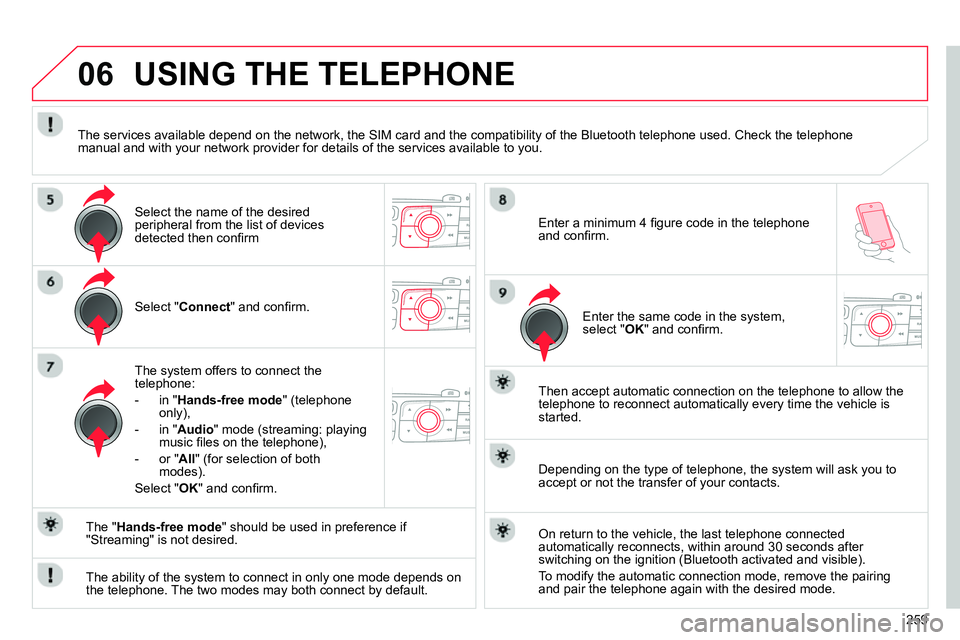
Select " Connect
" and confi rm.
The system offers to connect the
telephone:
- in " Hands-free mode
" (telephone
only),
- in " Audio
" mode (streaming: playing
music fi les on the telephone),
- or " All
" (for selection of both
modes).
Select " OK
" and confi rm.
Then accept automatic connection on the telephone to allow the
telephone to reconnect automatically every time the vehicle is
started.
The ability of the system to connect in only one mode depends on
the telephone. The two modes may both connect by default.
USING THE TELEPHONE
The " Hands-free mode
" should be used in preference if
"Streaming" is not desired.
The services available depend on the network, the SIM card and the compatibility of the Bluetooth telephone used. Check the telephone
manual and with your network provider for details of the services available to you.
Depending on the type of telephone, the system will ask you to
accept or not the transfer of your contacts.
On return to the vehicle, the last telephone connected
automatically reconnects, within around 30 seconds after
switching on the ignition (Bluetooth activated and visible).
To modify the automatic connection mode, remove the pairing
and pair the telephone again with the desired mode.
Enter a minimum 4 fi gure code in the telephone
and confi rm.
Enter the same code in the system,
select " OK
" and confi rm.
Select the name of the desired
peripheral from the list of devices
detected then confi rm
Page 262 of 340
06
260
USING THE TELEPHONE
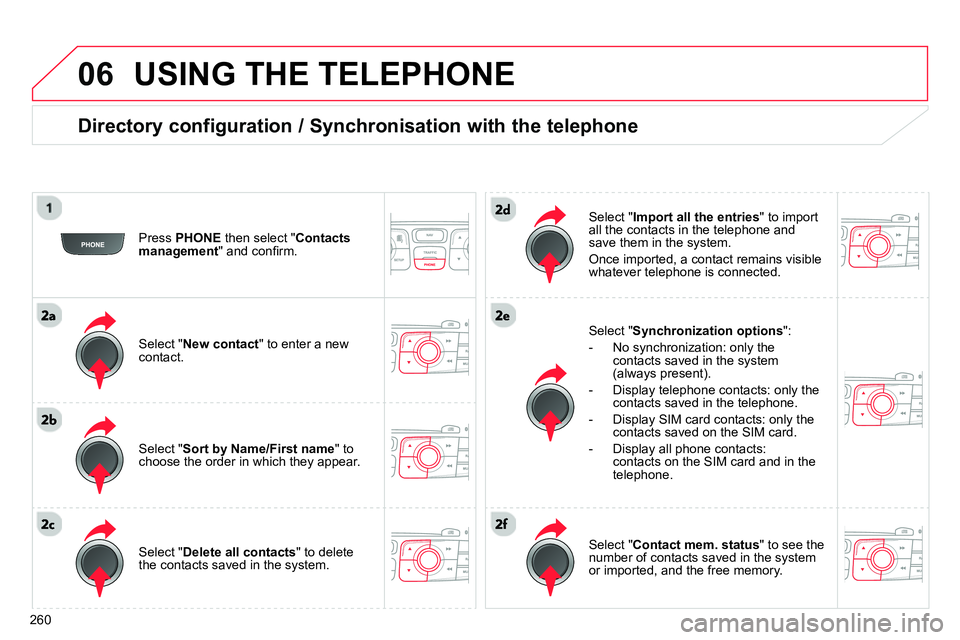
Directory configuration / Synchronisation with the telephone
Press PHONE
then select " Contacts
management
" and confi rm.
Select " New contact
" to enter a new
contact.
Select " Delete all contacts
" to delete
the contacts saved in the system.
Select " Import all the entries
" to import
all the contacts in the telephone and
save them in the system.
Once imported, a contact remains visible
whatever telephone is connected.
Select " Synchronization options
":
- No synchronization: only the
contacts saved in the system
(always present).
- Display telephone contacts: only the
contacts saved in the telephone.
- Display SIM card contacts: only the
contacts saved on the SIM card.
- Display all phone contacts:
contacts on the SIM card and in the
telephone.
Select " Contact mem. status
" to see the
number of contacts saved in the system
or imported, and the free memory.
Select " Sort by Name/First name
" to
choose the order in which they appear.
Page 263 of 340
06
261
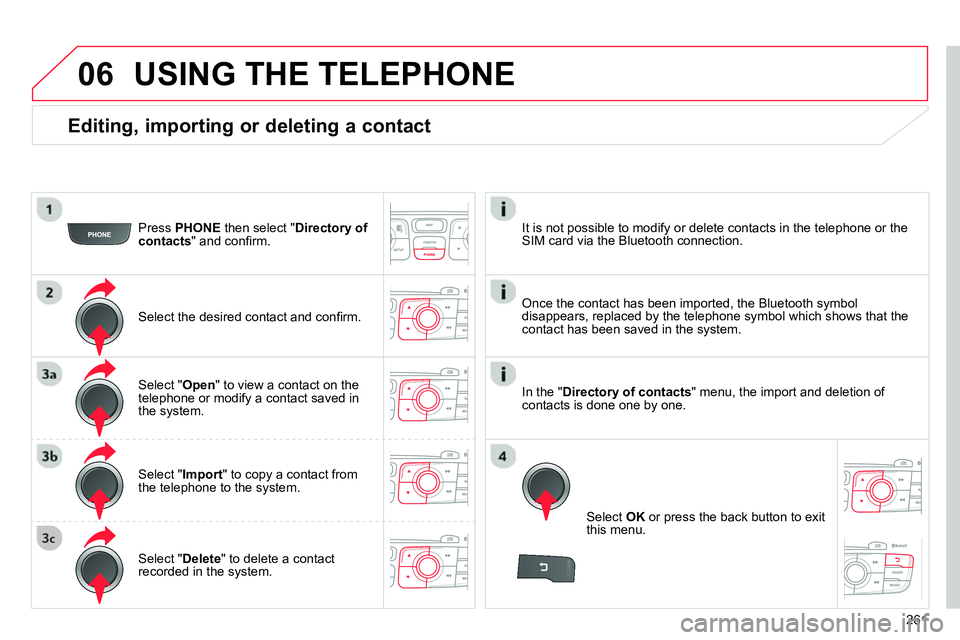
Editing, importing or deleting a contact
Press PHONE
then select " Directory of
contacts
" and confi rm.
Select the desired contact and confi rm.
Select " Import
" to copy a contact from
the telephone to the system.
Select " Delete
" to delete a contact
recorded in the system.
Select OK
or press the back button to exit
this menu.
Once the contact has been imported, the Bluetooth symbol
disappears, replaced by the telephone symbol which shows that the
contact has been saved in the system.
USING THE TELEPHONE
It is not possible to modify or delete contacts in the telephone or the
SIM card via the Bluetooth connection.
Select " Open
" to view a contact on the
telephone or modify a contact saved in
the system.
In the " Directory of contacts
" menu, the import and deletion of
contacts is done one by one.