radio CITROEN C4 DAG 2013 Owner's Manual
[x] Cancel search | Manufacturer: CITROEN, Model Year: 2013, Model line: C4 DAG, Model: CITROEN C4 DAG 2013Pages: 340, PDF Size: 28.95 MB
Page 282 of 340
11
280
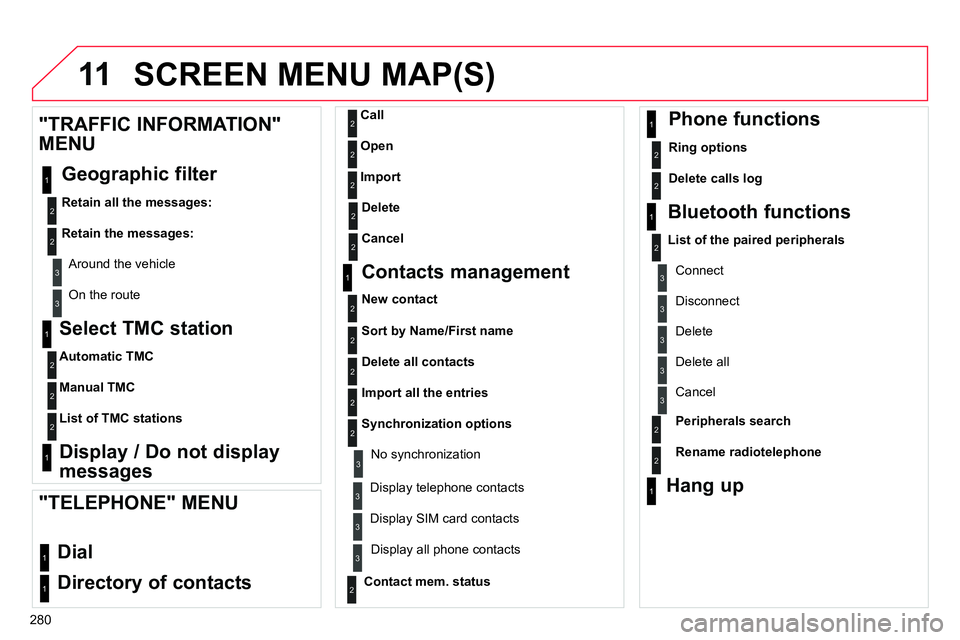
SCREEN MENU MAP(S)
Select TMC station
Automatic TMC
Manual TMC
List of TMC stations
Display / Do not display
messages
"TRAFFIC INFORMATION"
MENU
Geographic filter
Retain all the messages:
Retain the messages:
Around the vehicle
On the route
1
2
2
2
1
2
2
3
3
1
Dial
Directory of contacts
Call
Open
Import
"TELEPHONE" MENU
1
2
2
2
1
2
2
2
2
1
2
3
3
3
2
2
2
1
1
1
3
3
3
2
3
2
2
3
List of the paired peripherals
Connect
Disconnect
Delete
Delete all
Contact mem. status
Phone functions
Ring options
Delete calls log
Bluetooth functions
Peripherals search
Rename radiotelephone
Hang up
Display all phone contacts
Delete
Contacts management
New contact
Delete all contacts
Import all the entries
Synchronization options
Display telephone contacts
No synchronization
Display SIM card contacts
2
Cancel
2
Sort by Name/First name
3
Cancel
Page 283 of 340
11
281
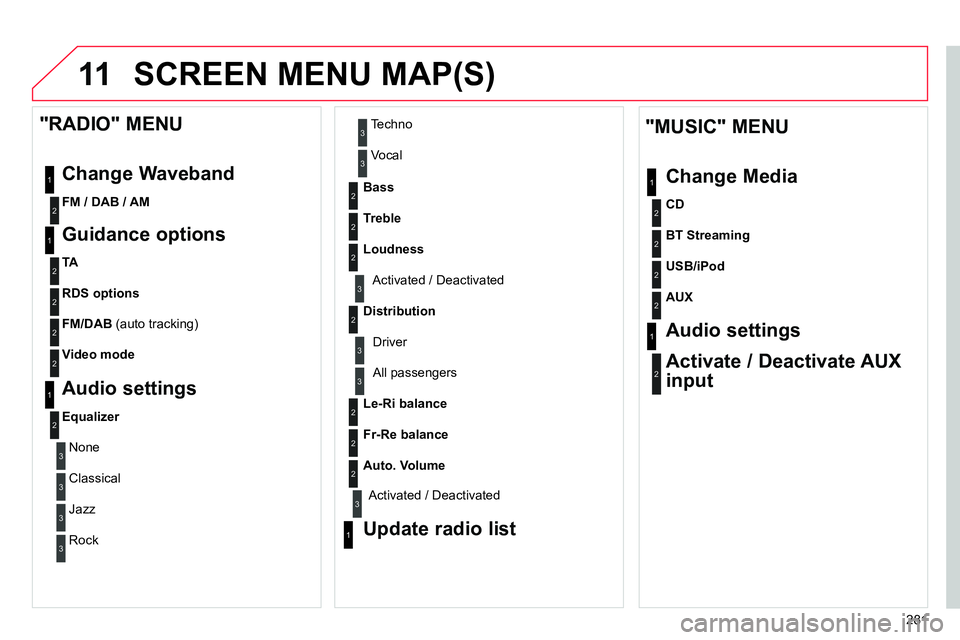
SCREEN MENU MAP(S)
1
1
2
2
2
2
2
3
3
2
2
2
1
"MUSIC" MENU
Change Media
Audio settings
Activate / Deactivate AUX
input
All passengers
Le-Ri balance
Fr-Re balance
Auto. Volume
Update radio list
Bass
Treble
Loudness
Distribution
Driver 1
2
2
1
1
3
3
3
3
3
3
2
Equalizer
"RADIO" MENU
Change Waveband
Guidance options
TA
RDS options
Audio settings
None
Classical
Jazz
Rock
Techno
Vocal
2
2
2
2
USB/iPod
AUX
CD
BT Streaming
2
FM / DAB / AM
3
Activated / Deactivated
3
Activated / Deactivated
2
2
FM/DAB
(auto tracking)
Video mode
Page 288 of 340
286
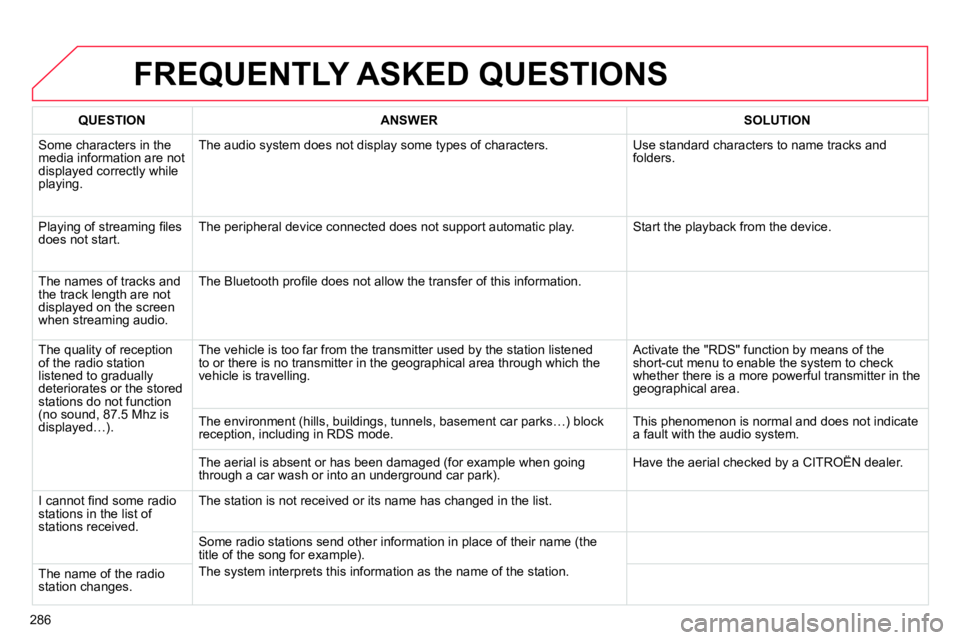
FREQUENTLY ASKED QUESTIONS
QUESTION
ANSWER
SOLUTION
Some characters in the
media information are not
displayed correctly while
playing. The audio system does not display some types of characters. Use standard characters to name tracks and
folders.
Playing of streaming fi les
does not start. The peripheral device connected does not support automatic play. Start the playback from the device.
The names of tracks and
the track length are not
displayed on the screen
when streaming audio. The Bluetooth profi le does not allow the transfer of this information.
The quality of reception
of the radio station
listened to gradually
deteriorates or the stored
stations do not function
(no sound, 87.5 Mhz is
displayed…). The vehicle is too far from the transmitter used by the station listened
to or there is no transmitter in the geographical area through which the
vehicle is travelling. Activate the "RDS" function by means of the
short-cut menu to enable the system to check
whether there is a more powerful transmitter in the
geographical area.
The environment (hills, buildings, tunnels, basement car parks…) block
reception, including in RDS mode. This phenomenon is normal and does not indicate
a fault with the audio system.
The aerial is absent or has been damaged (for example when going
through a car wash or into an underground car park). Have the aerial checked by a CITROËN dealer.
I cannot fi nd some radio
stations in the list of
stations received. The station is not received or its name has changed in the list.
Some radio stations send other information in place of their name (the
title of the song for example).
The system interprets this information as the name of the station.
The name of the radio
station changes.
Page 289 of 340
287
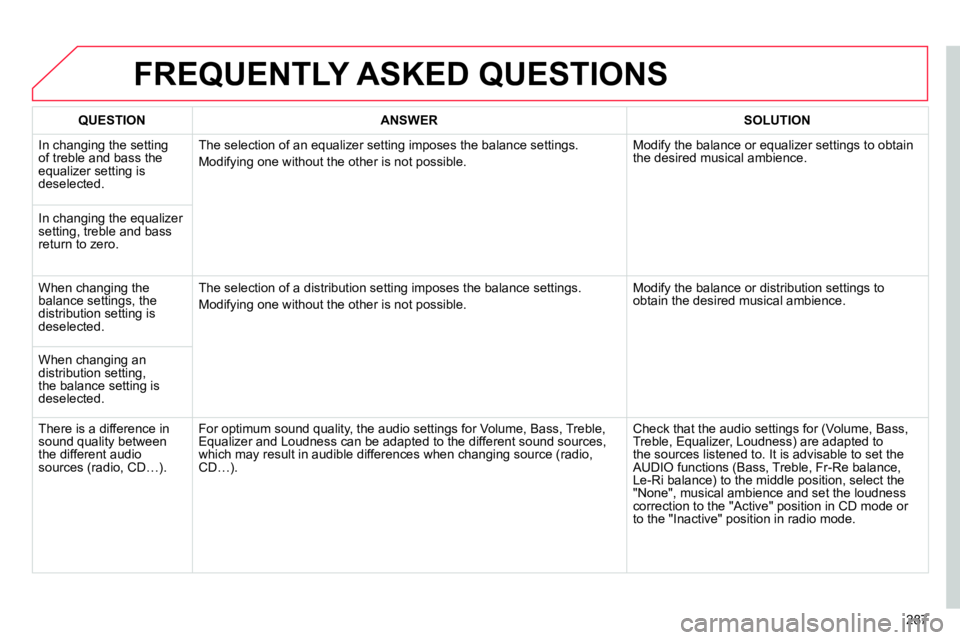
FREQUENTLY ASKED QUESTIONS
QUESTION
ANSWER
SOLUTION
In changing the setting
of treble and bass the
equalizer setting is
deselected. The selection of an equalizer setting imposes the balance settings.
Modifying one without the other is not possible. Modify the balance or equalizer settings to obtain
the desired musical ambience.
In changing the equalizer
setting, treble and bass
return to zero.
When changing the
balance settings, the
distribution setting is
deselected. The selection of a distribution setting imposes the balance settings.
Modifying one without the other is not possible. Modify the balance or distribution settings to
obtain the desired musical ambience.
When changing an
distribution setting,
the balance setting is
deselected.
There is a difference in
sound quality between
the different audio
sources (radio, CD…). For optimum sound quality, the audio settings for Volume, Bass, Treble,
Equalizer and Loudness can be adapted to the different sound sources,
which may result in audible differences when changing source (radio,
CD…). Check that the audio settings for (Volume, Bass,
Treble, Equalizer, Loudness) are adapted to
the sources listened to. It is advisable to set the
AUDIO functions (Bass, Treble, Fr-Re balance,
Le-Ri balance) to the middle position, select the
"None", musical ambience and set the loudness
correction to the "Active" position in CD mode or
to the "Inactive" position in radio mode.
Page 292 of 340
01
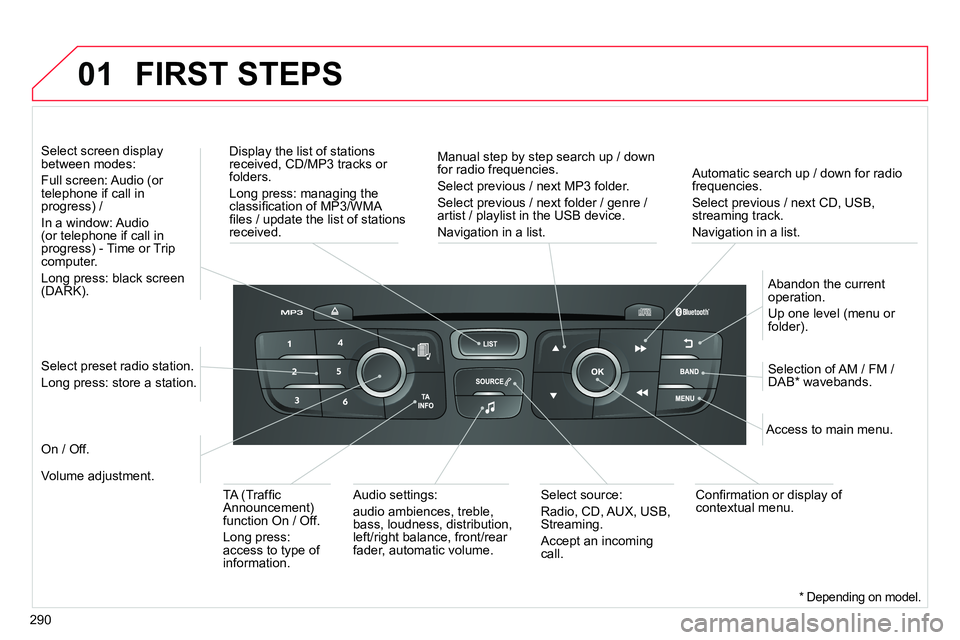
290
Automatic search up / down for radio
frequencies.
Select previous / next CD, USB,
streaming track.
Navigation in a list.
Display the list of stations
received, CD/MP3 tracks or
folders.
Long press: managing the
classifi cation of MP3/WMA
fi les / update the list of stations
received.
Abandon the current
operation.
Up one level (menu or
folder).
On / Off.
Selection of AM / FM /
DAB * wavebands.
Select preset radio station.
Long press: store a station.
Select screen display
between modes:
Full screen: Audio (or
telephone if call in
progress) /
In a window: Audio
(or telephone if call in
progress) - Time or Trip
computer.
Long press: black screen
(DARK).
Audio settings:
audio ambiences, treble,
bass, loudness, distribution,
left/right balance, front/rear
fader, automatic volume.
Access to main menu.
TA (Traffi c
Announcement)
function On / Off.
Long press:
access to type of
information.
Select source:
Radio, CD, AUX, USB,
Streaming.
Accept an incoming
call.
Confi rmation or display of
contextual menu.
Manual step by step search up / down
for radio frequencies.
Select previous / next MP3 folder.
Select previous / next folder / genre /
artist / playlist in the USB device.
Navigation in a list.
Volume adjustment.
FIRST STEPS
* Depending on model.
Page 293 of 340
02
291
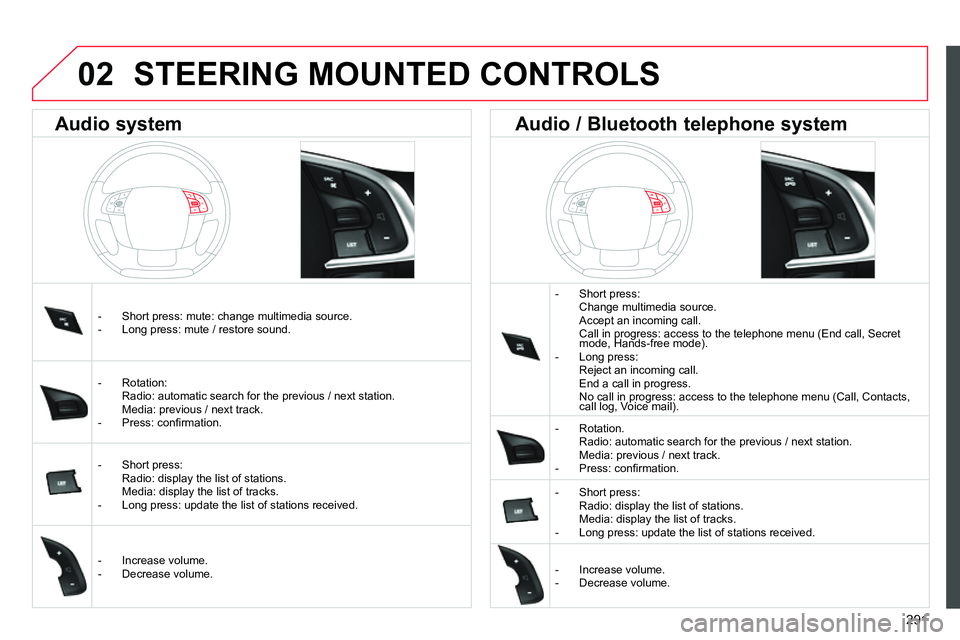
STEERING MOUNTED CONTROLS
- Short press:
Change multimedia source.
Accept an incoming call.
Call in progress: access to the telephone menu (End call, Secret
mode, Hands-free mode).
- Long press:
Reject an incoming call.
End a call in progress.
No call in progress: access to the telephone menu (Call, Contacts,
call log, Voice mail).
- Rotation.
Radio: automatic search for the previous / next station.
Media: previous / next track.
- Press: confi rmation.
- Short press:
Radio: display the list of stations.
Media: display the list of tracks.
- Long press: update the list of stations received.
- Increase volume.
- Decrease volume.
- Short press: mute: change multimedia source.
- Long press: mute / restore sound.
- Rotation:
Radio: automatic search for the previous / next station.
Media: previous / next track.
- Press: confi rmation.
- Short press:
Radio: display the list of stations.
Media: display the list of tracks.
- Long press: update the list of stations received.
- Increase volume.
- Decrease volume.
Audio system
Audio / Bluetooth telephone system
Page 294 of 340
03
292
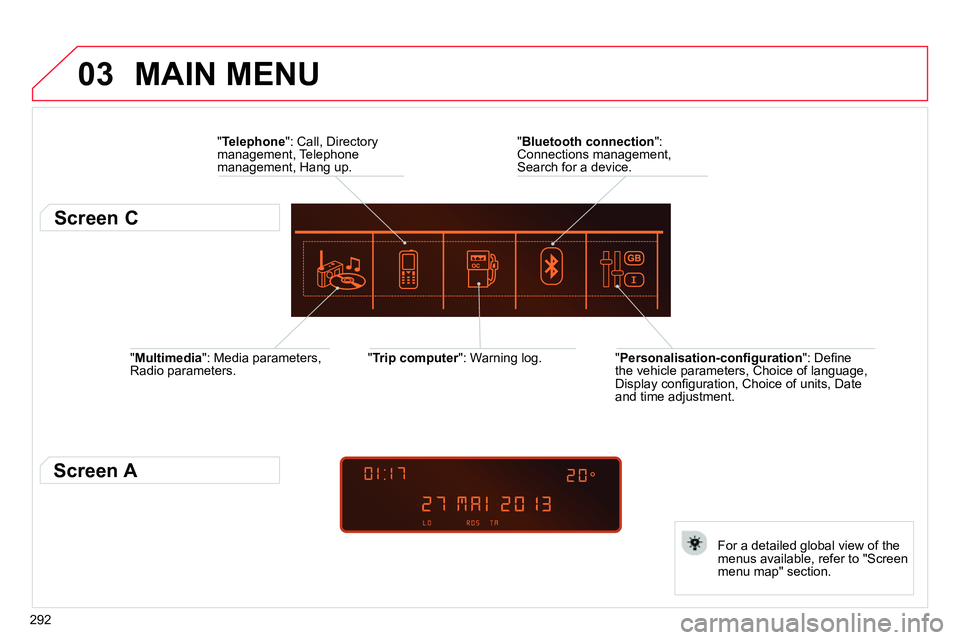
" Multimedia
": Media parameters,
Radio parameters.
" Trip computer
": Warning log.
For a detailed global view of the
menus available, refer to "Screen
menu map" section.
" Bluetooth connection
":
Connections management,
Search for a device.
" Telephone
": Call, Directory
management, Telephone
management, Hang up.
MAIN MENU
" Personalisation-confi guration
": Defi ne
the vehicle parameters, Choice of language,
Display confi guration, Choice of units, Date
and time adjustment.
Screen C
Screen A
Page 295 of 340
04
293
AUDIO
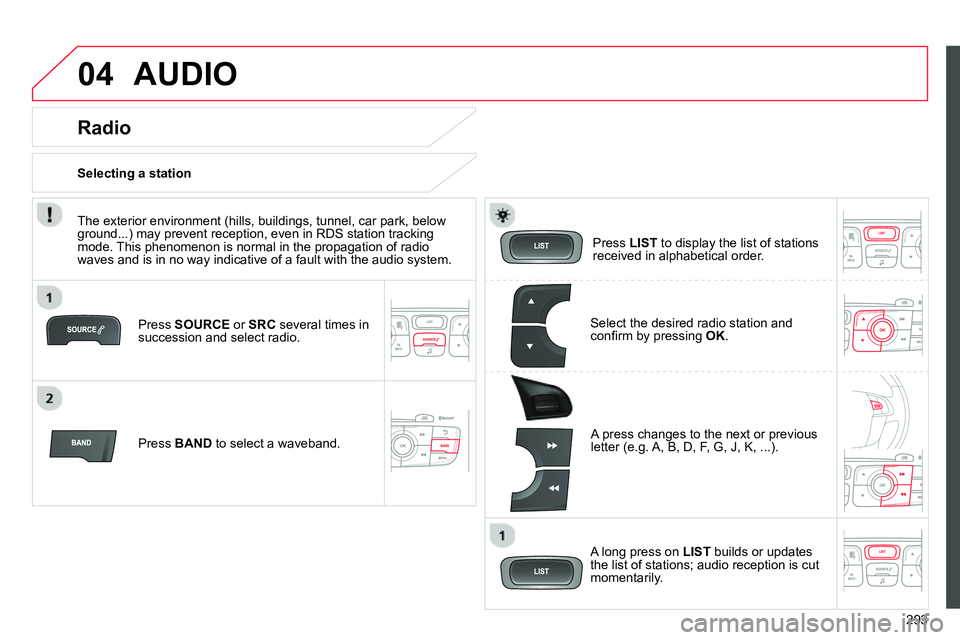
Press SOURCE
or SRC
several times in
succession and select radio.
Press BAND
to select a waveband.
Press LIST
to display the list of stations
received in alphabetical order.
A press changes to the next or previous
letter (e.g. A, B, D, F, G, J, K, ...).
Radio
Select the desired radio station and
confi rm by pressing OK
.
Selecting a station
A long press on LIST
builds or updates
the list of stations; audio reception is cut
momentarily.
The exterior environment (hills, buildings, tunnel, car park, below
ground...) may prevent reception, even in RDS station tracking
mode. This phenomenon is normal in the propagation of radio
waves and is in no way indicative of a fault with the audio system.
Page 296 of 340
04
294
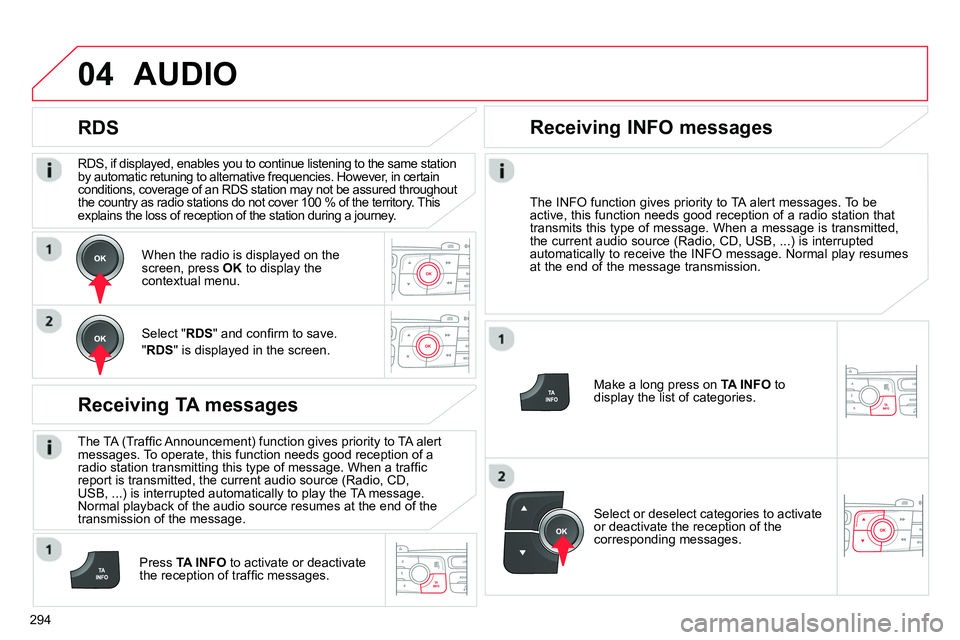
RDS, if displayed, enables you to continue listening to the same station
by automatic retuning to alternative frequencies. However, in certain
conditions, coverage of an RDS station may not be assured throughout
the country as radio stations do not cover 100 % of the territory. This
explains the loss of reception of the station during a journey.
AUDIO
RDS
Receiving TA messages
The TA (Traffi c Announcement) function gives priority to TA alert
messages. To operate, this function needs good reception of a
radio station transmitting this type of message. When a traffi c
report is transmitted, the current audio source (Radio, CD,
USB, ...) is interrupted automatically to play the TA message.
Normal playback of the audio source resumes at the end of the
transmission of the message.
Press TA INFO
to activate or deactivate
the reception of traffi c messages.
When the radio is displayed on the
screen, press OK
to display the
contextual menu.
Select " RDS
" and confi rm to save.
" RDS
" is displayed in the screen.
Make a long press on TA INFO
to
display the list of categories.
Receiving INFO messages
The INFO function gives priority to TA alert messages. To be
active, this function needs good reception of a radio station that
transmits this type of message. When a message is transmitted,
the current audio source (Radio, CD, USB, ...) is interrupted
automatically to receive the INFO message. Normal play resumes
at the end of the message transmission.
Select or deselect categories to activate
or deactivate the reception of the
corresponding messages.
Page 297 of 340
04
295
AUDIO
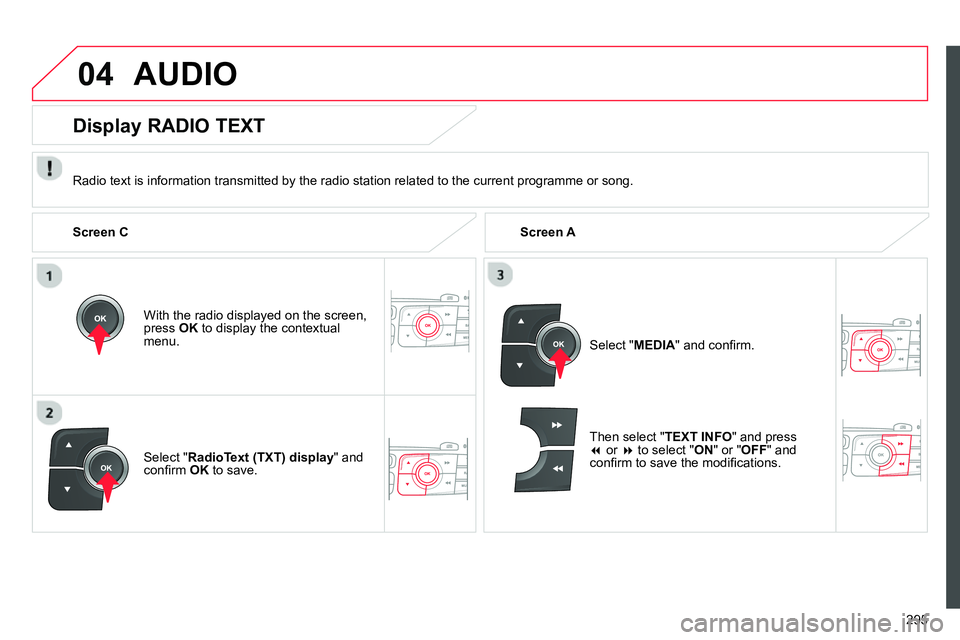
Radio text is information transmitted by the radio station related to the current programme or song.
With the radio displayed on the screen,
press OK
to display the contextual
menu.
Select " RadioText (TXT) display
" and
confi rm OK
to save.
Display RADIO TEXT
Screen C
Screen A
Select " MEDIA
" and confi rm.
Then select " TEXT INFO
" and press
or
to select " ON
" or " OFF
" and
confi rm to save the modifi cations.