service CITROEN C4 DAG 2013 Owner's Manual
[x] Cancel search | Manufacturer: CITROEN, Model Year: 2013, Model line: C4 DAG, Model: CITROEN C4 DAG 2013Pages: 340, PDF Size: 28.95 MB
Page 236 of 340
234
EMERGENCY OR ASSISTANCE CALL
CITROËN Localised Emergency Call
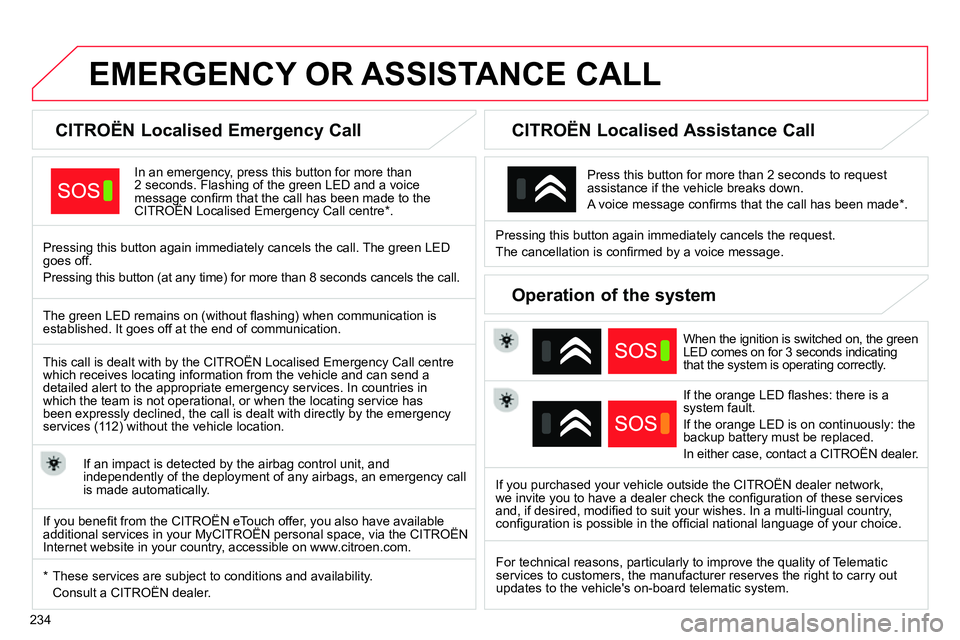
In an emergency, press this button for more than
2 seconds. Flashing of the green LED and a voice
message confi rm that the call has been made to the
CITROËN Localised Emergency Call centre * .
Pressing this button again immediately cancels the call. The green LED
goes off.
Pressing this button (at any time) for more than 8 seconds cancels the call.
CITROËN Localised Assistance Call
When the ignition is switched on, the green
LED comes on for 3 seconds indicating
that the system is operating correctly.
If the orange LED fl ashes: there is a
system fault.
If the orange LED is on continuously: the
backup battery must be replaced.
In either case, contact a CITROËN dealer.
Pressing this button again immediately cancels the request.
The cancellation is confi rmed by a voice message.
Press this button for more than 2 seconds to request
assistance if the vehicle breaks down.
A voice message confi rms that the call has been made * .
Operation of the system
The green LED remains on (without fl ashing) when communication is
established. It goes off at the end of communication.
This call is dealt with by the CITROËN Localised Emergency Call centre
which receives locating information from the vehicle and can send a
detailed alert to the appropriate emergency services. In countries in
which the team is not operational, or when the locating service has
been expressly declined, the call is dealt with directly by the emergency
services (112) without the vehicle location.
If an impact is detected by the airbag control unit, and
independently of the deployment of any airbags, an emergency call
is made automatically.
* These services are subject to conditions and availability.
Consult a CITROËN dealer.
If you purchased your vehicle outside the CITROËN dealer network,
we invite you to have a dealer check the confi guration of these services
and, if desired, modifi ed to suit your wishes. In a multi-lingual country,
confi guration is possible in the offi cial national language of your choice.
For technical reasons, particularly to improve the quality of Telematic
services to customers, the manufacturer reserves the right to carry out
updates to the vehicle's on-board telematic system.
If you benefi t from the CITROËN eTouch offer, you also have available
additional services in your MyCITROËN personal space, via the CITROËN
Internet website in your country, accessible on www.citroen.com.
Page 247 of 340
04
245
Towards points of interest (POI)
NAVIGATION - GUIDANCE
The points of interest (POI) indicate all of the service locations in the vicinity
(hotels, various businesses, airports…).
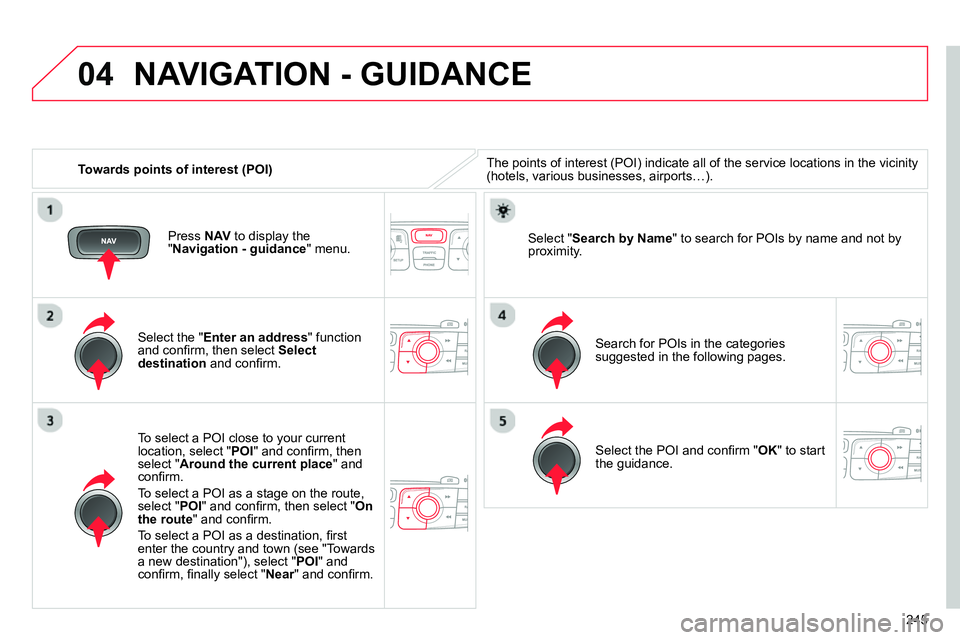
Select the " Enter an address
" function
and confi rm, then select Select
destination
and confi rm.
To select a POI close to your current
location, select " POI
" and confi rm, then
select " Around the current place
" and
confi rm.
To select a POI as a stage on the route,
select " POI
" and confi rm, then select " On
the route
" and confi rm.
To select a POI as a destination, fi rst
enter the country and town (see "Towards
a new destination"), select " POI
" and
confi rm, fi nally select " Near
" and confi rm.
Search for POIs in the categories
suggested in the following pages.
Select " Search by Name
" to search for POIs by name and not by
proximity.
Select the POI and confi rm " OK
" to start
the guidance.
Press NAV
to display the
" Navigation - guidance
" menu.
Page 248 of 340
04
246
NAVIGATION - GUIDANCE
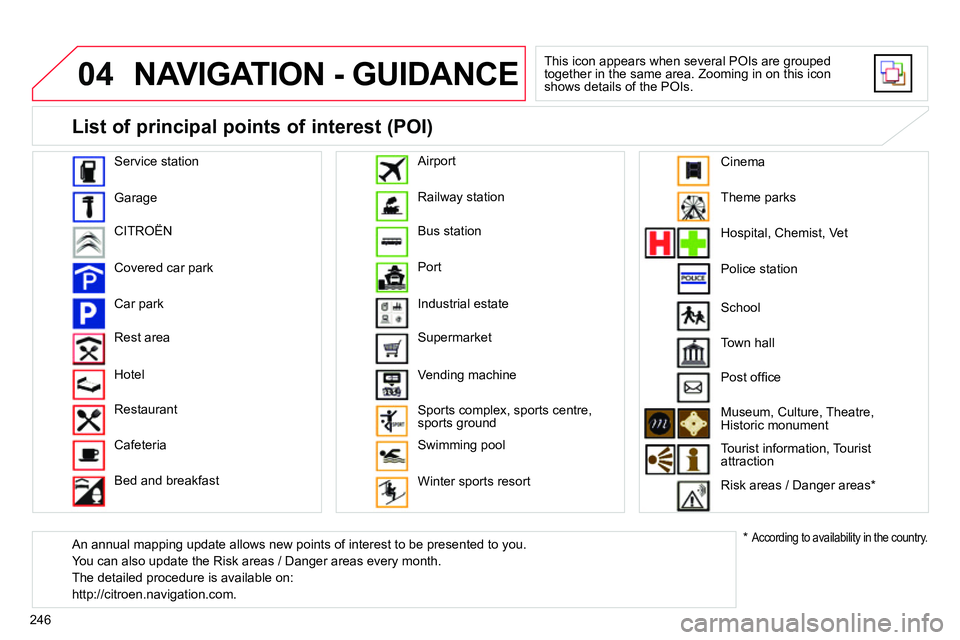
This icon appears when several POIs are grouped
together in the same area. Zooming in on this icon
shows details of the POIs.
Service station
Garage
CITROËN
Covered car park
Car park
Rest area
Hotel
Restaurant
Cafeteria
Bed and breakfast Railway station
Bus station
Port
Industrial estate
Supermarket
Vending machine
Sports complex, sports centre,
sports ground
Swimming pool
Winter sports resort
Airport
Theme parks
Hospital, Chemist, Vet
Police station
Town hall
Post offi ce
Museum, Culture, Theatre,
Historic monument
Tourist information, Tourist
attraction
Risk areas / Danger areas *
List of principal points of interest (POI)
*
According to availability in the country.
School
An annual mapping update allows new points of interest to be presented to you.
You can also update the Risk areas / Danger areas every month.
The detailed procedure is available on:
http://citroen.navigation.com.
Cinema
Page 260 of 340
06
258
Pairing a Bluetooth telephone
First connection
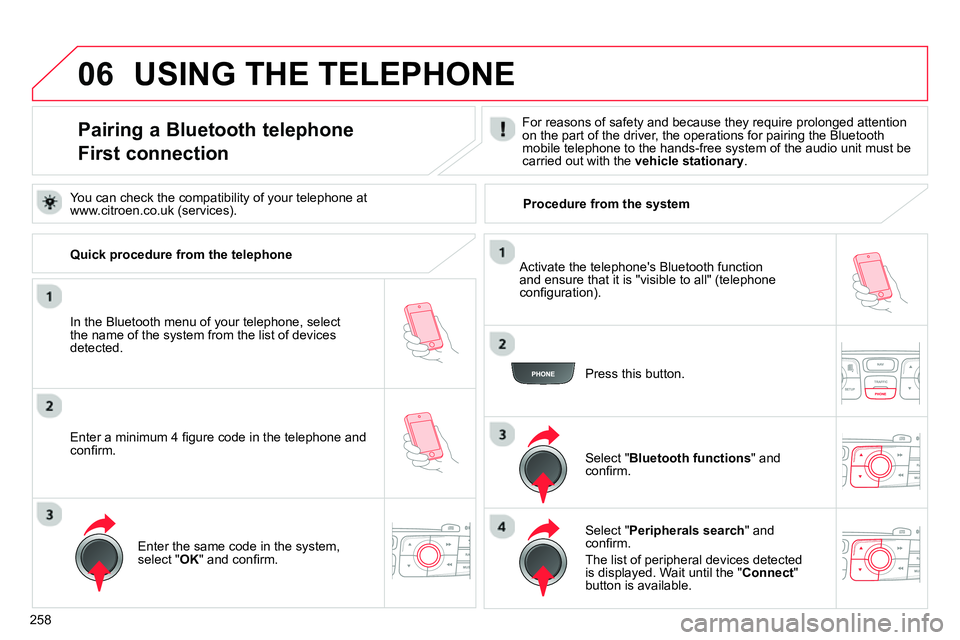
For reasons of safety and because they require prolonged attention
on the part of the driver, the operations for pairing the Bluetooth
mobile telephone to the hands-free system of the audio unit must be
carried out with the vehicle stationary
.
In the Bluetooth menu of your telephone, select
the name of the system from the list of devices
detected.
Press this button.
Select " Bluetooth functions
" and
confi rm.
Select " Peripherals search
" and
confi rm.
The list of peripheral devices detected
is displayed. Wait until the " Connect
"
button is available.
USING THE TELEPHONE
You can check the compatibility of your telephone at
www.citroen.co.uk (services).
Activate the telephone's Bluetooth function
and ensure that it is "visible to all" (telephone
confi guration).
Quick procedure from the telephone
Enter a minimum 4 fi gure code in the telephone and
confi rm.
Enter the same code in the system,
select " OK
" and confi rm.
Procedure from the system
Page 261 of 340
06
259
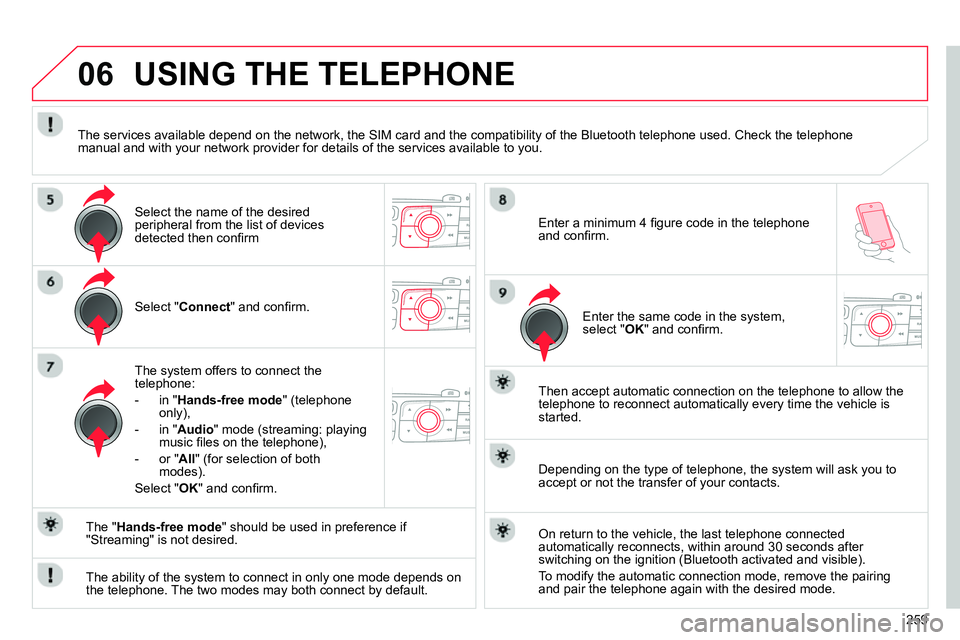
Select " Connect
" and confi rm.
The system offers to connect the
telephone:
- in " Hands-free mode
" (telephone
only),
- in " Audio
" mode (streaming: playing
music fi les on the telephone),
- or " All
" (for selection of both
modes).
Select " OK
" and confi rm.
Then accept automatic connection on the telephone to allow the
telephone to reconnect automatically every time the vehicle is
started.
The ability of the system to connect in only one mode depends on
the telephone. The two modes may both connect by default.
USING THE TELEPHONE
The " Hands-free mode
" should be used in preference if
"Streaming" is not desired.
The services available depend on the network, the SIM card and the compatibility of the Bluetooth telephone used. Check the telephone
manual and with your network provider for details of the services available to you.
Depending on the type of telephone, the system will ask you to
accept or not the transfer of your contacts.
On return to the vehicle, the last telephone connected
automatically reconnects, within around 30 seconds after
switching on the ignition (Bluetooth activated and visible).
To modify the automatic connection mode, remove the pairing
and pair the telephone again with the desired mode.
Enter a minimum 4 fi gure code in the telephone
and confi rm.
Enter the same code in the system,
select " OK
" and confi rm.
Select the name of the desired
peripheral from the list of devices
detected then confi rm
Page 267 of 340
06
265
USING THE TELEPHONE
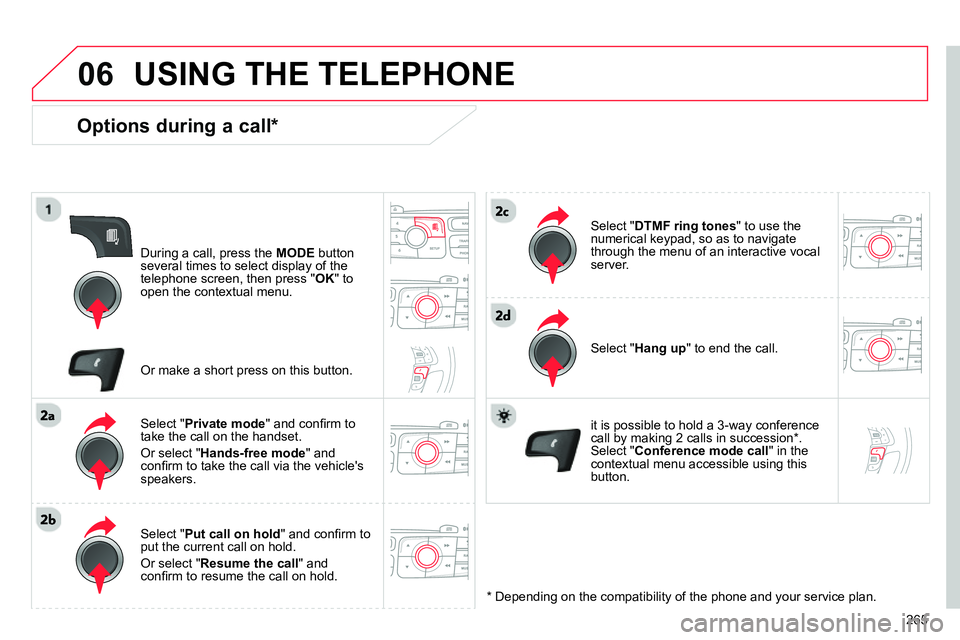
Options during a call *
During a call, press the MODE
button
several times to select display of the
telephone screen, then press " OK
" to
open the contextual menu.
Select " Private mode
" and confi rm to
take the call on the handset.
Or select " Hands-free mode
" and
confi rm to take the call via the vehicle's
speakers.
Select " Put call on hold
" and confi rm to
put the current call on hold.
Or select " Resume the call
" and
confi rm to resume the call on hold.
Select " DTMF ring tones
" to use the
numerical keypad, so as to navigate
through the menu of an interactive vocal
server.
Select " Hang up
" to end the call.
*
Depending on the compatibility of the phone and your service plan.
it is possible to hold a 3-way conference
call by making 2 calls in succession*.
Select " Conference
mode call
" in the
contextual menu accessible using this
button.
Or make a short press on this button.
Page 272 of 340
07
270
RADIO
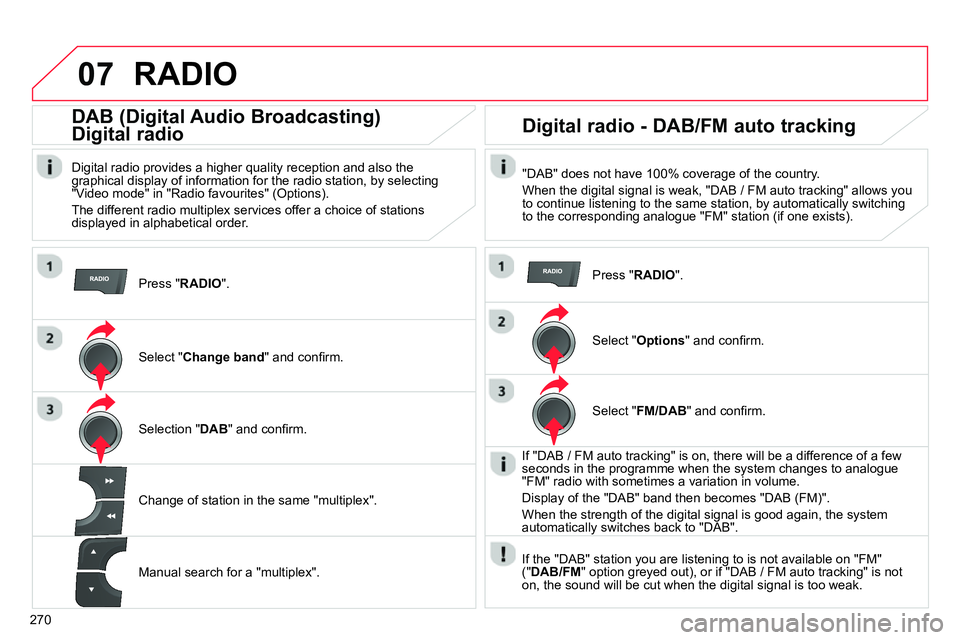
Press " RADIO
".
DAB (Digital Audio Broadcasting)
Digital radio
Digital radio provides a higher quality reception and also the
graphical display of information for the radio station, by selecting
"Video mode" in "Radio favourites" (Options).
The different radio multiplex services offer a choice of stations
displayed in alphabetical order.
Select " Change band
" and confi rm.
Selection " DAB
" and confi rm.
Digital radio - DAB/FM auto tracking
"DAB" does not have 100% coverage of the country.
When the digital signal is weak, "DAB / FM auto tracking" allows you
to continue listening to the same station, by automatically switching
to the corresponding analogue "FM" station (if one exists).
Change of station in the same "multiplex".
Manual search for a "multiplex".
Press " RADIO
".
Select " Options
" and confi rm.
Select " FM/DAB
" and confi rm.
If "DAB / FM auto tracking" is on, there will be a difference of a few
seconds in the programme when the system changes to analogue
"FM" radio with sometimes a variation in volume.
Display of the "DAB" band then becomes "DAB (FM)".
When the strength of the digital signal is good again, the system
automatically switches back to "DAB".
If the "DAB" station you are listening to is not available on "FM"
(" DAB/FM
" option greyed out), or if "DAB / FM auto tracking" is not
on, the sound will be cut when the digital signal is too weak.
Page 286 of 340
284
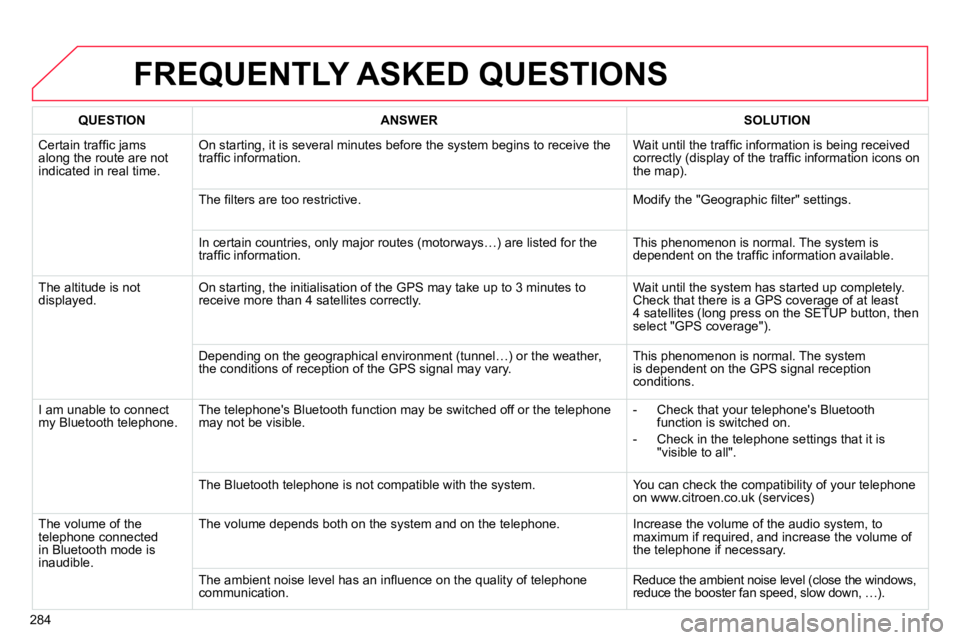
FREQUENTLY ASKED QUESTIONS
QUESTION
ANSWER
SOLUTION
Certain traffi c jams
along the route are not
indicated in real time. On starting, it is several minutes before the system begins to receive the
traffi c information. Wait until the traffi c information is being received
correctly (display of the traffi c information icons on
the map).
The fi lters are too restrictive. Modify the "Geographic fi lter" settings.
In certain countries, only major routes (motorways…) are listed for the
traffi c information. This phenomenon is normal. The system is
dependent on the traffi c information available.
The altitude is not
displayed. On starting, the initialisation of the GPS may take up to 3 minutes to
receive more than 4 satellites correctly. Wait until the system has started up completely.
Check that there is a GPS coverage of at least
4 satellites (long press on the SETUP button, then
select "GPS coverage").
Depending on the geographical environment (tunnel…) or the weather,
the conditions of reception of the GPS signal may vary. This phenomenon is normal. The system
is dependent on the GPS signal reception
conditions.
I am unable to connect
my Bluetooth telephone. The telephone's Bluetooth function may be switched off or the telephone
may not be visible.
- Check that your telephone's Bluetooth
function is switched on.
- Check in the telephone settings that it is
"visible to all".
The Bluetooth telephone is not compatible with the system. You can check the compatibility of your telephone
on www.citroen.co.uk (services)
The volume of the
telephone connected
in Bluetooth mode is
inaudible. The volume depends both on the system and on the telephone. Increase the volume of the audio system, to
maximum if required, and increase the volume of
the telephone if necessary.
The ambient noise level has an infl uence on the quality of telephone
communication. Reduce the ambient noise level (close the windows,
reduce the booster fan speed, slow down, …).
Page 298 of 340
04
296
AUDIO
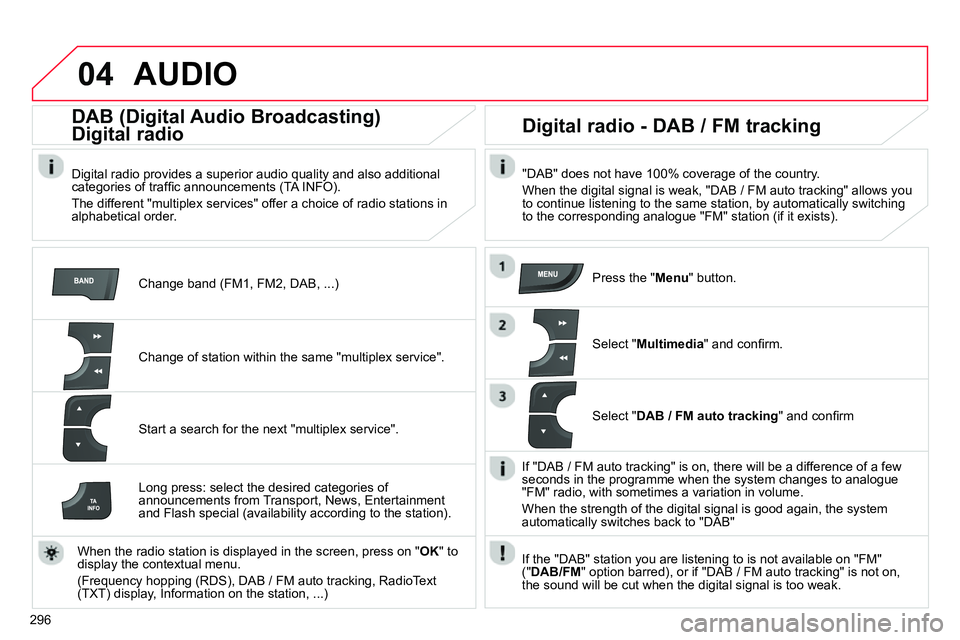
Change band (FM1, FM2, DAB, ...)
DAB (Digital Audio Broadcasting)
Digital radio
Digital radio provides a superior audio quality and also additional
categories of traffi c announcements (TA INFO).
The different "multiplex services" offer a choice of radio stations in
alphabetical order.
Change of station within the same "multiplex service".
Start a search for the next "multiplex service".
Digital radio - DAB / FM tracking
"DAB" does not have 100% coverage of the country.
When the digital signal is weak, "DAB / FM auto tracking" allows you
to continue listening to the same station, by automatically switching
to the corresponding analogue "FM" station (if it exists).
Long press: select the desired categories of
announcements from Transport, News, Entertainment
and Flash special (availability according to the station).
When the radio station is displayed in the screen, press on " OK
" to
display the contextual menu.
(Frequency hopping (RDS), DAB / FM auto tracking, RadioText
(TXT) display, Information on the station, ...)
Press the " Menu
" button.
Select " Multimedia
" and confi rm.
Select " DAB / FM auto tracking
" and confi rm
If "DAB / FM auto tracking" is on, there will be a difference of a few
seconds in the programme when the system changes to analogue
"FM" radio, with sometimes a variation in volume.
When the strength of the digital signal is good again, the system
automatically switches back to "DAB"
If the "DAB" station you are listening to is not available on "FM"
(" DAB/FM
" option barred), or if "DAB / FM auto tracking" is not on,
the sound will be cut when the digital signal is too weak.
Page 306 of 340
05
304
USING THE TELEPHONE
Pairing a telephone
First connection
The services offered depend on the network, the SIM card and the compatibility of the Bluetooth telephone used.
Consult your telephone's manual and your operator to fi nd out which services are available to you.
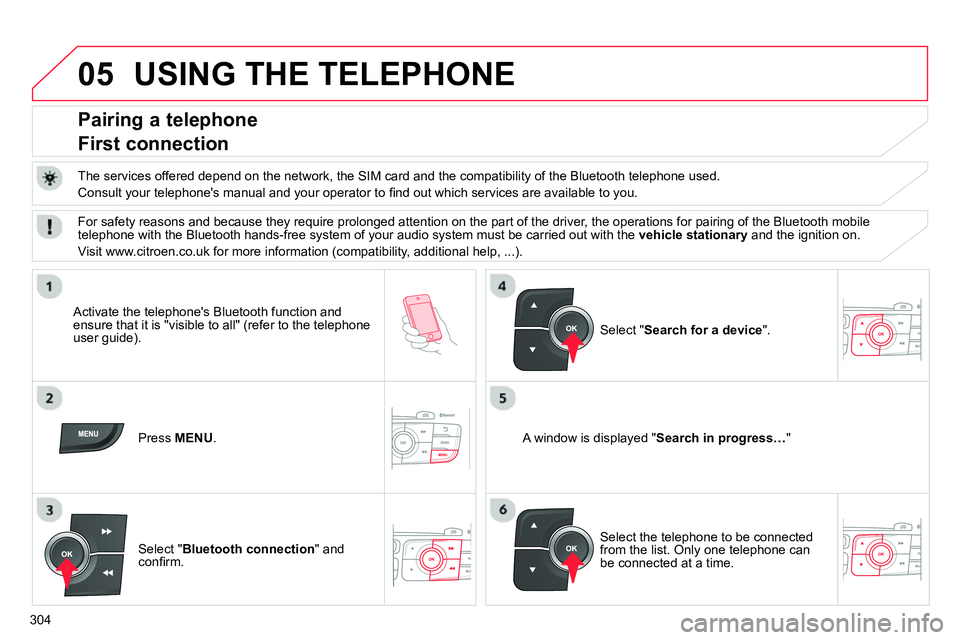
Activate the telephone's Bluetooth function and
ensure that it is "visible to all" (refer to the telephone
user guide).
Press MENU
.
A window is displayed " Search in progress…
"
Select the telephone to be connected
from the list. Only one telephone can
be connected at a time.
Select " Search for a device
".
For safety reasons and because they require prolonged attention on the part of the driver, the operations for pairing of the Bluetooth mobile
telephone with the Bluetooth hands-free system of your audio system must be carried out with the vehicle stationary
and the ignition on.
Visit www.citroen.co.uk for more information (compatibility, additional help, ...).
Select " Bluetooth connection
" and
confi rm.