light Citroen C4 DAG 2014.5 2.G User Guide
[x] Cancel search | Manufacturer: CITROEN, Model Year: 2014.5, Model line: C4 DAG, Model: Citroen C4 DAG 2014.5 2.GPages: 340, PDF Size: 12.89 MB
Page 35 of 340
33
C4-2_en_Chap01_controle-de-marche_ed01-2014
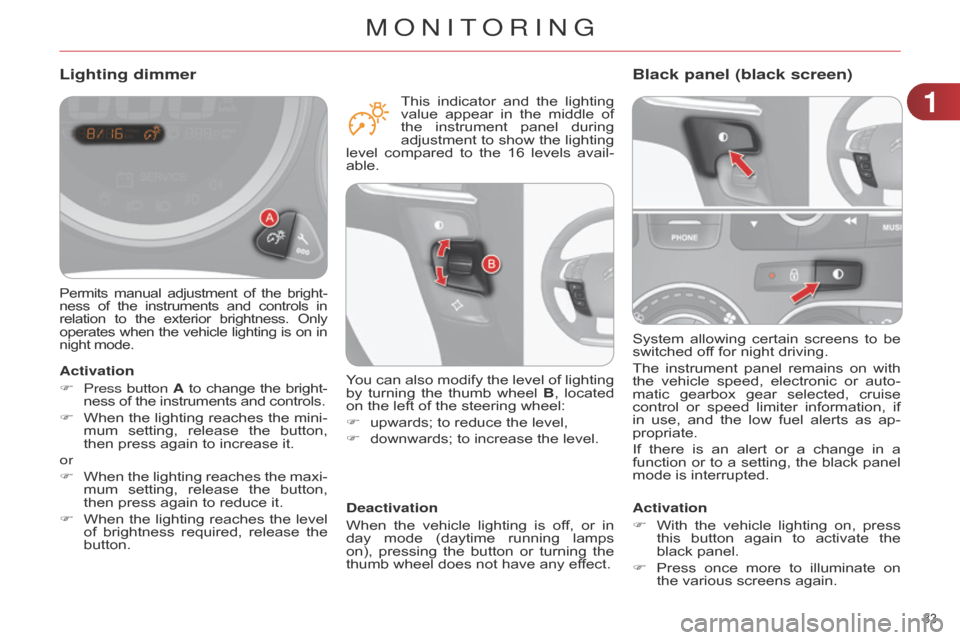
System allowing certain screens to be switched
off for night driving.
The
instrument
panel
remains
on
with
the
vehicle
speed,
electronic
or
auto
-
matic
gearbox
gear
selected,
cruise
control
or
speed
limiter
information,
if
in
use,
and
the
low
fuel
alerts
as
ap
-
propriate.
If
there
is
an
alert
or
a
change
in
a
function
or
to
a
setting,
the
black
panel
mode
is interrupted.
Black panel (black screen)
Activation
F
With
the
vehicle
lighting
on,
press
this
button
again
to
activate
the
black
panel.
F
Press
once
more
to
illu
minate
on
the
various screens again.
Permits manual adjustment of the bright -
ness of the instruments and controls in relation
to
the
exterior
brightness.
Only operates
when
the
vehicle
lighting
is
on
in night
mode.
Lighting dimmer
Activation
F
Press button
A
to
change
the
bright
-
ness
of the instruments and controls.
F
When
the
lighting
reaches
the
mini
-
mum
setting,
release
the
button,
then
press again to increase it.
or
F
When
the
lighting
reaches
the
maxi
-
mum
setting,
release
the
button,
then
press again to reduce it.
F
When
the
lighting
reaches
the
level
of
brightness
required,
release
the
button.Deactivation
When
the
vehicle
lighting
is
of
f,
or
in
day
mode
(daytime
running
lamps
on),
pressing
the
button
or
turning
the
thumb
wheel does not have any effect.
You
can also modify the level of lighting
by
turning
the
thumb
wheel
B
,
located
on
the left of the steering wheel:
F
upwards;
to reduce the level,
F
downwards;
to increase the level.
This
indicator
and
the
lighting
value
appear
in
the
middle
of
the
instrument
panel
during
adjustment
to
show
the
lighting
level
compared
to
the
16
levels
avail
-
able.
1
MONITORING
Page 36 of 340
34
C4-2_en_Chap01_controle-de-marche_ed01-2014
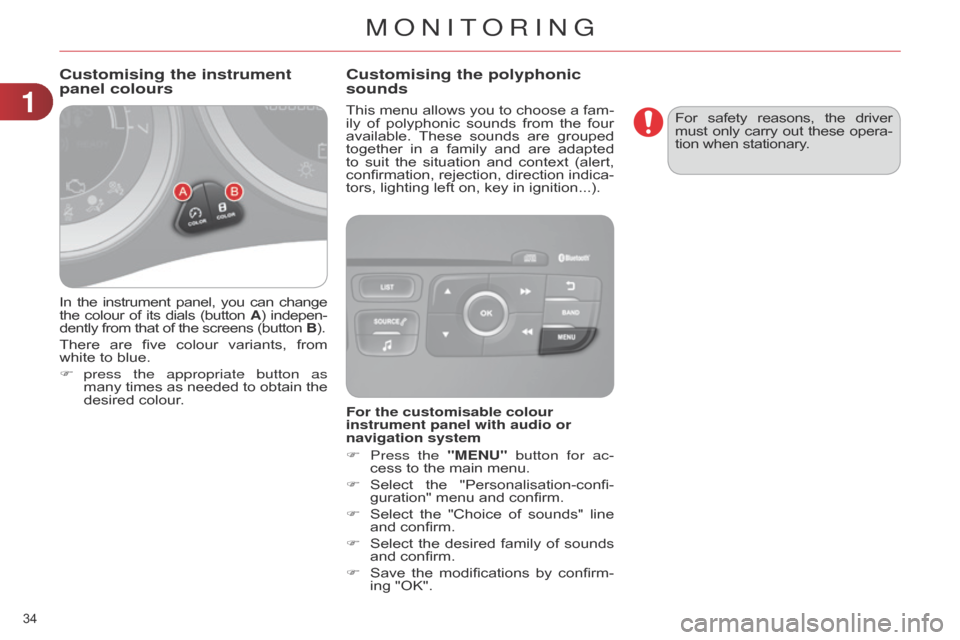
In the instrument panel, you can change the
colour of its dials (button A)
indepen -
dently
from that of the screens (button B).
There
are
five
colour
variants,
from
white
to blue.
F
press
the appropriate button as
many
times
as
needed
to
obtain
the
desired
colour. This
menu
allows
you
to
choose
a
fam
-
ily
of
polyphonic
sounds
from
the
four
available.
These
sounds
are
grouped
together
in
a
family
and
are
adapted
to
suit
the
situation
and
context
(alert,
confirmation,
rejection,
direction
indica
-
tors, lighting left on, key in ignition...).
Customising the instrument
panel colours
Customising the polyphonic
sounds
For the customisable colour
instrument panel with audio or
navigation system
F
Press the
"MENU" button for ac-
cess
to the main menu.
F
Select
the
"Personalisation-confi
-
guration"
menu and confirm.
F
Select
the
"Choice
of
sounds"
line
and
confirm.
F
Select
the
desired
family
of
sounds
and
confirm.
F
Save
the
modifications
by
confirm
-
ing
"OK". For
safety
reasons,
the
driver must
only
carry
out
these
opera
-
tion when stationary.
1
MONITORING
Page 38 of 340
22
36
C4-2_en_Chap02_ecran-multifonction_ed01-2014
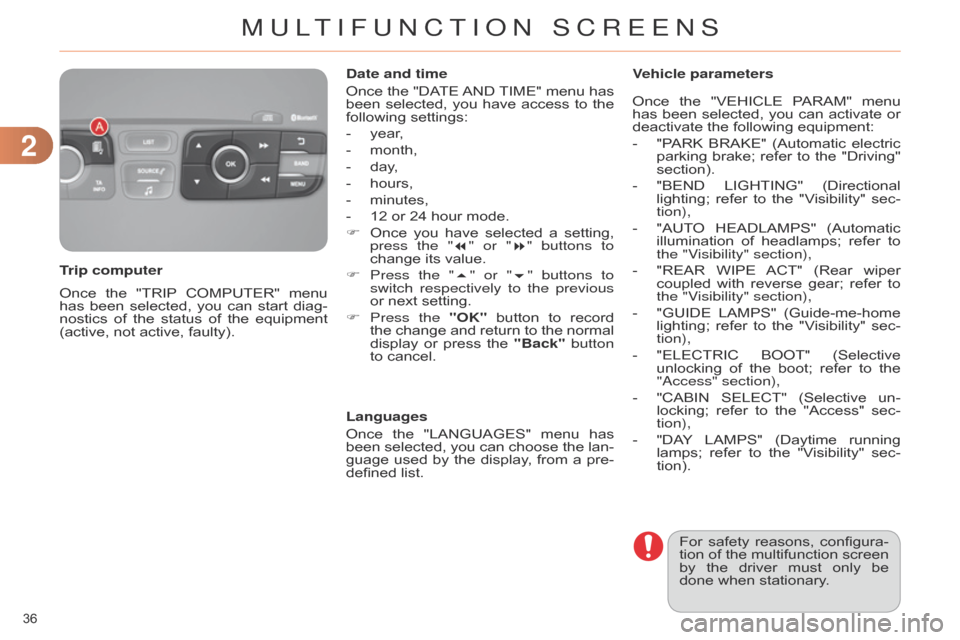
Once the "TRIP COMPUTER" menu has
been selected, you can start diag -
nostics
of
the
status
of
the
equipment
(active,
not active, faulty).
Trip computer Date and time
Once
the
"DA
TE
AND
TIME"
menu
has
been
selected,
you
have
access
to
the
following
settings:
-
year
,
-
month,
-
day
,
-
hours,
-
minutes,
-
12
or 24 hour mode.
F
Once
you
have
selected
a
setting,
press the "
7" or "8" buttons to
change its value.
F
Press the "
5" or "6" buttons to
switch respectively to the previous
or next setting.
F
Press
the "OK"
button
to
record
the
change
and
return
to
the
normal
display
or
press
the
"Back"
button
to
cancel.
Languages
Once
the
"LANGUAGES"
menu
has
been
selected,
you
can
choose
the
lan
-
guage
used
by
the
display
,
from
a
pre-
defined
list.For
safety
reasons,
configura
-
tion
of
the
multifunction
screen
by
the
driver
must
only
be
done
when stationary.
Vehicle parameters
Once
the
"VEHICLE
P
ARAM"
menu
has
been
selected,
you
can
activate
or
deactivate
the following equipment:
-
"P
ARK
BRAKE"
(Automatic
electric
parking
brake;
refer
to
the
"Driving"
section).
-
"BEND
LIGHTING"
(Directional
lighting;
refer
to
the
"V
isibility"
sec
-
tion),
-
"AUT
O
HEADLAMPS"
(Automatic
illu
mination
of
headlamps;
refer
to
the "V
isibility" section),
-
"REAR
WIPE
ACT"
(Rear
wiper
coupled
with reverse gear; refer to the "V
isibility" section),
-
"GUIDE
LAMPS"
(Guide-me-home
lighting;
refer
to
the
"V
isibility"
sec
-
tion),
-
"ELECTRIC
BOOT"
(Selective
unlocking
of
the
boot;
refer
to
the
"
a ccess" section),
-
"CABIN
SELECT"
(Selective
un
-
locking;
refer
to
the
"Access"
sec
-
tion),
-
"DA
Y
LAMPS"
(Daytime
running
lamps;
refer
to
the
"V
isibility"
sec
-
tion).
MULTIFUNCTION SCREENS
Page 41 of 340
22
39
C4-2_en_Chap02_ecran-multifonction_ed01-2014
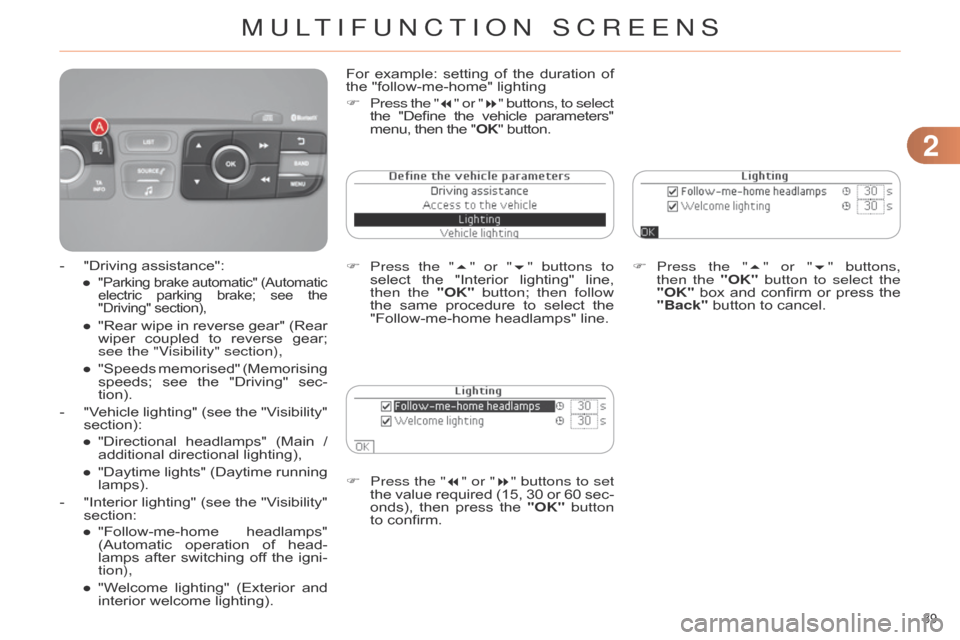
F Press the "7" or "8" buttons to set
the value required (15, 30 or 60 sec -
onds),
then
press
the
"OK"
button
to
confirm. F
Press
the "5" or "6" buttons,
then the "OK" button to select the
"OK"
box
and
confirm
or
press
the
"Back"
button to cancel.
For
example:
setting
of
the
duration
of
the
"follow-me-home" lighting
F
Press
the "7
" or "8 " buttons, to select
the
"Define
the
vehicle
parameters" menu,
then the "OK" button.
F
Press the "
5" or "6" buttons to
select
the
"Interior
lighting"
line,
then the
"OK" button; then follow
the
same
procedure
to
select
the
"Follow-me-home
headlamps" line.
-
"Driving
assistance":
●
"Parking brake
automatic" (Automatic electric
parking brake; see the "Driving"
section),
● "Rear wipe in reverse gear" (Rear wiper
coupled to reverse gear;
see the "V
isibility" section),
●
"Speeds
memorised"
(Memorising
speeds;
see
the
"Driving"
sec
-
tion).
-
"V
ehicle
lighting"
(see
the
"V
isibility"
section):
●
"Directional
headlamps"
(Main
/
additional
directional lighting),
●
"Daytime
lights"
(Daytime
running
lamps).
-
"Interior
lighting"
(see
the
"V
isibility"
section:
●
"Follow-me-home
headlamps"
(Automatic
operation
of
head
-
lamps
after
switching
of
f
the
igni
-
tion),
●
"W
elcome
lighting"
(Exterior
and
interior
welcome lighting).
MULTIFUNCTION SCREENS
Page 42 of 340
22
40
C4-2_en_Chap02_ecran-multifonction_ed01-2014
Choice of language
Once
this
menu
has
been
selected,
you
can
choose
the
language
used
by
the
display
from a pre-defined list.
For
safety
reasons,
configura
-
tion
of
the
multifunction
screen
by
the
driver
must
only
be
done
when
stationary.
Display configuration
This
menu
gives
access
to
the
following
settings:
-
"Choice
of units",
-
"Date
and time adjustment",
-
"Display
parameters",
-
"Brightness". Choice of sounds
This
menu
allows
you
to
choose
a
fam
-
ily
of
polyphonic
sounds
from
the
four
available.
These
sounds
are
grouped
together
in
a
family
and
are
adapted
to
suit
the
situation
and
context
(alert,
confirmation,
rejection,
direction
indica
-
tors,
lighting left on, key in ignition...).
Adjusting the date and time
F
Press
the "7" or "8" button to
display
the
"Display
configuration"
menu,
then press "OK".
F
Press
the "5" or "6" button to se-
lect
the
"Date
and
time
adjustment"
button, then press
"OK".
F
Press
the "7" or "8" button to se-
lect
the
setting
to
modify
.
Confirm
by
pressing
"OK"
,
then
modify
the
setting
and
confirm
again
to
save
the
modification.
F
Adjust
the
settings
one
by
one,
con
-
firming
with the "OK" button.
F
Press the "
5" or "6" button, then
the "OK" button to select the "OK"
box
and
confirm
or
the
"Back"
but-
ton
to cancel.
MULTIFUNCTION SCREENS
Page 44 of 340
22
42
C4-2_en_Chap02_ecran-multifonction_ed01-2014
Choice of sounds
This
menu
allows
you
to
choose
a
family
of
polyphonic
sounds
from
four
available.
These
sounds
are
grouped
together
in
a
family
and
are
adapted
to
suit
the
situation
and
context
(alert,
confirmation,
rejection,
direction
indica
-
tors,
lighting left on, key in ignition...).
Display configuration
This
menu
is
used
to
select
the
colour scheme
for
the
screen,
adjust
the
bright
-
ness,
set
the
date
and
time
and
to
choose the
units
for
distance
(km
or
miles),
fuel consumption
(l/100
km,
mpg
or
km/l)
and temperature
(°Celsius or °Fahrenheit).Adjusting the voice synthesiser
This
menu
is
used
to
adjust
the
volume
setting
for
navigation
instructions
and
to
choose
the
type
of
voice
(male
or
female).
Adjusting the date and time
-
Press
on SETUP.
-
Select
"Display
configuration"
and
confirm.
-
Select
"Set
date
and
time"
and
con
-
firm.
Select
"Minute
adjustment
via
GPS"
so
that
the
minutes
are
adjusted
automati
-
cally
by satellite reception.
-
Select
the
setting
to
modify
.
Confirm
by
pressing
on
OK
,
then
modify
the
setting
and
confirm
again
to
save
the
modification.
-
Adjust
the settings one by one.
-
Select
"
OK" in the screen then con-
firm
to save the setting. Choice of language
This
menu
is
used
to
choose
the
language used
by the screen from a defined list.
Vehicle parameters
This
menu
is
used
to
activate
or
deac
-
tivate
certain
driving
and
comfort
sys
-
tems,
classified by category:
-
"Driver
aid":
●
"Electric
brake*"
(Automatic
elec
-
tric
parking
brake;
see
"Driving"
section),
●
"Rear
wiper"
(Rear
wiper
coupled
to
reverse
gear;
see
"V
isibility"
section),
●
"Speed
limits"
(Memorising
speed settings
for
the
cruise
control
and speed
limiter;
see
"Driving"
section).Alert log
This
lists
the
active
alerts
by
displaying
in
turn
the
dif
ferent
messages
associ
-
ated
with them.
-
"V ehicle access" (see "Access" sec -
tion):
●
"Driver
doors
selectivity"
(Selective unlocking
of the driver's door),
●
"Rear
doors
selectivity"
(Selective
unlocking
of
the
boot
using
the
centre
button
on
the
remote
con
-
trol;
see "Access section).
-
"Driving
lights"
(see
"V
isibility"
sec
-
tion):
●
"Day lights*" (Daytime running lamps),
● "Directional headlights" (Main / additional
directional lighting).
-
"Comfort
lighting"
(see
"V
isibility"
section):
●
"W
elcome
lights"
(Interior
wel
-
come
lighting),
●
"Running
lights"
(Automatic
timed
operation
of headlamps).
*
Depending on country.
MULTIFUNCTION SCREENS
Page 52 of 340
33
50
C4-2_en_Chap03_confort_ed01-2014
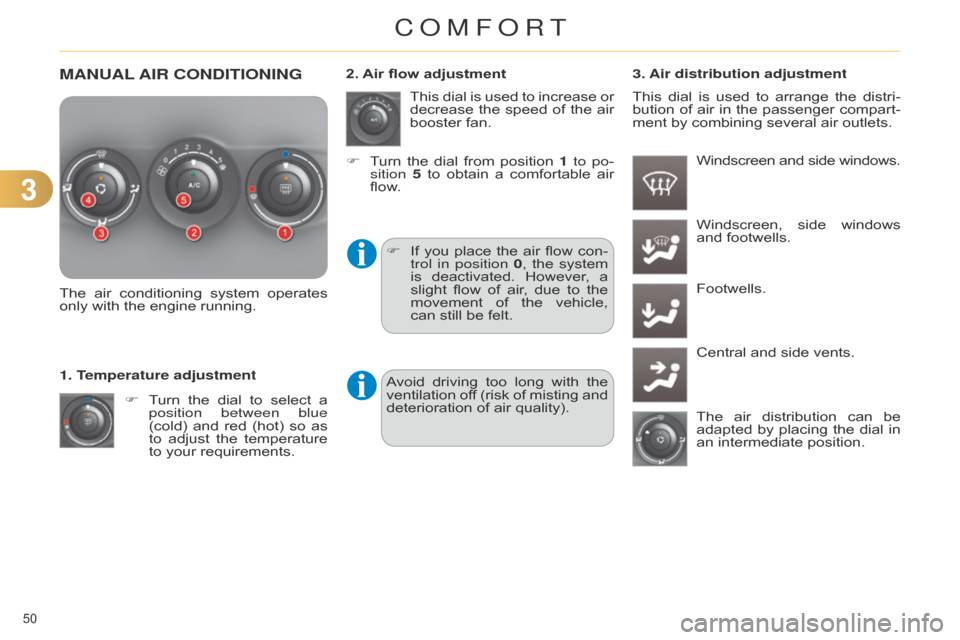
MANUAL AIR CONDITIONING
The air conditioning system operates only
with the engine running.
F
T
urn
the
dial
to
select
a
position between blue
(cold)
and
red
(hot)
so
as
to
adjust
the
temperature
to
your requirements.
1. Temperature adjustment This
dial
is
used
to
increase
or
decrease
the
speed
of
the
air
booster
fan.
2. Air flow adjustment
3. Air distribution adjustment
Windscreen and side windows.
F
If
you
place
the
air
flow
con
-
trol in position 0,
the
system
is
deactivated.
However
,
a
slight
flow of air , due to the movement
of the vehicle,
can
still be felt.Windscreen,
side
windows
and
footwells.
Footwells.
Central
and side vents.
The
air
distribution
can
be
adapted
by
placing
the
dial
in
an
intermediate position.
F
T
urn
the
dial
from
position
1
to po-
sition 5
to
obtain
a
comfortable
air
flow
.
This
dial
is
used
to
arrange
the
distri
-
bution
of
air
in
the
passenger
compart
-
ment by combining several air outlets.
Avoid
driving
too
long
with
the
ventilation
of
f
(risk
of
misting
and
deterioration
of air quality).
COMFORT
Page 54 of 340
33
52
C4-2_en_Chap03_confort_ed01-2014
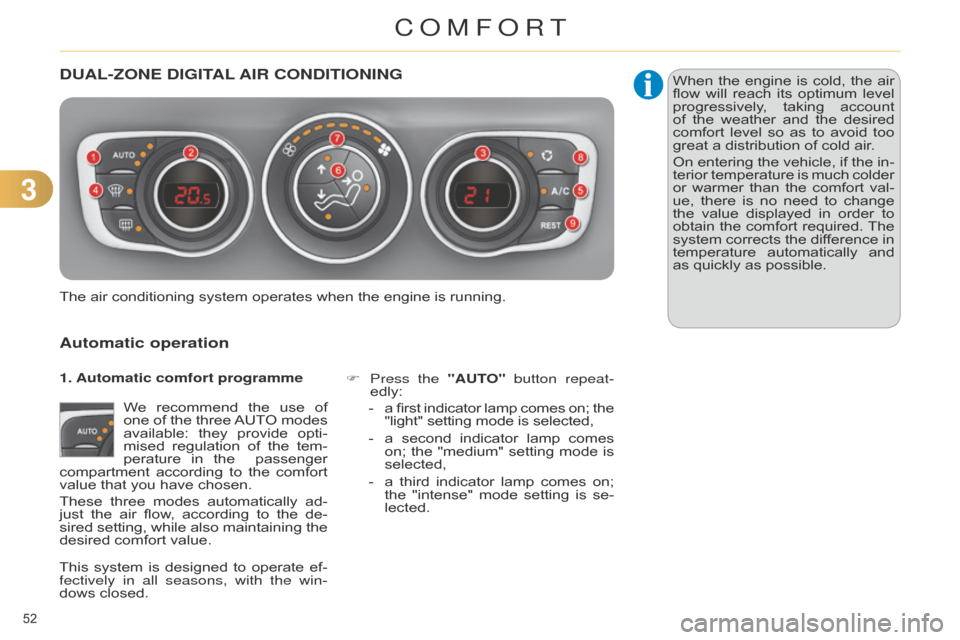
DUAL-ZONE DIGITAL AIR CONDITIONING
Automatic operation
We recommend the use of one
of the three AUT O modes
available:
they
provide
opti
-
mised
regulation
of
the
tem
-
perature
in
the
passenger
compartment
according
to
the
comfort
value
that you have chosen.
These
three
modes
automatically
ad
-
just
the
air
flow
,
according
to
the
de
-
sired
setting,
while
also
maintaining
the
desired
comfort value. F
Press
the "AUTO" button repeat-
edly:
- a first indicator lamp comes on; the "light"
setting mode is selected,
-
a
second
indicator
lamp
comes
on;
the
"medium"
setting
mode
is
selected,
-
a
third
indicator
lamp
comes
on;
the
"intense"
mode
setting
is
se
-
lected.
The
air
conditioning system operates when the engine is running.When
the
engine
is
cold,
the
air
flow
will
reach
its
optimum
level
progressively
,
taking
account
of
the
weather
and
the
desired
comfort
level
so
as
to
avoid
too
great
a distribution of cold air.
On
entering
the
vehicle,
if
the
in
-
terior
temperature
is
much
colder
or
warmer
than
the
comfort
val
-
ue,
there
is
no
need
to
change
the
value
displayed
in
order
to
obtain
the
comfort
required.
The
system
corrects
the
dif
ference
in
temperature
automatically
and
as
quickly as possible.
1. Automatic comfort programme
This
system
is
designed
to
operate
ef
-
fectively in all seasons, with the win-
dows
closed.
COMFORT
Page 57 of 340
33
55
C4-2_en_Chap03_confort_ed01-2014
Switching the system off
Avoid prolonged operation in in -
terior air recirculation mode or
driving
for
long
periods
with
the
system
of
f
(risk
of
misting
and
deterioration
of air quality).
On stopping the engine
-
While
the
control
screens
remain
on:
the
function
is
available.
-
Pressing
the
REST
button activates
the
ventilation
for
a
few
minutes.
a
ctivation of the function is con-
firmed
by
the
display
of
two
dashes
in
the
control
screens
and
four
air
flow
level
indicator
lamps.
Locking
the
vehicle
has
no
ef
fect
on
this
function.
-
The
control
screens
go
of
f
at
the
end
of
this
period.
Pressing
again
before
the
end
of
the
period
interrupts
of
f
the
ventila
-
tion
definitively:
the
control
screens
go
of
f
and
the
function
is
no
longer
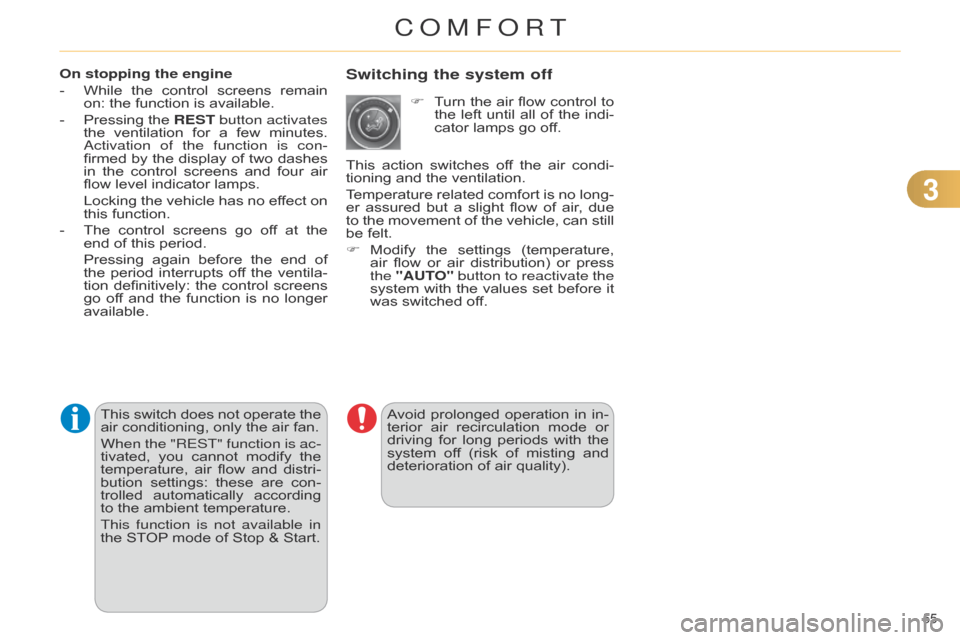
available. F
T
urn
the
air
flow
control
to
the
left
until
all
of
the
indi
-
cator lamps go off.
This
action
switches
of
f
the
air
condi
-
tioning and the ventilation.
Temperature
related
comfort
is
no
long
-
er
assured
but
a
slight
flow
of
air
,
due
to
the
movement
of
the
vehicle,
can
still
be
felt.
F
Modify
the
settings
(temperature,
air
flow
or
air
distribution)
or
press
the
"AUT
O" button to reactivate the
system
with
the
values
set
before
it
was
switched off.
This
switch
does
not
operate
the
air
conditioning,
only
the
air
fan.
When the "REST" function is ac-
tivated,
you
cannot
modify
the
temperature,
air
flow
and
distri
-
bution
settings:
these
are
con
-
trolled
automatically
according
to
the
ambient
temperature.
This function is not available in
the
STOP
mode
of
Stop
&
Start.
COMFORT
Page 64 of 340
33
62
C4-2_en_Chap03_confort_ed01-2014
REAR SEATS
Bench seat with fixed one-piece cush -
ion and split backrest (left hand 2/3, right hand
1/3)
which
can
be
folded
individually to
adapt the load space in the boot.
Rear head restraints
These have one position for use (up)
and a stowed position (down).
They
can also be removed.
To
remove a head restraint:
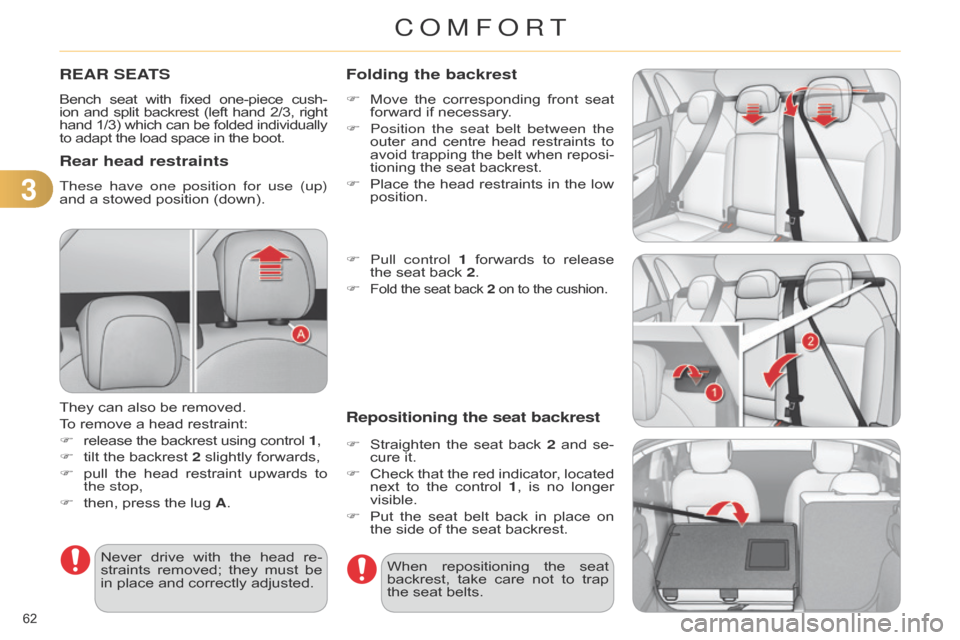
F
release
the backrest using control 1,
F
tilt
the backrest 2 slightly forwards,
F
pull
the
head
restraint
upwards
to
the stop,
F
then,
press the lug A.
Never
drive
with
the
head
re
-
straints
removed;
they
must
be
in
place and correctly adjusted.When
repositioning
the
seat
backrest,
take
care
not
to
trap
the
seat belts.
Folding the backrest
F Move the corresponding front seat forward
if necessary.
F
Position the seat belt between the
outer
and
centre
head
restraints
to
avoid
trapping
the
belt
when
reposi
-
tioning
the seat backrest.
F
Place
the
head
restraints
in
the
low
position.
F
Pull control 1
forwards
to
release
the
seat back 2.
F
Fold the seat back 2 on to the cushion.
Repositioning the seat backrest
F Straighten the seat back 2 and se -
cure it.
F
Check
that
the
red
indicator
,
located
next
to
the
control
1
,
is
no
longer
visible.
F
Put
the
seat
belt
back
in
place
on
the
side of the seat backrest.
COMFORT