phone CITROEN C4 PICASSO 2011 Owner's Manual
[x] Cancel search | Manufacturer: CITROEN, Model Year: 2011, Model line: C4 PICASSO, Model: CITROEN C4 PICASSO 2011Pages: 352, PDF Size: 10.66 MB
Page 272 of 352

Downloaded from www.Manualslib.com manuals search engine 270
09
VIDEO
display formats
VIDEO PARAMETERS
1
2
3
adjust luminosity3
set colours3
set contrasts3
ACTIVATE VIDEO MODE 2
VEHICLE DIAGNOSTICS
STATUS OF FUNCTIONS *
1
2
ALERT LOG 2
RESET TYRE PRESS. DETEC. SYS. *2
GPS COVERAGE
UNIT DESCRIPTION
1
2UNIT BACKUP POWE R
2
2
VOICE COMMANDS LIST 1
SERVICES
CONFIGURATION 1
NAVIGATION
DEMONSTRATION
1
Press the MENU button for more
than 2 seconds to access the following fl ow chart.
Press the Music button several times
in succession to access the followingsettings.
MU
SICAL AMBIENCE
SCREEN MENU MAP
BASS
TREBLE
LOUDNESS CORRECTION
FR - RR BALAN
CE
Displa
y short cuts version 8.2
LH - RH BALANCE
AUTO VOLUME CORRECTION
Each audio source
(Radio, CD, MP3,Jukebox) has its own separate settings.
*
The parameters vary according to the vehicle.
AUDIO/TELEPHONE
DIAGNOSTICS
Page 275 of 352

Downloaded from www.Manualslib.com manuals search engine 273
ANSWERSOLUTION
Does the emergency call function work without a SIM card?
Certain national regulations impose the presence of a SIM card in order to make an emergency call. Insert a valid SIM card in the slot on the system.
The altitude is not displayed. On starting, the initialisation of the GPS may take up to 3 minutes toreceive more than 4 satellites correctly.
Wait until the system has started up completely. Check that there is a GPS coverage of at least4 satellites (long press on the MENU button, then select AUDIO/TELEPHONE DIAGNOSTICS, thenGPS COVERAGE).
Depending on the geographical environment (tunnel, ...) or the weather, the conditions of reception of the GPS signal may vary.
This phenomenon is normal. The system isdependent on the conditions of reception of the GPS signal.
My SIM card is not recognised. The system accepts 3.3 V SIM cards, the old 5 V and 1.8 V SIM cardsare not recognised.
Contact your telephone operator.
The route is notcalculated successfully.The exclusion criteria may confl ict with the current location (exclusion of toll roads on a motorway with tolls). Check the exclusion criteria.
There is a long wait after inserting a CD.When a new medium is inserted, the system reads a certain amount of data (folder, title, artist, etc.). This may take a few seconds.
This phenomenon is normal.
I cannot connect myBluetooth telephone.The telephone's Bluetooth function may be switched off or the equipmentmay not be visible.
- Check that your telephone's Bluetoothfunction is switched on.
- Check that your telephone is visible.
Page 277 of 352

Downloaded from www.Manualslib.com manuals search engine 275
The MyWay is protected in such a way that it will onlyoperate in your vehicle.
Certain functions described in this handbook will
become available during the year.
MyWay
For safety reasons, the driver must carry out operations which require prolonged attention while the vehicle is stationary.
When the en
gine is switched off and to prevent
discharging of the battery, the MyWay switches off
following the activation of the Energy Economy mode.
MULTIMEDIA AUDIO SYSTEM/BLUETOOTH TELEPHONE
SATELLITE NAVIGATION SYSTEM FOR EUROPE BY SD CARD
01 First steps
CONTENTS
02 Steering mounted controls
03 General operation
04 Navigation - Guidance
05 Traffic information
06 Radio
07 Music media players
08 Bluetooth telephone
09 Configuration
10 Screen menu map p.
p.
p.
p.
p.
p.
p.
p.
p.
p.
Frequently asked questions p. 276
277
278
281
289
291
292
295
298
299
303
Page 278 of 352

Downloaded from www.Manualslib.com manuals search engine 276
01
Engine not running:
-
Short press: on/off.
- Long press: pause with
CD play, mute for radio.
Engine running:
- Short
press: pause with CD play, mute for radio.
-
Long press: reinitialise thesystem.
Access to theRadio Menu.Display the list of stations.
Access to theMusic Menu. Display tracks. Lon
g press: audio settings: front/rear fader, left/right balance, bass/treble,
musical ambience, loudness, automatic
volume, reinitialise settings.
Selection dial for the
screen display and according to the menu.
Short press: contextual
menu or confi rm.
Long press: contextual
menu specifi c to the list
displayed.
A
ccess to the"SETUP" menu.
Lon
g press: GPS coverage anddemonstration
mode.
Access to the PhoneMenu. Display the list of calls.
E
ject CD.
Select previous/next radio station.
Select previous CD or MP3
track.
Select previous/next line in a list.
Select
previous/next radio station in the list.
Select previous/next MP3
folder.
Select previous/next page in a list.
E
SC: abandon current operation.
Access to theTraffi c Menu. Display the current
traffi c alerts. R
eader for navigation SDcard only.
A
ccess to theNavigation Menu. Displayrecent destinations.
A
ccess to the "MODE" menu.
Select successive display of:
Radio, Map, NAV (if navigation in progress),
Telephone (if conversation in progress), Tripcomputer.
Long press: Black screen (DARK). Buttons 1 to
6:
Select a pre-set radiostation.
Long press: pre-set the current station.
Ad
just volume (each source
is independent, including
navigation messages andalerts).
Page 279 of 352

Downloaded from www.Manualslib.com manuals search engine 277
02
32
15
4
2
1
32
15
4
3
4
STEERING MOUNTED CONTROLS
1. Volume increase.
2. V
olume decrease.
3.
Successive presses mute/restore the sound.
4. Rotation - associated with a pop-up.
R
adio - access the 6 stored stations: next or previous.
Music pla
yers: previous/next track.
5. Radio: next station.
Music players: next track.
1. Pr
ess.
Repeat the current spoken navigationinstruction.
2.
Short press to make a telephone call.
Pick up
/Hang up.
Access the tele
phone menu.
Displa
y the call list.
Lon
g press to reject an incoming call.
3. Personalisation.
Short press to confi rm the choice made using the dial.
4. R
otation.
Scroll through the call list in the phone book.
P
ersonalisation selection.
1. Short press: provides access to the menu
accor
ding to the display on the screen.
2.
Successive presses: provides access
according to the current display on the
screen.
MAP
/NAV (if navigation is in progress), TEL (if a conversation is in progress), RADIO or MEDIA in progress, Trip computer.
Lon
g press: switch to black screen - Dark (night driving).
Touching a control restores the display.
3. E
SC: abandon the current operation.
4. R
otation: selects the access to the short-cutmenus according to the current display.
5. Confi rms the choice displa
yed on thescreen.
Page 280 of 352

Downloaded from www.Manualslib.com manuals search engine 278
03 GENERAL OPERATION
For a detailed global view of the menus available, refer to the"Screen menu map" section.
Press the M
ODE button several times in succession for access to the following menus:
For cleaning the screen, the use of a soft, non-abrasive cloth (spectacles cloth) is recommended, with no additional product. RADIO
/
MUSIC MEDIA PLAYERS
TELEPHONE
(If a conversation is in progress)
FULL SCREEN MA
P
NAVIGATION
(If guidance is in progress)
SETUP:
s
ystem language *
, date and time *
, display,
vehicle settings
* , unit and system settings, "Demo mode".
TRAFFIC:
TMC information and messages.
* Available accordin
g to model.
TRIP COMPUTER
Page 281 of 352

Downloaded from www.Manualslib.com manuals search engine 279
03
A press on the OK dial gives access to short-cut menus according to the displayon the screen.
DISPLAY ACCORDING TO THE CONTEXT
NAVIGATION (IF GUIDANCE IS IN PROGRESS):TRIP COMPUTER:
Abort
guidance
Repeat advice
Block road
Route info
Show destination
Tri
p info
Route t
ype
Avoid
Satellites
Zoom
/Scroll
Voice advice
Route options
Alert log
Status of functions
1
2
3
3
2
1
1
1
3
1
1
1
1
2
TELEPHONE:
End call
Hold call
Dial
DTMF-Tones
Private mode
Micro off
1
1
1
1
1
1
Page 297 of 352
Downloaded from www.Manualslib.com manuals search engine 295
08
1
2
3
4
BLUETOOTH TELEPHONE
*
The services available depend on the network, the SIM card and thecompatibility of the Bluetooth telephone used. Check the telephone
manual and with your network provider for details of the servicesavailable to you.
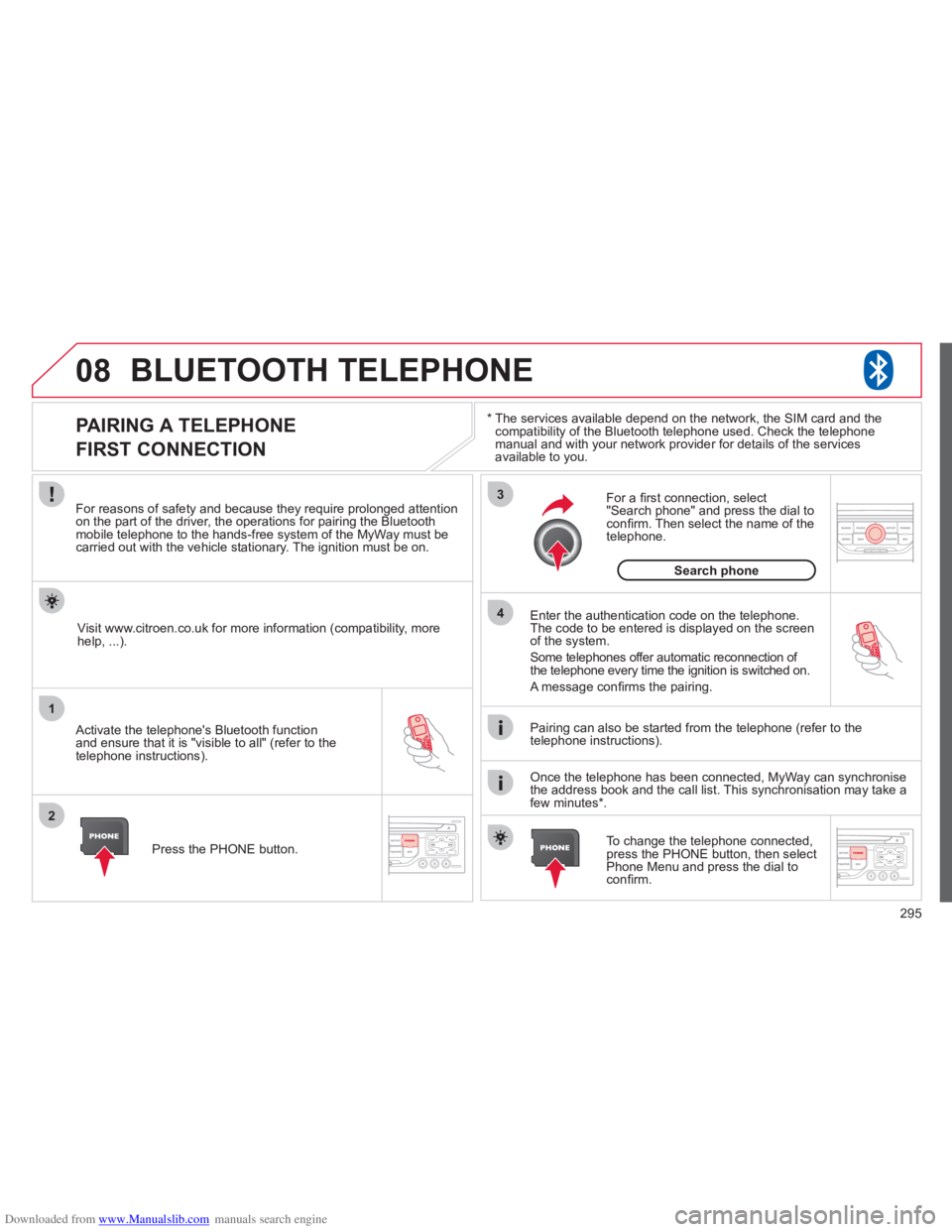
PAIRING A TELEPHONE
FIRST CONNECTION
For reasons of safety and because they require prolonged attentionon the part of the driver, the operations for pairing the Bluetooth mobile telephone to the hands-free system of the MyWay must be carried out with the vehicle stationary. The ignition must be on.
Activate the telephone's Bluetooth
function
and ensure that it is "visible to all" (refer to the
telephone instructions). Enter the authentication code on the tele
phone.
The code to be entered is displayed on the screen
of the system.
Some telephones offer automatic reconnection o
f
the telephone every time the ignition is switched on.
A messa
ge confi rms the pairing.
To change the telephone connected, press the PHONE button, then select Phone Menu and press the dial toconfi rm.
Once the telephone has been connected, MyWay can synchronise
the address book and the call list. This synchronisation may take a few minutes * . Pairin
g can also be started from the telephone (refer to the
telephone instructions). Visit www.citroen.co.uk
for more information (compatibility, more
help, ...).
Press the PH
ONE button.
For a
fi rst connection, select"Search phone" and press the dial to confi rm. Then select the name of thetelephone.
Search
phone
Page 298 of 352
Downloaded from www.Manualslib.com manuals search engine 296
08
1
2
2
1
*
The services available depend on the network, the SIM card and the compatibility of the Bluetooth telephone used. Check the telephone manual and with your network provider for details of the services
available to you.
BLUETOOTH TELEPHONE
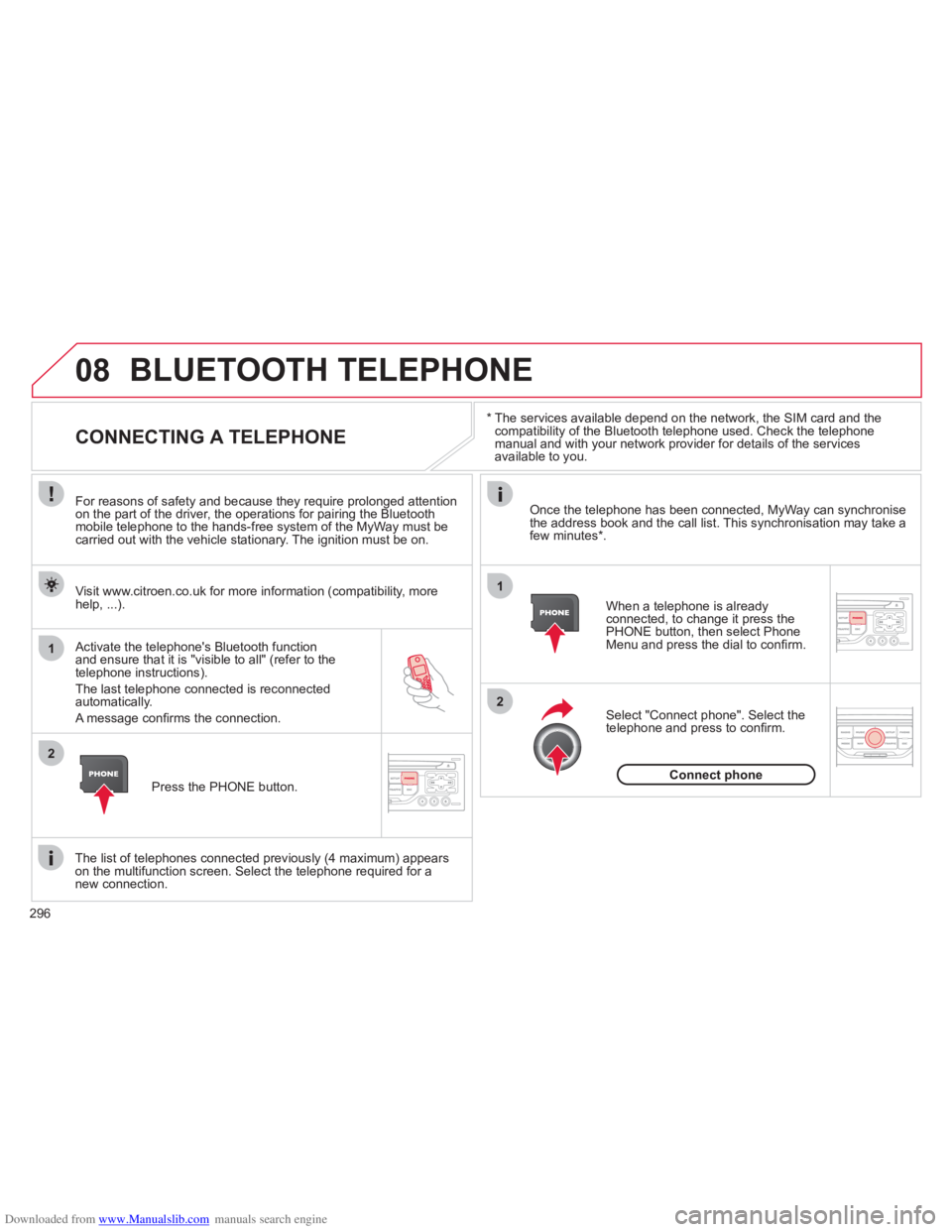
CONNECTING A TELEPHONE
For reasons of safety and because they require prolonged attention
on the part of the driver, the operations for pairing the Bluetooth
mobile telephone to the hands-free system of the MyWay must becarried out with the vehicle stationary. The ignition must be on.
Activate the tele
phone's Bluetooth function and ensure that it is "visible to all" (refer to the
telephone instructions).
The last telephone connected is reconnected automatically.
A messa
ge confi rms the connection. When a telephone is alread
yconnected, to change it press the
PHONE button, then select PhoneMenu and press the dial to confi rm.
Once the telephone has been connected, MyWay can synchronise
the address book and the call list. This synchronisation may take afew minutes * .
The list o
f telephones connected previously (4 maximum) appearson the multifunction screen. Select the telephone required for a
new connection. Visit www.citroen.co.uk
for more information (compatibility, more
help, ...).
Press the PH
ONE button.Select "Connect
phone". Select the
telephone and press to confi rm.
Connect
phone
Page 299 of 352
Downloaded from www.Manualslib.com manuals search engine 297
08
1
3 2
2 1to refuse and confi rm by pressing
the dial.
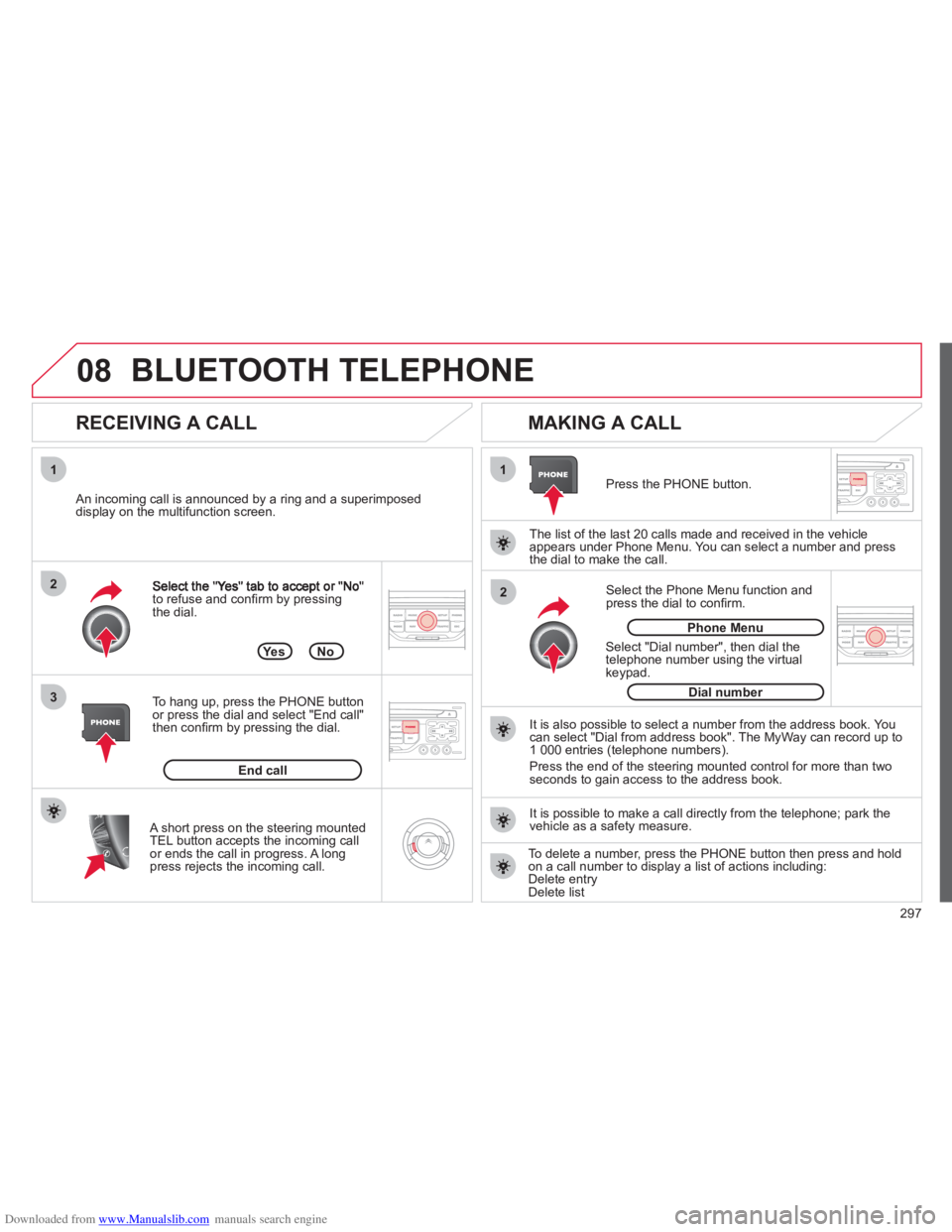
RECEIVING A CALL
MAKING A CALL
An incoming call is announced by a ring and a superimposed
display on the multifunction screen.
Yes
To han
g up, press the PHONE button
or press the dial and select "End call"then confi rm by pressing the dial.
End callPress the PH
ONE button.
Select "Dial number"
, then dial the
telephone number using the virtualkeypad.
Select the Phone Menu function and
press the dial to confi rm.
The list of the last 2
0 calls made and received in the vehicle
appears under Phone Menu. You can select a number and press
the dial to make the call.
No
It is also possible to select a number from the address book. Youcan select "Dial from address book". The MyWay can record up to
1 000 entries (telephone numbers).
Press the end o
f the steering mounted control for more than twoseconds to gain access to the address book.
Phone Menu
Dial number
It is possible to make a call directl
y from the telephone; park the
vehicle as a safety measure.
BLUETOOTH TELEPHONE
A short press on the steering mountedTEL button accepts the incoming callor ends the call in progress. A long
press rejects the incoming call.
To delete a number, press the PHONE button then press and hold
on a call number to display a list of actions including:Delete entryDelete list