manual radio set CITROEN C4 PICASSO 2011 Owners Manual
[x] Cancel search | Manufacturer: CITROEN, Model Year: 2011, Model line: C4 PICASSO, Model: CITROEN C4 PICASSO 2011Pages: 352, PDF Size: 10.66 MB
Page 47 of 352
Downloaded from www.Manualslib.com manuals search engine II
45
MULTIFUNCTION SCREENS
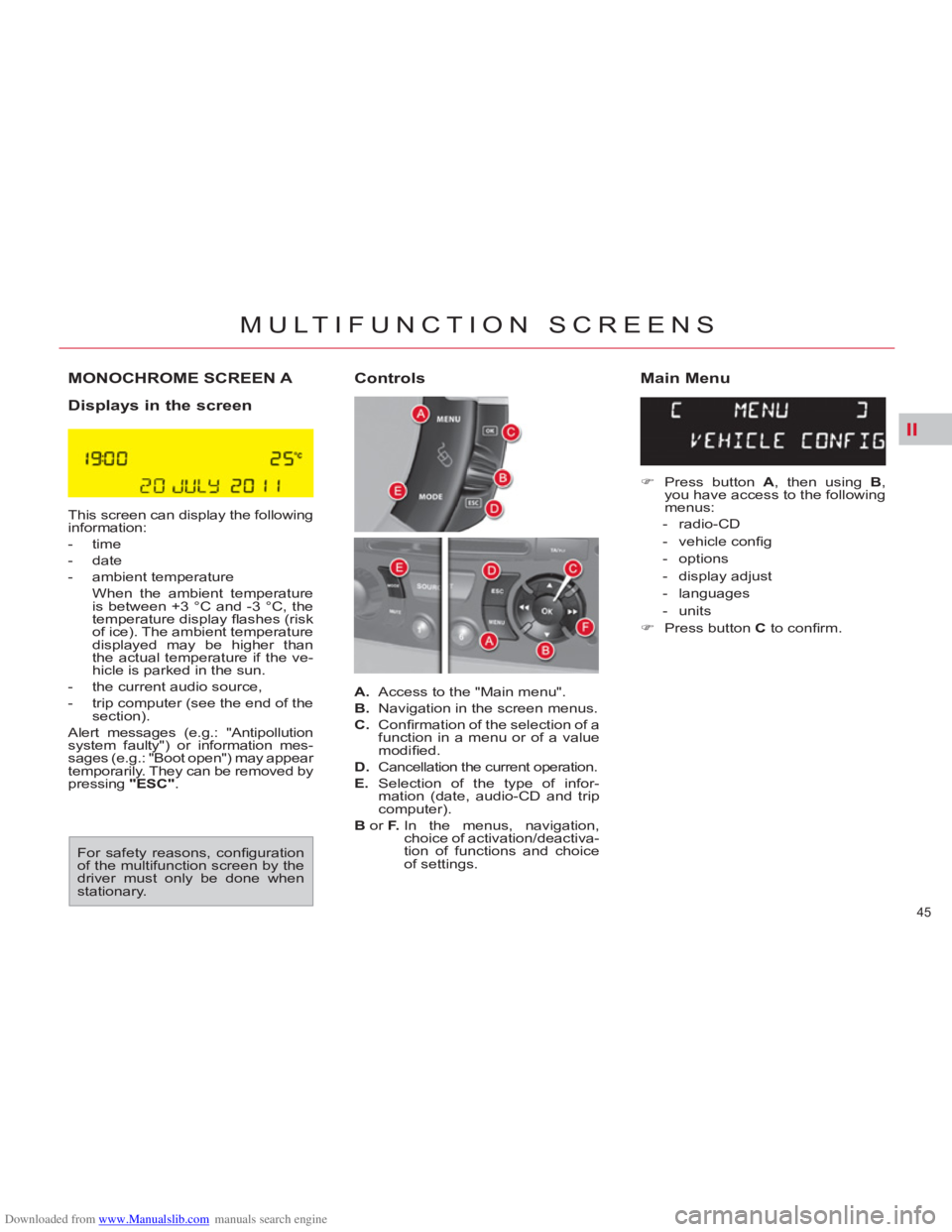
MONOCHROME SCREEN A
Displays in the screen
This screen can display the following
information:
- time
- date
- ambient temperature
When the ambient temperature
is between +3 °C and -3 °C, the
temperature display fl ashes (risk
of ice). The ambient temperature
displayed may be higher than
the actual temperature if the ve-
hicle is parked in the sun.
- the current audio source,
- trip computer (see the end of the
section).
Alert messages (e.g.: "Antipollution
system faulty") or information mes-
sages (e.g.: "Boot open") may appear
temporarily. They can be removed by
pressing "ESC"
.
A.
Access to the "Main menu".
B.
Navigation in the screen menus.
C.
Confi rmation of the selection of a
function in a menu or of a value
modifi ed.
D.
Cancellation the current operation.
E.
Selection of the type of infor-
mation (date, audio-CD and trip
computer).
B
or F.
In the menus, navigation,
choice of activation/deactiva-
tion of functions and choice
of settings.
)
Press button A
, then using B
,
you have access to the following
menus:
- radio-CD
- vehicle confi g
- options
- display adjust
- languages
- units
)
Press button C
to confi rm.
Controls
Main Menu
For safety reasons, confi guration
of the multifunction screen by the
driver must only be done when
stationary.
Page 48 of 352
Downloaded from www.Manualslib.com manuals search engine II
46
MULTIFUNCTION SCREENS
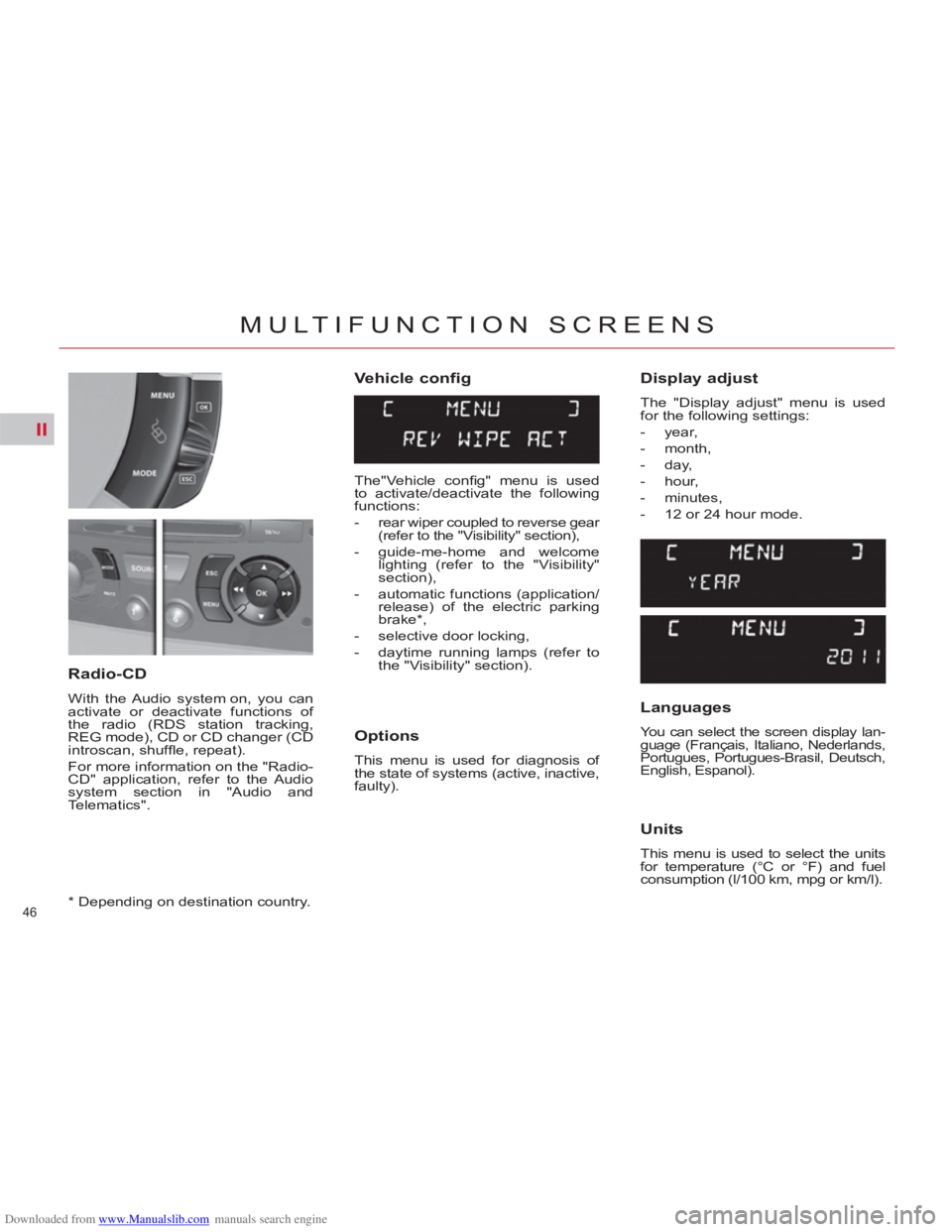
Vehicle config
Options
This menu is used for diagnosis of
the state of systems (active, inactive,
faulty).
Radio-CD
With the Audio system on, you can
activate or deactivate functions of
the radio (RDS station tracking,
REG mode), CD or CD changer (CD
introscan, shuffl e, repeat).
For more information on the "Radio-
CD" application, refer to the Audio
system section in "Audio and
Telematics".
Display adjust
The "Display adjust" menu is used
for the following settings:
- year,
- month,
- day,
- hour,
- minutes,
- 12 or 24 hour mode.
Languages
You can select the screen display lan-
guage (Français, Italiano, Nederlands,
Portugues, Portugues-Brasil, Deutsch,
English, Espanol).
Units
This menu is used to select the units
for temperature (°C or °F) and fuel
consumption (l/100 km, mpg or km/l).
*
Depending on destination country.
The"Vehicle confi g" menu is used
to activate/deactivate the following
functions:
- rear wiper coupled to reverse gear
(refer to the "Visibility" section),
- guide-me-home and welcome
lighting (refer to the "Visibility"
section),
- automatic functions (application/
release) of the electric parking
brake * ,
- selective door locking,
- daytime running lamps (refer to
the "Visibility" section).
Page 49 of 352
Downloaded from www.Manualslib.com manuals search engine II
47
MULTIFUNCTION SCREENS
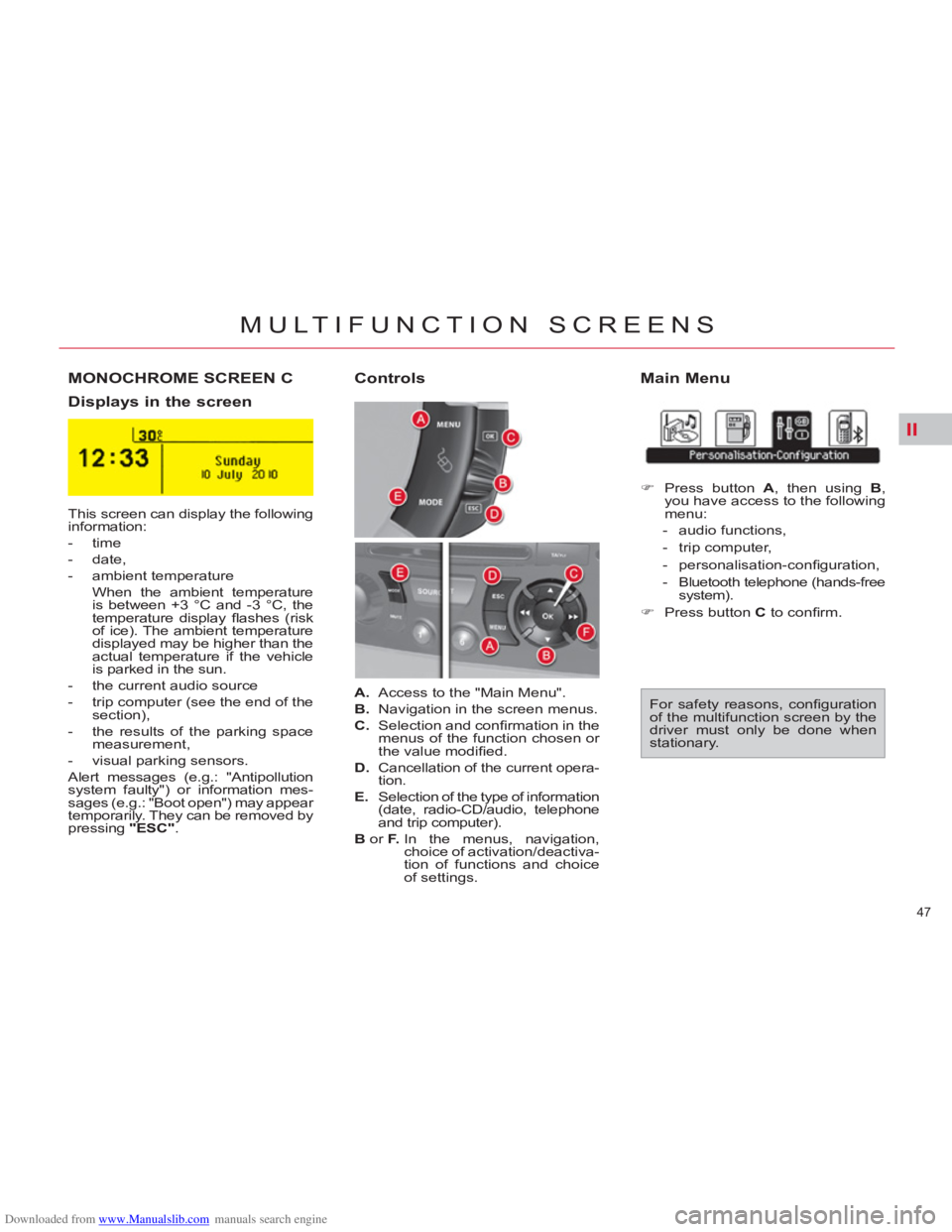
MONOCHROME SCREEN C
Main Menu
Displays in the screen
Controls
This screen can display the following
information:
- time
- date,
- ambient temperature
When the ambient temperature
is between +3 °C and -3 °C, the
temperature display fl ashes (risk
of ice). The ambient temperature
displayed may be higher than the
actual temperature if the vehicle
is parked in the sun.
- the current audio source
- trip computer (see the end of the
section),
- the results of the parking space
measurement,
- visual parking sensors.
Alert messages (e.g.: "Antipollution
system faulty") or information mes-
sages (e.g.: "Boot open") may appear
temporarily. They can be removed by
pressing "ESC"
. For safety reasons, confi guration
of the multifunction screen by the
driver must only be done when
stationary.
A.
Access to the "Main Menu".
B.
Navigation in the screen menus.
C.
Selection and confi rmation in the
menus of the function chosen or
the value modifi ed.
D.
Cancellation of the current opera-
tion.
E.
Selection of the type of information
(date, radio-CD/audio, telephone
and trip computer).
B
or F.
In the menus, navigation,
choice of activation/deactiva-
tion of functions and choice
of settings.
)
Press button A
, then using B
,
you have access to the following
menu:
- audio functions,
- trip computer,
- personalisation-confi guration,
- Bluetooth telephone (hands-free
system).
)
Press button C
to confi rm.
Page 52 of 352
Downloaded from www.Manualslib.com manuals search engine II
50
MULTIFUNCTION SCREENS
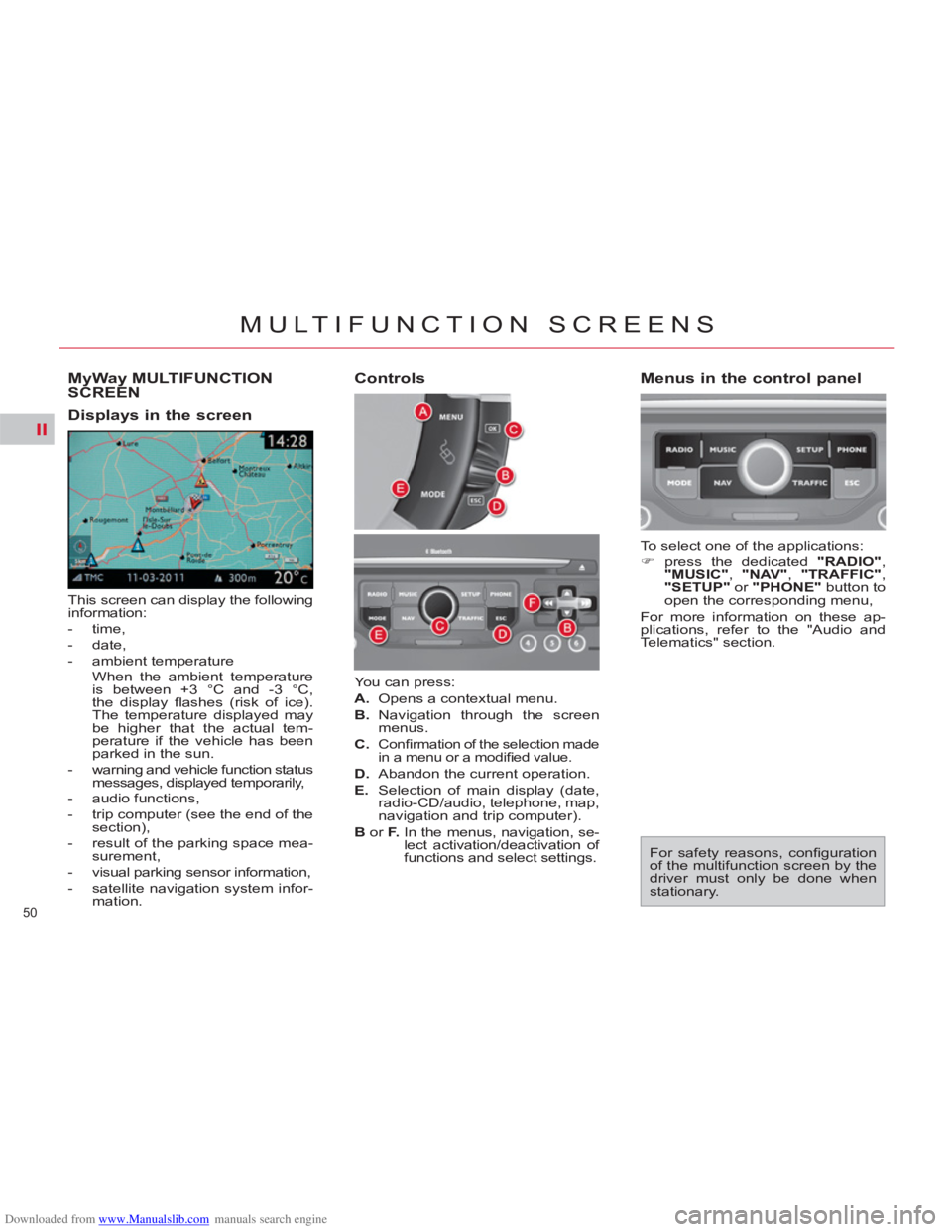
MyWay MULTIFUNCTION
SCREEN
This screen can display the following
information:
- time,
- date,
- ambient temperature
When the ambient temperature
is between +3 °C and -3 °C,
the display fl ashes (risk of ice).
The temperature displayed may
be higher that the actual tem-
perature if the vehicle has been
parked in the sun.
- warning and vehicle function status
messages, displayed temporarily,
- audio functions,
- trip computer (see the end of the
section),
- result of the parking space mea-
surement,
- visual parking sensor information,
- satellite navigation system infor-
mation.
Controls
Displays in the screen
For safety reasons, confi guration
of the multifunction screen by the
driver must only be done when
stationary. You can press:
A.
Opens a contextual menu.
B.
Navigation through the screen
menus.
C.
Confi rmation of the selection made
in a menu or a modifi ed value.
D.
Abandon the current operation.
E.
Selection of main display (date,
radio-CD/audio, telephone, map,
navigation and trip computer).
B
or F.
In the menus, navigation, se-
lect activation/deactivation of
functions and select settings. To select one of the applications:
)
press the dedicated "RADIO"
,
"MUSIC"
, "NAV"
, "TRAFFIC"
,
"SETUP"
or "PHONE"
button to
open the corresponding menu,
For more information on these ap-
plications, refer to the "Audio and
Telematics" section.
Menus in the control panel
Page 54 of 352

Downloaded from www.Manualslib.com manuals search engine II
52
MULTIFUNCTION SCREENS
NAVIDRIVE MULTIFUNCTION
SCREEN
Displays in the screen
The screen can display the following
information:
- time
- date
- ambient temperature
When the ambient temperature
is between +3 °C and -3 °C, the
temperature display fl ashes (risk
of ice). The ambient temperature
displayed may be higher than
the actual temperature if the ve-
hicle is parked in the sun.
- alert messages and state of ve-
hicle systems, displayed tempo-
rarily.
For safety reasons, confi guration
of the multifunction screen by the
driver must only be done when
stationary.
Controls
A.
Access to the "Main Menu".
B.
Navigation in the screen menus.
C.
Selection and confi rmation in the
menus of the function chosen or
the value modifi ed.
D.
Cancellation of the current op-
eration or return to the previous
display.
E.
Selection of the principal dis-
play (date, radio-CD/audio, tele-
phone, map, navigation and trip
computer).
B
or F.
In the menus, navigation,
choice of activation/deactiva-
tion of functions and choice
of setting.
- audio functions,
- trip computer (see end of the
section),
- results of the parking space
measurement,
- visual parking sensors,
- satellite navigation system infor-
mation.
Page 163 of 352

Downloaded from www.Manualslib.com manuals search engine IX
161
DRIVING
Optional function controls
1.
Call/Hang up the telephone (see
"Audio and Telematics" section).
2.
Rheostat for dashboard lighting.
3.
Start of voice recognition (see
"Audio and Telematics" section).
4.
Personalisation button:
- courtesy lamp on/off or
- diagnostics
Press this button for more than
two seconds to display the per-
sonalisation menu.
5.
Air recirculation.
Multifunction screen controls
A.
Selection of the type of informa-
tion to be displayed on the right
of the screen (radio, trip comput-
er, navigation/guidance…).
For the multifunction screen A,
choice of activation/deactivation
of functions and setting choices.
B.
Access to the "Main Menu" * .
C.
Confi rmation of the function cho-
sen or of the value modifi ed.
Call/Hang up (see "Audio and
Telematics" section).
D.
Scrolling in the multifunction
screen.
E.
Cancellation of the current op-
eration or return to the previous
display.
*
To comply with legislation in certain coun-
tries, the "Menu" control may be deacti-
vated while the vehicle is in motion.
Page 272 of 352

Downloaded from www.Manualslib.com manuals search engine 270
09
VIDEO
display formats
VIDEO PARAMETERS
1
2
3
adjust luminosity3
set colours3
set contrasts3
ACTIVATE VIDEO MODE 2
VEHICLE DIAGNOSTICS
STATUS OF FUNCTIONS *
1
2
ALERT LOG 2
RESET TYRE PRESS. DETEC. SYS. *2
GPS COVERAGE
UNIT DESCRIPTION
1
2UNIT BACKUP POWE R
2
2
VOICE COMMANDS LIST 1
SERVICES
CONFIGURATION 1
NAVIGATION
DEMONSTRATION
1
Press the MENU button for more
than 2 seconds to access the following fl ow chart.
Press the Music button several times
in succession to access the followingsettings.
MU
SICAL AMBIENCE
SCREEN MENU MAP
BASS
TREBLE
LOUDNESS CORRECTION
FR - RR BALAN
CE
Displa
y short cuts version 8.2
LH - RH BALANCE
AUTO VOLUME CORRECTION
Each audio source
(Radio, CD, MP3,Jukebox) has its own separate settings.
*
The parameters vary according to the vehicle.
AUDIO/TELEPHONE
DIAGNOSTICS
Page 273 of 352

Downloaded from www.Manualslib.com manuals search engine 271
FREQUENTLY ASKED QUESTIONS
QUESTIONANSWERSOLUTION
There is a difference in sound quality betweenthe different audiosources (radio, CD...).
For optimum sound quality, the audio settings (Volume, Bass, Treble, Ambience, Loudness) can be adapted to the different sound sources,which may result in audible differences when changing source (radio,CD...).
Check that the audio settings (Volume, Bass, Treble, Ambience, Loudness) are adapted tothe sources listened to. It is advisable to setthe AUDIO functions (Bass, Treble, Front-Rear Balance, Left-Right Balance) to the middle position, select the musical ambience "None" and set the loudness correction to the "Active" position in CD mode or to the "Inactive" position in radio mode.
The CD is ejected automatically or is not played by the player.
The CD is inserted upside down, is unplayable, does not contain any audio data or contains an audio format which the player cannot play.
The CD is protected by an anti-pirating protectionsystem which is not recognised by the audio equipment.
- Check that the CD is inserted in the player the right way up.
- Check the condition of the CD: the CD cannot be played if it is too damaged.
- Check the content in the case of a recordedCD: consult the advice in the Audio section.
- The audio equipment's CD player does notplay DVDs.
- Due to inadequate quality, certain recordedCDs will not be played by the audio system.
The CD player sound ispoor.The CD used is scratched or of poor quality.
Insert good quality CDs and store them in suitable conditions.
The audio equipment settings (bass, treble, ambiences) are unsuitable. Set the treble or bass level to 0, without selectingan ambience. The table below
groups together the answers to the most frequently asked questions.
Page 278 of 352

Downloaded from www.Manualslib.com manuals search engine 276
01
Engine not running:
-
Short press: on/off.
- Long press: pause with
CD play, mute for radio.
Engine running:
- Short
press: pause with CD play, mute for radio.
-
Long press: reinitialise thesystem.
Access to theRadio Menu.Display the list of stations.
Access to theMusic Menu. Display tracks. Lon
g press: audio settings: front/rear fader, left/right balance, bass/treble,
musical ambience, loudness, automatic
volume, reinitialise settings.
Selection dial for the
screen display and according to the menu.
Short press: contextual
menu or confi rm.
Long press: contextual
menu specifi c to the list
displayed.
A
ccess to the"SETUP" menu.
Lon
g press: GPS coverage anddemonstration
mode.
Access to the PhoneMenu. Display the list of calls.
E
ject CD.
Select previous/next radio station.
Select previous CD or MP3
track.
Select previous/next line in a list.
Select
previous/next radio station in the list.
Select previous/next MP3
folder.
Select previous/next page in a list.
E
SC: abandon current operation.
Access to theTraffi c Menu. Display the current
traffi c alerts. R
eader for navigation SDcard only.
A
ccess to theNavigation Menu. Displayrecent destinations.
A
ccess to the "MODE" menu.
Select successive display of:
Radio, Map, NAV (if navigation in progress),
Telephone (if conversation in progress), Tripcomputer.
Long press: Black screen (DARK). Buttons 1 to
6:
Select a pre-set radiostation.
Long press: pre-set the current station.
Ad
just volume (each source
is independent, including
navigation messages andalerts).
Page 280 of 352

Downloaded from www.Manualslib.com manuals search engine 278
03 GENERAL OPERATION
For a detailed global view of the menus available, refer to the"Screen menu map" section.
Press the M
ODE button several times in succession for access to the following menus:
For cleaning the screen, the use of a soft, non-abrasive cloth (spectacles cloth) is recommended, with no additional product. RADIO
/
MUSIC MEDIA PLAYERS
TELEPHONE
(If a conversation is in progress)
FULL SCREEN MA
P
NAVIGATION
(If guidance is in progress)
SETUP:
s
ystem language *
, date and time *
, display,
vehicle settings
* , unit and system settings, "Demo mode".
TRAFFIC:
TMC information and messages.
* Available accordin
g to model.
TRIP COMPUTER