Back row CITROEN C4 PICASSO 2017 User Guide
[x] Cancel search | Manufacturer: CITROEN, Model Year: 2017, Model line: C4 PICASSO, Model: CITROEN C4 PICASSO 2017Pages: 316, PDF Size: 10.36 MB
Page 126 of 316
124
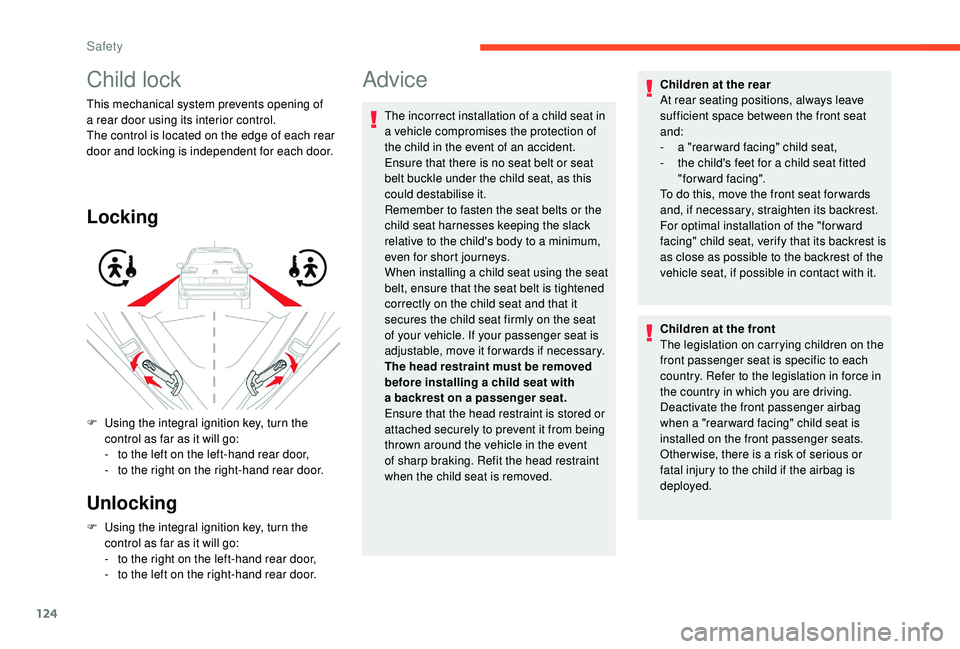
Child lock
This mechanical system prevents opening of
a rear door using its interior control.
The control is located on the edge of each rear
door and locking is independent for each door.
Locking
Unlocking
F Using the integral ignition key, turn the control as far as it will go:
-
t
o the right on the left-hand rear door,
-
t
o the left on the right-hand rear door.
F
U
sing the integral ignition key, turn the
control as far as it will go:
-
t
o the left on the left-hand rear door,
-
t
o the right on the right-hand rear door.
Advice
The incorrect installation of a child seat in
a vehicle compromises the protection of
the child in the event of an accident.
Ensure that there is no seat belt or seat
belt buckle under the child seat, as this
could destabilise it.
Remember to fasten the seat belts or the
child seat harnesses keeping the slack
relative to the child's body to a
minimum,
even for short journeys.
When installing a
child seat using the seat
belt, ensure that the seat belt is tightened
correctly on the child seat and that it
secures the child seat firmly on the seat
of your vehicle. If your passenger seat is
adjustable, move it forwards if necessary.
The head restraint must be removed
before installing a
child seat with
a
backrest on a passenger seat.
Ensure that the head restraint is stored or
attached securely to prevent it from being
thrown around the vehicle in the event
of sharp braking. Refit the head restraint
when the child seat is removed. Children at the rear
At rear seating positions, always leave
sufficient space between the front seat
and:
-
a "
rear ward facing" child seat,
-
t
he child's feet for a child seat fitted
"forward facing".
To do this, move the front seat for wards
and, if necessary, straighten its backrest.
For optimal installation of the "forward
facing" child seat, verify that its backrest is
as close as possible to the backrest of the
vehicle seat, if possible in contact with it.
Children at the front
The legislation on carrying children on the
front passenger seat is specific to each
country. Refer to the legislation in force in
the country in which you are driving.
Deactivate the front passenger airbag
when a "rear ward facing" child seat is
installed on the front passenger seats.
Other wise, there is a
risk of serious or
fatal injury to the child if the airbag is
deployed.
Safety
Page 165 of 316

163
Indicator lampDisplay Associated message Comments
or
(grey)/(green) according to
the inter-vehicle
distance selected and the actual
distance from the target vehicle "Cruise control paused"
(for a
few seconds)The system has brought
the vehicle to a
complete
stop and is holding it
immobilised.
The driver must
accelerate to move off
again.
The cruise control
remains paused until the
driver reactivates it.
Following braking of the vehicle bringing it to
a
complete stop, the system holds the vehicle
stationary; the cruise control is paused.
The driver should press the accelerator
pedal to move off, then reactivate the
system by pressing one of buttons 2 , 3
or
4 . If the driver takes no action following this
immobilisation, the electric parking brake is
applied automatically after a
while (approx. five
minutes).
Operating limits
The system cannot exceed the limits of the
laws of physics.
The system cannot deal with certain situations
and the driver has to take back control of the
vehicle. Cases of non- detection by the radar:
-
Pe
destrians, some cyclists, animals.
-
S
tationary vehicles (traffic jam, breakdown,
e t c .) . When the driver must suspend the cruise
control system:
Cases where the driver is urged to take
back control immediately:
-
E
xcessively sharp deceleration of the
vehicle in front of you.
Versions fitted with an automatic gearbox
-
V
ehicles in a tight bend.
-
W
hen approaching a
roundabout.
-
W
hen following a narrow vehicle.
Reactivate cruise control when conditions
permit.
-
V
ehicles crossing your lane.
-
O
ncoming vehicles.
-
W
hen a vehicle cuts in sharply between
your vehicle and the one in front.
6
Driving
Page 192 of 316
190
Fuel
Fuel tank capacity: approximately 57 litres
(petrol) or 55 litres (Diesel).
Low fuel level
When the low fuel level is reached,
this warning lamp in the instrument
panel comes on, accompanied by
an audible warning, a message and
the last bar of the fuel gauge lights
up orange.
When it first comes on there remains
approximately 6
litres of fuel in the tank.
Until sufficient fuel has been added, this
warning lamp appears every time the ignition
is switched on, accompanied by an audible
warning and a
message. This audible warning
and this message are repeated with increasing
frequency as the fuel level drops towards " 0".
Refuel as soon as possible to avoid running
out.
Refilling
A self-adhesive label on the inner face of the
filler flap reminds you of the type of fuel to use,
depending on your engine.
Additions of fuel must be of at least 5
litres, in
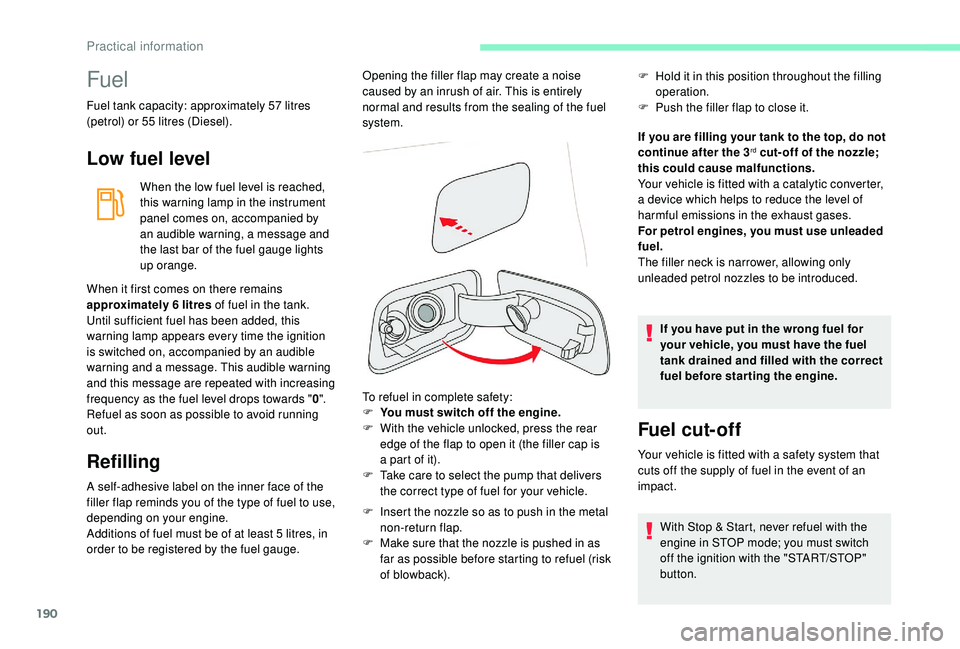
order to be registered by the fuel gauge. To refuel in complete safety:
F
Y
ou must switch off the engine.
F
W
ith the vehicle unlocked, press the rear
edge of the flap to open it (the filler cap is
a part of it).
F T ake care to select the pump that delivers
the correct type of fuel for your vehicle.
F
I
nsert the nozzle so as to push in the metal
non-return flap.
F
M
ake sure that the nozzle is pushed in as
far as possible before starting to refuel (risk
of blowback). If you are filling your tank to the top, do not
continue after the 3
rd cut- off of the nozzle;
this could cause malfunctions.
Your vehicle is fitted with a
catalytic converter,
a device which helps to reduce the level of
harmful emissions in the exhaust gases.
For petrol engines, you must use unleaded
fuel.
The filler neck is narrower, allowing only
unleaded petrol nozzles to be introduced.
If you have put in the wrong fuel for
your vehicle, you must have the fuel
tank drained and filled with the correct
fuel before star ting the engine.
Fuel cut- of f
Your vehicle is fitted with a safety system that
c uts off the supply of fuel in the event of an
impact.
Opening the filler flap may create a
noise
caused by an inrush of air. This is entirely
normal and results from the sealing of the fuel
system. F
H
old it in this position throughout the filling
operation.
F
P
ush the filler flap to close it.
With Stop & Start, never refuel with the
engine in STOP mode; you must switch
off the ignition with the "START/STOP"
button.
Practical information
Page 217 of 316

215
Taking out the spare wheel
F Fold back the concertina board and install the third row seat, on the left-hand side (if
your vehicle is equipped with it).
F
L
ift the pre-cut section of carpet to remove
the fixing winch nut from the spare wheel. F
D
etach the assembly of wheel and box from
the rear of the vehicle.
Tool storage
F Put the tools back in the box and store the box in the boot of the vehicle.
F
R
eel in the winch by turning the key in
the clockwise direction: once the cable is
completely reeled in, you should no longer
feel any resistance.
F
S
tore the rest of the tools in the storage
areas in the boot.
The wheel with the punctured tyre cannot
be fitted under the vehicle. It must be
stored in the boot. Use a
cover to protect
the interior of the boot.
F
W
ith the extension 6 placed on the end of
wheelbrace 1 , "tighten" the nut to unwind
the winch cable until the spare wheel is
flat on the ground. Unwind as much as
necessary in order to access the wheel
easily. F
S
traighten the spare wheel to access tool
box ( A).
F
D
etach the connecting piece from the cover
of the tool box ( B – C).
F
P
ass the connecting piece through the
wheel hub to release it ( D). F
P
ress the tab, slide the lid on the box up
to the middle and remove it to access the
other tools ( jack and alloy wheel bolt cover
removal tool).
8
In the event of a breakdown
Page 248 of 316

2
First steps
With the engine running, a press
mutes the sound.
With the ignition off, a press turns
the system on.
Adjustment of the volume.
Use the buttons on either side of or below the
touch screen for access to the menus, then
press the virtual buttons in the touch screen.
Depending on the model, use the "Source" or
"Menu" buttons on the left of the touch screen
for access to the menus, then press the virtual
buttons in the touch screen.
You can display the menus at any time by
pressing the screen briefly with three fingers.
All of the touch areas of the screen are white.
Press in the grey zone to go back a
level or
confirm.
Press the back arrow to go back a
level or
confirm. The touch screen is of the "capacitive"
type.
To clean the screen, use a
soft, non-
abrasive cloth (e.g. spectacles cloth) with
no additional product.
Do not use sharp objects on the screen.
Do not touch the screen with wet hands.
*
D
epending on equipment.
Certain information is displayed permanently in
the upper band of the touch screen:
-
R
eminder of the air conditioning information
(depending on version), and direct access to
the corresponding menu.
-
R
eminder of the Radio Media and
Telephone menu information.
-
A
ccess to the Settings of the touch screen
and digital instrument panel.
Selecting the audio source (depending on version):
- F M/DAB*/AM* radio stations.
-
T
elephone connected via Bluetooth* and
Bluetooth multimedia broadcast* (streaming).
-
C
D player (depending on model).
-
U
SB memory stick.
-
M
edia player connected via the auxiliary socket
(depending on model).
In the "Settings" menu you can create
a profile for just one person or a group
of people with common points, with the
possibility of entering a
multitude of
settings (radio presets, audio settings,
ambiences, etc.); these settings are taken
into account automatically.
CITROËN Connect Radio
Page 251 of 316

5
Settings
Configure a personal profile and/
o r configure the sound (balance,
ambience, etc.) and the display
(language, units, date, time, etc.).
Driving
Activate, deactivate or configure
certain vehicle functions.
Navigation
Configure the guidance and select
your destination via MirrorLinkTM,
CarPlay® or Android Auto.
Applications
Viewing photos
Insert a USB memory stick in the USB port.
T o protect the system, do not use a USB
hub.
The system can read folders and image files in
the formats:.tif f;.gif;.jpg/jpeg;.bmp;.png.
Press Applications to display the
primary page.
Press " Photos ".
Select a
folder.
Select an image to view.
Press this button to display the
details of the photo.
Press the back arrow to go back
a
level.
.
CITROËN Connect Radio
Page 253 of 316
7
Activating/Deactivating RDS
Press Radio Media to display the
primary page.
Press the " OPTIONS" button to go to the
secondary page.
Activate/Deactivate " RDS".
Press in the grey area to confirm.
The RDS, if activated, enables you to continue
listening to the same station by automatically
retuning to alternative frequencies. However,
in certain conditions, coverage of this RDS
station may not be assured throughout the
entire country as radio stations do not cover
100% of the territory. This explains the loss of
reception of the station during a
journey.
Display text information
The "Radio Text" function allows
information transmitted by the radio
station and related to the station or the
song playing to be displayed. Press Radio Media
to display the
primary page.
Press the " OPTIONS" button to go to the
secondary page.
Activate/Deactivate " News"/" Info ".
Press in the grey zone to confirm.
Play TA messages
The TA (Traffic Announcement) function
gives priority to TA alert messages.
To operate, this function needs good
reception of a
radio station that carries
this type of message. While traffic
information is being broadcast, the current
media is automatically interrupted so that
the TA message can be heard. Normal
play of the media previously playing is
resumed at the end of the message.
Press Radio Media to display the
primary page.
Press the " OPTIONS" button to go to the
secondary page. Activate/Deactivate "
TA".
Press in the grey zone to confirm.
Audio settings
Press Radio Media to display the
primary page.
Press the " OPTIONS" button to go to the
secondary page.
Press "Audio settings ".
Select the " To n e" or "Balance "
or " Ringtones " or "Sound " tab to
configure the audio settings.
Press the back arrow to confirm.
.
CITROËN Connect Radio
Page 262 of 316
16
Press "Recent calls ".
Select the desired contact from the list offered.
It is always possible to make a
call directly
from the telephone; as a
safety measure,
first park the vehicle.
Setting the ringtone
Press Telephone to display the
primary page.
Press the " OPTIONS" button to go to the
secondary page.
Press "Ring volume " to display the
volume bar.
Press the arrows or move the cursor
to set the ring volume.
Settings
Profile settings
As a safety measure and because it
r equires the sustained attention of the
driver, changes to settings must only be
done with the vehicle stationary .
Press Settings to display the
primary page.
Press " Profiles ".
Select " Profile 1 " or "Profile 2 " or "Profile 3 "
or " Common profile ".
Press this button to enter a
name for
the profile using the virtual keypad.
Press " OK" to save.
Press the back arrow to confirm.
Press this button to activate the
profile. Press the back arrow again to
confirm.
Press this button to initialise the
profile selected.
Adjust brightness
Press Settings
to display the
primary page.
Press Brightness .
Move the cursor to adjust the
brightness of the screen and/or of
the instrument panel (depending on
ve r s i o n).
Press in the grey zone to confirm.
Modifying system settings
Press Settings to display the
primary page.
CITROËN Connect Radio
Page 263 of 316
17
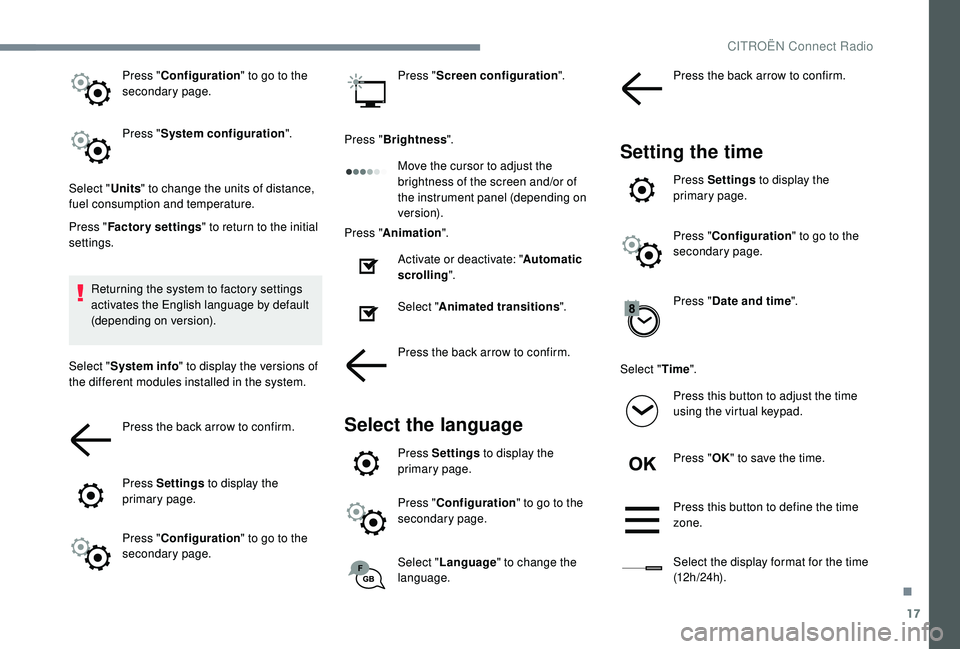
Press "Configuration " to go to the
secondary page.
Press " System configuration ".
Select " Units" to change the units of distance,
fuel consumption and temperature.
Press " Factory settings " to return to the initial
settings.
Returning the system to factory settings
activates the English language by default
(depending on version).
Select " System info " to display the versions of
the different modules installed in the system.
Press the back arrow to confirm.
Press Settings to display the
primary page.
Press " Configuration " to go to the
secondary page. Press "
Screen configuration ".
Press " Brightness ".
Move the cursor to adjust the
brightness of the screen and/or of
the instrument panel (depending on
ve r s i o n).
Press " Animation ".
Activate or deactivate: " Automatic
scrolling ".
Select " Animated transitions ".
Press the back arrow to confirm.
Select the language
Press Settings to display the
primary page.
Press " Configuration " to go to the
secondary page.
Select " Language " to change the
language. Press the back arrow to confirm.
Setting the time
Press Settings
to display the
primary page.
Press " Configuration " to go to the
secondary page.
Press " Date and time ".
Select " Time".
Press this button to adjust the time
using the virtual keypad.
Press " OK" to save the time.
Press this button to define the time
zone.
Select the display format for the time
(12 h / 24 h).
.
CITROËN Connect Radio
Page 264 of 316
18
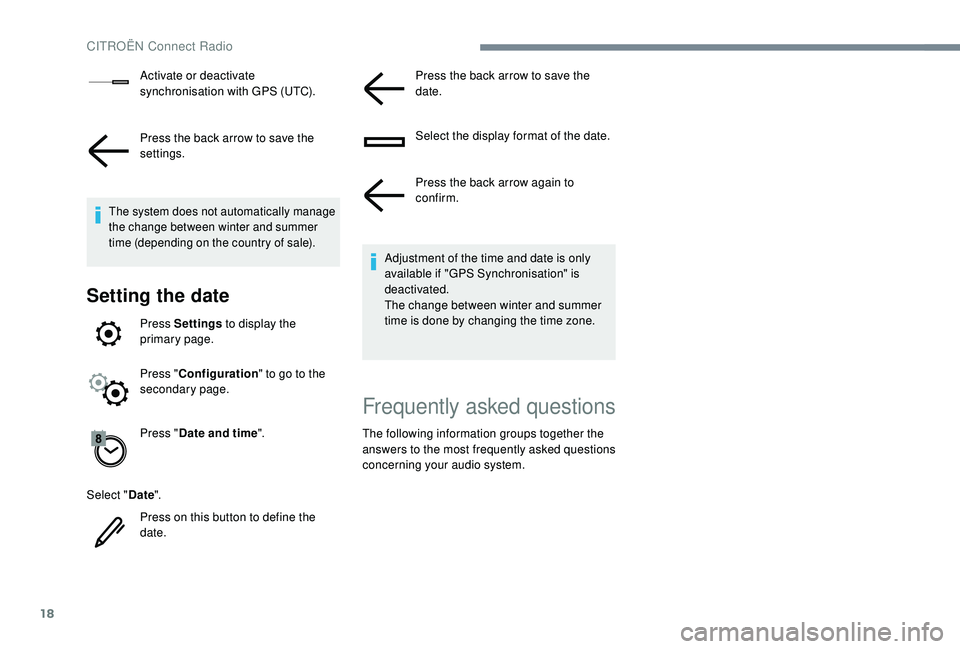
Activate or deactivate
synchronisation with GPS (UTC).
Press the back arrow to save the
settings.
The system does not automatically manage
the change between winter and summer
time (depending on the country of sale).
Setting the date
Press Settings to display the
primary page.
Press " Configuration " to go to the
secondary page.
Press " Date and time ".
Select " Date".
Press on this button to define the
date. Press the back arrow to save the
date.
Select the display format of the date.
Press the back arrow again to
confirm.
Adjustment of the time and date is only
available if "GPS Synchronisation" is
deactivated.
The change between winter and summer
time is done by changing the time zone.
Frequently asked questions
The following information groups together the
answers to the most frequently asked questions
concerning your audio system.
CITROËN Connect Radio