radio Citroen C5 2014.5 (RD/TD) / 2.G User Guide
[x] Cancel search | Manufacturer: CITROEN, Model Year: 2014.5, Model line: C5, Model: Citroen C5 2014.5 (RD/TD) / 2.GPages: 344, PDF Size: 12.9 MB
Page 265 of 344

03
263
For the details of the menus, refer to the "Screen menu map"
section.
For cleaning the screen, the use of a soft, non-abrasive cloth
(spectacles cloth) is recommended, with no additional product.
"RADIO"
"TELEPHONE"
(If conversation in progress)
SETUP: PARAMETERS
date and time, display configuration, sound,
vehicle
settings.
Changing the audio source:
RADIO: RADIO broadcasts.
MUSIC: playing MUSIC.
Press the MODE button several times in succession for access to the following displays:
"FULL SCREEN MAP" "MAP IN WINDOW"
(If navigation guidance in
progress)
GENERAL OPERATION
Page 266 of 344
03
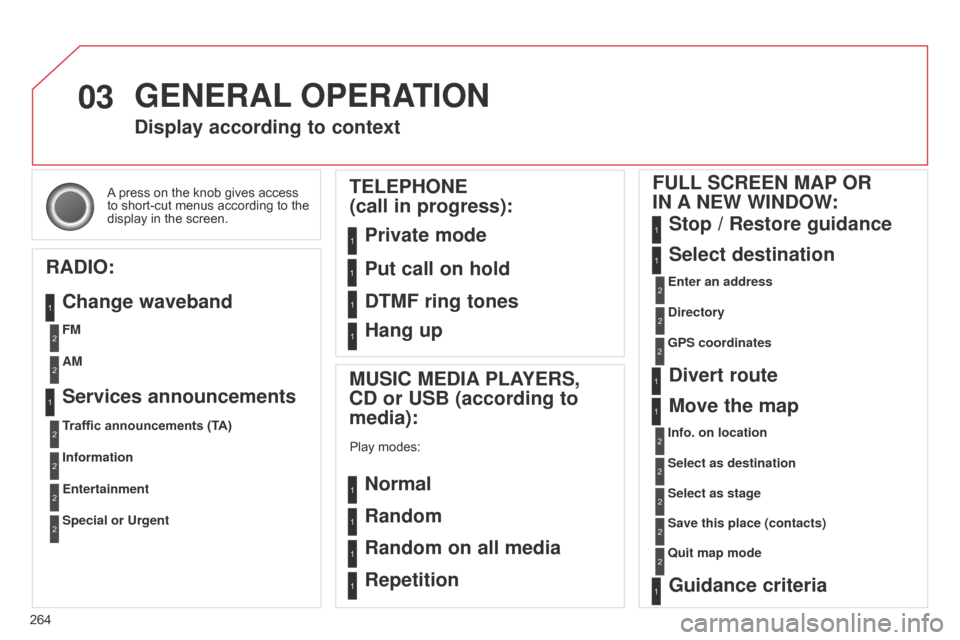
264A press on the knob gives access
to short-cut menus according to the
display in the screen.
Display according to context
RADIO: Change waveband
MUSIC MEDIA PLAYERS,
CD or USB (according to
media):
Play modes:
Normal
Random
Random on all media
Repetition
TELEPHONE
(call in progress):
Private mode FULL SCREEN MAP OR
IN A NEW WINDOW:
Stop
/ Restore guidance
Select destination
Enter an address
Directory
GPS coordinates
Divert route
Move the map
Info. on location
Select as destination Select as stage
Save this place (contacts)
Quit map mode
Guidance criteria
Put call on hold
DTMF ring tones
Hang up
1
1
1
1
1
1
1
2
2
2
2
2
1
2
2
2
1
1
1
1
1
1FM
Traffic announcements (TA) AM
Information
Entertainment
Special or Urgent2
2
2
2
2
2
Services announcements1
GENERAL OPERATION
Page 282 of 344
05
280
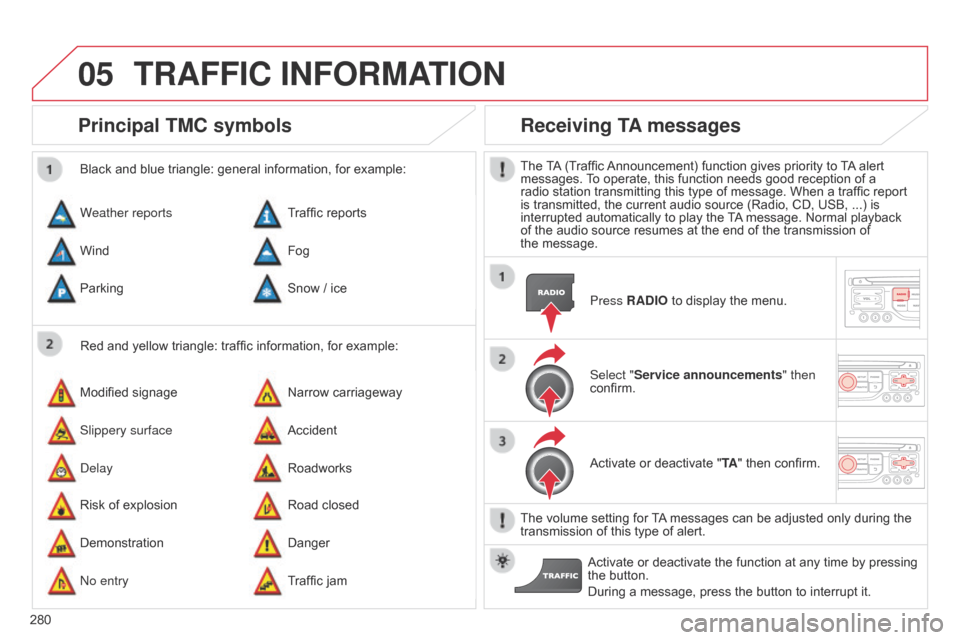
Principal TMC symbols
Red and yellow triangle: traffic information, for example:
Black and blue triangle: general information, for example:
Weather reports
Modified signage
Risk of explosion Traffic reports
Narrow carriageway
Road closed
Wind
Slippery surface
Demonstration Fog
Accident
Danger
Parking
d
elay
n
o entry Snow
/ ice
Roadworks
Traffic jam
Receiving TA messages
The TA (Traffic Announcement) function gives priority to TA alert
messages. To operate, this function needs good reception of a
radio station transmitting this type of message. When a traffic report
is transmitted, the current audio source (Radio, CD, USB, ...) is
interrupted automatically to play the TA message. Normal playback
of the audio source resumes at the end of the transmission of
the message. Press RADIO to display the menu.
Select "Service announcements" then
confirm.
Activate or deactivate "TA " then confirm.
The volume setting for TA messages can be adjusted only during the
transmission of this type of alert. Activate or deactivate the function at any time by pressing
the button.
During a message, press the button to interrupt it.
TRAFFIC INFORMATION
Page 293 of 344

07
291
"FM / AM band"
"Change Waveband" ("AM / FM")
"Guidance options " ("TA, RDS")
"Audio settings "
"Update radio list "
a
lphabetical list of stations
received.
Press 5 or 6 or use the rotary control to select the
previous or next station in the list. Go from the list to the menu (left/right).
or
Press RADIO.
RADIO
Access to the "RADIO" menu
Page 294 of 344
07
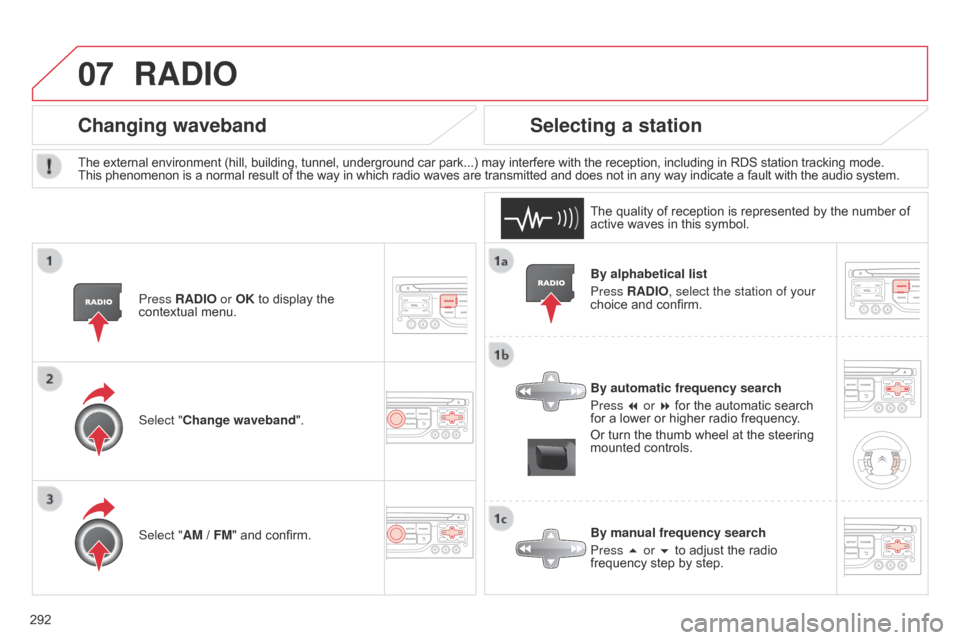
292By alphabetical list
Press RADIO, select the station of your
choice and confirm.
By automatic frequency search
Press 7 or 8 for the automatic search
for a lower or higher radio frequency.
Or turn the thumb wheel at the steering
mounted controls.
By manual frequency search
Press 5 or 6 to adjust the radio
frequency step by step.
Selecting a station
The external environment (hill, building, tunnel, underground car park...) may interfere with the reception, including in RDS station tracking mode.
This
phenomenon is a normal result of the way in which radio waves are transmitted and does not in any way indicate a fault with the audio system.
The quality of reception is represented by the number of
active waves in this symbol.
Press RADIO or OK to display the
contextual menu.
Changing waveband
Select "Change waveband".
Select "AM
/ FM" and confirm.
RADIO
Page 295 of 344

07
293
Press the button on the numerical keypad to recall a
preset station.
Or press then turn the thumb wheel at the steering
mounted controls.
Presetting a station
After selecting a station, press one of the buttons
on the numerical keypad for 2 seconds to preset the
current station.
An audible signal confirms that the station has been
preset.
Press RADIO.
Activate / Deactivate RDS
RDS, if activated, allows you to continue listening to the same
station by automatic retuning to alternative frequencies. However
,
in certain conditions, coverage of an RDS station may not be
assured throughout the entire country as radio stations do not
cover 100 % of the territory. This explains the loss of reception of
the station during a journey.
Select "Guidance options " then
confirm.
Activate or deactivate "RDS" then
confirm.
RADIO
Page 298 of 344
08
296Insert the CD in the player, insert the USB
memory stick in the USB player or connect the
USB peripheral to the USB port using a suitable
cable (not supplied).
The system builds playlists (in temporary
memory), an operation which can take from
a few seconds to several minutes at the first
connection.
Reduce the number of non-music files and the
number of folders to reduce the waiting time.
The playlists are updated every time the ignition
is switched off or connection of a USB memory
stick. However, the system memorises these
lists and if they are not modified, the loading
time will be shorter.
Play starts automatically after a period which
depends on the capacity of the USB memory
stick.
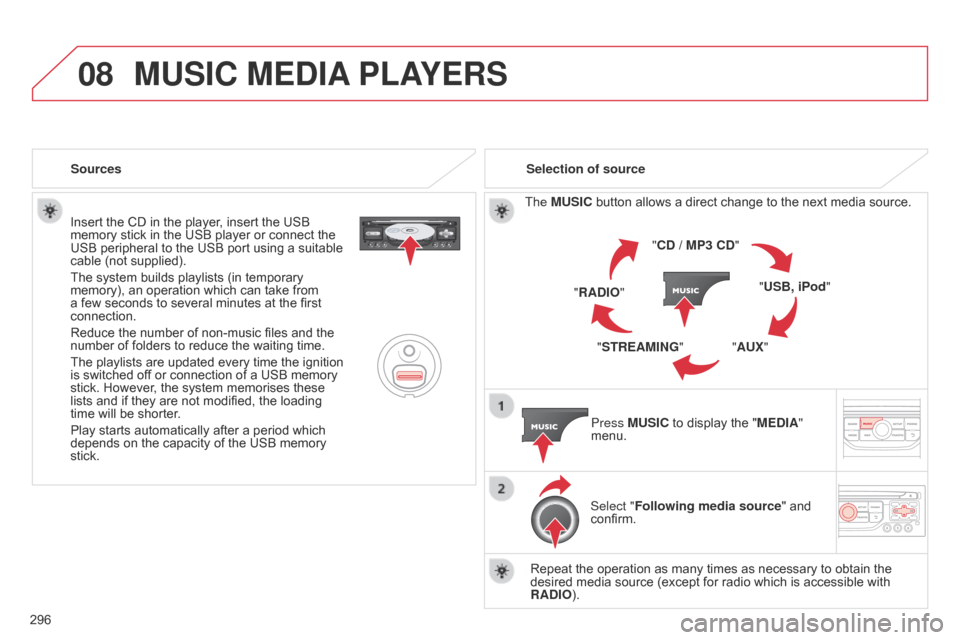
Selection of source
The MUSIC button allows a direct change to the next media source.
"CD / MP3 CD"
"USB, iPod"
"AUX"
"STREAMING"
"RADIO"
Press MUSIC to display the "MEDIA"
menu.
Select "Following media source " and
confirm.
Repeat the operation as many times as necessary to obtain the
desired media source (except for radio which is accessible with
RADIO).
Sources
MUSIC MEDIA
PLAYERS
Page 302 of 344

09
300
AUDIO SETTINGS
They are accessible by the MUSIC
button in the control panel or by a long
press on RADIO according to the source
in use.
-
"
Equalizer" (choice of 6 musical ambiences)
-
"
Bass "
-
"
Treble"
-
"
Loudness" (Activate/Deactivate)
-
"
Distribution " ("Driver", "All passengers")
-
"
Le-Ri balance" (Left/Right)
-
"
Fr-Re balance" (Front/Rear)
-
"
Auto. Volume" depending on road speed (Activate/Deactivate) The audio settings (
Equalizer, Bass, Treble and Loudness) are
different and independent for each sound source.
The settings for distribution and balance are common to all sources.
The distribution (or spatialisation using the Arkamys
© system) of
sound
is an audio process that allows the audio quality to be adapted
to the number of listeners in the vehicle. On-board audio: Arkamys
© Sound Staging.
With Sound Staging, the driver and passengers are immersed in
an
"audio scene" recreating the natural atmosphere of an auditorium:
truly a part of the scene and its surroundings.
This new sensation is made possible by software in the audio system
which processes the digital signals from the media players (radio,
CD, MP3…) without changing the audio settings. This processing
takes account of the characteristics of the passenger compartment
to
produce optimum results.
The Arkamys
© software installed in your audio system processes
the digital signal from the media players (radio, CD, MP3, ...) and
recreates a natural musical scene, with harmonious placement of
instruments and voices in the space in front of passengers, level with
the windscreen.
Page 305 of 344
11
303
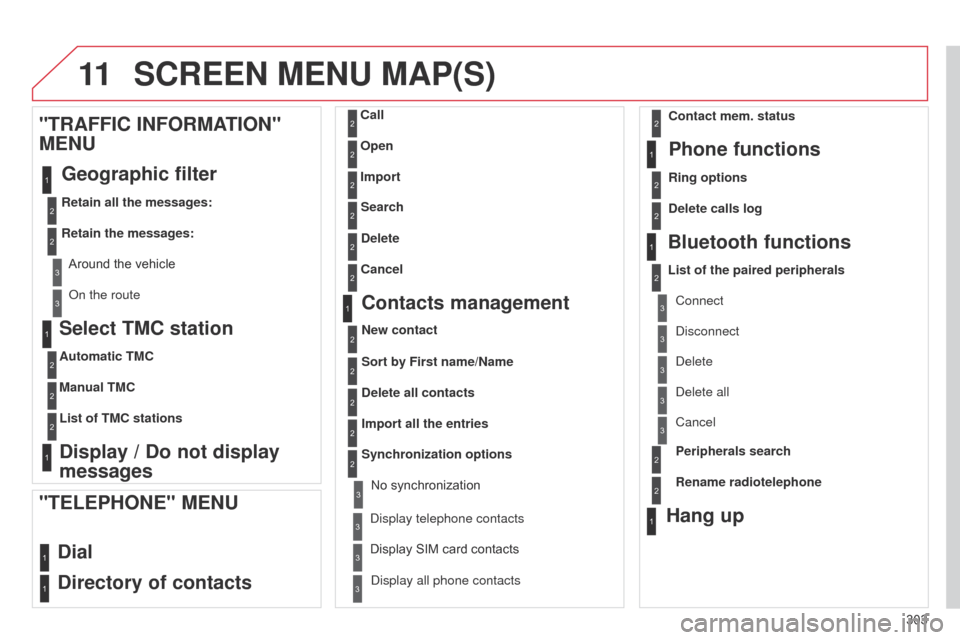
Select TMC station
Automatic TMC
Manual TMC
List of TMC stations
Display / Do not display
messages
"TRAFFIC INFORMA
TION"
MENU
Geographic filter
Retain all the messages:
Retain the messages:
Around the vehicle
o
n the route
1
2
2
2
1
2
2
3
3
1
SCREEN MENU MAP(S)
Dial
Directory of contacts
Call
Open
Import
"TELEPHONE" MENU
1
2
2
2
1
2
2
2
2
2
1
2
3
3
3
2
2
2
1
1
1
3
3
3
2
3
2
2
3
List of the paired peripheralsConnect
d
isconnect
d
elete
d
elete all
Phone functions
Ring options Contact mem. status
Delete calls log
Bluetooth functions
Peripherals search
Rename radiotelephone
Hang up
display all phone contacts
Delete Search
Contacts management
New contact
Delete all contacts
Import all the entries
Synchronization options
d
isplay telephone contacts
No synchronization
Display SIM card contacts
2Cancel
2Sort by First name/Name
3Cancel
Page 306 of 344

11
304
SCREEN MENU MAP(S)
1
1
2
1
1
2
2
2
2
2
2
2
3
3
2
2
2
1
Random on all media
Repetition
Audio settings
Activate / Deactivate AUX
input
"MUSIC" MENU
Change Media
Read mode
Normal
Random
All passengers
Le-Ri balance
Fr-Re balance
Auto. Volume
Update radio list
Bass
Treble
Loudness
Distribution
d
river
1
2
1
1
3
3
3
3
3
3
2Equalizer
"RADIO" MENUChange Waveband
Options
RDS station tracking
Audio settings
none
Classical
Jazz
Rock
T
echno
Vocal
2
2
2
2
USB/iPod
AUX CD
Bluetooth streaming
2
2
FM
AM
3Activated / Deactivated
3Activated / Deactivated