button start CITROEN C5 AIRCROSS 2021 Workshop Manual
[x] Cancel search | Manufacturer: CITROEN, Model Year: 2021, Model line: C5 AIRCROSS, Model: CITROEN C5 AIRCROSS 2021Pages: 292, PDF Size: 8.59 MB
Page 261 of 292
15
ORPress Applications to display the
primary page.
Press the " OPTIONS" button to go to the
secondary page.
Select "Wi- Fi network
connection ".
Select the " Secured" or "Not
secured " or "Stored " tab.
Select a
network.
Using the virtual keypad, enter the
" Key " for the Wi-Fi network and the
" Password ". The ser vices offered with connected
navigation are as follows.
A Connected Services pack:
-
Weather,
-
F
illing stations,
-
C
ar park,
-
Tr a f f i c ,
-
P
OI local search.
A Danger zone pack (as an option).
Settings specific to
connected navigation
Press the " MENU" button to go to the
secondary page. Select "
Settings ".
Select " Map".
Press " OK" to start the connection.
Usage restrictions:
-
W
ith CarPlay
®, connection sharing is
only with a
Wi-Fi connection.
-
W
ith MirrorLink
TM, connection sharing
is only with a
USB connection.
The quality of ser vices depends on the
quality of the network connection. With the arrival of "TOMTOM
TR AFFIC", the ser vices will be
available.
Processes and standards are constantly
changing; for the communication process
between the smartphone and the system
to work correctly, it is recommended to
update the operating system of the
smar tphone as well as the date and
time of the smar tphone and of the
system. Press Navigation to display the
primary page. Activate or deactivate:
-
"
Allow declaration of danger
zones ".
- "
Guidance to final destination
on foot "
- "
Display recommended
speed "
These settings must be made
according to each profile.
Select " Alerts".
Activate or deactivate:
- "
Advise of car park nearby ",
" Filling station alert ", "Risk
areas alert ", "Accident black
spot alert " then select the
alert symbol, " Give an audible
warning ", "Advise proximity
of POI 1 ", "Advise proximity of
POI 2 ".
To have access to connected navigation,
select the option: " Authorise sending
information " in "Settings".
.
CITROËN Connect Nav
Page 264 of 292
18
MirrorLinkTM smartphone
connection
The " MirrorLinkTM" function requires
the use of a
compatible smartphone and
compatible applications.
From the system, press
"Applications " to display the
primary page.
Press " Connectivity " to go to the MirrorLink
TM
function.
Press "MirrorLink
TM" to start the
application in the system.
Depending on the smartphone, it may be
necessary to activate the " MirrorLinkTM" function.
During the procedure, several
screen pages relating to certain
functions are displayed.
Accept to start and complete the
connection. Once the connection is established, a page
is displayed with the applications already
downloaded to the smartphone and compatible
with the MirrorLink
TM technology.
Access to the different audio sources remains
available in the margin of the MirrorLink
TM
display, using the touch buttons located in the
u p p e r b a r.
Access to the menus for the system is possible
at any time using the dedicated buttons.
There may be a
wait for the availability of
applications, depending on the quality of
the network.
Android Auto smartphone
connection
The " Android Auto " function requires
the use of a compatible smartphone and
applications. During the procedure, several
screen pages relating to certain
functions are displayed.
Accept to start and complete the
connection.
Different audio sources remain accessible in
the margin of the Android Auto display, using
touch buttons in the upper bar.
Access to the menus for the system is possible
at any time using the dedicated buttons.
In Android Auto mode, the function to
display the menus by pressing the screen
briefly with three fingers is deactivated.
There may be a wait for the availability of
applications, depending on the quality of
the network.
When connecting a
smartphone
to the system, it is recommended
that Bluetooth
® be started on the
smartphone.
Connect a
USB cable. The
smartphone charges when
connected by the USB cable.
Connect a
USB cable. The
smartphone charges when
connected by the USB cable.
Vehicle apps
Press Applications to display the
primary page.
Press " Vehicle apps " to display the
applications home page.
From the system, press
"
Applications " to display the
primary page.
Press " Connectivity " to go to the "Android
Auto" function. Press "
Android Auto " to start the
application in the system.
CITROËN Connect Nav
Page 265 of 292
19
Internet browser
Press Applications to display the
primary page.
Press " Connectivity " to go to the " Internet
browser " function.
Press " Internet browser " to display the
browser home page.
Select the country of residence.
Press "OK" to save and start the
browser.
Connection to the internet is via one of
the network connections provided by the
vehicle or the user.
Bluetooth connection®
Activate the Bluetooth function on the
telephone and ensure that it is "visible to
all" (telephone configuration).
Procedure from the telephone
Select the system name in the list of
devices detected.
In the system, accept the connection request
from the telephone. To complete the pairing, whichever
procedure used (from the telephone or
from the system), ensure that the code
is the same in the system and in the
telephone.
Procedure from the system
Press Applications
to display the
primary page.
Press the " OPTIONS" button to go to the
secondary page.
Press "Bluetooth connection ".
Select " Search".
The list of telephones detected is
displayed.
If the pairing procedure fails, it is recommended
that you deactivate and then reactivate the
Bluetooth function on the telephone.
Select the name of the chosen
telephone in the list.
Depending on the type of telephone, the
option is given to accept or not accept the
transfer of contacts and messages.
Connection sharing
The system offers to connect the telephone
with 3 profiles:
-
"Telephone " (hands-free kit, telephone
only),
-
"Streaming " (streaming: wireless playing of
the audio files on the telephone),
-
"Mobile internet data ".
The " Mobile internet data " profile
must be activated for connected
navigation (where the vehicle does not
have "Emergency and assistance call"
services), having first activated sharing of
this connection on the smartphone.
Select one or more profiles.
Press " OK" to confirm.
Wi-Fi connection
Network connection by the smartphone's Wi-Fi.
Press Applications to display the
primary page.
Press the " OPTIONS" button to go to the
secondary page.
.
CITROËN Connect Nav
Page 266 of 292
20
Select "Wi- Fi network
connection ".
Select the " Secured" or "Not
secured " or "Stored " tab.
Select a
network.
Using the virtual keypad, enter the
" Key " for the Wi-Fi network and the
" Password ".
Press " OK" to start the connection.
The Wi-Fi connection and the sharing of
the Wi-Fi connection are exclusive.
Wi-Fi connection sharing
Creation of a local Wi-Fi network by the
s ystem.
Press Applications to display the
primary page.
Press the " OPTIONS" button to go to the
secondary page.
Select "Wi-Fi connection sharing ".Select the "
Activation" tab to activate or
deactivate sharing of the Wi-Fi connection.
And/or
Select the " Settings" tab to change the name
of the system network and the password.
Press "OK" to confirm.
To protect against unauthorised access
and to make the set of systems as secure
as possible, the use of a security code or
a
complex password is recommended.
Managing connections
Press Applications
to display the
primary page.
Press the " OPTIONS" button to go to the
secondary page.
Select "Manage connection ".
With this function, you can view the access
to connected ser vices, the availability of
connected services and modify the connection
mode.
Radio
Selecting a station
Press Radio Media to display the
primary page.
Press " Frequency ".
Press one of the buttons for an
automatic search for radio stations.
Or Move the slider for a
manual search
for frequencies up or down.
Or Press Radio Media to display the
primary page.
Press the " OPTIONS" button to go to the
secondary page.
Select "Radio stations " in the
secondary page.
Press " Frequency ".
Enter the values using the virtual
keypad.
First enter the units then click on the
decimals zone to enter the figures
after the decimal point.
CITROËN Connect Nav
Page 269 of 292

23
Auxiliary socket (AUX)
Depending on equipment
This source is only available if "Auxiliary input"
has been checked in the audio settings.
Connect a portable device (MP3 player, etc.) to
the auxiliary Jack socket using an audio cable
(not supplied).
First adjust the volume on the portable device
(to a
high level). Then adjust the volume of the
audio system.
Management of the controls is via the portable
device.
CD player
Depending on equipment
Insert the CD in the player.
Selecting the source
Press Radio Media to display the
primary page. Select "
Source".
Choose the source.
Watching a video
Insert a USB memory stick in the USB socket.
Sel ect " Sources ".
Select Video to start the video.
To remove the USB memory stick,
press the pause button to stop the
video, then remove the memory
stick.
Bluetooth® audio streaming
Streaming allows you to listen to music from
your smartphone.
The Bluetooth profile must be activated; first
adjust the volume on the portable device (to
a
high level).
Then adjust the volume of the audio system. If play does not start automatically, it may be
necessary to start the audio playback from the
telephone.
Control is from the portable device or by using
the system's touch buttons.
Once connected in streaming mode, the
telephone is considered to be a media
source.
Connecting Apple® players
Connect the Apple® player to the USB socket
using a
suitable cable (not supplied).
Play starts automatically.
Control is via the audio system.
The classifications available are those of
the portable device connected (artists/
albums/genres/playlists/audio books/
podcasts).
The default classification used is by artist.
To modify the classification used, return
to the first level of the menu then select
the desired classification (playlists for
example) and confirm to go down through
the menu to the desired track.
The version of software in the audio system
may not be compatible with the generation of
the Apple
® p l aye r.
Video control commands are accessible
only through the touch screen.
Press Radio Media to display the
primary page.
.
CITROËN Connect Nav
Page 272 of 292
26
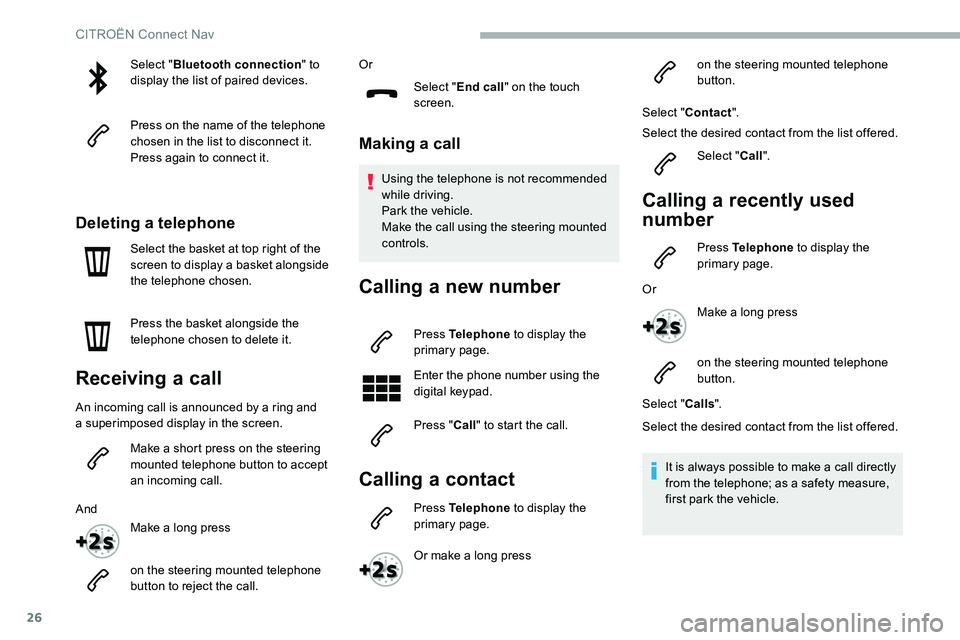
Select "Bluetooth connection " to
display the list of paired devices.
Press on the name of the telephone
chosen in the list to disconnect it.
Press again to connect it.
Deleting a telephone
Select the basket at top right of the
screen to display a
basket alongside
the telephone chosen.
Press the basket alongside the
telephone chosen to delete it.
Receiving a call
An incoming call is announced by a ring and
a superimposed display in the screen.
Make a
short press on the steering
mounted telephone button to accept
an incoming call.
And Make a
long press
on the steering mounted telephone
button to reject the call. Or
Select "End call" on the touch
screen.
Making a call
Using the telephone is not recommended
while driving.
Park the vehicle.
Make the call using the steering mounted
controls.
Calling a new number
Press Telephone to display the
primary page.
Enter the phone number using the
digital keypad.
Press " Call" to start the call.
Calling a contact
Press Telephone to display the
primary page.
Or make a
long press on the steering mounted telephone
button.
Select " Contact ".
Select the desired contact from the list offered.
Select "Call".
Calling a recently used
n umber
Press Telephone to display the
primary page.
Or Make a
long press
on the steering mounted telephone
button.
Select " Calls".
Select the desired contact from the list offered.
It is always possible to make a
call directly
from the telephone; as a
safety measure,
first park the vehicle.
CITROËN Connect Nav
Page 273 of 292
27
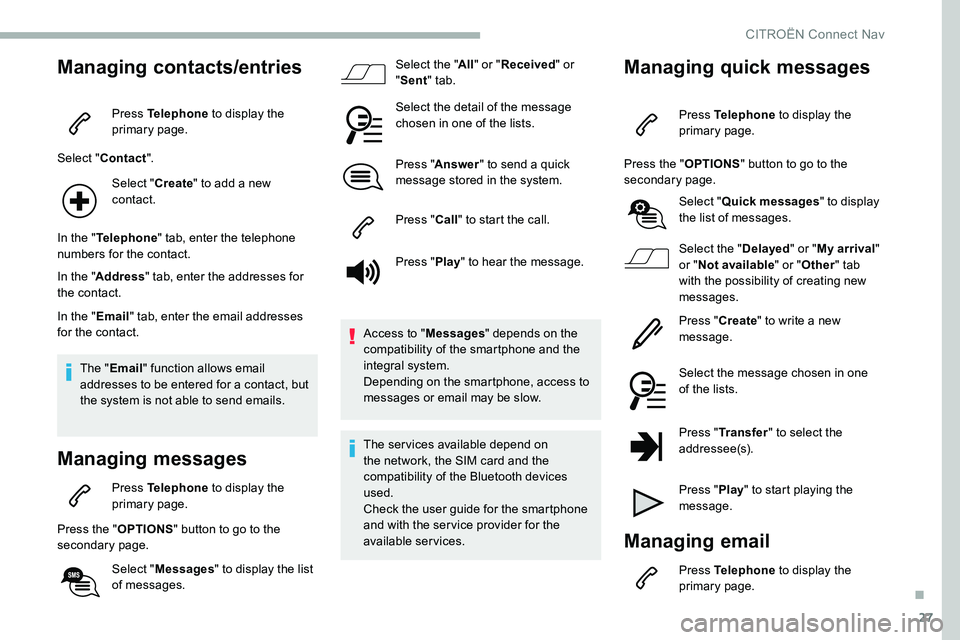
Managing contacts/entries
Press Telephone to display the
primary page.
Select " Contact ".
Select " Create" to add a
new
contact.
In the " Telephone " tab, enter the telephone
numbers for the contact.
In the " Address " tab, enter the addresses for
the contact.
In the " Email" tab, enter the email addresses
for the contact.
The " Email " function allows email
addresses to be entered for a
contact, but
the system is not able to send emails.
Managing messages
Press Telephone to display the
primary page.
Press the " OPTIONS" button to go to the
secondary page.
Select "Messages " to display the list
of messages. Select the "
All" or " Received " or
" Sent " tab.
Select the detail of the message
chosen in one of the lists.
Press " Answer " to send a quick
message stored in the system.
Press " Call" to start the call.
Press " Play" to hear the message.
Access to " Messages" depends on the
compatibility of the smartphone and the
integral system.
Depending on the smartphone, access to
messages or email may be slow.
The services available depend on
the network, the SIM card and the
compatibility of the Bluetooth devices
used.
Check the user guide for the smartphone
and with the ser vice provider for the
available services.
Managing quick messages
Press Telephone to display the
primary page.
Press the " OPTIONS" button to go to the
secondary page.
Select "Quick messages " to display
the list of messages.
Select the " Delayed" or "My arrival "
or " Not available " or "Other " tab
with the possibility of creating new
messages.
Press " Create" to write a
new
message.
Select the message chosen in one
of the lists.
Press " Transfer " to select the
addressee(s).
Press " Play" to start playing the
message.
Managing email
Press Telephone to display the
primary page.
.
CITROËN Connect Nav
Page 274 of 292

28
Press the "OPTIONS" button to go to the
secondary page.
Select "Email" to display the list of
messages.
Select the " Received" or "Sent " or
" Not read " tab.
Select the message chosen in one of the lists.
Settings
Audio settings
Press Settings to display the
primary page.
Select " Audio settings ".
Select " Ambiences ".
Or
" Position ".
Or
" Sound ". Or
"
Voice ".
Or
" Ringtone ".
Press " OK" to save the settings.
The balance/distribution (or spatialisation
with the Arkamys
© system) is audio
processing that allows the quality of the
sound to be adapted according to the
number of passengers in the vehicle.
Available only with the front and rear
speakers configuration.
The Ambience (6
optional ambiences)
and Bass , Medium and Tr e b l e audio
settings are different and independent for
each audio source.
Activate or deactivate " Loudness".
The settings for " Position" (All
passengers, Driver and Front only) are
common to all sources.
Activate or deactivate " Touch tones",
" Volume linked to speed " and "Auxiliary
input ".
On-board audio: the Arkamys Sound
Staging
© optimises the distribution of
sound in the passenger compartment.
Setting the profiles
Press Settings to display the
primary page.
Press " Play" to start playing the
message.
Access to " Email" depends on the
compatibility of the smartphone and the
integral system. Press the "
OPTIONS" button to go to the
secondary page.
Select "Setting of the profiles ".
Select " Profile 1 " or "Profile 2 " or "Profile 3 "
or " Common profile ".
Press this button to enter a
name for
the profile using the virtual keypad.
Press " OK" to confirm.
Press this button to add
a
photograph to the profile.
Insert a USB memory stick containing
t he photograph in the USB socket.
Select the photograph.
Press " OK" to accept the transfer of
the photograph.
Press " OK" again to save the
settings.
CITROËN Connect Nav
Page 276 of 292
30
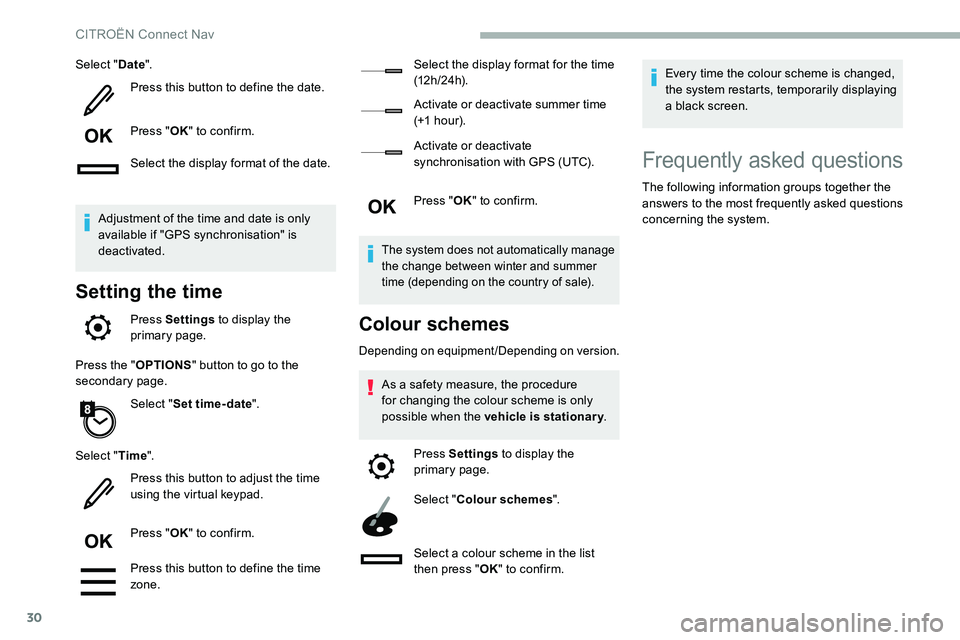
Select "Date".
Press this button to define the date.
Press " OK" to confirm.
Select the display format of the date.
Adjustment of the time and date is only
available if "GPS synchronisation" is
deactivated.
Setting the time
Press Settings to display the
primary page.
Press the " OPTIONS" button to go to the
secondary page.
Select "Set time-date ".
Select " Time".
Press this button to adjust the time
using the virtual keypad.
Press " OK" to confirm.
Press this button to define the time
zone. Select the display format for the time
(12 h / 24 h).
Activate or deactivate summer time
(+1
h o ur).
Activate or deactivate
synchronisation with GPS (UTC).
Press " OK" to confirm.
The system does not automatically manage
the change between winter and summer
time (depending on the country of sale).
Colour schemes
Depending on equipment/Depending on version.
As a safety measure, the procedure
f or changing the colour scheme is only
possible when the vehicle is stationary .
Press Settings to display the
primary page.
Select " Colour schemes ".
Select a
colour scheme in the list
then press " OK" to confirm. Every time the colour scheme is changed,
the system restarts, temporarily displaying
a
black screen.
Frequently asked questions
The following information groups together the
answers to the most frequently asked questions
concerning the system.
CITROËN Connect Nav
Page 279 of 292
33
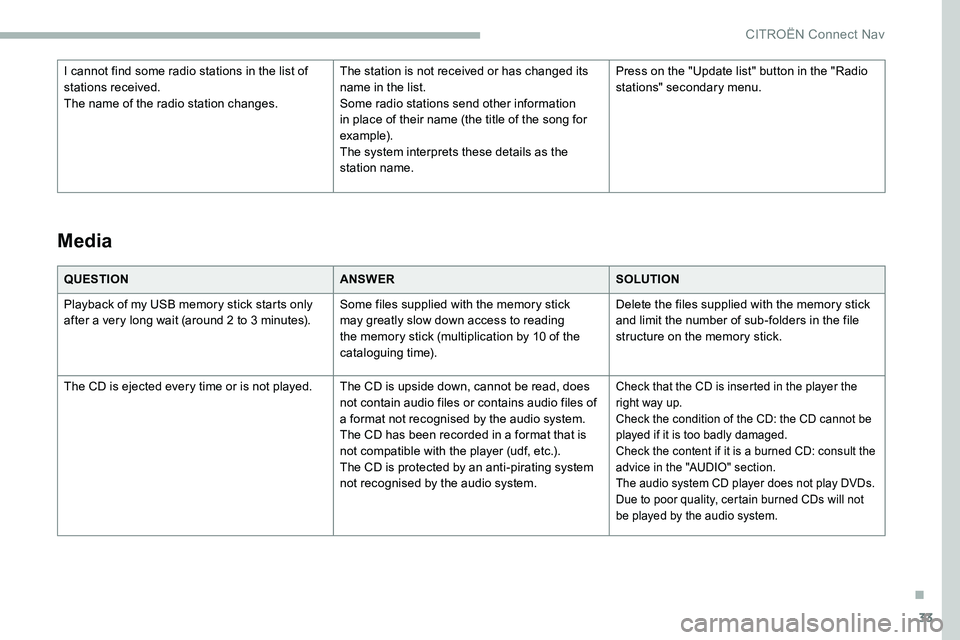
QUESTIONANSWERSOLUTION
Playback of my USB memory stick starts only
after a
very long wait (around 2 to 3 minutes).Some files supplied with the memory stick
may greatly slow down access to reading
the memory stick (multiplication by 10
of the
cataloguing time). Delete the files supplied with the memory stick
and limit the number of sub-folders in the file
structure on the memory stick.
The CD is ejected every time or is not played. The CD is upside down, cannot be read, does not contain audio files or contains audio files of
a
format not recognised by the audio system.
The CD has been recorded in a
format that is
not compatible with the player (udf, etc.).
The CD is protected by an anti-pirating system
not recognised by the audio system.
Check that the CD is inserted in the player the
right way up.
Check the condition of the CD: the CD cannot be
played if it is too badly damaged.
Check the content if it is a
burned CD: consult the
advice in the "AUDIO" section.
The audio system CD player does not play DVDs.
Due to poor quality, certain burned CDs will not
be played by the audio system.
Media
I cannot find some radio stations in the list of
stations received.
The name of the radio station changes. The station is not received or has changed its
name in the list.
Some radio stations send other information
in place of their name (the title of the song for
example).
The system interprets these details as the
station name.Press on the "Update list" button in the "Radio
stations" secondary menu.
.
CITROËN Connect Nav