carplay CITROEN DISPATCH SPACETOURER DAG 2017 Handbook (in English)
[x] Cancel search | Manufacturer: CITROEN, Model Year: 2017, Model line: DISPATCH SPACETOURER DAG, Model: CITROEN DISPATCH SPACETOURER DAG 2017Pages: 774, PDF Size: 38.33 MB
Page 678 of 774

101
Transversal-Citroen_en_Chap02_RCC-2-2-0_ed01-2016
SettingsDriving
Telephone
Configure a personal profile and/or configure
the sound (balance, ambience,
...) and the
display (language, units, date, time,
...).Activate, deactivate or configure certain vehicle
functions.
Connect a telephone by Bluetooth®.
Operate certain applications on a smartphone
connected via MirrorLink
TM or CarPlay®.
.
Audio and Telematics
Page 696 of 774
119
1
2
3
4
Transversal-Citroen_en_Chap02_RCC-2-2-0_ed01-2016
Level 1Level 2 Level 3 Comments
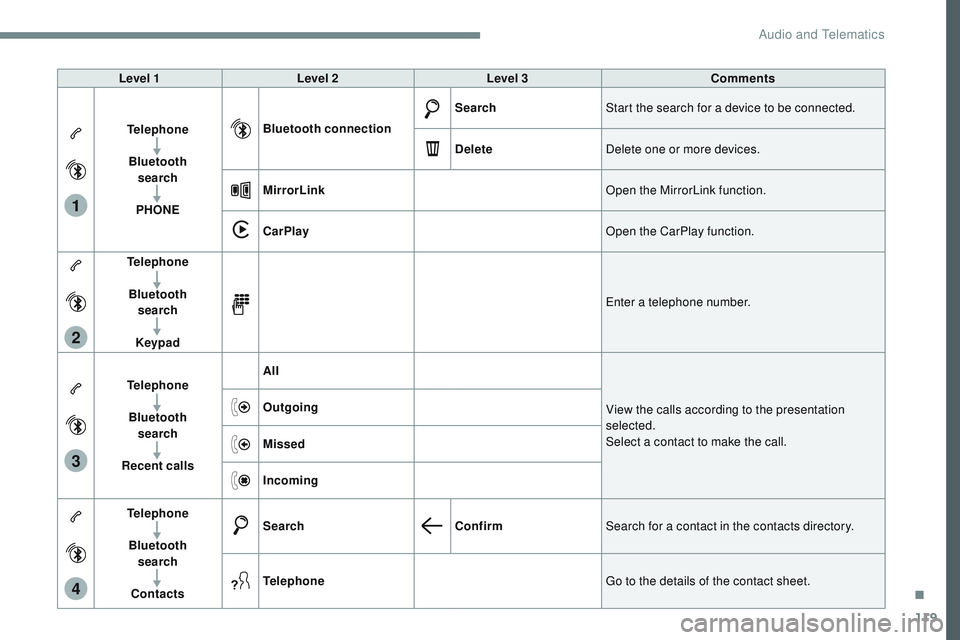
Telephone Bluetooth search
PHONE Bluetooth connection
Search
Start the search for a device to be connected.
Delete Delete one or more devices.
MirrorLink Open the MirrorLink function.
CarPlay Open the CarPlay function.
Telephone
Bluetooth search
Keypad Enter a telephone number.
Telephone Bluetooth search
Recent calls All
View the calls according to the presentation
selected.
Select a contact to make the call.
Outgoing
Missed
Incoming
Telephone Bluetooth search
Contacts Search
ConfirmSearch for a contact in the contacts directory.
Telephone Go to the details of the contact sheet.
.
Audio and Telematics
Page 703 of 774

126
1
Transversal-Citroen_en_Chap02_RCC-2-2-0_ed01-2016
CarPlay® smartphone connection
Audio and Telematics
Page 704 of 774

127
1
Transversal-Citroen_en_Chap02_RCC-2-2-0_ed01-2016
As a safety measure and because it
requires the sustained attention of
the driver, using a smartphone when
driving is prohibited.
Operation must be with the vehicle
stationary.
The synchronisation of a
smartphone allows applications on a
smartphone that are adapted to the
CarPlay
® technology to be displayed
i
n the vehicle's screen, having first
activated the CarPlay
® function in the
smartphone.
As the principles and standards are
constantly changing, it is recommended
that you keep your smar tphone's
operating system updated .
For the list of eligible smartphones, go
to the Brand's internet website in your
c o unt r y. Connect the USB cable. The
smartphone charges when
connected by a USB cable. Connect the USB cable. The
smartphone charges when
connected by a USB cable.
From the system, press Telephone
to display the Carplay
® inter face.
Press " CarPlay " to display the
CarPlay
® inter face. On connecting the USB cable, the
CarPlay
® function deactivates the
system's Bluetooth® mode.
From the system, press Telephone
to display the primary page.
Press the " PHONE" button to go to
the secondary page.
Or
If the smartphone is already
connected by Bluetooth
®. You can go to the CarPlay
®
navigation at any time by pressing
the system's Navigation button.
.
Audio and Telematics
Page 728 of 774

5
Applications
Access configurable equipment.
Radio Media
Select an audio source or radio
station.
Telephone
Connect a telephone by Bluetooth®.
Operate certain applications on
a smartphone connected via
MirrorLink
TM, CarPlay® or Android
Auto.
Settings
Configure a personal profile and/
or configure the sound (balance,
ambience, ...) and the display
(language, units, date, time, ...).
Driving
Activate, deactivate or configure
certain vehicle functions.
.
CITRO
Page 729 of 774
6
Applications
Viewing photos
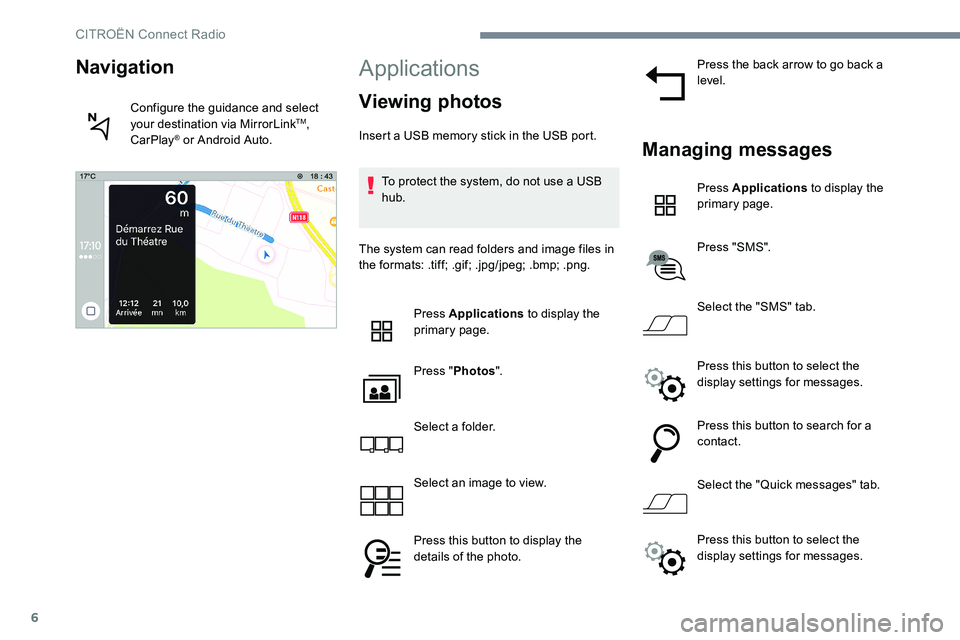
Insert a USB memory stick in the USB port.To protect the system, do not use a USB
hub.
The system can read folders and image files in
the formats: .tiff; .gif; .jpg/jpeg; .bmp; .png. Press Applications to display the
primary page.
Press " Photos ".
Select a folder.
Select an image to view.
Press this button to display the
details of the photo. Press the back arrow to go back a
level.Managing messages
Press Applications
to display the
primary page.
Press "SMS".
Select the "SMS" tab.
Press this button to select the
display settings for messages.
Press this button to search for a
contact.
Select the "Quick messages" tab.
Navigation
Configure the guidance and select
your destination via MirrorLinkTM,
CarPlay® or Android Auto.
Press this button to select the
display settings for messages.
CITROËN Connect Radio
Page 736 of 774
13
During the procedure, several
screen pages relating to certain
functions are displayed.
Accept to start and complete the
connection.
When connecting a smartphone
to the system, it is recommended
that "Bluetooth
®" be started on the
smartphone
Telephone connected by
Bluetooth®
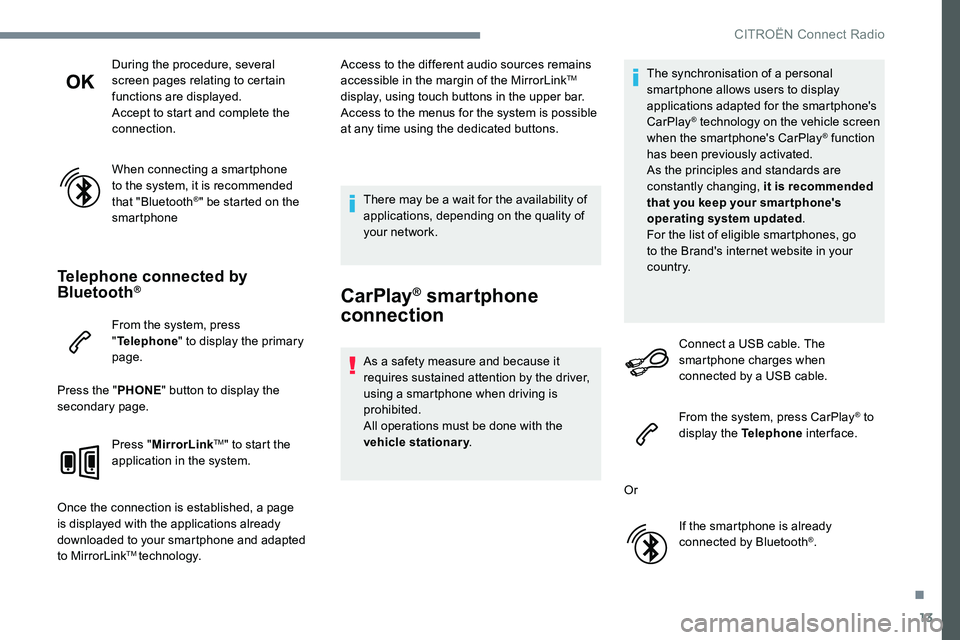
From the system, press
" Telephone " to display the primary
page.
Press the " PHONE" button to display the
secondary page.
Press "MirrorLink
TM" to start the
application in the system.
Once the connection is established, a page
is displayed with the applications already
downloaded to your smartphone and adapted
to MirrorLink
TM technology. Access to the different audio sources remains
accessible in the margin of the MirrorLink
TM
display, using touch buttons in the upper bar.
Access to the menus for the system is possible
at any time using the dedicated buttons.
There may be a wait for the availability of
applications, depending on the quality of
your network.
CarPlay® smartphone
connection
As a safety measure and because it
requires sustained attention by the driver,
using a smartphone when driving is
prohibited.
All operations must be done with the
vehicle stationary . The synchronisation of a personal
smartphone allows users to display
applications adapted for the smartphone's
CarPlay
® technology on the vehicle screen
when the smartphone's CarPlay® function
has been previously activated.
As the principles and standards are
constantly changing, it is recommended
that you keep your smar tphone's
operating system updated .
For the list of eligible smartphones, go
to the Brand's internet website in your
c o u nt r y.
Connect a USB cable. The
smartphone charges when
connected by a USB cable.
From the system, press CarPlay
® to
display the Telephone inter face.
Or If the smartphone is already
connected by Bluetooth
®.
.
CITROËN Connect Radio
Page 737 of 774
14
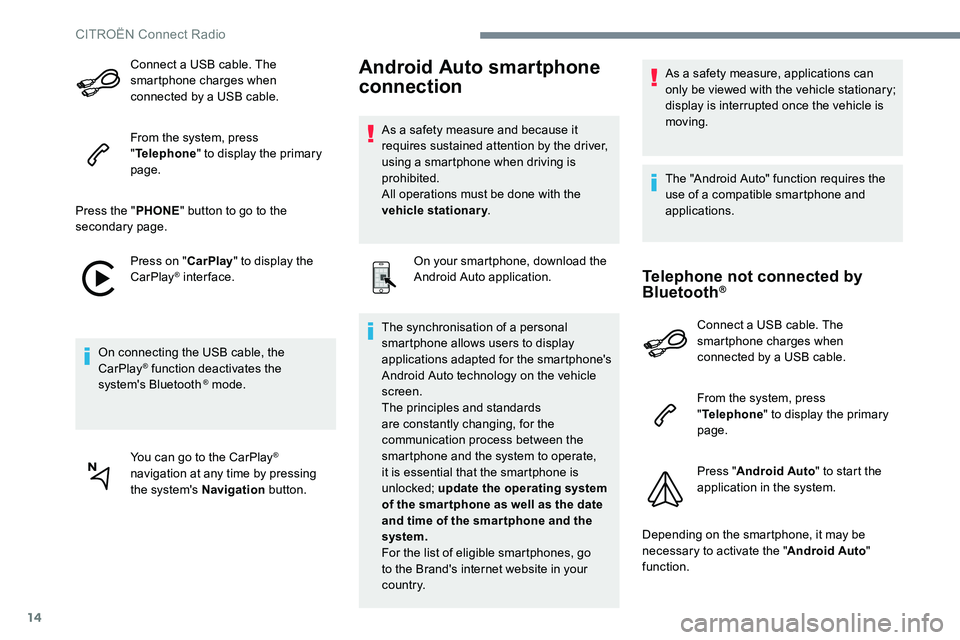
Connect a USB cable. The
smartphone charges when
connected by a USB cable.
From the system, press
"Telephone " to display the primary
page.
Press the " PHONE" button to go to the
secondary page.
Press on " CarPlay" to display the
CarPlay
® inter face.
On connecting the USB cable, the
CarPlay
® function deactivates the
system's Bluetooth ® mode.
You can go to the CarPlay
®
navigation at any time by pressing
the system's Navigation button.
Android Auto smartphone
connection
As a safety measure and because it
requires sustained attention by the driver,
using a smartphone when driving is
prohibited.
All operations must be done with the
vehicle stationary.
On your smartphone, download the
Android Auto application.
The synchronisation of a personal
smartphone allows users to display
applications adapted for the smartphone's
Android Auto technology on the vehicle
screen.
The principles and standards
are constantly changing, for the
communication process between the
smartphone and the system to operate,
it is essential that the smartphone is
unlocked; update the operating system
of the smar tphone as well as the date
and time of the smar tphone and the
system.
For the list of eligible smartphones, go
to the Brand's internet website in your
c o u nt r y. As a safety measure, applications can
only be viewed with the vehicle stationary;
display is interrupted once the vehicle is
moving.
The "Android Auto" function requires the
use of a compatible smartphone and
applications.
Telephone not connected by
Bluetooth®
Connect a USB cable. The
smartphone charges when
connected by a USB cable.
From the system, press
"
Telephone " to display the primary
page.
Press " Android Auto " to start the
application in the system.
Depending on the smartphone, it may be
necessary to activate the " Android Auto"
function.
CITROËN Connect Radio