USB Citroen DS3 2014 1.G User Guide
[x] Cancel search | Manufacturer: CITROEN, Model Year: 2014, Model line: DS3, Model: Citroen DS3 2014 1.GPages: 376, PDF Size: 12.55 MB
Page 304 of 376
05
DS3_en_Chap13b_RT6-2-8_ed01-2014
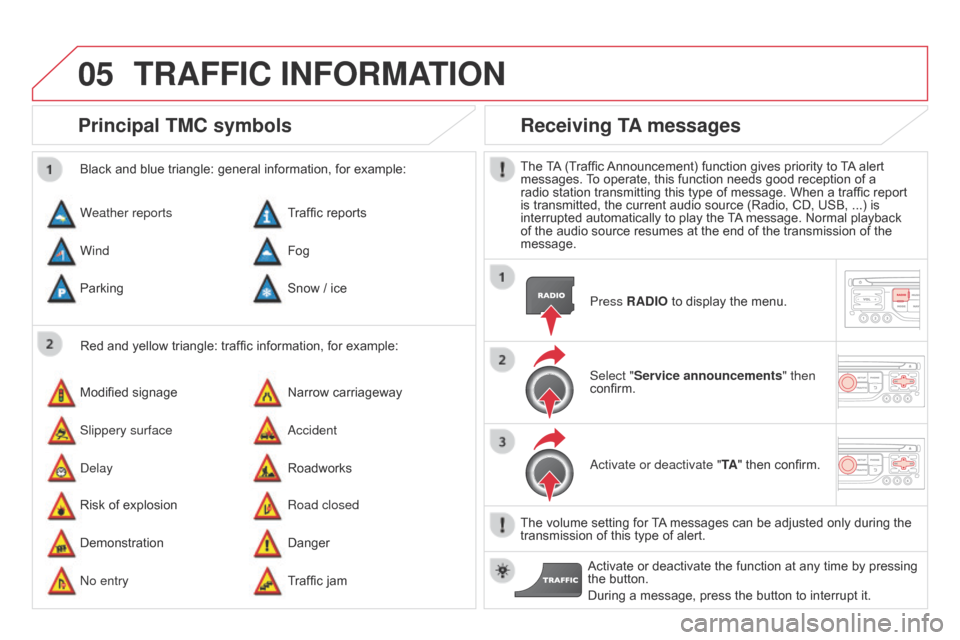
Principal TMc symbols
Red and yellow triangle: traffic information, for example:
Black and blue triangle: general information, for example:
Weather reports
Modified
signage
Risk
of explosion Traffic
reports
Narrow carriageway
Road closed
Wind
Slippery surface
Demonstration Fog
a
ccident
Danger
Parking
Delay
No entry Snow
/ ice
Roadworks
Traffic
jam
Receiving TA messages
The TA (Traffic Announcement) function gives priority to T A alert messages.
T o operate, this function needs good reception of a
radio
station transmitting this type of message. When a traffic report
is
transmitted, the current audio source (Radio, CD, USB, ...) is
interrupted
automatically to play the
T
A
message. Normal playback
of
the audio source resumes at the end of the transmission of the
message.Press
RA d IO to display the menu.
Select "Service announcements" then
confirm.
a
ctivate or deactivate "TA "
then confirm.
The
volume setting for
T
A
messages can be adjusted only during the
transmission
of this type of alert.
Activate
or deactivate the function at any time by pressing
the
button.
During
a message, press the button to interrupt it.
TRAFFIc INFORMATION
Page 318 of 376
08
DS3_en_Chap13b_RT6-2-8_ed01-2014
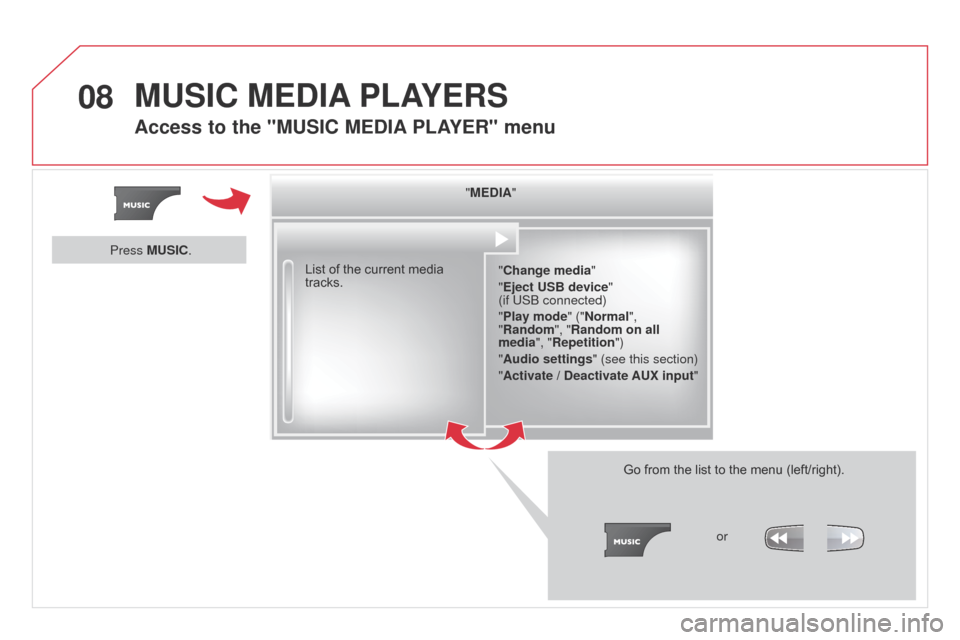
"MEdIA"
" c hange media"
"Eject USB device"
(if US
b connected)
"Play mode" ("Normal",
"Random", "Random on all
media", "Repetition")
"Audio settings " (see this section)
"Activate /
d
eactivate AUX input"
List
of
the
current
media
tracks.
Go
from the list to the menu (left/right).
or
Press MUSI
c
.
MUSIc MEdIA PLAYERS
Access to the "MUSIc MEdIA PLAYER " menu
Page 319 of 376
08
317
DS3_en_Chap13b_RT6-2-8_ed01-2014
cd, MP3 cd / USB player
The audio equipment will only play audio files with ".wma, .aac, .flac, .ogg and .mp3" file extensions and with a bit rate of between 32 Kbps
and
320 Kbps.
It
also supports VBR (Variable Bit Rate) mode.
No
other type of file (.mp4, .m3u...) can be played.
WMA
files must be of the standard wma 9 type.
The
sampling rates supported are greater than 32 KHz.
It
is advisable to restrict file names to 20 characters, without using of
special
characters (e.g.: " " ? ; ù) to avoid any playing and displaying
problems.
In
order to be able to play a recorded CDR or CDRW, when recording
it
is preferable to select the ISO 9660 level 1, 2 or Joliet standard.
If
the disc is recorded in another format (udf, ...), it may not be played
correctly
.
It
is recommended that the same recording standard is always used
for
an individual disc, with as low a speed as possible (4x maximum)
for
optimum sound quality.
In
the particular case of a multi-session CD, the Joliet standard is
recommended.Information and advice
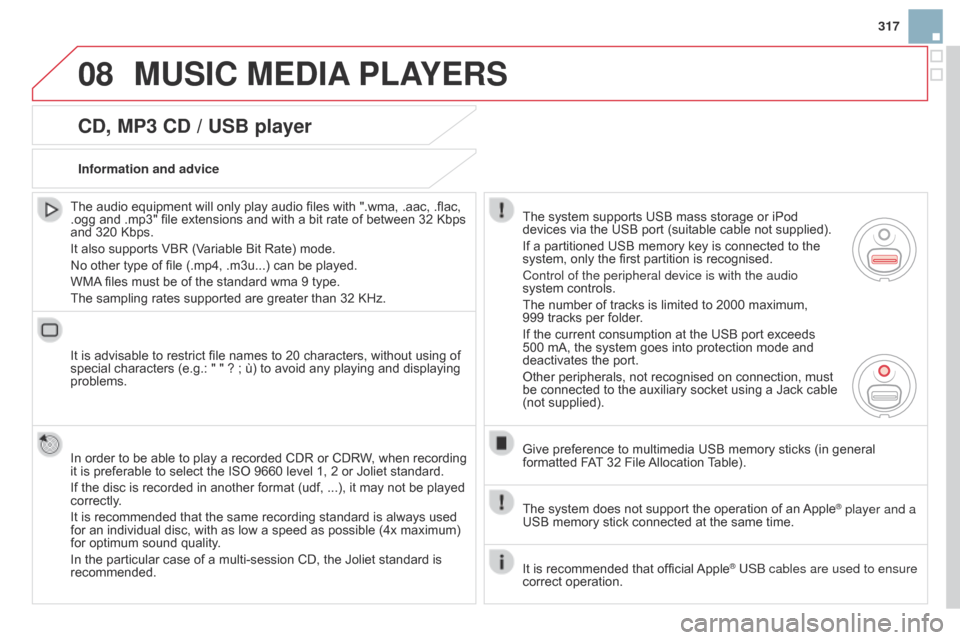
The
system supports USB mass storage or iPod
devices
via the USB port (suitable cable not supplied).
If
a partitioned USB memory key is connected to the
system,
only the first partition is recognised.
Control of the peripheral device is with the audio
system
controls.
The
number of tracks is limited to 2000 maximum,
999
tracks per folder.
If
the current consumption at the USB port exceeds
500
mA, the system goes into protection mode and
deactivates
the port.
Other
peripherals, not recognised on connection, must
be
connected to the auxiliary socket using a Jack cable
(not
supplied).
Give
preference to multimedia USB memory sticks (in general
formatted
FAT
32 File
Allocation
T
able).
The
system does not support the operation of an
Apple® player and a
USB
memory
stick
connected
at
the
same
time.
It
is
recommended
that
official
Apple® USb cables are used to ensure
correct
operation.
MUSIc MEdIA PLAYERS
Page 320 of 376
08
DS3_en_Chap13b_RT6-2-8_ed01-2014
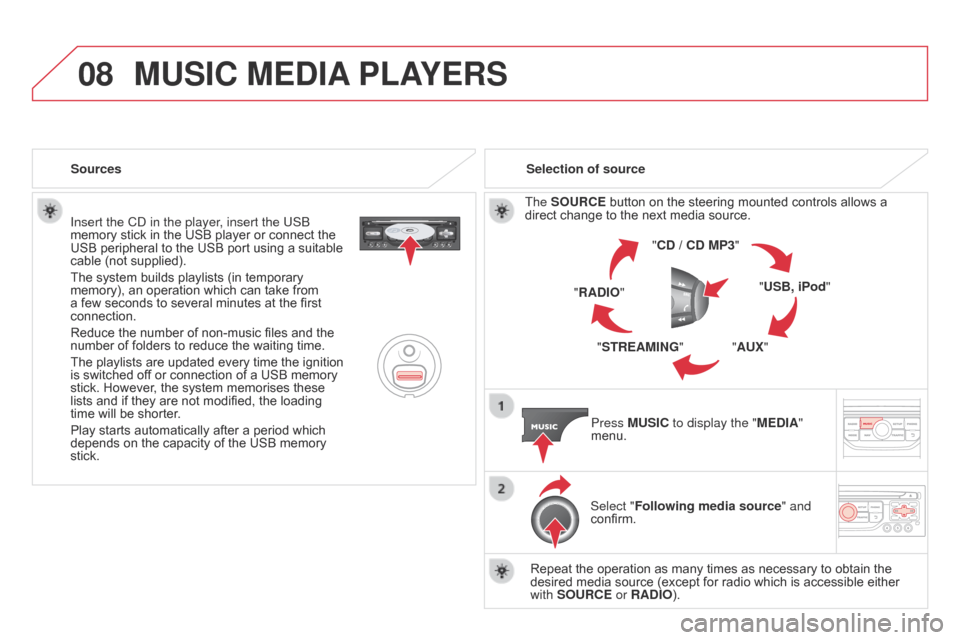
Insert the CD in the player, insert the USb
memory stick in the USB player or connect the
USB
peripheral to the USB port using a suitable
cable
(not supplied).
The
system builds playlists (in temporary
memory),
an operation which can take from
a
few seconds to several minutes at the first
connection.
Reduce
the number of non-music files and the
number
of folders to reduce the waiting time.
The
playlists are updated every time the ignition
is
switched off or connection of a USB memory
stick.
However, the system memorises these
lists
and if they are not modified, the loading
time
will be shorter.
Play
starts automatically after a period which
depends
on the capacity of the USB memory
stick. Selection of source
The
SOUR c E button on the steering mounted controls allows a direct
change to the next media source.
" cd / cd MP3"
"USB, iPod "
"AUX"
"STREAMING"
"RA
d IO"
Press MUSI
c to display the "ME d IA"
menu.
Select "Following media source " and
confirm.
Repeat
the operation as many times as necessary to obtain the
desired
media source (except for radio which is accessible either
with
SOUR c E or RA d IO).
Sources
MUSIc MEdIA
PLAYERS
Page 321 of 376
08
/
// /
/ /
/
+
/
/
/
319
DS3_en_Chap13b_RT6-2-8_ed01-2014
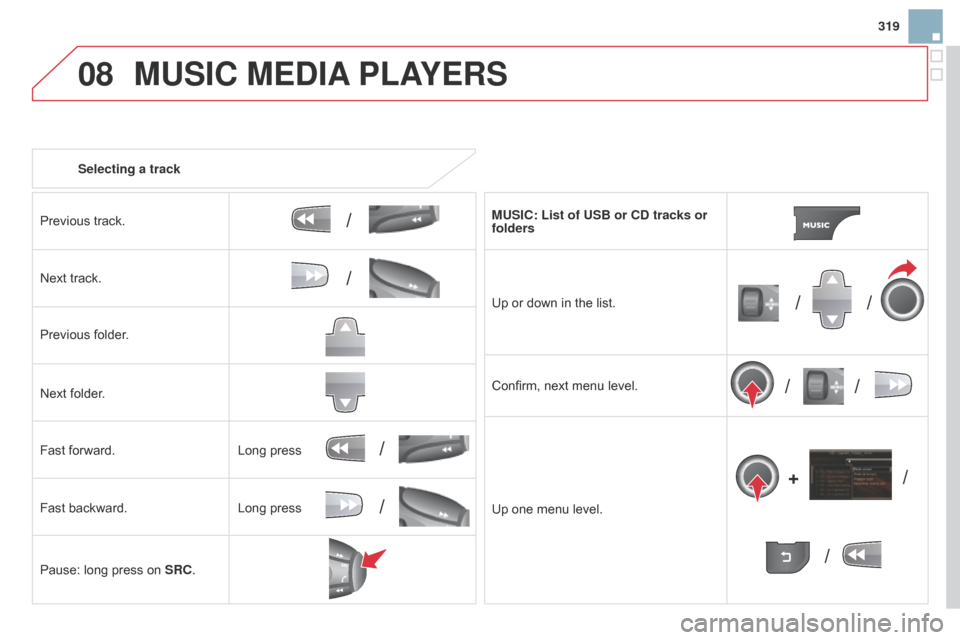
Selecting a track
Previous track.
Next
track.
Previous
folder.
Next
folder.
Fast
forward.
Fast
backward.
Pause:
long press on
SR
c . MUSI
c : List of USB or cd tracks or
folders
Up
or down in the list.
Confirm,
next menu level.
Up
one menu level.
Long
press
Long
press
MUSIc MEdIA PLAYERS
Page 322 of 376
08
DS3_en_Chap13b_RT6-2-8_ed01-2014
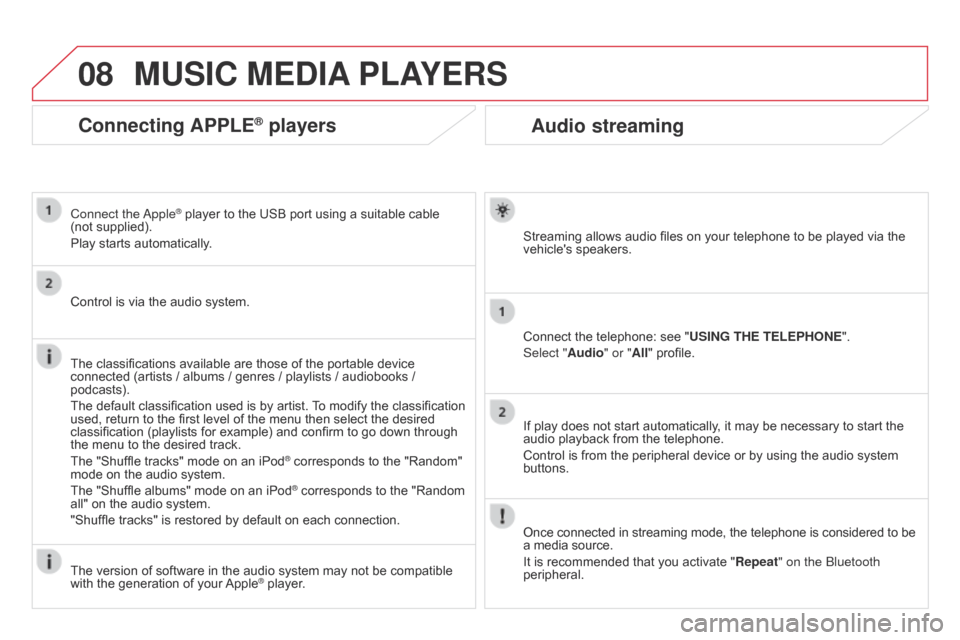
Audio streaming
Streaming allows audio files on your telephone to be played via the vehicle's speakers.
Connect
the telephone: see "USING THE TELEPHONE ".
Select "Audio" or "All"
profile.
If
play does not start automatically, it may be necessary to start the
audio
playback from the telephone.
Control
is from the peripheral device or by using the audio system
buttons.
Once
connected in streaming mode, the telephone is considered to be
a
media source.
It
is recommended that you activate "Repeat" on the b luetooth
peripheral.
MUSIc MEdIA PLAYERS
connecting APPLE® players
Connect the apple® player to the USB port using a suitable cable (not
supplied).
Play
starts
automatically.
Control
is
via
the
audio system.
The
classifications
available are those of the portable device
connected
(artists
/
albums / genres / playlists / audiobooks /
podcasts).
The
default
classification used is by artist.
T
o modify the classification
used,
return
to
the
first level of the menu then select the desired
classification
(playlists for example) and confirm to go down through
the
menu
to
the
desired track.
The
"Shuffle
tracks" mode on an iPod
® corresponds to the "Random" mode
on
the
audio
system.
The
"Shuffle
albums"
mode
on
an
iPod
® corresponds to the "Random all"
on
the
audio
system.
"Shuffle
tracks"
is
restored
by
default
on each connection.
The
version
of
software
in
the
audio
system may not be compatible
with
the
generation
of
your
Apple® player.
Page 323 of 376
08
321
DS3_en_Chap13b_RT6-2-8_ed01-2014
MUSIc MEdIA PLAYERS
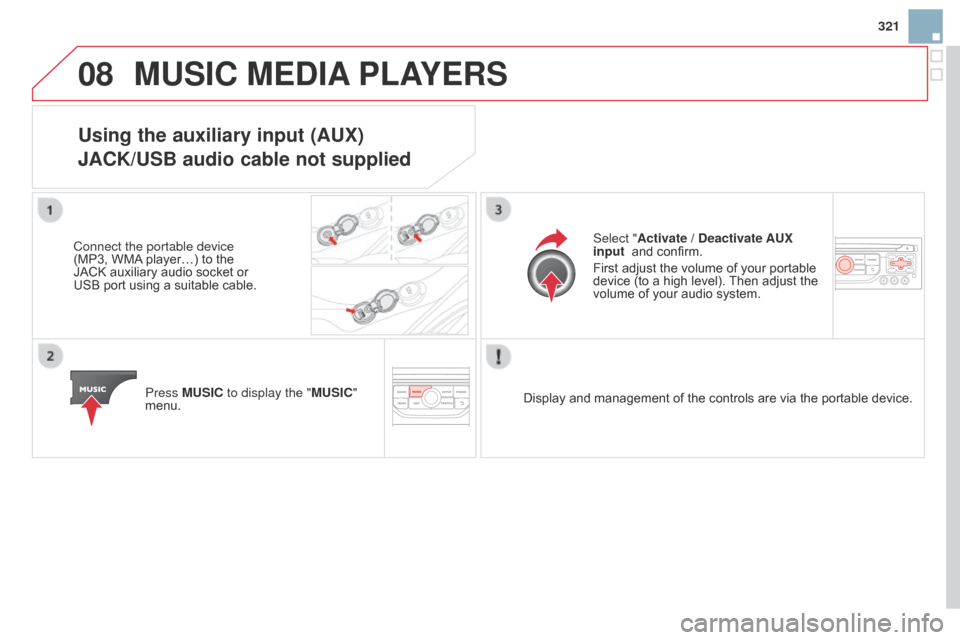
Using the auxiliary input (AUX)
JA
c K/USB audio cable not supplied
Connect the portable device
(MP3, WMA player…) to the
JACK
auxiliary audio socket or
USB
port
using
a
suitable
cable.
Press
MUSI c to display the "MUSI c "
menu. Select "Activate /
d eactivate AUX
input and confirm.
First
adjust the volume of your portable
device
(to a high level).
Then
adjust the
volume
of your audio system.
Display
and management of the controls are via the portable device.
Page 328 of 376
11
DS3_en_Chap13b_RT6-2-8_ed01-2014
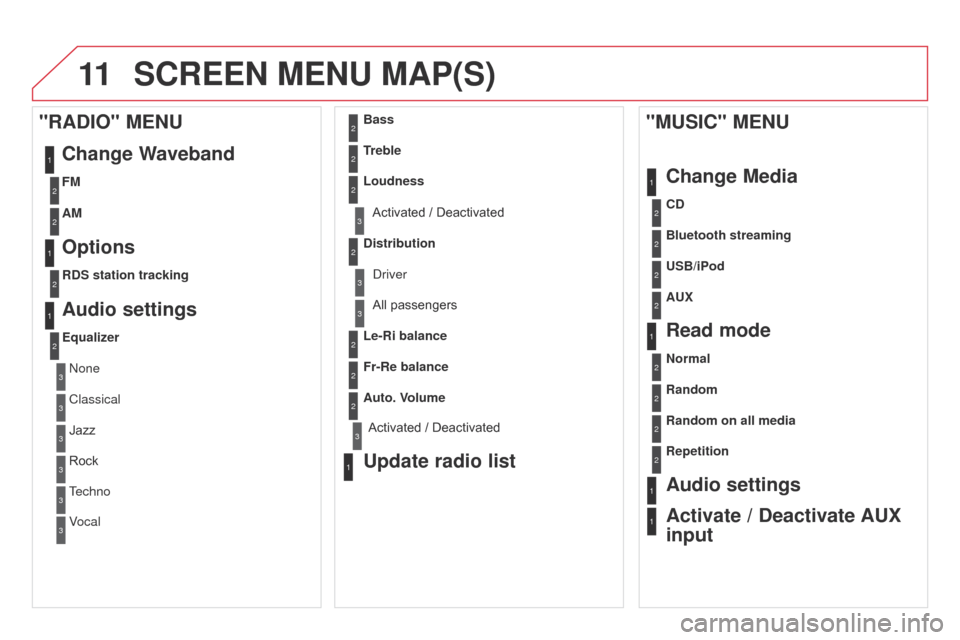
ScREEN MENU MAP(S)
1
1
2
1
1
2
2
2
2
2
2
2
3
3
2
2
2
1
Random on all media
Repetition
Audio settings
Activate /
d
eactivate AUX
input
"MUSI
c " MENU
c
hange Media
Read mode
Normal
Random
All
passengers
Le-Ri balance
Fr-Re balance
Auto. Volume
Update radio list
Bass
Treble
Loudness
d
istributionDriver
1
2
1
1
3
3
3
3
3
3
2Equalizer
"RAdIO" MENU
c
hange Waveband
Options
RdS station tracking
Audio settings
None
Classical
Jazz
Rock
Techno
Vocal
2
2
2
2
USB/iPod
AUX
cd
Bluetooth streaming
2
2
FM
AM
3Activated / Deactivated
3Activated / Deactivated
Page 332 of 376
DS3_en_Chap13b_RT6-2-8_ed01-2014
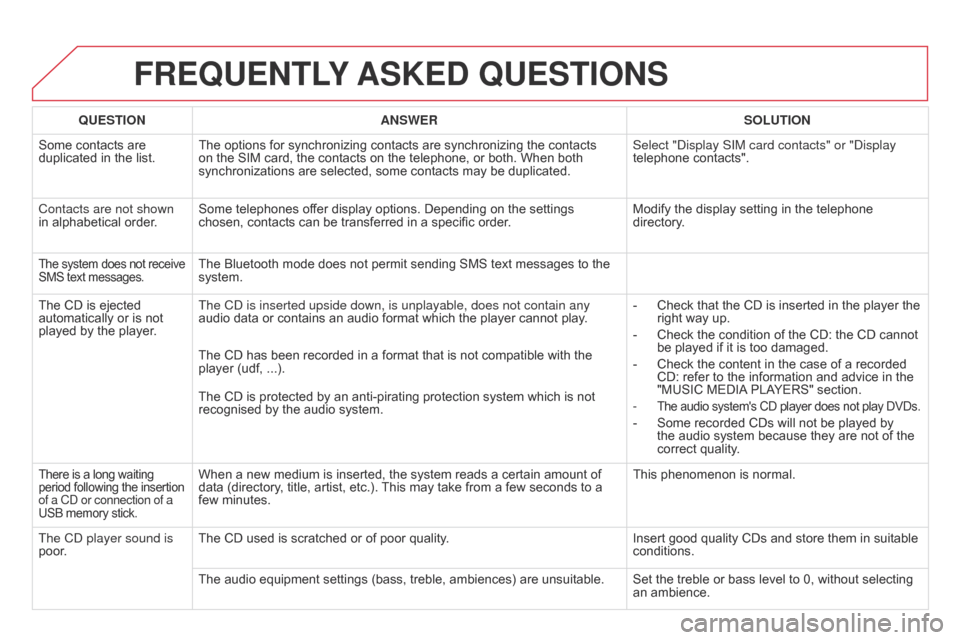
FREQUENTLY ASKE d QUESTIONS
QUESTION ANSWER SOLUTION
Some
contacts are
duplicated
in the list. The
options for synchronizing contacts are synchronizing the contacts
on
the SIM card, the contacts on the telephone, or both. When both
synchronizations
are selected, some contacts may be duplicated.Select "Display SIM card contacts" or "Display
telephone
contacts".
Contacts are not shown
in
alphabetical order. Some
telephones offer display options. Depending on the settings
chosen,
contacts can be transferred in a specific order.Modify
the display setting in the telephone
directory
.
The system does not receive SMS
text messages.The Bluetooth mode does not permit sending SMS text messages to the system.
The
CD
is
ejected
automatically
or
is
not
played
by
the
player. The CD is inserted upside down, is unplayable, does not contain any
audio
data or contains an audio format which the player cannot play.-
Check
that the CD is inserted in the player the
right
way up.
-
Check
the condition of the CD: the CD cannot
be
played if it is too damaged.
-
Check
the content in the case of a recorded
CD:
refer to the information and advice in the
"MUSIC
MEDIA
PLAYERS" section.
-
The audio system's CD player does not play DVDs.
- Some recorded CDs will not be played by the
audio system because they are not of the
correct
quality.
The
CD
has
been
recorded
in
a
format
that
is
not
compatible
with
the
player
(udf, ...).
The
CD
is
protected
by
an
anti-pirating
protection
system
which
is
not
recognised
by
the
audio
system.
There is a long waiting period
following the insertion of a CD or connection of a
USB
memory stick.When a new medium is inserted, the system reads a certain amount of data (directory, title, artist, etc.). This may take from a few seconds to a
few
minutes. This
phenomenon is normal.
The CD player sound is
poor. The
CD used is scratched or of poor quality. Insert
good quality CDs and store them in suitable
conditions.
The
audio equipment settings (bass, treble, ambiences) are unsuitable. Set the treble or bass level to 0, without selecting
an
ambience.
Page 335 of 376
333
DS3_en_Chap13b_RT6-2-8_ed01-2014
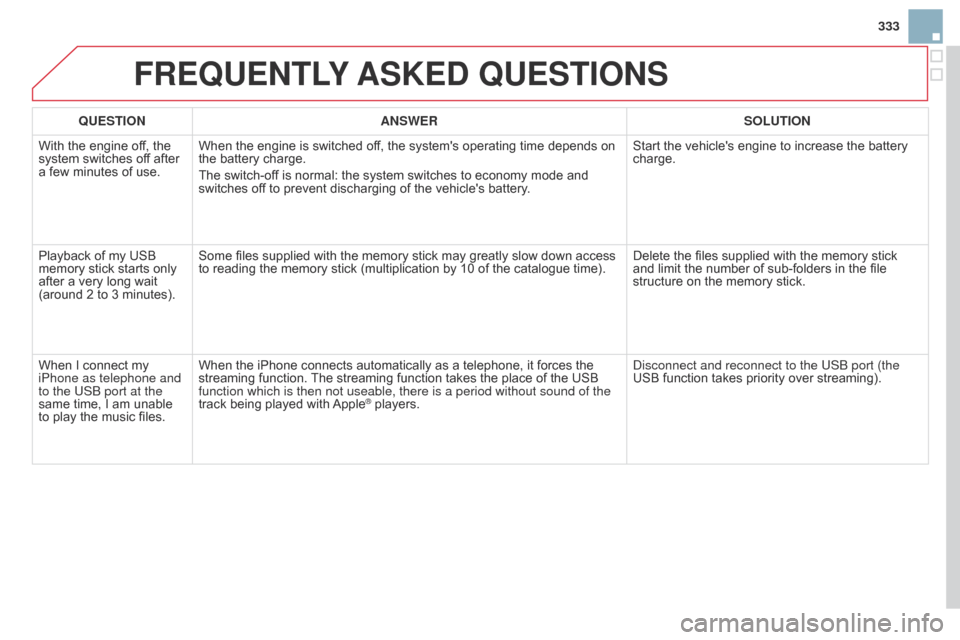
FREQUENTLY ASKE d QUESTIONS
QUESTION ANSWER SOLUTION
With
the engine off, the
system
switches off after
a
few
minutes of use. When
the engine is switched off, the system's operating time depends on
the
battery charge.
The
switch-off is normal: the system switches to economy mode and
switches
off to prevent discharging of the vehicle's battery.Start
the vehicle's engine to increase the battery
charge.
Playback
of my USB
memory
stick starts only
after
a
very long wait
(around
2 to 3 minutes). Some
files supplied with the memory stick may greatly slow down access
to
reading the memory stick (multiplication by 10 of the catalogue time).Delete
the files supplied with the memory stick
and
limit the number of sub-folders in the file
structure
on the memory stick.
When
I connect my
iPhone as telephone and
to the US
b port at the
same
time, I am unable
to
play
the music files.When
the iPhone connects automatically as a telephone, it forces the
streaming
function.
The
streaming function takes the place of the USB
function which is then not useable, there is a period without sound of t\
he
track
being played with
Apple® players. Disconnect and reconnect to the US b port (the
USB function takes priority over streaming).