USB Citroen DS3 2014 1.G Owner's Manual
[x] Cancel search | Manufacturer: CITROEN, Model Year: 2014, Model line: DS3, Model: Citroen DS3 2014 1.GPages: 376, PDF Size: 12.55 MB
Page 12 of 376
DS3_en_Chap00b_vue-ensemble_ed01-2014
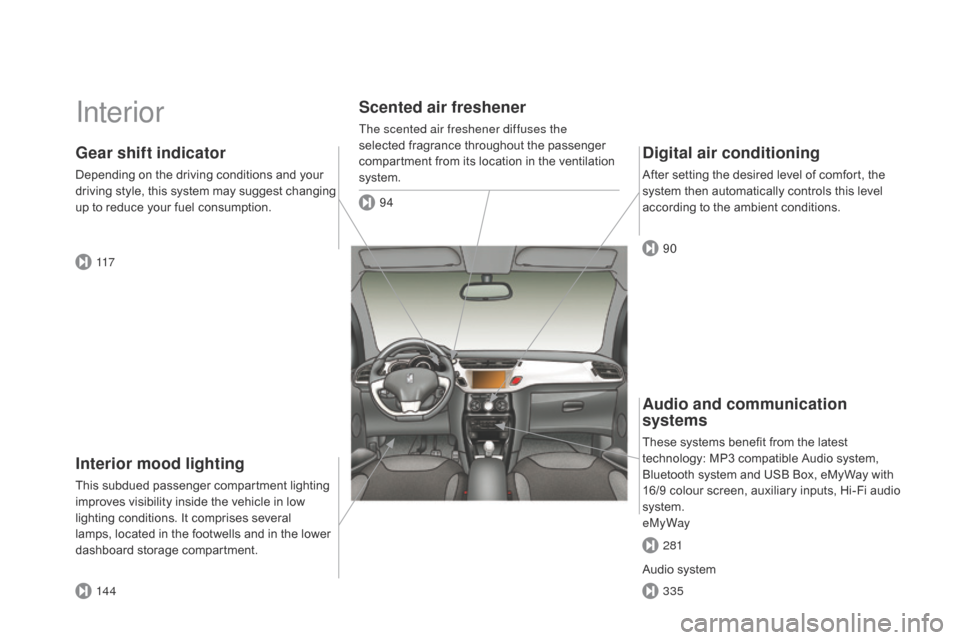
Interior
Interior mood lighting
This subdued passenger compartment lighting improves visibility inside the vehicle in low
l
ighting conditions. It comprises several
l
amps, located in the footwells and in the lower
d
ashboard
s
torage
c
ompartment.
Gear shift indicator
Depending on the driving conditions and your driving s tyle, t his s ystem m ay s uggest c hanging
u
p to reduce your fuel consumption.
Scented air freshener
The scented air freshener diffuses the
selected fragrance throughout the passenger
c
ompartment from its location in the ventilation
s
ystem.
digital air conditioning
After setting the desired level of comfort, the system then automatically controls this level
a
ccording to the ambient conditions.
14 4 117 94
90
335 281
Audio and communication
systems
These systems benefit from the latest technology: MP3 compatible Audio system,
B
luetooth system and USB Box, eMyWay with
1
6/9 colour screen, auxiliary inputs, Hi-Fi audio
s
ystem.
eMyWay
Audio
system
Page 53 of 376
51
DS3_en_Chap02_ecrans-multifonction_ed01-2014
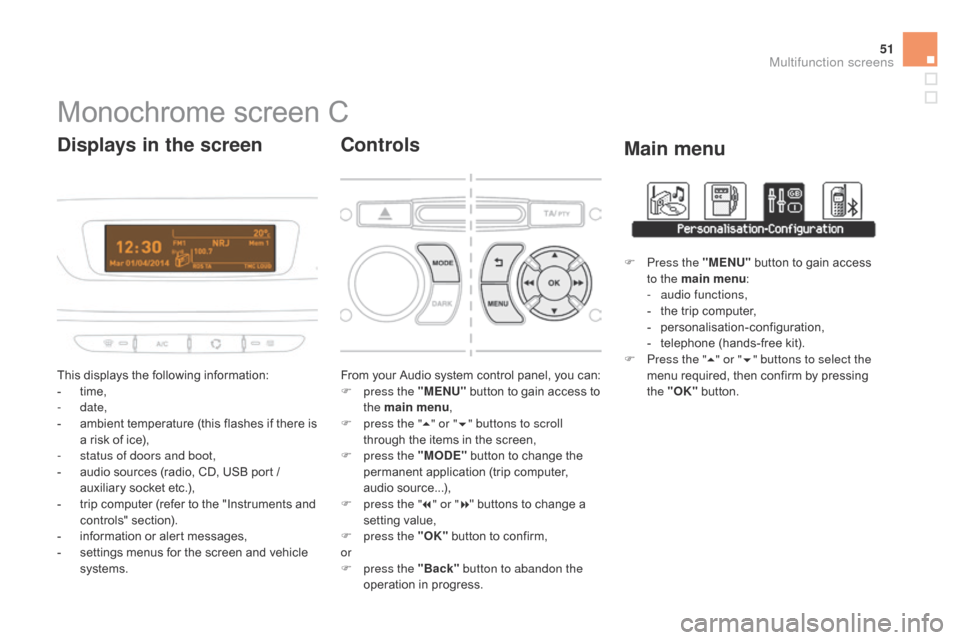
Monochrome screen C
This displays the following information:
- t ime,
-
date,
-
a
mbient temperature (this flashes if there is
a
risk of ice),
-
s
tatus of doors and boot,
-
a
udio sources (radio, CD, USB port /
a
uxiliary socket etc.),
-
t
rip computer (refer to the "Instruments and
c
ontrols"
s
ection).
-
i
nformation or alert messages,
-
s
ettings menus for the screen and vehicle
s
ystems.
displays in the screen
From your Audio system control panel, you can:
F p ress the "MENU" button to gain access to
t
he main menu ,
F
p
ress the " 5" or " 6" buttons to scroll
through
the items in the screen,
F
p
ress the "MO
dE"
button to change the
p
ermanent application (trip computer,
a
udio
s
ource...),
F
p
ress the " 7" or " 8"
buttons to change a
s
etting value,
F
p
ress the "OK"
button to confirm,
or
F
p
ress the "Back" button to abandon the
operation
in progress.
controls
F Press the "MENU" button to gain access t
o the main menu :
-
a
udio functions,
-
t
he trip computer,
-
pe
rsonalisation-configuration,
-
t
elephone (hands-free kit).
F
P
ress the " 5" or " 6" buttons to select the
menu
required, then confirm by pressing
t
he "OK"
button.
Main menu
Multifunction screens
Page 54 of 376
DS3_en_Chap02_ecrans-multifonction_ed01-2014
With the Audio system switched on, once this menu has been selected you can activate
o
r deactivate the functions linked with use
o
f the radio (RDS, REG, RadioText), the CD
(
introscan, shuffle, CD repeat) or the MP3
player
(USB port / auxiliary socket).
For
more information on the "Audio functions"
a
pplication, refer to the "Audio system" section.
"Audio functions"
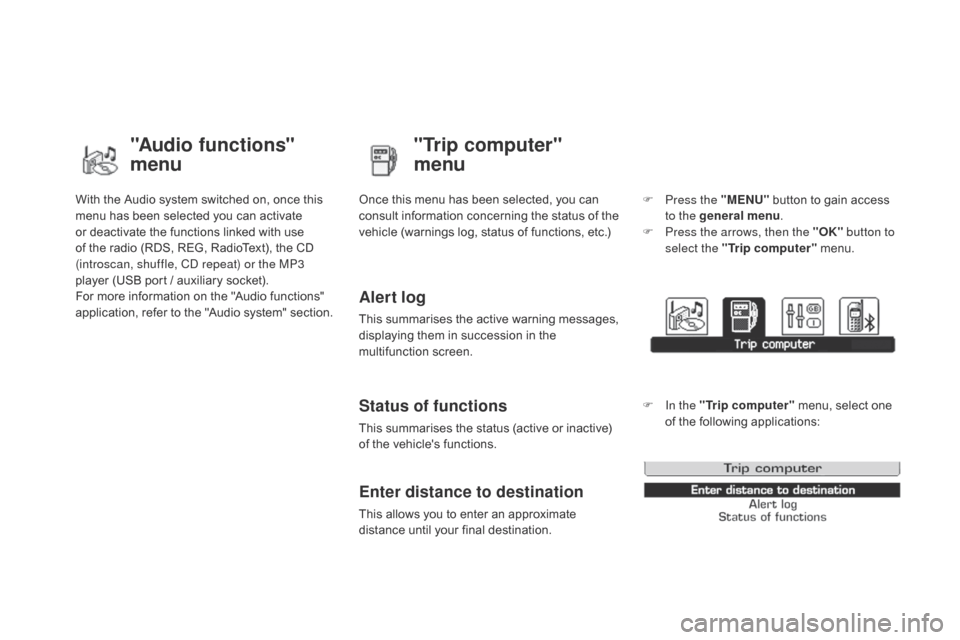
menu"Trip computer"
menu
Once this menu has been selected, you can c
onsult information concerning the status of the
v
ehicle (warnings log, status of functions, etc.)
Alert log
This summarises the active warning messages, displaying them in succession in the
m
ultifunction
s
creen.
Status of functions
This summarises the status (active or inactive) of the vehicle's functions.
Enter distance to destination
This allows you to enter an approximate distance until your final destination. F
P
ress the "MENU"
button to gain access
t
o the general menu
.
F
P
ress the arrows, then the "OK"
button to
select the " Trip computer " menu.
F
I
n the "
Trip computer " menu, select one
o
f the following applications:
Page 98 of 376
DS3_en_Chap05_amenagement_ed01
Fittings
The section describes the various interior fittings, the glove box, the central armrest for storage, the Jack socket or USB port for connecting a
p
ortable player, the mats for protecting the carpet, as well as the various
b
oot fittings.
Page 101 of 376
99
DS3_en_Chap05_amenagement_ed01
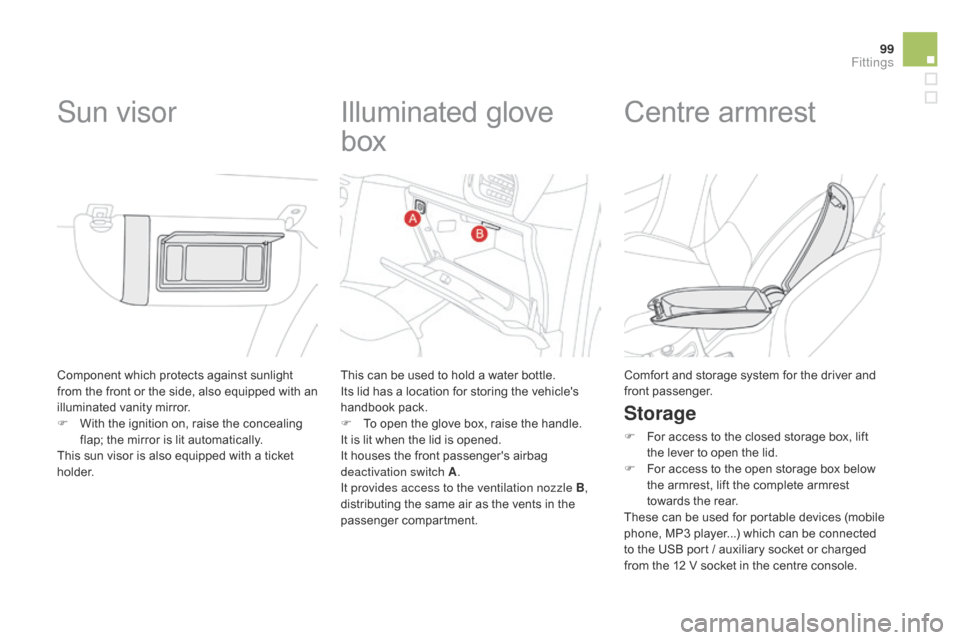
Component which protects against sunlight from t he f ront o r t he s ide, a lso e quipped w ith a n
i
lluminated
v
anity
m
irror.
F
W
ith the ignition on, raise the concealing
f
lap; the mirror is lit automatically.
This
sun visor is also equipped with a ticket
h
o l d e r.
Sun visor Illuminated g love
b
ox
This can be used to hold a water bottle.
I ts lid has a location for storing the vehicle's
han
dbook
pa
ck.
F
T
o open the glove box, raise the handle.
It
is lit when the lid is opened.
It
houses the front passenger's airbag
d
eactivation switch A .
It provides access to the ventilation nozzle B ,
distributing
the same air as the vents in the
p
assenger
c
ompartment.
Centre armrest
Storage
F For access to the closed storage box, lift t
he lever to open the lid.
F
F
or access to the open storage box below
t
he armrest, lift the complete armrest
t
owards the rear.
These
can be used for portable devices (mobile
p
hone, MP3 player...) which can be connected
t
o the USB port / auxiliary socket or charged
f
rom the 12 V socket in the centre console.
Comfort
and storage system for the driver and
f
ront
p
assenger.
Fittings
Page 102 of 376
DS3_en_Chap05_amenagement_ed01
Auxiliary socket
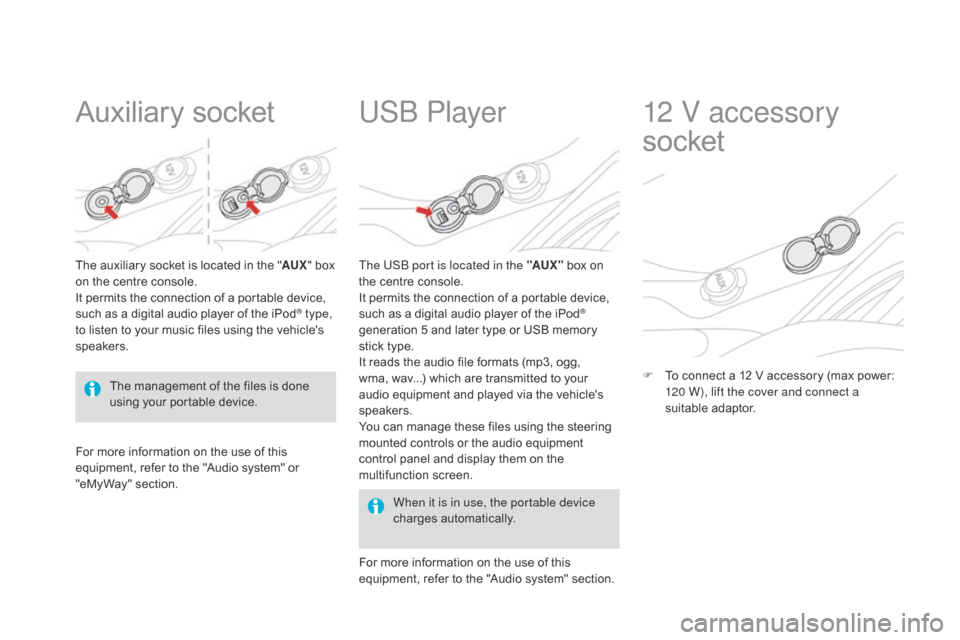
The auxiliary socket is located in the "AU X" box o
n the centre console.
It
permits the connection of a portable device,
s
uch as a digital audio player of the iPod
® type,
to
listen
to
your
music
files
using
the
vehicle's
s
peakers.
USb Player
For more information on the use of this e quipment, refer to the "Audio system" or
"e
MyWay" section. When it is in use, the portable device
charges
a
utomatically.
The US
b
port is located in the "AUX "
box on
t
he centre console.
It permits the connection of a portable device,
s
uch as a digital audio player of the iPod
®
generation
5
and
later
type
or
USB
memory
s
tick
type.
It
reads
the
audio
file
formats
(mp3,
ogg,
w
ma,
wav...)
which
are
transmitted
to
your
a
udio
equipment
and
played
via
the
vehicle's
s
peakers.
You
can
manage
these
files
using
the
steering
m
ounted
controls
or
the
audio
equipment
c
ontrol
panel
and
display
them
on
the
m
ultifunction
s
creen.
For
more
information
on
the
use
of
this
e
quipment,
refer
to
the
"Audio
system"
section.
12 V accessory
socket
F To connect a 12 V accessory (max power: 1
20 W), lift the cover and connect a
suitable
a
daptor.
The
management
of
the
files
is
done
u
sing
your
portable
device.
Page 228 of 376
DS3_en_Chap10_info-pratiques_ed01-2014
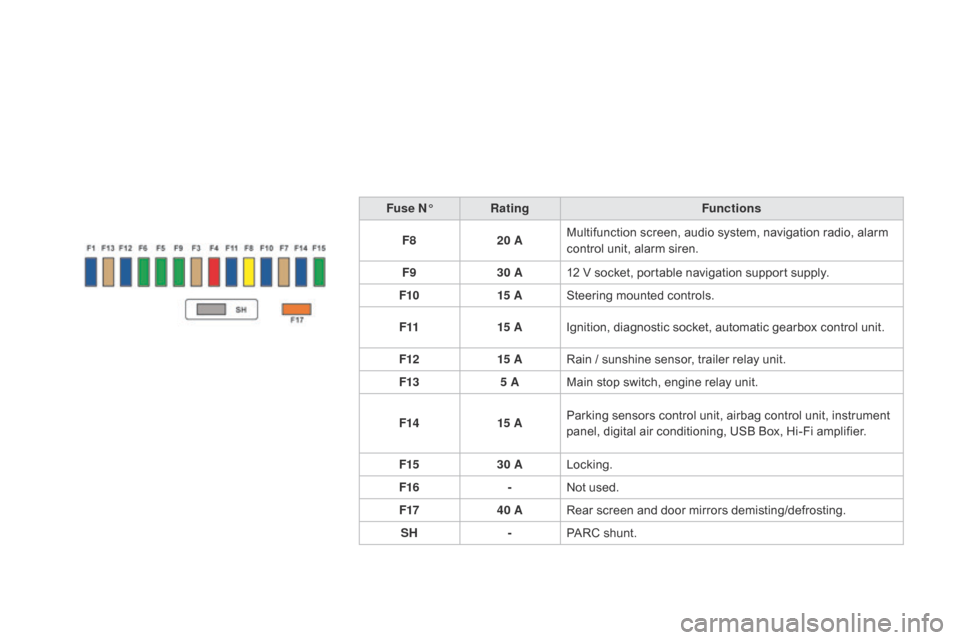
Fuse N°Rating Functions
F8 20 AMultifunction
screen, audio system, navigation radio, alarm
c
ontrol unit, alarm siren.
F9 30 A12
V socket, portable navigation support supply.
F10 15 ASteering
mounted controls.
F11 15 AIgnition,
diagnostic socket, automatic gearbox control unit.
F12 15 ARain
/ sunshine sensor, trailer relay unit.
F13 5 AMain
stop switch, engine relay unit.
F14 15 AParking
sensors control unit, airbag control unit, instrument
p
anel, digital air conditioning, USB Box, Hi-Fi amplifier.
F15 30 ALocking.
F16 -Not
used.
F17 40 ARear
screen and door mirrors demisting/defrosting.
SH -PARC
shunt.
Page 245 of 376
243
DS3_en_Chap10_info-pratiques_ed01-2014
"Multimedia":
hands-free system, audio systems, semi-
i ntegral satellite navigation system, portable
n
avigation systems, mapping update CD,
d
riving assistant system, DVD player, reversing
c
amera, USB Box, speakers, Hi-Fi module,
2
30V socket, WiFi on Board, telephone/
smartphone
carrier, rear multimedia carrier...By
visiting a CITROËN dealer, you can also o
btain cleaning and maintenance products (
interior and exterior) - including ecological
p
roducts from the "TECHNATURE" range,
p
roducts for topping up (screenwash fluid...),
t
ouch-up pens and paint aerosols for the exact
c
olour of your vehicle, refills (cartridge for the
t
emporary puncture repair kit...), ...
Installation of radio
communication
transmitters
Before installing any after-market radio communication transmitter, you can
c
ontact a CITR
oË
N dealer for the
specification
of transmitters which can
b
e fitted (frequency, maximum power,
a
erial position, specific installation
requirements),
in line with the Vehicle
E
lectromagnetic
C
ompatibility
D
irective
(
2004/104/EC). The
fitting of electrical equipment
o
r accessories which are not
recommended by CITROËN may result i
n a failure of your vehicle's electronic
system and excessive electrical
c
onsumption.
Contact a CITR
oË
N dealer
for
information on the range of
r
ecommended equipment and
a
ccessories.
Depending
on the legislation in force in
t
he country, certain safety equipment
m
ay be compulsory: high visibility s
afety vests, warning triangles, b
reathalyzers, spare bulbs, spare
fuses,
fire extinguisher, first aid kit,
m
ud flaps at the rear of the vehicle.
Practical information
Page 285 of 376
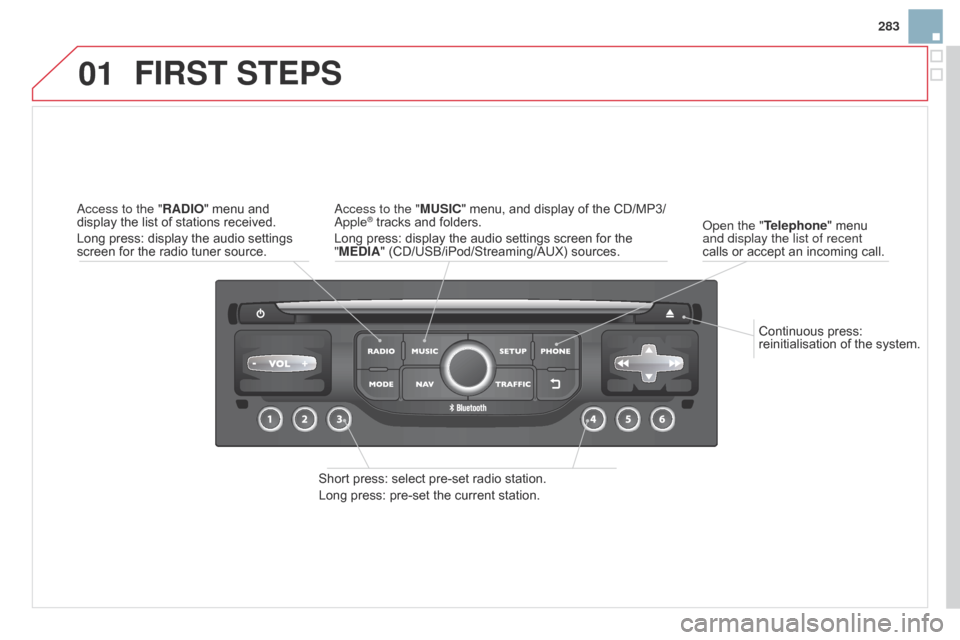
01
283
DS3_en_Chap13b_RT6-2-8_ed01-2014
Continuous press: reinitialisation of the system.
o
pen the "Telephone" menu
and display the list of recent
calls
or
accept an incoming call.
FIRST STEPS
Short press: select pre-set radio station.
Long press: pre-set the current station.
a
ccess to the "MUSI c " menu, and display of the CD/MP3/
a
pple
® tracks and folders.
Long
press: display the audio settings screen for the
"
ME
d
IA" (CD/USB/iPod/Streaming/AUX) sources.a
ccess to the "RA
d
IO"
menu
and
display
the
list
of
stations
received.
Long
press:
display
the
audio
settings
screen
for
the
radio
tuner
source.
Page 288 of 376
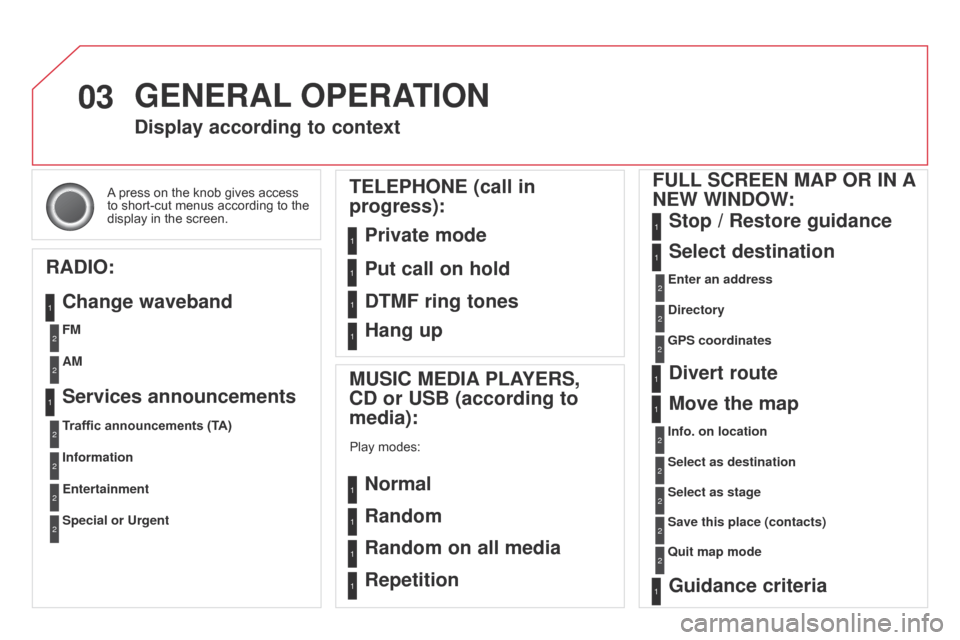
03
DS3_en_Chap13b_RT6-2-8_ed01-2014
A press on the knob gives access to
short-cut menus according to the
display
in the screen.
display according to context
RA
d
IO:
c
hange waveband MUSI
c ME d IA PLAYERS,
cd
or USB (according to
media):
Play modes:
Normal
Random
Random on all media
Repetition
TELEPHONE (call in
progress):
Private mode FULL S c REEN MAP OR IN A
NEW WIN d OW:
Stop / Restore guidance
Select destination
Enter an address
d
irectory
GPS coordinates
divert route
Move the map
Info. on location
Select as destination
Select as stage
Save this place (contacts)
Quit map mode
Guidance criteria
Put call on hold
d
TMF ring tones
Hang up
1
1
1
1
1
1
1
2
2
2
2
2
1
2
2
2
1
1
1
1
1
1FM
Traffic announcements (TA) AM
Information
Entertainment
Special or Urgent2
2
2
2
2
2
Services announcements1
GENERAL OPERATION