USB Citroen DS3 2015 1.G User Guide
[x] Cancel search | Manufacturer: CITROEN, Model Year: 2015, Model line: DS3, Model: Citroen DS3 2015 1.GPages: 415, PDF Size: 11.95 MB
Page 301 of 415
299
DS3_en_Chap11c_SMEGplus_ed01-2015
The audio equipment will only play audio files with".wma, .aac, .flac, .ogg and. mp3" file
e
xtensions and with a bit rate of between
32
Kbps and 320 Kbps.
It
also supports VBR (Variable Bit Rate) mode.
No
other type of file (.mp4, ...) can be played.
".wma"
files must be of the standard wma 9 type.
The
sampling rates supported are 11, 22, 44
a
nd 48 KHz.
It
is advisable to restrict file names to
20
characters, without using of special
c
haracters (e.g.: " " ? ; ù) to avoid any playing
a
nd
d
isplaying
pro
blems.
Information and advice
Use only USB memory sticks formatted FAT32 (file allocation table).
The
system
supports
USB
mass
s
torage
portable
players,
BlackBerry
®
devices or Apple® players via USB
ports.
The
adaptor cable not supplied.
Control of the peripheral device is with
the
audio
system
controls.
Other
peripherals, not recognised on
c
onnection,
must
be connected to the
a
uxiliary
socket
using a Jack cable (not
sup
plied). It
is recommended that the USB cable
f
or the portable device is used.
The system does not support the simultaneous connection of two identical devices
(two memory
sticks or two Apple
® players) but i
t
is
possible
to
connect
one
memory stick and o
ne Apple
® player at the same time.
Audio and Telematics
Page 302 of 415
DS3_en_Chap11c_SMEGplus_ed01-2015
Bluetooth® audio streaming
Streaming allows audio files on your telephone to be played through the vehicle's speakers.
Connect
the telephone: see the "Telephone "
section, then " Bluetooth".
Choose the " Audio" or "All"
pro
file.
If
play does not start automatically, it may be
n
ecessary to start the audio playback from the
t
elephone.
Control
is from the peripheral device or by
u
sing the audio system buttons.
Once
connected in streaming mode,
t
he telephone is considered to be a
media
source.
It
is recommended that you activate
"R
epeat"
on the Bluetooth peripheral.
Connecting Apple® players
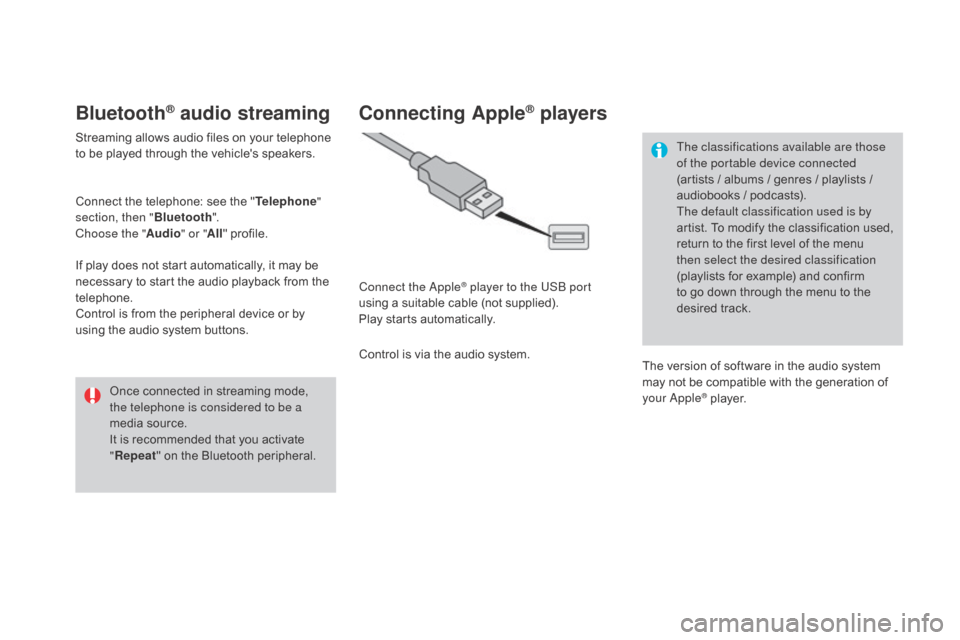
Connect the Apple® player to the USB port
using
a
suitable
cable (not supplied).
Play
starts
automatically.
Control
is
via
the
audio system. The classifications available are those
of the portable device connected
(artists
/ albums / genres / playlists /
a
udiobooks / podcasts).
The default classification used is by
artist. To modify the classification used,
r
eturn to the first level of the menu
t
hen select the desired classification
(playlists for example) and confirm t
o go down through the menu to the
de
sired
t
rack.
The
version of software in the audio system
m
ay not be compatible with the generation of
y
our Apple
® player.
Page 303 of 415
12
13
15
301
DS3_en_Chap11c_SMEGplus_ed01-2015
Managing the Jukebox
Connect the device (MP3 player...) to the USB port or auxiliary Jack socket using a suitable
a
udio cable.
When no audio file is copied to the
system,
which has a capacity of 8 GB,
a
ll of the Jukebox function symbols are
g
reyed and are not available.
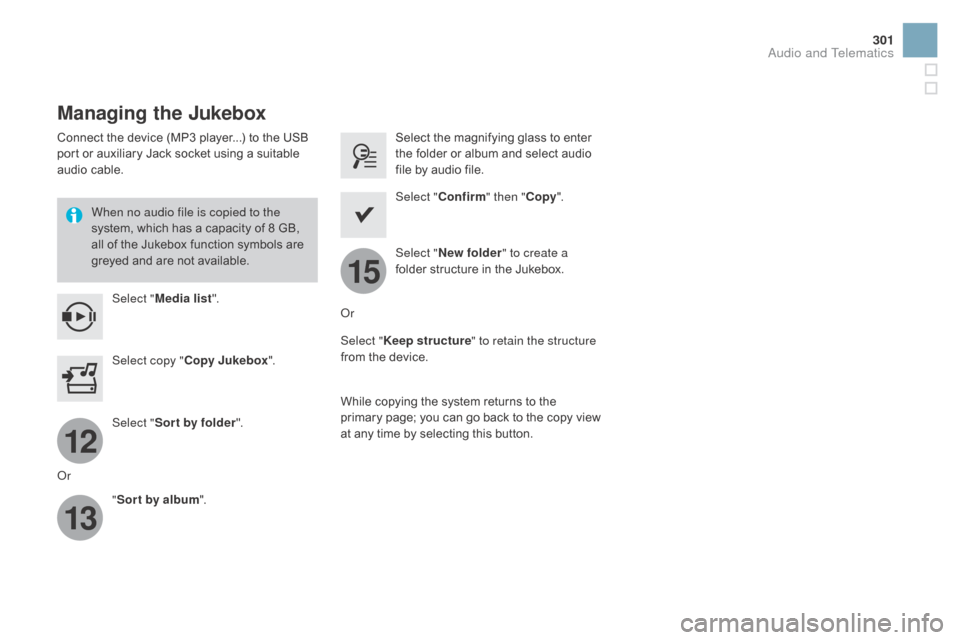
Select " Media list ". Select
the magnifying glass to enter t
he folder or album and select audio
f
ile by audio file.
Select copy " Copy Jukebox ". Select "
Confirm " then "Copy".
Select " Sor t by folder ". Select "
ne
w folder" to create a
folder
structure in the Jukebox.
" Sor t by album ". Select "
Keep structure " to retain the structure
from
the device.
While
copying the system returns to the
p
rimary page; you can go back to the copy view
a
t any time by selecting this button.
Or Or
Audio and Telematics
Page 317 of 415

315
DS3_en_Chap11c_SMEGplus_ed01-2015
As a safety measure and because it requires sustained attention by the
d
river, using a smartphone when
d
riving is prohibited.
All
operations must be done with the
v
ehicle stationary .
The synchronisation of a personal
smartphone
allows applications on a
s
martphone that are adapted to the
M
irrorLink
® technology to be displayed i
n
the
vehicle's screen.
The principles and standards are
constantly
evolving; for information
o
n
supported smartphones, go to the
C
ITROËN
website for your country.
S
elect
MyCITROËN if present. Please
note:
-
i
f
y
our
m
obile
i
s
s
upported,
t
o
m
ake
it "
MirrorLink
®" compatible, some p
hone
manufacturers nevertheless
i
nvite you to first download a
dedicated
a
pplication.
-
iPhone
® is not supported yet; an A
pple® application, "CarPlay®", is
being d
eveloped.
When connecting a smartphone to t he system, it is recommended that Bl
uetooth
® be started on the smartphone
Start the application on the
smartphone.
Go
to
the
home page to return to the
"M
irrorLink
®" display.
D
uring the procedure, a page
s
howing the conditions for use is
d
isplayed.
Accept to start and end the
connection.
a
USB
cable
is
connected.
The
s
martphone
charges
when
c
onnected
by
a
USB
cable. Press "
MirrorLink
®" to start
the
application
in
the system.
The " Audio source " and "Telephone "
functions
remain
available
in
the
margin of the
M
irrorLink
® display.
MirrorLink® smartphone
connection
Press the end of the lighting control stalk to s
tart voice recognition of your smartphone via
t
he system.
Voice
recognition requires a compatible
t
elephone connected to the vehicle by
Bluetooth.
Voice recognition
As a safety measure, applications c an only be viewed with the vehicle
stationary;
display is interrupted once
t
he vehicle is moving.
and From
the system, press "Internet " to
display
the primary page.
Audio and Telematics
Page 329 of 415
327
DS3_en_Chap11c_SMEGplus_ed01-2015
Media
QUESTIOnAnSWERSOLUTIOn
P
layback of my USB
m
emory stick starts only
a
fter
a
very long wait
(
around 2 to 3 minutes). Some
files supplied with the memory stick may greatly slow down
a
ccess to reading the memory stick (multiplication by 10 of the
c
atalogue time). Delete
the files supplied with the memory stick
a
nd limit the number of sub-folders in the file
s
tructure on the memory stick.
When
I
c
onnect
m
y
i
Phone
a
s telephone and to the
USB
port at the same
t
ime,
I
am unable to play
t
he
music files. When
the iPhone connects automatically as a telephone, it forces
t
he streaming function. The streaming function takes the place
o
f the USB function which is then not useable, there is a period
without
sound of the track being played with Apple
® players.D isconnect and reconnect to the USB port (the
U
SB function takes priority over streaming).
Some
characters
in
the
m
edia
information
are
not
d
isplayed correctly while
playing. The
audio
system
does
not
display
some
types
of
characters. Use standard characters to name tracks and
f
olders.
Playing
of
streaming
files
d
oes
not
start. The
peripheral
device
connected
does
not
support
automatic play. Start the playback from the device.
The
names
of
tracks
and
t
he
track
length
are
not
d
isplayed on the screen
when
s
treaming
a
udio. The
Bluetooth
profile
does
not
allow
the
transfer
of
this information.
Audio and Telematics
Page 334 of 415
DS3_en_Chap11d_RD45_ed01-2015
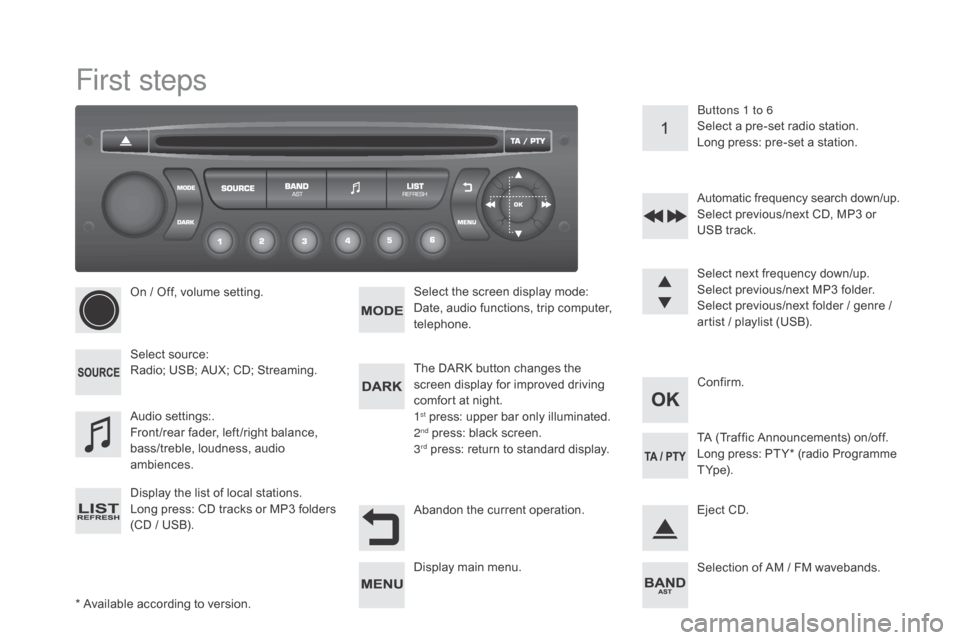
First steps
* Available according to version.
O n / Off, volume setting.
Select
s
ource:
Radio; USB; AUX; CD; Streaming.
Display the list of local stations.
Long
p
ress:
C
D
t
racks
o
r
M
P3
f
olders
(
CD / USB). Select the screen display mode:
Date, audio functions, trip computer,
t
elephone.
Audio
se
ttings:.
Front /rear fader, left /right balance,
b
ass/treble, loudness, audio
am
biences.
The DARK button changes the
s
creen display for improved driving
c
omfort at night.
1
st press: upper bar only illuminated.
2nd press: black screen.
3rd press: return to standard display. S elect next frequency down/up.
Select previous/next MP3 folder.
Select previous/next folder / genre /
a
rtist / playlist (USB).
Abandon the current operation. Confirm. Buttons 1 to 6
Select a pre-set radio station.
Long press: pre-set a station.
Automatic frequency search down/up.
Select previous/next CD, MP3 or
U
SB track.
Eject CD.
Display
main menu. TA
(Traffic Announcements) on/off.
Long press: PT Y* (radio Programme
T
Yp e).
Selection
of AM / FM wavebands.
Page 335 of 415
333
DS3_en_Chap11d_RD45_ed01-2015
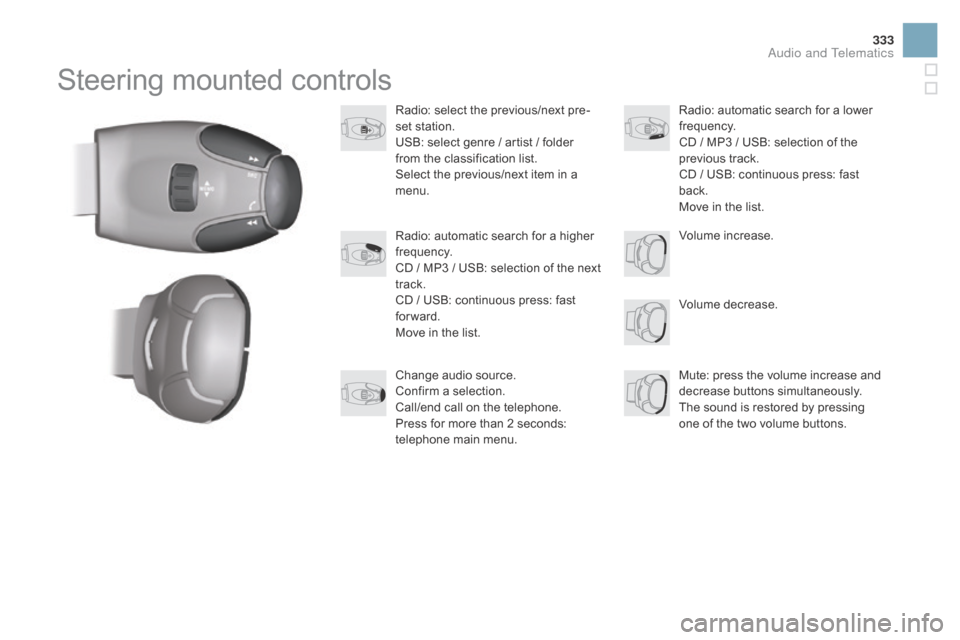
Steering mounted controls
Radio: select the previous/next pre-
s et station.
USB:
select genre / artist / folder
f
rom the classification list.
Select
the previous/next item in a
m
enu.
Volume
decrease.
Radio:
automatic search for a higher
f
requency.
CD
/ MP3 / USB: selection of the next
t
rack.
CD
/ USB: continuous press: fast
fo
rward.
Move
in the list. Mute:
press the volume increase and
d
ecrease
b
uttons
s
imultaneously.
The
sound is restored by pressing
o
ne of the two volume buttons.
Radio:
automatic search for a lower f
requency.
CD
/ MP3 / USB: selection of the
p
revious track.
CD
/ USB: continuous press: fast
b
ack.
Move
in the list.
Change
audio source.
Confirm
a selection.
Call/end
call on the telephone.
Press
for more than 2 seconds:
t
elephone main menu. Volume
increase.
Audio and Telematics
Page 336 of 415
DS3_en_Chap11d_RD45_ed01-2015
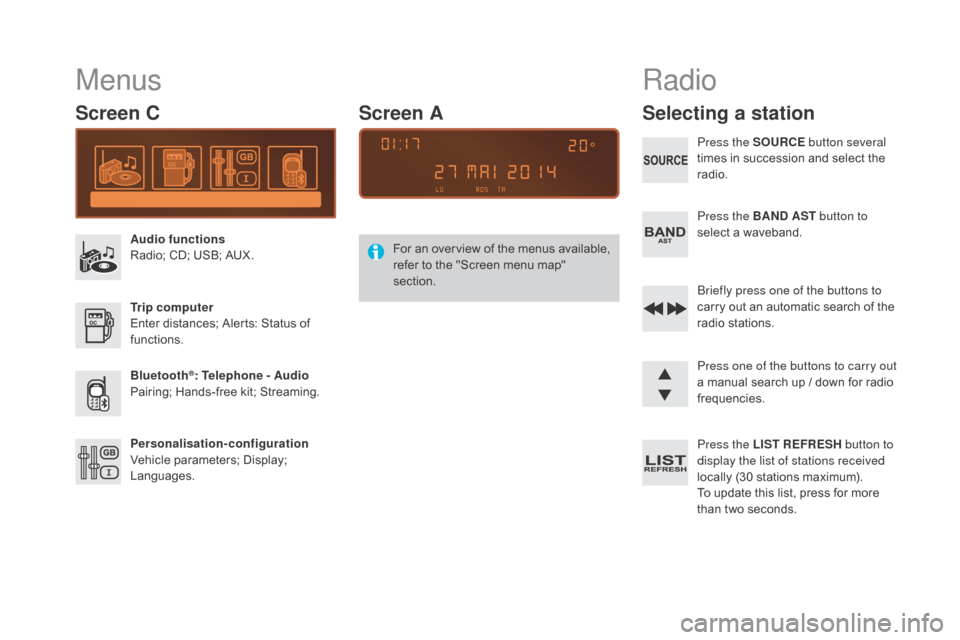
Menus
Screen C
Audio functions
Radio; CD; USB; AUX.
Trip computer
Enter
distances; Alerts: Status of
f
unctions.
Bluetooth
®: Telephone - Audio
Pairing;
Hands-free kit; Streaming.
Personalisation-configuration
Vehicle
parameters; Display;
L
anguages. For
a
n
ov
erview
o
f
t
he
m
enus
a
vailable,
r
efer to the "Screen menu map"
s
ection.
Screen A
Radio
Selecting a station
Press the SOURCE
button several
times in succession and select the
r
adio.
Press the BA
n
d AST button to
select
a waveband.
Briefly press one of the buttons to
carry
out an automatic search of the
r
adio
s
tations.
Press one of the buttons to carry out
a
manual search up / down for radio
f
requencies.
Press the LIST REFRESH button to
display the list of stations received
locally
(30 stations maximum).
To
update this list, press for more
t
han two seconds.
Page 338 of 415
DS3_en_Chap11d_RD45_ed01-2015
Media
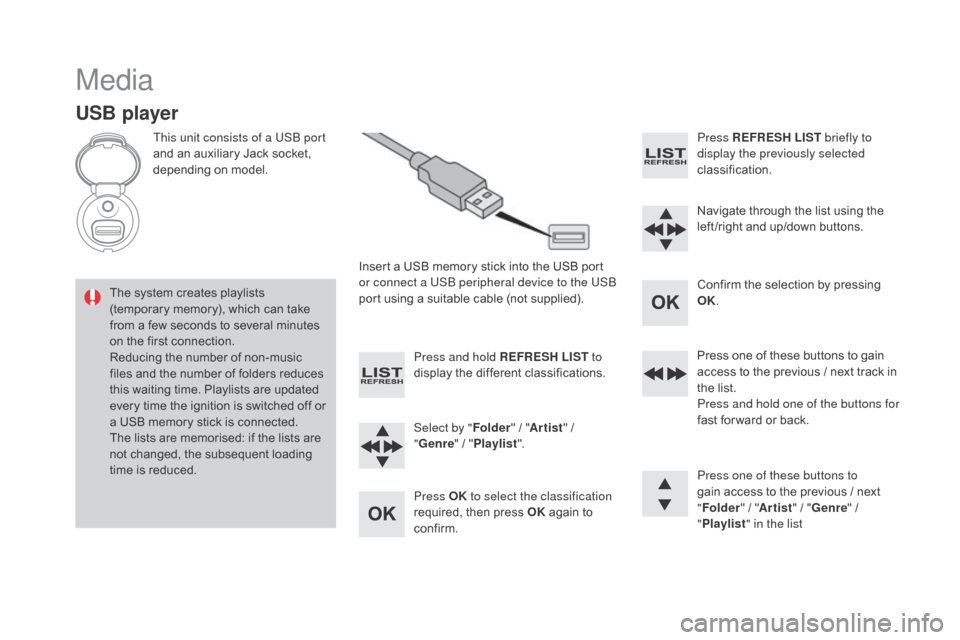
USB player
This unit consists of a USB port
and an auxiliary Jack socket,
d
epending on model.
Insert
a USB memory stick into the USB port
o
r connect a USB peripheral device to the USB
port
using a suitable cable (not supplied).
The
system creates playlists
(
temporary memory), which can take
f
rom
a
few seconds to several minutes
o
n
the
first connection.
Reducing
the number of non-music
f
iles
and the number of folders reduces
t
his
waiting time. Playlists are updated
e
very
time the ignition is switched off or
a
USB
memory stick is connected.
The
lists are memorised: if the lists are
n
ot
changed, the subsequent loading
t
ime
is
reduced. Press and hold REFRESH LIST
to
display
the different classifications.
Select by " Folder"
/ "Artist "
/
"ge
nre"
/
"Pl
aylist".
Press OK to select the classification
required,
then press OK
again to
c
onfirm. Press REFRESH LIST
briefly to
display the previously selected
classification.
Navigate
through the list using the
l
eft /right and up/down buttons.
Confirm
the selection by pressing
O
K.
Press
one of these buttons to gain
a
ccess to the previous / next track in
t
he list.
Press and hold one of the buttons for
fast
for ward or back.
Press one of these buttons to
gain
access to the previous / next
"Fo
lder"
/ "Artist "
/ "
ge
nre"
/
"Pl
aylist" in the list
Page 339 of 415
337
DS3_en_Chap11d_RD45_ed01-2015
Auxiliary socket (AUX)
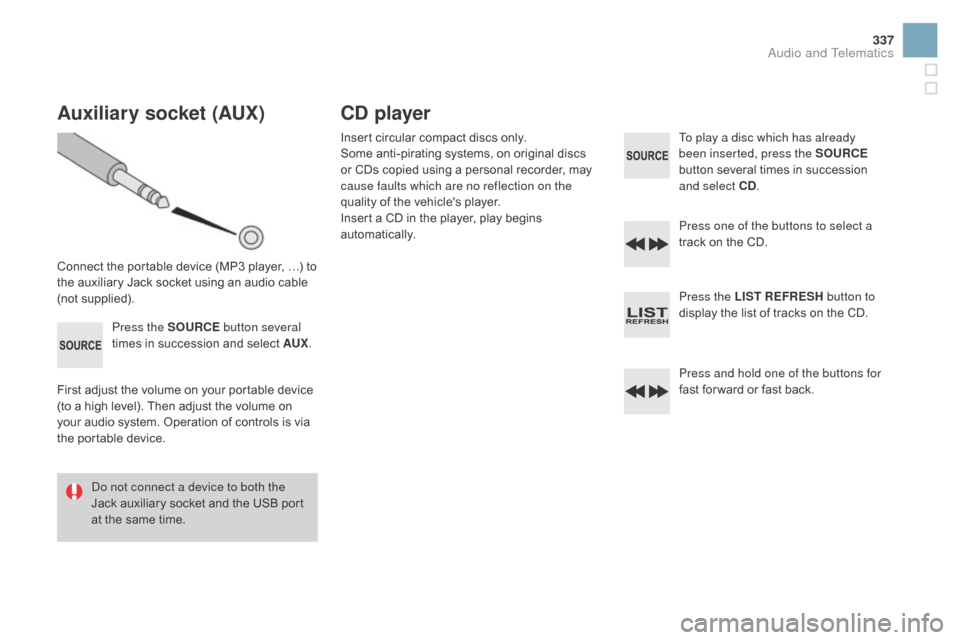
Connect the portable device (MP3 player, …) to the auxiliary Jack socket using an audio cable
(
not
sup
plied).Press the SOURCE button several
times
in succession and select AUX.
First
adjust the volume on your portable device
(
to a high level). Then adjust the volume on
y
our audio system. Operation of controls is via
t
he portable device.
Do not connect a device to both the
Jack
auxiliary socket and the USB port
a
t the same time.
Cd player
Insert circular compact discs only.
S ome anti-pirating systems, on original discs
o
r CDs copied using a personal recorder, may
c
ause faults which are no reflection on the
quality
of the vehicle's player.
Insert
a CD in the player, play begins
au
tomatically. To play a disc which has already
been inserted, press the SOURCE
button
several times in succession
a
nd select C d
.
P
ress one of the buttons to select a
track
on the CD.
Press the LIST REFRESH button to
display
the list of tracks on the CD.
Press and hold one of the buttons for
fast
for ward or fast back.
Audio and Telematics