radio CITROEN DS3 CABRIO 2015 Handbook (in English)
[x] Cancel search | Manufacturer: CITROEN, Model Year: 2015, Model line: DS3 CABRIO, Model: CITROEN DS3 CABRIO 2015Pages: 404, PDF Size: 13.2 MB
Page 50 of 404
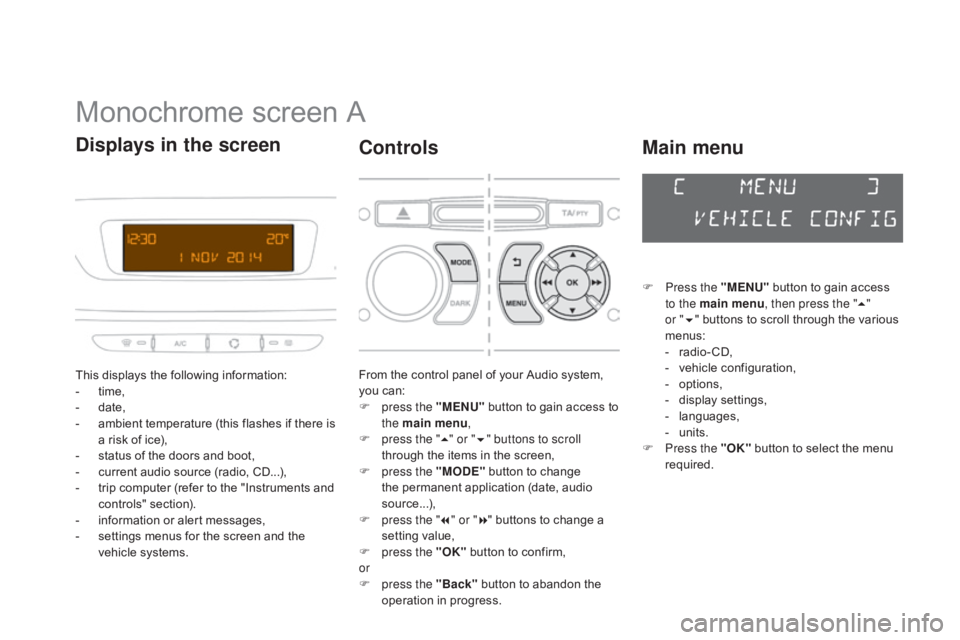
Monochrome screen A
This displays the following information:
- t ime,
-
d
ate,
-
a
mbient temperature (this flashes if there is
a
risk of ice),
-
s
tatus of the doors and boot,
-
c
urrent audio source (radio, CD...),
-
t
rip computer (refer to the "Instruments and
c
ontrols"
s
ection).
-
i
nformation or alert messages,
-
s
ettings menus for the screen and the
v
ehicle systems.
displays in the screen
From the control panel of your Audio system, you can:
F
p
ress the "MENU"
button to gain access to
t
he main menu ,
F
p
ress the " 5" or " 6" buttons to scroll
through
the items in the screen,
F
p
ress the "MO
dE"
button to change
t
he permanent application (date, audio
s
ource...),
F
p
ress the " 7" or " 8"
buttons to change a
s
etting value,
F
p
ress the "OK"
button to confirm,
or
F
p
ress the "Back"
button to abandon the
o
peration in progress.
Controls
F Press the "MENU" button to gain access t
o the main menu , then press the "5"
or
"6 "
buttons to scroll through the various
m
enus:
-
r
adio - CD,
-
v
ehicle configuration,
-
op
tions,
-
d
isplay
se
ttings,
-
lan
guages,
-
un
its.
F
P
ress the "OK"
button to select the menu
r
equired.
Main menu
Page 51 of 404
49
Radio- Cd
With the Audio system switched on, once the "Radio- CD" menu has been selected you can
a
ctivate or deactivate the functions linked
w
ith use of the radio (RDS, REG), or the CD
(
introscan, shuffle, CD repeat).
For
more information on the "Radio- CD"
a
pplication, refer to the "Audio system" section.
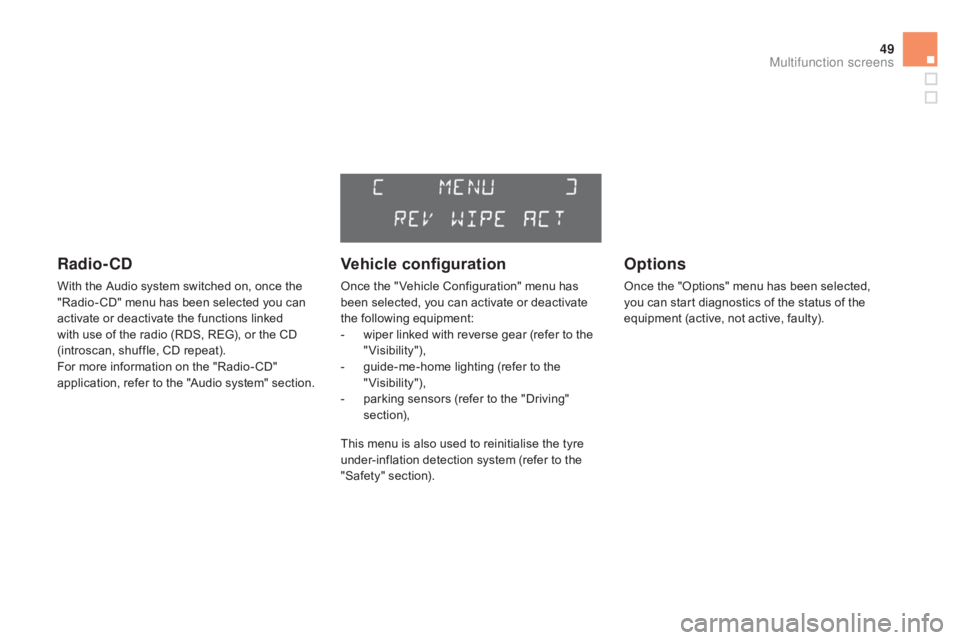
Vehicle configuration
Once the " Vehicle Configuration" menu has been selected, you can activate or deactivate
t
he following equipment:
-
w
iper linked with reverse gear (refer to the
"
Visibility"),
-
g
uide-me-home lighting (refer to the
"
Visibility"),
-
p
arking sensors (refer to the "Driving"
s
ection),
Options
Once the "Options" menu has been selected, you can start diagnostics of the status of the
e
quipment (active, not active, faulty).
This menu is also used to reinitialise the tyre under-inflation detection system (refer to the
"
Safety"
s
ection).
Multifunction screens
Page 53 of 404
51
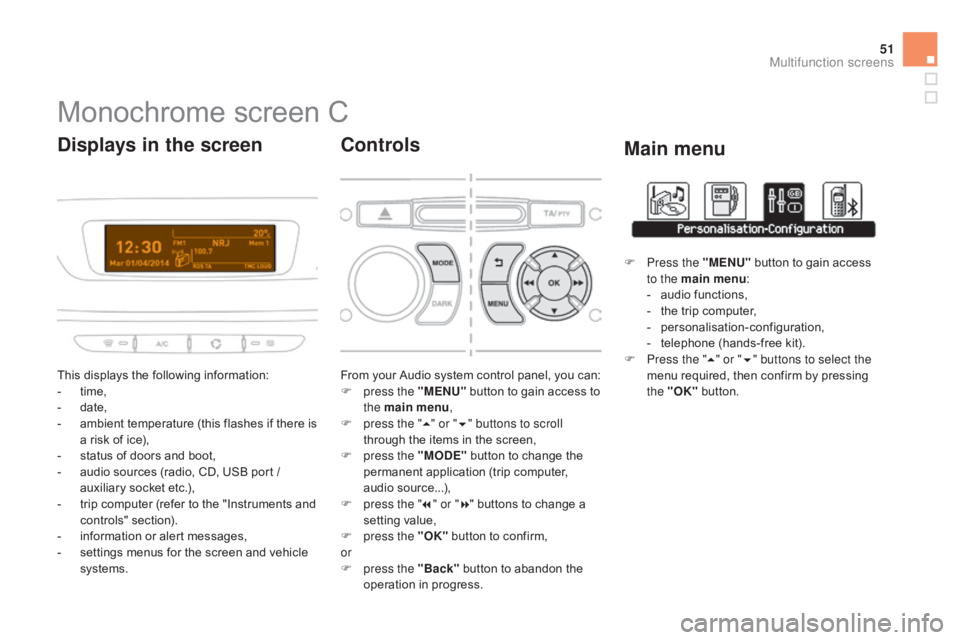
Monochrome screen C
This displays the following information:
- t ime,
-
d
ate,
-
a
mbient temperature (this flashes if there is
a
risk of ice),
-
s
tatus of doors and boot,
-
a
udio sources (radio, CD, USB port /
a
uxiliary socket etc.),
-
t
rip computer (refer to the "Instruments and
c
ontrols"
s
ection).
-
i
nformation or alert messages,
-
s
ettings menus for the screen and vehicle
s
ystems.
displays in the screen
From your Audio system control panel, you can:
F p ress the "MENU" button to gain access to
t
he main menu ,
F
p
ress the " 5" or " 6" buttons to scroll
through
the items in the screen,
F
p
ress the "MO
dE"
button to change the
p
ermanent application (trip computer,
a
udio
s
ource...),
F
p
ress the " 7" or " 8"
buttons to change a
s
etting value,
F
p
ress the "OK"
button to confirm,
or
F
p
ress the "Back"
button to abandon the
o
peration in progress.
Controls
F Press the "MENU" button to gain access t
o the main menu :
-
a
udio functions,
-
t
he trip computer,
-
pe
rsonalisation-configuration,
-
t
elephone (hands-free kit).
F
P
ress the " 5" or " 6" buttons to select the
menu
required, then confirm by pressing
t
he "OK"
button.
Main menu
Multifunction screens
Page 54 of 404
With the Audio system switched on, once this menu has been selected you can activate
o
r deactivate the functions linked with use
o
f the radio (RDS, REG, RadioText), the CD
(
introscan, shuffle, CD repeat) or the MP3
p
layer (USB port / auxiliary socket).
For
more information on the "Audio functions"
a
pplication, refer to the "Audio system" section.
"Audio functions"
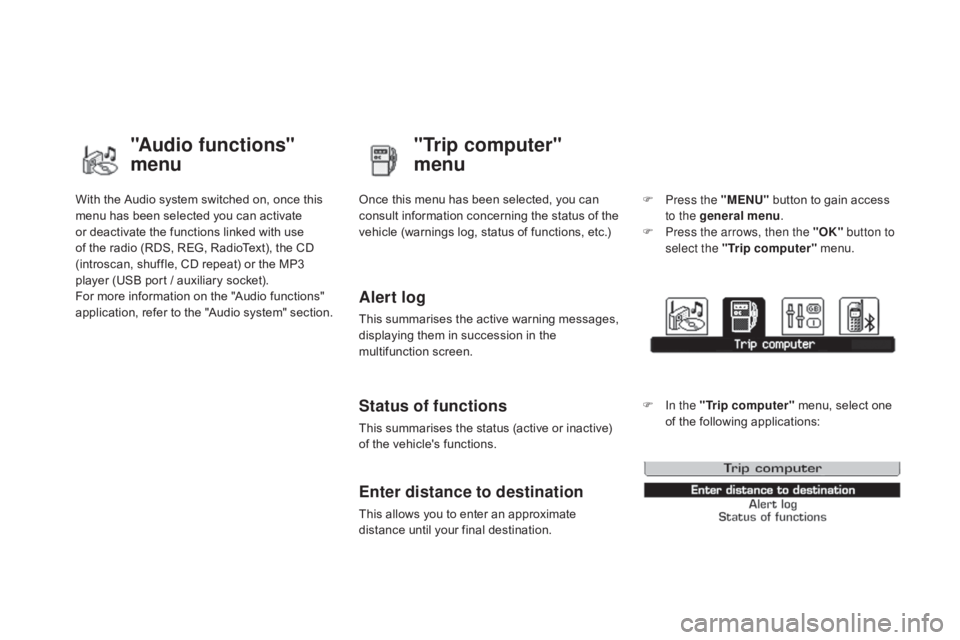
menu"Trip computer"
menu
Once this menu has been selected, you can c
onsult information concerning the status of the
v
ehicle (warnings log, status of functions, etc.)
Alert log
This summarises the active warning messages, displaying them in succession in the
m
ultifunction
s
creen.
Status of functions
This summarises the status (active or inactive) of the vehicle's functions.
Enter distance to destination
This allows you to enter an approximate distance until your final destination. F
P
ress the "MENU"
button to gain access
t
o the general menu
.
F
P
ress the arrows, then the "OK"
button to
select the " Trip computer " menu.
F
I
n the "
Trip computer " menu, select one
o
f the following applications:
Page 232 of 404

Fuse N°Rating Functions
F8 20 AMultifunction
screen, audio system, navigation radio, alarm
c
ontrol unit, alarm siren.
F9 30 A12
V socket, portable navigation support supply.
F10 15 ASteering
wheel controls.
F11 15 AIgnition,
diagnostic socket, automatic gearbox control unit.
F12 15 ARain
/ brightness sensor, trailer relay unit.
F13 5 AMain
stop switch, engine relay unit.
F14 15 AParking
sensors control unit, airbag control unit, instrument
p
anel, digital air conditioning, USB Box, Hi-Fi amplifier.
F15 30 ALocking.
F16 -Not
used.
F17 40 ARear
screen and door mirrors demisting/defrosting.
SH -PARC
shunt.
Page 249 of 404

247
"Multimedia":
hands-free system, audio systems, semi-
i ntegral satellite navigation system, portable
n
avigation systems, mapping update CD,
d
riving assistant system, DVD player, reversing
c
amera, USB Box, speakers, Hi-Fi module,
2
30V socket, WiFi on Board, telephone/
smartphone
carrier, rear multimedia carrier...By
visiting a CITROËN dealer, you can also o
btain cleaning and maintenance products (
interior and exterior) - including ecological
p
roducts from the "TECHNATURE" range,
p
roducts for topping up (screenwash fluid...),
t
ouch-up pens and paint aerosols for the exact
c
olour of your vehicle, refills (cartridge for the
t
emporary puncture repair kit...), ...
Installation of radio
communication
transmitters
Before installing any after-market radio communication transmitter, you can
c
ontact a CITROËN dealer for the
s
pecification of transmitters which can
b
e fitted (frequency, maximum power,
a
erial position, specific installation
requirements),
in line with the Vehicle
E
lectromagnetic
C
ompatibility
D
irective
(
2004/104/EC). The
fitting of electrical equipment
o
r accessories which are not
recommended by CITROËN may result i
n a failure of your vehicle's electronic
system and excessive electrical
c
onsumption.
Contact
a CITROËN dealer
f
or information on the range of
r
ecommended equipment and
a
ccessories.
Depending
on the legislation in force in
t
he country, certain safety equipment
m
ay be compulsory: high visibility s
afety vests, warning triangles, b
reathalyzers, spare bulbs, spare
fuses,
fire extinguisher, first aid kit,
m
ud flaps at the rear of the vehicle.
Practical information
Page 287 of 404
285
The
system
is
protected
in
such
a
way
that
it
will
only
operate
in
your
vehicle.
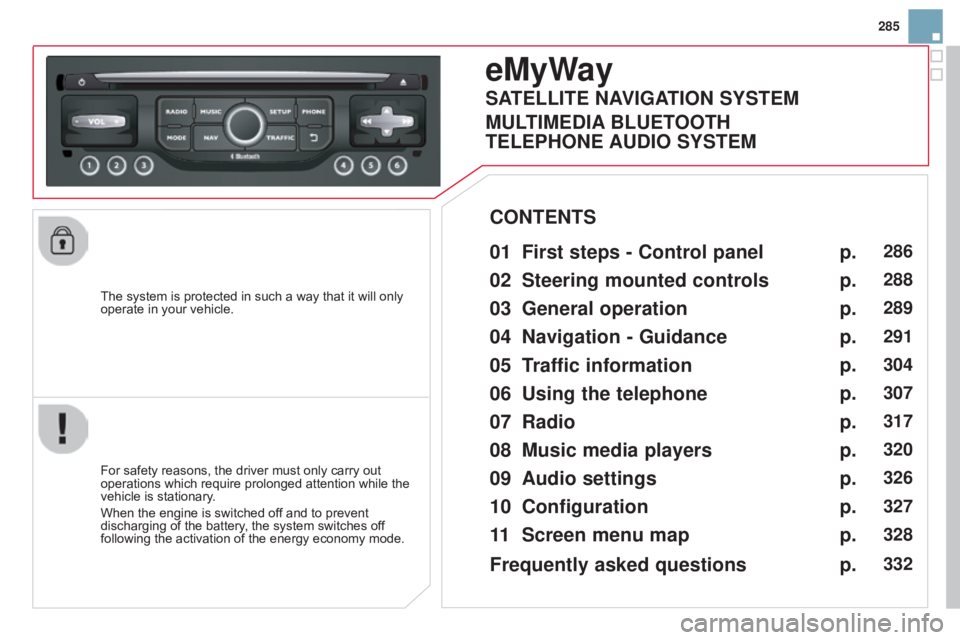
eMyWay
01 First steps - Control panel
For safety reasons, the driver must only carry out operations
which require prolonged attention while the
vehicle
is stationary.
When
the engine is switched off and to prevent
discharging
of the battery, the system switches off
following
the activation of the energy economy mode.
CONTENTS
02
Steering mounted
controls
03
General operation
04
Navigation
- Guidance
05
T
raffic information
06
Using
the telephone
07
Radio
08
Music media players
09
Audio
settings
10
Configuration
11
Screen menu
map p.
p.
p.
p.
p.
p.
p.
p.
p.
p.
p.
286
288
289
291
304
307
317
320
326
327
328
SATELLITE NAVIGATION SYSTEM
MULTIME
d IA BLUETOOTH
TELEPHONE AU
d IO SYSTEM
Frequently asked questions p.
332
Page 288 of 404
01
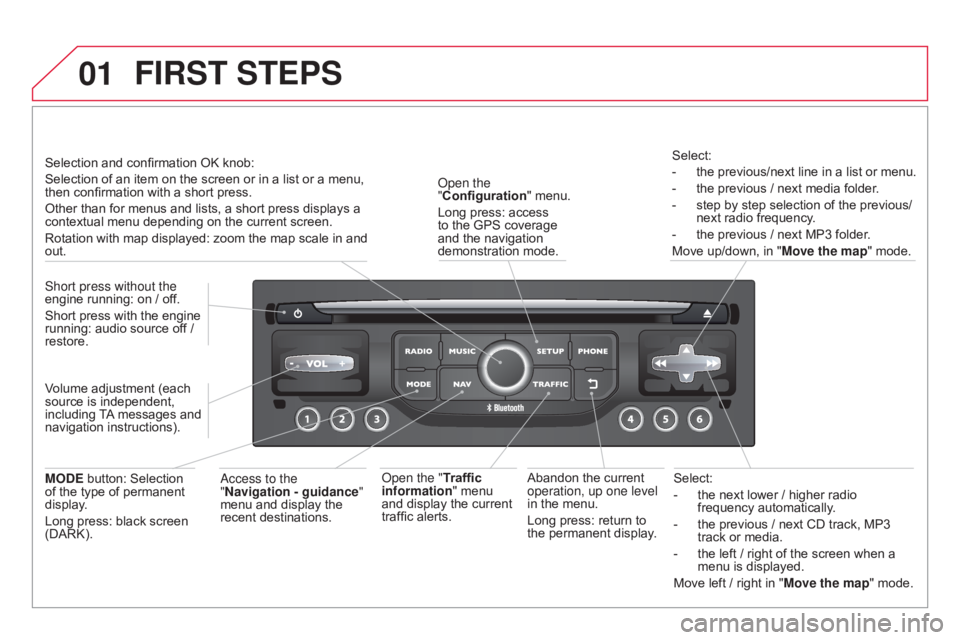
Select:
-
the
next lower / higher radio
frequency
automatically.
-
the
previous / next CD track, MP3
track
or media.
-
the
left / right of the screen when a
menu
is displayed.
Move
left / right in "Move the map" mode.
Abandon
the
current
operation, up one level
in
the
menu.
Long
press:
return
to
the
permanent
display.
o
pen the
"Configuration "
menu.
Long
press:
access
to
the
GPS
coverage
and
the
navigation
demonstration
mode.o
pen the "Traffic
information"
menu
and
display
the
current
traffic
alerts. Select:
-
the
previous/next line in a list or menu.
-
the
previous / next media folder.
-
step
by step selection of the previous/
next radio frequency.
-
the
previous / next MP3 folder.
Move up/down, in "
Move the map" mode.
FIRST STEPS
access to the
" Navigation - guidance "
menu
and display the
recent
destinations.
Short press without the
engine
running:
on
/
off.
Short
press
with
the
engine
running:
audio
source
off
/
restore.
MO
d
E
button:
Selection
of
the
type
of
permanent
display
.
Long
press:
black
screen
(DARK). Selection
and
confirmation
OK
knob:
Selection
of
an
item
on
the
screen or in a list or a menu,
then
confirmation
with
a
short
press.
Other
than
for
menus
and
lists, a short press displays a
contextual
menu
depending
on the current screen.
Rotation
with
map
displayed:
zoom the map scale in and
out.
V
olume
adjustment
(each
source
is
independent,
including
T
A
messages
and
navigation
instructions).
Page 289 of 404
01
287
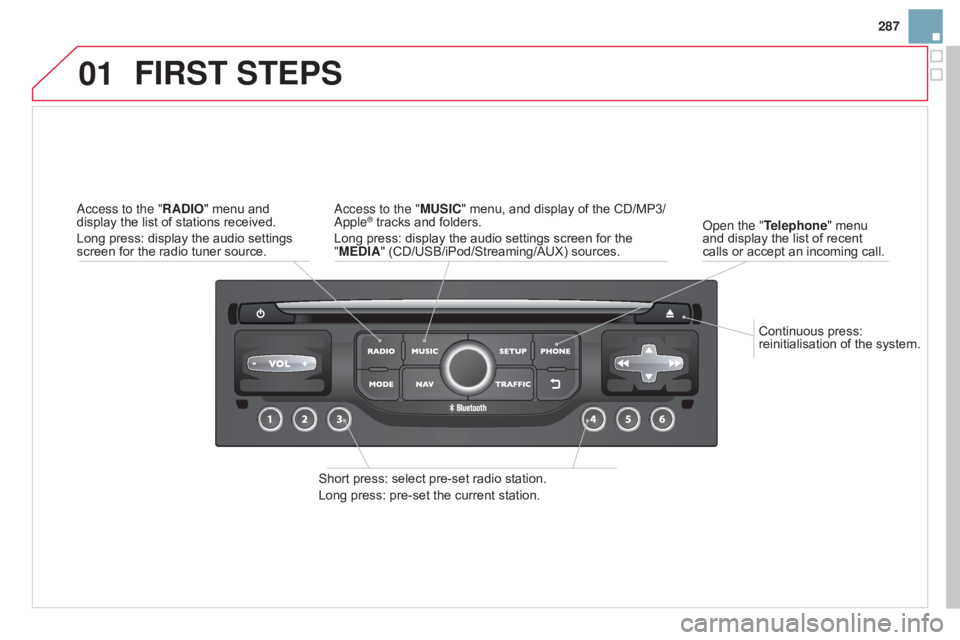
Continuous
press:
reinitialisation
of
the
system.
o
pen the "Telephone"
menu
and
display
the
list
of
recent
calls
or
accept
an
incoming
call.
FIRST STEPS
Short press: select pre-set radio station.
Long press: pre-set the current station.
a
ccess to the "MUSIC" menu, and display of the CD/MP3/
a
pple
® tracks and folders.
Long
press: display the audio settings screen for the
"
ME
d
IA" (CD/USB/iPod/Streaming/AUX) sources.a
ccess to the "RA
d
IO"
menu
and
display
the
list
of
stations
received.
Long
press:
display
the
audio
settings
screen
for
the
radio
tuner
source.
Page 290 of 404
02
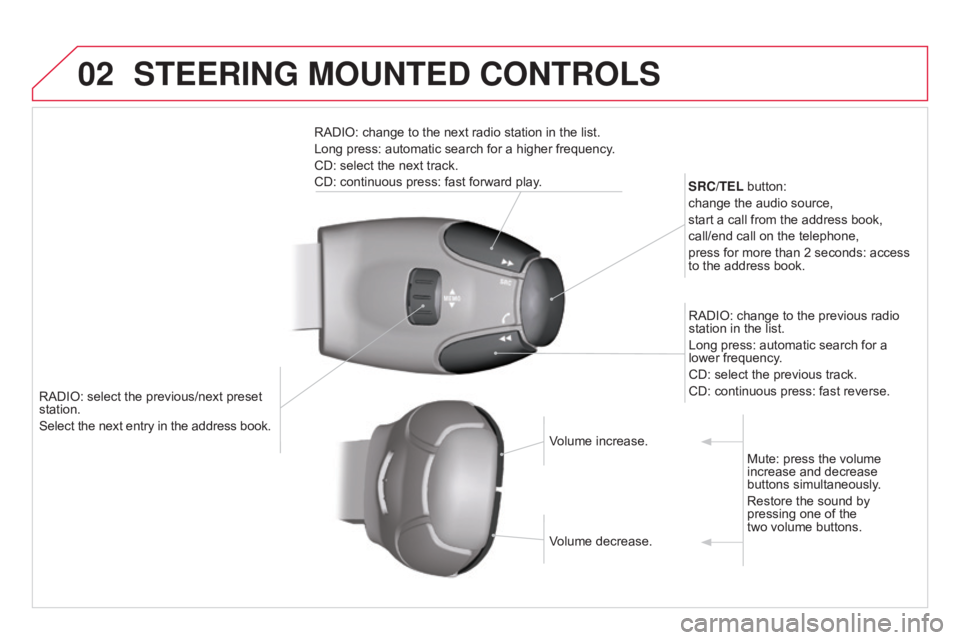
RADIO: select the previous/next preset station.
Select the next entry in the address book. SRC/TEL
button:
change the audio source,
start a call from the address book,
call/end call on the telephone,
press for more than 2 seconds: access
to
the address book.
RADIO: change to the previous radio
station
in the list.
Long press: automatic search for a
lower
frequency.
CD: select the previous track.
CD: continuous press: fast reverse.
RADIO: change to the next radio station in the list.
Long press: automatic search for a higher frequency.
CD: select the next track.
CD: continuous press: fast forward play.
Volume increase.
Volume
decrease.Mute:
press the volume
increase
and decrease
buttons
simultaneously.
Restore
the sound by
pressing
one of the
two
volume buttons.
STEERING MOUNTEd CONTROLS