lock CITROEN DS3 CROSSBACK 2018 Workshop Manual
[x] Cancel search | Manufacturer: CITROEN, Model Year: 2018, Model line: DS3 CROSSBACK, Model: CITROEN DS3 CROSSBACK 2018Pages: 244, PDF Size: 7.7 MB
Page 159 of 244
157In the event of a breakdown08
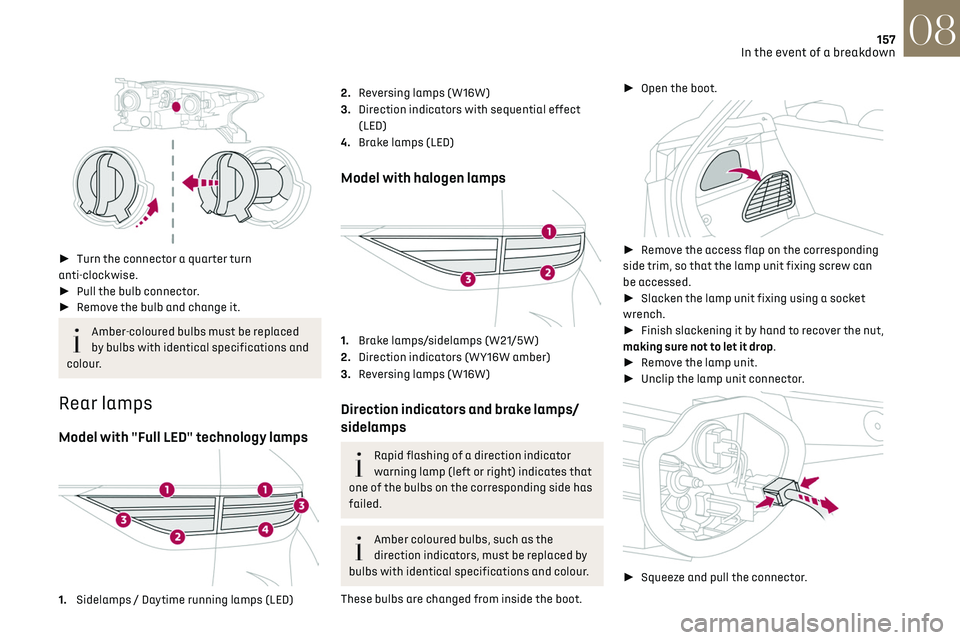
► Turn the connector a quarter turn
anti-clockwise.
► Pull the bulb connector.
► Remove the bulb and change it.
Amber-coloured bulbs must be replaced
by bulbs with identical specifications and
colour.
Rear lamps
Model with "Full LED" technology lamps
1. Sidelamps / Daytime running lamps (LED)
2.Reversing lamps (W16W)
3. Direction indicators with sequential effect
(LED)
4. Brake lamps (LED)
Model with halogen lamps
1.Brake lamps/sidelamps (W21/5W)
2. Direction indicators (WY16W amber)
3. Reversing lamps (W16W)
Direction indicators and brake lamps/
sidelamps
Rapid flashing of a direction indicator
warning lamp (left or right) indicates that
one of the bulbs on the corresponding side has
failed.
Amber coloured bulbs, such as the
direction indicators, must be replaced by
bulbs with identical specifications and colour.
These bulbs are changed from inside the boot. ►
Open the boot.
► Remove the access flap on the corresponding
side trim, so that the lamp unit fixing screw can
be accessed.
► Slacken the lamp unit fixing using a socket
wrench.
► Finish slackening it by hand to recover the nut,
making sure not to let it drop.
► Remove the lamp unit.
► Unclip the lamp unit connector.
► Squeeze and pull the connector.
Page 166 of 244
164In the event of a breakdown08
► At the end of the charging operation, switch
off charger B before disconnecting the cables
from battery A.
24v 12v
If this label is present, use only a 12 V
charger to avoid causing irreversible
damage to the electrical components related
to the Stop & Start system.
Never try to charge a frozen battery - risk
of explosion!
If the battery has frozen, have it checked by
a dealer or by a qualified workshop who will
verify that the internal components have not
been damaged and that the case has not
cracked, which would mean a risk of toxic and
corrosive acid leaking.
Some functions, including Stop & Start,
are not available if the battery is not
sufficiently charged.
Disconnecting the battery
In order to maintain an adequate state of charge
for starting the engine, it is recommended that
the battery be disconnected if the vehicle is taken
out of service for a long period. Before disconnecting the battery:
►
Close all openings (doors, boot, windows,
roof).
► Switch off all electrical consumers (audio
system, wipers, lighting, etc.).
► Switch off the ignition and wait for 4 minutes.
At the battery, it is only necessary to disconnect
the (+) terminal.
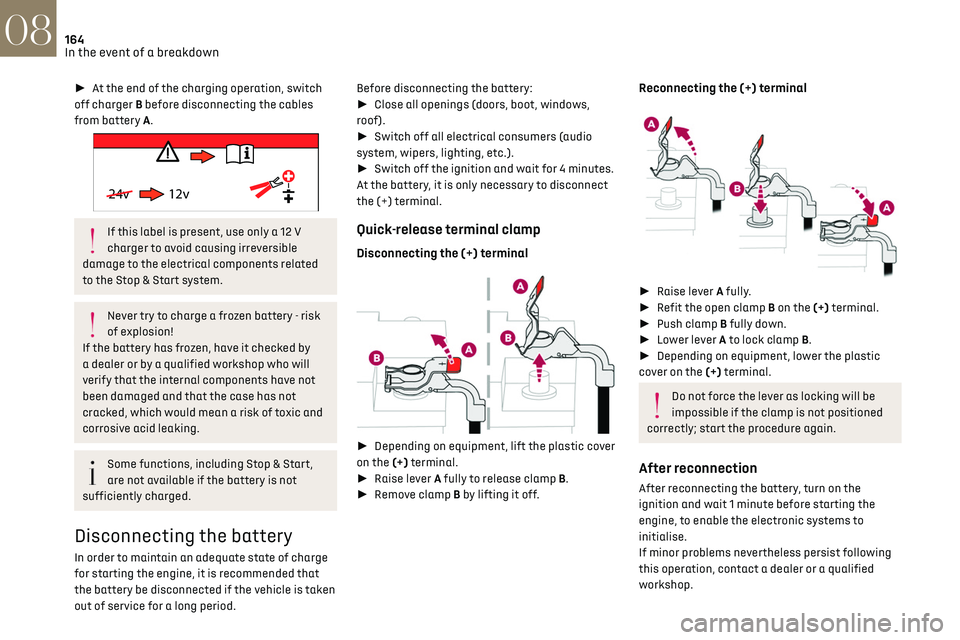
Quick-release terminal clamp
Disconnecting the (+) terminal
► Depending on equipment, lift the plastic cover
on the (+) terminal.
► Raise lever A fully to release clamp B.
► Remove clamp B by lifting it off.
Reconnecting the (+) terminal
► Raise lever A fully.
► Refit the open clamp B on the (+) terminal.
► Push clamp B fully down.
► Lower lever A to lock clamp B.
► Depending on equipment, lower the plastic
cover on the (+) terminal.
Do not force the lever as locking will be
impossible if the clamp is not positioned
correctly; start the procedure again.
After reconnection
After reconnecting the battery, turn on the
ignition and wait 1 minute before starting the
engine, to enable the electronic systems to
initialise.
If minor problems nevertheless persist following
this operation, contact a dealer or a qualified
workshop.
Referring to the relevant section, reset certain
equipment:
– Electronic key.
– Electric windows.
– Date and time.
– Preset radio stations.
After reconnection of the battery, the
“Collision risk detection system fault”
message is displayed on the instrument panel
when the ignition is switched on. This
operation is perfectly normal. The message
will disappear while driving.
The Stop & Start system may not be
operational during the trip following the
first engine start.
In this case, the system will only be
available again after a continuous period of
immobilisation of the vehicle, a period which
depends on the exterior temperature and the
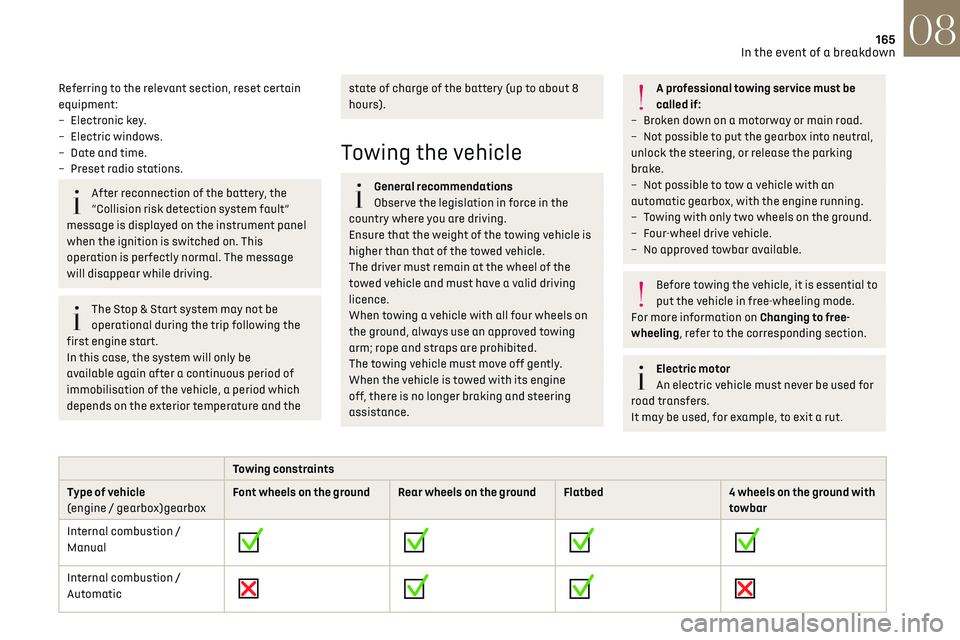
Towing constraints
Type of vehicle
(engine / gearbox)gearbox Font wheels on the ground Rear wheels on the ground Flatbed
4 wheels on the ground with
towbar
Internal combustion /
Manual
Internal combustion /
Automatic
Page 167 of 244
165In the event of a breakdown08
Referring to the relevant section, reset certain
equipment:
–
Electronic k
ey.
–
Electric windo
ws.
–
Da
te and time.
–
Pre
set radio stations.
After reconnection of the battery, the
“Collision risk detection system fault”
message is displayed on the instrument panel
when the ignition is switched on. This
operation is perfectly normal. The message
will disappear while driving.
The Stop & Start system may not be
operational during the trip following the
first engine start.
In this case, the system will only be
available again after a continuous period of
immobilisation of the vehicle, a period which
depends on the exterior temperature and the
state of charge of the battery (up to about 8
hours).
Towing the vehicle
General recommendations
Observe the legislation in force in the
country where you are driving.
Ensure that the weight of the towing vehicle is
higher than that of the towed vehicle.
The driver must remain at the wheel of the
towed vehicle and must have a valid driving
licence.
When towing a vehicle with all four wheels on
the ground, always use an approved towing
arm; rope and straps are prohibited.
The towing vehicle must move off gently.
When the vehicle is towed with its engine
off, there is no longer braking and steering
assistance.
A professional towing service must be
called if:
–
B
roken down on a motorway or main road.
–
No
t possible to put the gearbox into neutral,
unlock the steering, or release the parking
brake.
–
No
t possible to tow a vehicle with an
automatic gearbox, with the engine running.
–
T
owing with only two wheels on the ground.
–
Four-wheel driv
e vehicle.
–
No appro
ved towbar available.
Before towing the vehicle, it is essential to
put the vehicle in free-wheeling mode.
For more information on Changing to free-
wheeling, refer to the corresponding section.
Electric motor
An electric vehicle must never be used for
road transfers.
It may be used, for example, to exit a rut.
Towing constraints
Type of vehicle
(engine / gearbox)gearbox Font wheels on the ground Rear wheels on the ground Flatbed
4 wheels on the ground with
towbar
Internal combustion /
Manual
Internal combustion /
Automatic
Page 168 of 244
166In the event of a breakdown08
Towing constraints
Type of vehicle
(engine / gearbox)gearbox Font wheels on the ground Rear wheels on the ground Flatbed
4 wheels on the ground with
towbar
Electric
In case of battery or electric parking brake failure, it is essential to call a professional using flatbed recovery vehicles (excluding manual gearbox).
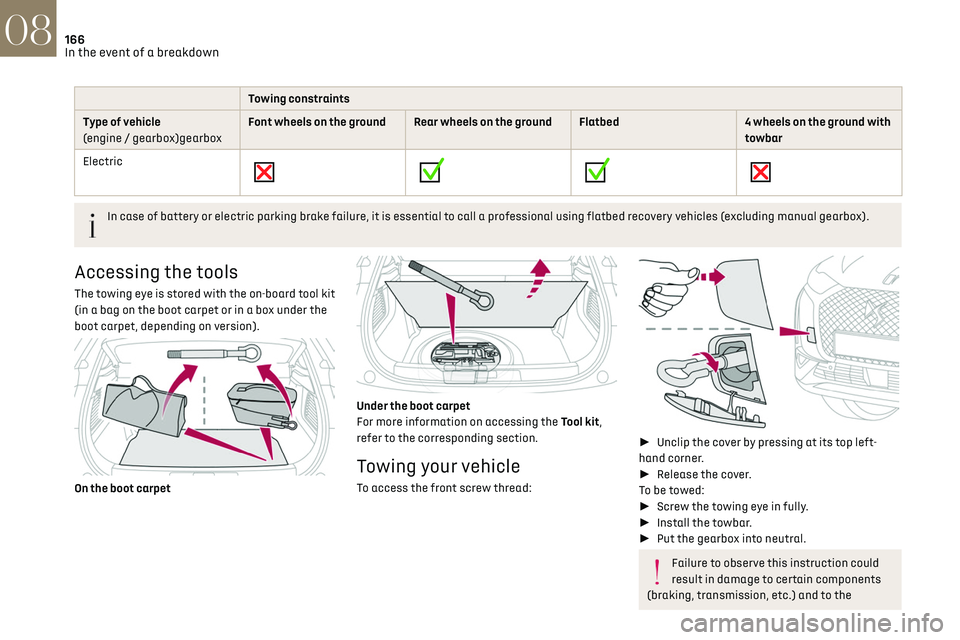
Accessing the tools
The towing eye is stored with the on-board tool kit
(in a bag on the boot carpet or in a box under the
boot carpet, depending on version).
On the boot carpet
Under the boot carpet
For more information on accessing the Tool kit,
refer to the corresponding section.
Towing your vehicle
To access the front screw thread:
►
Unclip the cover by pressing at its top left-
hand corner.
► Release the cover.
To be towed:
► Screw the towing eye in fully.
► Install the towbar.
► Put the gearbox into neutral.
Failure to observe this instruction could
result in damage to certain components
(braking, transmission, etc.) and to the
absence of braking assistance the next time
the engine is started.
Automatic gearbox: never tow the vehicle
with the driving wheels on the ground and
the engine off.
► Unlock the steering and release the parking
brake.
► Switch on the hazard warning lamps on both
vehicles.
► Move off gently, drive slowly and only for a
short distance.
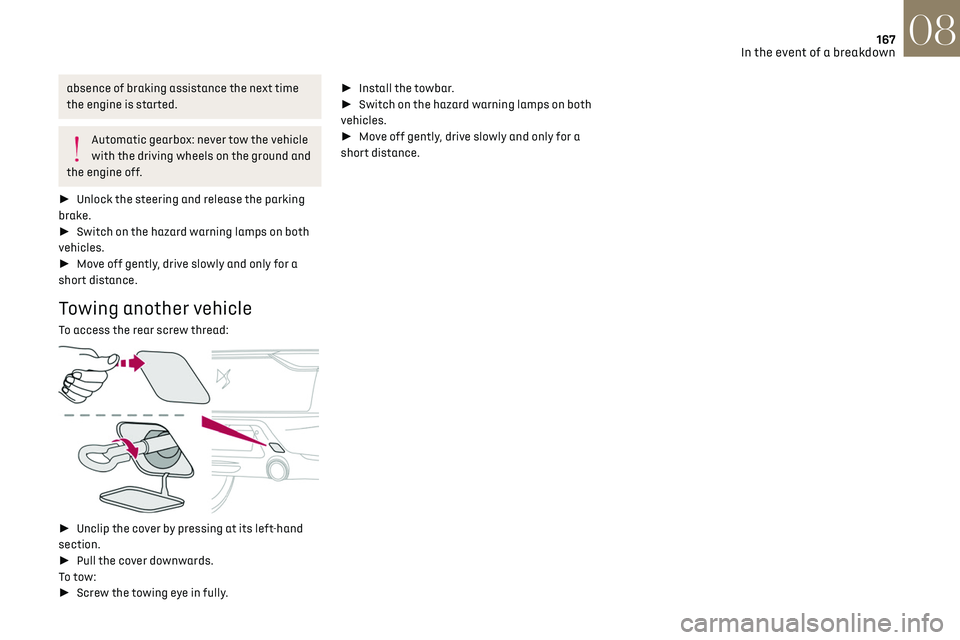
Towing another vehicle
To access the rear screw thread:
► Unclip the cover by pressing at its left-hand
section.
► Pull the cover downwards.
To tow:
► Screw the towing eye in fully.
Page 169 of 244
167In the event of a breakdown08
absence of braking assistance the next time
the engine is started.
Automatic gearbox: never tow the vehicle
with the driving wheels on the ground and
the engine off.
► Unlock the steering and release the parking
brake.
► Switch on the hazard warning lamps on both
vehicles.
► Move off gently, drive slowly and only for a
short distance.
Towing another vehicle
To access the rear screw thread:
► Unclip the cover by pressing at its left-hand
section.
► Pull the cover downwards.
To tow:
► Screw the towing eye in fully. ►
Install the towbar.
► Switch on the hazard warning lamps on both
vehicles.
► Move off gently, drive slowly and only for a
short distance.
Page 177 of 244
175
Touch screen BLUETOOTH audio system10
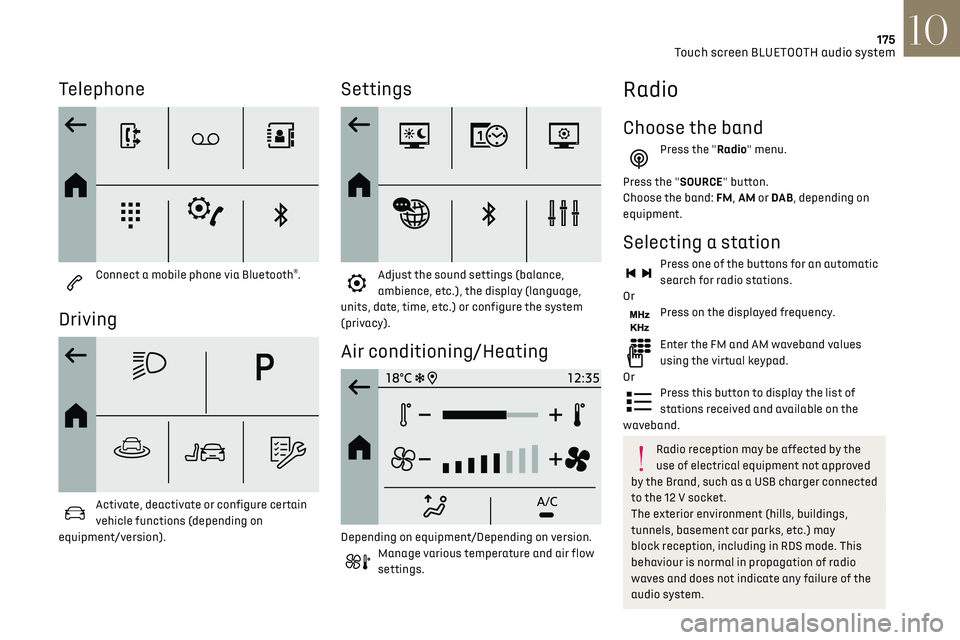
Telephone
Connect a mobile phone via Bluetooth®.
Driving
Activate, deactivate or configure certain
vehicle functions (depending on
equipment/version).
Settings
Adjust the sound settings (balance,
ambience, etc.), the display (language,
units, date, time, etc.) or configure the system
(privacy).
Air conditioning/Heating
Depending on equipment/Depending on version.Manage various temperature and air flow
settings.
Radio
Choose the band
Press the "Radio" menu.
Press the "SOURCE" button.
Choose the band: FM, AM or DAB , depending on
equipment.
Selecting a station
Press one of the buttons for an automatic
search for radio stations.
Or
Press on the displayed frequency.
Enter the FM and AM waveband values
using the virtual keypad.
Or
Press this button to display the list of
stations received and available on the
waveband.
Radio reception may be affected by the
use of electrical equipment not approved
by the Brand, such as a USB charger connected
to the 12 V socket.
The exterior environment (hills, buildings,
tunnels, basement car parks, etc.) may
block reception, including in RDS mode. This
behaviour is normal in propagation of radio
waves and does not indicate any failure of the
audio system.
Page 182 of 244
180Touch screen BLUETOOTH audio system10
► Press the "Radio Settings" button then select
"Update list". The radio reception is cut off while
searching for available stations (approximately
30 seconds).
Media
Playback of my USB memory stick starts only
after a very long wait (around 2 to 3 minutes).
Some files supplied with the memory stick may
greatly slow down access to reading the memory
stick (multiplication by 10 of the cataloguing
time).
► Delete the files supplied with the memory
stick and limit the number of sub-folders in the
file structure on the memory stick.
Some characters in information about the
currently playing media are not displayed
correctly.
The audio system is unable to process certain
types of character.
► Use standard characters to name tracks and
folders.
Playback of streaming files does not start.
The connected device does not automatically
launch playback.
► Start playback from the device.
Track names and playing times are not displayed
on the audio streaming screen.
The Bluetooth profile does not allow the transfer
of this information.
Telephone
I cannot connect my Bluetooth telephone.
Press the buttons to adjust the
brightness of the screen and/or of
the instrument panel (depending on version).
Modifying system settings
Press "Settings".
Press "System".
Press "Privacy" to access the privacy
settings.
Select "Units" to change the units of
distance, fuel consumption and
temperature.
Press "Factory settings" to return to the
initial settings.
Press "System Info" to check the system
version.
Privacy settings
Three data privacy options are available:"No data sharing (data, vehicle position)"
"Only data sharing"
“Data and vehicle position sharing"
When data and vehicle position sharing
are enabled, this symbol is displayed in the
upper bar of the touch screen.
Selecting the language
Press "Settings".
Select "Languages" to change the
language.
Set date and time
Press "Settings".
Press "Date/Time".
Setting the date:
Press the arrows to set the day, month and
year.
Setting the time:
Press these buttons to set hours and
minutes.
Select or deselect the 24h format.
In 12h format, choose "AM" or "PM".
The system does not automatically
manage the change between winter and
summer time.
Date format:
Select the display format of the date.
Frequently asked
questions
The following information groups together the
answers to the most frequently asked questions
concerning the system.
Radio
The reception quality of the tuned radio station
gradually deteriorates or the station presets are
not working (no sound, 87.5 MHz is displayed,
etc.).
The vehicle is too far from the selected station’s
transmitter, or no transmitter is present in the
geographical area.
► Activate the "RDS" function in the upper bar
to enable the system to check whether there is
a more powerful transmitter in the geographical
area.
The environment (hills, buildings, tunnels,
basement car parks, etc.) is blocking reception,
including in RDS mode.
This is a perfectly normal phenomenon, and is not
indicative of an audio system malfunction.
The aerial is missing or has been damaged
(for example while entering a car wash or
underground car park).
► Have the aerial checked by a dealer.
I cannot find some radio stations in the list of
received stations.
The name of the radio station changes.
The station is no longer received or its name has
changed in the list.
Some radio stations send other information in
place of their name (the title of the song for
example).
The system interprets these details as the station
name.
Page 187 of 244
185
DS CONNECT RADIO11
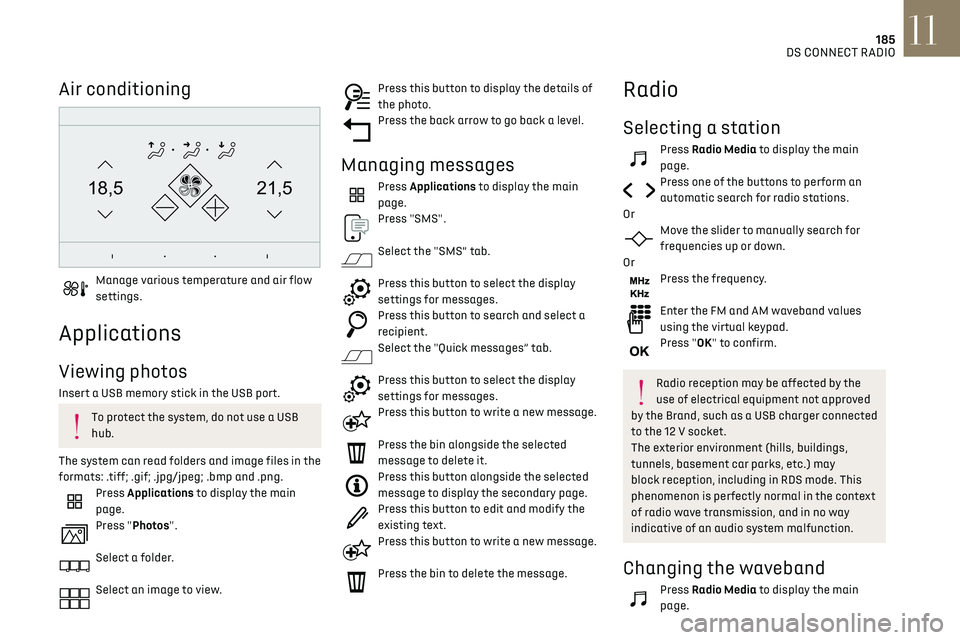
Air conditioning
21,518,5
Manage various temperature and air flow
settings.
Applications
Viewing photos
Insert a USB memory stick in the USB port.
To protect the system, do not use a USB
hub.
The system can read folders and image files in the
formats: .tiff; .gif; .jpg/jpeg; .bmp and .png.
Press Applications to display the main
page.
Press "Photos".
Select a folder.
Select an image to view.
Press this button to display the details of
the photo.
Press the back arrow to go back a level.
Managing messages
Press Applications to display the main
page.
Press "SMS".
Select the "SMS” tab.
Press this button to select the display
settings for messages.
Press this button to search and select a
recipient.
Select the "Quick messages” tab.
Press this button to select the display
settings for messages.
Press this button to write a new message.
Press the bin alongside the selected
message to delete it.
Press this button alongside the selected
message to display the secondary page.
Press this button to edit and modify the
existing text.
Press this button to write a new message.
Press the bin to delete the message.
Radio
Selecting a station
Press Radio Media to display the main
page.
Press one of the buttons to perform an
automatic search for radio stations.
Or
Move the slider to manually search for
frequencies up or down.
Or
Press the frequency.
Enter the FM and AM waveband values
using the virtual keypad.
Press "OK" to confirm.
Radio reception may be affected by the
use of electrical equipment not approved
by the Brand, such as a USB charger connected
to the 12 V socket.
The exterior environment (hills, buildings,
tunnels, basement car parks, etc.) may
block reception, including in RDS mode. This
phenomenon is perfectly normal in the context
of radio wave transmission, and in no way
indicative of an audio system malfunction.
Changing the waveband
Press Radio Media to display the main
page.
Page 190 of 244
188
DS CONNECT RADIO11
The Bluetooth profile must be activated.
First adjust the volume on the portable device
(to a high level). Then adjust the volume of the
system.
If play does not start automatically, it may be
necessary to start the audio playback from the
smartphone.
Control is from the portable device or by using the
system's touch buttons.
Once connected in Streaming mode, the
smartphone is considered to be a media
source.
Connecting Apple® players
Connect the Apple® player to the USB socket using
a suitable cable (not supplied).
Play starts automatically.
Control is via the audio system.
The classifications available are those of
the portable device connected (artists/
albums/genres/playlists/audio books/
podcasts). It is also possible to use a
classification structured in the form of a
library.
The default classification used is by artist. To
modify the classification used, return to the
first level of the menu then select the desired
classification (playlists for example) and
confirm to go down through the menu to the
desired track.
The version of software in the audio system may
not be compatible with the generation of the
Apple
® player.
Information and advice
The system supports USB mass storage devices,
BlackBerry® devices or Apple® players via the USB
ports. The adapter cable is not supplied.
Devices are managed using the audio system
controls.
Other devices, not recognised on connection,
must be connected to the auxiliary socket using
a jack cable (not supplied) or via Bluetooth
streaming, if compatible.
To protect the system, do not use a USB
hub.
The audio system will only play audio files with
".wav", ".wma", ".aac", ".ogg" and ".mp3" file
extensions, at bit rates between 32 Kbps and 320
Kbps.
It also supports VBR (Variable Bit Rate) mode.
No other file types (".mp4", etc.) can be read.
All ".wma" files must be standard WMA 9 files.
The supported sampling rates are 11, 22, 44 and
48 KHz.
To avoid reading and display problems, we
recommend choosing file names less than 20
characters long that do not contain any special
characters (e.g. “ ? . ; ù).
Use only USB memory sticks in FAT32 format (File
Allocation Table).
We recommend using the original USB
cable for the portable device.
Telephone
USB sockets
Depending on equipment, for more information
on the USB sockets compatible with the CarPlay®,
MirrorLinkTM or Android Auto applications, refer to
the "Ease of use and comfort" section.
The synchronisation of a smartphone
allows users to display applications
adapted to the CarPlay
®, MirrorLinkTM or
Android Auto technology of the smartphone on
the vehicle screen. For the CarPlay
®
technology, the CarPlay® function must be
activated on the smartphone beforehand.
For the communication process between the
smartphone and the system to work, it is
essential in all cases that the smartphone is
unlocked.
As the principles and standards are constantly
changing, it is recommended that you keep the
smartphone's operating system up-to-date, as
well as the date and time of the smartphone
and of the system.
For the list of eligible smartphones, go to the
Brand's national website.
MirrorLinkTM smartphone
connection
The "MirrorLinkTM" function requires a
compatible smartphone and applications.
Telephone not connected by Bluetooth®
When connecting a smartphone to the
system, we recommend enabling
Bluetooth
® on the smartphone.Connect a USB cable. The smartphone
charges when connected by a USB cable.
From the system, press "Telephone" to
display the main page.
Press "MirrorLinkTM" to start the
application in the system.
Depending on the smartphone, it may be
necessary to activate the "MirrorLink
TM" function.During the procedure, several screen
pages relating to certain features are
displayed.
Accept to start and complete the connection.
Telephone connected by Bluetooth®
Connect a USB cable. The smartphone
charges when connected by a USB cable.
From the system, press "Telephone" to
display the main page.
Press the "PHONE" button to display the
secondary page.
Press "MirrorLinkTM" to start the
application in the system.
Page 195 of 244
193
DS CONNECT RADIO11
Setting the time
Press Settings to display the main page.
Press "Configuration" to access the
secondary page.
Press "Date and time".
Select "Time".
Press this button to set the time using the
virtual keypad.
Press "OK" to save the time.
Press this button to set the time zone.
Select the display format for the time
(12h/24h).
Activate or deactivate summer time (+1
hour).
Activate or deactivate GPS synchronisation
(UTC).
Press the back arrow to save the settings.
The system may not automatically
manage the change between winter and
summer time (depending on the country of
sale).
Setting the date
Press Settings to display the main page.
Press "Configuration" to access the
secondary page.
Press "Date and time".
Select "Date".
Press this button to set the date.
Press the back arrow to save the date.
Select the display format for the date.
Press the back arrow again to confirm.
Time and date setting is only available if
"GPS Synchronisation:" is deactivated.
Frequently asked
questions
The following information groups together the
answers to the most frequently asked questions
concerning the system.
Radio
The reception quality of the tuned radio station
gradually deteriorates or the station presets are
not working (no sound, 87.5 MHz is displayed,
etc.).
The vehicle is too far from the selected station’s
transmitter, or no transmitter is present in the
geographical area. ►
Activate the "RDS" function in the upper bar
to enable the system to check whether there is
a more powerful transmitter in the geographical
area.
The environment (hills, buildings, tunnels,
basement car parks, etc.) is blocking reception,
including in RDS mode.
This is a perfectly normal phenomenon, and is not
indicative of an audio system malfunction.
The aerial is missing or has been damaged
(for example while entering a car wash or
underground car park).
► Have the aerial checked by a dealer.
I cannot find some radio stations in the list of
received stations.
The name of the radio station changes.
The station is no longer received or its name has
changed in the list.
► Press the round arrow on the "List" tab on the
"Radio" page.
Some radio stations send other information in
place of their name (the title of the song for
example).
The system interprets these details as the station
name.
► Press the round arrow on the "List" tab on the
"Radio" page.
Media
Playback of my USB memory stick starts only
after a very long wait (around 2 to 3 minutes).
Some files supplied with the memory stick may
greatly slow down access to reading the memory