risk CITROEN DS3 CROSSBACK 2020 Manual PDF
[x] Cancel search | Manufacturer: CITROEN, Model Year: 2020, Model line: DS3 CROSSBACK, Model: CITROEN DS3 CROSSBACK 2020Pages: 244, PDF Size: 7.7 MB
Page 206 of 244
204DS CONNECT NAV12
Settings specific to connected
navigation
Press Navigation to display the main page.
Press the "MENU" button to access the secondary
page.
Select "Settings".
Select the "Map” tab.
Activate or deactivate:
– "Allow declaration of danger zones".
– "Guidance to final destination on foot".
These settings must be configured for each
profile.
Press “OK” to confirm your selection.
Select the "Alerts” tab.
Activate or deactivate:
– "Advise of car park nearby".
– "Filling station alert".
– “Risk areas alert" then press the warning icon
(triangle) to configure alerts.
– "Give an audible warning".
– "Advise proximity of POI 1".
– "Advise proximity of POI 2".
Press “OK” to confirm your selection.
The "Notifications", in the upper bar, can
be accessed at any time.
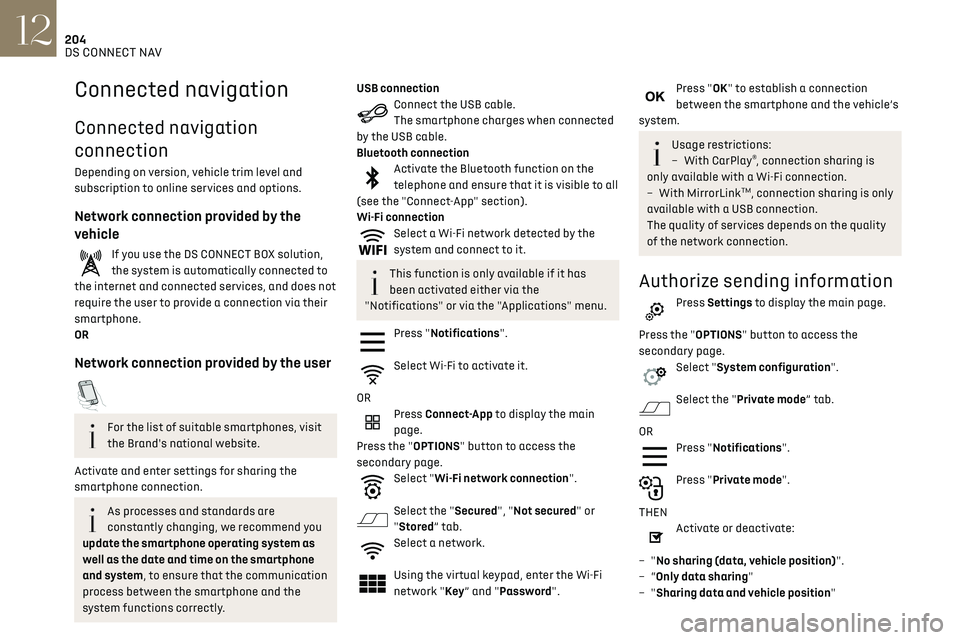
Connected navigation
Connected navigation
connection
Depending on version, vehicle trim level and
subscription to online services and options.
Network connection provided by the
vehicle
If you use the DS CONNECT BOX solution,
the system is automatically connected to
the internet and connected services, and does not
require the user to provide a connection via their
smartphone.
OR
Network connection provided by the user
For the list of suitable smartphones, visit
the Brand's national website.
Activate and enter settings for sharing the
smartphone connection.
As processes and standards are
constantly changing, we recommend you
update the smartphone operating system as
well as the date and time on the smartphone
and system, to ensure that the communication
process between the smartphone and the
system functions correctly.
USB connectionConnect the USB cable.
The smartphone charges when connected
by the USB cable.
Bluetooth connection
Activate the Bluetooth function on the
telephone and ensure that it is visible to all
(see the "Connect-App" section).
Wi-Fi connection
Select a Wi-Fi network detected by the
system and connect to it.
This function is only available if it has
been activated either via the
"Notifications" or via the "Applications" menu.
Press "Notifications".
Select Wi-Fi to activate it.
OR
Press Connect-App to display the main
page.
Press the "OPTIONS" button to access the
secondary page.
Select "Wi-Fi network connection".
Select the "Secured", "Not secured" or
"Stored” tab.
Select a network.
Using the virtual keypad, enter the Wi-Fi
network "Key ” and "Password".
Press "OK" to establish a connection
between the smartphone and the vehicle’s
system.
Usage restrictions:
– With CarPla y®, connection sharing is
only available with a Wi-Fi connection.
–
With MirrorLinkTM, connection sharing is only
available with a USB connection.
The quality of services depends on the quality
of the network connection.
Authorize sending information
Press Settings to display the main page.
Press the "OPTIONS" button to access the
secondary page.
Select "System configuration".
Select the "Private mode” tab.
OR
Press "Notifications".
Press "Private mode".
THEN
Activate or deactivate:
–
"No sharing (data, vehicle position)".
–
“Only data sharing"
–
"Sharing data and vehicle position"
Page 207 of 244
205DS CONNECT NAV12
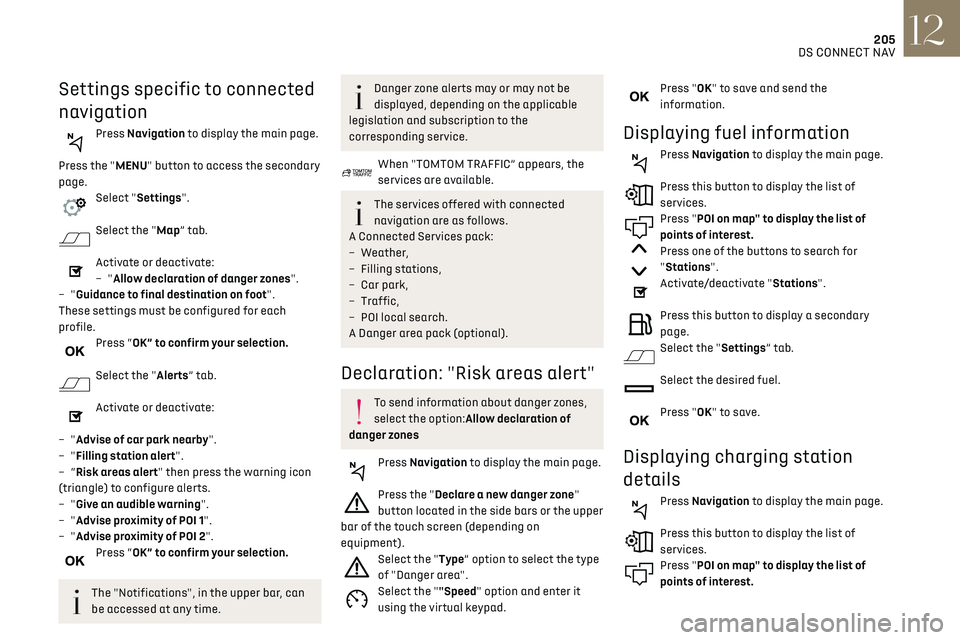
Settings specific to connected
navigation
Press Navigation to display the main page.
Press the "MENU" button to access the secondary
page.
Select "Settings".
Select the "Map” tab.
Activate or deactivate:
– "Allow declaration of danger zones".
–
"Guidance to final destination on foot".
These settings must be configured for each
profile.
Press “OK” to confirm your selection.
Select the "Alerts” tab.
Activate or deactivate:
–
"Advise of car park nearby".
–
"Filling station alert".
–
“Risk areas alert" then press the warning icon
(triangle) to configure alerts.
–
"Give an audible warning".
–
"Advise proximity of POI 1".
–
"Advise proximity of POI 2".
Press “OK” to confirm your selection.
The "Notifications", in the upper bar, can
be accessed at any time.
Danger zone alerts may or may not be
displayed, depending on the applicable
legislation and subscription to the
corresponding service.
When "TOMTOM TRAFFIC” appears, the
services are available.
The services offered with connected
navigation are as follows.
A Connected Services pack:
–
Weather,
–
Filling st
ations,
–
Car park,
–
Traffic,
–
POI loc
al search.
A Danger area pack (optional).
Declaration: "Risk areas alert"
To send information about danger zones,
select the option:Allow declaration of
danger zones
Press Navigation to display the main page.
Press the "Declare a new danger zone"
button located in the side bars or the upper
bar of the touch screen (depending on
equipment).
Select the "Type” option to select the type
of "Danger area".
Select the ""Speed" option and enter it
using the virtual keypad.
Press "OK" to save and send the
information.
Displaying fuel information
Press Navigation to display the main page.
Press this button to display the list of
services.
Press "POI on map" to display the list of
points of interest.
Press one of the buttons to search for
"Stations".
Activate/deactivate "Stations".
Press this button to display a secondary
page.
Select the "Settings” tab.
Select the desired fuel.
Press "OK" to save.
Displaying charging station
details
Press Navigation to display the main page.
Press this button to display the list of
services.
Press "POI on map" to display the list of
points of interest.
Page 222 of 244
220
Alphabetical index
A
ABS 66
Accessories
63
Active Safety Brake
115–117
AdBlue®
18, 144
AdBlue® tank
145
Additive, Diesel
143
Adjusting headlamps
56
Adjusting head restraints
39
Adjusting seat
38–39
Adjusting the air distribution
44, 46
Adjusting the air flow
44–45
Adjusting the date
193, 215
Adjusting the height and reach of
the steering wheel
40
Adjusting the lumbar support
39
Adjusting the seat angle
38
Adjusting the temperature
44–45
Adjusting the time
180, 193, 216
Advanced Traction Control
67
Advice on care and maintenance
131, 146
Advice on driving
7, 80–81
Airbags
70–72, 74
Airbags, curtain
71–72
Airbags, front
70–71, 74
Airbags, lateral
71–72
Air conditioning
43, 46
Air conditioning, automatic
45
Air conditioning, manual
44
Air intake
47
Air vents
43
Alarm
34–36
Amplifier, audio
50
Android Auto connection
207
Anti-lock braking system (ABS)
66
Antitheft / Immobiliser 31, 81
Apple CarPlay connection
189, 206
Applications
207
Armrest, front
49
Assistance call
64
Assistance, emergency braking
66, 116
Audible warning
64
Audio streaming (Bluetooth)
177–178, 187, 211
B
Battery 138
Battery, 12 V
142, 161–164
Battery, ancillaries
161–162
Battery, charging
130, 134, 163–164
Battery, remote control
32–33
Blind spot monitoring system, active
114
Blind spot sensors
113–114
BlueHDi
18, 142, 148
Bluetooth (hands-free)
178, 190, 212
Bluetooth (telephone)
178, 190, 212–213
Bodywork
147
Bonnet
139
Boot
34, 53
Brake discs
143
Brake lamps
157–158
Brakes
143
Braking
90
Braking assistance system
66
Braking, automatic emergency
115–117
Braking, dynamic emergency
84–85
Brightness
179, 192
Bulbs
156
Bulbs (changing)
155–158
C
Cable, audio 211
Cable, Jack
211
Capacity, fuel tank
129
Cap, fuel filler
129
Care of the bodywork
147
CD
177, 187
CD, MP3
177, 187
Central locking
30
Changing a bulb
155–158
Changing a fuse
159–161
Changing a wheel
149, 152
Changing a wiper blade
61
Changing the remote control battery
32
Charger, induction
50
Charger, wireless
50
CHECK
21
Checking the levels
140–142
Checking tyre pressures
(using the kit)
150, 152
Checks
140, 142–144
Checks, routine
142–143
Child lock
79
Children
69, 75–76
Children (safety)
79
Child seats
69, 72–74
Child seats, conventional
74
Child seats, i-Size
76
Child seats, ISOFIX
75–76
Cleaning (advice)
131, 146–147
Closing the boot
30, 34
Closing the doors
29–30, 33
Collision Risk Alert
115–116
Configuration, vehicle
24
Connected applications
207