audio CITROEN DS4 2010 Owner's Manual
[x] Cancel search | Manufacturer: CITROEN, Model Year: 2010, Model line: DS4, Model: CITROEN DS4 2010Pages: 421, PDF Size: 8.05 MB
Page 297 of 421

295
In order to maintain an adequate state
of charge for starting the engine, it is
recommended that the battery be disconnected
if the vehicle is taken out of service for a long
period.
Before disconnecting the battery:
F
c
lose all openings (doors, boot, windows),
F
s
witch off all electrical consumers (audio
system, wipers, lighting, etc.),
F
s
witch off the ignition and wait for
four
m
inutes.
At the battery, it is only necessary to
disconnect the (+) terminal.
Disconnecting the battery
The Stop & Start system may not be
operational during the trip following the
first engine start.
In this case, the system will only be
available again after a continuous
period of immobilisation of the vehicle,
a period which depends on the exterior
temperature and the state of charge of
the battery (up to about 8 hours).
F
Ra
ise the lever A fully.
F
R
efit the open clamp B on the (+)
terminal.
F
P
ush the clamp B fully down.
F
L
ower the lever A to lock the clamp B
.
Do not force the lever as locking
will not be possible if the clamp is
not positioned correctly; start the
procedure again.
Following reconnection of the
battery
After reconnecting the battery, switch on the
ignition and wait 1 minute before starting to
allow initialisation of the electronic systems.
However, if minor problems persist following
this operation, contact a CITROËN dealer or a
qualified workshop.
Referring to the corresponding section, you
must yourself initialise or reset certain systems,
such as:
-
t
he one-touch electric windows,
-
t
he date and time,
-
t
he settings of the audio system or of the
satellite navigation system.
Quick-release terminal clamp
F Raise the lever A fully to release the clamp B .
F R emove the clamp B by lifting it off.
Disconnecting the (+) terminal Reconnecting the (+) terminal
08
In the event of a breakdown
Page 312 of 421

AUDIO AND TELEMATICS
Page 315 of 421

313
7-inch touch screen tablet
GPS satellite navigation - Multimedia audio - Bluetooth® telephone
Contents
First steps
3 14
Steering mounted controls
3
16
M e n u s
3
17
Navigation
3
18
Navigation - Guidance
3
26
Tr a f fi c
3
3 0
Radio Media
3
32
Radio
3
38
DAB (Digital Audio Broadcasting) radio
3
40
Media
3
42
Settings
3
46
Connected services
3
54
MirrorLink
TM 354
CarPlay® 358
Telephone
3
60
Frequently asked questions
3
68
The system is protected in such a way that it will only operate in
your vehicle. As a safety measure, the driver should only carry out operations
which require prolonged attention while the vehicle is stationary.
The display of an energy economy mode message signals that
electrical systems operating are going into standby.
Refer to the energy economy mode section.
Audio and Telematics
Page 316 of 421

314
First steps
Use the buttons below the touch screen tablet
for access to the menus, then press the virtual
buttons in the touch screen tablet.
Each menu is displayed in one or two pages
(primary page and secondary page).Secondary page
Primary page In very hot conditions, the system may
go into stand-by (screen and sound
completely off) for a minimum period of
5 minutes.
Audio and Telematics
Page 317 of 421
315
With the engine running, press to
mute the sound.
With the ignition off, press to switch
the system on.
Volume adjustment (each source
is independent, including traffic
announcements (TA) and navigation
instructions).
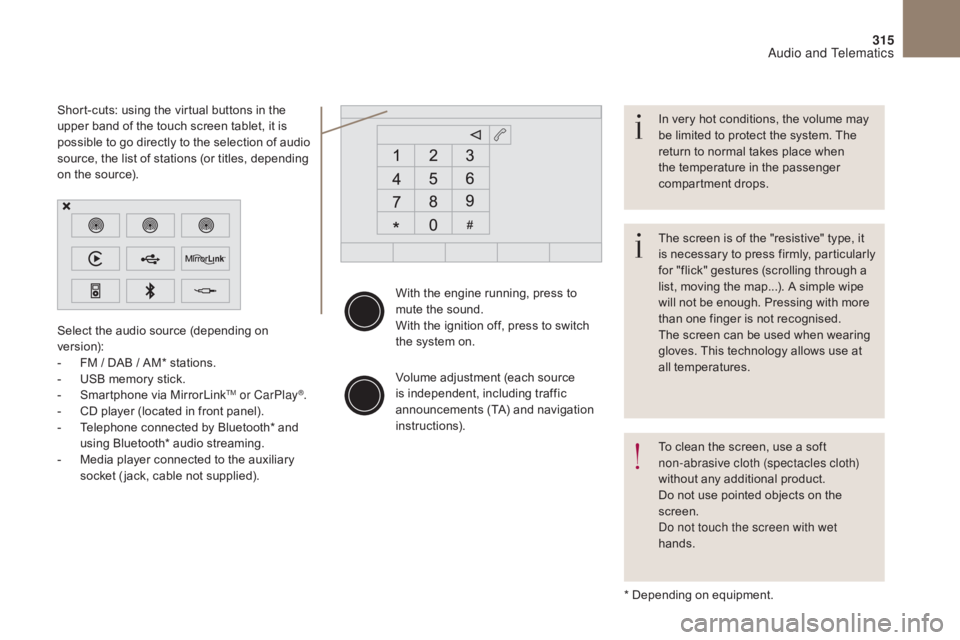
Select the audio source (depending on
version):
-
F
M
/ DAB
/ AM* stations.
-
U
SB memory stick.
-
S
martphone via MirrorLink
TM or CarPlay®.
-
C
D player (located in front panel).
-
T
elephone connected by Bluetooth* and
using Bluetooth* audio streaming.
-
M
edia player connected to the auxiliary
socket ( jack, cable not supplied).
* Depending on equipment.
Short-cuts: using the virtual buttons in the
upper band of the touch screen tablet, it is
possible to go directly to the selection of audio
source, the list of stations (or titles, depending
on the source).
The screen is of the "resistive" type, it
is necessary to press firmly, particularly
for "flick" gestures (scrolling through a
list, moving the map...). A simple wipe
will not be enough. Pressing with more
than one finger is not recognised.
The screen can be used when wearing
gloves. This technology allows use at
all temperatures. In very hot conditions, the volume may
be limited to protect the system. The
return to normal takes place when
the temperature in the passenger
compartment drops.
To clean the screen, use a soft
non-abrasive cloth (spectacles cloth)
without any additional product.
Do not use pointed objects on the
screen.
Do not touch the screen with wet
hands.
Audio and Telematics
Page 318 of 421

316
Steering mounted controls
Media: change the multimedia
source.
Telephone: start a call.
Call in progress: access to the
telephone menu (End call, Secret
mode, Hands-free mode).
Telephone, press and hold: reject an
incoming call, end a call in progress;
other than a call in progress, access
to the telephone menu.Decrease volume.
Radio, turn: automatic search for the
previous
/ next station.
Media, turn: previous
/ next track.
Press: confirm a selection. Radio: display the list of stations.
Media: display the list of tracks.
Radio, press and hold: update the list
of stations received.
Increase volume.
Audio and Telematics
Page 319 of 421

317
Menus
Settings
Radio Media
Navigation
Driving
Connected services Telephone
Adjust the settings for sound (balance,
ambience, ...), colour schemes and the display
(language, units, date, time, ...).
Select an audio source, a radio station, display
photographs.
Enter navigation settings and choose a
destination.
Access to the trip computer.
Activate, deactivate or enter settings for certain
vehicle functions.
Operate certain applications on your
smartphone via MirrorLink
TM or CarPlay®.
Connect a telephone by Bluetooth
®.
Access to the CarPlay® function after
connection of your smartphone by USB cable.
(Depending on equipment)
(Depending on equipment)
Audio and Telematics
Page 320 of 421
1
318
Level 1Level 2Level 3
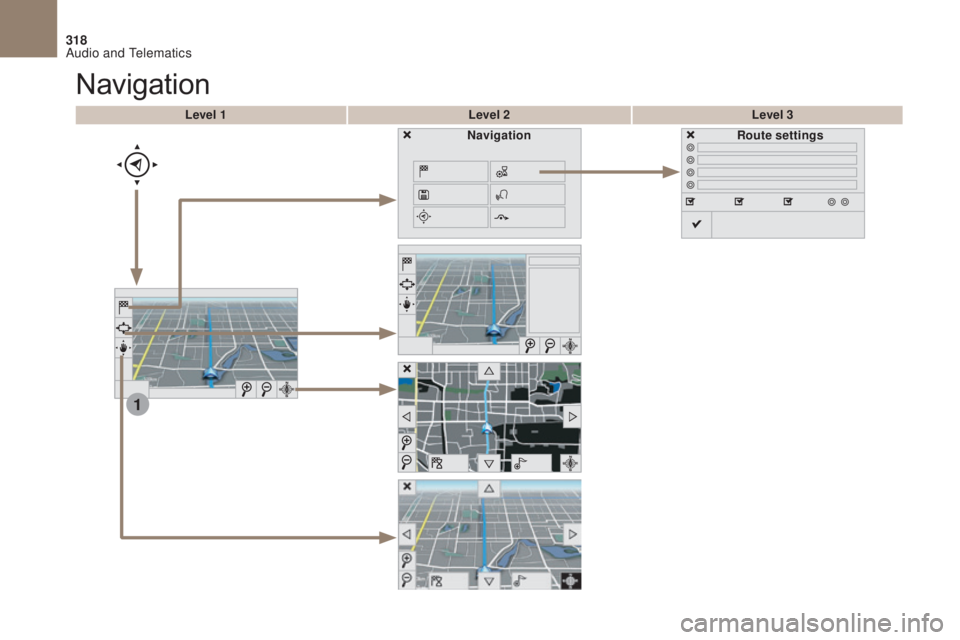
Navigation
NavigationRoute settings
Audio and Telematics
Page 321 of 421

319
Level 1Level 2 Level 3 Comments
Navigation Settings
Navigation Enter destination
Display recent destinations.
Route settings Fastest
Choose the navigation criteria.
The map displays the route chosen according to
these criteria.
Shortest
Time/distance
Ecological
To l l s
Ferries
Tr a f f i c
Strict-Close
Show route on map Display the map and start navigation.
Confirm
Save the options.
Save current location Save the current address.
Stop navigation Delete the navigation information.
Voice synthesis Choose the volume for voice and announcement
of street names.
Diversion Detour from your initial route by a determined
distance.
Navigation Display in text mode.
Zoom in.
Zoom out.
Display in full screen mode.
Use the arrows to move the map.
Switch to 2D map.
Audio and Telematics
Page 322 of 421

1
27
12
38
13
49
14
510
15
611
320
Level 1Level 2Level 3
To use the telephone functions,
refer to the " Telephone" section.
For managing contacts and
their addresses, refer to the
"
Telephone " section.
Navigation Address
Enter destination
Contacts
Audio and Telematics