radio CITROEN DS4 2018 Owners Manual
[x] Cancel search | Manufacturer: CITROEN, Model Year: 2018, Model line: DS4, Model: CITROEN DS4 2018Pages: 296, PDF Size: 9.91 MB
Page 40 of 296
38
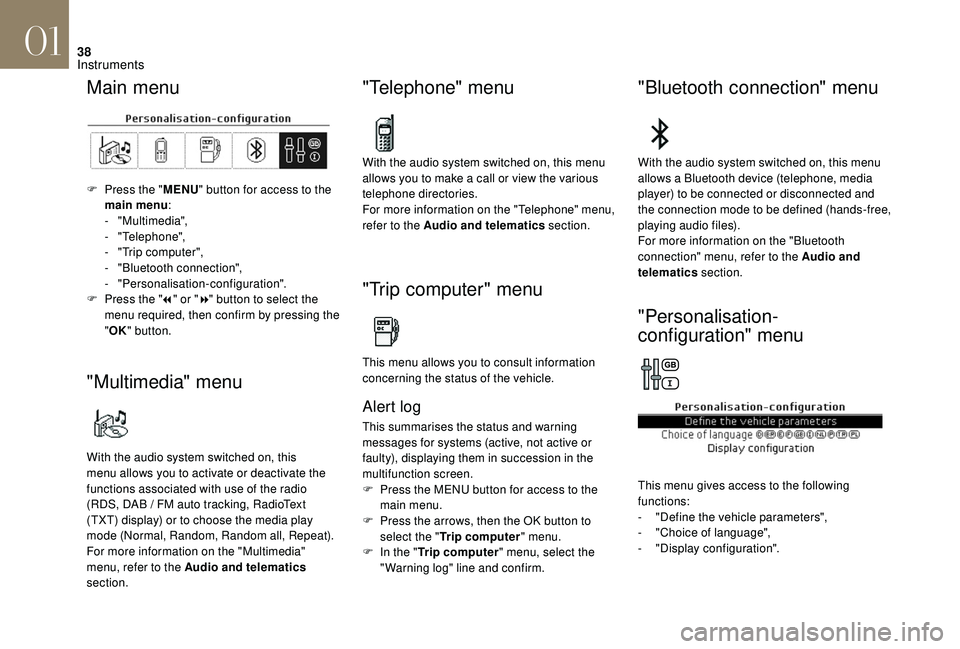
Main menu
F Press the "MENU" button for access to the
main menu :
-
"Multimedia",
-
"Telephone",
-
"
Trip computer",
-
"
Bluetooth connection",
-
"Personalisation-configuration".
F
P
ress the " 7" or " 8" button to select the
menu required, then confirm by pressing the
" OK " button.
"Multimedia" menu
With the audio system switched on, this
menu allows you to activate or deactivate the
functions associated with use of the radio
(RDS, DAB
/ FM auto tracking, RadioText
(TXT) display) or to choose the media play
mode (Normal, Random, Random all, Repeat).
For more information on the "Multimedia"
menu, refer to the Audio and telematics
section.
"Telephone" menu
With the audio system switched on, this menu
allows you to make a call or view the various
telephone directories.
For more information on the "Telephone" menu,
refer to the Audio and telematics section.
"Trip computer" menu
This menu allows you to consult information
concerning the status of the vehicle.
Alert log
This summarises the status and warning
messages for systems (active, not active or
faulty), displaying them in succession in the
multifunction screen.
F
P
ress the MENU button for access to the
main menu.
F
P
ress the arrows, then the OK button to
select the " Trip computer " menu.
F
I
n the " Trip computer " menu, select the
"Warning log" line and confirm.
"Bluetooth connection" menu
With the audio system switched on, this menu
allows a Bluetooth device (telephone, media
player) to be connected or disconnected and
the connection mode to be defined (hands-free,
playing audio files).
For more information on the "Bluetooth
connection" menu, refer to the Audio and
telematics section.
"Personalisation-
configuration" menu
This menu gives access to the following
functions:
-
"
Define the vehicle parameters",
-
"
Choice of language",
-
"
Display configuration".
01
Instruments
Page 43 of 296
41
Radio Media.
Mirror Screen or Connected
navigation.*
*
D
epending on equipment. Telephone.
Applications.
Allows the display of the
connected services available.
Settings
.
Allows configuration of the
display and the system.
Vehicle.
Allows the activation,
deactivation and adjustment of
settings for certain functions.
The functions accessible from this menu are
arranged under two tabs: " Vehicle settings"
and " Driving functions ".
Volume control/mute. Press with three fingers on the touch
screen to display the menu carousel.
Upper bar
Certain information is always present in the
upper bar of the touch screen:
-
D
isplay of the outside temperature.
-
R
eminder of information from the Radio
and Telephone menus and navigation
instructions.
-
Notifications. -
A
ccess to the Settings of the
touch screen.
-
T
ime display.
Trip computer
System that gives you information about the
current journey (range, fuel consumption…).
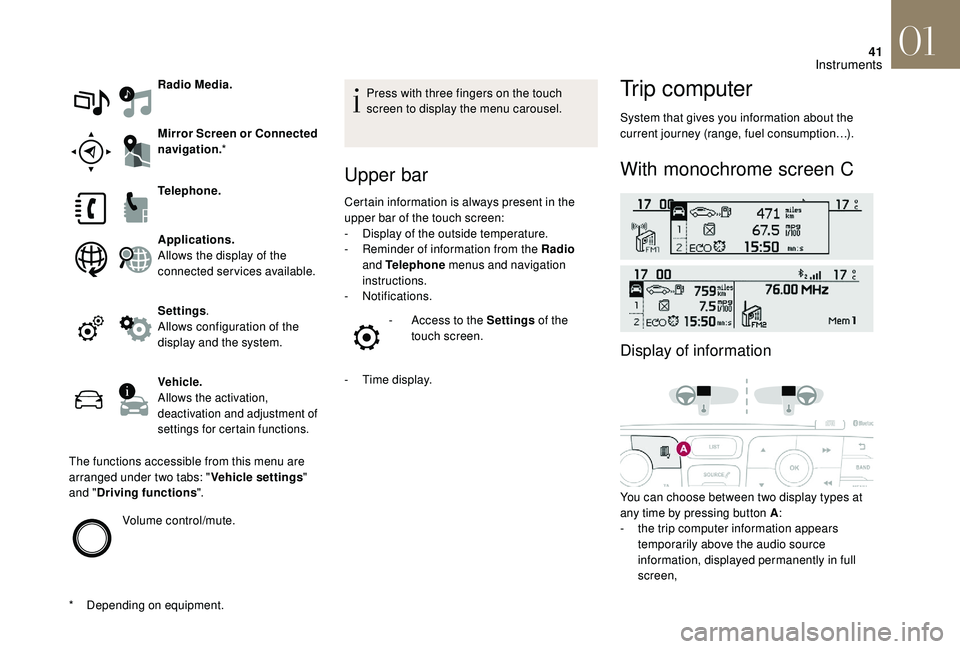
With monochrome screen C
Display of information
You can choose between two display types at
any time by pressing button A :
-
t
he trip computer information appears
temporarily above the audio source
information, displayed permanently in full
screen,
01
Instruments
Page 105 of 296
103
General safety
recommendations
Labels are attached in different places on
your vehicle. They include safety warnings
as well as identification information for
your vehicle. Do not remove them: they
are an integral part of your vehicle.We draw your attention to the following
points:
-
T
he fitting of electrical equipment
or accessories not approved by DS
AUTOMOBILES may cause excessive
current consumption and faults and
failures with the electrical system
of your vehicle. Contact the dealer
network for information on the range of
recommended accessories.
-
A
s a safety measure, access to
the diagnostic socket, used for the
vehicle's electronic systems, is
reser ved strictly for the dealer network
or qualified workshops, equipped
with the special tools required (risk
of malfunctions of the vehicle's
electronic systems that could cause
breakdowns or serious accidents).
The manufacturer cannot be held
responsible if this advice is not
followed.
-
A
ny modification or adaptation
not intended or authorised by DS
AUTOMOBILES or carried out without
meeting the technical requirements
defined by the manufacturer will result
in the suspension of the legal and
contractual warranties. Installation of accessory radio
communication transmitters
Before installing a radio communication
transmitter with an external antenna,
you must contact a member of the
dealer network for the specification
of transmitters which can be fitted
(frequency, maximum power,
antenna position, specific installation
requirements), in line with the Vehicle
Electromagnetic Compatibility Directive
(2004/104/EC).
Depending on country regulations, some
safety equipment may be compulsory:
high visibility safety vests, warning
triangles, breathalysers, spare bulbs,
spare fuses, fire extinguisher, first aid kit,
mud flaps at the rear of the vehicle, etc.
05
Safety
Page 225 of 296
1
GPS satellite navigation –
Applications – Multimedia
audio system – Bluetooth
®
telephone
Contents The different functions and settings
described vary according to the version
and configuration of your vehicle.
As a safety measure and because it
requires sustained attention by the
driver, the pairing of a Bluetooth mobile
telephone with the Bluetooth hands-free
system of your audio system must be
done with the vehicle stationary
and the
ignition on.
The system is protected in such a way that
it will only operate in your vehicle.
The display of the message Energy
Economy Mode signals that a change to
standby is imminent.
The link below gives access to OSS (Open
Source Software) codes for the system.
https://www.groupe-psa.com/fr/oss/
https://www.groupe-psa.com/en/oss/
DS Connect Nav
First steps 2
S teering mounted controls 3
M
enus
4
V
oice commands
5
N
avigation
1
1
Connected navigation
1
4
Applications
1
7
Radio
2
3
DAB radio (Digital Audio Broadcasting)
2
5
Media
26
T
elephone
2
8
Settings
3
4
Frequently asked questions
3
7
DS Connect Nav
Page 226 of 296
2
12:13
18,5 21,5
23 °CFirst steps
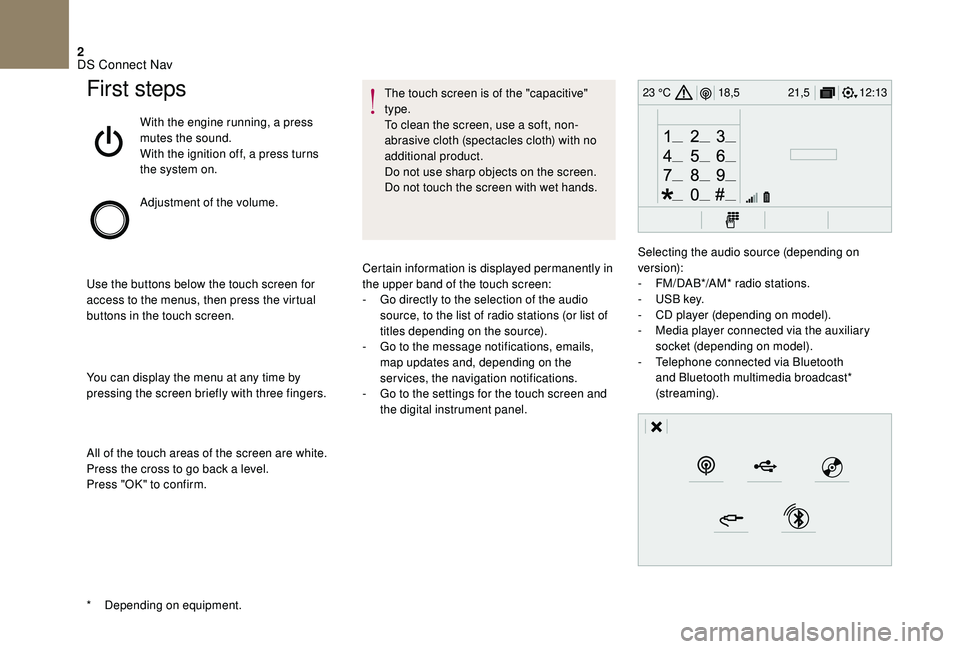
With the engine running, a press
mutes the sound.
With the ignition off, a press turns
the system on.
Adjustment of the volume.
Use the buttons below the touch screen for
access to the menus, then press the virtual
buttons in the touch screen.
You can display the menu at any time by
pressing the screen briefly with three fingers.
All of the touch areas of the screen are white.
Press the cross to go back a level.
Press "OK" to confirm. The touch screen is of the "capacitive"
type.
To clean the screen, use a soft, non-
abrasive cloth (spectacles cloth) with no
additional product.
Do not use sharp objects on the screen.
Do not touch the screen with wet hands.
*
D
epending on equipment. Certain information is displayed permanently in
the upper band of the touch screen:
-
G
o directly to the selection of the audio
source, to the list of radio stations (or list of
titles depending on the source).
-
G
o to the message notifications, emails,
map updates and, depending on the
services, the navigation notifications.
-
G
o to the settings for the touch screen and
the digital instrument panel. Selecting the audio source (depending on
version):
-
F
M/DAB*/AM* radio stations.
-
U
SB key.
-
C
D player (depending on model).
-
M
edia player connected via the auxiliary
socket (depending on model).
-
T
elephone connected via Bluetooth
and Bluetooth multimedia broadcast*
(streaming).
DS Connect Nav
Page 227 of 296
3
In the "Settings" menu you can create
a profile for just one person or a group
of people with common points, with the
possibility of entering a multitude of
settings (radio presets, audio settings,
navigation history, contact favourites,
etc.); these settings are taken into account
automatically.
In very hot conditions, the volume may
be limited to protect the system which
may go into stand-by (display and sound
completely off) for at least 5 minutes.
The return to normal takes place when
the temperature in the passenger
compartment has dropped.
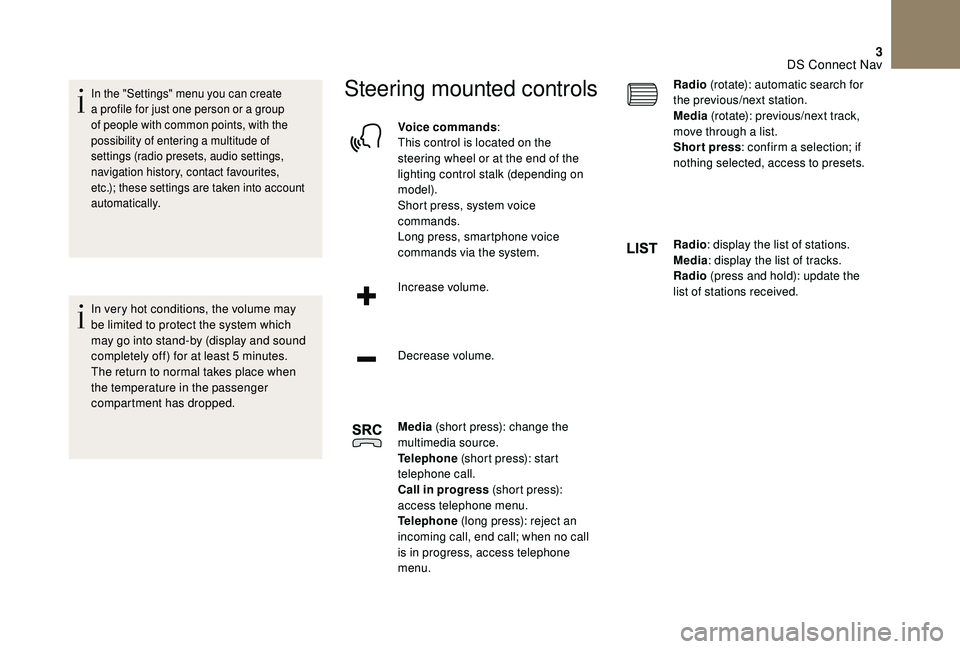
Steering mounted controls
Voice commands:
This control is located on the
steering wheel or at the end of the
lighting control stalk (depending on
model).
Short press, system voice
commands.
Long press, smartphone voice
commands via the system.
Increase volume.
Decrease volume.
Media (short press): change the
multimedia source.
Telephone (short press): start
telephone call.
Call in progress (short press):
access telephone menu.
Telephone (long press): reject an
incoming call, end call; when no call
is in progress, access telephone
menu. Radio
(rotate): automatic search for
the previous/next station.
Media (rotate): previous/next track,
move through a list.
Short press : confirm a selection; if
nothing selected, access to presets.
Radio : display the list of stations.
Media : display the list of tracks.
Radio (press and hold): update the
list of stations received.
DS Connect Nav
Page 228 of 296
4
12:13
18,5 21,5
23 °C
FM/87.5 MHz
87.5MHz
12:13
18,5 21,5
23 °C
12:13
18,5 21,5
23 °C
12:13
18,5 21,5
23 °C
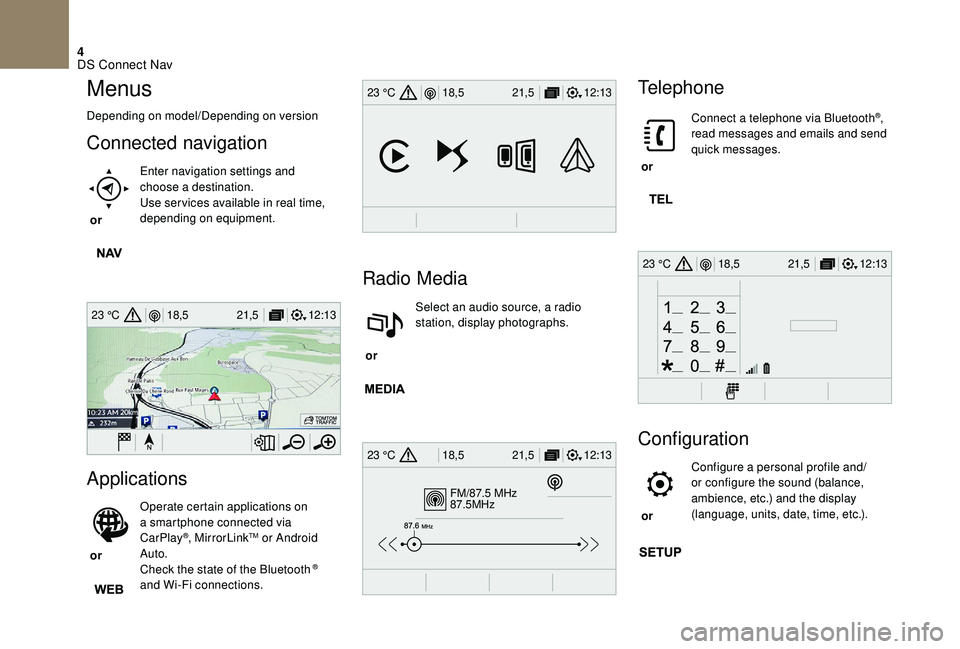
Menus
Depending on model/Depending on version
Connected navigation
or Enter navigation settings and
choose a destination.
Use ser vices available in real time,
depending on equipment.
Applications
or Operate certain applications on
a smartphone connected via
CarPlay
®, MirrorLinkTM or Android
Auto.
Check the state of the Bluetooth
®
and Wi-Fi connections.
Radio Media
or Select an audio source, a radio
station, display photographs.
Telephone
or Connect a telephone via Bluetooth
®,
read messages and emails and send
quick messages.
Configuration
or Configure a personal profile and/
or configure the sound (balance,
ambience, etc.) and the display
(language, units, date, time, etc.).
DS Connect Nav
Page 229 of 296
5
12:13
18,5 21,5
23 °C
12:13
18,5 21,5
23 °C
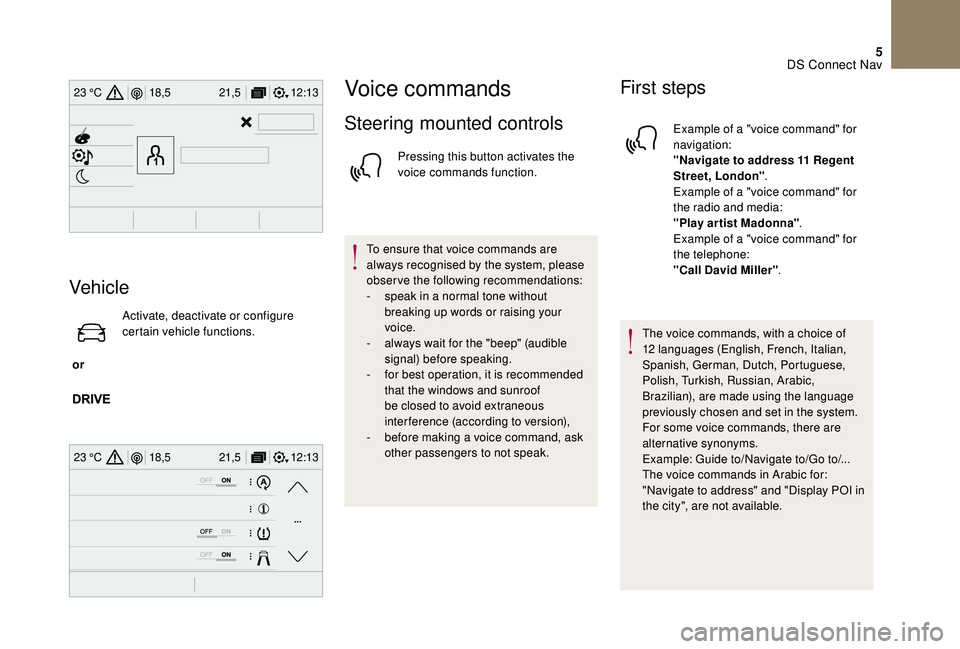
Vehicle
or Activate, deactivate or configure
certain vehicle functions.
Voice commands
Steering mounted controls
Pressing this button activates the
voice commands function.
To ensure that voice commands are
always recognised by the system, please
observe the following recommendations:
-
s
peak in a normal tone without
breaking up words or raising your
voice.
-
a
lways wait for the "beep" (audible
signal) before speaking.
-
f
or best operation, it is recommended
that the windows and sunroof
be closed to avoid extraneous
interference (according to version),
-
b
efore making a voice command, ask
other passengers to not speak.
First steps
Example of a "voice command" for
navigation:
"Navigate to address 11 Regent
Street, London" .
Example of a "voice command" for
the radio and media:
"Play ar tist Madonna" .
Example of a "voice command" for
the telephone:
"Call David Miller" .
The voice commands, with a choice of
12 languages (English, French, Italian,
Spanish, German, Dutch, Portuguese,
Polish, Turkish, Russian, Arabic,
Brazilian), are made using the language
previously chosen and set in the system.
For some voice commands, there are
alternative synonyms.
Example: Guide to/Navigate to/Go to/...
The voice commands in Arabic for:
"Navigate to address" and "Display POI in
the city", are not available.
DS Connect Nav
Page 230 of 296
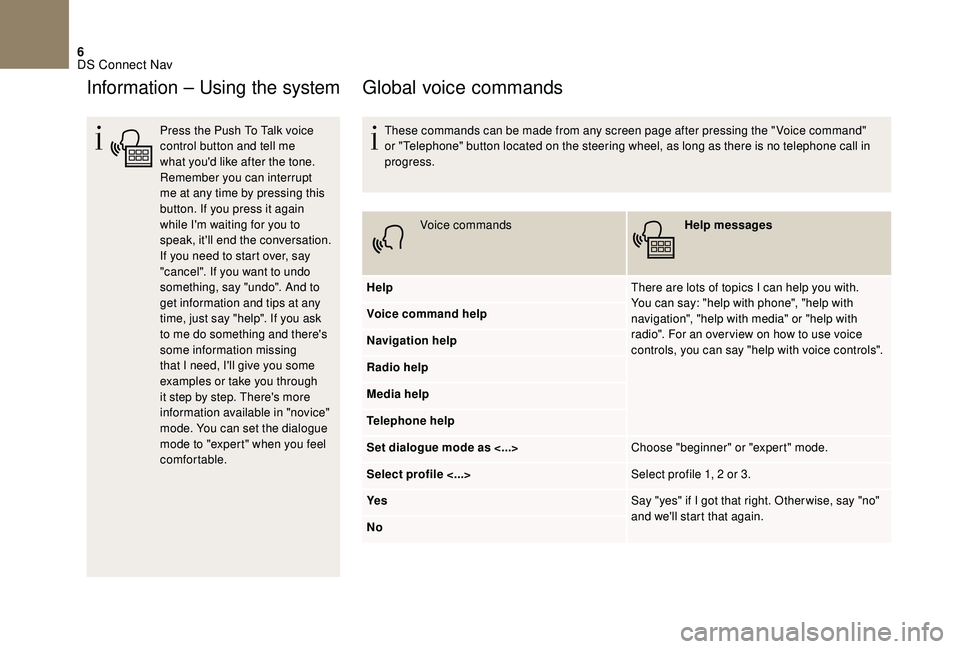
6
Information – Using the system
Press the Push To Talk voice
control button and tell me
what you'd like after the tone.
Remember you can interrupt
me at any time by pressing this
button. If you press it again
while I'm waiting for you to
speak, it'll end the conversation.
If you need to start over, say
"cancel". If you want to undo
something, say "undo". And to
get information and tips at any
time, just say "help". If you ask
to me do something and there's
some information missing
that I need, I'll give you some
examples or take you through
it step by step. There's more
information available in "novice"
mode. You can set the dialogue
mode to "expert" when you feel
comfortable.
Global voice commands
These commands can be made from any screen page after pressing the " Voice command"
or "Telephone" button located on the steering wheel, as long as there is no telephone call in
progress.Voice commands Help messages
Help There are lots of topics I can help you with.
You can say: "help with phone", "help with
navigation", "help with media" or "help with
radio". For an over view on how to use voice
controls, you can say "help with voice controls".
Voice command help
Navigation help
Radio help
Media help
Telephone help
Set dialogue mode as <...>
Choose "beginner" or "expert" mode.
Select profile <...> Select profile 1, 2 or 3.
Ye s Say "yes" if I got that right. Other wise, say "no"
and we'll start that again.
No
DS Connect Nav
Page 232 of 296
8
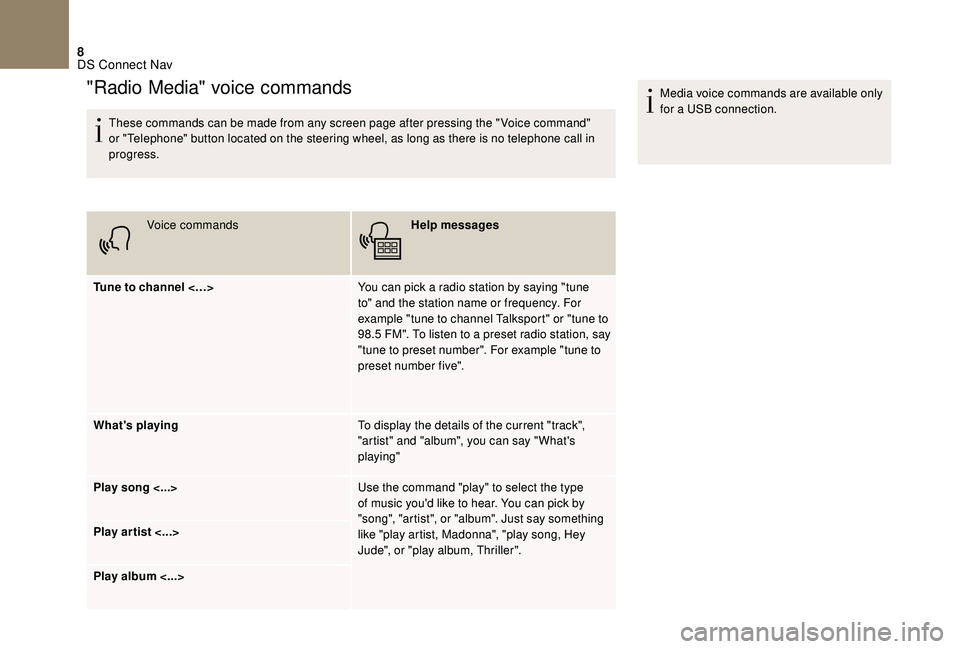
These commands can be made from any screen page after pressing the " Voice command"
or "Telephone" button located on the steering wheel, as long as there is no telephone call in
progress.Voice commands Help messages
Tune to channel <…> You can pick a radio station by saying "tune
to" and the station name or frequency. For
example "tune to channel Talksport" or "tune to
98.5 FM". To listen to a preset radio station, say
"tune to preset number". For example "tune to
preset number five".
What's playing To display the details of the current "track",
"artist" and "album", you can say " What's
playing"
Play song <...> Use the command "play" to select the type
of music you'd like to hear. You can pick by
"song", "artist", or "album". Just say something
like "play artist, Madonna", "play song, Hey
Jude", or "play album, Thriller".
Play ar tist <...>
Play album <...> Media voice commands are available only
for a USB connection.
"Radio Media" voice commands
DS Connect Nav