Trip CITROEN DS7 CROSSBACK 2022 User Guide
[x] Cancel search | Manufacturer: CITROEN, Model Year: 2022, Model line: DS7 CROSSBACK, Model: CITROEN DS7 CROSSBACK 2022Pages: 244, PDF Size: 6.87 MB
Page 202 of 244

200
DS IRIS SYSTEM - 12" touch screen Infotainment system10
– After opening voice recognition with
the steering wheel-mounted button or the
button on the touch screen, always wait for
the "beep” (audible signal) before talking.
No "beep" sounds when voice recognition is
opened using "OK Iris".
–
For optimal opera
tion, it is recommended
that you close the windows and the sunroof
(depending on equipment) to avoid any
external interference, and switch the
ventilation off.
–
Before speaking the v
oice commands, ask
the other passengers not to speak.
Voice command example for air
conditioning:
"raise the fan speed"
"Turn on air conditioning"
"i'm too hot"
Voice command example for radio and
media:
"I want to listen to michael jackson"
"switch to radio"
"tune to 88.5"
Media voice commands are only available
with a USB connection.
Voice command example for navigation:
"navigate home"
"Navigate me to gabrielle's house"
"search for public parking nearby"
Depending on the country, give
destination (address) instructions in the
language configured for the system.
Voice command example for telephone:
"Call Matthew's mobile"
"call 0113 345 9869"
"Call jonathan"
If there is no telephone connected by
Bluetooth®, a voice message announces:
"Connect a telephone by Bluetooth®", and the
voice session will be closed.
Voice command example for the weather:
"do i need a raincoat"
"how is the weather tonight"
"what is today's humidity level"
Navigation
Navigation home screen
(depending on equipment)
Access to additional videos
https://www.tomtom.com/
PSAGroup-Connected-Nav
Press the "Navigation" application to
display the navigation home screen.
Press "Search" to enter an address or a
name.
Press this button to display the main menu
for the various options.
Press this button to display the 3D/2D
mode.
Select "Sound activated", "Alerts only"
and "Silent" with successive presses on
this button.
Press the "plus"/"minus" buttons to zoom
in/out, or use two fingers on the screen.
Main menu
Press the "Navigation" application to
display the navigation home screen.
Press this button to display the main menu
for the various options.
Select "Search" to enter an address, name
or some points of interest.
Select "Go home" using an address
previously saved in "Add home".
Select "Go to work" using an address
previously saved in "My places".
Select "Recent destinations" to display the
latest destinations searched.
Select "Current trip" to open another menu
and perform various actions for the
current planned route.
Select "My places" for quick access to
saved places as well as favourite
destinations.
Page 203 of 244

201
DS IRIS SYSTEM - 12" touch screen Infotainment system10
Select "My trips" to display your favourite
routes.
Select "Parking" to display the various
parking options in the area.
Select "Service station" to display the
different service stations on the current
route or near the current location.
Select "TomTom service" to check the
network status.
Select "Settings" to enter the vehicle type
and to personalise the display, voice
instructions, map options, trip planning, sounds
and alerts, and system information.
Select this button to display details on
software versions as well as legal
information. Details of the Open Source software
libraries used and their licence URLs.
Regular connection to a secure Wi-Fi
access point automatically updates the
installed mapping globally.
The mapping is also updated using a cellular
network, depending on version, country of
sale, the vehicle's level of equipment, as well
as the subscription to connected services and
options.
However, using your smartphone's Wi-Fi and/or
cellular networks may incur additional charges
if you exceed your data plan.
These charges, if any, will be passed on to your
telephone operator's bill.
Connectivity
Connecting a wired device by
USB
The USB connection of a mobile device allows it
to be recharged. It makes its authorised media
content available to the system (Media content of
iPod
® type).Only one USB socket will allow a Mirror
Screen connection (Apple®CarPlay® or
Android Auto) for the compatible connected
mobile devices and to use some of the device's
applications on the touch screen.
For more information on the USB socket
compatible with the Mirror Screen
® function, refer
to the "Ease of use and comfort - Fittings" section.
The mobile device is in charging mode when
connected with the USB cable.
It is recommended that you use your
device's original USB cables, preferably
with a short cable to ensure optimum
performance.
To protect the system, do not use a USB
hub.
Bluetooth® connection
Connecting a mobile device to the vehicle's
system via Bluetooth® provides access to its
contents and its "Media" streaming. It also
enables the Phone function to be activated.
The connection can be initiated either from the
mobile device's Bluetooth
® menu or from the
vehicle's system, which requires opening the "My
Devices" menu for the first connection.
In some cases, you will need to unlock
your device and check the authorisation
to synchronise contacts and recent calls.
Some features may not be supported by your
device.
For information on the partial or full
compatibility of device models or
smartphones, please connect to the Brand’s
national website.
Pairing procedure from a device
From the Bluetooth® menu on your mobile
device, select the system’s name from the
list of detected devices.
In order to make your system’s Bluetooth®
visible, first open the "My Devices" menu
on the system.
Continue the first connection procedure proposed
by the system and on the device.
For example: validating pairing codes.
Pairing procedure from the system
Press the "Settings" application.
In the list, select the "Connectivity" tab.
Page 219 of 244
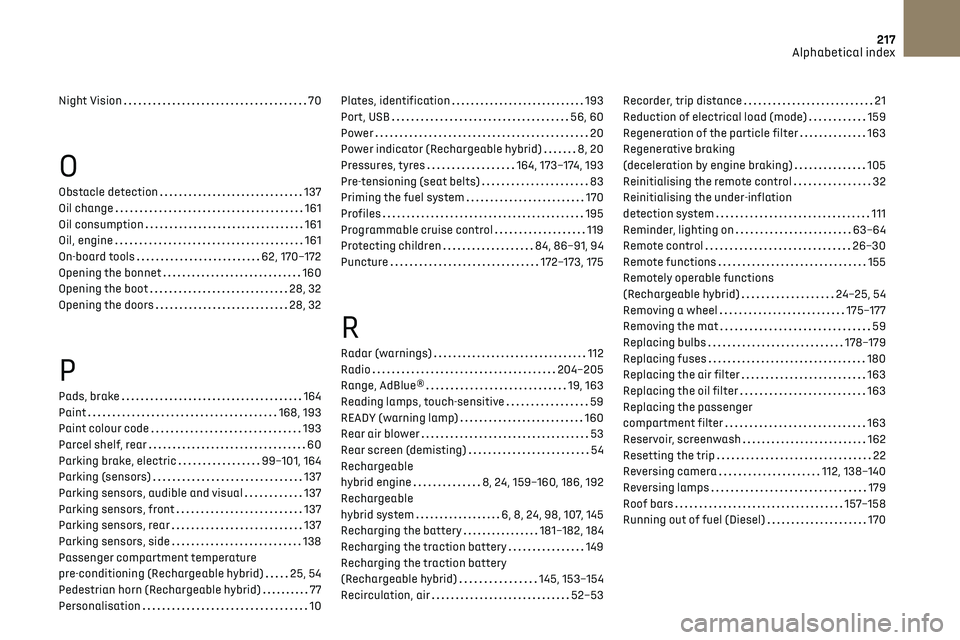
217Alphabetical index
Night Vision 70
O
Obstacle detection 137
Oil change
161
Oil consumption
161
Oil, engine
161
On-board tools
62, 170–172
Opening the bonnet
160
Opening the boot
28, 32
Opening the doors
28, 32
P
Pads, brake 164
Paint
168, 193
Paint colour code
193
Parcel shelf, rear
60
Parking brake, electric
99–101, 164
Parking (sensors)
137
Parking sensors, audible and visual
137
Parking sensors, front
137
Parking sensors, rear
137
Parking sensors, side
138
Passenger compartment temperature
pre-conditioning (Rechargeable hybrid)
25, 54
Pedestrian horn (Rechargeable hybrid)
77
Personalisation
10
Plates, identification 193
Port, USB
56, 60
Power
20
Power indicator (Rechargeable hybrid)
8, 20
Pressures, tyres
164, 173–174, 193
Pre-tensioning (seat belts)
83
Priming the fuel system
170
Profiles
195
Programmable cruise control
119
Protecting children
84, 86–91, 94
Puncture
172–173, 175
R
Radar (warnings) 112
Radio
204–205
Range, AdBlue®
19, 163
Reading lamps, touch-sensitive
59
READY (warning lamp)
160
Rear air blower
53
Rear screen (demisting)
54
Rechargeable
hybrid engine
8, 24, 159–160, 186, 192
Rechargeable
hybrid system
6, 8, 24, 98, 107, 145
Recharging the battery
181–182, 184
Recharging the traction battery
149
Recharging the traction battery
(Rechargeable hybrid)
145, 153–154
Recirculation, air
52–53
Recorder, trip distance 21
Reduction of electrical load (mode)
159
Regeneration of the particle filter
163
Regenerative braking
(deceleration by engine braking)
105
Reinitialising the remote control
32
Reinitialising the under-inflation
detection system
111
Reminder, lighting on
63–64
Remote control
26–30
Remote functions
155
Remotely operable functions
(Rechargeable hybrid)
24–25, 54
Removing a wheel
175–177
Removing the mat
59
Replacing bulbs
178–179
Replacing fuses
180
Replacing the air filter
163
Replacing the oil filter
163
Replacing the passenger
compartment filter
163
Reservoir, screenwash
162
Resetting the trip
22
Reversing camera
112, 138–140
Reversing lamps
179
Roof bars
157–158
Running out of fuel (Diesel)
170
Page 220 of 244
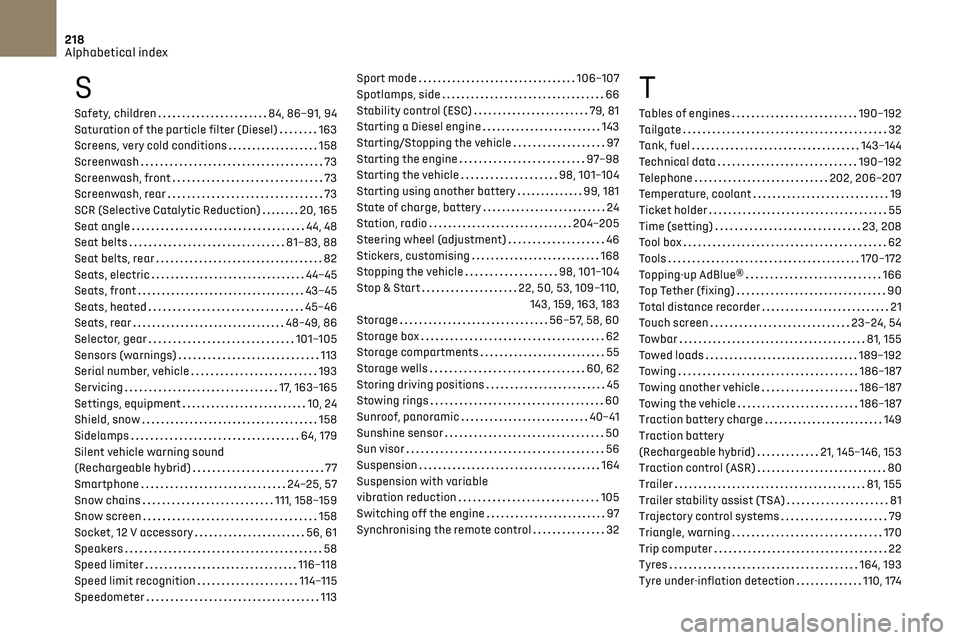
218Alphabetical index
S
Safety, children 84, 86–91, 94
Saturation of the particle filter (Diesel)
163
Screens, very cold conditions
158
Screenwash
73
Screenwash, front
73
Screenwash, rear
73
SCR (Selective Catalytic Reduction)
20, 165
Seat angle
44, 48
Seat belts
81–83, 88
Seat belts, rear
82
Seats, electric
44–45
Seats, front
43–45
Seats, heated
45–46
Seats, rear
48–49, 86
Selector, gear
101–105
Sensors (warnings)
113
Serial number, vehicle
193
Servicing
17, 163–165
Settings, equipment
10, 24
Shield, snow
158
Sidelamps
64, 179
Silent vehicle warning sound
(Rechargeable hybrid)
77
Smartphone
24–25, 57
Snow chains
111, 158–159
Snow screen
158
Socket, 12 V accessory
56, 61
Speakers
58
Speed limiter
116–118
Speed limit recognition
114–115
Speedometer
113
Sport mode 106–107
Spotlamps, side
66
Stability control (ESC)
79, 81
Starting a Diesel engine
143
Starting/Stopping the vehicle
97
Starting the engine
97–98
Starting the vehicle
98, 101–104
Starting using another battery
99, 181
State of charge, battery
24
Station, radio
204–205
Steering wheel (adjustment)
46
Stickers, customising
168
Stopping the vehicle
98, 101–104
Stop & Start
22, 50, 53, 109–110, 143, 159, 163, 183
Storage
56–57, 58, 60
Storage box
62
Storage compartments
55
Storage wells
60, 62
Storing driving positions
45
Stowing rings
60
Sunroof, panoramic
40–41
Sunshine sensor
50
Sun visor
56
Suspension
164
Suspension with variable
vibration reduction
105
Switching off the engine
97
Synchronising the remote control
32T
Tables of engines 190–192
Tailgate
32
Tank, fuel
143–144
Technical data
190–192
Telephone
202, 206–207
Temperature, coolant
19
Ticket holder
55
Time (setting)
23, 208
Tool box
62
Tools
170–172
Topping-up AdBlue®
166
Top Tether (fixing)
90
Total distance recorder
21
Touch screen
23–24, 54
Towbar
81, 155
Towed loads
189–192
Towing
186–187
Towing another vehicle
186–187
Towing the vehicle
186–187
Traction battery charge
149
Traction battery
(Rechargeable hybrid)
21, 145–146, 153
Traction control (ASR)
80
Trailer
81, 155
Trailer stability assist (TSA)
81
Trajectory control systems
79
Triangle, warning
170
Trip computer
22
Tyres
164, 193
Tyre under-inflation detection
110, 174