Port Citroen GRAND C4 PICASSO 2017 2.G Owner's Guide
[x] Cancel search | Manufacturer: CITROEN, Model Year: 2017, Model line: GRAND C4 PICASSO, Model: Citroen GRAND C4 PICASSO 2017 2.GPages: 527, PDF Size: 12.91 MB
Page 302 of 527
300
C4-Picasso-II_en_Chap08_en-cas-panne_ed02-2016
Removing a wheel
Parking the vehicle
Immobilise the vehicle where it does not
block traffic: the ground must be level,
stable and not slippery.
Apply the parking brake unless it has
been programmed to automatic mode,
switch off the ignition and engage first
gear* to block the wheels.
Check that the braking warning lamp
and the P warning lamp in the parking
brake control lever come on.
For greater safety, place the chock 2
against the wheel opposite to the one
being changed.
The occupants must get out of the
vehicle and wait where they are safe.
Never go underneath a vehicle
supported by a jack; use an axle stand.
List of operations
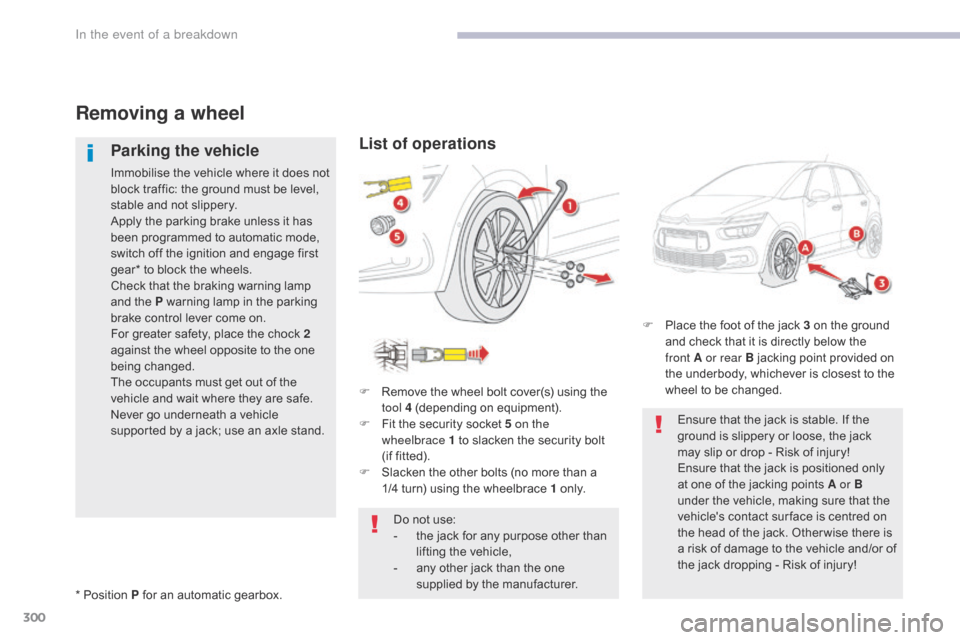
F Remove the wheel bolt cover(s) using the tool 4 (depending on equipment).
F
F
it the security socket 5 on the
wheelbrace
1 to slacken the security bolt
(if
fitted).
F
S
lacken the other bolts (no more than a
1/4
turn) using the wheelbrace 1 o n l y.
* Position P for an automatic gearbox. Do not use:
-
t
he jack for any purpose other than
lifting the vehicle,
-
a
ny other jack than the one
supplied by the manufacturer. F
P
lace the foot of the jack 3 on the ground
and check that it is directly below the
front A or rear B jacking point provided on
the underbody, whichever is closest to the
wheel to be changed.
Ensure that the jack is stable. If the
ground is slippery or loose, the jack
may slip or drop - Risk of injury!
Ensure that the jack is positioned only
at one of the jacking points A or B
under the vehicle, making sure that the
vehicle's contact sur face is centred on
the head of the jack. Other wise there is
a risk of damage to the vehicle and/or of
the jack dropping - Risk of injury!
In the event of a breakdown
Page 340 of 527
338
C4-Picasso-II_en_Chap10_index-alpha_ed02-2016
Net .................................................................120
Number plate lamps ...................................... 3
12
Safety, children
....................2
42, 245, 246, 250,
252, 255, 256, 258, 260
Scented air freshener
...................................10
5
Screen, cold climate
.....................................26
6
Screenwash, front
......................................... 2
25
Screenwash, rear
...............................
...........224
SCR (Selective Catalytic Reduction) system
................
.........................................282
Seat belts
......................2
36, 237, 239, 240, 251
Seats, electric
................................................. 78
Se
ats, front
...............................
...........76, 78, 79
Seats, heated
...............................
...................82
Seats, rear
.................................... 8
4, 86, 88, 89
Selector, gear
................................................ 14
2
Serial number, vehicle
..................................33
4
Service indicator
............................................. 38
S
ervicing
...............................
............................ 9
Settings, equipment
.................................. 1
1, 13
Range
................
..............................................51
Range, AdBlue
® ............................... ...............43
Reading lamps, rear ...................................... 11
3
Rear screen, demisting
................................. 10
4
Recharging the battery
................................. 32
0
Recirculation, air
...............................
........96, 99
Reduction of electrical load
.......................... 2
70
Regeneration of the particle filter
.................28
0
Reinitialisation of the under-inflation detection system
......................................... 20
6
Reinitialising the remote control
.....................59
R
emote control
.................................... 5
3 -57, 60
Removing a wheel
..............................
..........300
Removing the mat
...............................
..........112
Pads, brake
...................................................
2
81
Paint colour code
.......................................... 33
4
Oil change
...............................
......................
277
Oil consumption
............................................
2
77
OIl, engine
...............................
......................
277
Opening the bonnet
......................................
2
74
Opening the boot
..............................
. 53, 55, 64
Opening the doors
...............................
.....53, 55
Opening the panoramic sunroof blind
.......... 2
28 Panoramic glass sunroof
..............................
2
28
Parcel shelf, rear
................................... 11
3 , 118
Park Assist
............................ 1
97, 199, 201, 202
Parking brake
................................................
2
81
Parking brake, electric
..........................
13
3, 13 8
Parking sensors, front
...................................
19
3
Parking sensors, rear.................................... 192
Plates, identification ...................................... 334
Port, USB
......................................................
111
P
ressures, tyres
................... 2
88, 293, 303, 334
Pre-tensioning seat belts
..............................
24
0
Priming pump
...............................
.................
324
Priming the fuel system
................................
3
24
Protecting children
....................... 2
42, 245, 246,
250, 252, 255, 256, 258, 260
Puncture
................
........................287, 294, 296
N
S
R
P
O
Mountings, Isofix ...............................
............254
Multimedia, rear ............................... .............115 Replacing bulbs ............................
3 04, 308-311
Replacing fuses .............................. ..............313
Replacing the air filter
...................................28
0
Replacing the oil filter
...................................28
0
Replacing the passenger compartment
filter
........
.....................................................280
Resetting the service indicator
.......................40
R
esetting the trip recorder
..............................46
R
eversing camera
...............................
..........19 4
Reversing lamp
..................................... 3
08-311
Roof bars
....................................................... 2
72
Running out of fuel (Diesel)
..........................3
24
Alphabetical index
Page 361 of 527
8
Audio and Telematics
Voice commands
First steps Steering mounted controls Information - Using the system
Press the Push To Talk button and tell me what you'd like after the tone. Remember you can interrupt me at any time by pressing this button. If you
press it again while I'm waiting for you to speak, it'll end the conversation. If you need to start over, say "cancel". If you want to undo something, say "undo". And to get information and tips at any time, just say "help". If you ask to me do something and there's some information missing that I need, I'll give you some examples or take you through it step by step. There's more information available in "novice" mode. You can set the dialogue mode to "expert" when you feel comfortable.
To ensure that voice commands are always recognised by the system, please observe the following recommendations: - speak in a normal tone without breaking up words or raising your voice. - always wait for the "beep" (audible signal) before speaking. - for best operation, it is recommended that the windows and opening roof be closed to avoid extraneous interference (according to version). - before making a voice command, ask other passengers to not speak.
The voice commands, with a choice of 12 languages (English, French, Italian, Spanish, German, Dutch, Portuguese, Polish, Turkish, Russian, Arabic, Brazilian), are made using the language previously chosen and set in the system.
The voice commands in Arabic for: "Navigate to address" and "Display POI in the city", are not available.
Alternative synonyms can be used for some voice commands. E.g. Guide to / Navigate to / Go to /...
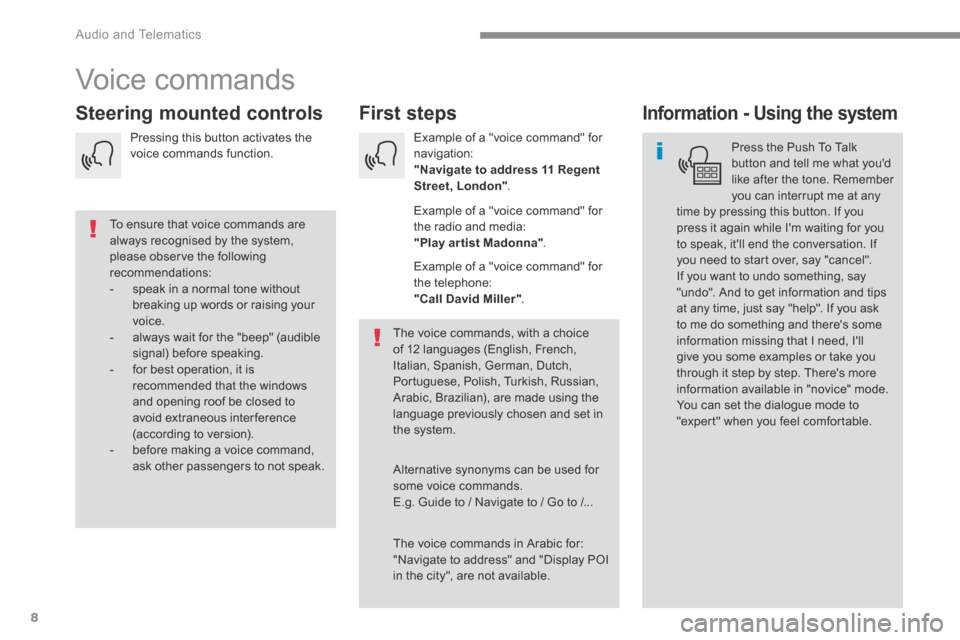
Example of a "voice command" for navigation: "Navigate to address 11 Regent Street, London" .
Example of a "voice command" for the radio and media: "Play ar tist Madonna" .
Example of a "voice command" for the telephone: "Call David Miller" .
Pressing this button activates the voice commands function.
Page 364 of 527
11
.
Audio and Telematics
"Radio Media" voice commands
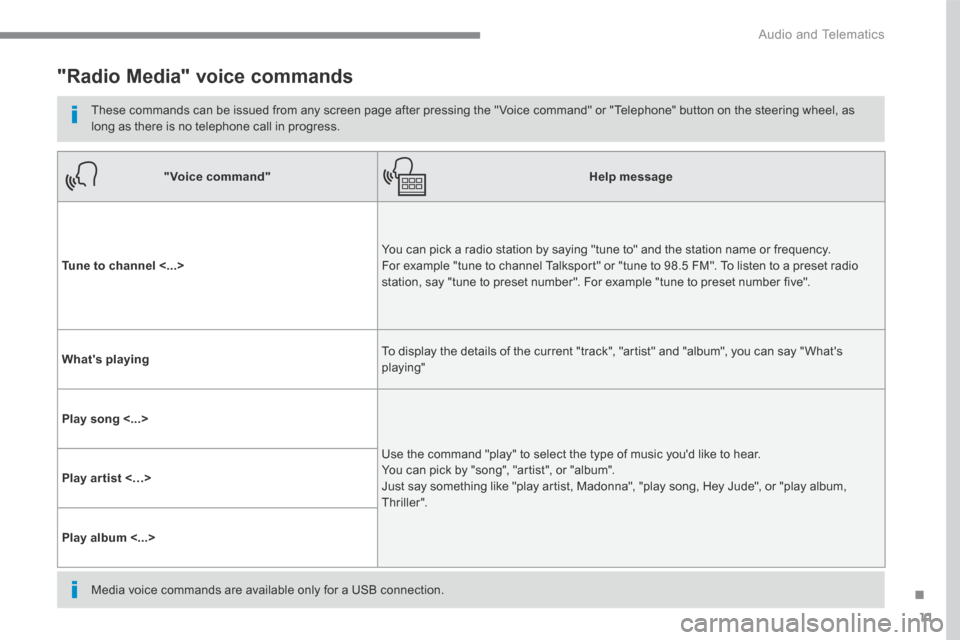
These commands can be issued from any screen page after pressing the " Voice command" or "Telephone" button on the steering wheel, as long as there is no telephone call in progress.
"Voice command"Help message
Tune to channel <...> You can pick a radio station by saying "tune to" and the station name or frequency. For example "tune to channel Talksport" or "tune to 98.5 FM". To listen to a preset radio station, say "tune to preset number". For example "tune to preset number five".
What's playing To display the details of the current "track", "artist" and "album", you can say " What's playing"
Play song <...>
Use the command "play" to select the type of music you'd like to hear. You can pick by "song", "artist", or "album". Just say something like "play artist, Madonna", "play song, Hey Jude", or "play album, T hr iller ".
Play ar tist <…>
Play album <...>
Media voice commands are available only for a USB connection.
Page 365 of 527
12
Audio and Telematics
"Voice command"Help message
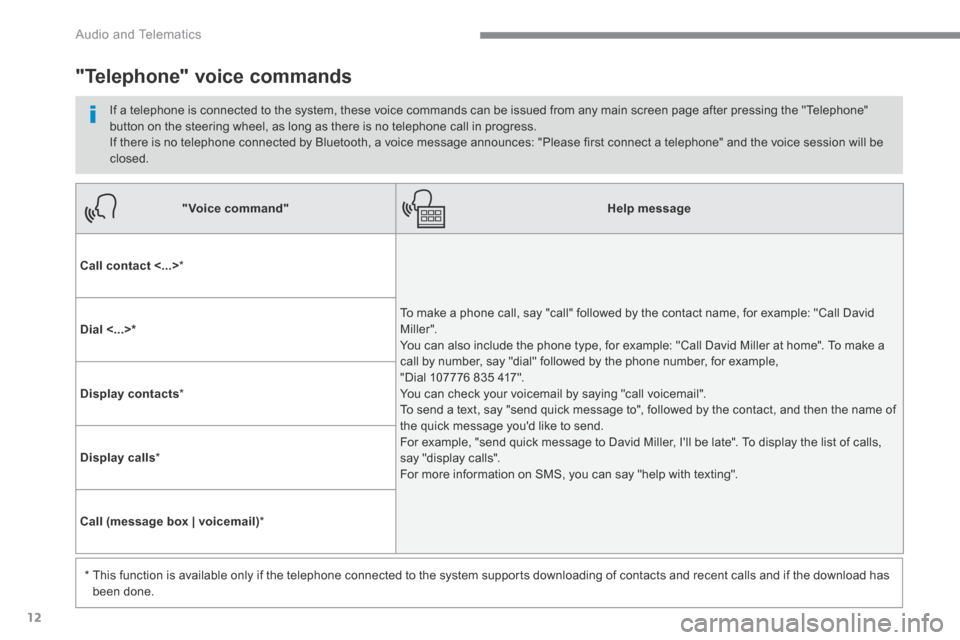
Call contact <...> *
To make a phone call, say "call" followed by the contact name, for example: "Call David M iller ". You can also include the phone type, for example: "Call David Miller at home". To make a call by number, say "dial" followed by the phone number, for example, "Dial 107776 835 417". You can check your voicemail by saying "call voicemail". To send a text, say "send quick message to", followed by the contact, and then the name of the quick message you'd like to send. For example, "send quick message to David Miller, I'll be late". To display the list of calls, say "display calls". For more information on SMS, you can say "help with texting".
Dial <...> *
Display contacts *
Display calls *
Call (message box | voicemail) *
* This function is available only if the telephone connected to the system supports downloading of contacts and recent calls and if the download has
been done.
"Telephone" voice commands
If a telephone is connected to the system, these voice commands can be issued from any main screen page after pressing the "Telephone" button on the steering wheel, as long as there is no telephone call in progress. If there is no telephone connected by Bluetooth, a voice message announces: "Please first connect a telephone" and the voice session will be closed.
Page 366 of 527
13
.
Audio and Telematics
"Voice command"Help message
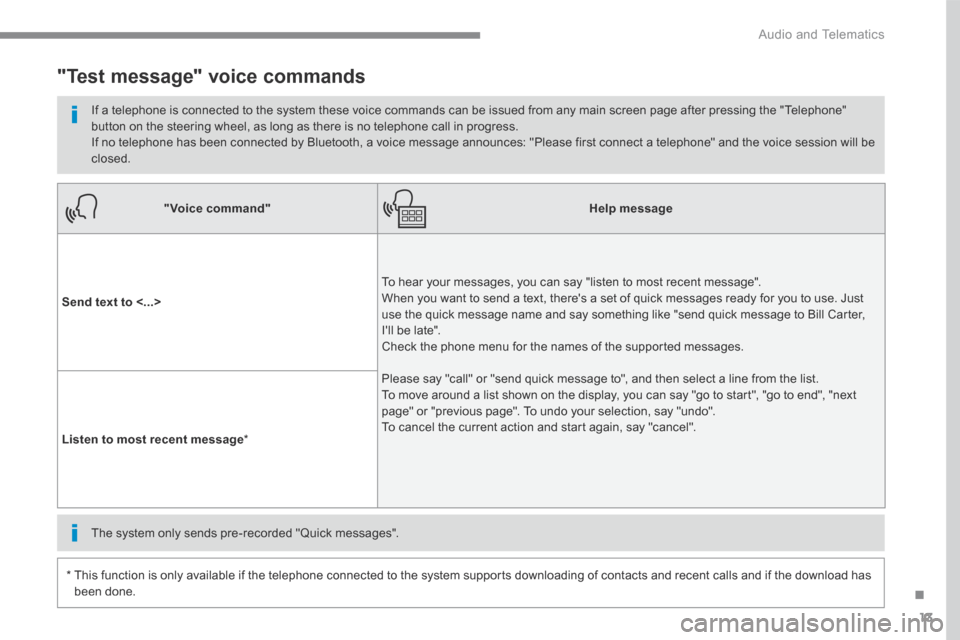
Send text to <...>
To hear your messages, you can say "listen to most recent message". When you want to send a text, there's a set of quick messages ready for you to use. Just use the quick message name and say something like "send quick message to Bill Carter, I'll be late". Check the phone menu for the names of the supported messages.
Please say "call" or "send quick message to", and then select a line from the list. To move around a list shown on the display, you can say "go to start", "go to end", "next page" or "previous page". To undo your selection, say "undo". To cancel the current action and start again, say "cancel". Listen to most recent message *
"Test message" voice commands
If a telephone is connected to the system these voice commands can be issued from any main screen page after pressing the "Telephone" button on the steering wheel, as long as there is no telephone call in progress. If no telephone has been connected by Bluetooth, a voice message announces: "Please first connect a telephone" and the voice session will be closed.
* This function is only available if the telephone connected to the system supports downloading of contacts and recent calls and if the download has
been done.
The system only sends pre-recorded "Quick messages".
Page 412 of 527
59
.
17
20
18
21
19
1
1
16
Audio and Telematics
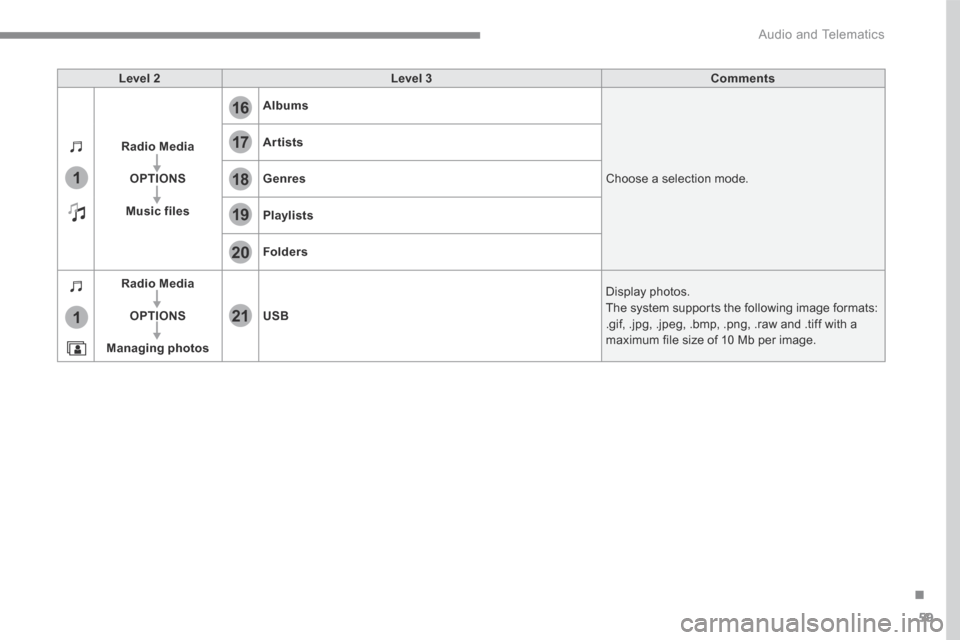
Level 2Level 3Comments
Radio Media
OPTIONS
Music files
Albums
Choose a selection mode.
Artists
Genres
Playlists
Folders
Radio Media
OPTIONS
Managing photos
USB
Display photos. The system supports the following image formats: .gif, .jpg, .jpeg, .bmp, .png, .raw and .tiff with a maximum file size of 10 Mb per image.
Page 417 of 527
64
Audio and Telematics
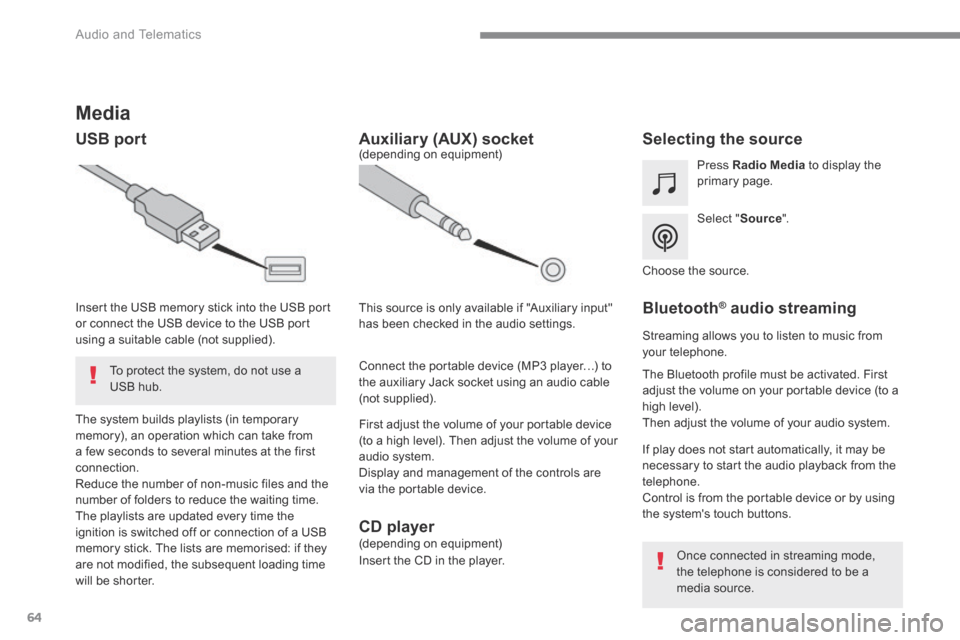
Media
USB port Selecting the source
Select " Source ".
Press Radio Media to display the primary page.
The system builds playlists (in temporary memory), an operation which can take from a few seconds to several minutes at the first connection. Reduce the number of non-music files and the number of folders to reduce the waiting time. The playlists are updated every time the ignition is switched off or connection of a USB memory stick. The lists are memorised: if they are not modified, the subsequent loading time will be shorter.
Insert the USB memory stick into the USB port or connect the USB device to the USB port using a suitable cable (not supplied).
Auxiliary (AUX) socket
First adjust the volume of your portable device (to a high level). Then adjust the volume of your audio system. Display and management of the controls are via the portable device.
This source is only available if "Auxiliary input" has been checked in the audio settings.
(depending on equipment)
Connect the portable device (MP3 player…) to the auxiliary Jack socket using an audio cable (not supplied).
Choose the source.
Bluetooth ® Bluetooth ® Bluetooth audio streaming ® audio streaming ®
Streaming allows you to listen to music from your telephone.
The Bluetooth profile must be activated. First adjust the volume on your portable device (to a high level). Then adjust the volume of your audio system.
If play does not start automatically, it may be necessary to start the audio playback from the telephone. Control is from the portable device or by using the system's touch buttons.
Once connected in streaming mode, the telephone is considered to be a media source.
To protect the system, do not use a USB hub.
CD player (depending on equipment)
Insert the CD in the player.
Page 418 of 527
65
.
Audio and Telematics
Connecting Apple ® Connecting Apple ® Connecting Apple players ® players ®
Connect the Apple ® player to the USB port ® player to the USB port ®
using a suitable cable (not supplied). Play starts automatically.
Control is via the audio system.
The classifications available are those of the portable device connected (artists / albums / genres / playlists / audiobooks / podcasts). The default classification used is by artist. To modify the classification used, return to the first level of the menu then select the desired classification (playlists for example) and confirm to go down through the menu to the desired track.
The version of software in the audio system may not be compatible with the generation of your Apple ® player. ® player. ®
The audio equipment will only play audio files with ".wma, .aac, .flac, .ogg and .mp3" file extensions and with a bit rate of between 32 Kbps and 320 Kbps. It also supports VBR (Variable Bit Rate) mode. No other type of file (.mp4, ...) can be played. ".wma" files must be of the standard wma 9 type. The sampling rates supported are 32, 44 and 48 KHz.
In order to be able to play a burned CDR or CDRW, when burning it is preferable to select
standards ISO 9660 level 1, 2 or Joliet. If the disc is burned in another format, it may not be played correctly. It is recommended that the same burning standard is always used on an individual disc, with as low a speed as possible (4x maximum) for the best sound quality. In the particular case of a multi-session CD, the Joliet standard is recommended.
It is advisable to restrict file names to 20 characters, without using of special characters (e.g.: " " ? ; ù) to avoid any playing and displaying problems.
Information and advice
Use only USB memory sticks formatted FAT 32 (file allocation table).
The system supports USB mass storage devices, BlackBerry ® devices ® devices ®
or Apple ® players via USB ports. The ® players via USB ports. The ®
adaptor cable is not supplied.
Control of the peripheral device is with the audio system controls. Other peripherals, not recognised on connection, must be connected to the auxiliary socket using a Jack cable (not supplied) or via Bluetooth streaming, depending on compatibility.
It is recommended that the original USB cable for the portable device is used.
To protect the system, do not use a USB hub.
Page 438 of 527
85
.
3
2
4
5
6
7
Audio and Telematics
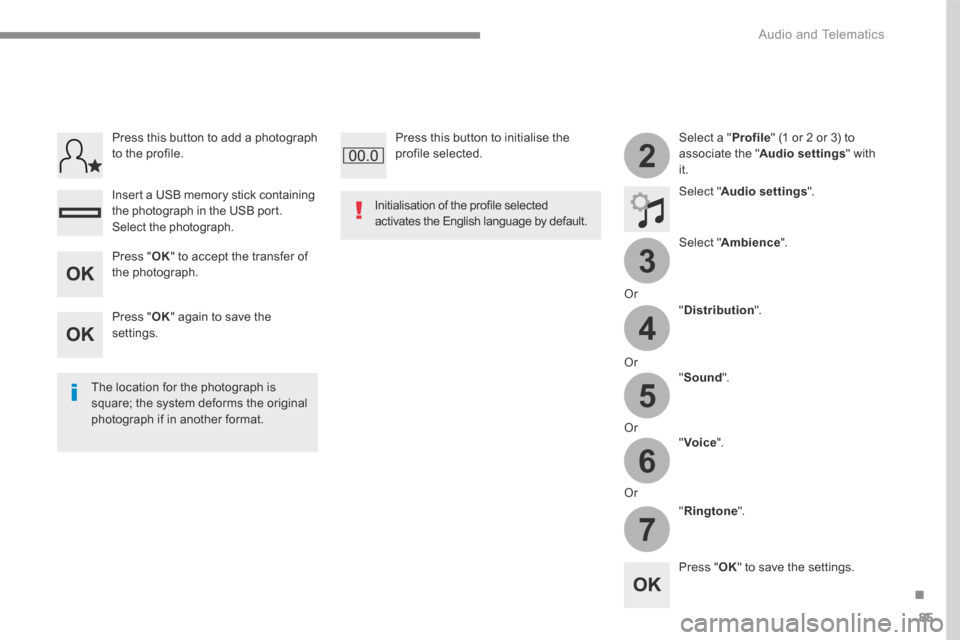
Select a " Profile " (1 or 2 or 3) to associate the " Audio settings " with it.
Select " Audio settings ".
Select " Ambience ".
Or
" Distribution ".
Or " Sound ".
Or " Voice ".
Or
" Ringtone ".
The location for the photograph is square; the system deforms the original photograph if in another format.
Initialisation of the profile selected activates the English language by default.
Press " OK " to save the settings.
Press " OK " to accept the transfer of the photograph.
Press " OK " again to save the settings.
Press this button to add a photograph to the profile.
Insert a USB memory stick containing the photograph in the USB port.
Select the photograph.
Press this button to initialise the profile selected.