steering wheel Citroen GRAND C4 PICASSO 2017 2.G Owner's Guide
[x] Cancel search | Manufacturer: CITROEN, Model Year: 2017, Model line: GRAND C4 PICASSO, Model: Citroen GRAND C4 PICASSO 2017 2.GPages: 527, PDF Size: 12.91 MB
Page 341 of 527
339
C4-Picasso-II_en_Chap10_index-alpha_ed02-2016
Sidelamps .............211, 215, 304, 306, 308, 310
Side repeater .............................. ..................308
Snow chains
.................................................. 26
5
Socket, 12 V accessory
................. 1
07, 111, 114
Socket, JACK
...............................
.................111
Sockets, audio
.............................................. 111
Spe
ed limiter
...............................
.. 151, 154, 156
Speed limit recognition
................................. 15
2
Spotlamps, side
....................................2
19, 308
Stability control (ESC) ...................................233
Starting the vehicle
....................... 1
27, 129, 130
Starting using another battery
.............. 1
30, 319
Stay, bonnet
...............................
...................2 74
Steering wheel, adjustment
............................93
St
op
...............
.................................................. 28
Stopping the vehicle
..................... 1
27, 129, 130
Stop & Start
........................ 2
6, 51, 95, 104, 148,
149, 262, 274, 280, 318, 321
Stop (warning lamp)
........................................ 28
St
orage
................
.......................................... 108
Storage boxes
....................................... 11
2 , 114
Storing driving positions
.................................79
S
un visor
....................................................... 10
8
Sun visor flap
...............................
.................108
Synchronising the remote control
...................59
T
Tables of engines ......................... 3 25, 329, 330
Tables of fuses .............................................. 3
13
Tables of weights
.......................... 3
27, 331, 332
Tailgate
................
......................................64, 66
W
V
Warning and indicator lamps .............. 2 2, 27, 28
Warning lamp, braking system .......................3
0
Warning lamp, Diesel engine pre-heater
.......25
W
arning lamps
....................................2
5, 28, 31
Warning lamp, SCR emissions control system
................
........................................... 37
Warning lamp, Service.................................... 29
Warning lamp, Stop
........................................ 28
W
ashing (advice) ........................................... 281
Weights
...............
.......................... 327, 331, 332
Wheel, spare
......................................... 29
4-297
Window controls
............................................. 74
W
iper blades (changing)
....................... 2
27, 271
Wiper, rear ..................................................... 224
Wipers
............................................ 2
6, 223, 226
Wipers, automatic rain sensitive
.......... 2
23, 226
Under-inflation (detection)
............................ 20
5
Unlocking
..............................
....................53, 55
Unlocking from the inside
............................... 61
U
nlocking the boot
.......................................... 53
U
nlocking the doors
........................................ 61
U
pdating the date
............................................ 52
U
pdating the time
............................................ 52
U
Tank, AdBlue® additive .................................28 2
Tank, fuel
............................... ................262, 263
Technical data
....................... 325
, 327, 329-332
Temperature, coolant
...................................... 41
T
hree flashes (direction indicators)
..............2
20
Time (setting)
..............................
....................52
To o l s
................
...................................... 294-297
To r c h
..............................
............................... 12 2
Total distance recorder
................................... 46
T
ouch screen ............................................. 11, 13
Touch screen tablet
.................................. 1
1, 13
To w b a r
................
...................................126, 269
Towed loads
.................................. 3
27, 331, 332
Towing another vehicle
................................. 32
2
Traction control (ASR)
................... 3
2, 233, 235
Tr a i l e r
...............
.....................................126, 269
Triangle, warning ........................................... 286
Trip computer
............................................ 4
9 - 51
Trip distance recorder
..................................... 46
T
y r e s
..............................................................
.... 9
Tyre under-inflation detection
...............
................35, 205, 207, 293 Ventilation ..............................
.........9, 94, 95, 97
Visibility ............................... ..........................104
Vision 360
.....................................................19
5
.
Alphabetical index
Page 362 of 527
9
.
Audio and Telematics
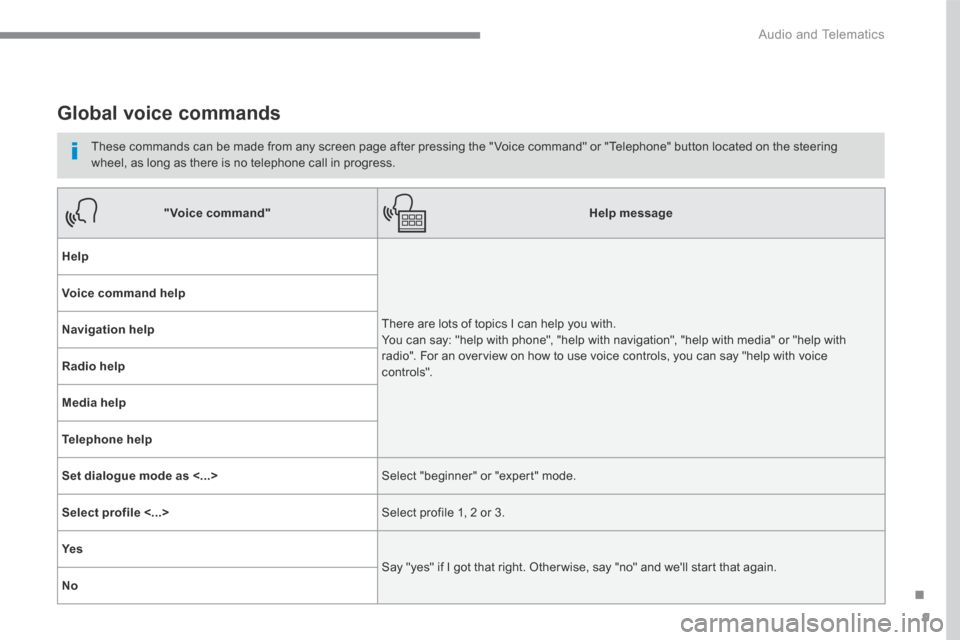
Global voice commands
These commands can be made from any screen page after pressing the " Voice command" or "Telephone" button located on the steering wheel, as long as there is no telephone call in progress.
"Voice command"Help message
Help
There are lots of topics I can help you with. You can say: "help with phone", "help with navigation", "help with media" or "help with radio". For an overview on how to use voice controls, you can say "help with voice c ont ro ls".
Voice command help
Navigation help
Radio help
Media help
Telephone help
Set dialogue mode as <...> Select "beginner" or "expert" mode.
Select profile <...> Select profile 1, 2 or 3.
Ye s
Say "yes" if I got that right. Other wise, say "no" and we'll start that again.
No
Page 363 of 527
10
Audio and Telematics
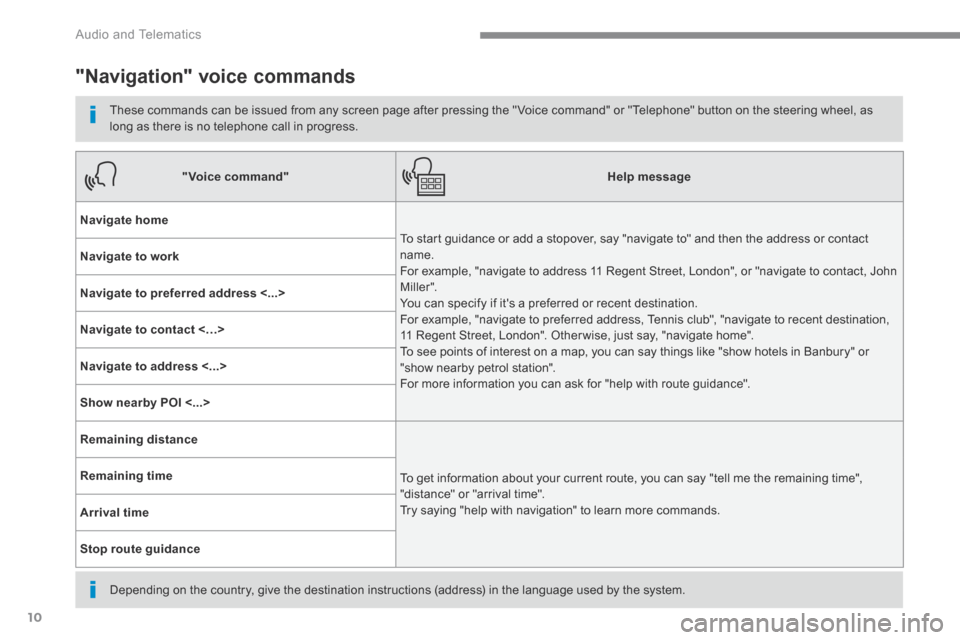
"Navigation" voice commands
These commands can be issued from any screen page after pressing the " Voice command" or "Telephone" button on the steering wheel, as long as there is no telephone call in progress.
Depending on the country, give the destination instructions (address) in the language used by the system.
"Voice command"Help message
Navigate home
To start guidance or add a stopover, say "navigate to" and then the address or contact name. For example, "navigate to address 11 Regent Street, London", or "navigate to contact, John M iller ". You can specify if it's a preferred or recent destination. For example, "navigate to preferred address, Tennis club", "navigate to recent destination, 11 Regent Street, London". Other wise, just say, "navigate home". To see points of interest on a map, you can say things like "show hotels in Banbury" or "show nearby petrol station". For more information you can ask for "help with route guidance".
Navigate to work
Navigate to preferred address <...>
Navigate to contact <…>
Navigate to address <...>
Show nearby POI <...>
Remaining distance
To get information about your current route, you can say "tell me the remaining time", "distance" or "arrival time". Try saying "help with navigation" to learn more commands.
Remaining time
Arrival time
Stop route guidance
Page 364 of 527
11
.
Audio and Telematics
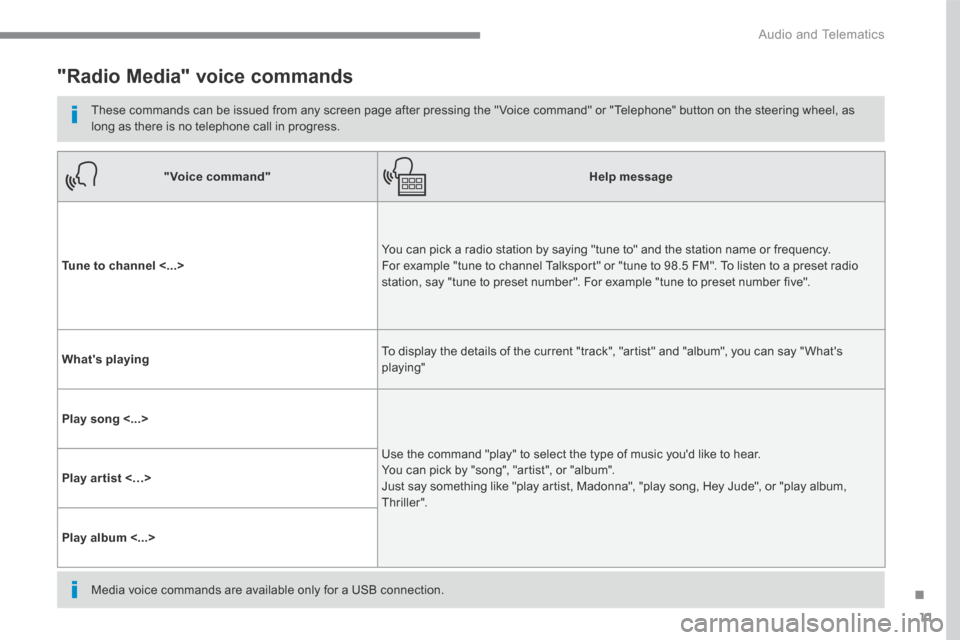
"Radio Media" voice commands
These commands can be issued from any screen page after pressing the " Voice command" or "Telephone" button on the steering wheel, as long as there is no telephone call in progress.
"Voice command"Help message
Tune to channel <...> You can pick a radio station by saying "tune to" and the station name or frequency. For example "tune to channel Talksport" or "tune to 98.5 FM". To listen to a preset radio station, say "tune to preset number". For example "tune to preset number five".
What's playing To display the details of the current "track", "artist" and "album", you can say " What's playing"
Play song <...>
Use the command "play" to select the type of music you'd like to hear. You can pick by "song", "artist", or "album". Just say something like "play artist, Madonna", "play song, Hey Jude", or "play album, T hr iller ".
Play ar tist <…>
Play album <...>
Media voice commands are available only for a USB connection.
Page 365 of 527
12
Audio and Telematics
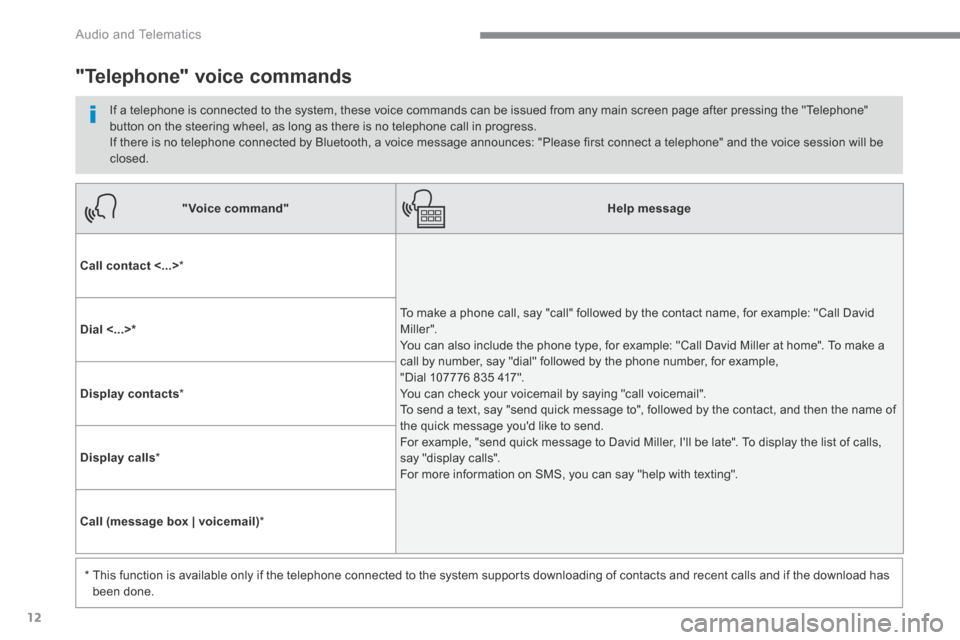
"Voice command"Help message
Call contact <...> *
To make a phone call, say "call" followed by the contact name, for example: "Call David M iller ". You can also include the phone type, for example: "Call David Miller at home". To make a call by number, say "dial" followed by the phone number, for example, "Dial 107776 835 417". You can check your voicemail by saying "call voicemail". To send a text, say "send quick message to", followed by the contact, and then the name of the quick message you'd like to send. For example, "send quick message to David Miller, I'll be late". To display the list of calls, say "display calls". For more information on SMS, you can say "help with texting".
Dial <...> *
Display contacts *
Display calls *
Call (message box | voicemail) *
* This function is available only if the telephone connected to the system supports downloading of contacts and recent calls and if the download has
been done.
"Telephone" voice commands
If a telephone is connected to the system, these voice commands can be issued from any main screen page after pressing the "Telephone" button on the steering wheel, as long as there is no telephone call in progress. If there is no telephone connected by Bluetooth, a voice message announces: "Please first connect a telephone" and the voice session will be closed.
Page 366 of 527
13
.
Audio and Telematics
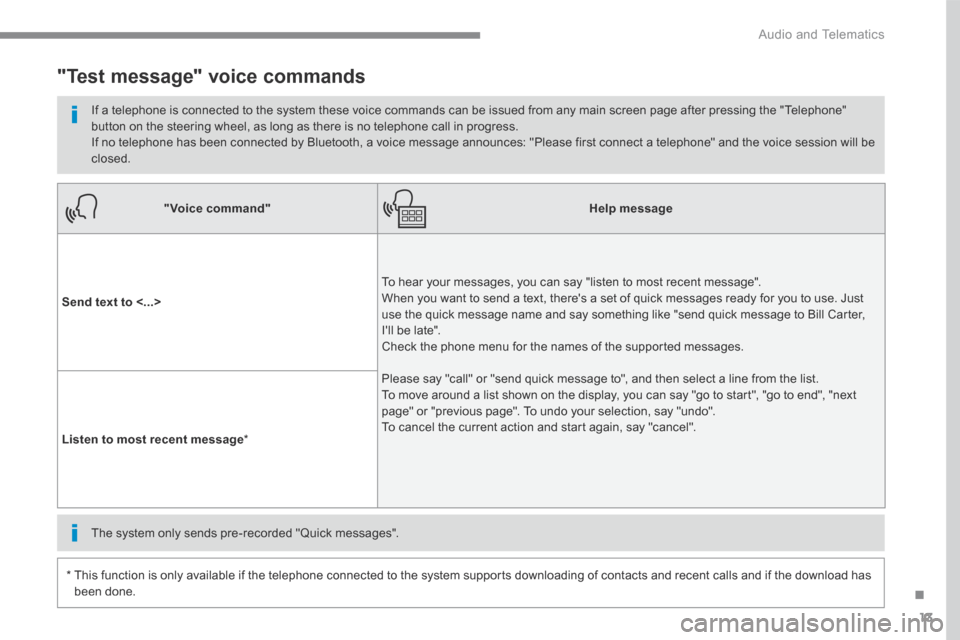
"Voice command"Help message
Send text to <...>
To hear your messages, you can say "listen to most recent message". When you want to send a text, there's a set of quick messages ready for you to use. Just use the quick message name and say something like "send quick message to Bill Carter, I'll be late". Check the phone menu for the names of the supported messages.
Please say "call" or "send quick message to", and then select a line from the list. To move around a list shown on the display, you can say "go to start", "go to end", "next page" or "previous page". To undo your selection, say "undo". To cancel the current action and start again, say "cancel". Listen to most recent message *
"Test message" voice commands
If a telephone is connected to the system these voice commands can be issued from any main screen page after pressing the "Telephone" button on the steering wheel, as long as there is no telephone call in progress. If no telephone has been connected by Bluetooth, a voice message announces: "Please first connect a telephone" and the voice session will be closed.
* This function is only available if the telephone connected to the system supports downloading of contacts and recent calls and if the download has
been done.
The system only sends pre-recorded "Quick messages".
Page 503 of 527
150
Audio and Telematics
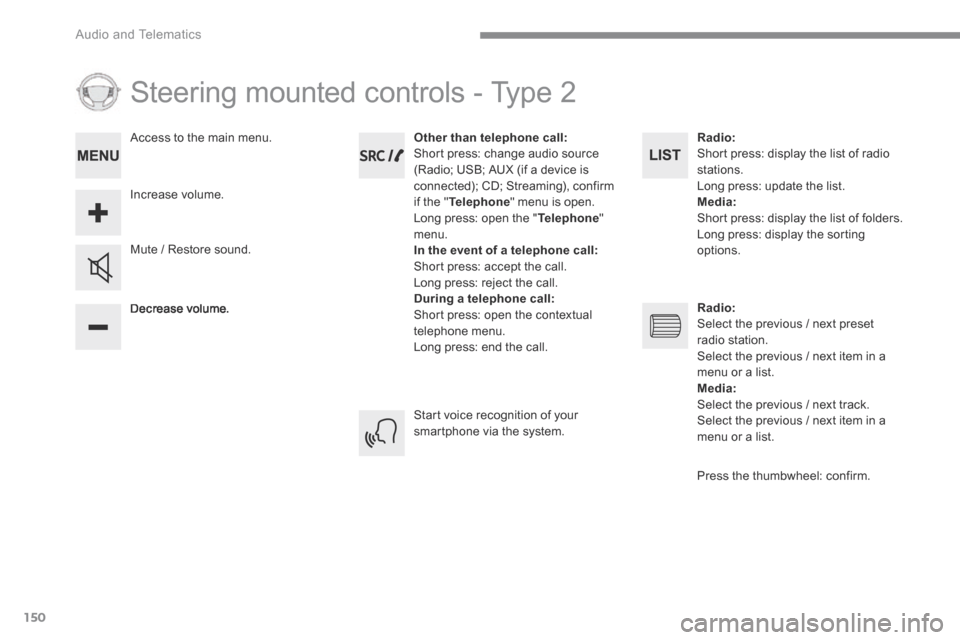
Steering mounted controls - Type 2
Decrease volume.
Mute / Restore sound.
Other than telephone call: Short press: change audio source (Radio; USB; AUX (if a device is connected); CD; Streaming), confirm if the " Telephone " menu is open. Long press: open the " Telephone " menu. In the event of a telephone call: Short press: accept the call. Long press: reject the call. During a telephone call: Short press: open the contextual telephone menu. Long press: end the call.
Increase volume.
Access to the main menu.
Start voice recognition of your smartphone via the system.
Radio: Short press: display the list of radio stations. Long press: update the list. Media: Short press: display the list of folders. Long press: display the sorting options.
Radio: Select the previous / next preset radio station. Select the previous / next item in a menu or a list. Media: Select the previous / next track. Select the previous / next item in a
menu or a list.
Press the thumbwheel: confirm.
Page 516 of 527
163
.
Audio and Telematics
Transversal-Citroen_en_Chap03_RD6_ed01-2016
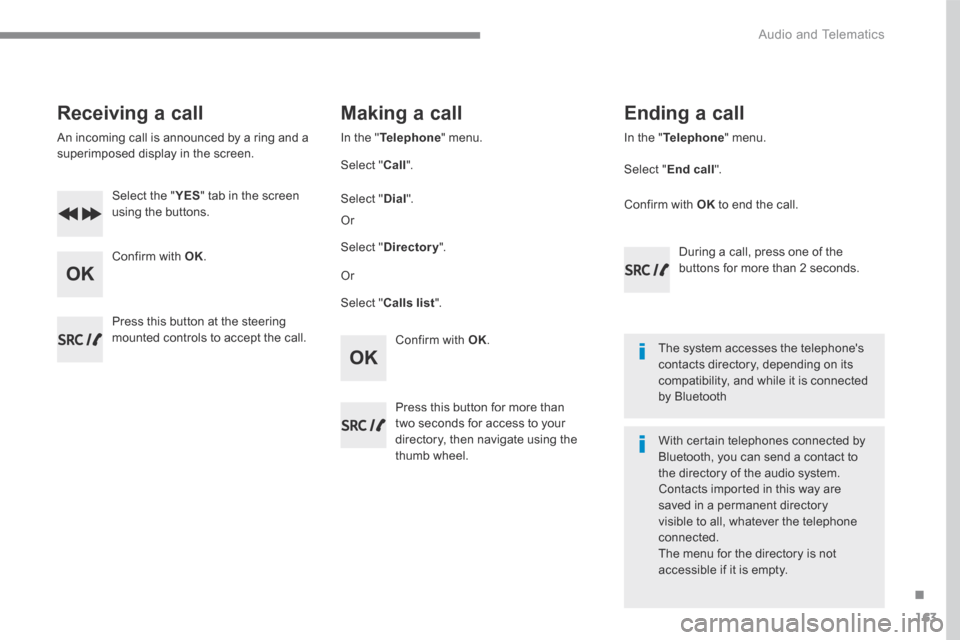
Receiving a call
An incoming call is announced by a ring and a superimposed display in the screen.
Select the " YES Select the " YES Select the " " tab in the screen using the buttons.
Confirm with OK .
Confirm with OK .
Press this button at the steering mounted controls to accept the call.
Making a call
In the " Telephone " menu.
Select " Call ".
Select " Calls list ".
Select " Dial ".
Or
Or
Select " Directory ".
Press this button for more than two seconds for access to your directory, then navigate using the thumb wheel.
In the " Telephone " menu.
Select " End call ".
Ending a call
During a call, press one of the buttons for more than 2 seconds.
Confirm with OK to end the call.
The system accesses the telephone's contacts directory, depending on its compatibility, and while it is connected by Bluetooth
With certain telephones connected by Bluetooth, you can send a contact to the directory of the audio system. Contacts imported in this way are saved in a permanent directory visible to all, whatever the telephone
connected. The menu for the directory is not accessible if it is empty.