ESP DODGE AVENGER 2008 User Guide
[x] Cancel search | Manufacturer: DODGE, Model Year: 2008, Model line: AVENGER, Model: DODGE AVENGER 2008Pages: 467, PDF Size: 7.16 MB
Page 151 of 467
TROUBLESHOOTING TIPS
If you are having trouble programming HomeLink t , here
are some of the most common solutions:
² Replace the battery in the original transmitter.
² Press the ªLearnº button on the Garage Door Opener
to complete the training for a Rolling Code.
² Did you unplug the device for training, and remember
to plug it back in?
If you have any problems, or require assistance, please
call toll-free 1±800±355±3515 or, on the Internet at
www.HomeLink.com for information or assistance. GENERAL INFORMATION
This device complies with FCC rules Part 15 and Industry
Canada RSS-210. Operation is subject to the following
two conditions:
1. This device may not cause harmful interference.
2. This device must accept any interference that may be
received including interference that may cause undesired
operation.
NOTE: The transmitter has been tested and it complies
with FCC and IC rules. Changes or modifications not
expressly approved by the party responsible for compli-
ance could void the user 's authority to operate the
device.
The term IC before the certification/registration number
only signifies that Industry Canada technical specifica-
tions were met. UNDERSTANDING THE FEATURES OF YOUR VEHICLE 149
3
Page 177 of 467
Dual Trip Odometer Ð If Equipped
Press and release this button to change the display from
odometer to ªTrip A.º Press and release it a second time
to change the display to ªTrip B.º Press and release it a
third time to change the display back to the odometer.
To reset the trip odometer, first display the trip mileage
that you want to reset, ªTrip Aº or ªTrip B.º Then push
and hold the button (approximately 2 seconds) until the
display resets to 0. The odometer must be in Trip Mode to
reset the trip odometer.
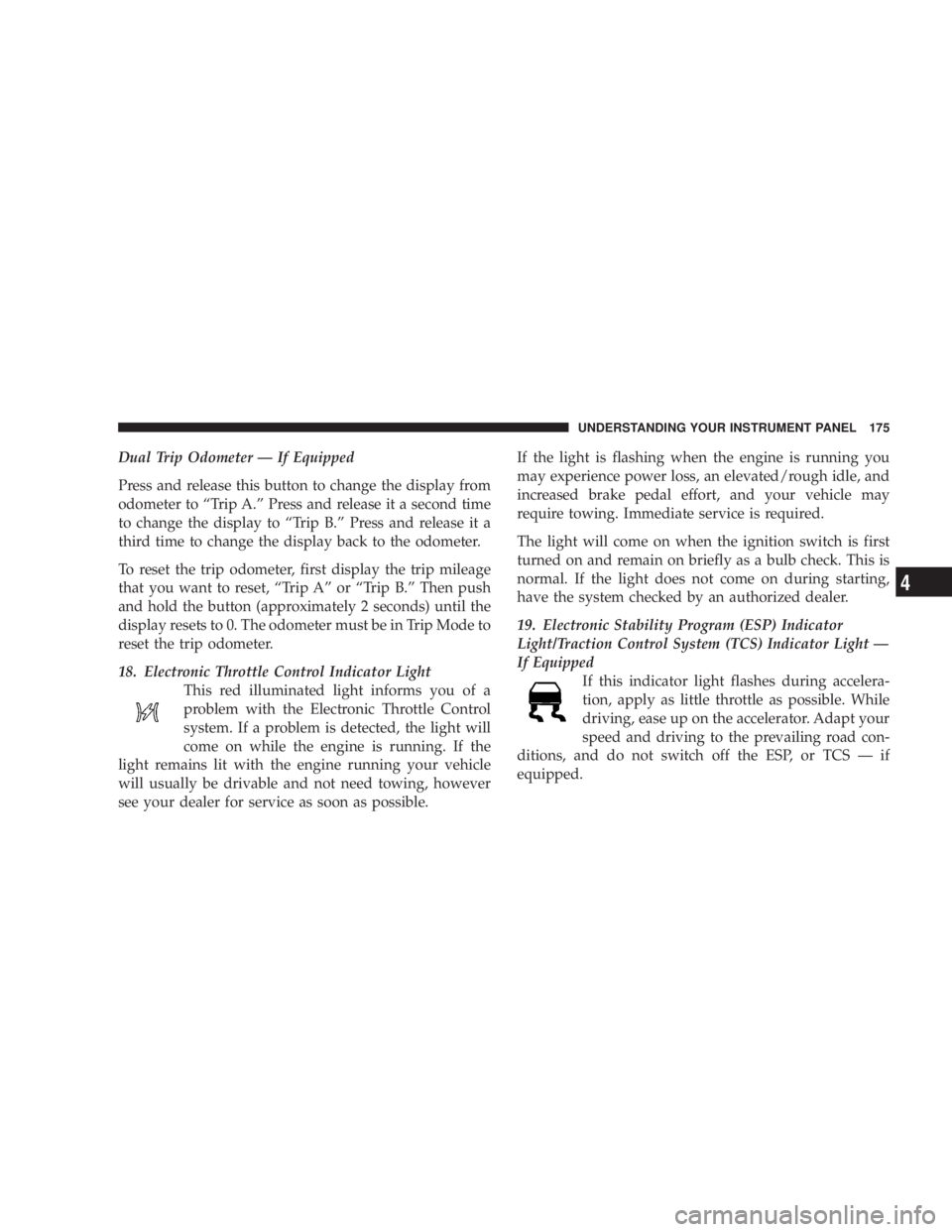
18. Electronic Throttle Control Indicator Light
This red illuminated light informs you of a
problem with the Electronic Throttle Control
system. If a problem is detected, the light will
come on while the engine is running. If the
light remains lit with the engine running your vehicle
will usually be drivable and not need towing, however
see your dealer for service as soon as possible. If the light is flashing when the engine is running you
may experience power loss, an elevated/rough idle, and
increased brake pedal effort, and your vehicle may
require towing. Immediate service is required.
The light will come on when the ignition switch is first
turned on and remain on briefly as a bulb check. This is
normal. If the light does not come on during starting,
have the system checked by an authorized dealer.
19. Electronic Stability Program (ESP) Indicator
Light/Traction Control System (TCS) Indicator Light Ð
If Equipped
If this indicator light flashes during accelera-
tion, apply as little throttle as possible. While
driving, ease up on the accelerator. Adapt your
speed and driving to the prevailing road con-
ditions, and do not switch off the ESP, or TCS Ð if
equipped. UNDERSTANDING YOUR INSTRUMENT PANEL 175
4
Page 178 of 467
20. Turn Signal Indicators
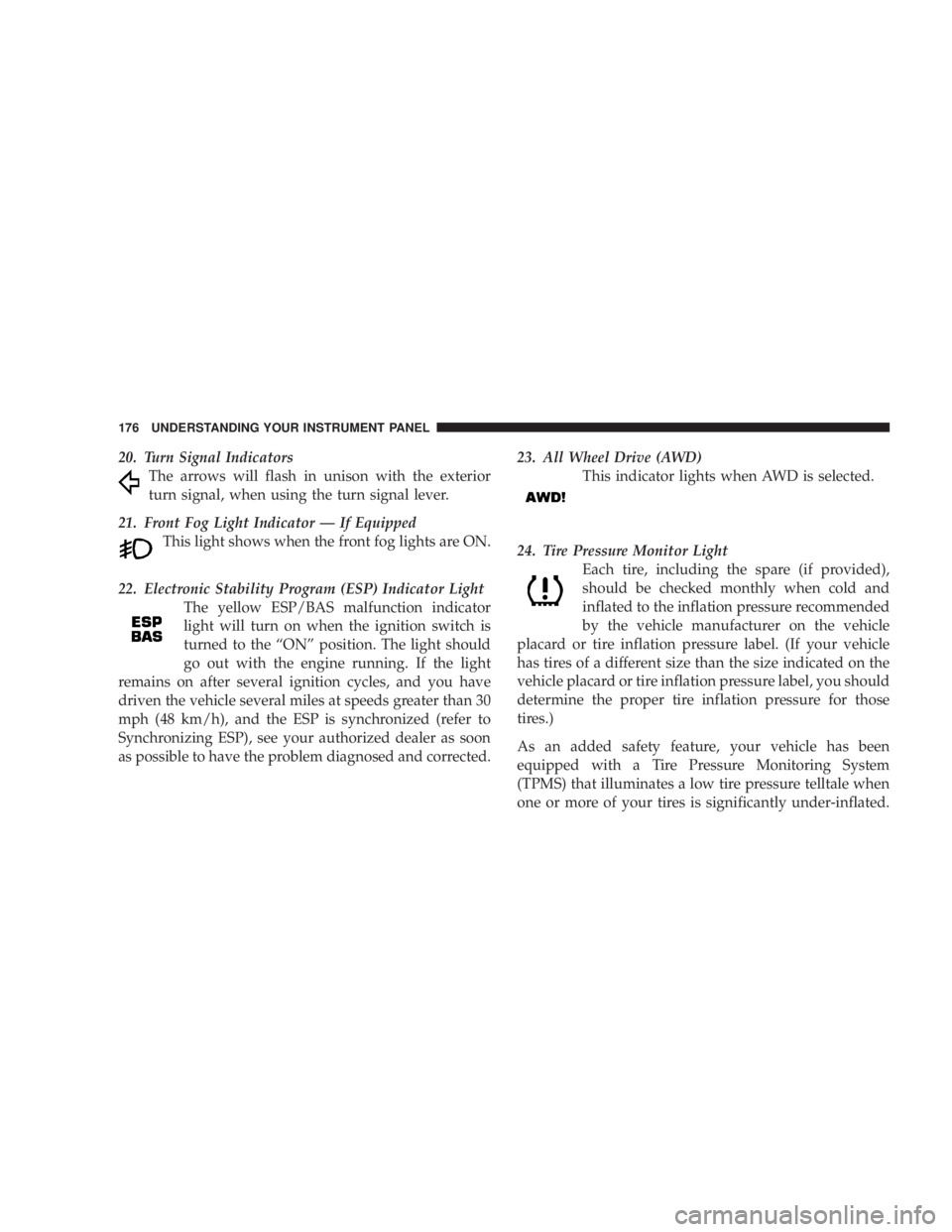
The arrows will flash in unison with the exterior
turn signal, when using the turn signal lever.
21. Front Fog Light Indicator Ð If Equipped
This light shows when the front fog lights are ON.
22. Electronic Stability Program (ESP) Indicator Light
The yellow ESP/BAS malfunction indicator
light will turn on when the ignition switch is
turned to the ªONº position. The light should
go out with the engine running. If the light
remains on after several ignition cycles, and you have
driven the vehicle several miles at speeds greater than 30
mph (48 km/h), and the ESP is synchronized (refer to
Synchronizing ESP), see your authorized dealer as soon
as possible to have the problem diagnosed and corrected. 23. All Wheel Drive (AWD)
This indicator lights when AWD is selected.
24. Tire Pressure Monitor Light
Each tire, including the spare (if provided),
should be checked monthly when cold and
inflated to the inflation pressure recommended
by the vehicle manufacturer on the vehicle
placard or tire inflation pressure label. (If your vehicle
has tires of a different size than the size indicated on the
vehicle placard or tire inflation pressure label, you should
determine the proper tire inflation pressure for those
tires.)
As an added safety feature, your vehicle has been
equipped with a Tire Pressure Monitoring System
(TPMS) that illuminates a low tire pressure telltale when
one or more of your tires is significantly under-inflated.176 UNDERSTANDING YOUR INSTRUMENT PANEL
Page 179 of 467
Accordingly, when the low tire pressure telltale illumi-
nates, you should stop and check your tires as soon as
possible, and inflate them to the proper pressure. Driving
on a significantly under-inflated tire causes the tire to
overheat and can lead to tire failure. Under-inflation also
reduces fuel efficiency and tire tread life, and may affect
the vehicle's handling and stopping ability.
NOTE: Please note that the TPMS is not a substitute for
proper tire maintenance, and it is the driver 's responsi-
bility to maintain correct tire pressure, even if under-
inflation has not reached the level to trigger illumination
of the TPMS low tire pressure telltale.
Your vehicle has also been equipped with a TPMS
malfunction indicator to indicate when the system is not
operating properly. The TPMS malfunction indicator is
combined with the low tire pressure telltale. When the
system detects a malfunction, the telltale will flash for
approximately one minute and then remain continuously illuminated. This sequence will continue upon subse-
quent vehicle start-ups as long as the malfunction exists.
When the malfunction indicator is illuminated, the sys-
tem may not be able to detect or signal low tire pressure
as intended. TPMS malfunctions may occur for a variety
of reasons, including the installation of replacement or
alternate tires or wheels on the vehicle that prevent the
TPMS from functioning properly. Always check the
TPMS malfunction telltale after replacing one or more
tires or wheels on your vehicle to ensure that the replace-
ment or alternate tires and wheels allow the TPMS to
continue to function properly. UNDERSTANDING YOUR INSTRUMENT PANEL 177
4
Page 190 of 467
1. Turn the ignition switch to the ON position. Leave the
selector lever in PARK.
2. Press and release the MENU button until ªPersonal
Settingsº displays in the EVIC.
3. Press and release the STEP button until ªCompass
Varianceº and the current Variance Value displays in the
EVIC.
4. Press and release the RESET button to increment the
Variance Value by one, (one button press per update),
until the proper variance zone is selected according to the
map.
NOTE: The Variance Values will wrap around from 15
back to 1. The Default Variance is Zone 8.
5. Press and release the STEP button to exit. Press the
STEP button if you wish to calibrate the compass manu-
ally (Refer to ªManual Compass Calibrationº later in this
section). EVIC PERSONAL SETTINGS (CUSTOMER
PROGRAMMABLE FEATURES)
Personal settings allows the driver to set and recall
features when the automatic transaxle is in PARK.
Press and release the MENU button until ªPersonal
Settingsº displays in the EVIC.
Press and release the STEP button to display the follow-
ing programmable features:
Language
When in this display you may select different languages
for all display nomenclature, including the trip functions.
Pressing the RESET button while in this display selects
English, Espanol, or Francais depending on availability.
As you continue, the displayed information will be
shown in the selected language.188 UNDERSTANDING YOUR INSTRUMENT PANEL
Page 200 of 467
the SET button twice and SET 2 will show in the display
window. Each button can be set for SET 1 and SET 2 in
both AM and FM. This allows a total of 12 AM and 12 FM
stations to be stored into pushbutton memory. The sta-
tions stored in SET 2 memory can be selected by pressing
the pushbutton twice.
Every time a preset button is used, a corresponding
button number will display.
Button s1-6
These buttons tune the radio to the stations that you
commit to pushbutton memory (12 AM and 12 FM
stations).
DISC Button
Pressing the DISC button will allow you to switch from
AM/FM modes to Disc modes. Operation Instructions - CD MODE for CD and
MP3 Audio Play
NOTE: The ignition switch must be in the ON or ACC
position to operate the radio.
NOTE: This radio is capable of playing compact discs
(CD), recordable compact discs (CD-R), rewritable com-
pact discs (CD-RW), compact discs with MP3 tracks and
multisession compact discs with CD and MP3 tracks.
Inserting Compact Disc(s)
Gently insert one CD into the CD player with the CD
label facing up. The CD will automatically be pulled into
the CD player and the CD icon will illuminate on the
radio display. If a CD does not go into the slot more than
1.0 in (2.5 cm), a disc may already be loaded and must be
ejected before a new disc can be loaded.
If you insert a disc with the ignition ON and the radio
ON, the unit will switch from radio to CD mode and198 UNDERSTANDING YOUR INSTRUMENT PANEL
Page 215 of 467
Every time a preset button is used, a corresponding
button number will display.
Button s1-6
These buttons tune the radio to the stations that you
commit to pushbutton memory {12 AM, 12 FM, and 12
Satellite (if equipped) stations}.
DISC Button
Pressing the DISC button will allow you to switch from
AM/FM modes to Disc modes.
Operation Instructions - (DISC MODE for CD and
MP3/WMA Audio Play, DVD-VIDEO)
The radio DVD player and many DVD discs are coded by
geographic region. These region codes must match in
order for the disc to play. If the region code for the DVD
disc does not match the region code for the radio DVD
player, it will not play the disc. Customers may take their
vehicle to an authorized dealer to change the region code
of the player a maximum of five times. CAUTION!The radio may shut down during extremely hot
conditions. When this occurs, the radio will indicate
ªDisc Hotº and shut off until a safe temperature is
reached. This shutdown is necessary to protect the
optics of the DVD player and other radio internal
components.
NOTE: The ignition switch must be in the ON or ACC
position to operate the radio.
LOAD Button Ð Loading Compact Disc(s)
Press the LOAD button and the pushbutton with the
corresponding number (1-6) where the CD is being
loaded. The radio will display PLEASE WAIT and
prompt when to INSERT DISC. After the radio displays
9 INSERT DISC, 9 insert the CD into the player. UNDERSTANDING YOUR INSTRUMENT PANEL 213
4
Page 216 of 467
Radio display will show 9 LOADING DISC 9 when the disc
is loading and ªREADING DISCº when the radio is
reading the disc.
CAUTION!This CD player will accept 4±3/4 in (12 cm) discs only.
The use of other sized discs may damage the CD
player mechanism.
Eject Button Ð Ejecting Compact Disc(s)
Press the EJECT button and the pushbutton
with the corresponding number (1-6) where the
CD was loaded and the disc will unload and
move to the entrance for easy removal. Radio
display will show 9 EJECTING DISC 9 when the disc is
being ejected and prompt the user to remove the disc. Press and hold the EJECT button for five seconds and all
CDs will be ejected from the radio.
The disc can be ejected with the radio and ignition OFF.
SEEK Button (CD MODE)
Press the right SEEK button for the next selection on the
CD. Press the left SEEK button to return to the beginning
of the current selection, or return to the beginning of the
previous selection if the CD is within the first second of
the current selection. Pressing and holding the SEEK
button will allow you to scroll through the tracks faster in
CD, MP3/MWA modes.
SCAN Button (CD MODE)
Press the SCAN button to scan through each track on the
CD currently playing.
TIME Button (CD MODE)
Press this button to change the display from a large CD
playing time display to a small CD playing time display.214 UNDERSTANDING YOUR INSTRUMENT PANEL
Page 225 of 467
Touch the screen where the words ªShow Time if Radio is
Offº are displayed to change the current setting.
Changing the Time Zone
1. Turn on the multimedia system.
2. Touch the screen where the time is displayed. The
clock setting menu will appear on the screen.
3. Touch the screen where the words ªSet Time Zoneº are
displayed. The time zone selection menu will appear on
the screen.
4. Select a time zone by touching the screen where your
selection appears. If you do not see a time zone that you
want to select, touch the screen where the word ªPageº is
displayed to view additional time zones in the menu.
5. Touch the screen where the word ªSaveº is displayed. SALES CODE RER Ð MULTIMEDIA SYSTEM Ð IF
EQUIPPED
NOTE: The sales code is located on the lower right side
of the unit's faceplate.
The RER Multimedia system contains a radio, Sirius
Satellite Radio player, navigation system, CD/DVD
player, USB port, 20-gigabyte hard drive (HDD), and the
UConnect t Hands-Free Bluetooth t cellular system.
NOTE: If your vehicle is not equipped with UConnect t ,
the unit will respond with a ªNot Equipped With
UConnect t º message when selecting controls related to
this feature.
A 6.5 in (16.5 cm) touch screen allows easy menu selec-
tion, while the Advanced Voice Dialog System recognizes
more than 1,000 words for audio, navigation, entertain-
ment, and hands-free mobile phone use. UNDERSTANDING YOUR INSTRUMENT PANEL 223
4
Page 238 of 467
You may add a second channel to each pushbutton by
repeating the above procedure with this exception: Press
the SET button twice and SET 2 will show in the display
window. Each button can be set for SET 1 and SET 2. This
allows a total of 12 Satellite channels to be stored into
pushbutton memory. The channels stored in SET 2
memory can be selected by pressing the pushbutton
twice.
Every time a preset button is used, a corresponding
button number will display.
Button s1-6
These buttons tune the radio to the channels that you
commit to pushbutton memory (12 Satellite stations). Operating Instructions - Hands-Free Phone (If
Equipped)
Refer to ªHands-Free Communication (UConnect t )º in
Section 3.
Operating Instructions - Video Entertainment
System (VES T ) (If Equipped)
Refer to separate ªVideo Entertainment System (VES t )
Guide.º
REMOTE SOUND SYSTEM CONTROLS Ð IF
EQUIPPED
The remote sound system controls are located on the rear
surface of the steering wheel. The left- and right-hand
controls are rocker-type switches with a push-button in
the center of each switch. Reach behind the steering
wheel to access the switches.236 UNDERSTANDING YOUR INSTRUMENT PANEL