buttons DODGE AVENGER 2008 User Guide
[x] Cancel search | Manufacturer: DODGE, Model Year: 2008, Model line: AVENGER, Model: DODGE AVENGER 2008Pages: 467, PDF Size: 7.16 MB
Page 150 of 467
GATE OPERATOR/CANADIAN PROGRAMMING
Canadian radio frequency laws require transmitter sig-
nals to time-out (or quit) after several seconds of trans-
mission ± which may not be long enough for HomeLink t
to pick up the signal during programming. Similar to this
Canadian law, some U.S. gate operators are designed to
time-out in the same manner.
It may be helpful to unplug the device during the cycling
process to prevent possible overheating of the garage
door or gate motor.
If you are having difficulties programming a garage door
opener or a gate operator, replace ªProgramming
HomeLink t º Step 3, with the following:
3. Continue to press and hold the HomeLink t button
while you press and release - every two seconds
(ªcycleº) your hand-held transmitter until HomeLink t has successfully accepted the frequency signal. The
indicator light will flash slowly and then rapidly when
fully trained.
If you unplugged the device for training, plug it back in
at this time.
Then proceed with Step 4 under ªProgramming
HomeLink t ,º earlier in this section.
SECURITY
It is advised to erase all channels before you sell or turn
in your vehicle.
To do this, press and hold the two outside buttons for 20
seconds until the red indicator flashes. Note that all
channels will be erased. Individual channels cannot be
erased.
The HomeLink t Universal Transceiver is disabled when
the Vehicle Security Alarm is active.148 UNDERSTANDING THE FEATURES OF YOUR VEHICLE
Page 167 of 467
m Universal Consumer Interface (UCI) Ð
If Equipped ...........................227
N Connecting The iPod t Device ............227
N Controlling The iPod t Using Radio Buttons . . . 228
N Play Mode ..........................228
N List Or Browse Mode ..................230
m Satellite Radio Ð If Equipped
(REN/REQ/RER/RES/REU Radios Only) .....231
N System Activation .....................231
N Electronic Serial Number/Sirius Identification
Number (ESN/SID) ....................232
N Selecting Satellite Mode .................233
N Satellite Antenna ......................233
N Reception Quality .....................233 N Operating Instructions - Satellite Mode ......233
N Operating Instructions - Hands-Free Phone
(If Equipped) ........................236
N Operating Instructions - Video Entertainment
System (VES t ) (If Equipped) .............236
m Remote Sound System Controls Ð If Equipped . . 236
N Operation With RES / REQ AM/FM Stereo
Radio With CD Player ..................237
N Operation With RER Multi-Media System ....238
m Video Entertainment System (VES) t Ð
If Equipped ...........................239
m Radio Operation And Cellular Phones ........241
m CD/DVD Maintenance ...................241
m Climate Controls .......................242 UNDERSTANDING YOUR INSTRUMENT PANEL 165
4
Page 184 of 467
The Electronic Vehicle Information Center (EVIC) fea-
tures a driver-interactive display. It is located in the lower
left part of the cluster below the fuel and engine tem-
perature gauges. The EVIC consists of the following:
² System status
² Vehicle information warning message displays
² Personal settings (customer programmable features)
² Compass heading display (N, S, E, W, NE, NW, SE,
SW)
² Outside temperature display (ÉF or ÉC)
² Trip computer functions
² Audio mode displays ± 12 preset Radio Stations or CD
Title and Track number when playing
² Tire Pressure Monitor System (TPMS) displays (if
equipped) The system allows the driver to select information by
pressing the following buttons on the instrument panel
switch bank:
Press and release the MENU button to advance
the display to Trip Functions or Personal set-
tings or to return to the default System status
display.
Press and release the STEP button to advance
the display through the various Trip Functions
or Personal settings.
Press and release the COMPASS button to
display the compass heading and the outside
temperature.MENU
Button
STEP
Button
COM-
PASS
Button182 UNDERSTANDING YOUR INSTRUMENT PANEL
Page 195 of 467
Power Switch/Volume Control (Rotary)
Push the On/Volume control knob to turn on the radio.
Push the On/Volume control knob a second time to turn
off the radio.
Electronic Volume Control
The electronic volume control turns continuously (360
degrees) in either direction without stopping. Turning the
On/Volume control knob to the right increases the vol-
ume and to the left decreases it.
When the audio system is turned on, the sound will be
set at the same volume level as last played.
SEEK Buttons
Press and release the SEEK buttons to search for the next
listenable station in AM/FM mode. Press the right switch
to seek up and the left switch to seek down. The radio
will remain tuned to the new station until you make
another selection. Holding either button will bypass
stations without stopping until you release it. SCAN Button
Pressing the SCAN button causes the tuner to search for
the next listenable station in AM or FM frequencies,
pausing for five seconds at each listenable station before
continuing to the next. To stop the search, press the
SCAN button a second time.
Voice Recognition System (Radio) Ð If Equipped
Refer to ªVoice Recognition System (VR)º in Section 3.
Voice Recognition Button (UConnect t Hands-Free
Phone) Ð If Equipped
Press this button to operate the Hands-Free Phone
(UConnect t ) feature (if equipped). Refer to ªHands-Free
Communication (UConnect t )º in Section 3.
If your vehicle is not equipped with or this feature is not
available on your vehicle, a ªNot Equipped With
UConnectº message will display on the radio screen. UNDERSTANDING YOUR INSTRUMENT PANEL 193
4
Page 197 of 467
INFO Button
Press the INFO button for an RDS station (one with call
letters displayed). The radio will return a Radio Text
message broadcast from an FM station (FM mode only).
RW/FF
Pressing the RW (Rewind) or FF (Fast Forward) buttons
causes the tuner to search for the next frequency in the
direction of the arrows. This feature operates in either
AM or FM frequencies.
TUNE Control
Turn the rotary Tune/Scroll control knob clockwise to
increase or counterclockwise to decrease the frequency.
Setting the Tone, Balance, and Fade
Push the rotary Tune/Scroll control knob and BASS will
display. Turn the Tune/Scroll control knob to the right or
left to increase or decrease the bass tones. Push the rotary Tune/Scroll control knob a second time
and MID will display. Turn the Tune/Scroll control knob
to the right or left to increase or decrease the mid-range
tones.
Push the rotary Tune/Scroll control knob a third time and
TREBLE will display. Turn the Tune/Scroll control knob
to the right or left to increase or decrease the treble tones.
Push the rotary Tune/Scroll control knob a fourth time
and BALANCE will display. Turn the Tune/Scroll control
knob to the right or left to adjust the sound level from the
right or left side speakers.
Push the rotary Tune/Scroll control knob a fifth time and
FADE will display. Turn the Tune/Scroll control knob to
the left or right to adjust the sound level between the
front and rear speakers.
Push the rotary Tune/Scroll control knob again to exit
setting tone, balance, and fade. UNDERSTANDING YOUR INSTRUMENT PANEL 195
4
Page 199 of 467
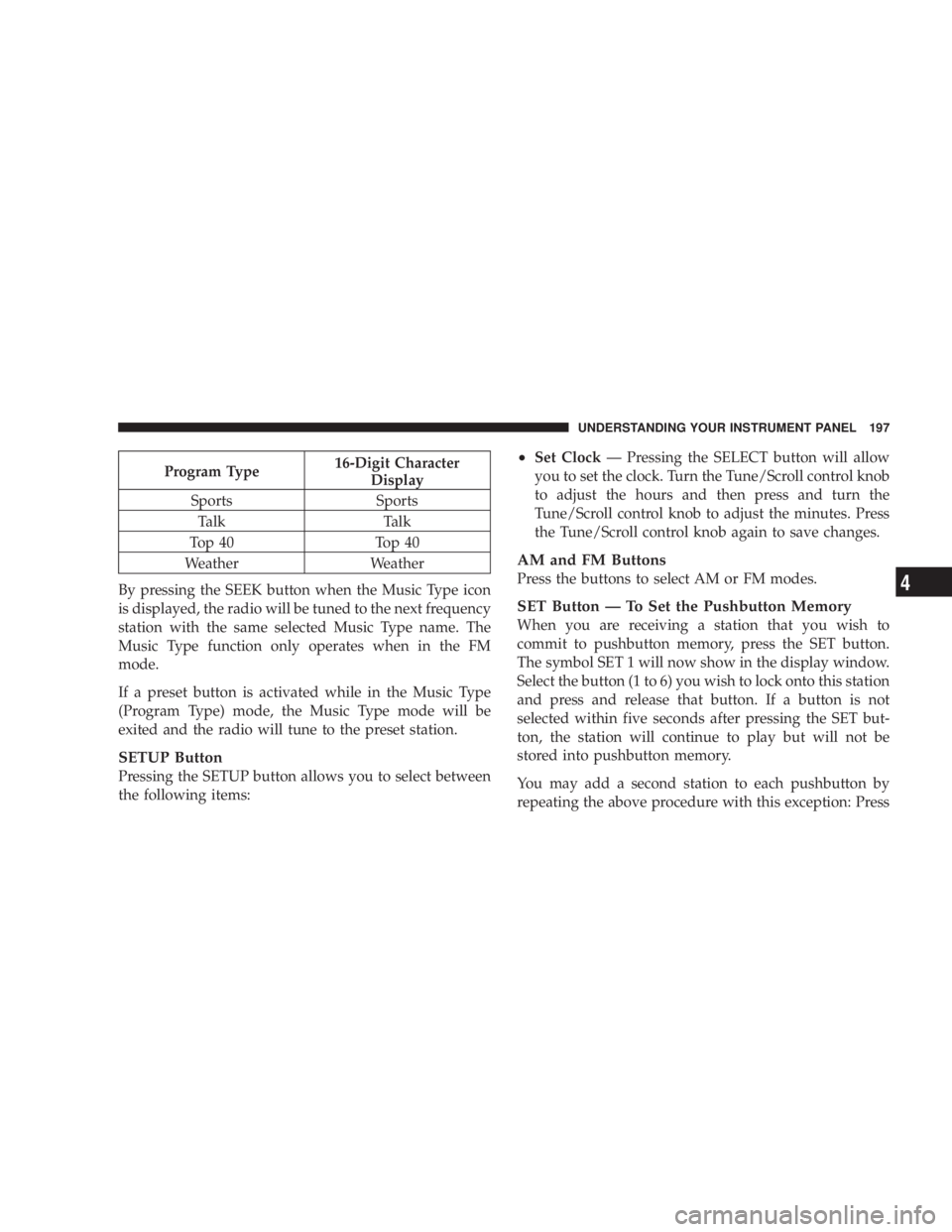
Program Type 16-Digit Character
Display
Sports Sports
Talk Talk
Top 40 Top 40
Weather Weather
By pressing the SEEK button when the Music Type icon
is displayed, the radio will be tuned to the next frequency
station with the same selected Music Type name. The
Music Type function only operates when in the FM
mode.
If a preset button is activated while in the Music Type
(Program Type) mode, the Music Type mode will be
exited and the radio will tune to the preset station.
SETUP Button
Pressing the SETUP button allows you to select between
the following items: ² Set Clock Ð Pressing the SELECT button will allow
you to set the clock. Turn the Tune/Scroll control knob
to adjust the hours and then press and turn the
Tune/Scroll control knob to adjust the minutes. Press
the Tune/Scroll control knob again to save changes.
AM and FM Buttons
Press the buttons to select AM or FM modes.
SET Button Ð To Set the Pushbutton Memory
When you are receiving a station that you wish to
commit to pushbutton memory, press the SET button.
The symbol SET 1 will now show in the display window.
Select the button (1 to 6) you wish to lock onto this station
and press and release that button. If a button is not
selected within five seconds after pressing the SET but-
ton, the station will continue to play but will not be
stored into pushbutton memory.
You may add a second station to each pushbutton by
repeating the above procedure with this exception: Press UNDERSTANDING YOUR INSTRUMENT PANEL 197
4
Page 200 of 467
the SET button twice and SET 2 will show in the display
window. Each button can be set for SET 1 and SET 2 in
both AM and FM. This allows a total of 12 AM and 12 FM
stations to be stored into pushbutton memory. The sta-
tions stored in SET 2 memory can be selected by pressing
the pushbutton twice.
Every time a preset button is used, a corresponding
button number will display.
Button s1-6
These buttons tune the radio to the stations that you
commit to pushbutton memory (12 AM and 12 FM
stations).
DISC Button
Pressing the DISC button will allow you to switch from
AM/FM modes to Disc modes. Operation Instructions - CD MODE for CD and
MP3 Audio Play
NOTE: The ignition switch must be in the ON or ACC
position to operate the radio.
NOTE: This radio is capable of playing compact discs
(CD), recordable compact discs (CD-R), rewritable com-
pact discs (CD-RW), compact discs with MP3 tracks and
multisession compact discs with CD and MP3 tracks.
Inserting Compact Disc(s)
Gently insert one CD into the CD player with the CD
label facing up. The CD will automatically be pulled into
the CD player and the CD icon will illuminate on the
radio display. If a CD does not go into the slot more than
1.0 in (2.5 cm), a disc may already be loaded and must be
ejected before a new disc can be loaded.
If you insert a disc with the ignition ON and the radio
ON, the unit will switch from radio to CD mode and198 UNDERSTANDING YOUR INSTRUMENT PANEL
Page 207 of 467
SALES CODE REQ Ð AM/FM STEREO RADIO
AND 6±DISC CD/DVD CHANGER (MP3/WMA AUX
JACK)
NOTE: The radio sales code is located on the lower right
side of your radio faceplate.
Operating Instructions - Radio Mode
NOTE: The ignition switch must be in the ON or ACC
position to operate the radio.
Power Switch/Volume Control (Rotary)
Push the On/Volume control knob to turn on the radio.
Press the control knob a second time to turn off the radio.
Electronic Volume Control
The electronic volume control turns continuously (360
degrees) in either direction without stopping. Turning the
On/Volume control knob to the right increases the vol-
ume and to the left decreases it. When the audio system is turned on, the sound will be
set at the same volume level as last played.
SEEK Buttons
Press and release the SEEK buttons to search for the next
listenable station in AM/FM mode. Press the right switch
to seek up and the left switch to seek down. The radio
will remain tuned to the new station until you make
another selection. Holding either button will bypass
stations without stopping until you release it.
SCAN Button
Pressing the SCAN button causes the tuner to search for
the next listenable station, in AM, FM or Satellite (if
equipped) frequencies, pausing for five seconds at each
listenable station before continuing to the next. To stop
the search, press the SCAN button a second time. UNDERSTANDING YOUR INSTRUMENT PANEL 205
4
Page 209 of 467
The clock can also be set by pressing the SETUP button
and selecting the ªSET HOME CLOCKº entry. Once in
this display follow the above procedure, starting at Step
2.
INFO Button
Press the INFO button for an RDS station (one with call
letters displayed). The radio will return a Radio Text
message broadcast from an FM station (FM mode only).
RW/FF
Pressing the RW (Rewind) or FF (Fast Forward) buttons
causes the tuner to search for the next frequency in the
direction of the arrows. This feature operates in AM, FM
or Satellite (if equipped) frequencies.
TUNE Control
Turn the rotary Tune/Scroll control knob clockwise to
increase or counterclockwise to decrease the frequency. Setting the Tone, Balance, and Fade
Push the rotary Tune/Scroll control knob and BASS will
display. Turn the Tune/Scroll control knob to the right or
left to increase or decrease the bass tones.
Push the rotary Tune/Scroll control knob a second time
and MID will display. Turn the Tune/Scroll control knob
to the right or left to increase or decrease the mid-range
tones.
Push the rotary Tune/Scroll control knob a third time and
TREBLE will display. Turn the Tune/Scroll control knob
to the right or left to increase or decrease the treble tones.
Push the rotary Tune/Scroll control knob a fourth time
and BALANCE will display. Turn the Tune/Scroll control
knob to the right or left to adjust the sound level from the
right or left side speakers. UNDERSTANDING YOUR INSTRUMENT PANEL 207
4
Page 214 of 467
Aspect Ratio Ð If Equipped
Selecting this item allows you to choose between wide
screen, pan scan, and letter box.
AutoPlay Ð If Equipped
When this is set to On and a DVD video is inserted, it will
bypass the DVD menu screen and automatically play the
movie. In some rare cases, the DVD player may not
auto-play the main title. In such cases, use the MENU
button on the remote control to select desired title to play.
NOTE: The user will have to set these defaults before
loading a disc. If changes are made to these settings after
a disc is loaded, changes will not be effective. Also, the
defaults are effective only if the disc supports the
customer-preferred settings.
AM and FM Buttons
Press the buttons to select AM or FM Modes. SET Button Ð To Set the Pushbutton Memory
When you are receiving a station that you wish to
commit to pushbutton memory, press the SET button.
The symbol SET 1 will now show in the display window.
Select the button (1-6) you wish to lock onto this station
and press and release that button. If a button is not
selected within five seconds after pressing the SET but-
ton, the station will continue to play but will not be
stored into pushbutton memory.
You may add a second station to each pushbutton by
repeating the above procedure with this exception: Press
the SET button twice and SET 2 will show in the display
window. Each button can be set for SET 1 and SET 2 in
both AM and FM. This allows a total of 12 AM, 12 FM,
and 12 Satellite (if equipped) stations to be stored into
pushbutton memory. The stations stored in SET 2
memory can be selected by pressing the pushbutton
twice.212 UNDERSTANDING YOUR INSTRUMENT PANEL