instrument panel DODGE CHALLENGER 2015 3.G Owners Manual
[x] Cancel search | Manufacturer: DODGE, Model Year: 2015, Model line: CHALLENGER, Model: DODGE CHALLENGER 2015 3.GPages: 603, PDF Size: 14.97 MB
Page 305 of 603
on the touchscreen, the driver can configure their indi-
vidual drive modes and see how those configurations
affect the performance of the vehicle.
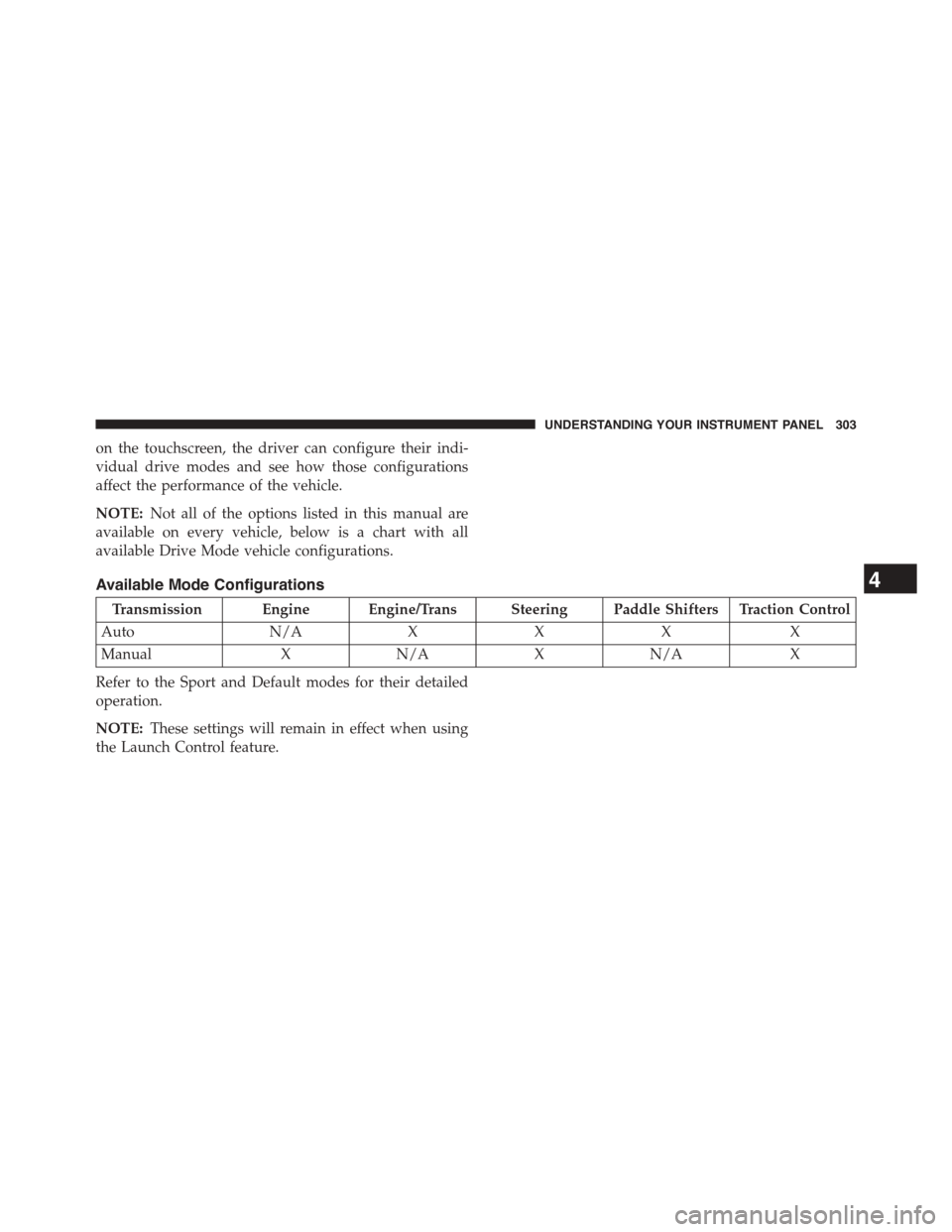
NOTE:Not all of the options listed in this manual are
available on every vehicle, below is a chart with all
available Drive Mode vehicle configurations.
Available Mode Configurations
Transmission Engine Engine/Trans Steering Paddle Shifters Traction Control
AutoN/AXXXX
ManualXN/AXN/AX
Refer to the Sport and Default modes for their detailed
operation.
NOTE:These settings will remain in effect when using
the Launch Control feature.
4
UNDERSTANDING YOUR INSTRUMENT PANEL 303
Page 306 of 603
Default Mode
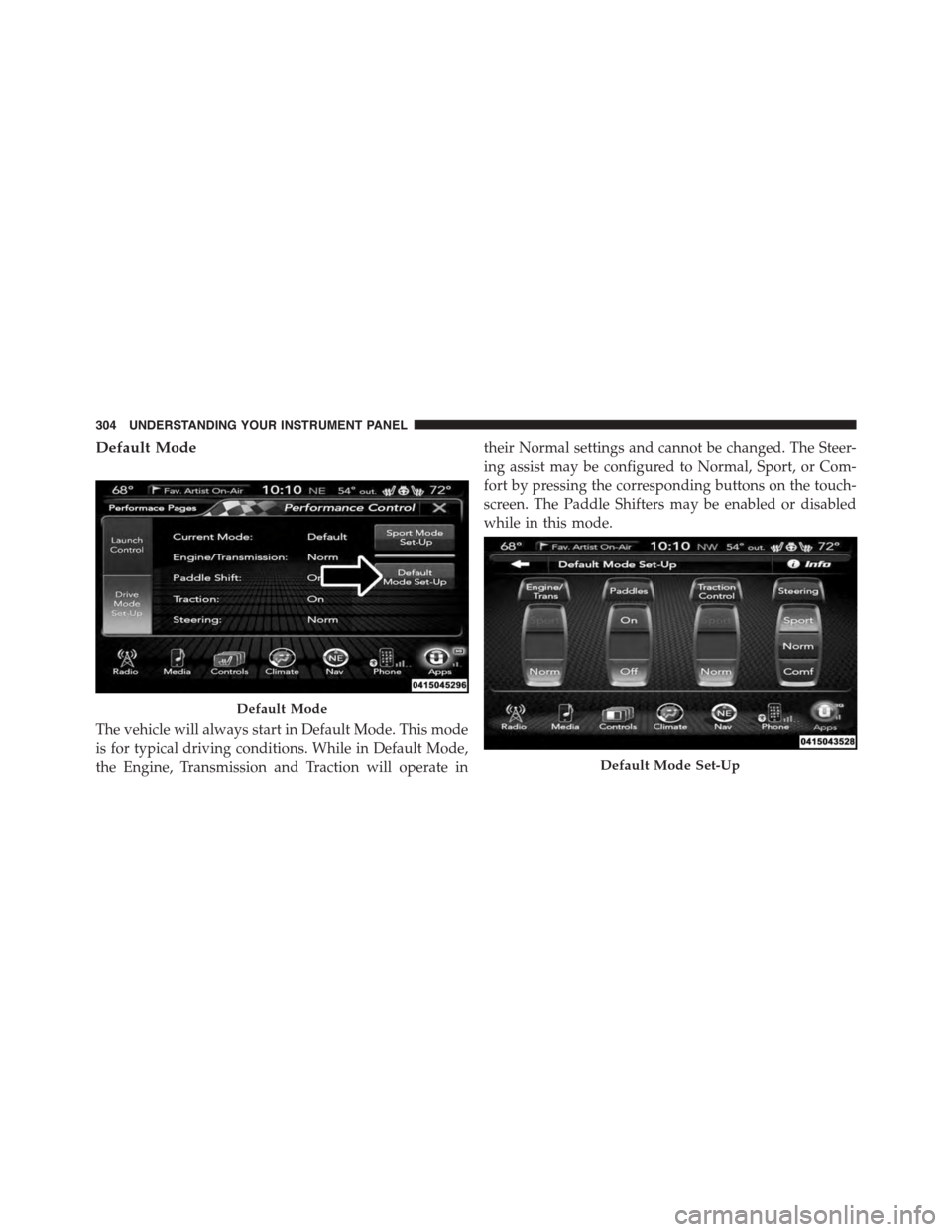
The vehicle will always start in Default Mode. This mode
is for typical driving conditions. While in Default Mode,
the Engine, Transmission and Traction will operate in
their Normal settings and cannot be changed. The Steer-
ing assist may be configured to Normal, Sport, or Com-
fort by pressing the corresponding buttons on the touch-
screen. The Paddle Shifters may be enabled or disabled
while in this mode.
Default Mode
Default Mode Set-Up
304 UNDERSTANDING YOUR INSTRUMENT PANEL
Page 307 of 603
Sport Mode
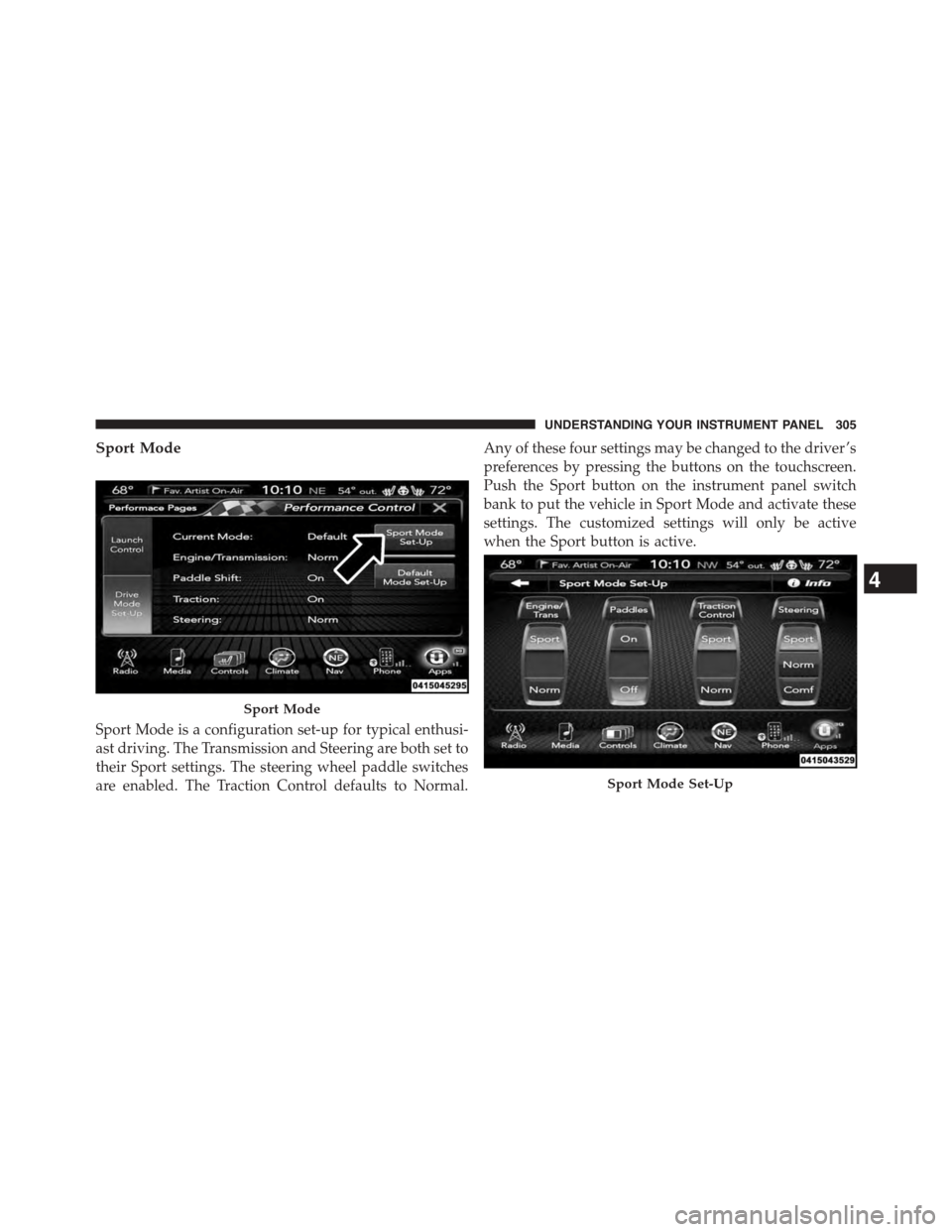
Sport Mode is a configuration set-up for typical enthusi-
ast driving. The Transmission and Steering are both set to
their Sport settings. The steering wheel paddle switches
are enabled. The Traction Control defaults to Normal.
Any of these four settings may be changed to the driver ’s
preferences by pressing the buttons on the touchscreen.
Push the Sport button on the instrument panel switch
bank to put the vehicle in Sport Mode and activate these
settings. The customized settings will only be active
when the Sport button is active.
Sport Mode
Sport Mode Set-Up
4
UNDERSTANDING YOUR INSTRUMENT PANEL 305
Page 308 of 603
Possible Drive Mode configurations are listed below with
accompanying descriptions. The information contained
in the list below can also be accessed from within the
mode Set-Up menus. To access the information, press the
“Info” button on the touchscreen from the mode Set-Up
menu, and use the left / right arrows to toggle through
available descriptions. The title for each system in the
Set-Up menu can be pressed, which provides the descrip-
tions for each function of that system.
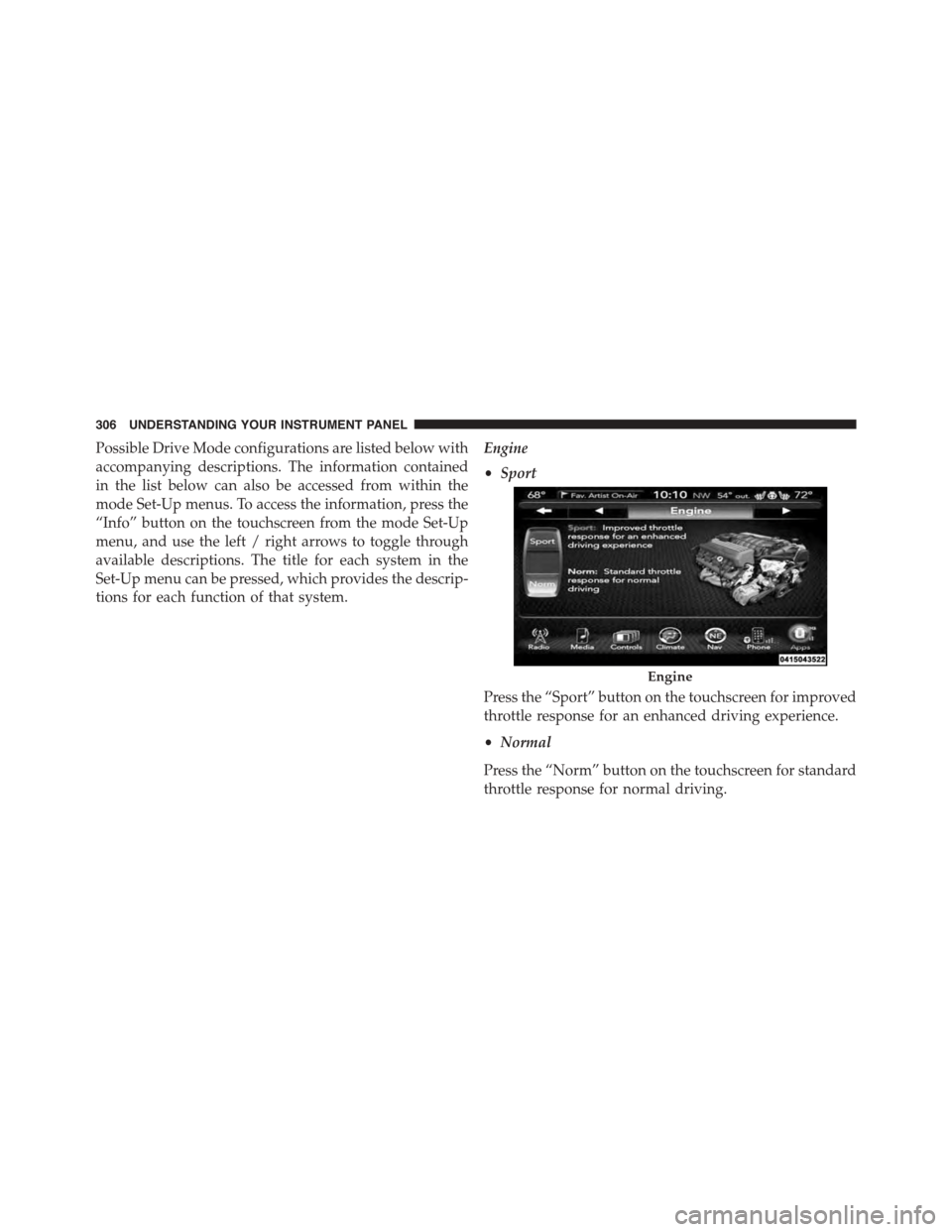
Engine
•Sport
Press the “Sport” button on the touchscreen for improved
throttle response for an enhanced driving experience.
•Normal
Press the “Norm” button on the touchscreen for standard
throttle response for normal driving.
Engine
306 UNDERSTANDING YOUR INSTRUMENT PANEL
Page 309 of 603
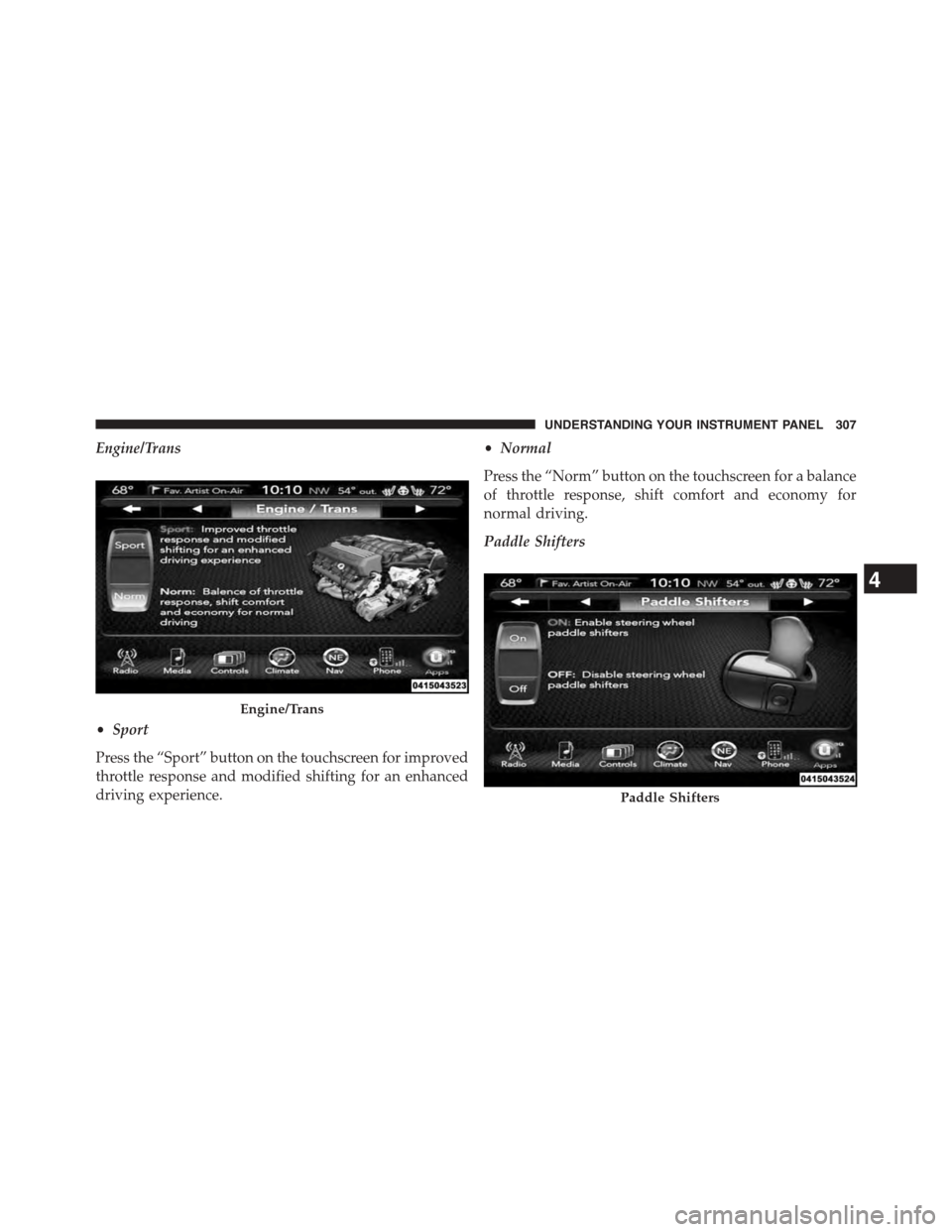
Engine/Trans
•Sport
Press the “Sport” button on the touchscreen for improved
throttle response and modified shifting for an enhanced
driving experience.
•Normal
Press the “Norm” button on the touchscreen for a balance
of throttle response, shift comfort and economy for
normal driving.
Paddle Shifters
Engine/Trans
Paddle Shifters
4
UNDERSTANDING YOUR INSTRUMENT PANEL 307
Page 310 of 603
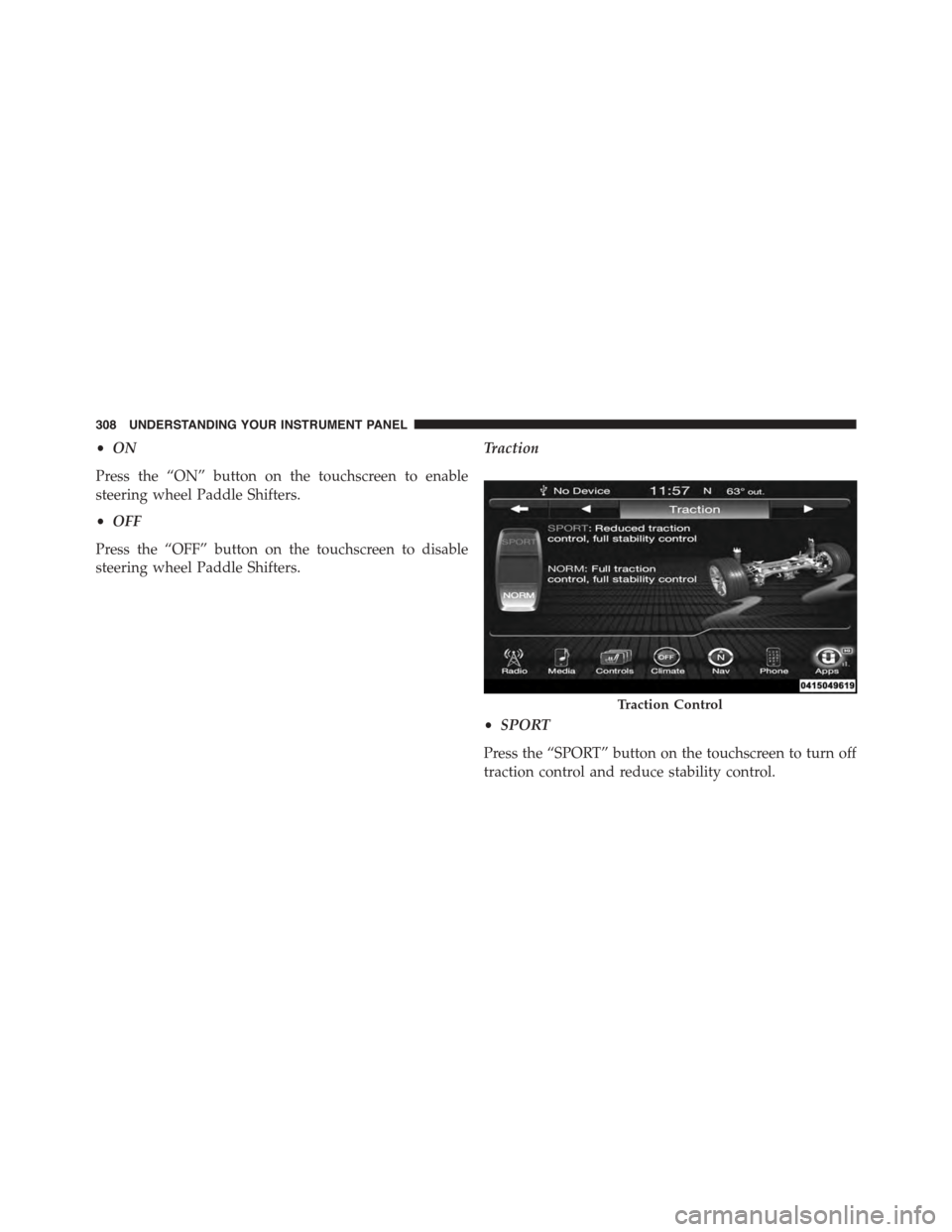
•ON
Press the “ON” button on the touchscreen to enable
steering wheel Paddle Shifters.
•OFF
Press the “OFF” button on the touchscreen to disable
steering wheel Paddle Shifters.
Traction
•SPORT
Press the “SPORT” button on the touchscreen to turn off
traction control and reduce stability control.
Traction Control
308 UNDERSTANDING YOUR INSTRUMENT PANEL
Page 311 of 603
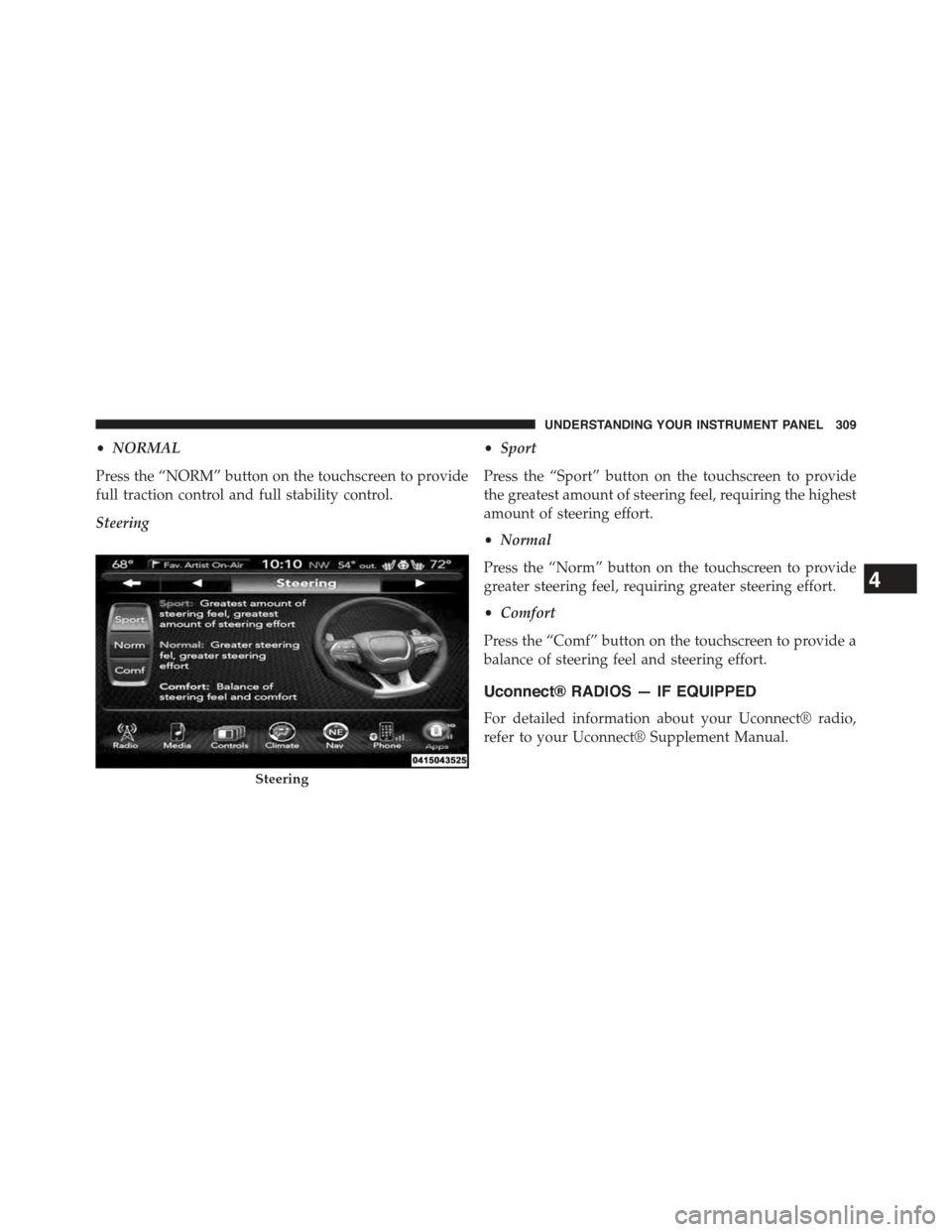
•NORMAL
Press the “NORM” button on the touchscreen to provide
full traction control and full stability control.
Steering
•Sport
Press the “Sport” button on the touchscreen to provide
the greatest amount of steering feel, requiring the highest
amount of steering effort.
•Normal
Press the “Norm” button on the touchscreen to provide
greater steering feel, requiring greater steering effort.
•Comfort
Press the “Comf” button on the touchscreen to provide a
balance of steering feel and steering effort.
Uconnect® RADIOS — IF EQUIPPED
For detailed information about your Uconnect® radio,
refer to your Uconnect® Supplement Manual.
Steering
4
UNDERSTANDING YOUR INSTRUMENT PANEL 309
Page 312 of 603
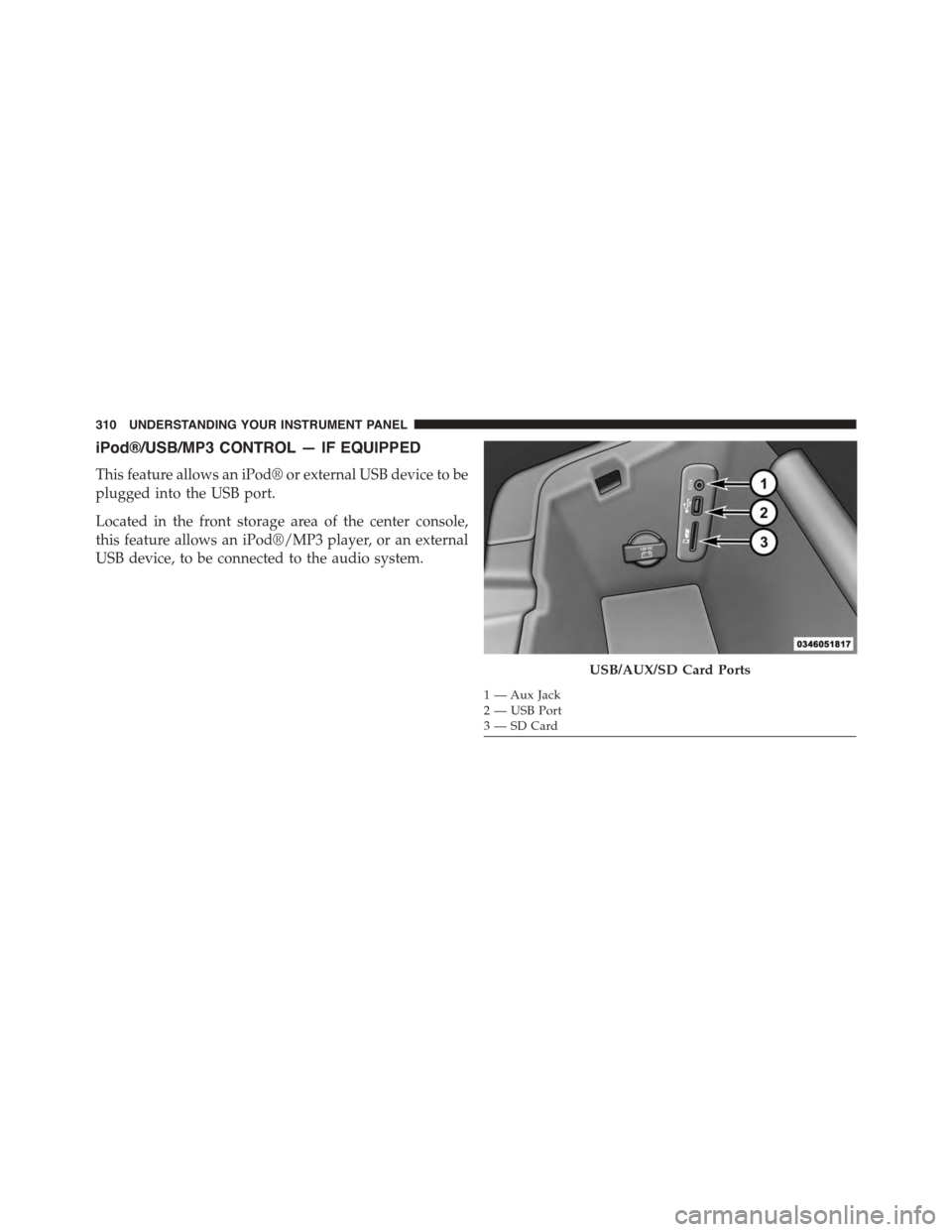
iPod®/USB/MP3 CONTROL — IF EQUIPPED
This feature allows an iPod® or external USB device to be
plugged into the USB port.
Located in the front storage area of the center console,
this feature allows an iPod®/MP3 player, or an external
USB device, to be connected to the audio system.
USB/AUX/SD Card Ports
1 — Aux Jack2—USBPort3—SDCard
310 UNDERSTANDING YOUR INSTRUMENT PANEL
Page 313 of 603
iPod® control supports Mini, 4G, Photo, Nano, 5G iPod®
and iPhone® devices. Some iPod® software versions
may not fully support the iPod® control features. Please
visit Apple’s website for software updates.
For further information, refer to the Uconnect® User ’s
Manual.
STEERING WHEEL AUDIO CONTROLS — IF
EQUIPPED
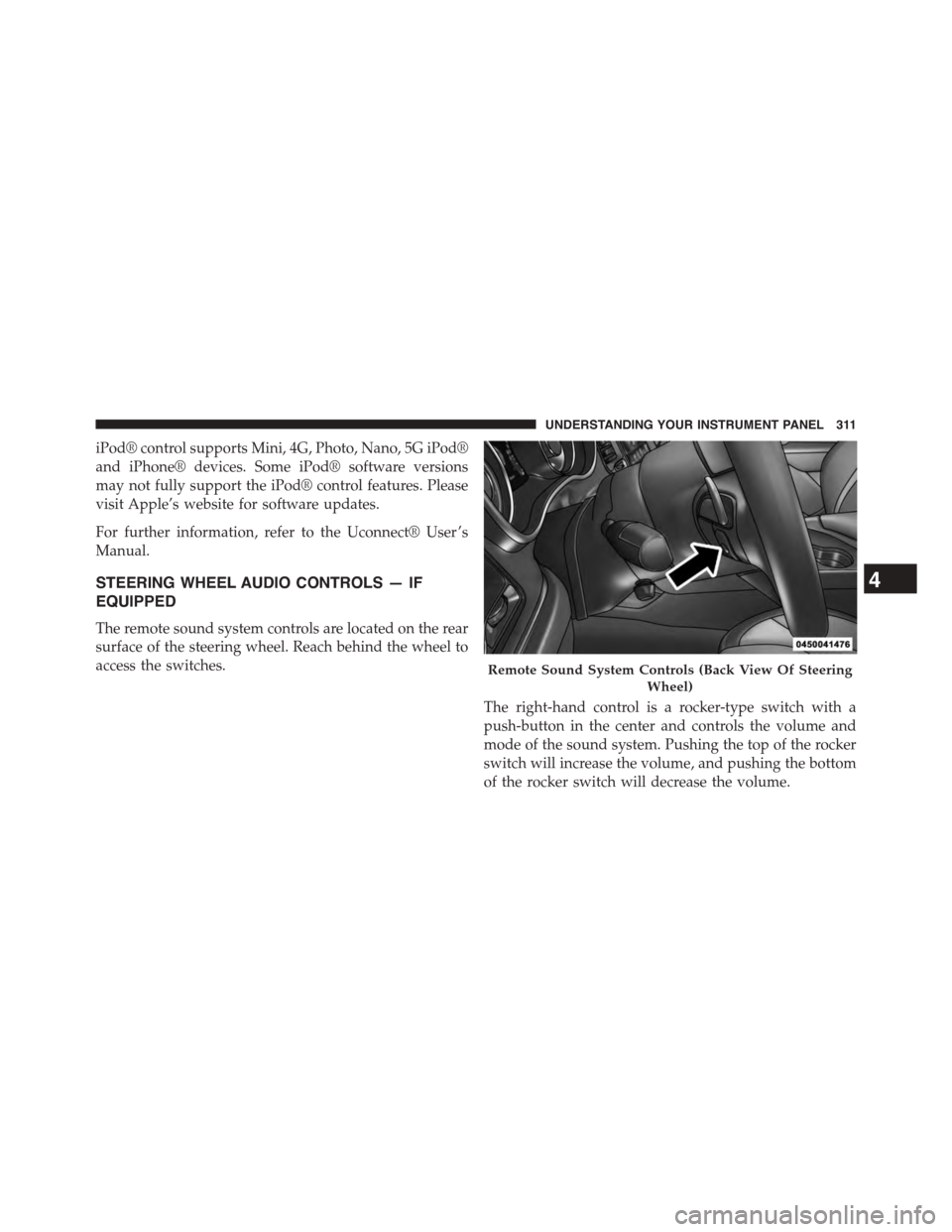
The remote sound system controls are located on the rear
surface of the steering wheel. Reach behind the wheel to
access the switches.
The right-hand control is a rocker-type switch with a
push-button in the center and controls the volume and
mode of the sound system. Pushing the top of the rocker
switch will increase the volume, and pushing the bottom
of the rocker switch will decrease the volume.
Remote Sound System Controls (Back View Of Steering
Wheel)
4
UNDERSTANDING YOUR INSTRUMENT PANEL 311
Page 314 of 603
Pushing the center button will make the radio switch
between the various modes available (AM/FM/SXM/
AUX etc.).
The left-hand control is a rocker-type switch with a
push-button in the center. The function of the left-hand
control is different depending on which mode you are in.
The following describes the left-hand control operation in
each mode.
Radio Operation
Pushing the top of the switch will “Seek” up for the next
listenable station and pushing the bottom of the switch
will “Seek” down for the next listenable station.
The button located in the center of the left-hand control
will tune to the next preset station that you have pro-
grammed in the radio preset button.
Media Mode
Pushing the top of the switch once will go to the next
track on the selected media (AUX, Bluetooth®, SD Card).
Pushing the bottom of the switch once will go to the
beginning of the current track, or to the beginning of the
previous track if it is within eight seconds after the
current track begins to play.
If you push the switch up or down twice, it plays the
second track; three times, it will play the third, etc.
RADIO OPERATION AND MOBILE PHONES
Under certain conditions, the mobile phone being on in
your vehicle can cause erratic or noisy performance from
your radio. This condition may be lessened or eliminated
by relocating the mobile phone antenna. This condition is
not harmful to the radio. If your radio performance does
not satisfactorily “clear” by the repositioning of the
312 UNDERSTANDING YOUR INSTRUMENT PANEL