buttons DODGE CHALLENGER 2015 3.G Owner's Manual
[x] Cancel search | Manufacturer: DODGE, Model Year: 2015, Model line: CHALLENGER, Model: DODGE CHALLENGER 2015 3.GPages: 603, PDF Size: 14.97 MB
Page 252 of 603
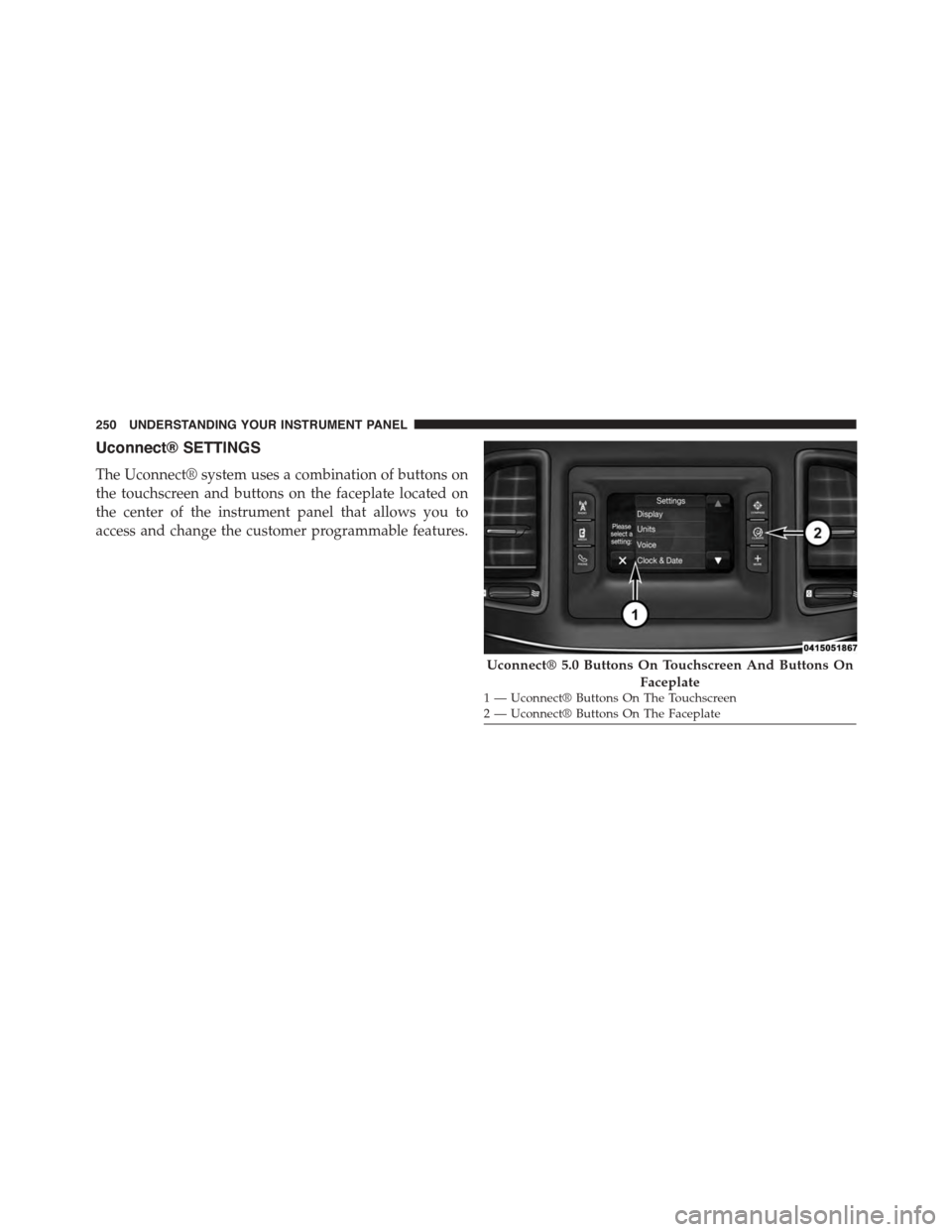
Uconnect® SETTINGS
The Uconnect® system uses a combination of buttons on
the touchscreen and buttons on the faceplate located on
the center of the instrument panel that allows you to
access and change the customer programmable features.
Uconnect® 5.0 Buttons On Touchscreen And Buttons On
Faceplate1—Uconnect®ButtonsOnTheTouchscreen2—Uconnect®ButtonsOnTheFaceplate
250 UNDERSTANDING YOUR INSTRUMENT PANEL
Page 253 of 603
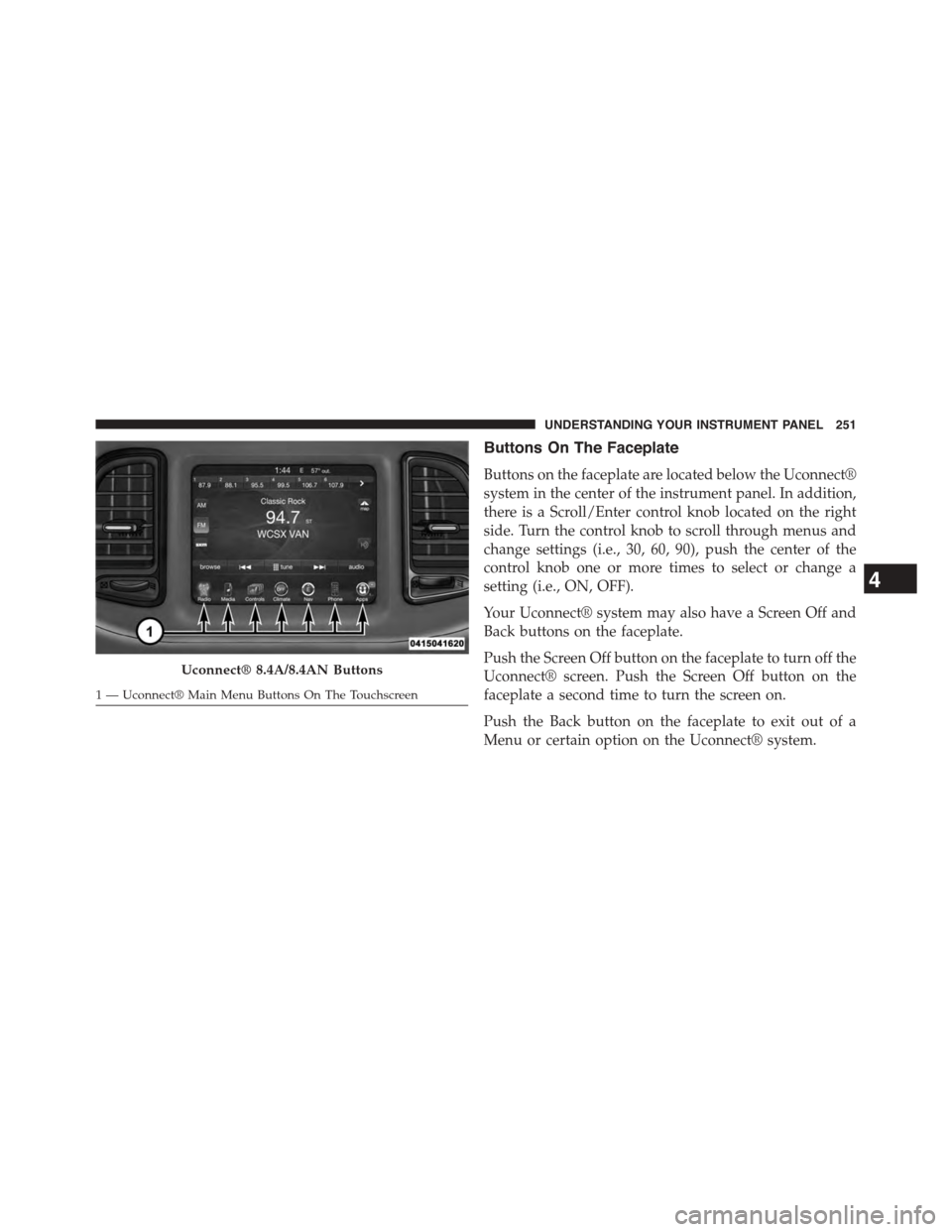
Buttons On The Faceplate
Buttons on the faceplate are located below the Uconnect®
system in the center of the instrument panel. In addition,
there is a Scroll/Enter control knob located on the right
side. Turn the control knob to scroll through menus and
change settings (i.e., 30, 60, 90), push the center of the
control knob one or more times to select or change a
setting (i.e., ON, OFF).
Your Uconnect® system may also have a Screen Off and
Back buttons on the faceplate.
Push the Screen Off button on the faceplate to turn off the
Uconnect® screen. Push the Screen Off button on the
faceplate a second time to turn the screen on.
Push the Back button on the faceplate to exit out of a
Menu or certain option on the Uconnect® system.
Uconnect® 8.4A/8.4AN Buttons
1—Uconnect®MainMenuButtonsOnTheTouchscreen
4
UNDERSTANDING YOUR INSTRUMENT PANEL 251
Page 254 of 603
Buttons On The Touchscreen
Buttons on the touchscreen are accessible on the
Uconnect® display.
Customer Programmable Features — Uconnect®
5.0 Settings
Push the MORE button on the faceplate and then press
the “Settings” button on the touchscreen to display the
menu setting screen. In this mode the Uconnect® system
allows you to access programmable features that may be
equipped such as Display, Units, Voice, Clock, Safety/
Assistance, Lights, Doors & Locks, Auto-On Comfort &
Remote Start, Engine Off Options, Compass Settings,
Audio, Phone/Bluetooth®, SiriusXM Setup, Restore Set-
tings, and Clear Personal Data.
NOTE:Only one touchscreen area may be selected at a
time.
When making a selection, press the button on the touch-
screen to enter the desired mode. Once in the desired
mode, select the preferred setting. Once the setting is
complete, either press the Back Arrow/Done button on
the touchscreen or the Back button on the faceplate to
return to the previous menu or press the “X” button on
the touchscreen to close out of the settings screen. Press-
ing the Up or Down Arrow buttons on the right side of
the screen will allow you to toggle up or down through
the available settings.
252 UNDERSTANDING YOUR INSTRUMENT PANEL
Page 261 of 603
touchscreen. Press the “Parkview Backup camera Delay”
button on the touchscreen and select from “ON” or
“OFF.”
•Rain Sensing Auto Wipers
When this feature is selected, the system will automati-
cally activate the windshield wipers if it senses moisture
on the windshield. To enable or disable, press the “Rain
Sensing” button on the touchscreen, and select “On” or
“Off.” Press the back arrow/Done button on the touch-
screen to return to the previous menu.
•Hill Start Assist — If Equipped
When this feature is selected, the Hill Start Assist (HSA)
system is active. Refer to “Electronic Brake Control
System” in “Starting And Operating” for system function
and operating information. To enable or disable, press the
“Hill Start Assist” button on the touchscreen, and select
“On” or “Off.” Press the back arrow/Done button on the
touchscreen to return to the previous menu.
Lights
After pressing the “Lights” button on the touchscreen,
the following settings will be available:
•Headlight Off Delay
When this feature is selected, it allows the adjustment of
the amount of time the headlights remain on after the
engine is shut off. To change the Headlight Off Delay
setting, press the “Headlight Off Delay” button on the
touchscreen and choose either “0,” “30,” “60,” or “90”
buttons on the touchscreen to select your desired time
interval. Press the back arrow/Done button on the touch-
screen to return to the previous menu.
•Headlight Illumination On Approach
When this feature is selected, it allows the adjustment of
the amount of time the headlights remain on when the
doors are unlocked with the Remote Keyless Entry (RKE)
transmitter. To change the Illuminated Approach status,
4
UNDERSTANDING YOUR INSTRUMENT PANEL 259
Page 262 of 603
press the “Illuminated Approach” button on the touch-
screen and choose either “0,” “30,” “60,” or “90” buttons
on the touchscreen to select your desired time interval.
Press the back arrow/Done button on the touchscreen to
return to the previous menu.
•Headlights With Wipers — If Equipped
When this feature is selected, and the headlight switch is
in the AUTO position, the headlights will turn on ap-
proximately 10 seconds after the wipers are turned on.
The headlights will also turn off when the wipers are
turned off, if they were turned on by this feature. To
make your selection, press the “Lights w/Wipers” button
and select from “On” or “Off.” Press the back arrow/
Done button on the touchscreen to return to the previous
menu.
•Auto Dim High Beams — If Equipped
When this feature is selected, the high beam headlights
will activate/deactivate automatically under certain con-
ditions. To make your selection, press the “Auto High
Beams” button on the touchscreen, and select from “On”
or “Off.” Press the back arrow/Done button on the
touchscreen to return to the previous menu. Refer to
”Automatic High Beam — If Equipped” in “Understand-
ing The Features Of Your Vehicle” for further informa-
tion.
•Daytime Running Lights — If Equipped
When this feature is selected, the headlights will turn on
whenever the engine is running. To make your selection,
press the “Daytime Running Lights” button on the touch-
screen, and select from “On” or “Off.” Press the back
arrow/Done button on the touchscreen to return to the
previous menu.
260 UNDERSTANDING YOUR INSTRUMENT PANEL
Page 264 of 603
•Remote Door Unlock
This feature will allow you to program your remote door
locks to open “All doors” or only the “Driver door” with
the first push of the Remote Keyless Entry (RKE) trans-
mitter or grabbing the Passive Entry door handle. To
make your selection, press the “Remote Door Unlock”
button on the touchscreen and choose from “All” or
“Driver.” Press the back arrow/Done button on the
touchscreen to return to the previous menu.
NOTE:If “Driver Door” is selected, the (RKE) transmitter
will have to be pushed two times in order to unlock all
doors.
•Passive Entry
This feature allows you to lock and unlock the vehicle’s
door(s) without having to push the Remote Keyless Entry
(RKE) transmitter lock or unlock buttons. It automatically
unlocks the doors when the outside door handle is
grabbed. To make your selection, press the “Passive
Entry” button on the touchscreen and select from “On” or
“Off.” Press the back arrow/Done button on the touch-
screen to return to the previous menu. Refer to “Keyless
Enter-N-Go™” in “Things To Know Before Starting Your
Vehicle” for further information.
•Flash Lights With Lock
When this feature is selected, the exterior lights will flash
when the doors are locked or unlocked with the Remote
Keyless Entry (RKE) transmitter. This feature may be
selected with or without the sound horn on lock feature
selected. To make your selection, press the “Flash Lights
w/Lock” button on the touchscreen, and select from
“On” or “Off.” Press the back arrow/Done button on the
touchscreen to return to the previous menu.
262 UNDERSTANDING YOUR INSTRUMENT PANEL
Page 265 of 603
Auto Comfort Systems — If Equipped
After pressing the “Auto-On Comfort & Remote Start”
button on the touchscreen the following settings will be
available:
•Auto-On Driver Heated/Ventilated Seat & Steering
Wheel With Vehicle Start — If Equipped
When this feature is selected the driver’s heated seat and
heated steering wheel will automatically turn ON when
temperatures are below 40° F (4.4° C). When tempera-
tures are above 80° F (26.7° C) the driver vented seat will
turn ON. To make your selection, press the “Auto Heated
Seats” button on the touchscreen then select either “Off,”
“Remote Start” or “All Starts.” Press the back arrow/
Done button on the touchscreen to return to the previous
menu.
Engine Off Options
After pressing the “Engine Off Options” button on the
touchscreen the following settings will be available.
•Headlight Off Delay
When this feature is selected, the driver can choose to
have the headlights remain on for 0, 30, 60, or 90 seconds
when exiting the vehicle. To change the Headlight Off
Delay status press the “Headlight Off Delay” button on
the touchscreen and select from “0,” “30,” “60,” or “90”
buttons on the touchscreen to select your desired time
interval. Press the back arrow/Done button on the touch-
screen to return to the previous menu.
•Engine Off Power Delay
When this feature is selected, the power window
switches, radio, Uconnect® phone system (if equipped),
DVD video system (if equipped), power sunroof (if
equipped), and power outlets will remain active for up to
4
UNDERSTANDING YOUR INSTRUMENT PANEL 263
Page 266 of 603
10 minutes after the ignition is cycled to OFF. Opening
either front door will cancel this feature. To change the
Engine Off Power Delay status press the “Engine Off
Power Delay” button and select from “0 seconds,” “45
seconds,” “5 minutes” or “10 minutes” buttons on the
touchscreen. Press the back arrow/Done button on the
touchscreen to return to the previous menu.
Compass Settings — If Equipped
After pressing the “Compass Settings” button on the
touchscreen the following settings will be available:
•Variance
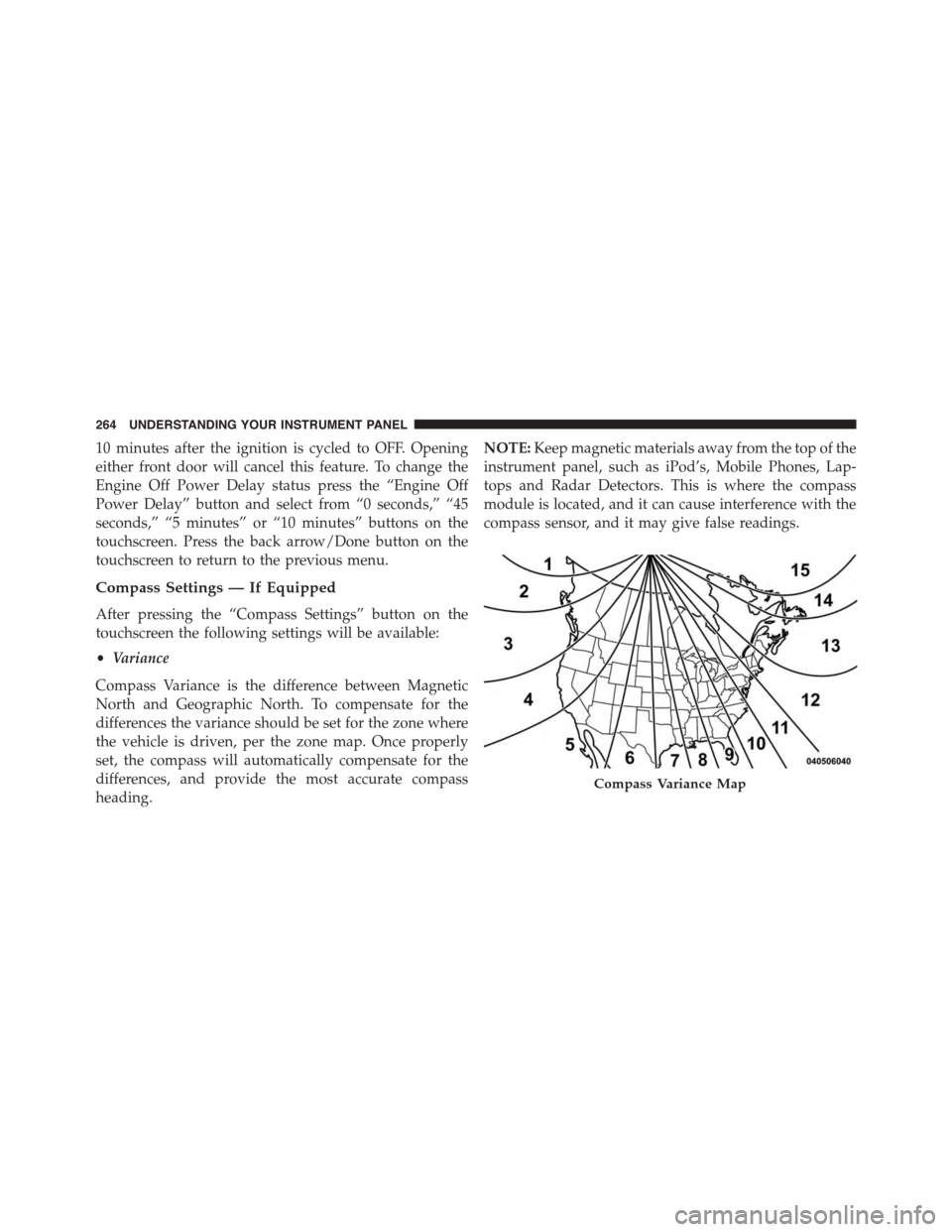
Compass Variance is the difference between Magnetic
North and Geographic North. To compensate for the
differences the variance should be set for the zone where
the vehicle is driven, per the zone map. Once properly
set, the compass will automatically compensate for the
differences, and provide the most accurate compass
heading.
NOTE:Keep magnetic materials away from the top of the
instrument panel, such as iPod’s, Mobile Phones, Lap-
tops and Radar Detectors. This is where the compass
module is located, and it can cause interference with the
compass sensor, and it may give false readings.
Compass Variance Map
264 UNDERSTANDING YOUR INSTRUMENT PANEL
Page 267 of 603
•Perform Compass Calibration
Press the “Calibration” button on the touchscreen to
change this setting. This compass is self-calibrating,
which eliminates the need to manually reset the compass.
When the vehicle is new, the compass may appear erratic
until it is calibrated. You may also calibrate the compass
by pressing the “ON” button on the touchscreen and
completing one or more 360-degree turns (in an area free
from large metal or metallic objects). The compass will
now function normally.
Audio
After pressing the “Audio” button on the touchscreen the
following settings will be available:
•Balance/Fade
This feature allows you to adjust the Balance and Fade
settings. Press and drag the speaker icon or use the
arrows to adjust, tap the “C” icon to readjust to the center.
Press the back arrow/Done button on the touchscreen to
return to the previous menu.
•Equalizer
When in this display you may adjust the Bass, Mid and
Treble settings. Adjust the settings with the “+” and “–”
buttons on the touchscreen or by selecting any point on
the scale between the “+” and “–” buttons on the
touchscreen. Press the back arrow/Done button on the
touchscreen to return to the previous menu.
•Speed Adjusted Volume
This feature increases or decreases volume relative to
vehicle speed. To change the Speed Adjusted Volume
press the “Speed Adjusted Volume” button on the touch-
screen and select from “Off,” “1,” “2” or “3” buttons on
the touchscreen. Press the back arrow/Done button on
the touchscreen to return to the previous menu.
4
UNDERSTANDING YOUR INSTRUMENT PANEL 265
Page 271 of 603
either press the Back Arrow button on the touchscreen to
return to the previous menu, or press the “X” button on
the touchscreen to close out of the settings screen. Press-
ing the Up or Down Arrow button on the right side of the
screen will allow you to toggle up or down through the
available settings.
Display
After pressing the “Display” button on the touchscreen
the following settings will be available:
•Display Mode
When in this display you may select one of the auto
display settings. To change Mode status, press and re-
lease the “Manual” or “Auto” button on the touchscreen.
Then press the back arrow button on the touchscreen.
•Display Brightness With Headlights ON
When in this display, you may select the brightness with
the headlights on. Adjust the brightness with the “+” and
“–” setting buttons on the touchscreen or by selecting any
point on the scale between the “+” and “–” buttons on the
touchscreen. Then press the back arrow button on the
touchscreen.
NOTE:The usage of the Parade Mode feature will cause
the radio to activate the “Display Brightness With Head-
lights OFF” control even though the headlights are on.
•Display Brightness With Headlights OFF
When in this display, you may select the brightness with
the headlights off. Adjust the brightness with the “+” and
“–” setting buttons on the touchscreen or by selecting any
point on the scale between the “+” and “–” buttons on the
touchscreen. Then press the back arrow button on the
touchscreen.
4
UNDERSTANDING YOUR INSTRUMENT PANEL 269