wheel DODGE CHALLENGER 2015 3.G Owner's Manual
[x] Cancel search | Manufacturer: DODGE, Model Year: 2015, Model line: CHALLENGER, Model: DODGE CHALLENGER 2015 3.GPages: 603, PDF Size: 14.97 MB
Page 234 of 603
CAUTION!
The TPMS has been optimized for the original
equipment tires and wheels. TPMS pressures and
warning have been established for the tire size
equipped on your vehicle. Undesirable system opera-
tion or sensor damage may result when using re-
placement equipment that is not of the same size,
type, and/or style. Aftermarket wheels can cause
sensor damage. Do not use tire sealant from a can or
balance beads if your vehicle is equipped with a
TPMS, as damage to the sensors may result.
18. Electronic Stability Control (ESC) OFF Indicator
Light — If Equipped
This light indicates the Electronic Stability Con-
trol (ESC) is off.
With Drive Modes the ESC OFF indicator will
be lit any time the Traction modes is set to Sport, Track or
Full OFF.
232 UNDERSTANDING YOUR INSTRUMENT PANEL
Page 236 of 603
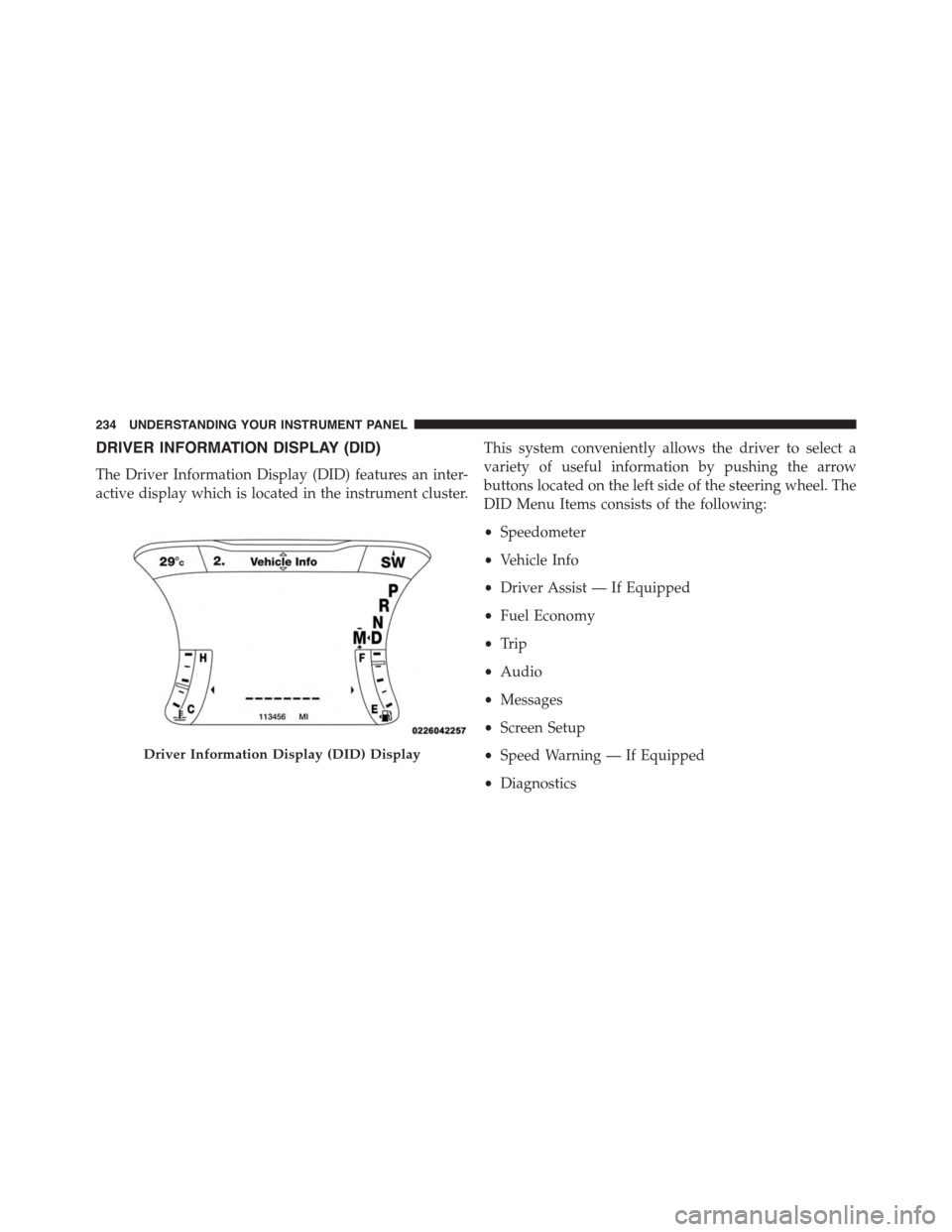
DRIVER INFORMATION DISPLAY (DID)
The Driver Information Display (DID) features an inter-
active display which is located in the instrument cluster.
This system conveniently allows the driver to select a
variety of useful information by pushing the arrow
buttons located on the left side of the steering wheel. The
DID Menu Items consists of the following:
•Speedometer
•Vehicle Info
•Driver Assist — If Equipped
•Fuel Economy
•Trip
•Audio
•Messages
•Screen Setup
•Speed Warning — If Equipped
•Diagnostics
Driver Information Display (DID) Display
234 UNDERSTANDING YOUR INSTRUMENT PANEL
Page 237 of 603
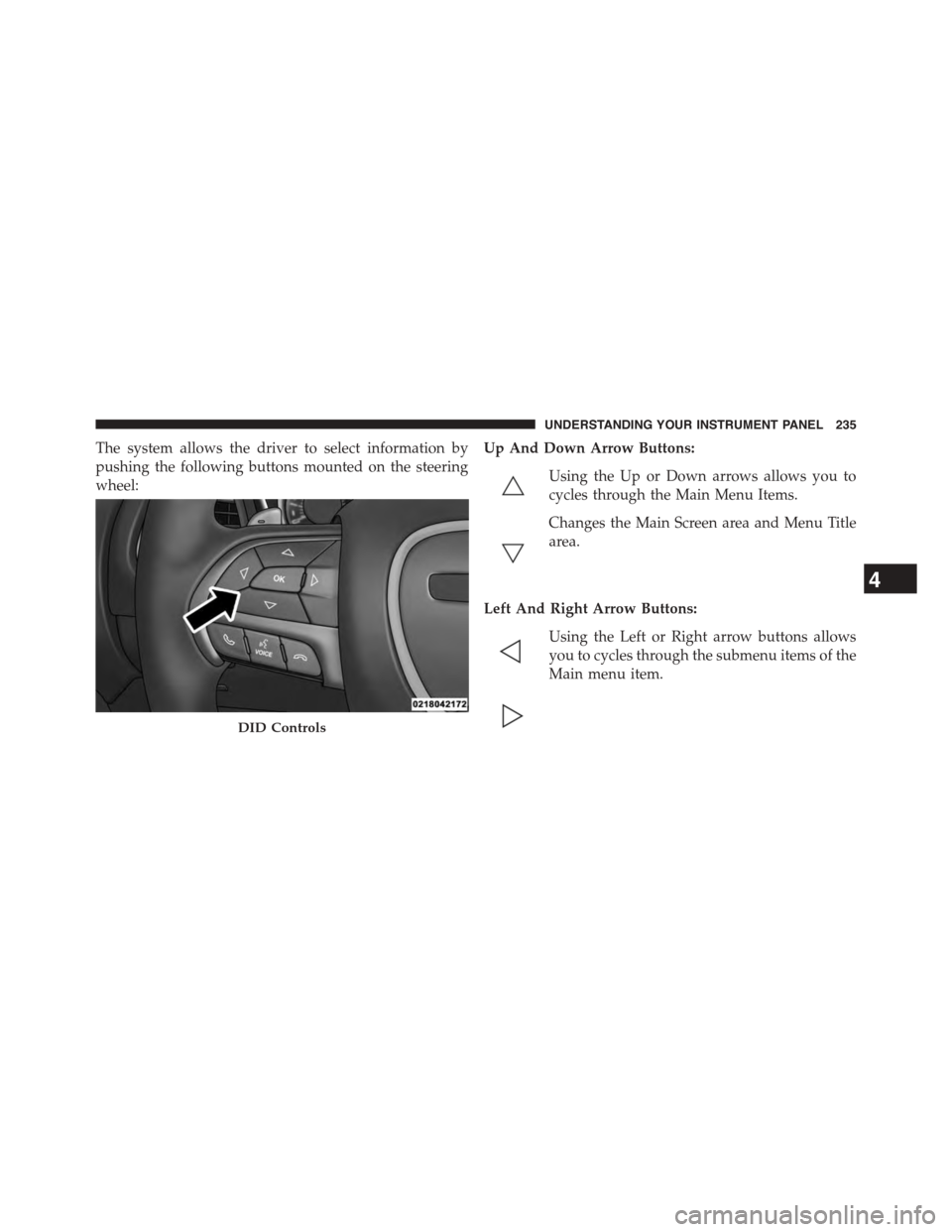
The system allows the driver to select information by
pushing the following buttons mounted on the steering
wheel:
Up And Down Arrow Buttons:
Using the Up or Down arrows allows you to
cycles through the Main Menu Items.
Changes the Main Screen area and Menu Title
area.
Left And Right Arrow Buttons:
Using the Left or Right arrow buttons allows
you to cycles through the submenu items of the
Main menu item.
DID Controls
4
UNDERSTANDING YOUR INSTRUMENT PANEL 235
Page 240 of 603
Use the steering wheel DID controls for the following
procedure(s):
1. Without pushing the brake pedal, cycle the ignition to
the ON/RUN position (do not start the engine.)
2. Push and release theDOWNarrow button to scroll
downward through the main menu to “Vehicle Info”.
3. Push and release theRIGHTarrow button to access
the ”Oil Life” screen.
4. Push and hold theOKbutton until the ”Oil Life”
screen displays.
5. Push and release theDOWNarrow button to select “
Ye s”, then push and release theOKbutton to select
reset of the Oil Life.
6. Push and release theUparrow button to exit the sub
menu screen.
NOTE:If the indicator message illuminates when you
start the vehicle, the oil change indicator system did not
reset. If necessary, repeat this procedure.
DID Selectable Menu Items
Push and release the UP or DOWN arrow buttons until
the desired Selectable Menu item is highlighted in the
DID.
Follow the Menu or submenu prompts as desired.
238 UNDERSTANDING YOUR INSTRUMENT PANEL
Page 248 of 603
Top Speed
When selected, this screen displays the To Speed during
a drive cycle:
•Populates a top speed from first drive cycle and every
time that speed is exceeded that number is stored here
unless/until the driver resets the screen.
•Latching over ignition cycles.
•Units will change with the global change in units.
Driver Assist
Adaptive Cruise Control (ACC) Menu
The DID displays the current ACC system settings. The
information displayed depends on ACC system status.
Push the ADAPTIVE CRUISE CONTROL (ACC) ON/
OFF button (located on the steering wheel) until one of
the following displays in the DID:
Adaptive Cruise Control Off
When ACC is deactivated, the display will read “Adap-
tive Cruise Control Off.”
Adaptive Cruise Control Ready
When ACC is activated but the vehicle speed setting has
not been selected, the display will read “Adaptive Cruise
Control Ready.”
Push the SET + or the SET- button (located on the steering
wheel) and the following will display in the DID:
ACC SET
When ACC is set, the set speed will display in the
instrument cluster.
The ACC screen may display once again if any ACC
activity occurs, which may include any of the following:
•Distance Setting Change
246 UNDERSTANDING YOUR INSTRUMENT PANEL
Page 265 of 603
Auto Comfort Systems — If Equipped
After pressing the “Auto-On Comfort & Remote Start”
button on the touchscreen the following settings will be
available:
•Auto-On Driver Heated/Ventilated Seat & Steering
Wheel With Vehicle Start — If Equipped
When this feature is selected the driver’s heated seat and
heated steering wheel will automatically turn ON when
temperatures are below 40° F (4.4° C). When tempera-
tures are above 80° F (26.7° C) the driver vented seat will
turn ON. To make your selection, press the “Auto Heated
Seats” button on the touchscreen then select either “Off,”
“Remote Start” or “All Starts.” Press the back arrow/
Done button on the touchscreen to return to the previous
menu.
Engine Off Options
After pressing the “Engine Off Options” button on the
touchscreen the following settings will be available.
•Headlight Off Delay
When this feature is selected, the driver can choose to
have the headlights remain on for 0, 30, 60, or 90 seconds
when exiting the vehicle. To change the Headlight Off
Delay status press the “Headlight Off Delay” button on
the touchscreen and select from “0,” “30,” “60,” or “90”
buttons on the touchscreen to select your desired time
interval. Press the back arrow/Done button on the touch-
screen to return to the previous menu.
•Engine Off Power Delay
When this feature is selected, the power window
switches, radio, Uconnect® phone system (if equipped),
DVD video system (if equipped), power sunroof (if
equipped), and power outlets will remain active for up to
4
UNDERSTANDING YOUR INSTRUMENT PANEL 263
Page 283 of 603
NOTE:If the vehicle is programmed 1st Press Of Key Fob
Unlocks “All Doors,” all doors will unlock no matter
which Passive Entry equipped door handle is grasped. If
1st Press Of Key Fob Unlocks “Driver Door” is pro-
grammed, only the driver ’s door will unlock when the
driver ’s door is grasped. With Passive Entry, if 1st Press
Of Key Fob Unlocks “Driver Door” is programmed,
touching the handle more than once will only result in
the driver ’s door opening. If “Driver Door” is selected,
once the driver door is opened, the interior door lock/
unlock switch can be used to unlock all doors (or use
RKE transmitter).
•Passive Entry
This feature allows you to lock and unlock the vehicles
door(s) without having to push the Remote Keyless Entry
(RKE) transmitter LOCK or UNLOCK buttons. To make
your selection, press the “Passive Entry” button on the
touchscreen, until a check-mark appears next to the
setting, showing that the setting has been selected. Press
the back arrow button on the touchscreen to return to the
previous menu. Refer to “Keyless Enter-N-Go™” in
“Things To Know Before Starting Your Vehicle”.
Auto Comfort Systems — If Equipped
After pressing the “Auto-On Comfort & Remote Start”
button on the touchscreen the following settings will be
available:
•Auto-On Driver Heated/Ventilated Seat & Steering
Wheel With Vehicle Start — If Equipped
When this feature is selected the driver’s heated seat and
heated steering wheel will automatically turn ON when
temperatures are below 40° F (4.4° C). When tempera-
tures are above 80° F (26.7° C) the driver vented seat will
turn ON. To make your selection, press the “Auto Heated
Seats” button on the touchscreen, then select either “Off,”
4
UNDERSTANDING YOUR INSTRUMENT PANEL 281
Page 297 of 603
When G-Force is selected, the following features will be
available:
•Lateral G-Force Left and Right
The lateral g-force measures the (sideways) left and right
force of the vehicle.
•Longitudinal G-Force Fore and Aft
The longitudinal g-force measures the acceleration and
braking force of the vehicle.
•Peak G-Forces Fore Aft, Left and Right
This shows the maximum g-forces that have been
achieved since the last reset from the DID. Peak values
are maintained through ignition cycles by the DID until
they are cleared by the driver.
•Vehicle Speed
Vehicle Speed measures the current speed of the vehicle
in either mph or km/h, starting at 0 with no maximum
value.
•Steering Wheel Angle
Steering Wheel Angle utilizes the steering angle sensor to
measure the degree of the steering wheel relative to zero.
The zero degree measurement indicates a steering wheel
straight ahead position. When the steering angle value is
negative, this indicates a turn to the left, and when the
steering angle value is positive, a turn to the right.
4
UNDERSTANDING YOUR INSTRUMENT PANEL 295
Page 300 of 603
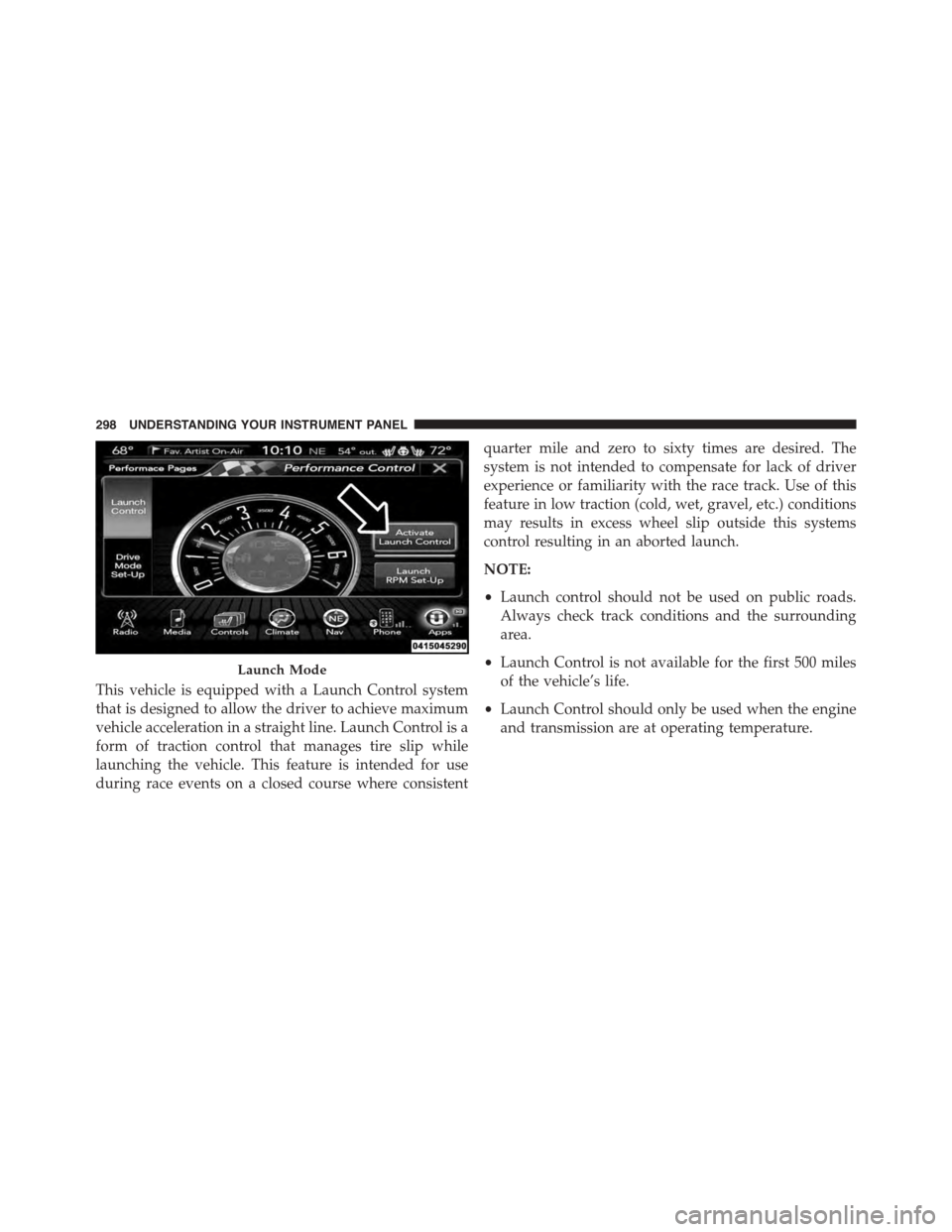
This vehicle is equipped with a Launch Control system
that is designed to allow the driver to achieve maximum
vehicle acceleration in a straight line. Launch Control is a
form of traction control that manages tire slip while
launching the vehicle. This feature is intended for use
during race events on a closed course where consistent
quarter mile and zero to sixty times are desired. The
system is not intended to compensate for lack of driver
experience or familiarity with the race track. Use of this
feature in low traction (cold, wet, gravel, etc.) conditions
may results in excess wheel slip outside this systems
control resulting in an aborted launch.
NOTE:
•Launch control should not be used on public roads.
Always check track conditions and the surrounding
area.
•Launch Control is not available for the first 500 miles
of the vehicle’s life.
•Launch Control should only be used when the engine
and transmission are at operating temperature.
Launch Mode
298 UNDERSTANDING YOUR INSTRUMENT PANEL
Page 301 of 603
•Launch Control is intended to be used on dry, paved
road surfaces only. Use on slippery or loose surfaces
may cause damage to vehicle components and is not
recommended.
Automatic Transmission — If Equipped
Launch Control is only available when the following
procedure is followed:
1. Press the “Apps” button on the touchscreen, select
“Performance Control”, and press the “Launch Con-
trol” button on the touchscreen or push the Super
Track Pak button on the integrated center stack switch
bank.
2. If desired, press the “Launch RPM Set-Up” button on
the touchscreen. This screen will allow you to adjust
your launch RPM for optimum launch/traction. To
adjust the Launch RPM, press and drag the slider bar,
or press the arrows on the touchscreen, to adjust the
holding RPM. Press the back arrow button on the
touchscreen when finished. The setting will be saved.
NOTE:The default RPM for launch control is a preset
factory value. Optimal launch RPM will depend on the
engine and tires on the vehicle, as well as the road and
weather conditions. Not all RPM settings will be usable
in all configurations and scenarios. If requested launch
RPM is not attainable in a given scenario, the engine will
provide the maximum amount of torque possible to get
as close as possible to the requested RPM.
3. Press the “Activate Launch Mode” button on the
touchscreen.
4. Ensure the vehicle is not moving and the steering
wheel is pointing straight.
5. Hold the brake pedal and verify the vehicle is in
“Drive.”
4
UNDERSTANDING YOUR INSTRUMENT PANEL 299