radio DODGE CHALLENGER 2015 3.G Owner's Guide
[x] Cancel search | Manufacturer: DODGE, Model Year: 2015, Model line: CHALLENGER, Model: DODGE CHALLENGER 2015 3.GPages: 603, PDF Size: 14.97 MB
Page 316 of 603
brouillage radioélectrique subi, même si le brouillage est
susceptible d’en compromettre le fonctionnement.
NOTE:
•This equipment has been tested and found to comply
with the limits for a Class B digital device, pursuant to
Part 15 of the FCC Rules. These limits are designed to
provide reasonable protection against harmful inter-
ference in a residential installation. This equipment
generates, uses and can radiate radio frequency energy
and, if not installed and used in accordance with the
instructions, may cause harmful interference to radio
communications. However, there is no guarantee that
interference will not occur in a particular installation.
•If this equipment does cause harmful interference to
radio or television reception, which can be determined
by turning the equipment off and on, the user is
encouraged to try to correct the interference by one or
more of the following measures:
•Increase the separation between the equipment and
receiver.
•Consult the dealer or an experienced radio technician
for help.
CLIMATE CONTROLS
The air conditioning and heating system is designed to
make you comfortable in all types of weather. This
system can be operated through either the controls on the
instrument panel or through the Uconnect® system dis-
play.
When the Uconnect® system is in different modes (Ra-
dio, Player, Settings, More, etc.) the driver and passenger
temperature settings will be indicated at the top of the
display.
314 UNDERSTANDING YOUR INSTRUMENT PANEL
Page 320 of 603
temperature settings or on the touchscreen, press and
slide the temperature bar button towards the red arrow
for warmer temperature settings.
NOTE:Pressing this button while in Sync mode will
automatically exit Sync.
8. Passenger Temperature Control Down Button
(Uconnect® 8.4 Radio Only)
Provides the passenger with independent temperature
control. Push the button on the faceplate for cooler
temperature settings or on the touchscreen, press and
slide the temperature bar button towards the blue arrow
for cooler temperature settings.
NOTE:Pressing this button while in Sync mode will
automatically exit Sync.
9. SYNC
Press the Sync button on the touchscreen to toggle the
Sync feature On/Off. The Sync indicator is illuminated
when this feature is enabled. Sync is used to synchronize
the passenger temperature setting with the driver tem-
perature setting. Changing the passenger temperature
setting while in Sync will automatically exit this feature.
10. Blower Control
Blower control is used to regulate the amount of air
forced through the climate system. There are seven
blower speeds available. Adjusting the blower will cause
automatic mode to switch to manual operation. The
speeds can be selected using either the blower control
knob on the faceplate or the buttons on the touchscreen
as follows:
Blower Control Knob On The Faceplate
The blower speed increases as you turn the blower
control knob clockwise from the lowest blower setting.
The blower speed decreases as you turn the blower
control knob counterclockwise.
318 UNDERSTANDING YOUR INSTRUMENT PANEL
Page 322 of 603
12. Climate Control OFF Button
Press and release this button to turn the Climate Control
ON/OFF.
13. Driver Temperature Control Down Button
(Uconnect® 8.4 Only)
Provides the driver with independent temperature con-
trol. Push the button on the faceplate for cooler tempera-
ture settings or on the touchscreen, press and slide the
temperature bar button towards the blue arrow for cooler
temperature settings.
NOTE:In Sync mode, this button will also automatically
adjust the passenger temperature setting at the same
time.
14. Driver Temperature Control Up Button (Uconnect®
8.4 Only)
Provides the driver with independent temperature con-
trol. Push the button on the faceplate for warmer tem-
perature settings or on the touchscreen, press and slide
the temperature bar button towards the red arrow for
warmer temperature settings.
NOTE:In Sync mode, this button will also automatically
adjust the passenger temperature setting at the same
time.
15. Temperature Control (Uconnect® 5.0 Radio Only)
Press the temperature button on the touchscreen to
regulate the temperature of the air inside the passenger
compartment. Moving the temperature bar into the red
area, indicates warmer temperatures. Moving the tem-
perature bar into the blue area indicates cooler tempera-
tures.
320 UNDERSTANDING YOUR INSTRUMENT PANEL
Page 330 of 603
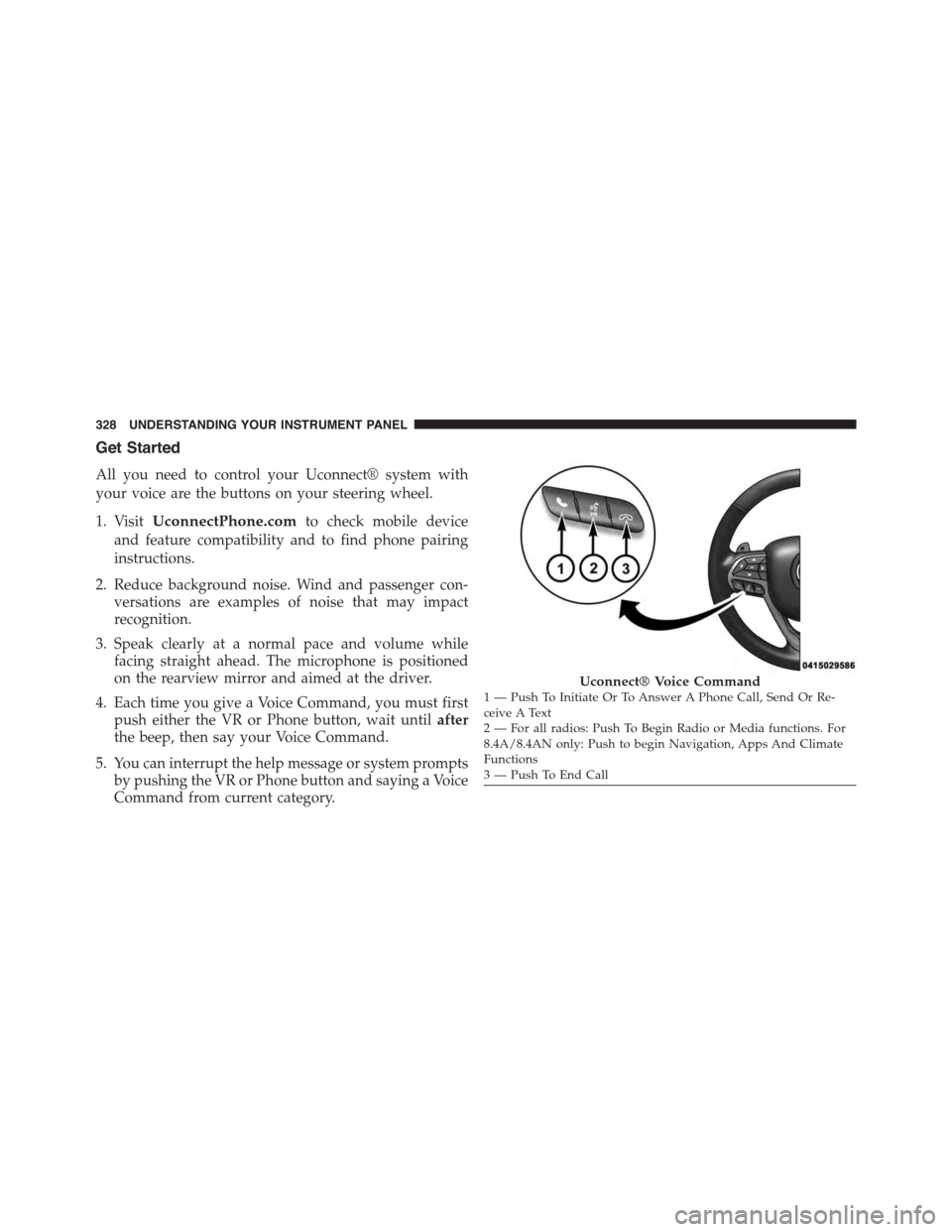
Get Started
All you need to control your Uconnect® system with
your voice are the buttons on your steering wheel.
1. VisitUconnectPhone.comto check mobile device
and feature compatibility and to find phone pairing
instructions.
2. Reduce background noise. Wind and passenger con-
versations are examples of noise that may impact
recognition.
3. Speak clearly at a normal pace and volume while
facing straight ahead. The microphone is positioned
on the rearview mirror and aimed at the driver.
4. Each time you give a Voice Command, you must first
push either the VR or Phone button, wait untilafter
the beep, then say your Voice Command.
5. You can interrupt the help message or system prompts
by pushing the VR or Phone button and saying a Voice
Command from current category.
Uconnect® Voice Command1—PushToInitiateOrToAnswerAPhoneCall,SendOrRe-ceive A Text2 — For all radios: Push To Begin Radio or Media functions. For8.4A/8.4AN only: Push to begin Navigation, Apps And ClimateFunctions3—PushToEndCall
328 UNDERSTANDING YOUR INSTRUMENT PANEL
Page 332 of 603
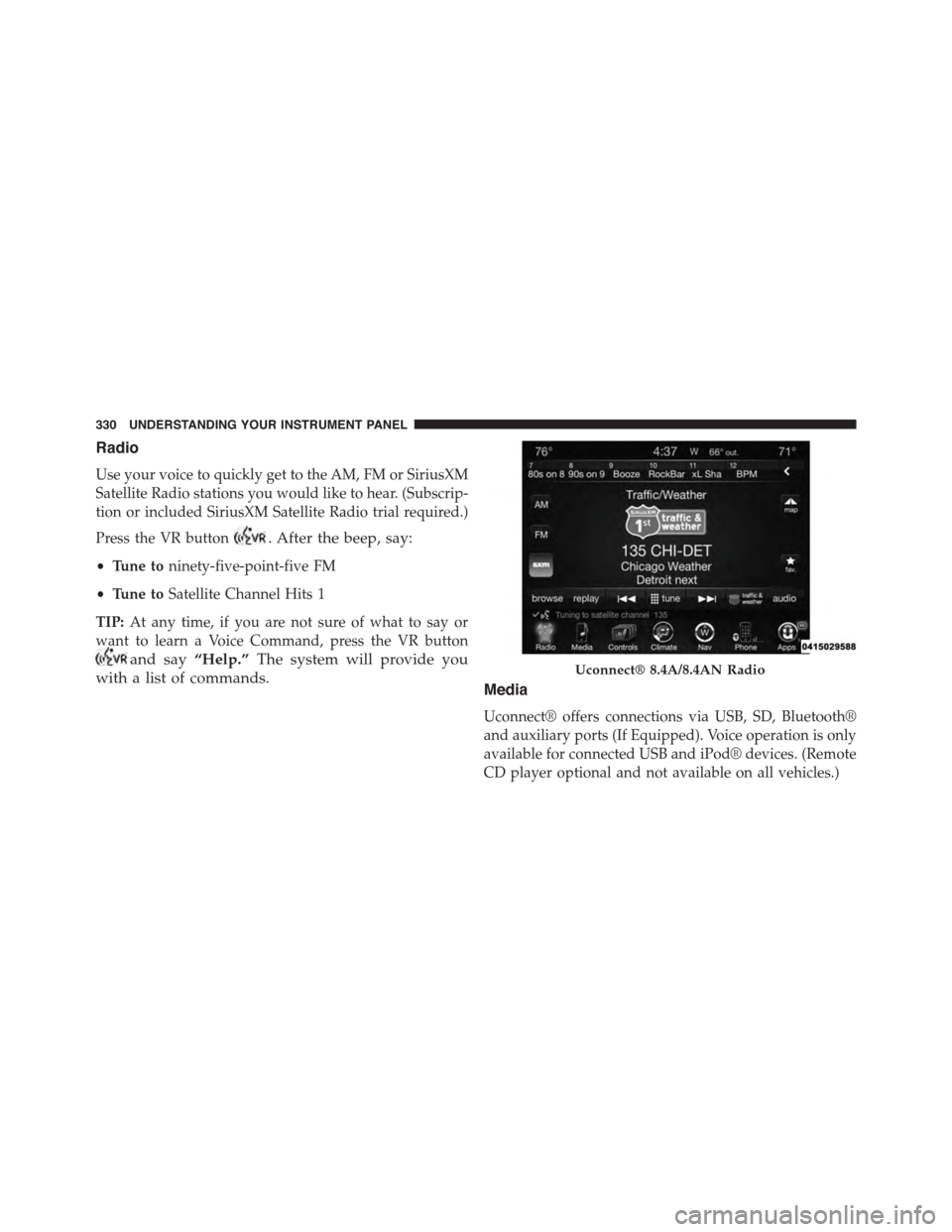
Radio
Use your voice to quickly get to the AM, FM or SiriusXM
Satellite Radio stations you would like to hear. (Subscrip-
tion or included SiriusXM Satellite Radio trial required.)
Press the VR button. After the beep, say:
•Tune toninety-five-point-five FM
•Tune toSatellite Channel Hits 1
TIP:At any time, if you are not sure of what to say or
want to learn a Voice Command, press the VR button
and say“Help.”The system will provide you
with a list of commands.Media
Uconnect® offers connections via USB, SD, Bluetooth®
and auxiliary ports (If Equipped). Voice operation is only
available for connected USB and iPod® devices. (Remote
CD player optional and not available on all vehicles.)
Uconnect® 8.4A/8.4AN Radio
330 UNDERSTANDING YOUR INSTRUMENT PANEL
Page 343 of 603
Additional Information
© 2014 Chrysler Group LLC. All rights reserved. Mopar
and Uconnect are registered trademarks and Mopar
Owner Connect is a trademark of Chrysler Group LLC.
Android is a trademark of Google Inc. SiriusXM and all
related marks and logos are trademarks of SiriusXM
Radio Inc. Yelp, Yelp logo, Yelp burst and related marks
are registered trademarks of Yelp.
Uconnect® System Support:
•DriveUconnect.com
•U.S. residents call 1-877-855-8400
•Canadian residents call 1-800-465-2001 (English) or
1-800-387-9983 (French)
Mon. – Fri., 7:00 am – 12:00 am, ET
Sat., 8:00 am – 10:00 pm, ET
Sun., 9:00 am – 5:00 pm, ET
Uconnect® Access Services Support 1-855-792-4241.
Please have your Uconnect® Security PIN ready when
you call.
4
UNDERSTANDING YOUR INSTRUMENT PANEL 341
Page 385 of 603
WARNING!
•The Anti-Lock Brake System (ABS) contains so-
phisticated electronic equipment that may be sus-
ceptible to interference caused by improperly in-
stalled or high output radio transmitting
equipment. This interference can cause possible
loss of anti-lock braking capability. Installation of
such equipment should be performed by qualified
professionals.
•Pumping of the Anti-Lock Brakes will diminish
their effectiveness and may lead to a collision.
Pumping makes the stopping distance longer. Just
press firmly on your brake pedal when you need to
slow down or stop.
(Continued)
WARNING!(Continued)
•The Anti-Lock Brake System (ABS) cannot prevent
the natural laws of physics from acting on the
vehicle, nor can it increase braking or steering
efficiency beyond that afforded by the condition of
the vehicle brakes and tires or the traction afforded.
•The Anti-Lock Brake System (ABS) cannot prevent
collisions, including those resulting from excessive
speed in turns, following another vehicle too
closely, or hydroplaning.
•The capabilities of an Anti-Lock Brake System
(ABS) equipped vehicle must never be exploited in
a reckless or dangerous manner, that could jeopar-
dize the user’s safety or the safety of others.
All vehicle wheels and tires must be the same size and
type and tires must be properly inflated to produce
accurate signals for the computer.
5
STARTING AND OPERATING 383
Page 390 of 603
ESC Operating Modes
The ESC system has two or three available operating
modes:
ESC On
This is the normal operating mode for the ESC. When-
ever the vehicle is started, the ESC system will be in this
mode. This mode should be used for most driving
situations. The ESC should only be turned OFF for
specific reasons as noted in the following paragraphs.
Partial Off
The “Partial Off” mode is intended for times when a
more spirited driving experience is desired. It is also
intended for driving in deep snow, sand, or gravel. This
mode disables the TCS portion of the ESC and raises the
threshold for ESC activation, which allows for more
wheel spin than what ESC normally allows. The “ESC
Off” switch is located in the switch bank near the bottom
center of the instrument panel or in the touchscreen radio
. To enter the “Partial Off” mode, momentarily press the
“ESC Off” switch and the “ESC Off Indicator Light” will
illuminate. To turn the ESC ON again, momentarily press
the “ESC Off” switch and the “ESC Off Indicator Light”
will turn off.
NOTE:To improve the vehicle’s traction when driving
with snow chains, or when starting off in deep snow,
sand, or gravel, it may be desirable to switch to the
“Partial Off” mode by momentarily pressing the “ESC
Off” switch. Once the situation requiring “Partial Off”
mode is overcome, turn the ESC ON again by momen-
tarily pressing the “ESC Off” switch. This may be done
while the vehicle is in motion.
388 STARTING AND OPERATING
Page 424 of 603
each tire with the low tire pressure values shown in a
different color. An#Inflate Tire to XX#message will also
be displayed in the DID display.
Should this occur, you should stop as soon as possible
and inflate all of the tires with a low pressure condition
(those shown in a different color in the DID graphic) to
the vehicle’s recommended cold placard pressure infla-
tion value as shown in the#Inflate Tire to XX#message.
Once the system receives the updated tire pressures, the
system will automatically update, the graphic display in
the DID will return the pressure values to shown their
original color, and the pressure values shown in the
“TPM Telltale Light” will turn off. The vehicle may need
to be driven for up to 20 minutes above 15 mph
(24 km/h) in order for the TPMS to receive this informa-
tion.
Service TPMS Warning
If a system fault is detected, the “TPM Telltale Light” will
flash on and off for 75 seconds and then remain on solid.
The system fault will also sound a chime. In addition, the
DID will display a#SERVICE TPM SYSTEM#message for
a minimum of five seconds and then display dashes (- -)
in place of the pressure value to indicate which sensor is
not being received.
If the ignition switch is cycled, this sequence will repeat,
providing the system fault still exists. If the system fault
no longer exists, the “TPM Telltale Light” will no longer
flash, and the#SERVICE TPM SYSTEM#message will no
longer display, and a pressure value will display in place
of the dashes. A system fault can occur due to any of the
following:
1. Signal interference due to electronic devices or driving
next to facilities emitting the same radio frequencies as
the TPM sensors.
422 STARTING AND OPERATING
Page 425 of 603
2. Installing aftermarket window tinting that contains
materials that may block radio wave signals.
3. Accumulation of snow or ice around the wheels or
wheel housings.
4. Using tire chains on the vehicle.
5. Using wheels/tires not equipped with TPM sensors.
The DID will also display a#SERVICE TPM SYSTEM#
message for a minimum of five seconds when a system
fault related to an incorrect sensor location fault is
detected. In this case, the#SERVICE TPM SYSTEM#
message is then followed with a graphic display with
pressure values still shown. This indicates that the pres-
sure values are still being received from the TPM sensors
but they may not be located in the correct vehicle
position. The system still needs to be serviced as long as
the#SERVICE TPM SYSTEM#message is displayed.
Vehicles With Compact Spare
1. The compact spare tire does not have a TPM sensor.
Therefore, the TPMS will not monitor the pressure in
the compact spare tire.
2. If you install the compact spare tire in place of a road
tire that has a pressure below the low-pressure warn-
ing limit, upon the next ignition switch cycle, the
“TPM Telltale Light” will remain ON and a chime will
sound. In addition, the graphic in the DID will still
display the low pressure values in a different color and
the#Inflate Tire to XX#message.
3. After driving the vehicle for up to 20 minutes above
15 mph (24 km/h), the “TPM Telltale Light” will flash
on and off for 75 seconds and then remain on solid. In
addition, the DID will display a#SERVICE TPM
SYSTEM#message for a minimum of five seconds and
then display dashes (- -) in place of the pressure value.
5
STARTING AND OPERATING 423