instrument panel DODGE CHALLENGER 2016 3.G Owners Manual
[x] Cancel search | Manufacturer: DODGE, Model Year: 2016, Model line: CHALLENGER, Model: DODGE CHALLENGER 2016 3.GPages: 651, PDF Size: 4.47 MB
Page 279 of 651
CYBERSECURITY
Your vehicle may be a connected vehicle and may be
equipped with both wired and wireless networks. These
networks allow your vehicle to send and receive infor-
mation. This information allows systems and features in
your vehicle to function properly.
Your vehicle may be equipped with certain security fea-
tures to reduce the risk of unauthorized and unlawful
access to vehicle systems and wireless communications.
Vehicle software technology continues to evolve over time
and FCA US LLC, working with its suppliers, evaluates
and takes appropriate steps as needed. Similar to a com-
puter or other devices, your vehicle may require software
updates to improve the usability and performance of your
systems or to reduce the potential risk of unauthorized and
unlawful access to your vehicle systems.
The risk of unauthorized and unlawful access to your
vehicle systems may still exist, even if the most recentversion of vehicle software (such as Uconnect software) is
installed.
WARNING!
•
It is not possible to know or to predict all of the
possible outcomes if your vehicle’s systems are
breached. It may be possible that vehicle systems,
including safety related systems, could be im-
paired or a loss of vehicle control could occur that
may result in an accident involving serious injury
or death.
• ONLY insert media (e.g., USB, SD card, or CD) into
your vehicle if it came from a trusted source. Media
of unknown origin could possibly contain mali-
cious software, and if installed in your vehicle, it
may increase the possibility for vehicle systems to
be breached.
(Continued)
4
UNDERSTANDING YOUR INSTRUMENT PANEL 277
Page 280 of 651
WARNING!(Continued)
•As always, if you experience unusual vehicle be-
havior, take your vehicle to your nearest authorized
dealer immediately.
NOTE:
• FCA or your dealer may contact you directly regarding
software updates.
• To help further improve vehicle security and minimize
the potential risk of a security breach, vehicle owners
should:
• Routinely check www.driveuconnect.com/software-
update to learn about available Uconnect software
updates.
• Only connect and use trusted media devices (e.g.
personal mobile phones, USBs, CDs). Privacy of any wireless and wired communications can-
not be assured. Third parties may unlawfully intercept
information and private communications without your
consent. For further information, refer to “Privacy Prac-
tices – If Equipped with Uconnect 8.4 radio” in “All
About Uconnect Access” in your Owner ’s Manual Radio
Supplement and “Onboard Diagnostic System (OBD II)
Cybersecurity” in “Maintaining Your Vehicle”.
UCONNECT SETTINGS
The Uconnect system uses a combination of buttons on
the touchscreen and buttons on the faceplate located on
the center of the instrument panel that allows you to
access and change the customer programmable features.
278 UNDERSTANDING YOUR INSTRUMENT PANEL
Page 281 of 651
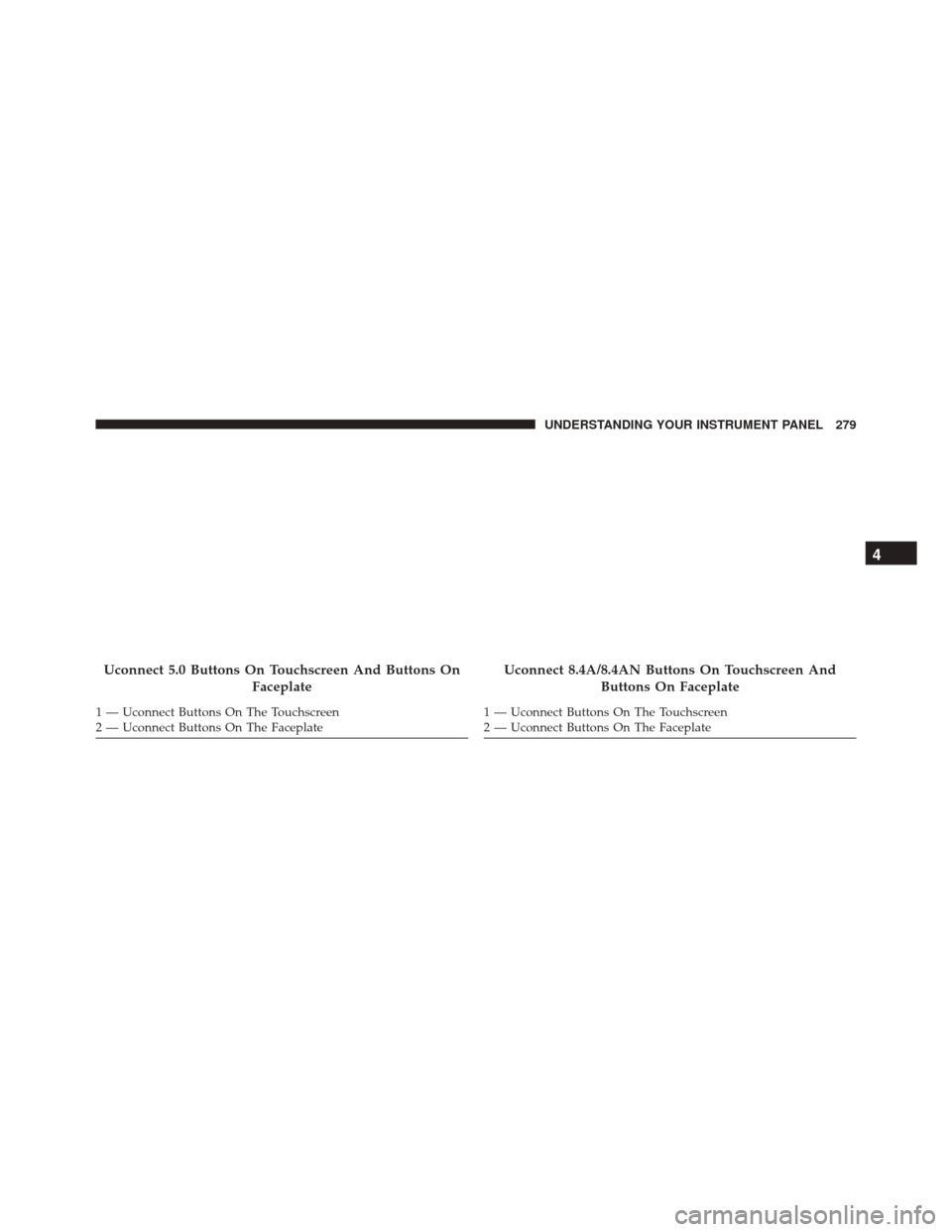
Uconnect 5.0 Buttons On Touchscreen And Buttons OnFaceplate
1 — Uconnect Buttons On The Touchscreen
2 — Uconnect Buttons On The Faceplate
Uconnect 8.4A/8.4AN Buttons On Touchscreen AndButtons On Faceplate
1 — Uconnect Buttons On The Touchscreen
2 — Uconnect Buttons On The Faceplate
4
UNDERSTANDING YOUR INSTRUMENT PANEL 279
Page 282 of 651
Buttons On The Faceplate
Buttons on the faceplate are located below the Uconnect
system in the center of the instrument panel. In addition,
there is a Scroll/Enter control knob located on the right
side. Turn the control knob to scroll through menus and
change settings (i.e., 30, 60, 90), push the center of the
control knob one or more times to select or change a
setting (i.e., ON, OFF).
Your Uconnect system may also have a Screen Off and
Back buttons on the faceplate.
Push the Screen Off button on the faceplate to turn off the
Uconnect screen. Push the Screen Off button on the
faceplate a second time to turn the screen on.
Push the Back button on the faceplate to exit out of a
Menu or certain option on the Uconnect system.
Buttons On The Touchscreen
Buttons on the touchscreen are accessible on the
Uconnect display.
Customer Programmable Features — Uconnect
5.0 Settings
Push the + MORE button on the faceplate and then press
the “Settings” button on the touchscreen to display the
menu setting screen. In this mode the Uconnect system
allows you to access programmable features that may be
equipped such as Display, Units, Voice, Clock, Safety/
Assistance, Lights, Doors & Locks, Auto-On Comfort,
Engine Off Options, Compass Settings, Audio, Phone/
Bluetooth, SiriusXM Setup, Restore Settings, Clear Per-
sonal Data and System Information.
NOTE:Only one touchscreen area may be selected at a
time.
280 UNDERSTANDING YOUR INSTRUMENT PANEL
Page 283 of 651
When making a selection, press the button on the touch-
screen to enter the desired mode. Once in the desired
mode, select the preferred setting option. Once the set-
ting is complete, either press the Back Arrow/Done
button on the touchscreen or the Back button on the
faceplate to return to the previous menu or press the “X”
button on the touchscreen to close out of the settings
screen. Pressing the Up or Down Arrow buttons on the
right side of the screen will allow you to toggle up or
down through the available settings.
Display
After pressing the “Display” button on the touchscreen
the following settings will be available:
•Display Mode
When in this display you may select the Auto or Manual
display settings. To change Mode status, press and re-
lease the “Auto” or “Manual” button on the touchscreen. •
Set Language
When in this display, you may select one of multiple
languages (English/Français/Español) for all display no-
menclature, including the trip functions and the naviga-
tion system (if equipped). Press the “Language” button
on the touchscreen and select from “English,” “Français,”
or “Español.”
• Touchscreen Beep
When in this display, you may turn on or shut off the
sound heard when a touchscreen button is pressed. To
change the Mode status, press and release the “On” or
“Off” button on the touchscreen.
Units
After pressing the “Units” button on the touchscreen you
may select each unit of measure independently displayed
4
UNDERSTANDING YOUR INSTRUMENT PANEL 281
Page 284 of 651
in the Driver Information Display (DID), and navigation
system (if equipped). The following selectable units of
measure are listed below:
•Speed
Select from: “MPH” or “km/h.”
• Distance
Select from: “mi” or “km.”
• Fuel Consumption
Select from: “MPG” (US), “MPG” (UK), “L/100 km” or
“km/L.”
• Pressure
Select from: “psi,” “kPa,” or “bar.”
• Temperature
Select from: “°C,” or “°F.” •
Power
Select from: “HP” (US), “HP” (UK), and “kW.”
• Torque
Select from: “lb-ft” or “Nm.”
Voice
After pressing the “Voice” button on the touchscreen the
following settings will be available:
• Voice Response Length
When in this display, you may change the Voice Re-
sponse Length settings. To change mode status, press and
release the “Brief” or “Long” button on the touchscreen.
282 UNDERSTANDING YOUR INSTRUMENT PANEL
Page 285 of 651
•Show Command List
When in this display, you may change the Show Com-
mand List settings. To change the mode status, press and
release the “Always,” “With Help,” or “Never” button on
the touchscreen.
Clock & Date
After pressing the “Clock & Date” button on the touch-
screen the following settings will be available:
• Set Time and Format
When in this display, you may set the time and format
manually. Press the “Set Time” button then choose from
a 12 hour or 24 hour format. Press the corresponding
arrow above and below the current time to adjust, then
select “AM” or “PM.” •
Show Time Status
When in this display, you may turn on or shut off the
digital clock in the status bar. To change the Show Time
Status setting press the “Show Time Status” button on the
touchscreen and select from “ON” or “OFF.”
• Set Date
When in this display, you may set the date manually.
Press the “Set Date” button on the touchscreen then press
the corresponding arrows above and below the current
date to adjust.
Safety/Assistance
After pressing the “Safety/Assistance” button on the
touchscreen the following settings will be available:
• Forward Collision Warning — If Equipped
The Front Collision Warning (FCW) feature provides an
audible and/or visual warning to potential forward
4
UNDERSTANDING YOUR INSTRUMENT PANEL 283
Page 286 of 651
collisions. The feature can be can be set to Far, or set to
Near. The default status of FCW is the Far setting. This
means the system will warn you of a possible collision
with the vehicle in front of you when you are farther
away. This gives you the most reaction time. To change
the setting for more dynamic driving, select the Near
setting. This warns you of a possible collision when you
are much closer to the vehicle in front of you. To change
the FCW status, press and release the “Near” or “Far”
button. Press the back arrow/Done button on the touch-
screen to return to the previous menu.
For further information, refer to “Adaptive Cruise Con-
trol (ACC)” in “Understanding The Features Of Your
Vehicle.”
•Steering Feel Options — If Equipped
When your vehicle is not equipped with Performance
Control, the Steering Feel Options feature will allow you
to adjust the steering effort and feel. Press the “Sport” button on the touchscreen to provide the greatest amount
of steering feel, requiring the highest amount of steering
effort. Press the “Normal” button on the touchscreen to
provide greater steering feel, requiring greater steering
effort. Press the “Comfort” button on the touchscreen to
provide a balance of steering feel and steering effort.
•
ParkSense
The ParkSense system will scan for objects behind the
vehicle when the transmission shift lever/gear selector is
in REVERSE and the vehicle speed is less than 11 mph (18
km/h). It will provide an alert (audible and/or visual) to
indicate the proximity to other objects. The system can be
enabled with Sound Only, or Sound and Display. To
change the ParkSense status, press and release the
“Sound Only” or “Sound and Display” button. Refer to
“ParkSense” in “Understanding The Features Of Your
Vehicle” for system function and operating information.
284 UNDERSTANDING YOUR INSTRUMENT PANEL
Page 287 of 651
•Rear ParkSense Chime Volume
The Rear ParkSense Chime Volume settings can be se-
lected from the DID or Uconnect System — if equipped.
The chime volume settings include LOW, MEDIUM, and
HIGH. The factory default volume setting is MEDIUM.
To make your selection, press the “Rear ParkSense Vol-
ume” button on the touchscreen, then select from “Low,”
“Med,” or “High.” ParkSense will retain its last known
configuration state through ignition cycles.
• Blind Spot Alert
When this feature is selected, the Blind Spot Alert feature
Provides alerts, visual and/or audible, to indicate objects
in your blind spot. The Blind Spot Alert feature can be
activated in Lights mode. When this mode is selected, the
Blind Spot Monitor (BSM) system is activated and will
only show a visual alert in the exterior mirrors. When
Lights & Chime mode is activated, the Blind Spot Moni-
tor (BSM) will show a visual alert in the exterior mirrors as well as an audible alert when the turn signal is on.
When Off is selected, the Blind Spot Monitor (BSM)
system is deactivated. To change the Blind Spot Alert
status, press the “Off,” “Lights,” or “Lights & Chime”
button on the touchscreen.
NOTE:
If your vehicle has experienced any damage in
the area where the sensor is located, even if the fascia is
not damaged, the sensor may have become misaligned.
Take your vehicle to an authorized dealer to verify sensor
alignment. Having a sensor that is misaligned will result
in the BSM not operating to specification.
• ParkView Backup Camera Active Guidelines
Your vehicle may be equipped with the ParkView Rear
Back Up Camera Active Guidelines that allows you to see
active guidelines over the ParkView Back up camera
display whenever the shift lever/gear selector is put into
REVERSE. The image will be displayed on the radio
touchscreen display along with a caution note to “check
4
UNDERSTANDING YOUR INSTRUMENT PANEL 285
Page 288 of 651
entire surroundings” across the top of the screen. After
five seconds, this note will disappear. To enable or
disable, press the “ParkView Backup Camera Active
Guidelines” button on the touchscreen, and select “On”
or “Off.”
•ParkView Backup Camera Delay
When the vehicle is shifted out of REVERSE (with camera
delay turned OFF), the rear camera mode is exited and
the navigation or audio screen appears again. When the
vehicle is shifted out of REVERSE (with camera delay
turned ON), the rear view image with dynamic grid lines
will be displayed for up to 10 seconds after shifting out of
“REVERSE” unless the forward vehicle speed exceeds
8 mph (12 km/h), the transmission is shifted into PARK
or the ignition is switched to the OFF position. To set the
ParkView Backup Camera Delay press the “Controls”
button on the touchscreen, the “settings” button on the
touchscreen, then the “Safety & Assistance” button on the touchscreen. Press the “Parkview Backup camera Delay”
button on the touchscreen and select from “ON” or
“OFF.”
•
Rain Sensing Auto Wipers
When this feature is selected, the system will automati-
cally activate the windshield wipers if it senses moisture
on the windshield. To enable or disable, press the “Rain
Sensing” button on the touchscreen, and select “On” or
“Off.”
• Hill Start Assist — If Equipped
When this feature is selected, the Hill Start Assist (HSA)
system is active. Refer to “Electronic Brake Control
System” in “Starting And Operating” for system function
and operating information. To enable or disable, press the
“Hill Start Assist” button on the touchscreen, and select
“On” or “Off.”
286 UNDERSTANDING YOUR INSTRUMENT PANEL