display DODGE CHALLENGER 2020 Owners Manual
[x] Cancel search | Manufacturer: DODGE, Model Year: 2020, Model line: CHALLENGER, Model: DODGE CHALLENGER 2020Pages: 396, PDF Size: 16.64 MB
Page 365 of 396
MULTIMEDIA363
Only the phonebook of the currently
connected mobile phone is accessible.
This downloaded phonebook cannot be
edited or deleted on the Uconnect Phone.
These can only be edited on the mobile
phone. The changes are transferred and
updated to Uconnect Phone on the next
phone connection.
Managing Your Favorites
There are two ways you can add an entry to your
Favorites.
1. After loading the mobile phonebook, press the Favorites button on the touchscreen,
and then press one of the +Add favorite
Contact buttons that appears on the list.
2. After loading the mobile phonebook, select Contacts from the Phone main screen, and
then select the appropriate number. Press
the down arrow symbol button next to the
selected number to display the options
pop-up. In the pop-up select Add to
Favorites.
NOTE:
If the Favorites list is full, you will be asked to
remove an existing favorite. To Remove A Favorite
1. To remove a Favorite, select “Favorites”
from the Phone main screen.
2. Next select the down arrow icon next to the contact you want to remove from your
favorites. This will bring up the options for
that favorite contact.
3. Press “Remove from Favs”.
Phone Call Features
The following features can be accessed through
the Uconnect Phone if the feature(s) are
available and supported by Bluetooth® on your
mobile service plan. For example, if your mobile
service plan provides three-way calling, this
feature can be accessed through the Uconnect
Phone. Check with your mobile service provider
for the features that you have.
Ways To Initiate A Phone Call
Listed below are all the ways you can initiate a
phone call with Uconnect Phone.
Redial
Dial by pressing in the number
Voice Commands (Dial by Saying a Name,
Call by Saying a Phonebook Name, Redial or
Call Back)
Favorites
Mobile Phonebook
Recent Call Log
SMS Message Viewer
Dial By Saying A Number
1. Push the VR button on your steering wheel to begin.
2. After the “Listening” prompt and the following beep, say “Dial 151-123-4444.”
3. The Uconnect Phone will dial the number 151-123-4444.
Call By Saying A Phonebook Name
1. Push the VR button on your steering wheel to begin.
2. After the “Listening” prompt and the following beep, say “Call John Doe Mobile.”
3. The Uconnect Phone will dial the number associated with John Doe, or if there are
multiple numbers it will ask which number
you want to call for John Doe.
9
20_LA_OM_EN_USC_t.book Page 363
Page 366 of 396
364MULTIMEDIA
Call Controls
The touchscreen allows you to control the
following call features:
Answer
End
Ignore
Hold/unhold
Mute/unmute
Transfer the call to/from the phone
Swap two active calls
Join two active calls together
Touch-Tone Number Entry
1. Press the Phone button on the touchscreen.
2. Press the Dial button on the touchscreen.
3. The Touch-Tone screen will be displayed.
4. Use the numbered buttons on the touchscreens to enter the number and
press Call. If your vehicle has two or three buttons on the
steering wheel (VR, Phone Send, and Phone
End) press the VR button to send a touch-tone
and say “Send 1234#” or you can say “Send
Voicemail Password” if Voicemail password is
stored in your mobile phonebook.
Recent Calls
You may browse a list of the most recent of each
of the following call types:
All Calls
Incoming Calls
Outgoing Calls
Missed Calls
These can be accessed by pressing the Recent
Calls button on the Phone main screen.
You can also push the VR button on your
steering wheel and say “Show my incoming
calls” from any screen and the incoming calls
will be displayed.
NOTE:
Incoming can also be replaced with “Outgoing,”
“Recent”, or “Missed.” Answer Or Ignore An Incoming Call — No Call
Currently In Progress
When you receive a call on your mobile phone,
the Uconnect Phone will interrupt the vehicle
audio system. Push the Phone button on the
steering wheel to accept the call. You can also
press the Answer button on the touchscreen or
press the caller ID box.
Answer Or Ignore An Incoming Call — Call
Currently In Progress
If a call is currently in progress and you have
another incoming call, you will hear the same
network tones for call waiting that you normally
hear when using your mobile phone. Press the
Uconnect Phone button on the steering wheel,
answer button on the touchscreen or caller ID
box to place the current call on hold and answer
the incoming call.
NOTE:
The Uconnect Phone compatible phones in the
market today do not support rejecting an
incoming call when another call is in progress.
Therefore, the user can only answer an
incoming call or ignore it.
20_LA_OM_EN_USC_t.book Page 364
Page 367 of 396
MULTIMEDIA365
Do Not Disturb
With Do Not Disturb, you can disable
notifications from incoming calls and texts,
allowing you to keep your eyes on the road and
hands on the wheel. For your convenience,
there is a counter display to keep track of your
missed calls and text messages while you were
using Do Not Disturb.
Do Not Disturb can automatically reply with a
text message, a call, or both when declining an
incoming call and send it to voicemail.
Automatic reply messages can be:
“I am driving right now, I will get back to you
shortly.”
Create a custom auto reply message up to
160 characters.
NOTE:
Only the first 25 characters can be seen on the
touchscreen while typing a custom message.
While in Do Not Disturb, Conference Call can be
selected so you can still place a second call
without being interrupted by incoming calls. NOTE:
Reply with text message is not compatible
with iPhones®.
Auto reply with text message is only available
on phones that support Bluetooth® MAP.
Place/Retrieve A Call From Hold
During an active call, press the Hold button on
the Phone main screen.
Making A Second Call While Current Call Is In
Progress
You can place a call on hold by pressing the
Hold button on the Phone main screen, then
dial a number from the dialpad, recent calls,
SMS Inbox or from the phonebooks. To go back
to the first call, refer to “Toggling Between Calls”
in this section. To combine two calls, refer to
“Join Calls” in this section.
Toggling Between Calls
If two calls are in progress (one active and one
on hold), press the Swap button on the Phone
main screen. Only one call can be placed on
hold at a time.
You can also push the Phone button to toggle
between the active and held phone call. Join Calls
When two calls are in progress (one active and
one on hold), press the Join Calls button on the
Phone main screen to combine all calls into a
Conference Call.
Call Termination
To end a call in progress, momentarily press the
Phone End button on the touchscreen or the
Phone End button on the steering wheel. Only
the active call(s) will be terminated and if there
is a call on hold, it will become the new active
call.
Redial
Press the Redial button on the touchscreen, or
push the VR button and after the “Listening”
prompt and the following beep, say “Redial.”
The Uconnect Phone will call the last number
that was dialed from your mobile phone.
9
20_LA_OM_EN_USC_t.book Page 365
Page 368 of 396
366MULTIMEDIA
Call Continuation
Call continuation is the progression of a phone
call on the Uconnect Phone after the vehicle
ignition has been switched to OFF.
NOTE:
The call will remain within the vehicle audio
system until the phone becomes out of range
for the Bluetooth® connection. It is recom -
mended to press the Transfer button on the
touchscreen when leaving the vehicle.
Browsing SMS
Using the steering wheel commands, you can
view and manage the last 10 SMS messages
received on the instrument panel. To use this
function, the mobile phone must support the
SMS exchange function through Bluetooth®.
Select the PHONE button on the instrument
panel menu, and then select “SMS Reader”
using the arrow keys on the steering wheel
controls.
The “SMS Reader” submenu allows the last
10 SMS messages to be displayed.Advanced Phone Connectivity
Transfer Call To And From Mobile Phone
The Uconnect Phone allows ongoing calls to be
transferred from your mobile phone to the
Uconnect Phone without terminating the call. To
transfer an ongoing call from your connected
mobile phone to the Uconnect Phone or vice
versa, press the Transfer button on the Phone
main screen.
Connect Or Disconnect Link Between The
Uconnect Phone And Mobile Phone
If you would like to connect or disconnect the
Bluetooth® connection between a Uconnect
Phone paired mobile phone and the Uconnect
Phone, follow the instructions described in your
mobile phone User's Manual.
Things You Should Know About Your
Uconnect Phone
Voice Command
For the best performance:
Adjust the rearview mirror to provide at least
½-inch (1 cm) gap between the overhead
console (if equipped) and the mirror.
Always wait for the beep before speaking.
Speak normally, without pausing, just as you
would speak to a person sitting a few feet/
meters away from you.
Ensure that no one other than you is
speaking during a voice command period.
Performance is maximized under:
Low-To-Medium Blower Setting
Low-To-Medium Vehicle Speed
Low Road Noise
Smooth Road Surface
Fully Closed Windows
Dry Weather Conditions
WARNING!
ALWAYS drive safely with your hands on the
wheel. You have full responsibility and
assume all risks related to the use of the
Uconnect features and applications in this
vehicle. Only use Uconnect when it is safe to
do so. Failure to do so may result in an
accident involving serious injury or death.
20_LA_OM_EN_USC_t.book Page 366
Page 373 of 396
MULTIMEDIA371
You can interrupt the help message or
system prompts by pushing the VR or Phone
button and saying a Voice Command from
the current category.
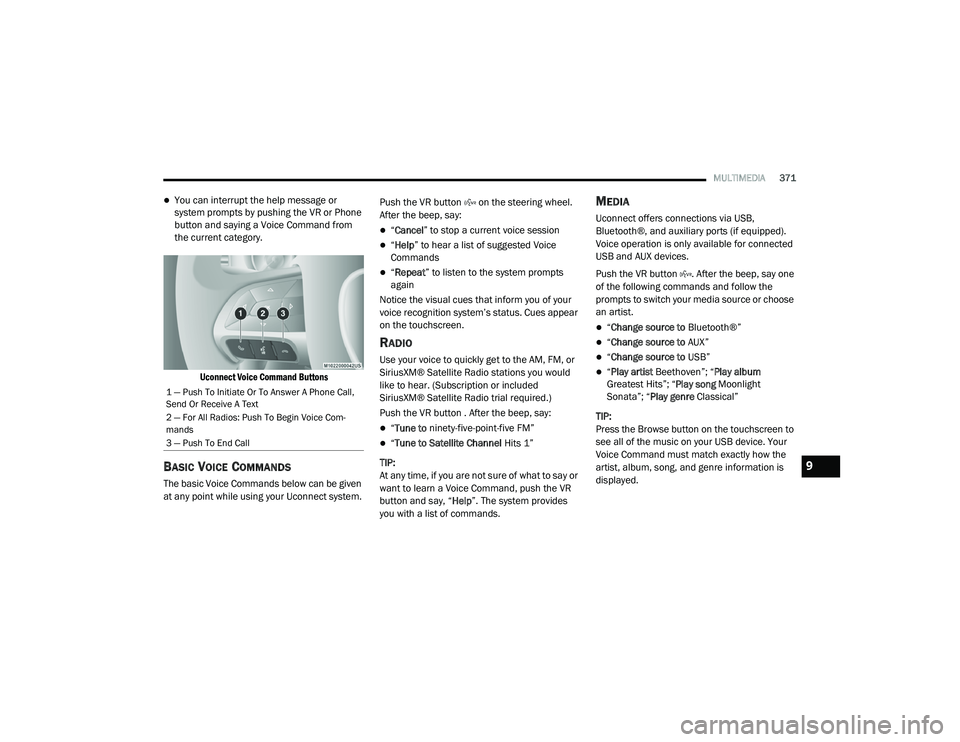
Uconnect Voice Command Buttons
BASIC VOICE COMMANDS
The basic Voice Commands below can be given
at any point while using your Uconnect system. Push the VR button on the steering wheel.
After the beep, say:
“
Cancel ” to stop a current voice session
“Help ” to hear a list of suggested Voice
Commands
“ Repeat ” to listen to the system prompts
again
Notice the visual cues that inform you of your
voice recognition system’s status. Cues appear
on the touchscreen.
RADIO
Use your voice to quickly get to the AM, FM, or
SiriusXM® Satellite Radio stations you would
like to hear. (Subscription or included
SiriusXM® Satellite Radio trial required.)
Push the VR button . After the beep, say:
“ Tune to ninety-five-point-five FM”
“Tune to Satellite Channel Hits 1”
TIP:
At any time, if you are not sure of what to say or
want to learn a Voice Command, push the VR
button and say, “ Help”. The system provides
you with a list of commands.
MEDIA
Uconnect offers connections via USB,
Bluetooth®, and auxiliary ports (if equipped).
Voice operation is only available for connected
USB and AUX devices.
Push the VR button . After the beep, say one
of the following commands and follow the
prompts to switch your media source or choose
an artist.
“ Change source to Bluetooth®”
“Change source to AUX”
“Change source to USB”
“Play artist Beethoven”; “ Play album
Greatest Hits”; “ Play song Moonlight
Sonata”; “ Play genre Classical”
TIP:
Press the Browse button on the touchscreen to
see all of the music on your USB device. Your
Voice Command must match exactly how the
artist, album, song, and genre information is
displayed.
1 — Push To Initiate Or To Answer A Phone Call,
Send Or Receive A Text
2 — For All Radios: Push To Begin Voice Com -
mands
3 — Push To End Call
9
20_LA_OM_EN_USC_t.book Page 371
Page 375 of 396
MULTIMEDIA373
CLIMATE
Adjust vehicle temperatures hands-free and
keep everyone comfortable while you keep
moving ahead. (If vehicle is equipped with
climate control.)
Push the VR button . After the beep, say one of
the following commands:
“Set driver temperature to 70 degrees ”
“Set passenger temperature to 70 degrees ”
TIP:
Voice Command for Climate may only be used
to adjust the interior temperature of your
vehicle. Voice Command will not work to adjust
the heated seats or steering wheel if equipped.
NAVIGATION (4C NAV)
The Uconnect navigation feature helps you save
time and become more productive when you
know exactly how to get to where you want to go.
1. To enter a destination, push the VR button
. After the beep, say: “ Find address
800
Chrysler Drive Auburn Hills, Michigan.”
2. Then follow the system prompts. TIP:
To start a POI search, push the VR button .
After the beep, say: “
Find nearest coffee shop.”
SIRI® EYES FREE — IF EQUIPPED
Siri lets you use your voice to send text
messages, select media, place phone calls and
much more. Siri uses your natural language to
understand what you mean and responds back
to confirm your requests. The system is
designed to keep your eyes on the road and
your hands on the wheel by letting Siri help you
perform useful tasks.
To enable Siri, push and hold, then release the
Uconnect Voice Recognition (VR) button on the
steering wheel. After you hear a double beep
you can ask Siri to play podcasts and music, get
directions, read text messages, and many other
useful requests.
DO NOT DISTURB
With Do Not Disturb, you can disable
notifications from incoming calls and texts,
allowing you to keep your eyes on the road and
hands on the wheel. For your convenience,
there is a counter display to keep track of your missed calls and text messages while you were
using Do Not Disturb.
Do Not Disturb can automatically reply with a
text message, a call or both, when declining an
incoming call and send it to voicemail.
Automatic reply messages can be:
“I am driving right now, I will get back to you
shortly”.
Create a custom auto reply message up to
160 characters.
NOTE:
Only the first 25 characters can be seen on the
touchscreen while typing a custom message.
While in Do Not Disturb, Conference Call can be
selected so you can still place a second call
without being interrupted by incoming calls.
NOTE:
Reply with text message is not compatible
with iPhones®.
Auto reply with text message is only available
on phones that support Bluetooth® MAP.9
20_LA_OM_EN_USC_t.book Page 373
Page 386 of 396
384 I
Ignition
............................................................ 17Switch......................................................... 17In Vehicle Help Vehicle User Guide...................................... 11Information Center, Vehicle............................. 74Inside Rearview Mirror............................ 38, 199Instrument ClusterDescriptions.................................. 68, 71, 89Display................................................. 73, 76Instrument Panel Lens Cleaning.................... 290Interior Appearance Care............................... 289Interior Lights.................................................. 43Intermittent Wipers (Delay Wipers).................. 45Introduction....................................................... 8iPod/USB/MP3 Control....................... 349, 368Bluetooth Streaming Audio....................... 368
J
Jack Location................................................. 216Jack Operation..................................... 217, 269Jacking Instructions....................................... 217Jump Starting...................................... 226, 227
K
Key FobArm The System
.......................................... 23Panic Alarm................................................. 14Programming Additional Key Fobs....... 16, 22Unlatch The Trunk....................................... 14
Key Fob Battery Service
(Remote Keyless Entry).................................... 14Key Fob Programming
(Remote Keyless Entry).................................... 16Key-In Reminder.............................................. 18Keyless Enter-N-Go.......................................... 25Enter The Trunk........................................... 14Keys................................................................. 12Replacement........................................ 16, 22
L
Lane Change And Turn Signals........................ 43Lane Change Assist......................................... 43Lap/Shoulder Belts....................................... 115Latches......................................................... 147Hood............................................................ 57Lead Free Gasoline....................................... 293Leaks, Fluid.................................................. 147Life Of Tires................................................... 279Light Bulbs........................................... 147, 204Lights............................................................ 147Air Bag...................................... 83, 121, 146Automatic Headlights.................................. 42Brake Assist Warning.................................. 98Brake Warning....................................83, 291Bulb Replacement.................................... 204Courtesy/Reading....................................... 43Cruise................................................... 89, 90Daytime Running......................................... 41Dimmer Switch, Headlight........................... 41
Electronic Stability Program(ESP)Indicator..................................................84Exterior.............................................. 40, 147Fog...............................................................43Headlight Switch..........................................40Headlights............................................ 40, 42Headlights On With Wipers..........................42High Beam...................................................41High Beam/Low Beam Select......................41Instrument Cluster.......................................40Intensity Control..........................................44Interior.........................................................43License..................................................... 207Lights On Reminder.....................................42Malfunction Indicator (Check Engine)..........86Map.............................................................43Park......................................................42, 89Passing........................................................42Reading.......................................................43Seat Belt Reminder.....................................83Security Alarm.............................................84Service...................................................... 204Traction Control...........................................98Turn Signals......................... 41, 43, 89, 147Vanity Mirror................................................40Warning Instrument Cluster Descriptions................................... 84, 89Load Shed Battery Saver On............................81Load Shed Electrical Load Reduction..............81Load Shed Intelligent Battery Sensor...............81
20_LA_OM_EN_USC_t.book Page 384
Page 390 of 396
388 Changing
................................ 216, 217, 269Compact Spare......................................... 281General Information........................ 276, 281High Speed................................................ 277Inflation Pressure...................................... 277Jacking............................................ 217, 269Life Of Tires............................................... 279Load Capacity............................................ 273Pressure Monitoring System(TPMS)........................................... 87, 107Quality Grading.......................................... 286Radial........................................................ 277Replacement............................................. 279Rotation.................................................... 285Safety.............................................. 269, 276Sizes.......................................................... 270Snow Tires................................................. 281Spare Tires............................. 216, 281, 282Spinning.................................................... 278Trailer Towing............................................ 194Tread Wear Indicators............................... 278Wheel Nut Torque..................................... 291To Open Hood.................................................. 57Tongue Weight/Trailer Weight....................... 193Towing........................................................... 190Disabled Vehicle........................................ 232Guide......................................................... 192Recreational.............................................. 197Weight....................................................... 192
Towing Behind A Motorhome........................ 197Traction......................................................... 197Traction Control............................................ 100Trailer Towing............................................... 190Cooling System Tips................................. 196Hitches..................................................... 191Minimum Requirements........................... 193Tips........................................................... 196Trailer And Tongue Weight........................ 193Wiring....................................................... 195Trailer Towing Guide..................................... 192Trailer Weight................................................ 192Transfer CaseFluid.............................. 268, 299, 301, 302Maintenance............................................ 268Transmission................................................ 160Automatic............................... 158, 160, 267Fluid.............................. 299, 301, 302, 304Maintenance............................................ 267Manual..................................................... 155Shifting..................................................... 158Transporting Pets.......................................... 145Tread Wear Indicators.................................. 278Trunk Lid (Deck Lid)......................................... 58Trunk Release Remote Control........................ 58Turn Signals.............................................. 43, 89
U
UconnectAdvanced Phone Connectivity
................... 366Phone Call Features................................. 363Things You Should Know About YourUconnect Phone................................... 366Uconnect Settings............... 13, 14, 21, 317Uconnect 4 With 7-Inch Display.................... 307Uconnect 4C/4C Nav With 8.4-Inch
Display.......................................................... 323Uconnect Phone................ 359, 360, 361, 362Answer Or Ignore An Incoming Call — Call Currently In Progress..................... 364Answer Or Ignore An Incoming Call — No Call Currently In Progress................ 364Bluetooth Communication Link................ 367Call By Saying A Phonebook Name........... 363Call Continuation...................................... 366Call Controls............................................. 364Call Termination....................................... 365Cancel Command..................................... 359Connect Or Disconnect Link Between The Uconnect Phone And Mobile
Phone
................................................... 366Connecting To A Particular Mobile Phone Or Audio Device After Pairing..... 361Deleting A Phone Or Audio Device............ 362Dial By Saying A Number.......................... 363
20_LA_OM_EN_USC_t.book Page 388