USB DODGE CHALLENGER 2020 User Guide
[x] Cancel search | Manufacturer: DODGE, Model Year: 2020, Model line: CHALLENGER, Model: DODGE CHALLENGER 2020Pages: 396, PDF Size: 16.64 MB
Page 352 of 396
350MULTIMEDIA
Browse
Press the Browse button on the touchscreen to
display the browse window. The left side of the
browse window displays a list of ways you can
browse through the contents of the USB device/
iPod®. If supported by the device, you can
browse by Folders, Artists, Playlists, Albums,
Songs, etc. Press the desired button on the left
side of the screen. The center of the browse
window shows items and its sub-functions,
which can be scrolled by pressing the Up and
Down buttons to the right. The Tune/Scroll knob
can also be used to scroll.
Media Mode
Press the Media button on the touchscreen to
select the desired audio source: USB.
Repeat
Press the Repeat button on the touchscreen to
toggle the repeat functionality. The Repeat
button on the touchscreen is highlighted when
active. The Radio will continue to play the
current track, repeatedly, as long as the repeat
is active. Press the Repeat button on the
touchscreen a second time to turn this feature
off. Shuffle
Press the Shuffle button on the touchscreen to
play the selections on the USB/iPod® device in
random order to provide an interesting change
of pace. Press the Shuffle button on the
touchscreen a second time to turn this feature
off.
Info
Press the Info button on the touchscreen to
display the current track information. Press the
Info button on the touchscreen a second time to
cancel this feature.
Tracks
Press the Tracks button on the touchscreen to
display a pop-up with the Song List. The
currently playing song is indicated by an arrow
and lines above and below the song title. When
in the Tracks List screen, you can rotate the
Tune/Scroll knob to highlight a track (indicated
by the line above and below the track name)
and then push the Enter/Browse knob to start
playing that track.
Pressing the Tracks button on the touchscreen
while the pop-up is displayed will close the
pop-up.Audio
Refer to “Radio Mode” for adjusting the audio
settings.
AUX Mode
Overview
AUX (Auxiliary Mode) is entered by inserting an
AUX device using a cable with a 3.5 mm audio
jack into the AUX port or by pressing the AUX
button on the left side of the display.
Inserting Auxiliary Device
Gently insert the Auxiliary device cable into the
AUX Port. If you insert an Auxiliary device with
the ignition and the radio on, the unit will switch
to AUX mode and begin to play when you insert
the device cable.
Controlling The Auxiliary Device
The control of the auxiliary device (e.g.,
selecting playlists, play, fast forward, etc.)
cannot be provided by the radio; use the device
controls instead. Adjust the volume with the
Volume/Mute rotary knob, or with the volume of
the attached device.
20_LA_OM_EN_USC_t.book Page 350
Page 354 of 396
352MULTIMEDIA
Android Auto™ is a feature of your Uconnect
system, and your Android™ 5.0 or higher
powered smartphone with a data plan, that
allows you to project your smartphone and a
number of its apps onto the touchscreen radio
display. Android Auto™ automatically brings you
useful information, and organizes it into simple
cards that appear just when they are needed.
Android Auto™ can be used with Google's
best-in-class speech technology, the steering
wheel controls, the knobs and buttons on your
radio faceplate, and the radio display’s
touchscreen to control many of your apps. To
use Android Auto™, follow the following
procedure:
1. Download the Android Auto™ app from the
Google Play store on your
Android™-powered smartphone.
2. Connect your Android™-powered smartphone to one of the media USB ports
in your vehicle. If the Android Auto™ app
was not downloaded, the first time you plug
your device in, the app will begin to
download. NOTE:
Be sure to use the factory-provided USB cable
that came with your phone, as aftermarket
cables may not work.
3. Once the device is connected and recognized, the “Phone” icon on the drag &
drop menu bar changes to the Android
Auto™ Icon.
Once Android Auto™ is up and running on your
Uconnect system, the following features can be
utilized using your smartphone’s data plan:
Google Maps™ for navigation
Google Play Music, Spotify, iHeart Radio, etc.
for music
Hands-free Calling and Texting for communi
-
cation
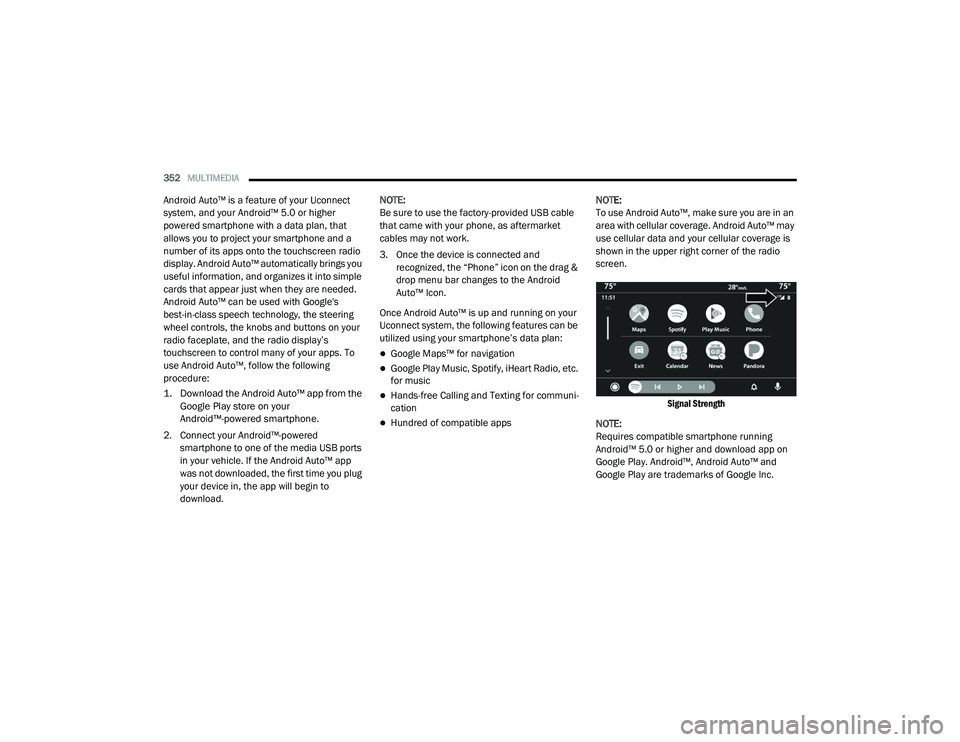
Hundred of compatible apps NOTE:
To use Android Auto™, make sure you are in an
area with cellular coverage. Android Auto™ may
use cellular data and your cellular coverage is
shown in the upper right corner of the radio
screen.
Signal Strength
NOTE:
Requires compatible smartphone running
Android™ 5.0 or higher and download app on
Google Play. Android™, Android Auto™ and
Google Play are trademarks of Google Inc.
20_LA_OM_EN_USC_t.book Page 352
Page 356 of 396
354MULTIMEDIA
To use Apple CarPlay®, make sure you are
using iPhone® 5 or later, have Siri enabled in
Settings, ensure your iPhone® is unlocked for
the very first connection only, and then use the
following procedure:
1. Connect your iPhone® to one of the media
USB ports in your vehicle.
NOTE:
Be sure to use the factory-provided Lightning
cable that came with your phone, as after -
market cables may not work.
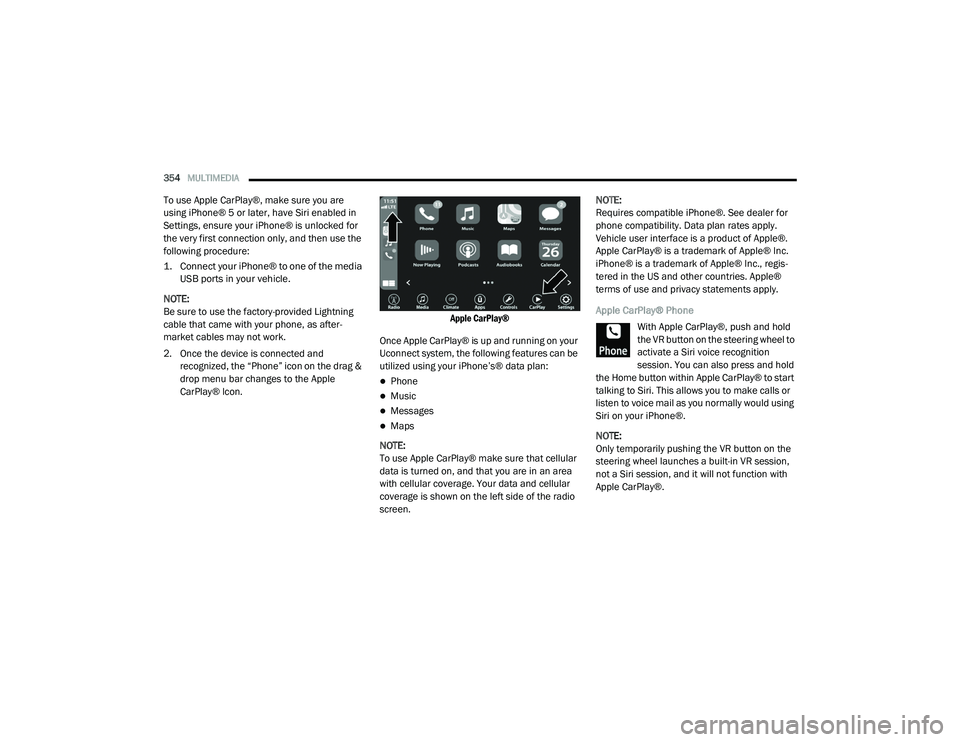
2. Once the device is connected and recognized, the “Phone” icon on the drag &
drop menu bar changes to the Apple
CarPlay® Icon.
Apple CarPlay®
Once Apple CarPlay® is up and running on your
Uconnect system, the following features can be
utilized using your iPhone’s® data plan:
Phone
Music
Messages
Maps
NOTE:
To use Apple CarPlay® make sure that cellular
data is turned on, and that you are in an area
with cellular coverage. Your data and cellular
coverage is shown on the left side of the radio
screen. NOTE:
Requires compatible iPhone®. See dealer for
phone compatibility. Data plan rates apply.
Vehicle user interface is a product of Apple®.
Apple CarPlay® is a trademark of Apple® Inc.
iPhone® is a trademark of Apple® Inc., regis
-
tered in the US and other countries. Apple®
terms of use and privacy statements apply.
Apple CarPlay® Phone
With Apple CarPlay®, push and hold
the VR button on the steering wheel to
activate a Siri voice recognition
session. You can also press and hold
the Home button within Apple CarPlay® to start
talking to Siri. This allows you to make calls or
listen to voice mail as you normally would using
Siri on your iPhone®.
NOTE:
Only temporarily pushing the VR button on the
steering wheel launches a built-in VR session,
not a Siri session, and it will not function with
Apple CarPlay®.
20_LA_OM_EN_USC_t.book Page 354
Page 357 of 396
MULTIMEDIA355
Apple CarPlay® Music
Apple CarPlay® allows you to access
all your artists, playlists, and music
from iTunes®. Using your iPhone’s®
data plan, you can also use select
third party audio apps including music, news,
sports, podcasts and more.
Apple CarPlay® Messages
Just like Phone, Apple CarPlay®
allows you to use Siri to send or reply
to text messages. Siri can also read
incoming text messages, but driver’s
will not be able to read messages, as everything
is done via voice.
Apple CarPlay® Maps
To use your Apple® Maps for
navigation on your Uconnect system,
launch Apple CarPlay®, and push and
hold the VR button on the steering
wheel to use Siri to set your desired destination.
Alternatively, choose a nearby destination by
pressing Destinations and selecting a category,
by launching Siri from the destinations page, or
even by typing in a destination. NOTE:
If the Voice Recognition (VR) button is not held,
and is only pushed, the built-in Uconnect VR
prompts you and any navigation command said
launches the built-in Uconnect navigation
system.
Apple CarPlay® Apps
To use a compatible app with Apple CarPlay®,
you must have the compatible app downloaded,
and you must be signed in to the app.
Refer to http://www.apple.com/ios/carplay/
(US Residents) or https://www.apple.com/ca/
ios/carplay/ (Canadian Residents) to see the
latest list of available apps for Apple CarPlay®.
Android Auto™ And Apple CarPlay® Tips And
Tricks
AutoPlay
AutoPlay is a feature of the Uconnect system
that automatically begins playing music off of
the connected device, as soon as it is
connected. This feature can be turned on or off
in the Uconnect Settings, within the Audio
Settings category. Its default setting is on. NOTE:
AutoPlay® is not supported by Android Auto™.
Android Auto™ Automatic Bluetooth® Pairing
After connecting to Android Auto™ for the first
time and undergoing the setup procedure, the
smartphone will automatically pair to the
Uconnect system via Bluetooth® without any
setup required every time it is within range, if
Bluetooth® is turned on.
NOTE:
Android Auto™ features cannot be used with
Bluetooth®, a USB connection is required for
its use. Android Auto™ uses both Bluetooth®
and USB connections to function, and the
connected device will be unavailable to other
devices when connected using Android Auto™.
9
20_LA_OM_EN_USC_t.book Page 355
Page 358 of 396
356MULTIMEDIA
Multiple Devices Connecting To The Uconnect
System
It is possible to have multiple devices
connected to the Uconnect system. For
example, if using Android Auto™/Apple
CarPlay®, the connected device will be the one
that will be used to place hands-free phone calls
or send hands-free text messages. However,
another device can also be paired to the
Uconnect system, via Bluetooth®, as an audio
source, so the passenger can stream music.
NOTE:
If using a Samsung device, every time it is
connected to a media USB, and there is
another device plugged in, you will need to
manually change the configuration of the
USB connection in order for the Samsung
device to send data.
The Uconnect 4 built-in media functions will
be unavailable when Android Auto™/Apple
CarPlay® are in use.
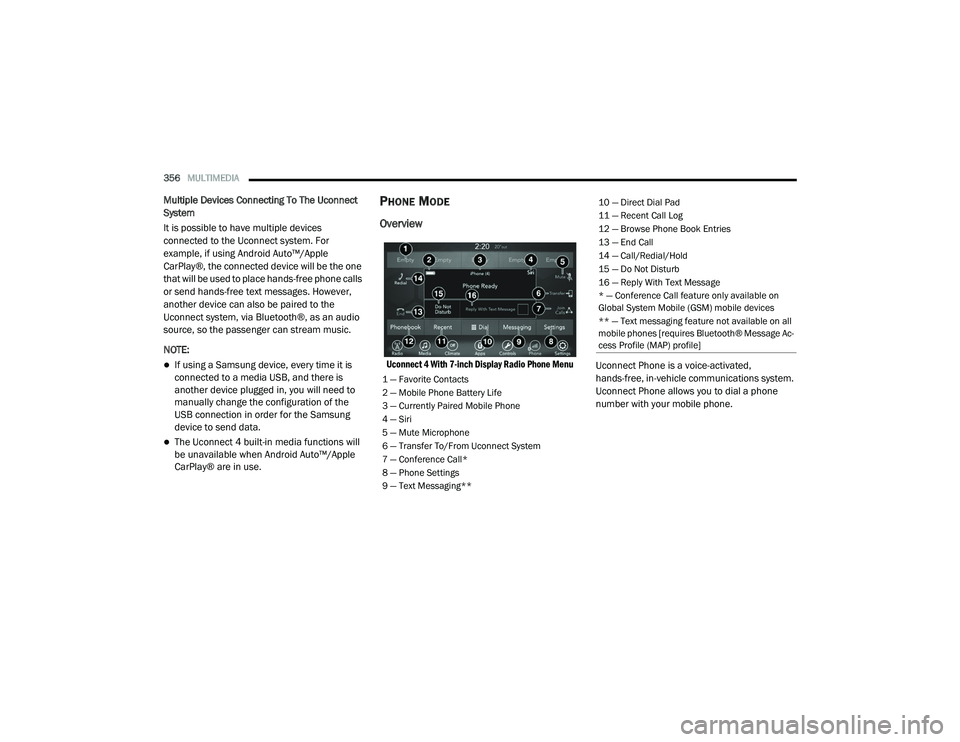
PHONE MODE
Overview
Uconnect 4 With 7-inch Display Radio Phone Menu
Uconnect Phone is a voice-activated,
hands-free, in-vehicle communications system.
Uconnect Phone allows you to dial a phone
number with your mobile phone.
1 — Favorite Contacts
2 — Mobile Phone Battery Life
3 — Currently Paired Mobile Phone
4 — Siri
5 — Mute Microphone
6 — Transfer To/From Uconnect System
7 — Conference Call*
8 — Phone Settings
9 — Text Messaging**
10 — Direct Dial Pad
11 — Recent Call Log
12 — Browse Phone Book Entries
13 — End Call
14 — Call/Redial/Hold
15 — Do Not Disturb
16 — Reply With Text Message
* — Conference Call feature only available on
Global System Mobile (GSM) mobile devices
** — Text messaging feature not available on all
mobile phones [requires Bluetooth® Message Ac-
cess Profile (MAP) profile]
20_LA_OM_EN_USC_t.book Page 356
Page 370 of 396
368MULTIMEDIA
RADIO OPERATION
Pushing the top of the switch will “Seek” up for
the next listenable station and pushing the
bottom of the switch will “Seek” down for the
next listenable station.
The button located in the center of the left-hand
control will tune to the next preset station that
you have programmed in the radio preset
button.
MEDIA MODE
Pushing the top of the switch once goes to the
next track on the selected media (AUX/USB/
Bluetooth®). Pushing the bottom of the switch
once goes to the beginning of the current track,
or to the beginning of the previous track if it is
within eight seconds after the current track
begins to play.
NOTE:
While In Media Mode, the center button on the
left rocker switch is nonfunctional.
IPOD®/USB/MP3 CONTROL — IF EQUIPPED
This feature allows an iPod® or external USB
device to be plugged into the USB port. Plugging in a smartphone device to a USB Port
may activate Android Auto™ or Apple CarPlay®
features, if equipped
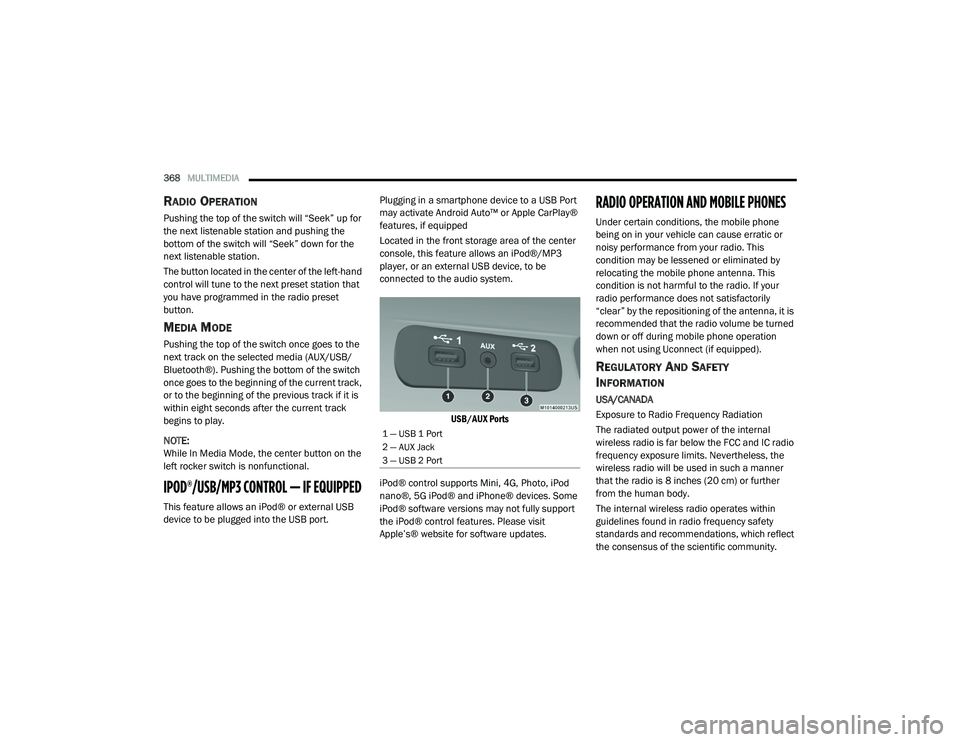
Located in the front storage area of the center
console, this feature allows an iPod®/MP3
player, or an external USB device, to be
connected to the audio system.
USB/AUX Ports
iPod® control supports Mini, 4G, Photo, iPod
nano®, 5G iPod® and iPhone® devices. Some
iPod® software versions may not fully support
the iPod® control features. Please visit
Apple’s® website for software updates.
RADIO OPERATION AND MOBILE PHONES
Under certain conditions, the mobile phone
being on in your vehicle can cause erratic or
noisy performance from your radio. This
condition may be lessened or eliminated by
relocating the mobile phone antenna. This
condition is not harmful to the radio. If your
radio performance does not satisfactorily
“clear” by the repositioning of the antenna, it is
recommended that the radio volume be turned
down or off during mobile phone operation
when not using Uconnect (if equipped).
REGULATORY AND SAFETY
I
NFORMATION
USA/CANADA
Exposure to Radio Frequency Radiation
The radiated output power of the internal
wireless radio is far below the FCC and IC radio
frequency exposure limits. Nevertheless, the
wireless radio will be used in such a manner
that the radio is 8 inches (20 cm) or further
from the human body.
The internal wireless radio operates within
guidelines found in radio frequency safety
standards and recommendations, which reflect
the consensus of the scientific community.
1 — USB 1 Port
2 — AUX Jack
3 — USB 2 Port
20_LA_OM_EN_USC_t.book Page 368
Page 373 of 396
MULTIMEDIA371
You can interrupt the help message or
system prompts by pushing the VR or Phone
button and saying a Voice Command from
the current category.
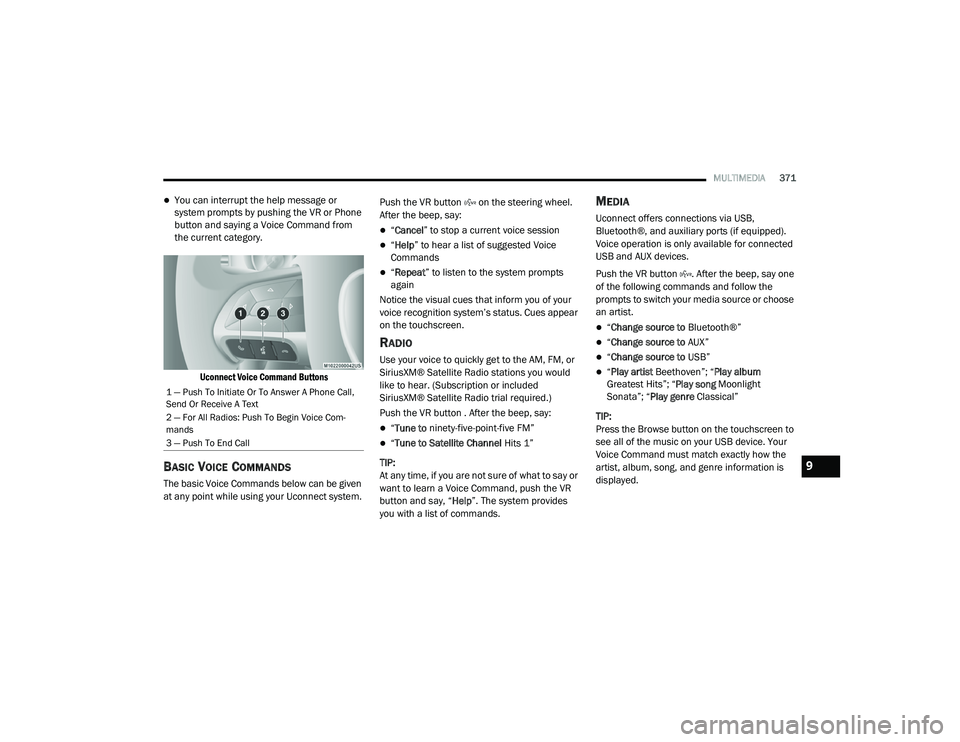
Uconnect Voice Command Buttons
BASIC VOICE COMMANDS
The basic Voice Commands below can be given
at any point while using your Uconnect system. Push the VR button on the steering wheel.
After the beep, say:
“
Cancel ” to stop a current voice session
“Help ” to hear a list of suggested Voice
Commands
“ Repeat ” to listen to the system prompts
again
Notice the visual cues that inform you of your
voice recognition system’s status. Cues appear
on the touchscreen.
RADIO
Use your voice to quickly get to the AM, FM, or
SiriusXM® Satellite Radio stations you would
like to hear. (Subscription or included
SiriusXM® Satellite Radio trial required.)
Push the VR button . After the beep, say:
“ Tune to ninety-five-point-five FM”
“Tune to Satellite Channel Hits 1”
TIP:
At any time, if you are not sure of what to say or
want to learn a Voice Command, push the VR
button and say, “ Help”. The system provides
you with a list of commands.
MEDIA
Uconnect offers connections via USB,
Bluetooth®, and auxiliary ports (if equipped).
Voice operation is only available for connected
USB and AUX devices.
Push the VR button . After the beep, say one
of the following commands and follow the
prompts to switch your media source or choose
an artist.
“ Change source to Bluetooth®”
“Change source to AUX”
“Change source to USB”
“Play artist Beethoven”; “ Play album
Greatest Hits”; “ Play song Moonlight
Sonata”; “ Play genre Classical”
TIP:
Press the Browse button on the touchscreen to
see all of the music on your USB device. Your
Voice Command must match exactly how the
artist, album, song, and genre information is
displayed.
1 — Push To Initiate Or To Answer A Phone Call,
Send Or Receive A Text
2 — For All Radios: Push To Begin Voice Com -
mands
3 — Push To End Call
9
20_LA_OM_EN_USC_t.book Page 371
Page 376 of 396
374MULTIMEDIA
ANDROID AUTO™ — IF EQUIPPED
NOTE:
Feature availability depends on your carrier and
mobile phone manufacturer. Some Android
Auto™ features may or may not be available in
every region and/or language.
Android Auto™ allows you to use your voice to
interact with Android’s™ best-in-class speech
technology through your vehicle’s voice
recognition system, and use your smartphone’s
data plan to project your Android™-powered
smartphone and a number of its apps onto your
Uconnect touchscreen. Connect your Android™
5.0 or higher to one of the media USB ports,
using the factory-provided USB cable, and press
the new Android Auto™ icon that replaces your
“Phone” icon on the main menu bar to begin
Android Auto™. Push and hold the VR button on
the steering wheel, or press and hold the
Microphone icon within Android Auto™, to
activate Android’s™ VR, which recognizes
natural voice commands, to use a list of your
smartphone’s features:
Maps
Music
Phone
Text Messages
Additional Apps
Refer to your Uconnect Owner’s Manual
Supplement for further information.
NOTE:
Requires compatible smartphone running
Android™ 5.0 or higher and download app on
Google Play. Android™, Android Auto™, and
Google Play are trademarks of Google Inc.
APPLE CARPLAY® — IF EQUIPPED
NOTE:
Feature availability depends on your carrier and
mobile phone manufacturer. Some Apple
CarPlay® features may or may not be available
in every region and/or language.
Apple CarPlay® allows you to use your voice to
interact with Siri through your vehicle’s voice
recognition system, and use your smartphone’s
data plan to project your iPhone® and a
number of its apps onto your Uconnect
touchscreen. Connect your iPhone® 5 or higher
to one of the media USB ports, using the
factory-provided Lightning cable, and press the
new Apple CarPlay® icon that replaces your
Phone icon on the main menu bar to begin Apple CarPlay®. Push and hold the VR button
on the steering wheel, or press and hold the
Home button within Apple CarPlay®, to activate
Siri, which recognizes natural voice commands
to use a list of your iPhone’s® features:
Phone
Music
Messages
Maps (if equipped)
Additional Apps (if equipped)
Refer to your Uconnect Owner’s Manual
Supplement for further information.
NOTE:
Requires compatible iPhone®. See dealer for
phone compatibility. Data plan rates apply.
Vehicle user interface is a product of Apple®.
Apple CarPlay® is a trademark of Apple® Inc.
iPhone® is a trademark of Apple® Inc., regis -
tered in the US and other countries. Apple®
terms of use and privacy statements apply.
20_LA_OM_EN_USC_t.book Page 374
Page 386 of 396
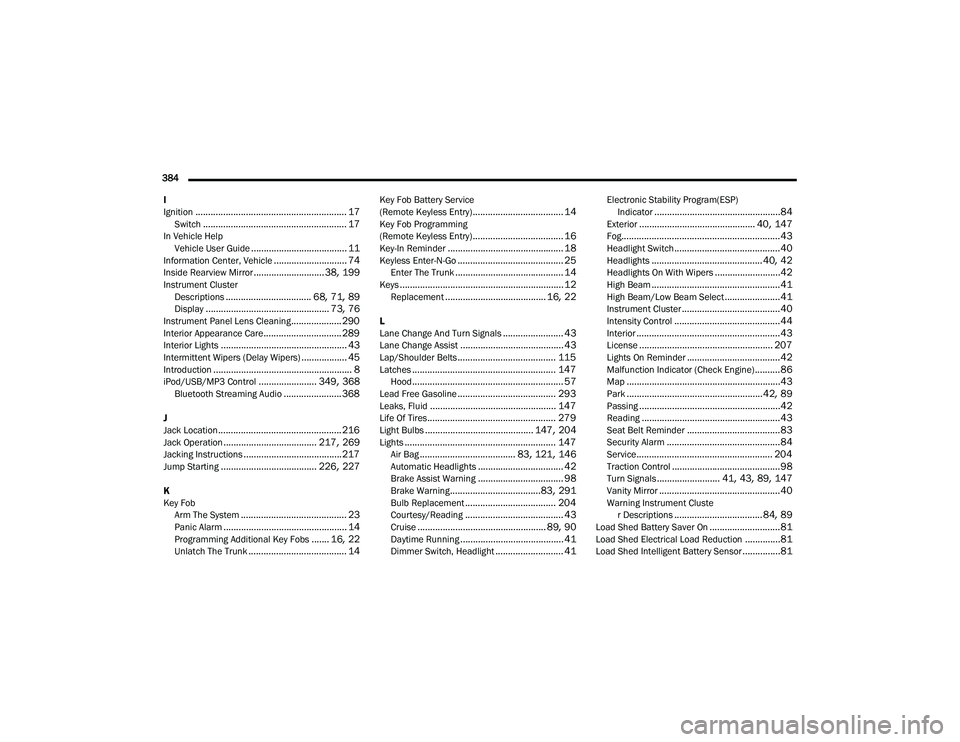
384 I
Ignition
............................................................ 17Switch......................................................... 17In Vehicle Help Vehicle User Guide...................................... 11Information Center, Vehicle............................. 74Inside Rearview Mirror............................ 38, 199Instrument ClusterDescriptions.................................. 68, 71, 89Display................................................. 73, 76Instrument Panel Lens Cleaning.................... 290Interior Appearance Care............................... 289Interior Lights.................................................. 43Intermittent Wipers (Delay Wipers).................. 45Introduction....................................................... 8iPod/USB/MP3 Control....................... 349, 368Bluetooth Streaming Audio....................... 368
J
Jack Location................................................. 216Jack Operation..................................... 217, 269Jacking Instructions....................................... 217Jump Starting...................................... 226, 227
K
Key FobArm The System
.......................................... 23Panic Alarm................................................. 14Programming Additional Key Fobs....... 16, 22Unlatch The Trunk....................................... 14
Key Fob Battery Service
(Remote Keyless Entry).................................... 14Key Fob Programming
(Remote Keyless Entry).................................... 16Key-In Reminder.............................................. 18Keyless Enter-N-Go.......................................... 25Enter The Trunk........................................... 14Keys................................................................. 12Replacement........................................ 16, 22
L
Lane Change And Turn Signals........................ 43Lane Change Assist......................................... 43Lap/Shoulder Belts....................................... 115Latches......................................................... 147Hood............................................................ 57Lead Free Gasoline....................................... 293Leaks, Fluid.................................................. 147Life Of Tires................................................... 279Light Bulbs........................................... 147, 204Lights............................................................ 147Air Bag...................................... 83, 121, 146Automatic Headlights.................................. 42Brake Assist Warning.................................. 98Brake Warning....................................83, 291Bulb Replacement.................................... 204Courtesy/Reading....................................... 43Cruise................................................... 89, 90Daytime Running......................................... 41Dimmer Switch, Headlight........................... 41
Electronic Stability Program(ESP)Indicator..................................................84Exterior.............................................. 40, 147Fog...............................................................43Headlight Switch..........................................40Headlights............................................ 40, 42Headlights On With Wipers..........................42High Beam...................................................41High Beam/Low Beam Select......................41Instrument Cluster.......................................40Intensity Control..........................................44Interior.........................................................43License..................................................... 207Lights On Reminder.....................................42Malfunction Indicator (Check Engine)..........86Map.............................................................43Park......................................................42, 89Passing........................................................42Reading.......................................................43Seat Belt Reminder.....................................83Security Alarm.............................................84Service...................................................... 204Traction Control...........................................98Turn Signals......................... 41, 43, 89, 147Vanity Mirror................................................40Warning Instrument Cluster Descriptions................................... 84, 89Load Shed Battery Saver On............................81Load Shed Electrical Load Reduction..............81Load Shed Intelligent Battery Sensor...............81
20_LA_OM_EN_USC_t.book Page 384