audio DODGE CHALLENGER 2020 User Guide
[x] Cancel search | Manufacturer: DODGE, Model Year: 2020, Model line: CHALLENGER, Model: DODGE CHALLENGER 2020Pages: 396, PDF Size: 16.64 MB
Page 316 of 396
314MULTIMEDIA
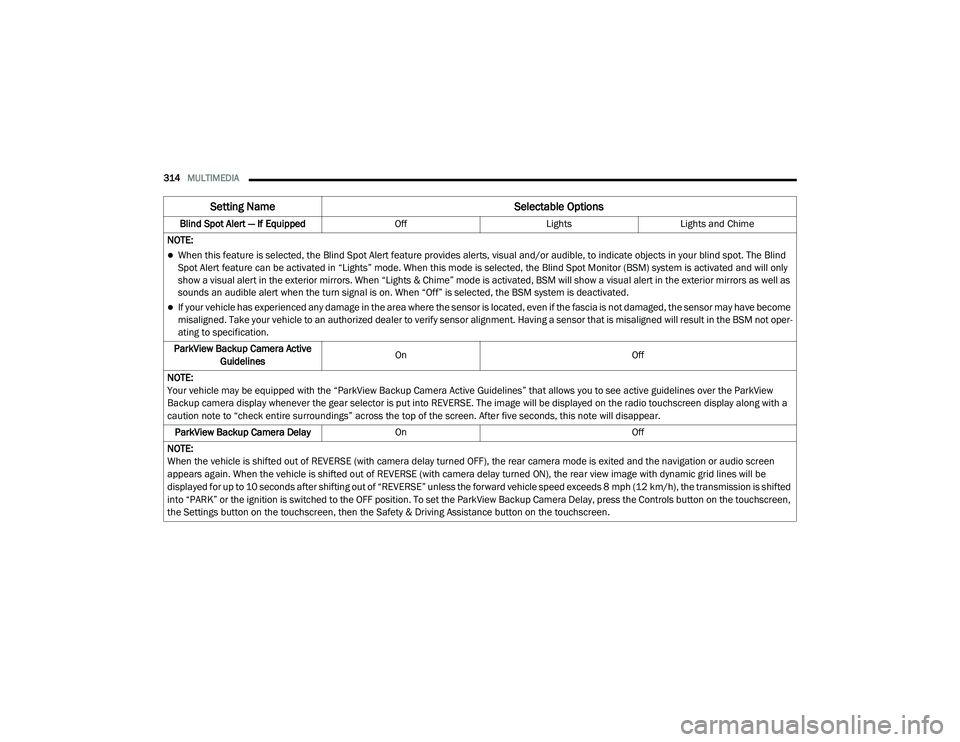
Blind Spot Alert — If Equipped OffLightsLights and Chime
NOTE:
When this feature is selected, the Blind Spot Alert feature provides alerts, visual and/or audible, to indicate objects in your blind spot. The Blind
Spot Alert feature can be activated in “Lights” mode. When this mode is selected, the Blind Spot Monitor (BSM) system is activated and will only
show a visual alert in the exterior mirrors. When “Lights & Chime” mode is activated, BSM will show a visual alert in the exterior mirrors as well as
sounds an audible alert when the turn signal is on. When “Off” is selected, the BSM system is deactivated.
If your vehicle has experienced any damage in the area where the sensor is located, even if the fascia is not damaged, the sensor may have become
misaligned. Take your vehicle to an authorized dealer to verify sensor alignment. Having a sensor that is misaligned will result in the BSM not oper -
ating to specification.
ParkView Backup Camera Active Guidelines On
Off
NOTE:
Your vehicle may be equipped with the “ParkView Backup Camera Active Guidelines” that allows you to see active guidelines over the ParkView
Backup camera display whenever the gear selector is put into REVERSE. The image will be displayed on the radio touchscreen display along with a
caution note to “check entire surroundings” across the top of the screen. After five seconds, this note will disappear. ParkView Backup Camera Delay On Off
NOTE:
When the vehicle is shifted out of REVERSE (with camera delay turned OFF), the rear camera mode is exited and the navigation or audio screen
appears again. When the vehicle is shifted out of REVERSE (with camera delay turned ON), the rear view image with dynamic grid lines will be
displayed for up to 10 seconds after shifting out of “REVERSE” unless the forward vehicle speed exceeds 8 mph (12 km/h), the transmission is shifted into “PARK” or the ignition is switched to the OFF position. To set the ParkView Backup Camera Delay, press the Controls button on the touchscreen,
the Settings button on the touchscreen, then the Safety & Driving Assistance button on the touchscreen.
Setting Name Selectable Options
20_LA_OM_EN_USC_t.book Page 314
Page 320 of 396
318MULTIMEDIA
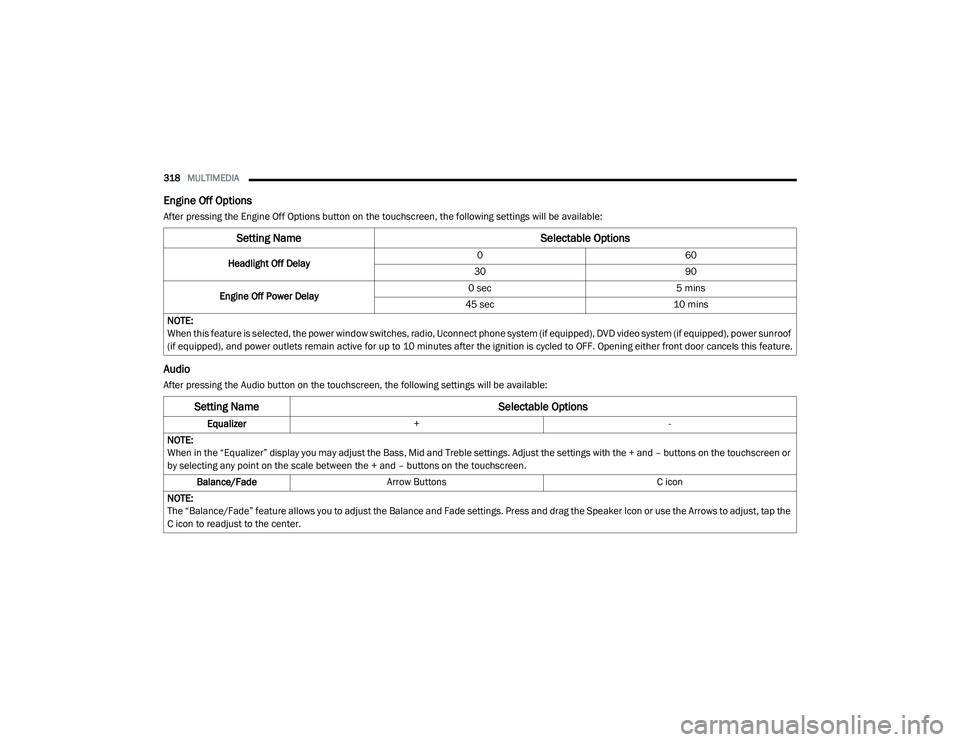
Engine Off Options
After pressing the Engine Off Options button on the touchscreen, the following settings will be available:
Audio
After pressing the Audio button on the touchscreen, the following settings will be available:
Setting Name Selectable Options
Headlight Off Delay0
60
30 90
Engine Off Power Delay 0 sec
5 mins
45 sec 10 mins
NOTE:
When this feature is selected, the power window switches, radio, Uconnect phone system (if equipped), DVD video system (if equipped), power sunroof
(if equipped), and power outlets remain active for up to 10 minutes after the ignition is cycled to OFF. Opening either front door cancels this feature.
Setting Name Selectable Options
Equalizer+ -
NOTE:
When in the “Equalizer” display you may adjust the Bass, Mid and Treble settings. Adjust the settings with the + and – buttons on the touchscreen or
by selecting any point on the scale between the + and – buttons on the touchscreen. Balance/Fade Arrow Buttons C icon
NOTE:
The “Balance/Fade” feature allows you to adjust the Balance and Fade settings. Press and drag the Speaker Icon or use the Arrows to adjust, tap the
C icon to readjust to the center.
20_LA_OM_EN_USC_t.book Page 318
Page 321 of 396
MULTIMEDIA319
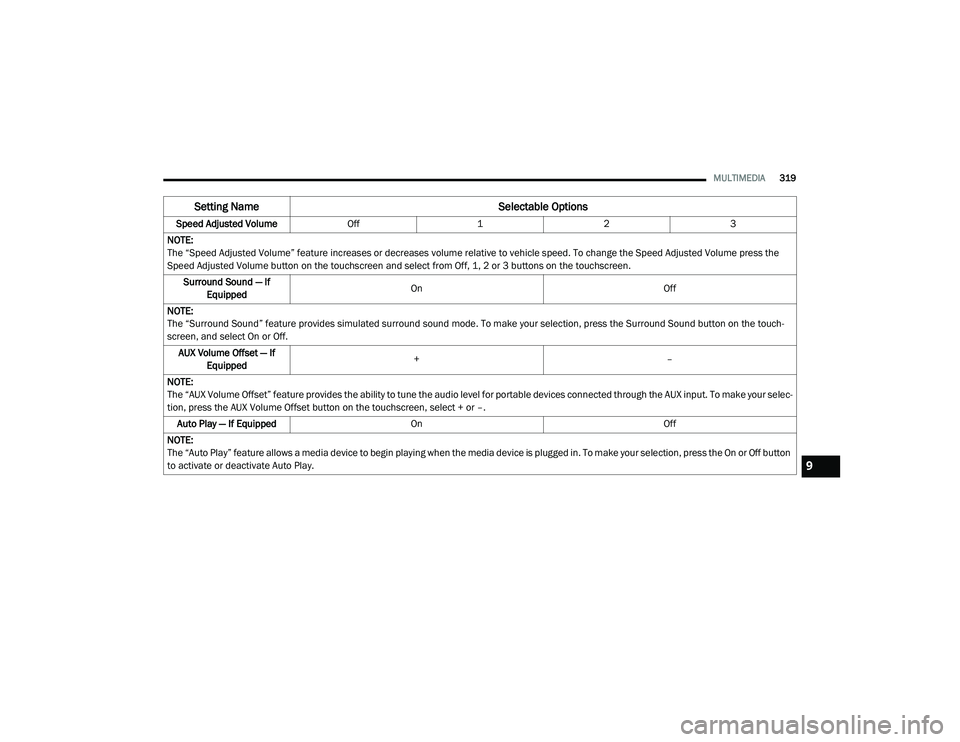
Speed Adjusted Volume Off123
NOTE:
The “Speed Adjusted Volume” feature increases or decreases volume relative to vehicle speed. To change the Speed Adjusted Volume press the
Speed Adjusted Volume button on the touchscreen and select from Off, 1, 2 or 3 buttons on the touchscreen. Surround Sound — If Equipped On
Off
NOTE:
The “Surround Sound” feature provides simulated surround sound mode. To make your selection, press the Surround Sound button on the touch -
screen, and select On or Off.
AUX Volume Offset — If Equipped +
–
NOTE:
The “AUX Volume Offset” feature provides the ability to tune the audio level for portable devices connected through the AUX input. To make your selec -
tion, press the AUX Volume Offset button on the touchscreen, select + or –.
Auto Play — If Equipped On Off
NOTE:
The “Auto Play” feature allows a media device to begin playing when the media device is plugged in. To make your selection, press the On or Off button
to activate or deactivate Auto Play.
Setting Name Selectable Options
9
20_LA_OM_EN_USC_t.book Page 319
Page 323 of 396
MULTIMEDIA321
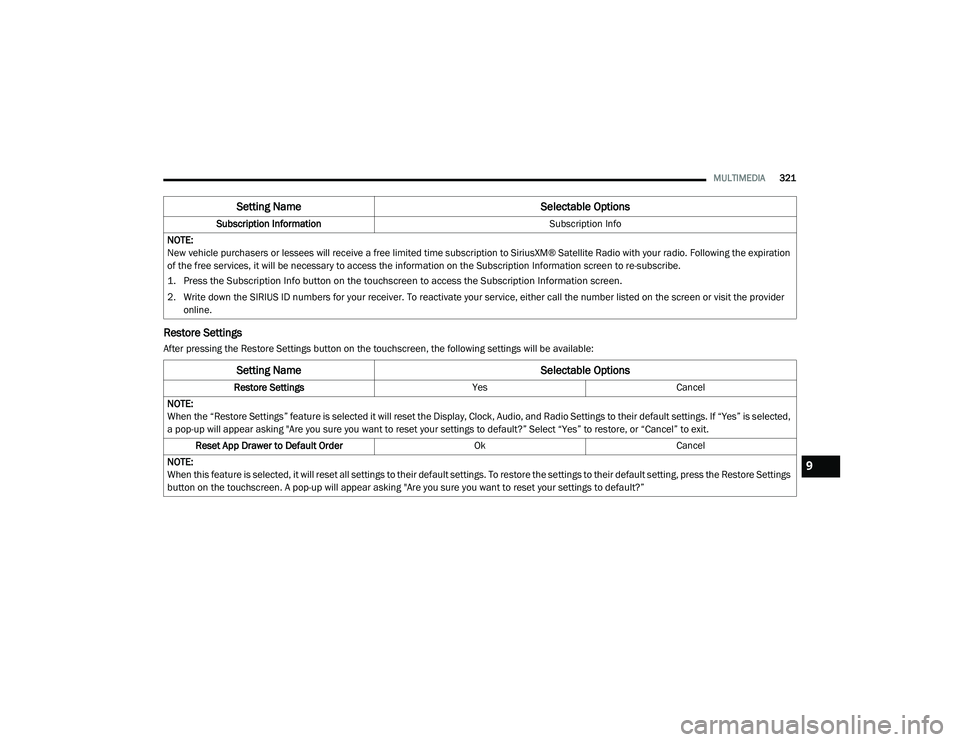
Restore Settings
After pressing the Restore Settings button on the touchscreen, the following settings will be available:Subscription Information
Subscription Info
NOTE:
New vehicle purchasers or lessees will receive a free limited time subscription to SiriusXM® Satellite Radio with your radio. Following the expiration
of the free services, it will be necessary to access the information on the Subscription Information screen to re-subscribe.
1. Press the Subscription Info button on the touchscreen to access the Subscription Information screen.
2. Write down the SIRIUS ID numbers for your receiver. To reactivate your service, either call the number listed on the screen or visit the provider online.
Setting Name Selectable Options
Setting NameSelectable Options
Restore SettingsYesCancel
NOTE:
When the “Restore Settings” feature is selected it will reset the Display, Clock, Audio, and Radio Settings to their default settings. If “Yes” is selected,
a pop-up will appear asking "Are you sure you want to reset your settings to default?” Select “Yes” to restore, or “Cancel” to exit. Reset App Drawer to Default Order OkCancel
NOTE:
When this feature is selected, it will reset all settings to their default settings. To restore the settings to their default setting, press the Restore Settings
button on the touchscreen. A pop-up will appear asking "Are you sure you want to reset your settings to default?”
9
20_LA_OM_EN_USC_t.book Page 321
Page 324 of 396
322MULTIMEDIA
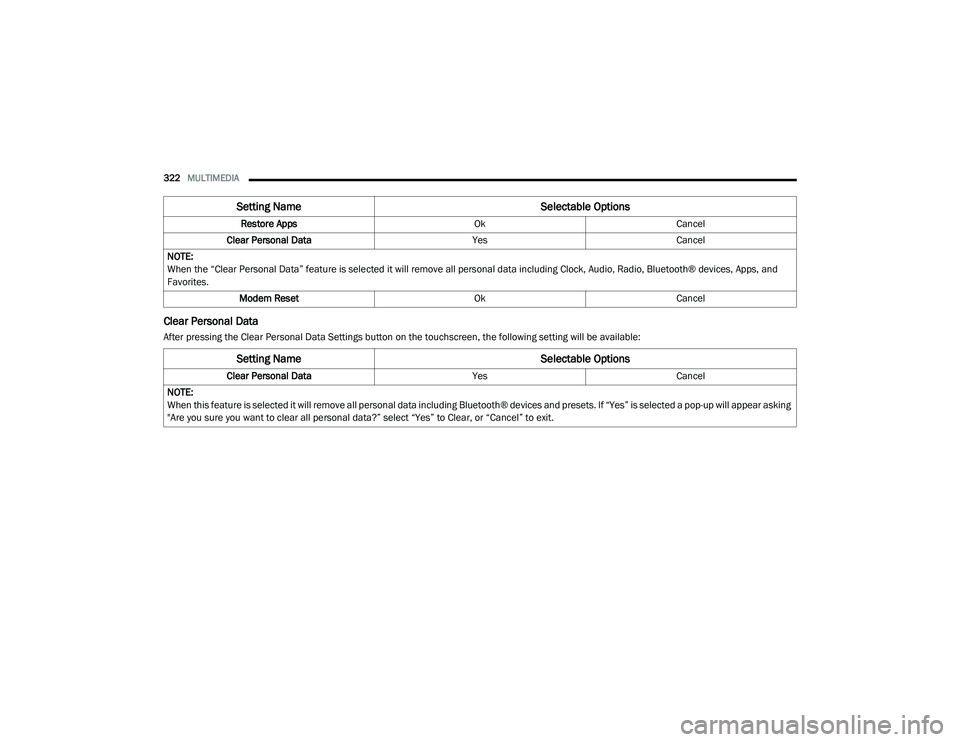
Clear Personal Data
After pressing the Clear Personal Data Settings button on the touchscreen, the following setting will be available: Restore Apps
OkCancel
Clear Personal Data YesCancel
NOTE:
When the “Clear Personal Data” feature is selected it will remove all personal data including Clock, Audio, Radio, Bluetooth® devices, Apps, and
Favorites. Modem Reset OkCancel
Setting Name Selectable Options
Setting NameSelectable Options
Clear Personal DataYesCancel
NOTE:
When this feature is selected it will remove all personal data including Bluetooth® devices and presets. If “Yes” is selected a pop-up will appear asking
"Are you sure you want to clear all personal data?” select “Yes” to Clear, or “Cancel” to exit.
20_LA_OM_EN_USC_t.book Page 322
Page 325 of 396
MULTIMEDIA323
CUSTOMER PROGRAMMABLE FEATURES
— U
CONNECT 4C/4C NAV SETTINGS
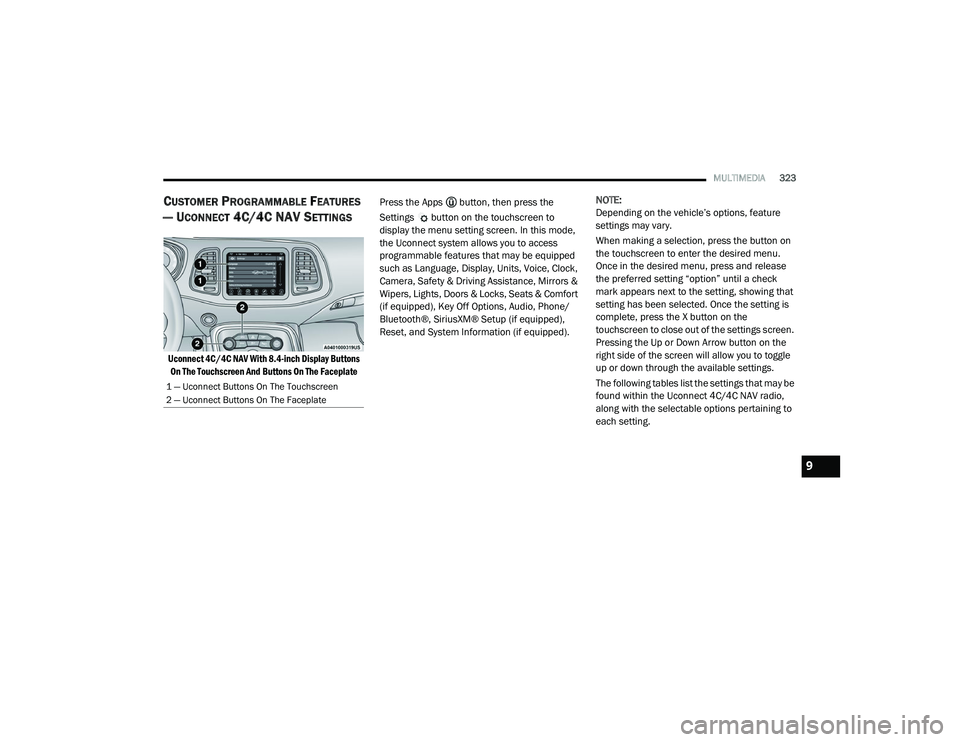
Uconnect 4C/4C NAV With 8.4-inch Display Buttons
On The Touchscreen And Buttons On The Faceplate
Press the Apps button, then press the
Settings button on the touchscreen to
display the menu setting screen. In this mode,
the Uconnect system allows you to access
programmable features that may be equipped
such as Language, Display, Units, Voice, Clock,
Camera, Safety & Driving Assistance, Mirrors &
Wipers, Lights, Doors & Locks, Seats & Comfort
(if equipped), Key Off Options, Audio, Phone/
Bluetooth®, SiriusXM® Setup (if equipped),
Reset, and System Information (if equipped).
NOTE:
Depending on the vehicle’s options, feature
settings may vary.
When making a selection, press the button on
the touchscreen to enter the desired menu.
Once in the desired menu, press and release
the preferred setting “option” until a check
mark appears next to the setting, showing that
setting has been selected. Once the setting is
complete, press the X button on the
touchscreen to close out of the settings screen.
Pressing the Up or Down Arrow button on the
right side of the screen will allow you to toggle
up or down through the available settings.
The following tables list the settings that may be
found within the Uconnect 4C/4C NAV radio,
along with the selectable options pertaining to
each setting.
1 — Uconnect Buttons On The Touchscreen
2 — Uconnect Buttons On The Faceplate
9
20_LA_OM_EN_USC_t.book Page 323
Page 337 of 396
MULTIMEDIA335
Audio
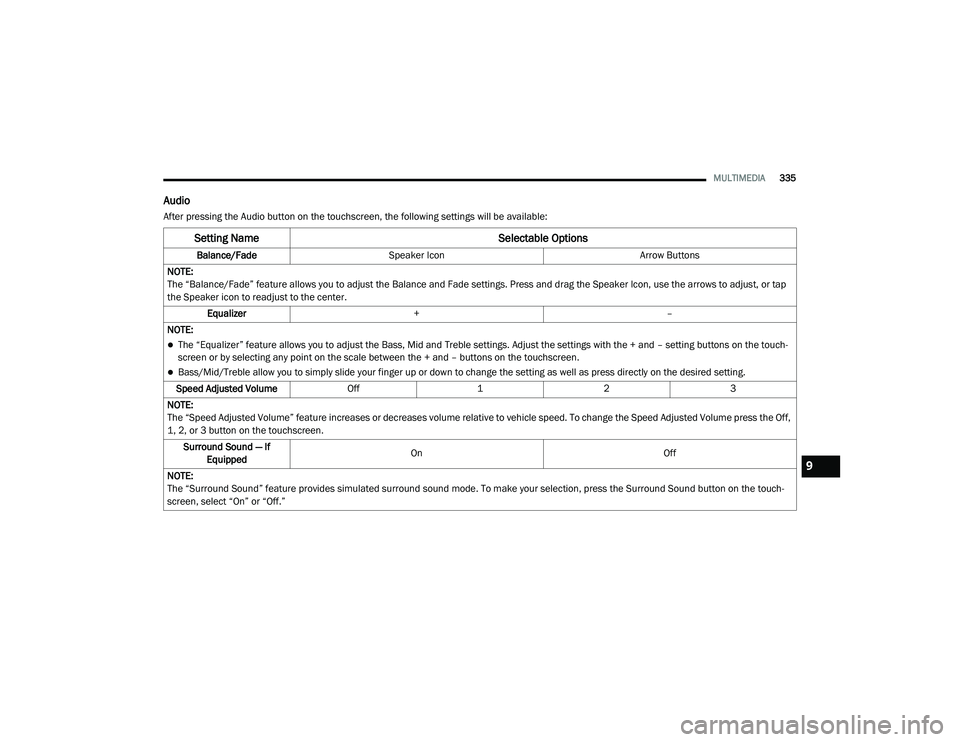
After pressing the Audio button on the touchscreen, the following settings will be available:
Setting Name Selectable Options
Balance/FadeSpeaker Icon Arrow Buttons
NOTE:
The “Balance/Fade” feature allows you to adjust the Balance and Fade settings. Press and drag the Speaker Icon, use the arrows to adjust, or tap
the Speaker icon to readjust to the center. Equalizer + –
NOTE:
The “Equalizer” feature allows you to adjust the Bass, Mid and Treble settings. Adjust the settings with the + and – setting buttons on the touch -
screen or by selecting any point on the scale between the + and – buttons on the touchscreen.
Bass/Mid/Treble allow you to simply slide your finger up or down to change the setting as well as press directly on the desired setting.
Speed Adjusted Volume Off123
NOTE:
The “Speed Adjusted Volume” feature increases or decreases volume relative to vehicle speed. To change the Speed Adjusted Volume press the Off,
1, 2, or 3 button on the touchscreen. Surround Sound — If Equipped On
Off
NOTE:
The “Surround Sound” feature provides simulated surround sound mode. To make your selection, press the Surround Sound button on the touch -
screen, select “On” or “Off.”
9
20_LA_OM_EN_USC_t.book Page 335
Page 338 of 396
336MULTIMEDIA
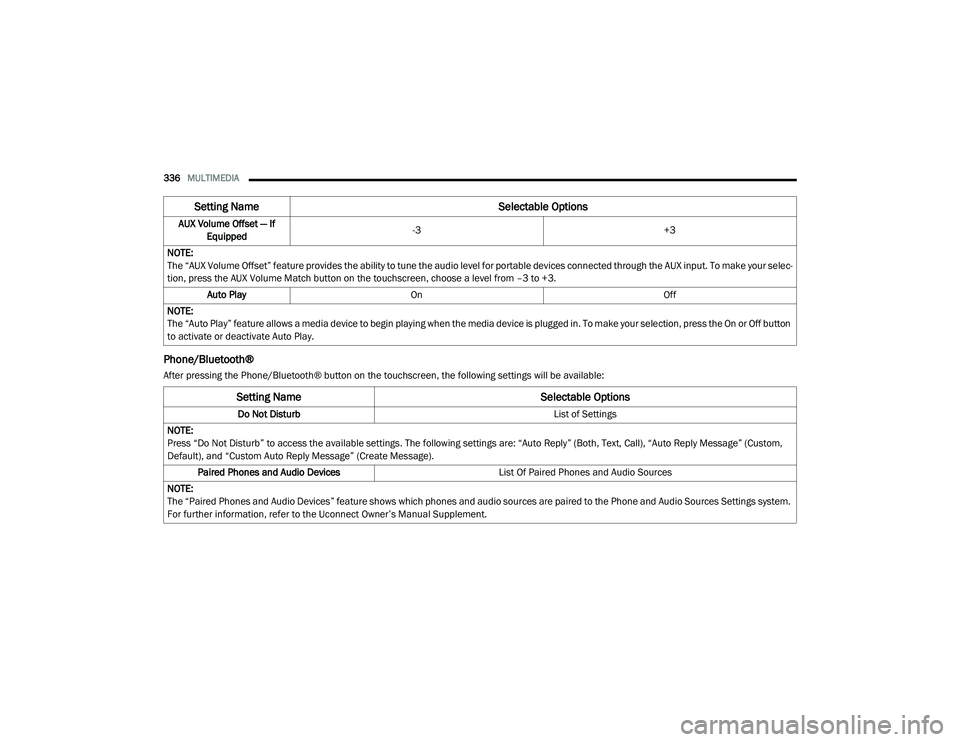
Phone/Bluetooth®
After pressing the Phone/Bluetooth® button on the touchscreen, the following settings will be available:AUX Volume Offset — If
Equipped -3
+3
NOTE:
The “AUX Volume Offset” feature provides the ability to tune the audio level for portable devices connected through the AUX input. To make your selec -
tion, press the AUX Volume Match button on the touchscreen, choose a level from –3 to +3.
Auto Play On Off
NOTE:
The “Auto Play” feature allows a media device to begin playing when the media device is plugged in. To make your selection, press the On or Off button
to activate or deactivate Auto Play.
Setting Name Selectable Options
Setting NameSelectable Options
Do Not Disturb List of Settings
NOTE:
Press “Do Not Disturb” to access the available settings. The following settings are: “Auto Reply” (Both, Text, Call), “Auto Reply Message” (Custom,
Default), and “Custom Auto Reply Message” (Create Message). Paired Phones and Audio Devices List Of Paired Phones and Audio Sources
NOTE:
The “Paired Phones and Audio Devices” feature shows which phones and audio sources are paired to the Phone and Audio Sources Settings system.
For further information, refer to the Uconnect Owner’s Manual Supplement.
20_LA_OM_EN_USC_t.book Page 336
Page 343 of 396
MULTIMEDIA341
5. Controls
Press the Controls button on the touch -
screen to adjust the heated and vented
seats or heated steering wheel (if
equipped).
6. Phone Press the Phone button on the touchscreen
to access the Uconnect Phone feature.
7. Settings Press the Settings button on the touch -
screen to access the Uconnect Settings
menu.
Drag & Drop Menu Bar
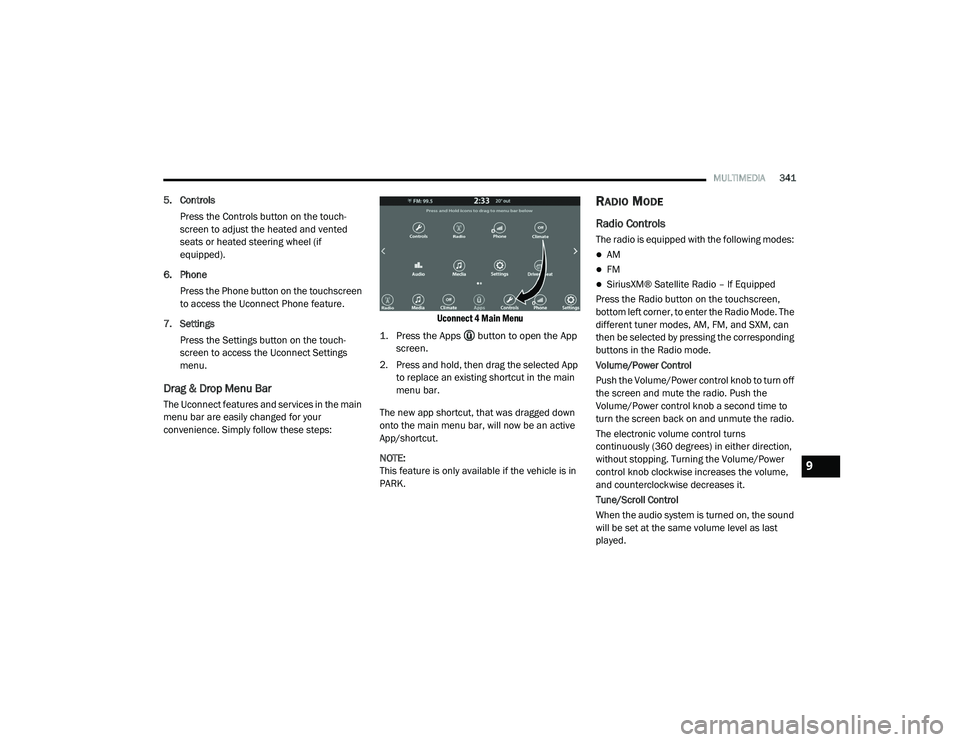
The Uconnect features and services in the main
menu bar are easily changed for your
convenience. Simply follow these steps:
Uconnect 4 Main Menu
1. Press the Apps button to open the App screen.
2. Press and hold, then drag the selected App to replace an existing shortcut in the main
menu bar.
The new app shortcut, that was dragged down
onto the main menu bar, will now be an active
App/shortcut.
NOTE:
This feature is only available if the vehicle is in
PARK.
RADIO MODE
Radio Controls
The radio is equipped with the following modes:
AM
FM
SiriusXM® Satellite Radio – If Equipped
Press the Radio button on the touchscreen,
bottom left corner, to enter the Radio Mode. The
different tuner modes, AM, FM, and SXM, can
then be selected by pressing the corresponding
buttons in the Radio mode.
Volume/Power Control
Push the Volume/Power control knob to turn off
the screen and mute the radio. Push the
Volume/Power control knob a second time to
turn the screen back on and unmute the radio.
The electronic volume control turns
continuously (360 degrees) in either direction,
without stopping. Turning the Volume/Power
control knob clockwise increases the volume,
and counterclockwise decreases it.
Tune/Scroll Control
When the audio system is turned on, the sound
will be set at the same volume level as last
played.
9
20_LA_OM_EN_USC_t.book Page 341
Page 344 of 396
342MULTIMEDIA
Turn the rotary Tune/Scroll control knob
clockwise to increase or counterclockwise to
decrease the radio station frequency. Push the
Enter/Browse button to choose a selection.
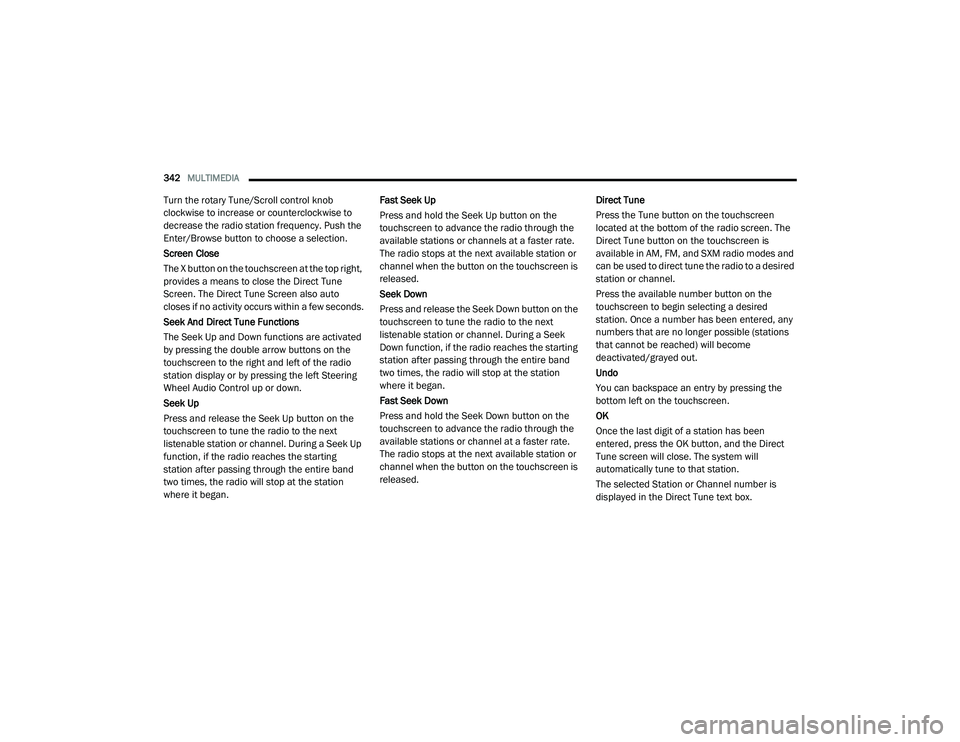
Screen Close
The X button on the touchscreen at the top right,
provides a means to close the Direct Tune
Screen. The Direct Tune Screen also auto
closes if no activity occurs within a few seconds.
Seek And Direct Tune Functions
The Seek Up and Down functions are activated
by pressing the double arrow buttons on the
touchscreen to the right and left of the radio
station display or by pressing the left Steering
Wheel Audio Control up or down.
Seek Up
Press and release the Seek Up button on the
touchscreen to tune the radio to the next
listenable station or channel. During a Seek Up
function, if the radio reaches the starting
station after passing through the entire band
two times, the radio will stop at the station
where it began. Fast Seek Up
Press and hold the Seek Up button on the
touchscreen to advance the radio through the
available stations or channels at a faster rate.
The radio stops at the next available station or
channel when the button on the touchscreen is
released.
Seek Down
Press and release the Seek Down button on the
touchscreen to tune the radio to the next
listenable station or channel. During a Seek
Down function, if the radio reaches the starting
station after passing through the entire band
two times, the radio will stop at the station
where it began.
Fast Seek Down
Press and hold the Seek Down button on the
touchscreen to advance the radio through the
available stations or channel at a faster rate.
The radio stops at the next available station or
channel when the button on the touchscreen is
released.
Direct Tune
Press the Tune button on the touchscreen
located at the bottom of the radio screen. The
Direct Tune button on the touchscreen is
available in AM, FM, and SXM radio modes and
can be used to direct tune the radio to a desired
station or channel.
Press the available number button on the
touchscreen to begin selecting a desired
station. Once a number has been entered, any
numbers that are no longer possible (stations
that cannot be reached) will become
deactivated/grayed out.
Undo
You can backspace an entry by pressing the
bottom left on the touchscreen.
OK
Once the last digit of a station has been
entered, press the OK button, and the Direct
Tune screen will close. The system will
automatically tune to that station.
The selected Station or Channel number is
displayed in the Direct Tune text box.
20_LA_OM_EN_USC_t.book Page 342