power steering DODGE CHALLENGER 2020 User Guide
[x] Cancel search | Manufacturer: DODGE, Model Year: 2020, Model line: CHALLENGER, Model: DODGE CHALLENGER 2020Pages: 396, PDF Size: 16.64 MB
Page 168 of 396
166STARTING AND OPERATING
SPORT Mode will provide improved throttle
response and modified shifting for an enhanced
driving experience, as well the greatest amount
of steering feel. This mode may be activated
and deactivated by pushing the SPORT button
on the instrument panel switch bank.
NOTE:
If equipped with a manual transmission, the
1 - 4 Skip Shift Feature is disabled in SPORT
Mode.
For vehicles equipped with Drive Modes or a
“SUPER TRACK PAK” button, refer to “Drive
Mode Supplement” for further information.
FUEL SAVER TECHNOLOGY 5.7L AND 6.4L
ONLY — IF EQUIPPED
This feature offers improved fuel economy by
shutting off four of the engine's eight cylinders
during light load and cruise conditions. The
system is automatic with no driver inputs or
additional driving skills required. When the
system is active, an indication will display within
the instrument cluster “Fuel Economy” main
menu screen. NOTE:
This system may take some time to return to full
functionality after a battery disconnect.
ELECTRIC POWER STEERING
The Electric Power Steering system will give you
good vehicle response and increased ease of
maneuverability in tight spaces. The system will
vary its assist to provide light efforts while
parking and good feel while driving. If the
electric steering system experiences a fault that
prevents it from providing assist, you will still
have the ability to steer the vehicle manually.
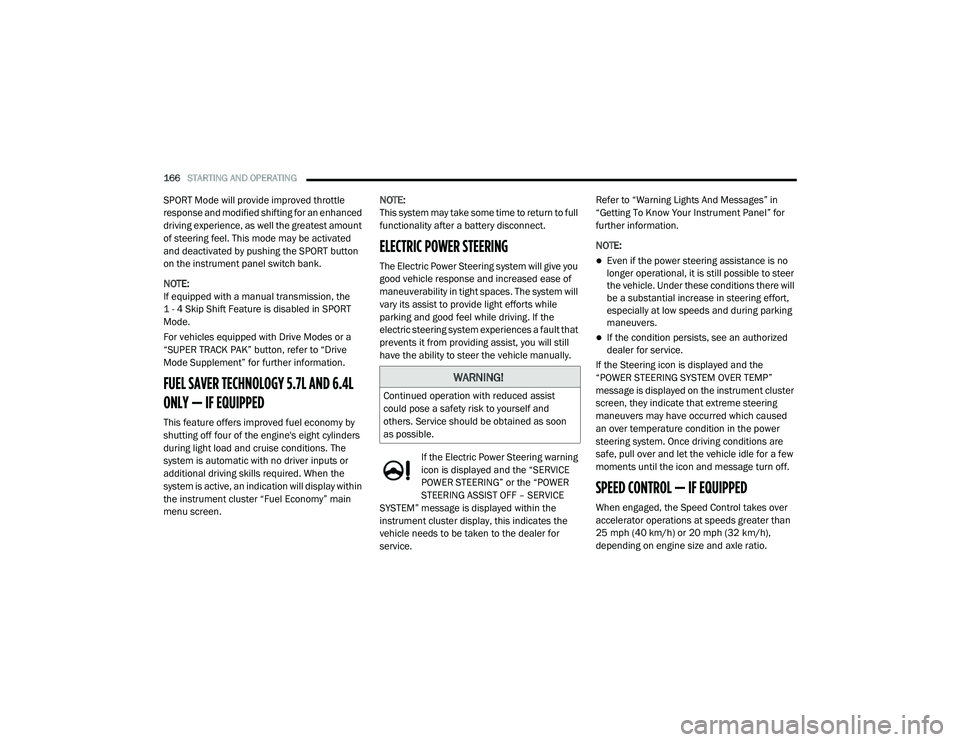
If the Electric Power Steering warning
icon is displayed and the “SERVICE
POWER STEERING” or the “POWER
STEERING ASSIST OFF – SERVICE
SYSTEM” message is displayed within the
instrument cluster display, this indicates the
vehicle needs to be taken to the dealer for
service. Refer to “Warning Lights And Messages” in
“Getting To Know Your Instrument Panel” for
further information.
NOTE:Even if the power steering assistance is no
longer operational, it is still possible to steer
the vehicle. Under these conditions there will
be a substantial increase in steering effort,
especially at low speeds and during parking
maneuvers.
If the condition persists, see an authorized
dealer for service.
If the Steering icon is displayed and the
“POWER STEERING SYSTEM OVER TEMP”
message is displayed on the instrument cluster
screen, they indicate that extreme steering
maneuvers may have occurred which caused
an over temperature condition in the power
steering system. Once driving conditions are
safe, pull over and let the vehicle idle for a few
moments until the icon and message turn off.
SPEED CONTROL — IF EQUIPPED
When engaged, the Speed Control takes over
accelerator operations at speeds greater than
25 mph (40 km/h) or 20 mph (32 km/h), depending on engine size and axle ratio.
WARNING!
Continued operation with reduced assist
could pose a safety risk to yourself and
others. Service should be obtained as soon
as possible.
20_LA_OM_EN_USC_t.book Page 166
Page 193 of 396
STARTING AND OPERATING191
Tongue Weight (TW)
The tongue weight is the downward force
exerted on the hitch ball by the trailer. You must
consider this as part of the load on your vehicle.
Trailer Frontal Area
The frontal area is the maximum height
multiplied by the maximum width of the front of
a trailer.
Trailer Sway Control
The Trailer Sway Control (TSC) can be a
mechanical telescoping link that can be
installed between the hitch receiver and the
trailer tongue that typically provides adjustable
friction associated with the telescoping motion
to dampen any unwanted trailer swaying
motions while traveling.
If equipped, the electronic TSC recognizes a
swaying trailer and automatically applies
individual wheel brakes and/or reduces engine
power to attempt to eliminate the trailer sway.
Weight-Carrying Hitch
A weight-carrying hitch supports the trailer
tongue weight, just as if it were luggage located
at a hitch ball or some other connecting point of
the vehicle. These kinds of hitches are the most
popular on the market today and they are
commonly used to tow small and medium sized
trailers.
Weight-Distributing Hitch
A weight-distributing system works by applying
leverage through spring (load) bars. They are
typically used for heavier loads to distribute
trailer tongue weight to the tow vehicle's front
axle and the trailer axle(s). When used in
accordance with the manufacturer's directions,
it provides for a more level ride, offering more
consistent steering and brake control thereby
enhancing towing safety. The addition of a
friction/hydraulic sway control also dampens
sway caused by traffic and crosswinds and
contributes positively to tow vehicle and trailer
stability. Trailer sway control and a weight distributing
(load equalizing) hitch are recommended for
heavier Tongue Weights (TW) and may be
required depending on vehicle and trailer
configuration/loading to comply with Gross Axle
Weight Rating (GAWR) requirements.
TRAILER HITCH CLASSIFICATION
The following chart provides the industry
standard for the maximum trailer weight a given
trailer hitch class can tow and should be used to
assist you in selecting the correct trailer hitch
for your intended towing condition.
WARNING!
An improperly adjusted Weight Distributing
Hitch system may reduce handling,
stability, braking performance, and could
result in a collision.
Weight Distributing Systems may not be
compatible with Surge Brake Couplers.
Consult with your hitch and trailer manufac
-
turer or a reputable Recreational Vehicle
dealer for additional information.5
20_LA_OM_EN_USC_t.book Page 191
Page 209 of 396
IN CASE OF EMERGENCY207
Front Park/Signature Lamp
The Front Park/Signature function is part of the
headlamp assembly and use LED lamps that
are not serviceable separately. The headlamps
must be replaced as an assembly, see an
authorized dealer.
Front Turn/DRL Lamp
The Front Turn/DRL function is part of the
headlamp assembly and use LED lamps that
are not serviceable separately. The headlamps
must be replaced as an assembly, see an
authorized dealer.
Front/Rear Side Marker Lamp
The Side Markers use LED lamps that are not
serviceable separately. The Side Markers must
be replaced as an assembly, see an authorized
dealer.
Tail/Turn And Stop Lamp
The Tail/Turn and Stop Lamps use LED lamps
that are not serviceable separately. The Tail/
Turn and Stop Lamps must be replaced as an
assembly, see an authorized dealer.
Center Tail/Backup Lamp
The Center Tail/Backup Lamp use LED lamps
that are not serviceable separately. The Center
Tail/Backup Lamp must be replaced as an
assembly; see an authorized dealer.
Center High Mounted Stop Lamp (CHMSL)
The CHMSL Lamp uses LED sources that are
not serviceable separately. The CHMSL Lamp
must be replaced as an assembly; see an
authorized dealer.
License Lamp
The License Lamp uses an LED source that is
not serviceable separately. The License Lamp
must be replaced as an assembly; see an
authorized dealer.
FUSES
WARNING!
When replacing a blown fuse, always use
an appropriate replacement fuse with the
same amp rating as the original fuse. Never
replace a fuse with another fuse of higher
amp rating. Never replace a blown fuse with
metal wires or any other material. Do not
place a fuse inside a circuit breaker cavity
or vice versa. Failure to use proper fuses
may result in serious personal injury, fire
and/or property damage.
Before replacing a fuse, make sure that the
ignition is off and that all the other services
are switched off and/or disengaged.
If the replaced fuse blows again, contact an
authorized dealer.
If a general protection fuse for safety
systems (air bag system, braking system),
power unit systems (engine system, trans -
mission system) or steering system blows,
contact an authorized dealer.
6
20_LA_OM_EN_USC_t.book Page 207
Page 211 of 396
IN CASE OF EMERGENCY209
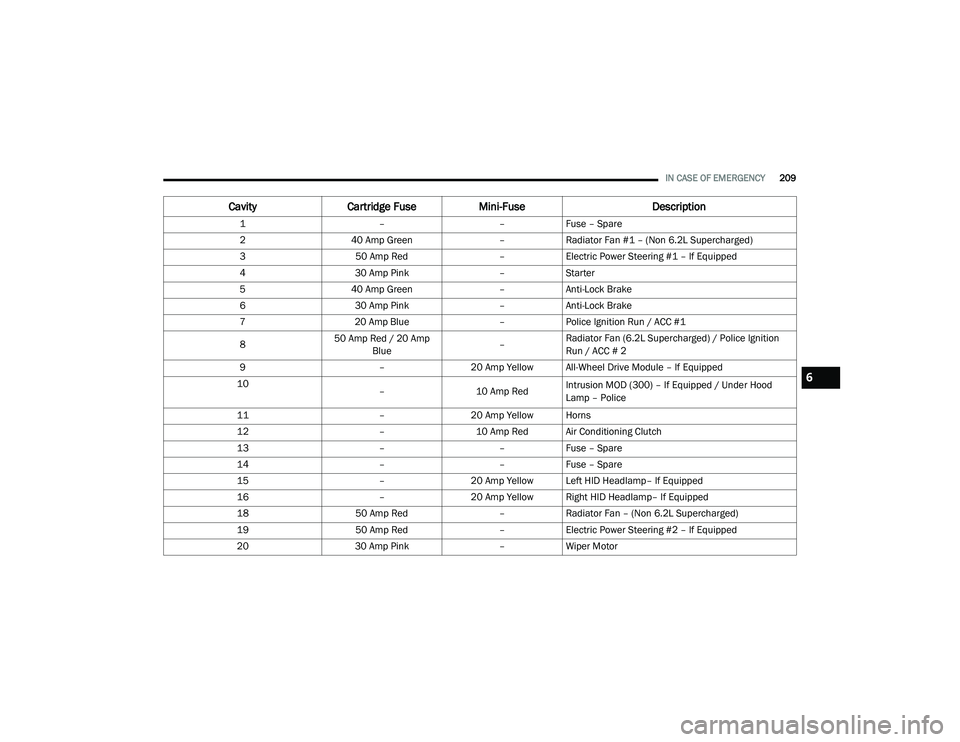
CavityCartridge Fuse Mini-Fuse Description
1––Fuse – Spare
2 40 Amp Green –Radiator Fan #1 – (Non 6.2L Supercharged)
3 50 Amp Red –Electric Power Steering #1 – If Equipped
4 30 Amp Pink –Starter
5 40 Amp Green –Anti-Lock Brake
6 30 Amp Pink –Anti-Lock Brake
7 20 Amp Blue –Police Ignition Run / ACC #1
8 50 Amp Red / 20 Amp
Blue –Radiator Fan (6.2L Supercharged) / Police Ignition
Run / ACC # 2
9 –20 Amp Yellow All-Wheel Drive Module – If Equipped
10 –
10 Amp RedIntrusion MOD (300) – If Equipped / Under Hood
Lamp – Police
11 –20 Amp Yellow Horns
12 –10 Amp Red Air Conditioning Clutch
13 ––Fuse – Spare
14 ––Fuse – Spare
15 –20 Amp Yellow Left HID Headlamp– If Equipped
16 –20 Amp Yellow Right HID Headlamp– If Equipped
18 50 Amp Red –Radiator Fan – (Non 6.2L Supercharged)
19 50 Amp Red –Electric Power Steering #2 – If Equipped
20 30 Amp Pink –Wiper Motor
6
20_LA_OM_EN_USC_t.book Page 209
Page 215 of 396
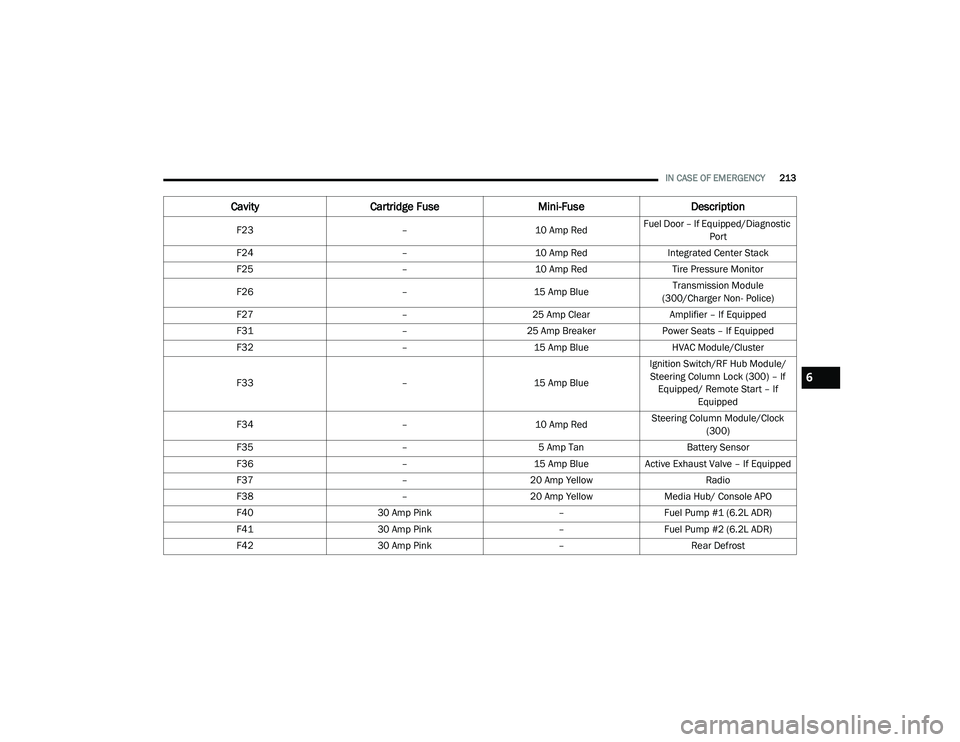
IN CASE OF EMERGENCY213
F23 –10 Amp RedFuel Door – If Equipped/Diagnostic
Port
F24 –10 Amp RedIntegrated Center Stack
F25 –10 Amp Red Tire Pressure Monitor
F26 –15 Amp Blue Transmission Module
(300/Charger Non- Police)
F27 –25 Amp Clear Amplifier – If Equipped
F31 –25 Amp Breaker Power Seats – If Equipped
F32 –15 Amp Blue HVAC Module/Cluster
F33 –15 Amp BlueIgnition Switch/RF Hub Module/
Steering Column Lock (300) – If Equipped/ Remote Start – If Equipped
F34 –10 Amp RedSteering Column Module/Clock
(300)
F35 –5 Amp Tan Battery Sensor
F36 –15 Amp BlueActive Exhaust Valve – If Equipped
F37 –20 Amp Yellow Radio
F38 –20 Amp Yellow Media Hub/ Console APO
F40 30 Amp Pink –Fuel Pump #1 (6.2L ADR)
F41 30 Amp Pink –Fuel Pump #2 (6.2L ADR)
F42 30 Amp Pink –Rear Defrost
CavityCartridge Fuse Mini-FuseDescription
6
20_LA_OM_EN_USC_t.book Page 213
Page 315 of 396
MULTIMEDIA313
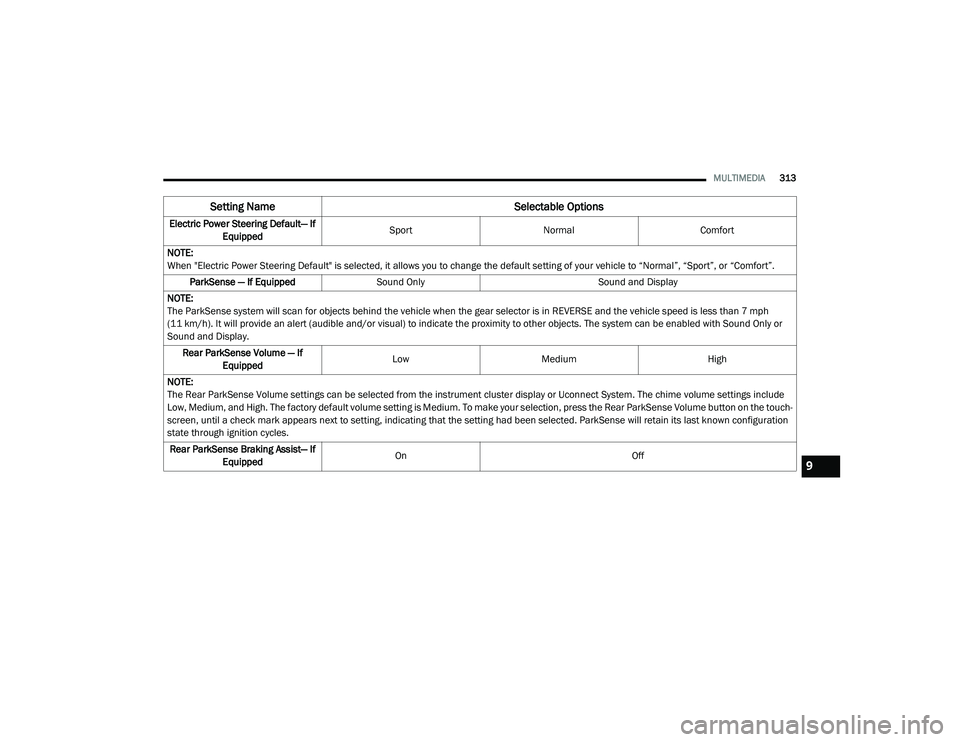
Electric Power Steering Default— If
Equipped Sport
Normal Comfort
NOTE:
When "Electric Power Steering Default" is selected, it allows you to change the default setting of your vehicle to “Normal”, “Sport”, or “Comfort”. ParkSense — If Equipped Sound Only Sound and Display
NOTE:
The ParkSense system will scan for objects behind the vehicle when the gear selector is in REVERSE and the vehicle speed is less than 7 mph
(11 km/h). It will provide an alert (audible and/or visual) to indicate the proximity to other objects. The system can be enabled with Sound Only or
Sound and Display. Rear ParkSense Volume — If Equipped Low
Medium High
NOTE:
The Rear ParkSense Volume settings can be selected from the instrument cluster display or Uconnect System. The chime volume settings include
Low, Medium, and High. The factory default volume setting is Medium. To make your selection, press the Rear ParkSense Volume button on the touch -
screen, until a check mark appears next to setting, indicating that the setting had been selected. ParkSense will retain its last known configuration
state through ignition cycles.
Rear ParkSense Braking Assist— If Equipped On
Off
Setting Name Selectable Options
9
20_LA_OM_EN_USC_t.book Page 313
Page 331 of 396
MULTIMEDIA329
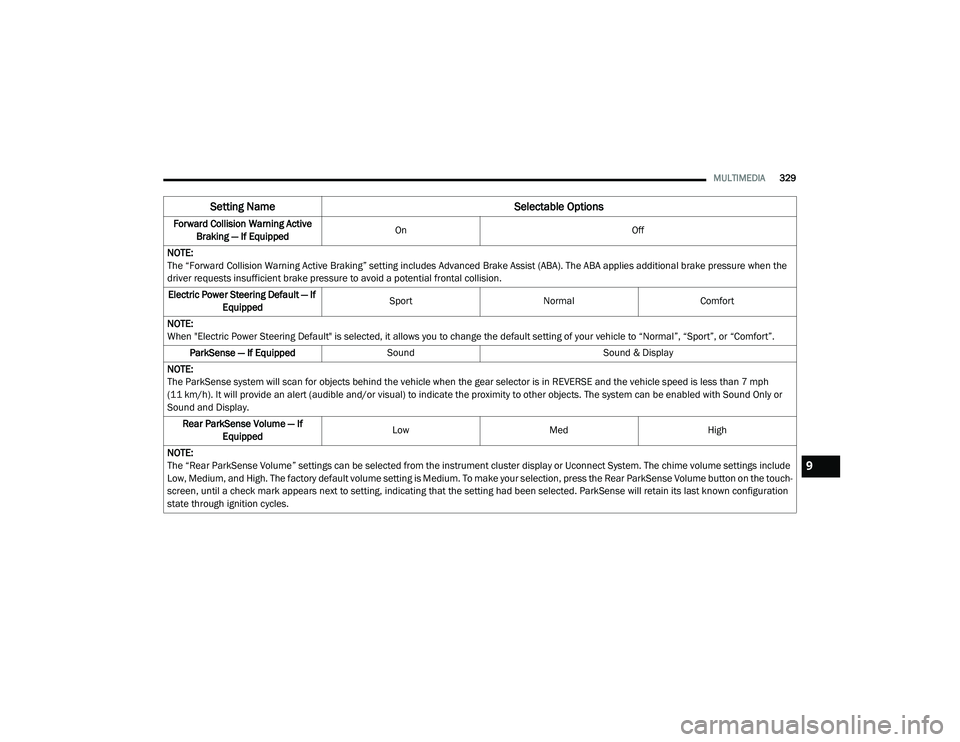
Forward Collision Warning Active
Braking — If Equipped On
Off
NOTE:
The “Forward Collision Warning Active Braking” setting includes Advanced Brake Assist (ABA). The ABA applies additional brake pressure when the
driver requests insufficient brake pressure to avoid a potential frontal collision. Electric Power Steering Default — If Equipped Sport
Normal Comfort
NOTE:
When "Electric Power Steering Default" is selected, it allows you to change the default setting of your vehicle to “Normal”, “Sport”, or “Comfort”. ParkSense — If Equipped Sound Sound & Display
NOTE:
The ParkSense system will scan for objects behind the vehicle when the gear selector is in REVERSE and the vehicle speed is less than 7 mph
(11 km/h). It will provide an alert (audible and/or visual) to indicate the proximity to other objects. The system can be enabled with Sound Only or
Sound and Display. Rear ParkSense Volume — If Equipped Low
Med High
NOTE:
The “Rear ParkSense Volume” settings can be selected from the instrument cluster display or Uconnect System. The chime volume settings include
Low, Medium, and High. The factory default volume setting is Medium. To make your selection, press the Rear ParkSense Volume button on the touch -
screen, until a check mark appears next to setting, indicating that the setting had been selected. ParkSense will retain its last known configuration
state through ignition cycles.
Setting Name Selectable Options
9
20_LA_OM_EN_USC_t.book Page 329
Page 335 of 396
MULTIMEDIA333
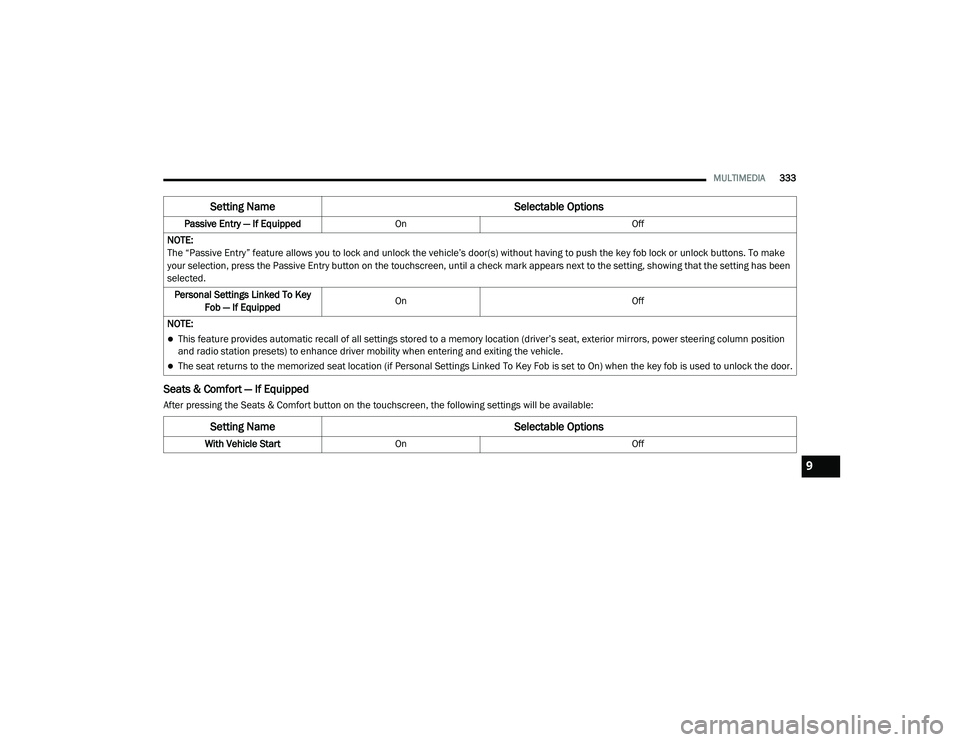
Seats & Comfort — If Equipped
After pressing the Seats & Comfort button on the touchscreen, the following settings will be available:Passive Entry — If Equipped
On Off
NOTE:
The “Passive Entry” feature allows you to lock and unlock the vehicle’s door(s) without having to push the key fob lock or unlock buttons. To make
your selection, press the Passive Entry button on the touchscreen, until a check mark appears next to the setting, showing that the setting has been
selected. Personal Settings Linked To Key Fob — If Equipped On
Off
NOTE:
This feature provides automatic recall of all settings stored to a memory location (driver’s seat, exterior mirrors, power steering column position
and radio station presets) to enhance driver mobility when entering and exiting the vehicle.
The seat returns to the memorized seat location (if Personal Settings Linked To Key Fob is set to On) when the key fob is used to unlock the door.
Setting Name Selectable Options
Setting NameSelectable Options
With Vehicle StartOn Off
9
20_LA_OM_EN_USC_t.book Page 333
Page 343 of 396
MULTIMEDIA341
5. Controls
Press the Controls button on the touch -
screen to adjust the heated and vented
seats or heated steering wheel (if
equipped).
6. Phone Press the Phone button on the touchscreen
to access the Uconnect Phone feature.
7. Settings Press the Settings button on the touch -
screen to access the Uconnect Settings
menu.
Drag & Drop Menu Bar
The Uconnect features and services in the main
menu bar are easily changed for your
convenience. Simply follow these steps:
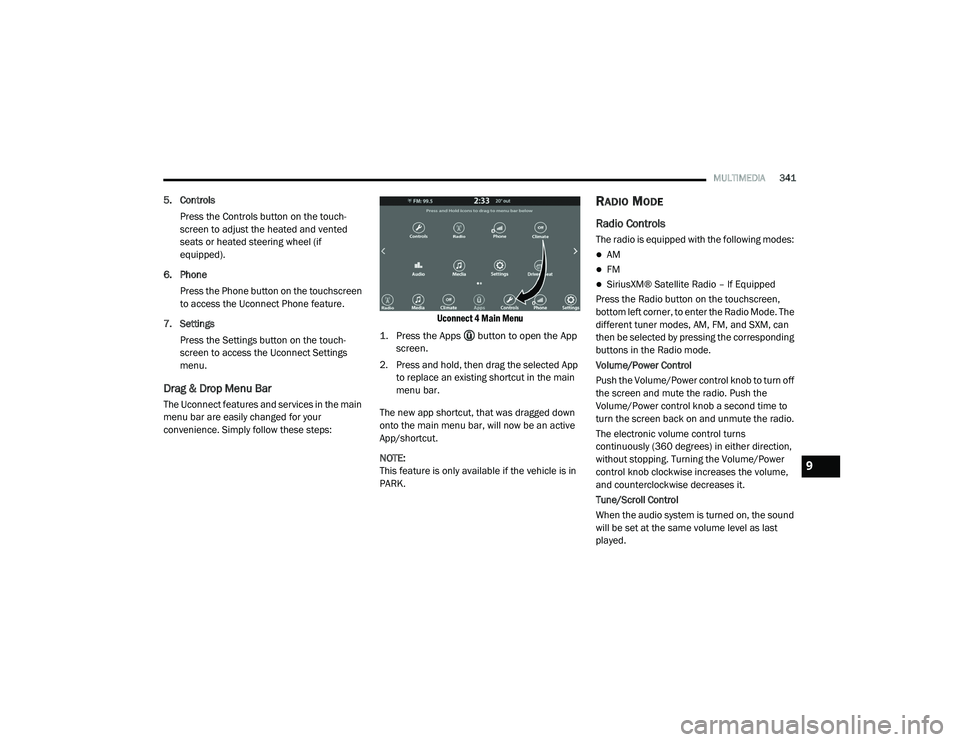
Uconnect 4 Main Menu
1. Press the Apps button to open the App screen.
2. Press and hold, then drag the selected App to replace an existing shortcut in the main
menu bar.
The new app shortcut, that was dragged down
onto the main menu bar, will now be an active
App/shortcut.
NOTE:
This feature is only available if the vehicle is in
PARK.
RADIO MODE
Radio Controls
The radio is equipped with the following modes:
AM
FM
SiriusXM® Satellite Radio – If Equipped
Press the Radio button on the touchscreen,
bottom left corner, to enter the Radio Mode. The
different tuner modes, AM, FM, and SXM, can
then be selected by pressing the corresponding
buttons in the Radio mode.
Volume/Power Control
Push the Volume/Power control knob to turn off
the screen and mute the radio. Push the
Volume/Power control knob a second time to
turn the screen back on and unmute the radio.
The electronic volume control turns
continuously (360 degrees) in either direction,
without stopping. Turning the Volume/Power
control knob clockwise increases the volume,
and counterclockwise decreases it.
Tune/Scroll Control
When the audio system is turned on, the sound
will be set at the same volume level as last
played.
9
20_LA_OM_EN_USC_t.book Page 341
Page 354 of 396
352MULTIMEDIA
Android Auto™ is a feature of your Uconnect
system, and your Android™ 5.0 or higher
powered smartphone with a data plan, that
allows you to project your smartphone and a
number of its apps onto the touchscreen radio
display. Android Auto™ automatically brings you
useful information, and organizes it into simple
cards that appear just when they are needed.
Android Auto™ can be used with Google's
best-in-class speech technology, the steering
wheel controls, the knobs and buttons on your
radio faceplate, and the radio display’s
touchscreen to control many of your apps. To
use Android Auto™, follow the following
procedure:
1. Download the Android Auto™ app from the
Google Play store on your
Android™-powered smartphone.
2. Connect your Android™-powered smartphone to one of the media USB ports
in your vehicle. If the Android Auto™ app
was not downloaded, the first time you plug
your device in, the app will begin to
download. NOTE:
Be sure to use the factory-provided USB cable
that came with your phone, as aftermarket
cables may not work.
3. Once the device is connected and recognized, the “Phone” icon on the drag &
drop menu bar changes to the Android
Auto™ Icon.
Once Android Auto™ is up and running on your
Uconnect system, the following features can be
utilized using your smartphone’s data plan:
Google Maps™ for navigation
Google Play Music, Spotify, iHeart Radio, etc.
for music
Hands-free Calling and Texting for communi
-
cation
Hundred of compatible apps NOTE:
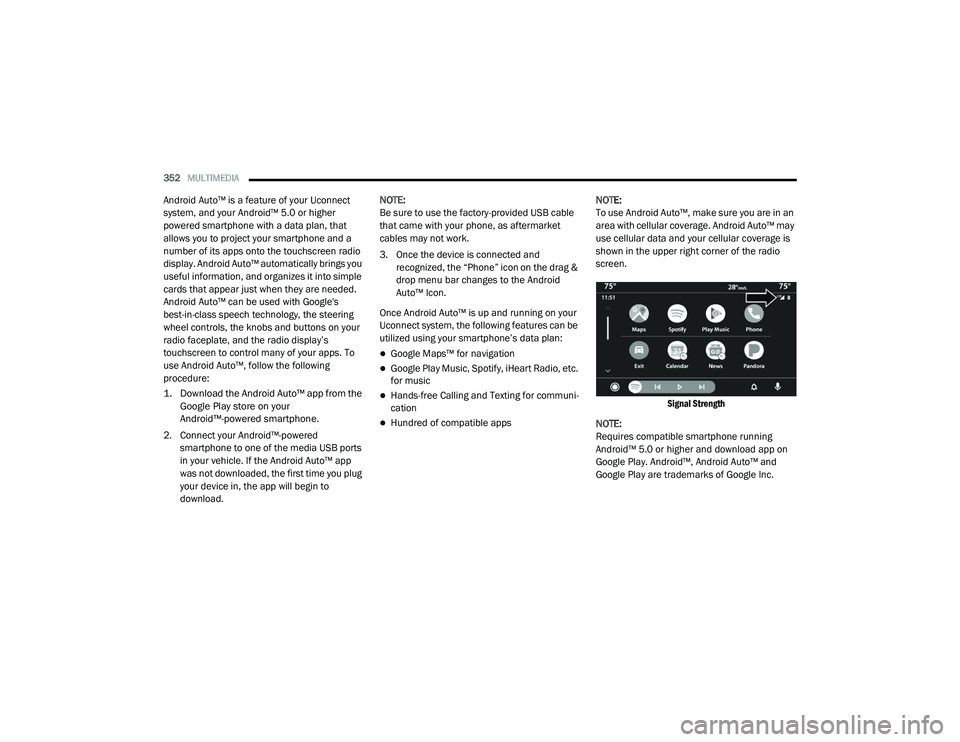
To use Android Auto™, make sure you are in an
area with cellular coverage. Android Auto™ may
use cellular data and your cellular coverage is
shown in the upper right corner of the radio
screen.
Signal Strength
NOTE:
Requires compatible smartphone running
Android™ 5.0 or higher and download app on
Google Play. Android™, Android Auto™ and
Google Play are trademarks of Google Inc.
20_LA_OM_EN_USC_t.book Page 352