ignition DODGE CHALLENGER 2021 Workshop Manual
[x] Cancel search | Manufacturer: DODGE, Model Year: 2021, Model line: CHALLENGER, Model: DODGE CHALLENGER 2021Pages: 328, PDF Size: 15 MB
Page 93 of 328
STARTING AND OPERATING91
NOTE:In cases where the instrument cluster message
indicates the transmission may not re-engage after
engine shutdown, perform this procedure only in a
desired location (preferably, at an authorized
dealer).
1. Stop the vehicle.
2. Shift the transmission into PARK, if possible. If
not, shift the transmission to NEUTRAL.
3. Push and hold the ignition switch until the engine turns off.
4. Wait approximately 30 seconds.
5. Restart the engine.
6. Shift into the desired gear range. If the problem is no longer detected, the
transmission will return to normal operation.
NOTE:Even if the transmission can be reset, we
recommend that you visit an authorized dealer at
your earliest possible convenience. An authorized
dealer has diagnostic equipment to assess the
condition of your transmission. If the transmission
cannot be reset, authorized dealer service is
required.
AutoStick
AutoStick is a driver-interactive transmission
feature providing manual shift control, giving you
more control of the vehicle. AutoStick allows you to
maximize engine braking, eliminate undesirable
upshifts and downshifts, and improve overall
vehicle performance. This system can also provide
you with more control during passing, city driving,
cold slippery conditions, mountain driving, trailer
towing, and many other situations.
Operation
In AutoStick mode, you can use the gear selector
(in the MANUAL position), or the shift paddles to
the MANUAL (M) position (beside the DRIVE (D)
position), or tap one of the shift paddles on the
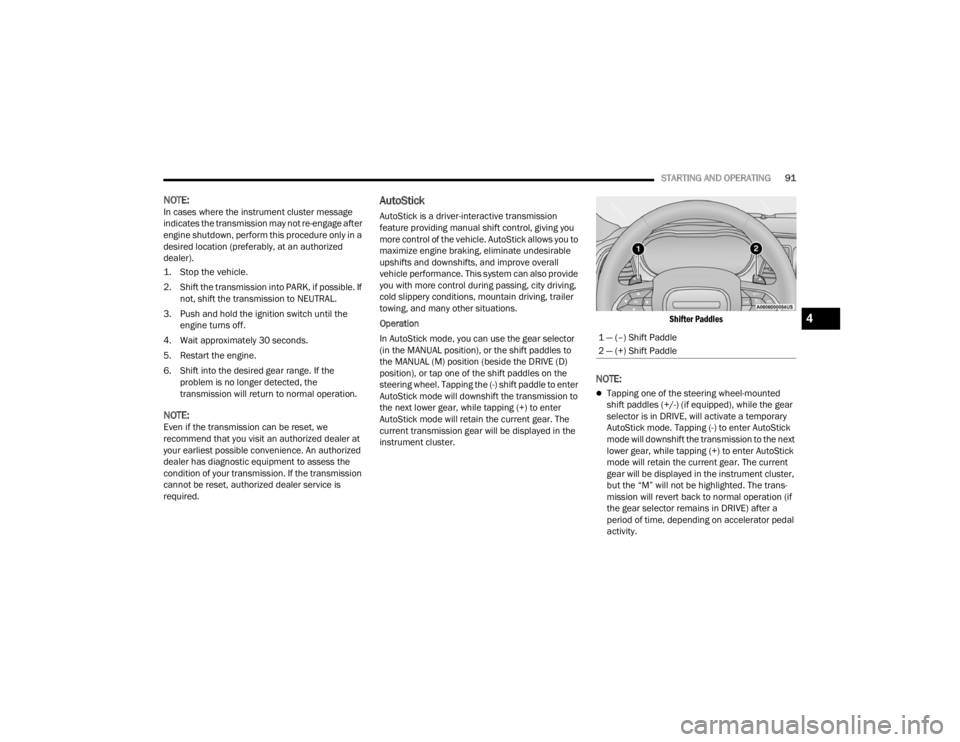
steering wheel. Tapping the (-) shift paddle to enter
AutoStick mode will downshift the transmission to
the next lower gear, while tapping (+) to enter
AutoStick mode will retain the current gear. The
current transmission gear will be displayed in the
instrument cluster.
Shifter Paddles
NOTE:
Tapping one of the steering wheel-mounted
shift paddles (+/-) (if equipped), while the gear
selector is in DRIVE, will activate a temporary
AutoStick mode. Tapping (-) to enter AutoStick
mode will downshift the transmission to the next
lower gear, while tapping (+) to enter AutoStick
mode will retain the current gear. The current
gear will be displayed in the instrument cluster,
but the “M” will not be highlighted. The trans
-
mission will revert back to normal operation (if
the gear selector remains in DRIVE) after a
period of time, depending on accelerator pedal
activity.
1 — (–) Shift Paddle
2 — (+) Shift Paddle
4
21_LA_OM_EN_USC_t.book Page 91
Page 97 of 328

STARTING AND OPERATING95
Metric Speed (km/h)
Pushing the SET (+) , or SET (-) button once will
result in a 1 km/h speed adjustment. Each
subsequent tap of the button results in an
adjustment of 1 km/h.
If the button is continually pushed, the set
speed will continue to adjust until the button is
released, then the new set speed will be estab -
lished.
To Accelerate For Passing
While the Cruise Control system is set, press the
accelerator to pass as you would normally. When
the pedal is released, the vehicle will return to the
set speed.
USING CRUISE CONTROL ON HILLS
The transmission may downshift on hills to
maintain the vehicle set speed.
The Cruise Control system maintains speed up and
down hills. A slight speed change on moderate hills
is normal. On steep hills, a greater speed loss or
gain may occur so it may be preferable to drive
without Cruise Control.
To Resume Speed
To resume a previously set speed, push the RES
button and release. Resume can be used at any
speed above 20 mph (32 km/h).
To Deactivate
A tap on the brake pedal, pushing the CANC button,
or normal brake pressure will deactivate the Cruise
Control system without erasing the set speed from
memory.
Pushing the on/off button or placing the ignition in
the OFF position erases the set speed from
memory. The following conditions will also deactivate the
Cruise Control without erasing the set speed from
memory:
Vehicle parking brake is applied
Stability event occurs
Gear selector is moved out of DRIVE
Engine overspeed occurs
Clutch pedal is pressed (manual transmission
only)
ADAPTIVE CRUISE CONTROL (ACC)
Adaptive Cruise Control (ACC) increases the driving
convenience provided by Cruise Control while
traveling on highways and major roadways.
However, it is not a safety system and not designed
to prevent collisions. The Cruise Control function
performs differently
Ú page 94.
ACC will allow you to keep Cruise Control engaged
in light to moderate traffic conditions without the
constant need to reset your Cruise Control. ACC
utilizes a radar sensor and a forward facing
camera designed to detect a vehicle directly ahead
of you to maintain a set speed.
WARNING!
Cruise Control can be dangerous where the
system cannot maintain a constant speed. Your
vehicle could go too fast for the conditions, and
you could lose control and have an accident. Do
not use Cruise Control in heavy traffic or on
roads that are winding, icy, snow-covered or
slippery.
4
21_LA_OM_EN_USC_t.book Page 95
Page 100 of 328

98STARTING AND OPERATING
If ACC is set when the vehicle speed is below
20 mph (32 km/h), the set speed will default to
20 mph (32 km/h).
NOTE:Fixed Speed Cruise Control cannot be set below
20 mph (32 km/h).
If either system is set when the vehicle speed is
above 20 mph (32 km/h), the set speed shall be
the current speed of the vehicle.
NOTE:
Keeping your foot on the accelerator pedal can
cause the vehicle to continue to accelerate
beyond the set speed. If this occurs, the
message “DRIVER OVERRIDE” will display in the
instrument cluster display.
If you continue to accelerate beyond the set
speed while ACC is enabled, the system will not
be controlling the distance between your
vehicle and the vehicle ahead. The vehicle
speed will only be determined by the position of
the accelerator pedal.
To Cancel
The following conditions cancel the ACC or Fixed
Speed Cruise Control systems:
The brake pedal is applied.
The parking brake is applied.
The CANC (cancel) button is pushed.
An Anti-Lock Brake System (ABS) event occurs.
The gear selector is removed from the DRIVE
position.
The Electronic Stability Control/Traction Control
System (ESC/TCS) activates.
The following conditions will only cancel the ACC
system:
The vehicle speed goes below 15 mph (24 km/h).
To Turn Off
The system will turn off and erase the set speed in
memory if:
The Adaptive Cruise Control (ACC) on/off button
is pushed
The Fixed Speed Cruise Control on/off button is
pushed
The ignition is placed in the OFF position
To Resume
If there is a set speed in memory, push the RES
(resume) button and remove your foot from the
accelerator pedal. The instrument cluster display
will show the last set speed.
Resume can be used at any speed above 20 mph
(32 km/h) when only Fixed Speed Cruise Control is
being used.
Resume can be used at any speed above 0 mph
(0 km/h) when ACC is active.
WARNING!
In Fixed Speed Cruise Control mode, the system
will not react to vehicles ahead. In addition, the
proximity warning does not activate and no
alarm will sound even if you are too close to the
vehicle ahead since neither the presence of the
vehicle ahead nor the vehicle-to-vehicle distance
is detected. Be sure to maintain a safe distance
between your vehicle and the vehicle ahead.
Always be aware which mode is selected.
WARNING!
The Resume function should only be used if
traffic and road conditions permit. Resuming a
set speed that is too high or too low for
prevailing traffic and road conditions could
cause the vehicle to accelerate or decelerate too
sharply for safe operation. Failure to follow these
warnings can result in a collision and death or
serious personal injury.
21_LA_OM_EN_USC_t.book Page 98
Page 103 of 328
STARTING AND OPERATING101
If weather conditions are not a factor, the driver
should examine the sensor. It may require cleaning
or removal of an obstruction. The sensor is located
in the center of the vehicle behind the lower grille.
To keep the ACC system operating properly, it is
important to note the following maintenance
items:
Always keep the sensor clean. Carefully wipe the
sensor lens with a soft cloth. Be cautious not to
damage the sensor lens.
Do not remove any screws from the sensor.
Doing so could cause an ACC system malfunc -
tion or failure and require a sensor realignment.
If the sensor or front end of the vehicle is
damaged due to a collision, see an authorized
dealer for service.
Do not attach or install any accessories near the
sensor, including transparent material or after -
market grilles. Doing so could cause an ACC
system failure or malfunction.
When the condition that deactivated the system is
no longer present, the system will return to the
“Adaptive Cruise Control Off” state and will resume
function by simply reactivating it.
NOTE:
If the “ACC/FCW Unavailable Wipe Front Radar
Sensor” message occurs frequently (e.g. more
than once on every trip) without any snow, rain,
mud, or other obstruction, have the radar
sensor realigned at an authorized dealer.
Installing a snow plow, front-end protector, an
aftermarket grille or modifying the grille is not
recommended. Doing so may block the sensor
and inhibit ACC/FCW operation.
SERVICE ACC/FCW WARNING
If the system turns off, and the instrument cluster
displays “ACC/FCW Unavailable Service Required”
or “Cruise/FCW Unavailable Service Required”,
there may be an internal system fault or a
temporary malfunction that limits ACC
functionality. Although the vehicle is still drivable
under normal conditions, ACC will be temporarily
unavailable. If this occurs, try activating ACC again
later, following an ignition cycle. If the problem
persists, see an authorized dealer.
Precautions While Driving With ACC
In certain driving situations, ACC may have
detection issues. In these cases, ACC may brake
late or unexpectedly. The driver needs to stay alert
and may need to intervene. The following are
examples of these types of situations:
TOWING A TRAILER
Towing a trailer is not advised when using ACC.
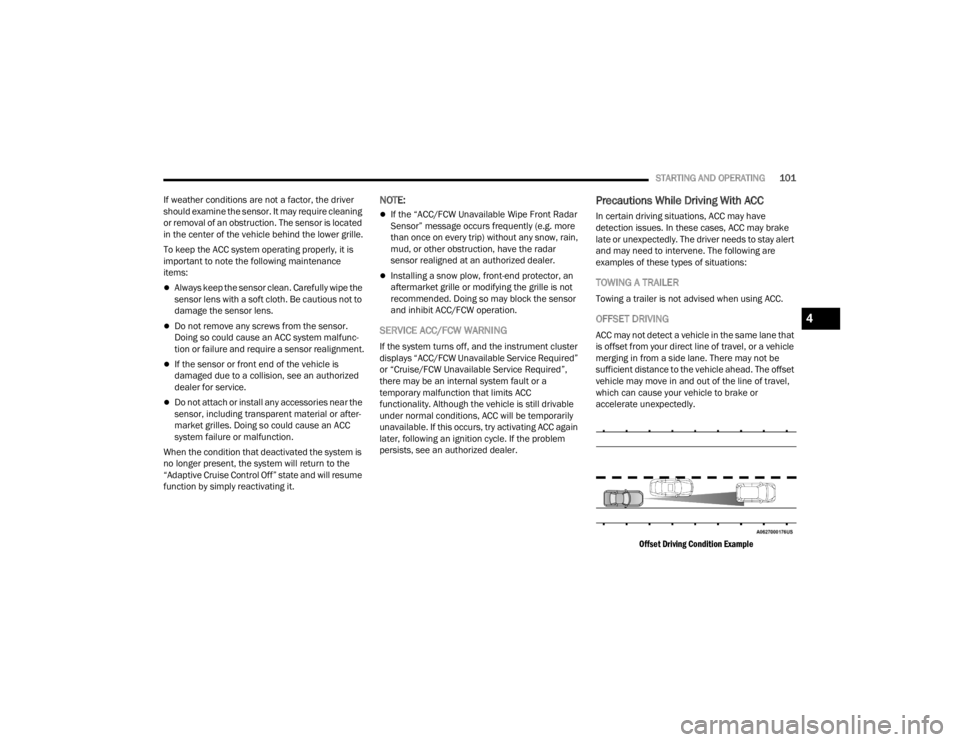
OFFSET DRIVING
ACC may not detect a vehicle in the same lane that
is offset from your direct line of travel, or a vehicle
merging in from a side lane. There may not be
sufficient distance to the vehicle ahead. The offset
vehicle may move in and out of the line of travel,
which can cause your vehicle to brake or
accelerate unexpectedly.
Offset Driving Condition Example
4
21_LA_OM_EN_USC_t.book Page 101
Page 105 of 328

STARTING AND OPERATING103
NARROW VEHICLES
Some narrow vehicles traveling near the outer
edges of the lane or edging into the lane are not
detected until they have moved fully into the lane.
There may not be sufficient distance to the vehicle
ahead.
Narrow Vehicle Example
STATIONARY OBJECTS AND VEHICLES
ACC does not react to stationary objects and
stationary vehicles. For example, ACC will not react
in situations where the vehicle you are following
exits your lane and the vehicle ahead is stopped in
your lane. Always be attentive and ready to apply
the brakes if necessary.
Stationary Object And Stationary Vehicle Example
PARKSENSE REAR PARK ASSIST —
IF EQUIPPED
The ParkSense Rear Park Assist system provides
visual and audible indications of the distance
between the rear fascia/bumper and a detected
obstacle when backing up (e.g. during a parking
maneuver).
For limitations of this system and
recommendations, see Ú page 107.
ParkSense will retain the last system state
(enabled or disabled) from the previous ignition
cycle when the ignition is changed to the ON/RUN
position.
ParkSense can be active only when the gear
selector is in REVERSE. If ParkSense is enabled at
this gear selector position, the system will remain
active until the vehicle speed is increased to
approximately 7 mph (11 km/h) or above. The
system will become active again if the vehicle
speed is decreased to speeds less than
approximately 6 mph (9 km/h).
4
21_LA_OM_EN_USC_t.book Page 103
Page 109 of 328

STARTING AND OPERATING107
PARKSENSE WARNING DISPLAY
The ParkSense Warning screen will only be
displayed if Sound and Display is selected from
within the Uconnect system Úpage 120.
The ParkSense Warning screen is located within
the instrument cluster display Ú page 62. It
provides visual warnings to indicate the distance
between the rear fascia/bumper and the detected
obstacle.
ENABLING AND DISABLING PARKSENSE
ParkSense can be enabled and disabled
with the ParkSense switch, located on
the switch panel below the Uconnect
display.
When the ParkSense switch is pushed to disable
the system, the instrument cluster will display the
“ParkSense Off” message for approximately five
seconds. When the gear selector is moved to
REVERSE and the system is disabled, the
instrument cluster display will display the
“ParkSense Off” message for as long as the vehicle
is in REVERSE.
The ParkSense switch LED will be on when
ParkSense is disabled or requires service. The
ParkSense switch LED will be off when the system is
enabled. If the ParkSense switch is pushed, and the
system requires service, the ParkSense switch LED
will blink momentarily, and then the LED will be on.
SERVICE THE PARKSENSE REAR PARK
A
SSIST SYSTEM
During vehicle start up, when the ParkSense Rear
Park Assist System has detected a faulted
condition, the instrument cluster will actuate a
single chime, once per ignition cycle and it will
display the “PARKSENSE UNAVAILABLE WIPE
REAR SENSORS” or “PARKSENSE UNAVAILABLE
SERVICE REQUIRED” message for five seconds.
When the gear selector is moved to REVERSE and
the system has detected a faulted condition, the
instrument cluster display will display the
“PARKSENSE UNAVAILABLE WIPE REAR
SENSORS” or “PARKSENSE UNAVAILABLE
SERVICE REQUIRED” message for as long as the
vehicle is in REVERSE. Under this condition,
ParkSense will not operate.
If “PARKSENSE UNAVAILABLE WIPE REAR
SENSORS” appears in the instrument cluster
display, make sure the outer surface and the
inside of the rear fascia/bumper is clean and clear
of snow, ice, mud, dirt or other obstruction, and
then cycle the ignition. If the message continues to
appear see an authorized dealer.
If “PARKSENSE UNAVAILABLE SERVICE
REQUIRED” appears in the instrument cluster
display, see an authorized dealer.
CLEANING THE PARKSENSE SYSTEM
Clean the Rear Park Assist sensors with water, car
wash soap and a soft cloth. Do not use rough or
hard cloths. In washing stations, clean sensors
quickly keeping the vapor jet/high pressure
washing nozzles at least 4 inches (10 cm) from the
sensors. Do not scratch or poke the sensors.
Otherwise, you could damage the sensors.
PARKSENSE SYSTEM USAGE
P
RECAUTIONS
NOTE:
Ensure that the rear fascia/bumper is free of
snow, ice, mud, dirt and debris to keep the
ParkSense system operating properly.
Jackhammers, large trucks, and other vibra -
tions could affect the performance of
ParkSense or render the system temporarily
unavailable.
When you turn ParkSense off in DRIVE, the
instrument cluster will display "PARKSENSE
OFF" for five seconds. Furthermore, once you
turn ParkSense off, it remains off until you turn
it on again, even if you cycle the ignition.
When you move the gear selector to the
REVERSE position and ParkSense is turned off,
the instrument cluster display will show the
“PARKSENSE OFF” message for as long as the
vehicle is in REVERSE.
4
21_LA_OM_EN_USC_t.book Page 107
Page 110 of 328
108STARTING AND OPERATING
ParkSense will reduce the volume of the radio
when it is sounding an audio tone.
Clean the ParkSense sensors regularly, taking
care not to scratch or damage them. The
sensors must not be covered with ice, snow,
slush, mud, dirt or debris. Failure to do so can
result in the system not working properly. The
ParkSense system might not detect an obstacle
behind the fascia/bumper, or it could provide a
false indication that an obstacle is behind the
fascia/bumper.
Ensure the ParkSense system is off if objects
such as bicycle carriers, trailer hitches, etc., are
placed within 12 inches (30 cm) from the rear
fascia/bumper. Failure to do so can result in the
system misinterpreting a close object as a
sensor problem, causing the “PARKSENSE
UNAVAILABLE SERVICE REQUIRED” message to
be shown in the instrument cluster display.
PARKVIEW REAR BACK UP CAMERA
The ParkView Rear Back Up Camera allows you to
see an on-screen image of the rear surroundings of
your vehicle whenever the gear selector is put into
REVERSE. The ParkView camera is located on the
rear of the vehicle above the rear license plate. The
image will be displayed in the touchscreen display
along with a caution note to “Check Entire
Surroundings” across the top of the screen. After
five seconds, this note will disappear.
NOTE:The ParkView Rear Back Up Camera has program -
mable modes of operation that may be selected
through the Uconnect system Ú page 120.If your vehicle is equipped with the Camera Delay
feature and it is turned on, the rear camera image
will be displayed for up to 10 seconds when the
vehicle is shifted out of REVERSE. However, this
feature is canceled if the forward vehicle speed
exceeds 8 mph (13 km/h), the transmission is
shifted into PARK, the vehicle's ignition is placed in
the OFF position, or by pressing the image defeat X
button.
When the vehicle is shifted out of REVERSE with
Camera Delay turned off, the rear camera mode is
exited and the last touchscreen appears again.
When enabled, active guidelines are overlaid on
the image to illustrate the width of the vehicle and
its projected backup path based on the steering
wheel position. The active guidelines will show
separate zones that will help indicate the distance
to the rear of the vehicle.
If the vehicle speed remains below 8 mph (13 km/
h), the rear view camera image will continue to be
displayed until the transmission is shifted into
PARK, the vehicle’s ignition is placed in the OFF
position, or the image defeat X button is pressed.
Different colored zones indicate the distance to
the rear of the vehicle.
WARNING!
Drivers must be careful when backing up even
when using the Rear Park Assist system. Always
check carefully behind your vehicle, and be sure
to check for pedestrians, animals, other
vehicles, obstructions, or blind spots before
backing up. You are responsible for the safety of
your surroundings and must continue to pay
attention while backing up. Failure to do so can
result in serious injury or death.
CAUTION!
ParkSense is only a parking aid and it is
unable to recognize every obstacle, including
small obstacles. Parking curbs might be
temporarily detected or not detected at all.
Obstacles located above or below the sensors
will not be detected when they are in close
proximity.
The vehicle must be driven slowly when using
ParkSense in order to be able to stop in time
when an obstacle is detected. It is recom
-
mended that the driver looks over his/her
shoulder when using ParkSense.
21_LA_OM_EN_USC_t.book Page 108
Page 122 of 328
120MULTIMEDIA
UCONNECT SETTINGS
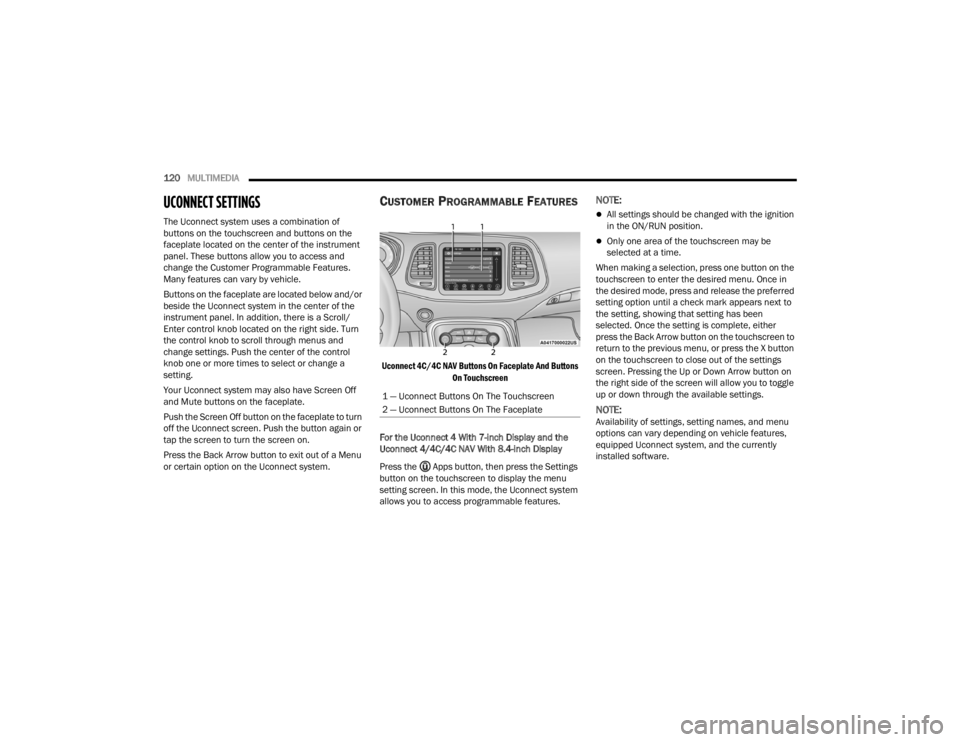
The Uconnect system uses a combination of
buttons on the touchscreen and buttons on the
faceplate located on the center of the instrument
panel. These buttons allow you to access and
change the Customer Programmable Features.
Many features can vary by vehicle.
Buttons on the faceplate are located below and/or
beside the Uconnect system in the center of the
instrument panel. In addition, there is a Scroll/
Enter control knob located on the right side. Turn
the control knob to scroll through menus and
change settings. Push the center of the control
knob one or more times to select or change a
setting.
Your Uconnect system may also have Screen Off
and Mute buttons on the faceplate.
Push the Screen Off button on the faceplate to turn
off the Uconnect screen. Push the button again or
tap the screen to turn the screen on.
Press the Back Arrow button to exit out of a Menu
or certain option on the Uconnect system.
CUSTOMER PROGRAMMABLE FEATURES
Uconnect 4C/4C NAV Buttons On Faceplate And Buttons
On Touchscreen
For the Uconnect 4 With 7-inch Display and the
Uconnect 4/4C/4C NAV With 8.4-inch Display
Press the Apps button, then press the Settings
button on the touchscreen to display the menu
setting screen. In this mode, the Uconnect system
allows you to access programmable features.
NOTE:
All settings should be changed with the ignition
in the ON/RUN position.
Only one area of the touchscreen may be
selected at a time.
When making a selection, press one button on the
touchscreen to enter the desired menu. Once in
the desired mode, press and release the preferred
setting option until a check mark appears next to
the setting, showing that setting has been
selected. Once the setting is complete, either
press the Back Arrow button on the touchscreen to
return to the previous menu, or press the X button
on the touchscreen to close out of the settings
screen. Pressing the Up or Down Arrow button on
the right side of the screen will allow you to toggle
up or down through the available settings.
NOTE:Availability of settings, setting names, and menu
options can vary depending on vehicle features,
equipped Uconnect system, and the currently
installed software.
1 — Uconnect Buttons On The Touchscreen
2 — Uconnect Buttons On The Faceplate
21_LA_OM_EN_USC_t.book Page 120
Page 131 of 328

MULTIMEDIA129
Seats & Comfort
Passive Entry
This setting will allow you to turn the Passive Entry feature
(Keyless Enter ‘n Go™) on or off.
Personal Settings Linked To Key Fob This setting will recall preset radio stations and driver seat position that have
been linked to the key fob.
Setting Name Description
When Seats & Comfort button is pressed on the touchscreen, the system displays the option related to the vehicle’s comfort systems when remote start has
been activated or the vehicle has been started.
NOTE:Depending on the vehicle’s options, feature settings may vary.
Setting NameDescription
Auto-On Driver Heated/Ventilated Seat & Steering Wheel With Vehicle Start
This setting will activate the vehicle’s comfort system and heated seats or
heated steering wheel when the vehicle is remote started or ignition is
started. The “Off” setting will not activate the comfort systems. The “Remote Start” setting will only activate the comfort systems when using Remote
Start. The “All Start” setting will activate the comfort systems whenever the vehicle is started.
5
21_LA_OM_EN_USC_t.book Page 129
Page 132 of 328

130MULTIMEDIA
Key Off/Engine Off Options
When the Key Off/Engine Off Options button is pressed on the touchscreen, the system displays the options related to vehicle shut off. These settings will only
activate when the ignition is set to OFF.
NOTE:Depending on the vehicle’s options, feature settings may vary.
Setting Name Description
Easy Exit SeatThis setting adjusts the seats to make exiting the vehicle easier.
Key Off/Engine Off Power Delay This setting will keep certain electrical features running after the engine is
turned off. When any door is opened, the electronics will deactivate. The available settings are “0 sec”, “45 sec”, “5 min”, and “10 min”.
Headlight Off Delay This setting will allow you to set the amount of time the headlights remain on
after the vehicle has been turned off. The “+” will increase the amount of time. The “-” will decrease the amount of time.
21_LA_OM_EN_USC_t.book Page 130