display DODGE CHALLENGER 2022 Owners Manual
[x] Cancel search | Manufacturer: DODGE, Model Year: 2022, Model line: CHALLENGER, Model: DODGE CHALLENGER 2022Pages: 336, PDF Size: 16.47 MB
Page 171 of 336
MULTIMEDIA169
Android Auto™, to activate Android™’s VR, which
recognizes natural voice commands, to use a list of
your smartphone’s features:
Maps
Music
Phone
Text Messages
Additional Apps
NOTE:
To use Android Auto™ on your car display, you’ll
need an Android phone running Android 6.0 or
higher, an active data plan, and the Android
Auto™ app.
To wirelessly use Android Auto™ on your car
display, you need a compatible Android smart -
phone with an active data plan. You can check
which smartphones are compatible at
g.co/
androidauto/requirements.
Android™ is a trademark of Google Inc.
APPLE CARPLAY®
Use this QR code to access your
digital experience.
Uconnect works seamlessly with
Apple CarPlay®, the smarter,
more secure way to use your
iPhone® in the car, and stay
focused on the road. Use your Uconnect Touchscreen display, the
vehicle's knobs and controls, and your voice with
Siri to get access to Apple Music®, Maps,
Messages, and more.
NOTE:Feature availability depends on your carrier and
mobile phone manufacturer. Some Apple
CarPlay® features may or may not be available in
every region and/or language.
To use Apple CarPlay®, make sure you are using
iPhone® 5 or later, have Siri enabled in Settings,
ensure your iPhone® is unlocked for the very first
connection only, and then use the following
procedure:
1. Connect your iPhone® to one of the media
USB ports in your vehicle.
NOTE:Be sure to use the factory-provided Lightning cable
that came with your phone, as aftermarket cables
may not work.
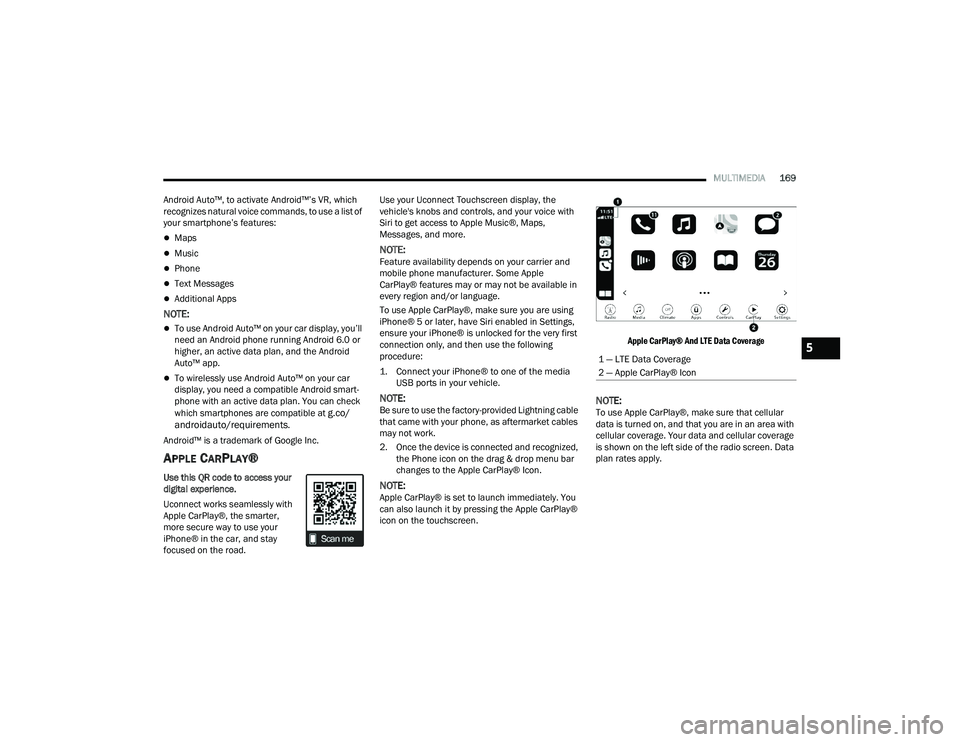
2. Once the device is connected and recognized, the Phone icon on the drag & drop menu bar
changes to the Apple CarPlay® Icon.
NOTE:Apple CarPlay® is set to launch immediately. You
can also launch it by pressing the Apple CarPlay®
icon on the touchscreen.
Apple CarPlay® And LTE Data Coverage
NOTE:To use Apple CarPlay®, make sure that cellular
data is turned on, and that you are in an area with
cellular coverage. Your data and cellular coverage
is shown on the left side of the radio screen. Data
plan rates apply.
1 — LTE Data Coverage
2 — Apple CarPlay® Icon5
22_LA_OM_EN_USC_t.book Page 169
Page 173 of 336
MULTIMEDIA171
NOTE:Apple CarPlay® is a trademark of Apple® Inc.
iPhone® is a trademark of Apple® Inc., registered
in the US and other countries. Apple® terms of use
and privacy statements apply.
ANDROID AUTO™ AND APPLE
C
ARPLAY® TIPS AND TRICKS
Android Auto™ And Apple CarPlay® Automatic
Bluetooth® Pairing
After connecting to Android Auto™ or Apple
CarPlay® for the first time and undergoing the
setup procedure, the smartphone pairs to the
Uconnect system via Bluetooth® without any setup
required every time it is within range, if Bluetooth®
is turned on.
NOTE:Apple CarPlay® uses a USB connection while
Android Auto™ uses both USB and Bluetooth®
connections to function. The connected device is
unavailable to other devices when connected
using Android Auto™ or Apple CarPlay®. Multiple Devices Connecting To The Uconnect
System — If Equipped
It is possible to have multiple devices connected to
the Uconnect system. For example, if using Android
Auto™/Apple CarPlay®, the connected device will
be used to place hands-free phone calls or send
hands-free text messages. However, another
device can also be paired to the Uconnect system,
via Bluetooth®, as an audio source, so the
passenger can stream music.
NOTE:Apple CarPlay® and Android Auto™ can only be
launched from the front and center console USB
ports.
PERFORMANCE PAGES
Performance Pages is an application that provides
a display for performance indicators, as received
from the instrument cluster, that will help you gain
familiarity with the capabilities of your vehicle in
real-time.
To access the Performance Pages, press the Apps
button on the touchscreen then press the
Performance Pages button on the touchscreen.
Press the desired button on the touchscreen to
access that specific Performance Page.
The Performance Pages include the following: Home
Timers
Gauges
G-Force
Engine
Dyno
WARNING!
Measurement of vehicle statistics with the
Performance Pages is intended for off-highway
or off-road use only and should not be done on
any public roadways. It is recommended that
these features be used in a controlled
environment and within the limits of the law. The
capabilities of the vehicle as measured by the
Performance Pages must never be exploited in a
reckless or dangerous manner, which can
jeopardize the user’s safety or the safety of
others. Only a safe, attentive, and skillful driver
can prevent accidents.
5
22_LA_OM_EN_USC_t.book Page 171
Page 174 of 336
172MULTIMEDIA
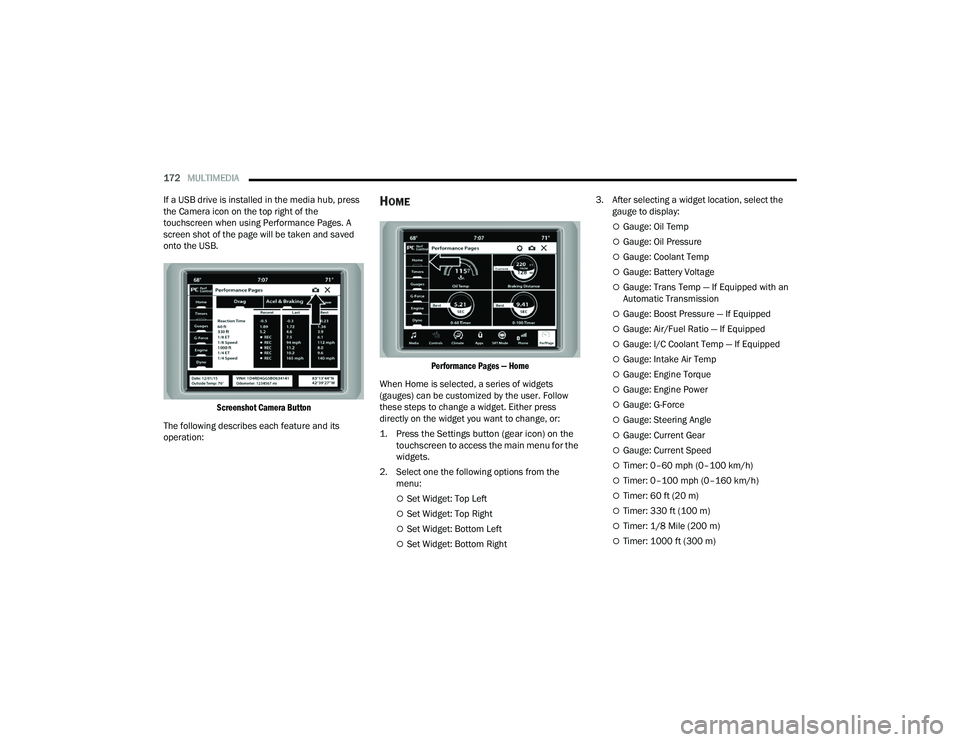
If a USB drive is installed in the media hub, press
the Camera icon on the top right of the
touchscreen when using Performance Pages. A
screen shot of the page will be taken and saved
onto the USB.
Screenshot Camera Button
The following describes each feature and its
operation:
HOME
Performance Pages — Home
When Home is selected, a series of widgets
(gauges) can be customized by the user. Follow
these steps to change a widget. Either press
directly on the widget you want to change, or:
1. Press the Settings button (gear icon) on the touchscreen to access the main menu for the
widgets.
2. Select one the following options from the menu:
Set Widget: Top Left
Set Widget: Top Right
Set Widget: Bottom Left
Set Widget: Bottom Right 3. After selecting a widget location, select the
gauge to display:
Gauge: Oil Temp
Gauge: Oil Pressure
Gauge: Coolant Temp
Gauge: Battery Voltage
Gauge: Trans Temp — If Equipped with an
Automatic Transmission
Gauge: Boost Pressure — If Equipped
Gauge: Air/Fuel Ratio — If Equipped
Gauge: I/C Coolant Temp — If Equipped
Gauge: Intake Air Temp
Gauge: Engine Torque
Gauge: Engine Power
Gauge: G-Force
Gauge: Steering Angle
Gauge: Current Gear
Gauge: Current Speed
Timer: 0–60 mph (0–100 km/h)
Timer: 0–100 mph (0–160 km/h)
Timer: 60 ft (20 m)
Timer: 330 ft (100 m)
Timer: 1/8 Mile (200 m)
Timer: 1000 ft (300 m)
22_LA_OM_EN_USC_t.book Page 172
Page 176 of 336
174MULTIMEDIA
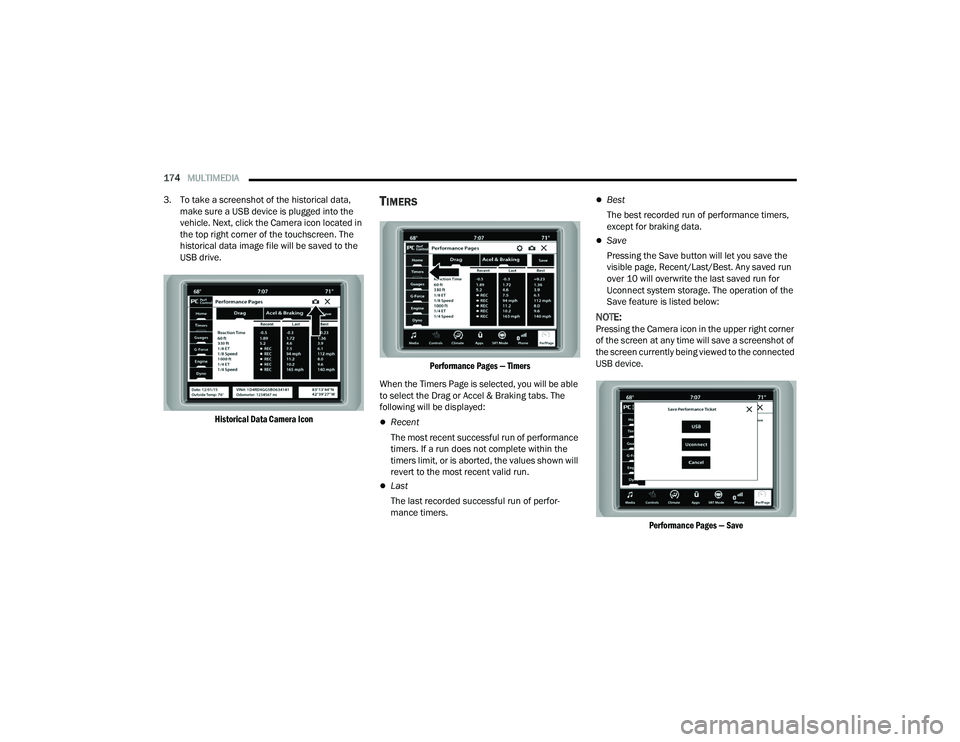
3. To take a screenshot of the historical data, make sure a USB device is plugged into the
vehicle. Next, click the Camera icon located in
the top right corner of the touchscreen. The
historical data image file will be saved to the
USB drive.
Historical Data Camera Icon
TIMERS
Performance Pages — Timers
When the Timers Page is selected, you will be able
to select the Drag or Accel & Braking tabs. The
following will be displayed:
Recent
The most recent successful run of performance
timers. If a run does not complete within the
timers limit, or is aborted, the values shown will
revert to the most recent valid run.
Last
The last recorded successful run of perfor -
mance timers.
Best
The best recorded run of performance timers,
except for braking data.
Save
Pressing the Save button will let you save the
visible page, Recent/Last/Best. Any saved run
over 10 will overwrite the last saved run for
Uconnect system storage. The operation of the
Save feature is listed below:
NOTE:Pressing the Camera icon in the upper right corner
of the screen at any time will save a screenshot of
the screen currently being viewed to the connected
USB device.
Performance Pages — Save
22_LA_OM_EN_USC_t.book Page 174
Page 177 of 336
MULTIMEDIA175
With a USB jump drive installed, press the USB
button to save to the jump drive.
Press the Uconnect button to save the runs to
the Owner’s web page.
NOTE:Uconnect option will be grayed out or missing if the
vehicle does not have a valid Uconnect account
associated with it.
Press the Cancel button to return to the Timers
page.
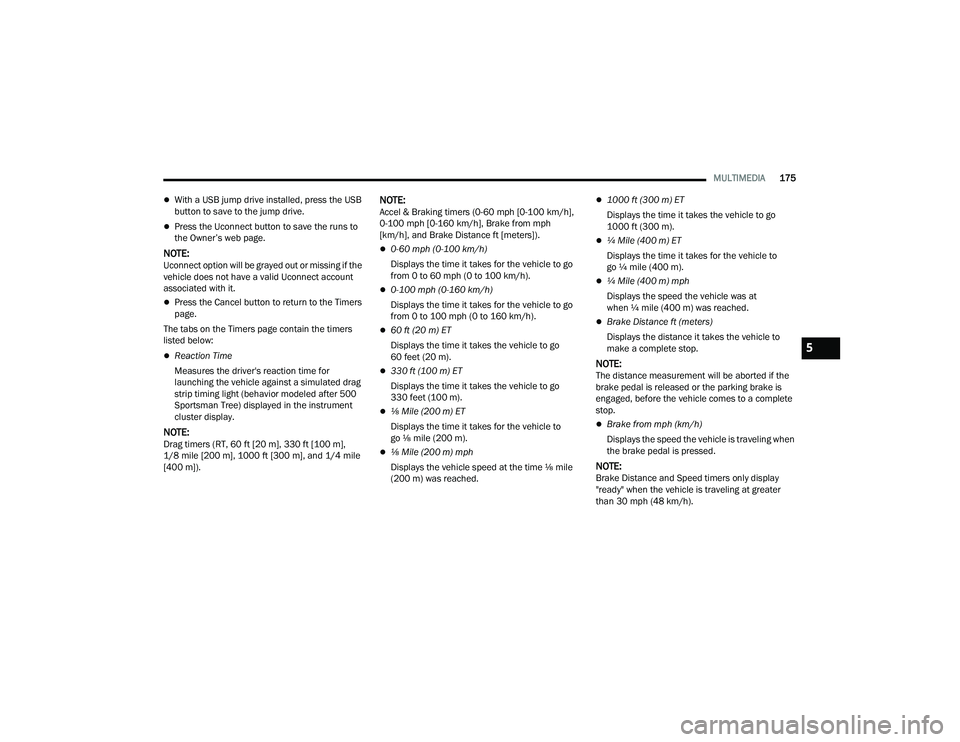
The tabs on the Timers page contain the timers
listed below:
Reaction Time
Measures the driver's reaction time for
launching the vehicle against a simulated drag
strip timing light (behavior modeled after 500
Sportsman Tree) displayed in the instrument
cluster display.
NOTE:Drag timers (RT, 60 ft [20 m], 330 ft [100 m],
1/8 mile [200 m], 1000 ft [300 m], and 1/4 mile
[400 m]).
NOTE:Accel & Braking timers (0-60 mph [0-100 km/h],
0-100 mph [0-160 km/h], Brake from mph
[km/h], and Brake Distance ft [meters]).
0-60 mph (0-100 km/h)
Displays the time it takes for the vehicle to go
from 0 to 60 mph (0 to 100 km/h).
0-100 mph (0-160 km/h)
Displays the time it takes for the vehicle to go
from 0 to 100 mph (0 to 160 km/h).
60 ft (20 m) ET
Displays the time it takes the vehicle to go
60 feet (20 m).
330 ft (100 m) ET
Displays the time it takes the vehicle to go
330 feet (100 m).
⅛ Mile (200 m) ET
Displays the time it takes for the vehicle to
go ⅛ mile (200 m).
⅛ Mile (200 m) mph
Displays the vehicle speed at the time ⅛ mile
(200 m) was reached.
1000 ft (300 m) ET
Displays the time it takes the vehicle to go
1000 ft (300 m).
¼ Mile (400 m) ET
Displays the time it takes for the vehicle to
go ¼ mile (400 m).
¼ Mile (400 m) mph
Displays the speed the vehicle was at
when ¼ mile (400 m) was reached.
Brake Distance ft (meters)
Displays the distance it takes the vehicle to
make a complete stop.
NOTE:The distance measurement will be aborted if the
brake pedal is released or the parking brake is
engaged, before the vehicle comes to a complete
stop.
Brake from mph (km/h)
Displays the speed the vehicle is traveling when
the brake pedal is pressed.
NOTE:Brake Distance and Speed timers only display
"ready" when the vehicle is traveling at greater
than 30 mph (48 km/h).
5
22_LA_OM_EN_USC_t.book Page 175
Page 178 of 336
176MULTIMEDIA
GAUGES
Performance Pages — Gauges
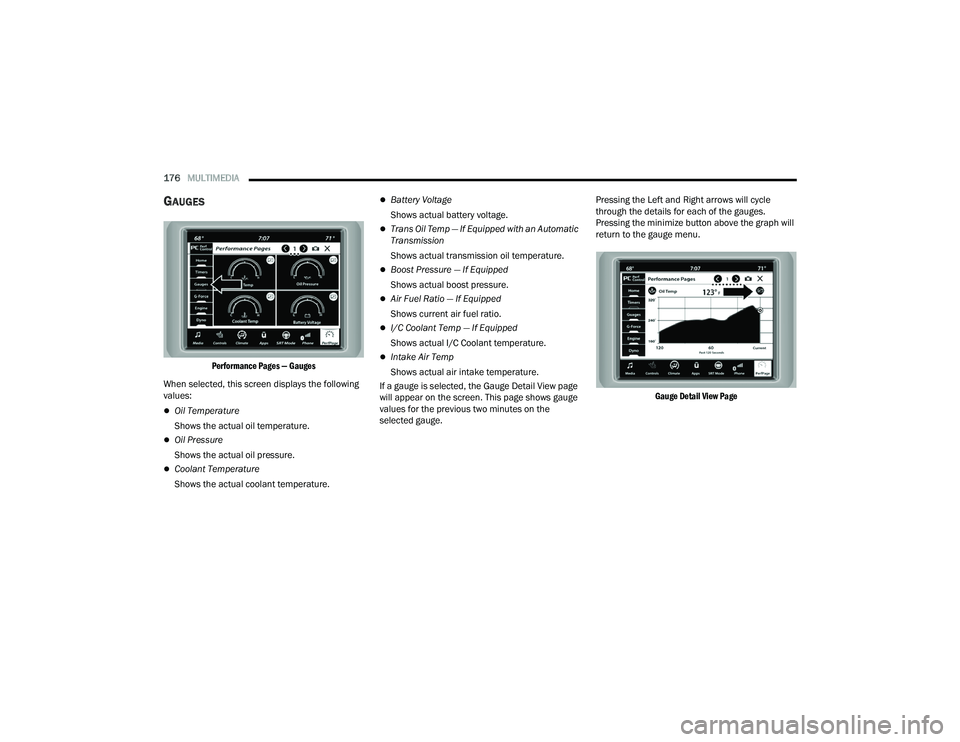
When selected, this screen displays the following
values:
Oil Temperature
Shows the actual oil temperature.
Oil Pressure
Shows the actual oil pressure.
Coolant Temperature
Shows the actual coolant temperature.
Battery Voltage
Shows actual battery voltage.
Trans Oil Temp — If Equipped with an Automatic
Transmission
Shows actual transmission oil temperature.
Boost Pressure — If Equipped
Shows actual boost pressure.
Air Fuel Ratio — If Equipped
Shows current air fuel ratio.
I/C Coolant Temp — If Equipped
Shows actual I/C Coolant temperature.
Intake Air Temp
Shows actual air intake temperature.
If a gauge is selected, the Gauge Detail View page
will appear on the screen. This page shows gauge
values for the previous two minutes on the
selected gauge. Pressing the Left and Right arrows will cycle
through the details for each of the gauges.
Pressing the minimize button above the graph will
return to the gauge menu.
Gauge Detail View Page
22_LA_OM_EN_USC_t.book Page 176
Page 179 of 336
MULTIMEDIA177
G-FORCE
G-Force
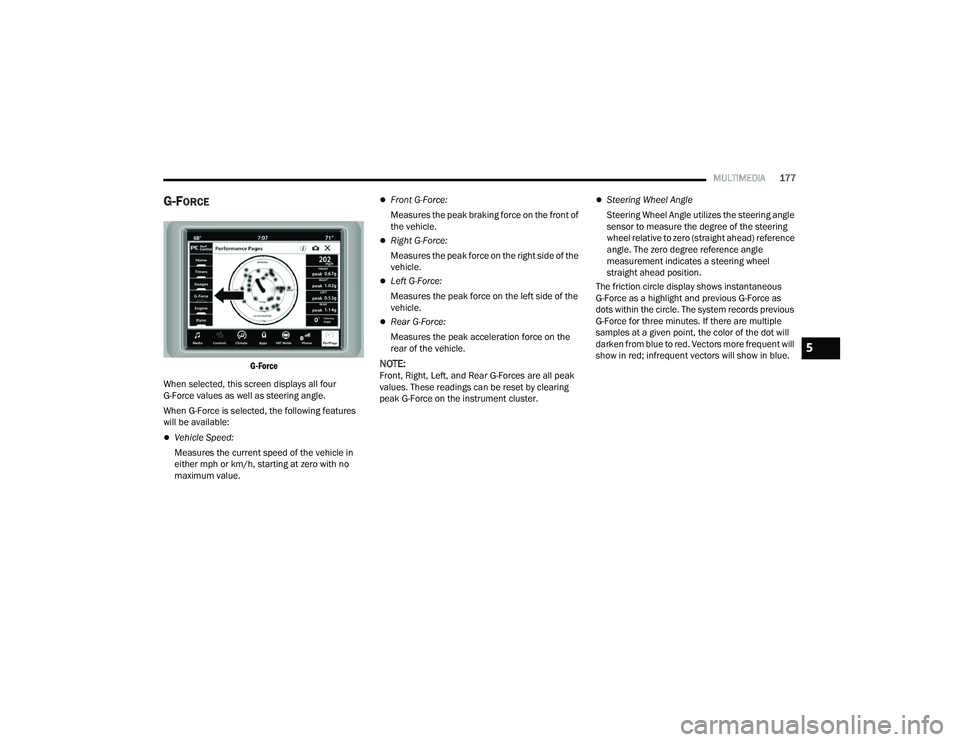
When selected, this screen displays all four
G-Force values as well as steering angle.
When G-Force is selected, the following features
will be available:
Vehicle Speed:
Measures the current speed of the vehicle in
either mph or km/h, starting at zero with no
maximum value.
Front G-Force:
Measures the peak braking force on the front of
the vehicle.
Right G-Force:
Measures the peak force on the right side of the
vehicle.
Left G-Force:
Measures the peak force on the left side of the
vehicle.
Rear G-Force:
Measures the peak acceleration force on the
rear of the vehicle.
NOTE:Front, Right, Left, and Rear G-Forces are all peak
values. These readings can be reset by clearing
peak G-Force on the instrument cluster.
Steering Wheel Angle
Steering Wheel Angle utilizes the steering angle
sensor to measure the degree of the steering
wheel relative to zero (straight ahead) reference
angle. The zero degree reference angle
measurement indicates a steering wheel
straight ahead position.
The friction circle display shows instantaneous
G-Force as a highlight and previous G-Force as
dots within the circle. The system records previous
G-Force for three minutes. If there are multiple
samples at a given point, the color of the dot will
darken from blue to red. Vectors more frequent will
show in red; infrequent vectors will show in blue.
5
22_LA_OM_EN_USC_t.book Page 177
Page 180 of 336
178MULTIMEDIA
ENGINE
Engine
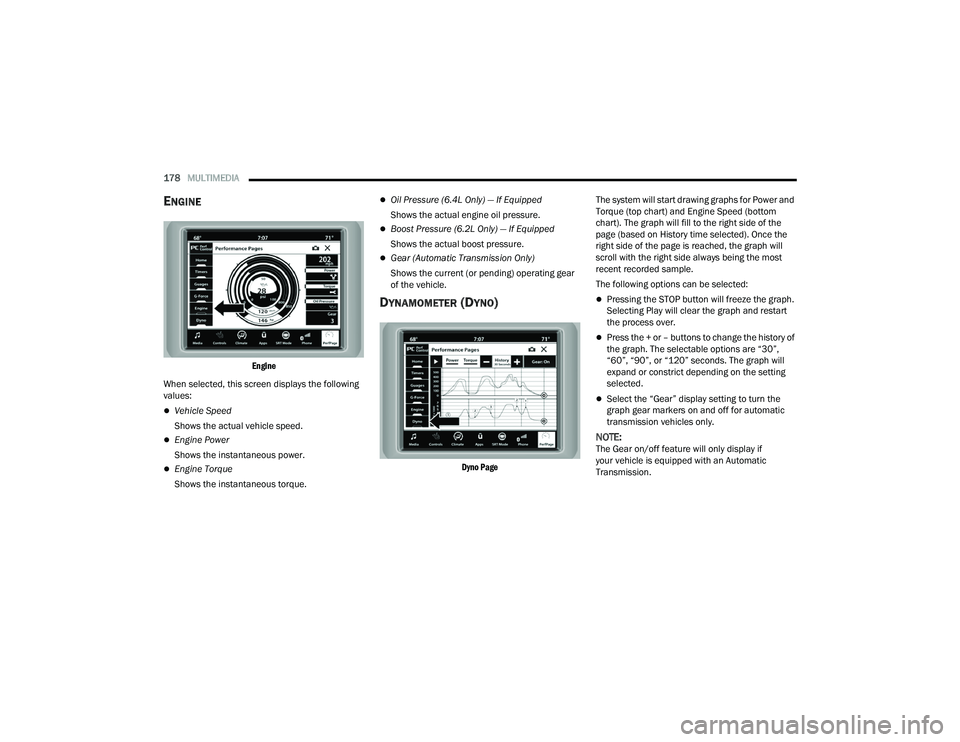
When selected, this screen displays the following
values:
Vehicle Speed
Shows the actual vehicle speed.
Engine Power
Shows the instantaneous power.
Engine Torque
Shows the instantaneous torque.
Oil Pressure (6.4L Only) — If Equipped
Shows the actual engine oil pressure.
Boost Pressure (6.2L Only) — If Equipped
Shows the actual boost pressure.
Gear (Automatic Transmission Only)
Shows the current (or pending) operating gear
of the vehicle.
DYNAMOMETER (DYNO)
Dyno Page
The system will start drawing graphs for Power and
Torque (top chart) and Engine Speed (bottom
chart). The graph will fill to the right side of the
page (based on History time selected). Once the
right side of the page is reached, the graph will
scroll with the right side always being the most
recent recorded sample.
The following options can be selected:
Pressing the STOP button will freeze the graph.
Selecting Play will clear the graph and restart
the process over.
Press the + or – buttons to change the history of
the graph. The selectable options are “30”,
“60”, “90”, or “120” seconds. The graph will
expand or constrict depending on the setting
selected.
Select the “Gear” display setting to turn the
graph gear markers on and off for automatic
transmission vehicles only.
NOTE:The Gear on/off feature will only display if
your vehicle is equipped with an Automatic
Transmission.
22_LA_OM_EN_USC_t.book Page 178
Page 190 of 336
188SAFETY
(Continued)
ESC Operating Modes
Depending upon model and mode of operation, the
ESC system may have multiple operating modes.
ESC On
This is the normal operating mode for the ESC.
Whenever the vehicle is started, the ESC system
will be in this mode. This mode should be used for
most driving conditions. Alternate ESC modes
should only be used for specific reasons as noted
in the following paragraphs.Partial Off
This mode may be useful if the vehicle becomes
stuck. This mode may modify TCS and ESC
thresholds for activation, which allows for more
wheel spin than normally allowed.
To enter the “Partial Off” mode, momentarily push
the ESC OFF button and the ESC OFF Indicator
Light will illuminate. To turn the ESC on again,
momentarily push the ESC OFF button and the ESC
OFF Indicator Light will turn off.
NOTE:
For vehicles with multiple partial ESC modes,
the push and release of the switch will toggle
the ESC modes. Multiple attempts may be
required to return to "ESC On" mode.
Trailer Sway Control (TSC) is disabled when the
ESC system is in the “Partial Off” mode.
If Equipped — "ESC Sport" and "ESC Track" are
ESC “Partial Off” mode(s).
Full Off – If Equipped
This mode is intended for off-highway or off-road
use only and should not be used on any public
roadways. In this mode, TCS and ESC features are
turned off. To enter the “Full Off” mode, push and
hold the ESC OFF button for five seconds while the
vehicle is stopped with the engine running. After
five seconds, a chime will sound, the ESC OFF
Indicator Light will illuminate, and the “ESC OFF”
message will display in the instrument cluster. To
turn ESC on again, momentarily push the ESC OFF
button.
Vehicle modifications, or failure to properly
maintain your vehicle, may change the
handling characteristics of your vehicle, and
may negatively affect the performance of the
ESC system. Changes to the steering system,
suspension, braking system, tire type and size
or wheel size may adversely affect ESC perfor -
mance. Improperly inflated and unevenly worn
tires may also degrade ESC performance. Any
vehicle modification or poor vehicle mainte -
nance that reduces the effectiveness of the
ESC system can increase the risk of loss of
vehicle control, vehicle rollover, personal
injury and death.
WARNING!
WARNING!
When in “Partial Off” mode, the TCS functionality
of ESC (except for the limited slip feature
described in the TCS section) has been disabled
and the ESC OFF Indicator Light will be
illuminated. When in “Partial Off” mode, the
engine power reduction feature of TCS is
disabled, and the enhanced vehicle stability
offered by the ESC system is reduced.
WARNING!
In the ESC “Full Off” mode, the engine torque
reduction and stability features are disabled.
Therefore, enhanced vehicle stability offered
by the ESC system is unavailable. In an emer -
gency evasive maneuver, the ESC system will
not engage to assist in maintaining stability.
ESC “Full Off” mode is intended for
off-highway or off-road use only.
22_LA_OM_EN_USC_t.book Page 188
Page 194 of 336
192SAFETY
The BSM system can become blocked if snow, ice,
mud, or other road contaminations accumulate on
the rear fascia/bumper where the radar sensors
are located. The system may also detect blockage
if the vehicle is operated in areas with extremely
low radar returns such as a desert or parallel to a
large elevation drop. If a blockage is detected, a
“Blind Spot Temporarily Unavailable, Wipe Rear
Corners” message will display in the cluster, both
mirror lights will illuminate, and BSM and RCP
alerts will not occur. This is normal operation. The
system will automatically recover and resume
function when the condition clears. To minimize
system blockage, do not block the area of the rear
fascia/bumper where the radar sensors are
located with foreign objects (bumper stickers,
bicycle racks, etc.) and keep it clear of road
contaminations.
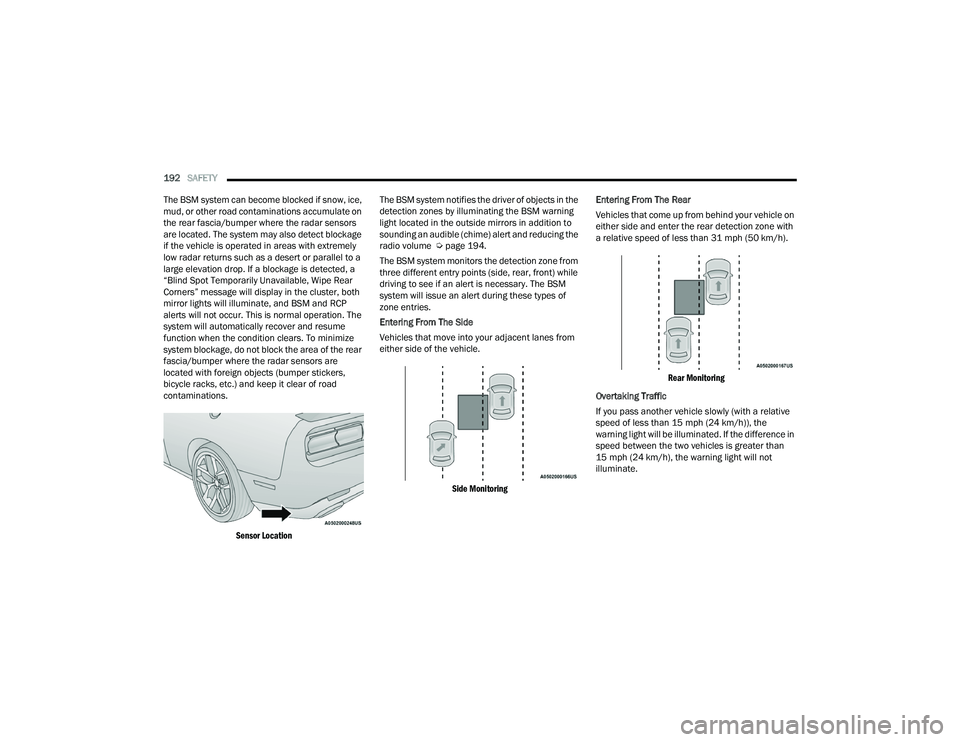
Sensor Location
The BSM system notifies the driver of objects in the
detection zones by illuminating the BSM warning
light located in the outside mirrors in addition to
sounding an audible (chime) alert and reducing the
radio volume Ú
page 194.
The BSM system monitors the detection zone from
three different entry points (side, rear, front) while
driving to see if an alert is necessary. The BSM
system will issue an alert during these types of
zone entries.
Entering From The Side
Vehicles that move into your adjacent lanes from
either side of the vehicle.
Side Monitoring
Entering From The Rear
Vehicles that come up from behind your vehicle on
either side and enter the rear detection zone with
a relative speed of less than 31 mph (50 km/h).
Rear Monitoring
Overtaking Traffic
If you pass another vehicle slowly (with a relative
speed of less than 15 mph (24 km/h)), the
warning light will be illuminated. If the difference in
speed between the two vehicles is greater than
15 mph (24 km/h), the warning light will not
illuminate.
22_LA_OM_EN_USC_t.book Page 192