audio DODGE CHALLENGER 2023 Owner's Manual
[x] Cancel search | Manufacturer: DODGE, Model Year: 2023, Model line: CHALLENGER, Model: DODGE CHALLENGER 2023Pages: 300, PDF Size: 12.82 MB
Page 140 of 300

138MULTIMEDIA
NOTE:During the pairing procedure, you may receive a pop-up on
your touchscreen asking you to make sure the PIN on the
touchscreen matches the PIN from the pop-up on your
mobile phone.
5. If “No” is selected, and you still would like to pair a
mobile phone, press the Phone Pairing or Settings
button from the Uconnect Phone main screen.
Press the Paired Phones button or the Add Device
button.
Search for available devices on your Blue -
tooth®-enabled mobile phone. When prompted
on the phone, select “Uconnect” and accept the
connection request.
6. Uconnect Phone will display an in-progress screen while the system is connecting.
7. When your mobile phone finds the Uconnect system, select “Uconnect.”
8. When prompted on the mobile phone, accept the connection request from Uconnect.
9. When the pairing process has successfully completed, the system will prompt you to choose
whether or not this is your favorite phone. Selecting
“Yes” will make this phone the highest priority. This
phone will take precedence over other paired phones
within range and will connect to the Uconnect system
automatically when entering the vehicle. Only one mobile phone and/or one Bluetooth® audio
device can be connected to the Uconnect system at a
time. If “No” is selected, simply select “Uconnect”
from the mobile phone/audio device Bluetooth®
screen, and the Uconnect system will reconnect to
the Bluetooth® device.
NOTE:For phones which are not made a favorite, the phone
priority is determined by the order in which it was paired.
The most recent phone paired will have the higher priority.
NOTE:During the pairing procedure, you may receive a pop-up on
your mobile phone for the Uconnect system to access your
“messages” and “contacts”. Selecting “Ok” or “Allow” will
sync your contacts with the Uconnect system.
You can also use the VR command “Show Paired Phones”
to bring up the Paired Phone screen from any screen on
the radio.
NOTE:Software updates on your phone or the Uconnect system
may interfere with the Bluetooth® connection. If this
happens, simply repeat the pairing process. However, first
make sure to delete the device from the list of phones on
your Uconnect system. Next, be sure to remove Uconnect
from the list of devices in your phone’s Bluetooth®
settings.
PAIR A BLUETOOTH® STREAMING AUDIO
DEVICE
1. Press the Media button on the touchscreen to begin.
2. Change the source to “Bluetooth®”.
3. Press the Bluetooth® button on the touchscreen to
display the Paired Audio Devices screen.
4. Press the Add Device button on the touchscreen.
NOTE:If there is no device currently connected with the system,
a pop-up will appear.
5. Search for available devices on your Bluetooth®-enabled audio device. When prompted
on the device, confirm the PIN shown on the
Uconnect screen.
6. Uconnect Phone will display an in-process screen while the system is connecting.
7. When the pairing process has successfully completed, the system will prompt you to choose
whether or not this is your favorite device. Selecting
“Yes” will make this device the highest priority. This
device will take precedence over other paired devices
within range.
NOTE:For devices which are not made a favorite, the device
priority is determined by the order in which it was paired.
The most recent device paired will have the higher priority.
You can also use the VR command “Show Paired Phones”
to bring up a list of paired audio devices.
23_LA_OM_EN_USC_t.book Page 138
Page 141 of 300
MULTIMEDIA139
CONNECTING TO A PARTICULAR MOBILE
PHONE OR AUDIO DEVICE AFTER PAIRING
Uconnect Phone will automatically connect to the highest
priority paired phone and/or Audio Device within range. If
you need to choose a particular phone or audio device
follow these steps:
1. Press the
Settings
button on the touchscreen.
2. Press the Paired Phones or Audio Sources button. 3. Press to select the particular phone or the particular audio device. A pop-up menu will appear; press
“Connect Phone”.
4. Press the X to exit out of the Settings screen.
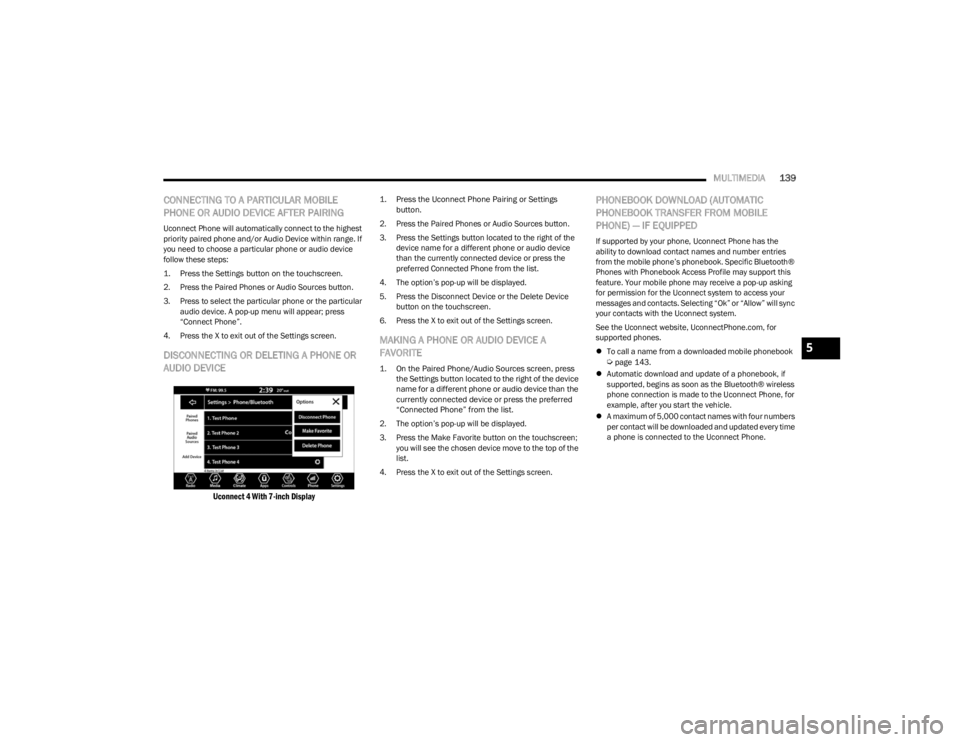
DISCONNECTING OR DELETING A PHONE OR
AUDIO DEVICE
Uconnect 4 With 7-inch Display
1. Press the Uconnect Phone Pairing or Settings button.
2. Press the Paired Phones or Audio Sources button. 3. Press the Settings button located to the right of the device name for a different phone or audio device
than the currently connected device or press the
preferred Connected Phone from the list.
4. The option’s pop-up will be displayed.
5. Press the Disconnect Device or the Delete Device button on the touchscreen.
6. Press the X to exit out of the Settings screen.
MAKING A PHONE OR AUDIO DEVICE A
FAVORITE
1. On the Paired Phone/Audio Sources screen, press the Settings button located to the right of the device
name for a different phone or audio device than the
currently connected device or press the preferred
“Connected Phone” from the list.
2. The option’s pop-up will be displayed.
3. Press the Make Favorite button on the touchscreen; you will see the chosen device move to the top of the
list.
4. Press the X to exit out of the Settings screen.
PHONEBOOK DOWNLOAD (AUTOMATIC
PHONEBOOK TRANSFER FROM MOBILE
PHONE) — IF EQUIPPED
If supported by your phone, Uconnect Phone has the
ability to download contact names and number entries
from the mobile phone’s phonebook. Specific Bluetooth®
Phones with Phonebook Access Profile may support this
feature. Your mobile phone may receive a pop-up asking
for permission for the Uconnect system to access your
messages and contacts. Selecting “Ok” or “Allow” will sync
your contacts with the Uconnect system.
See the Uconnect website, UconnectPhone.com, for
supported phones.
To call a name from a downloaded mobile phonebook
Úpage 143.
Automatic download and update of a phonebook, if
supported, begins as soon as the Bluetooth® wireless
phone connection is made to the Uconnect Phone, for
example, after you start the vehicle.
A maximum of 5,000 contact names with four numbers
per contact will be downloaded and updated every time
a phone is connected to the Uconnect Phone.
5
23_LA_OM_EN_USC_t.book Page 139
Page 143 of 300
MULTIMEDIA141
KEY PAD NUMBER ENTRY
1. Press the Phone button.
2. Press the Dial/Keypad button on the touchscreen.
3. The Touch-Tone screen will be displayed.
4. Use the numbered buttons on the touchscreens to
enter the number and press “Dial/Call”.
RECENT CALLS — IF EQUIPPED
You may browse a list of the most recent of each of the
following call types:
All Calls
Incoming Calls or Calls Received
Outgoing Calls or Calls Made
Missed Calls
These can be accessed by pressing the Recent Calls
button on the phone main screen.
You can also push the VR button on your steering wheel
and perform the operation. For example, say “Show my
incoming calls”.
ANSWER OR IGNORE AN INCOMING CALL —
NO CALL CURRENTLY IN PROGRESS
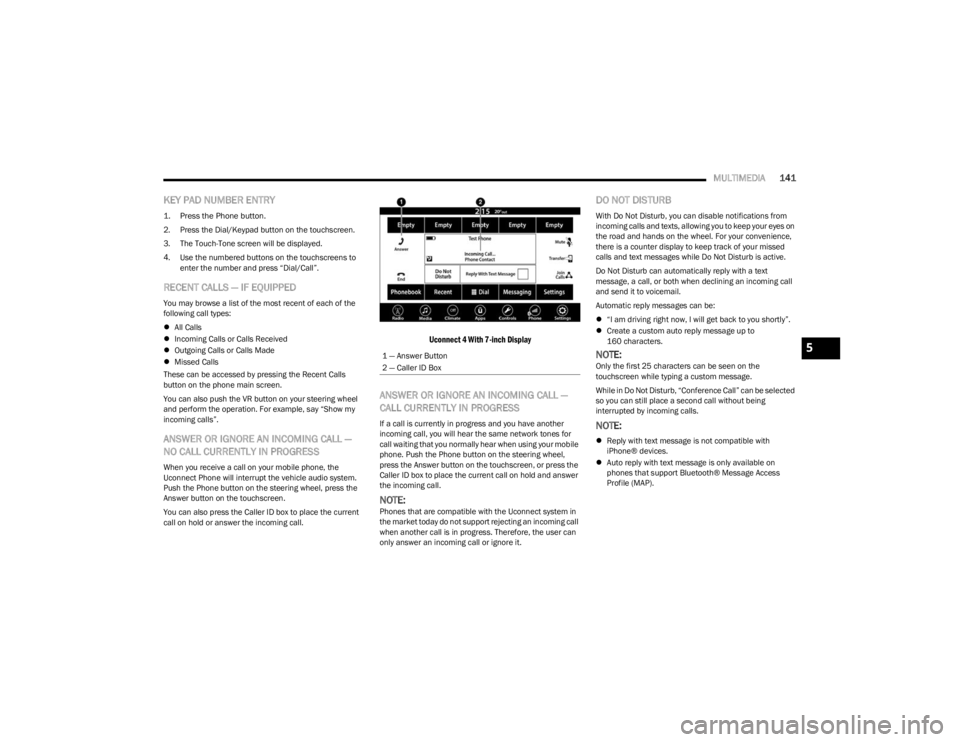
When you receive a call on your mobile phone, the
Uconnect Phone will interrupt the vehicle audio system.
Push the Phone button on the steering wheel, press the
Answer button on the touchscreen.
You can also press the Caller ID box to place the current
call on hold or answer the incoming call.
Uconnect 4 With 7-inch Display
ANSWER OR IGNORE AN INCOMING CALL —
CALL CURRENTLY IN PROGRESS
If a call is currently in progress and you have another
incoming call, you will hear the same network tones for
call waiting that you normally hear when using your mobile
phone. Push the Phone button on the steering wheel,
press the Answer button on the touchscreen, or press the
Caller ID box to place the current call on hold and answer
the incoming call.
NOTE:Phones that are compatible with the Uconnect system in
the market today do not support rejecting an incoming call
when another call is in progress. Therefore, the user can
only answer an incoming call or ignore it.
DO NOT DISTURB
With Do Not Disturb, you can disable notifications from
incoming calls and texts, allowing you to keep your eyes on
the road and hands on the wheel. For your convenience,
there is a counter display to keep track of your missed
calls and text messages while Do Not Disturb is active.
Do Not Disturb can automatically reply with a text
message, a call, or both when declining an incoming call
and send it to voicemail.
Automatic reply messages can be:
“I am driving right now, I will get back to you shortly”.
Create a custom auto reply message up to
160 characters.
NOTE:Only the first 25 characters can be seen on the
touchscreen while typing a custom message.
While in Do Not Disturb, “Conference Call” can be selected
so you can still place a second call without being
interrupted by incoming calls.
NOTE:
Reply with text message is not compatible with
iPhone® devices.
Auto reply with text message is only available on
phones that support Bluetooth® Message Access
Profile (MAP).
1 — Answer Button
2 — Caller ID Box
5
23_LA_OM_EN_USC_t.book Page 141
Page 144 of 300
142MULTIMEDIA
PLACE/RETRIEVE A CALL FROM HOLD
During an active call, press the Hold or Call On Hold button
on the Phone main screen.
MAKING A SECOND CALL WHILE CURRENT
CALL IS IN PROGRESS
You can place a call on hold by pressing the Hold button
on the Phone main screen, then dial a number from the
keypad (if supported by your mobile phone), recent calls,
SMS Inbox or from the phonebooks.
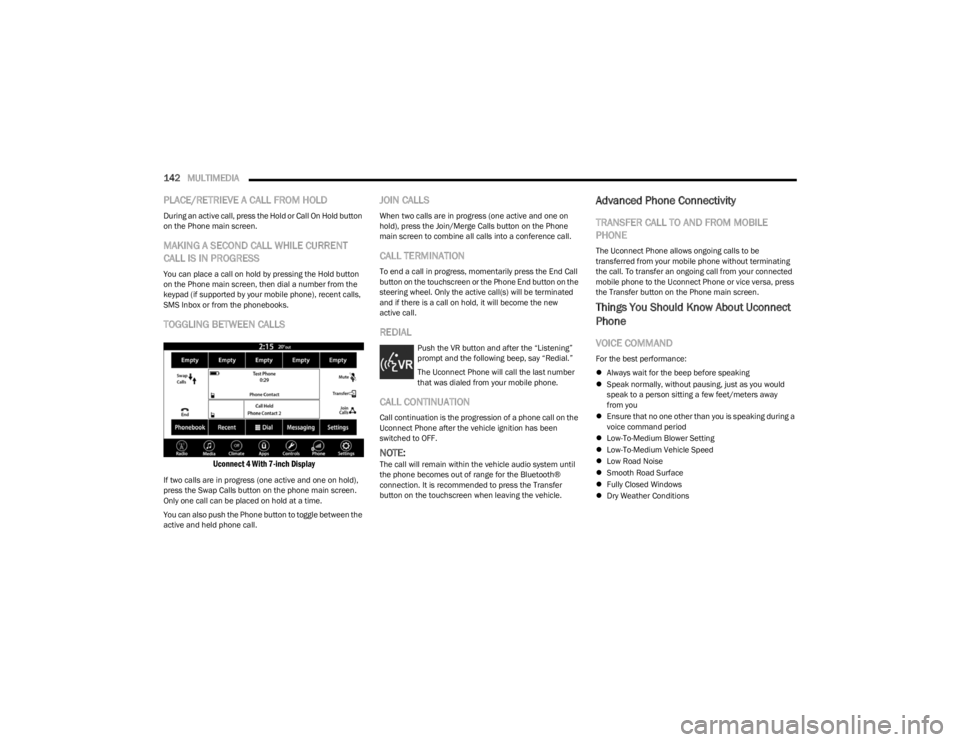
TOGGLING BETWEEN CALLS
Uconnect 4 With 7-inch Display
If two calls are in progress (one active and one on hold),
press the Swap Calls button on the phone main screen.
Only one call can be placed on hold at a time.
You can also push the Phone button to toggle between the
active and held phone call.
JOIN CALLS
When two calls are in progress (one active and one on
hold), press the Join/Merge Calls button on the Phone
main screen to combine all calls into a conference call.
CALL TERMINATION
To end a call in progress, momentarily press the End Call
button on the touchscreen or the Phone End button on the
steering wheel. Only the active call(s) will be terminated
and if there is a call on hold, it will become the new
active call.
REDIAL
Push the VR button and after the “Listening”
prompt and the following beep, say “Redial.”
The Uconnect Phone will call the last number
that was dialed from your mobile phone.
CALL CONTINUATION
Call continuation is the progression of a phone call on the
Uconnect Phone after the vehicle ignition has been
switched to OFF.
NOTE:The call will remain within the vehicle audio system until
the phone becomes out of range for the Bluetooth®
connection. It is recommended to press the Transfer
button on the touchscreen when leaving the vehicle.
Advanced Phone Connectivity
TRANSFER CALL TO AND FROM MOBILE
PHONE
The Uconnect Phone allows ongoing calls to be
transferred from your mobile phone without terminating
the call. To transfer an ongoing call from your connected
mobile phone to the Uconnect Phone or vice versa, press
the Transfer button on the Phone main screen.
Things You Should Know About Uconnect
Phone
VOICE COMMAND
For the best performance:
Always wait for the beep before speaking
Speak normally, without pausing, just as you would
speak to a person sitting a few feet/meters away
from you
Ensure that no one other than you is speaking during a
voice command period
Low-To-Medium Blower Setting
Low-To-Medium Vehicle Speed
Low Road Noise
Smooth Road Surface
Fully Closed Windows
Dry Weather Conditions
23_LA_OM_EN_USC_t.book Page 142
Page 145 of 300
MULTIMEDIA143
Even though the system is designed for many languages
and accents, the system may not always work for some.
NOTE:It is recommended that you do not store names in your
Favorites phonebook while the vehicle is in motion.
Number and name recognition rate is optimized when the
entries are not similar. You can say “O” (letter “O”) for “0”
(zero).
Even though international dialing for most number
combinations is supported, some shortcut dialing number
combinations may not be supported.
Audio Performance
Audio quality is maximized under:
Low-To-Medium Blower Setting
Low-To-Medium Vehicle Speed
Low Road Noise
Smooth Road Surface
Fully Closed Windows
Dry Weather Conditions
Operation From The Driver's Seat Performance such as audio clarity, echo, and loudness to
a large degree rely on the phone and network, and not the
Uconnect Phone.
Echo at the far end can sometimes be reduced by lowering
the in-vehicle audio volume.
Phone Voice Commands
Making and answering hands-free phone calls is easy with
Uconnect. When the Phonebook button is illuminated on
your touchscreen, your system is ready. Check
UconnectPhone.com for mobile phone compatibility and
pairing instructions.
Push the Phone button and wait for the beep to say a
command. Here are some examples:
“Call John Smith”
“Dial 123 456 7890”
“Redial ” (call previous outgoing phone number)
“Call back ” (call previously answered incoming phone
number)
Did You Know: When providing a Voice Command, push
the Phone button and say “ Call”, then pronounce the
name exactly as it appears in your phonebook. When a
contact has multiple phone numbers, you can say “ Call
John Smith work”.
Voice Text Reply — If Equipped
Uconnect can announce incoming text messages. Push
the VR button or Phone button and say:
1. “
Listen
” to have the system read an incoming text
message. (Must have compatible mobile phone
paired to Uconnect system.)
2. “
Reply” after an incoming text message has been
read.
Listen to the Uconnect prompts. After the beep, re -
peat one of the predefined messages and follow the
system prompts.
NOTE:Only use the numbering listed in the provided table.
Otherwise, the system will not transpose the message.
Did You Know: Your mobile phone must have the full
implementation of the Message Access Profile (MAP) to
take advantage of this feature. For details about MAP, visit
UconnectPhone.com.
Apple® iPhone® iOS 5 or later supports reading incoming
text messages only. For further information on how to
enable this feature on your Apple® iPhone®, refer to your
iPhone® “User Manual”.
WARNING!
ALWAYS drive safely with your hands on the wheel. You
have full responsibility and assume all risks related to
the use of the Uconnect features and applications in
this vehicle. Only use Uconnect when it is safe to do so.
Failure to do so may result in an accident involving
serious injury or death.
PRE-DEFINED VOICE TEXT REPLY RESPONSES
Yes. Stuck in traffic. See you later.
No. Start without
me. I’ll be late.
Okay. Where are you? I will be 5
minutes late.
Call me.
Are you there
yet?
I’ll call you later. I need
directions. See you in 5
I’m on my way.
Can’t talk right
now.
I’m lost. Thanks.
5
23_LA_OM_EN_USC_t.book Page 143
Page 148 of 300
146MULTIMEDIA
APPLE CARPLAY®
Use this QR code to access your digital
experience.
Uconnect works seamlessly with Apple
CarPlay®, the smarter, more secure
way to use your iPhone® in the car, and
stay focused on the road. Use your
Uconnect Touchscreen display, the
vehicle's knobs and controls, and your
voice with Siri to get access to Apple Music®, Maps,
Messages, and more.
NOTE:Feature availability depends on your carrier and mobile
phone manufacturer. Some Apple CarPlay® features may
or may not be available in every region and/or language.
To use Apple CarPlay®, make sure you are using iPhone®
5 or later, have Siri enabled in Settings, ensure your
iPhone® is unlocked for the very first connection only, and
then use the following procedure:
1. Connect your iPhone® to one of the media USB
ports in your vehicle.
NOTE:Be sure to use the factory-provided Lightning cable that
came with your phone, as aftermarket cables may not
work.
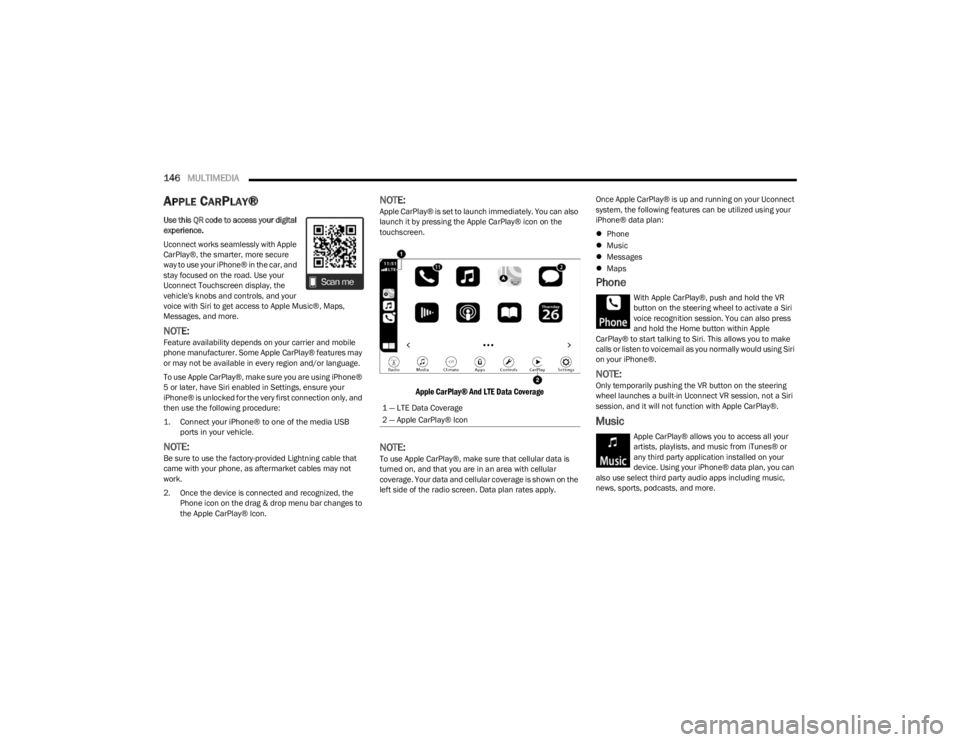
2. Once the device is connected and recognized, the Phone icon on the drag & drop menu bar changes to
the Apple CarPlay® Icon.
NOTE:Apple CarPlay® is set to launch immediately. You can also
launch it by pressing the Apple CarPlay® icon on the
touchscreen.
Apple CarPlay® And LTE Data Coverage
NOTE:To use Apple CarPlay®, make sure that cellular data is
turned on, and that you are in an area with cellular
coverage. Your data and cellular coverage is shown on the
left side of the radio screen. Data plan rates apply. Once Apple CarPlay® is up and running on your Uconnect
system, the following features can be utilized using your
iPhone® data plan:
Phone
Music
Messages
Maps
Phone
With Apple CarPlay®, push and hold the VR
button on the steering wheel to activate a Siri
voice recognition session. You can also press
and hold the Home button within Apple
CarPlay® to start talking to Siri. This allows you to make
calls or listen to voicemail as you normally would using Siri
on your iPhone®.
NOTE:Only temporarily pushing the VR button on the steering
wheel launches a built-in Uconnect VR session, not a Siri
session, and it will not function with Apple CarPlay®.
Music
Apple CarPlay® allows you to access all your
artists, playlists, and music from iTunes® or
any third party application installed on your
device. Using your iPhone® data plan, you can
also use select third party audio apps including music,
news, sports, podcasts, and more.
1 — LTE Data Coverage
2 — Apple CarPlay® Icon
23_LA_OM_EN_USC_t.book Page 146
Page 149 of 300

MULTIMEDIA147
Messages
Push and hold the VR button on the steering
wheel to activate a Siri voice recognition
session. Apple CarPlay® allows you to use Siri
to send or reply to text messages. Siri can also
read incoming text messages, but drivers will not be able
to read messages, as everything is done via voice.
Maps
Push and hold the VR button on the steering
wheel until the beep or tap the Microphone
icon to ask Apple® Siri to take you to a desired
destination by voice. You can also touch the
Navigation icon in Apple CarPlay® to access
Apple® Maps.
Apps
The Apple CarPlay® App plays all compatible apps that are
available to use, every time it is launched. You must have
the compatible app downloaded, and you must be signed
in to the app through your mobile device for it to work with
Apple CarPlay®.
Refer to http://www.apple.com/ios/carplay/ (US) or
https://www.apple.com/ca/ios/carplay/ (Canada) to see
the latest list of available apps for Apple CarPlay®.
Apple CarPlay® Voice Command
NOTE:Feature availability depends on your carrier and mobile
phone maker. Some Apple CarPlay® features may not be
available in every region and/or language.
Apple CarPlay® allows you to use your voice to interact
with Siri through your vehicle’s voice recognition system,
and use your smartphone’s data plan to project your
iPhone® and a number of its apps onto your Uconnect
touchscreen. Connect your iPhone® 5 or higher to one of
the media USB ports, using the factory-provided Lightning
cable, and press the new Apple CarPlay® icon that
replaces your Phone icon on the main menu bar to begin
Apple CarPlay®. Push and hold the VR button on the
steering wheel, or press and hold the Home button within
Apple CarPlay®, to activate Siri, which recognizes natural
voice commands to use a list of your iPhone® features:
Phone
Music
Messages
Maps — If Equipped
Additional Apps — If Equipped
NOTE:Apple CarPlay® is a trademark of Apple® Inc. iPhone® is
a trademark of Apple® Inc., registered in the US and other
countries. Apple® terms of use and privacy statements
apply.
ANDROID AUTO™ AND APPLE
C
ARPLAY® TIPS AND TRICKS
Android Auto™ And Apple CarPlay® Automatic Bluetooth®
Pairing
After connecting to Android Auto™ or Apple CarPlay® for
the first time and undergoing the setup procedure, the
smartphone pairs to the Uconnect system via Bluetooth®
without any setup required every time it is within range, if
Bluetooth® is turned on.
NOTE:Apple CarPlay® uses a USB connection while Android
Auto™ uses both USB and Bluetooth® connections to
function. The connected device is unavailable to other
devices when connected using Android Auto™ or Apple
CarPlay®.
Multiple Devices Connecting To The Uconnect System —
If Equipped
It is possible to have multiple devices connected to the
Uconnect system. For example, if using Android Auto™/
Apple CarPlay®, the connected device will be used to
place hands-free phone calls or send hands-free text
messages. However, another device can also be paired to
the Uconnect system, via Bluetooth®, as an audio source,
so the passenger can stream music.
NOTE:Apple CarPlay® and Android Auto™ can only be launched
from the front and center console USB ports.
5
23_LA_OM_EN_USC_t.book Page 147
Page 169 of 300
SAFETY167
NOTE:In a parking lot situation, oncoming vehicles can be
blocked by vehicles parked on either side. If the sensors
are blocked by other structures or vehicles, the system will
not be able to alert the driver.
Modes Of Operation
Blind Spot has three selectable modes of operation that
are available in the Uconnect system.
Blind Spot Alert Lights Only
When operating in Blind Spot Alert mode, the BSM system
will provide a visual alert in the appropriate side view
mirror based on a detected object. However, when the
system is operating in RCP mode, the system will respond
with both visual and audible alerts when a detected object
is present. Whenever an audible alert is requested, the
radio volume is reduced so that the alert can be better
heard. Blind Spot Alert Lights/Chime
When operating in Blind Spot Alert Lights/Chime mode,
the BSM system will provide a visual alert in the
appropriate side view mirror based on a detected object.
If the turn signal is then activated, and it corresponds to
an alert present on that side of the vehicle, an audible
chime will also be sounded. Whenever a turn signal and
detected object are present on the same side at the same
time, both the visual and audio alerts will be issued. In
addition to the audible alert the radio (if on) volume will be
reduced so that the alert can be better heard.
When the system is in RCP, the system shall respond with
both visual and audible alerts when a detected object is
present. Whenever an audible alert is requested, the radio
volume is reduced so that the alert can be better heard.
Blind Spot Alert Off
When the BSM system is turned off there will be no visual
or audible alerts from either the BSM or RCP systems.NOTE:The BSM system will store the current operating mode
when the vehicle is shut off. Each time the vehicle is
started the previously stored mode will be recalled and
used.
FORWARD COLLISION WARNING (FCW)
O
PERATION — IF EQUIPPED
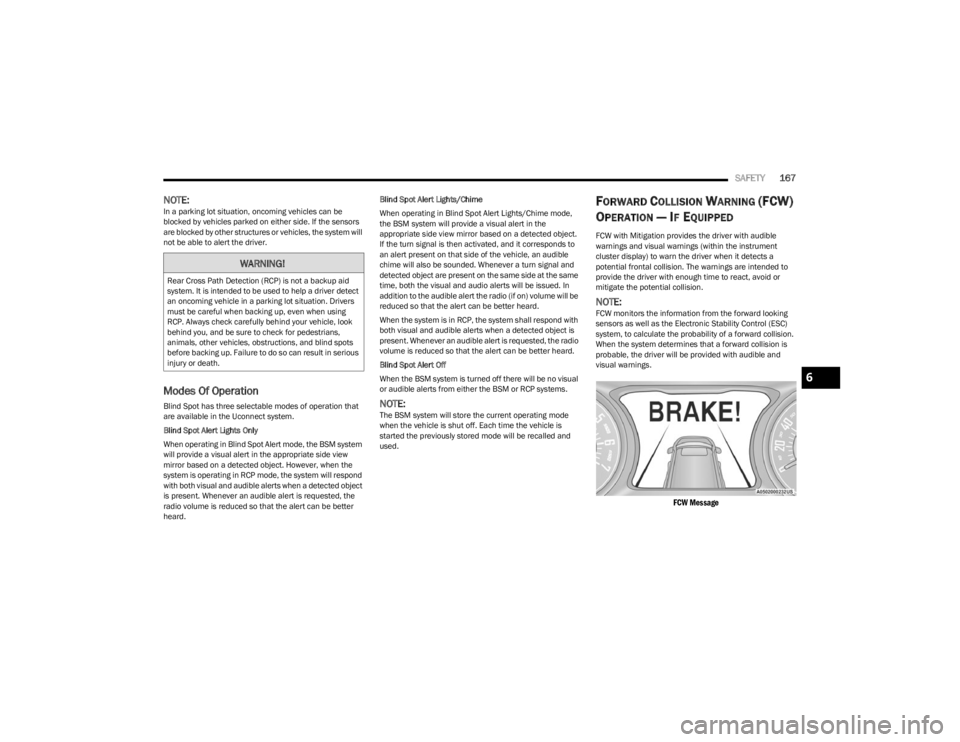
FCW with Mitigation provides the driver with audible
warnings and visual warnings (within the instrument
cluster display) to warn the driver when it detects a
potential frontal collision. The warnings are intended to
provide the driver with enough time to react, avoid or
mitigate the potential collision.
NOTE:FCW monitors the information from the forward looking
sensors as well as the Electronic Stability Control (ESC)
system, to calculate the probability of a forward collision.
When the system determines that a forward collision is
probable, the driver will be provided with audible and
visual warnings.
FCW Message
WARNING!
Rear Cross Path Detection (RCP) is not a backup aid
system. It is intended to be used to help a driver detect
an oncoming vehicle in a parking lot situation. Drivers
must be careful when backing up, even when using
RCP. Always check carefully behind your vehicle, look
behind you, and be sure to check for pedestrians,
animals, other vehicles, obstructions, and blind spots
before backing up. Failure to do so can result in serious
injury or death.
6
23_LA_OM_EN_USC_t.book Page 167
Page 202 of 300
200IN CASE OF EMERGENCY
(Continued)
ASSIST Call
The ASSIST Button is used to automatically connect you to
any one of the following support centers:
Roadside Assistance – If you get a flat tire, or need a
tow, just push the ASSIST button and you will be
connected to a representative for assistance.
Roadside Assistance will know what vehicle you’re
driving and its location. Additional fees may apply for
roadside Assistance.
SiriusXM Guardian™ Customer Care – In-vehicle
support for SiriusXM Guardian™.
Vehicle Customer Care – Total support for all other
vehicle issues.
Uconnect Customer Care - Total support for Radio,
Phone and NAV issues.
SOS Call
1. Push the SOS Call button on the Rearview Mirror.
NOTE:In case the SOS Call button is pushed in error, there will be
a 10 second delay before the SOS Call system initiates a
call to a SOS operator. To cancel the SOS Call connection,
push the SOS call button on the Rearview Mirror or press
the cancellation button on the Device Screen. Termination
of the SOS Call will turn off the green LED light on the
Rearview Mirror.
2. The LED light located between the ASSIST and SOS buttons on the Rearview Mirror will turn green once a
connection to a SOS operator has been made.
3. Once a connection between the vehicle and a SOS operator is made, the SOS Call system may transmit
the following important vehicle information to a SOS
operator:
Indication that the occupant placed a SOS Call.
The vehicle brand.
The last known GPS coordinates of the vehicle.
4. You should be able to speak with the SOS operator through the vehicle audio system to determine if
additional help is needed.NOTE:
Your vehicle may be transmitting data as autho -
rized by the subscriber.
Once a connection is made between the vehicle’s
SOS Call system and the SOS operator, the SOS
operator may be able to open a voice connection
with the vehicle to determine if additional help is
needed. Once the SOS operator opens a voice
connection with the vehicle’s SOS Call system, the
operator should be able to speak with you or other
vehicle occupants and hear sounds occurring in
the vehicle. The vehicle’s SOS Call system will
attempt to remain connected with the SOS oper -
ator until the SOS operator terminates the connec -
tion. 5. The SOS operator may attempt to contact appropriate
emergency responders and provide them with
important vehicle information and GPS coordinates.
WARNING!
ALWAYS obey traffic laws and pay attention to the road.
ALWAYS drive safely with your hands on the steering
wheel. You have full responsibility and assume all risks
related to the use of the Uconnect and SiriusXM
Guardian™ features and applications in this vehicle.
Only use Uconnect features and SiriusXM Guardian™
services when it is safe to do so. Failure to do so may
result in an accident involving serious injury or death.
WARNING!
If anyone in the vehicle could be in danger (e.g., fire
or smoke is visible, dangerous road conditions or
location), do not wait for voice contact from an Emer -
gency Services Agent. All occupants should exit the
vehicle immediately and move to a safe location.
Never place anything on or near the vehicle’s oper -
able network and GPS antennas. You could prevent
operable network and GPS signal reception, which
can prevent your vehicle from placing an emergency
call. An operable network and GPS signal reception is
required for the SOS Call system to function properly.
The SOS Call system is embedded into the vehicle’s
electrical system. Do not add aftermarket electrical
equipment to the vehicle’s electrical system. This
may prevent your vehicle from sending a signal to
initiate an emergency call. To avoid interference that
can cause the SOS Call system to fail, never add
aftermarket equipment (e.g., two-way mobile radio,
CB radio, data recorder, etc.) to your vehicle’s elec -
trical system or modify the antennas on your vehicle.
IF YOUR VEHICLE LOSES BATTERY POWER FOR ANY
REASON (INCLUDING DURING OR AFTER AN ACCI -
DENT), THE UCONNECT FEATURES, APPS AND
SERVICES, AMONG OTHERS, WILL NOT OPERATE.
23_LA_OM_EN_USC_t.book Page 200
Page 203 of 300
IN CASE OF EMERGENCY201
(Continued)
SOS Call System Limitations
Vehicles sold in Mexico
DO NOT have SOS Call system
capabilities.
SOS or other emergency line operators in Mexico may not
answer or respond to SOS system calls.
If the SOS Call system detects a malfunction, any of the
following may occur at the time the malfunction is
detected, and at the beginning of each ignition cycle:
The Rearview Mirror light located between the ASSIST
and SOS buttons will continuously illuminate red.
The Device Screen will display the following message
“Vehicle device requires service”. Please contact an
authorized dealer.
An In-Vehicle Audio message will state “Vehicle device
requires service”. Please contact an authorized dealer. Even if the SOS Call system is fully functional, factors
beyond FCA US LLC’s control may prevent or stop the SOS
Call system operation. These include, but are not limited
to, the following factors:
The ignition is in the OFF position.
The vehicle’s electrical systems are not intact.
The SOS Call system software and/or hardware are
damaged during a crash.
The vehicle battery loses power or becomes discon -
nected during a vehicle crash.
LTE (voice/data) or 4G (data) network and/or Global
Positioning Satellite signals are unavailable or
obstructed.
Equipment malfunction at the SOS operator facility.
Operator error by the SOS operator.
LTE (voice/data) or 4G (data) network congestion.
Weather.
Buildings, structures, geographic terrain, or tunnels.
NOTE:
Your vehicle may be transmitting data as authorized by
the subscriber.
Never place anything on or near the vehicle’s LTE
(voice/data) or 4G (data) and GPS antennas. You could
prevent LTE (voice/data) or 4G (data) and GPS signal
reception, which can prevent your vehicle from placing
an emergency call. An operable LTE (voice/data) or 4G
(data) network connection and a GPS signal is required
for the SOS Call system to function properly.
Changes or modifications not expressly approved by
the party responsible for compliance could void the
user's authority to operate the equipment.
Modifications to any part of the SOS Call system
could cause the air bag system to fail when you need
it. You could be injured if the air bag system is not
there to help protect you.
WARNING!
Ignoring the Rearview Mirror light could mean you
will not have SOS Call services. If the Rearview Mirror
light is illuminated, have an authorized dealer
service the SOS Call system immediately.
WARNING!
The Occupant Restraint Control module turns on the
air bag Warning Light on the instrument panel if a
malfunction in any part of the system is detected. If
the Air Bag Warning Light is illuminated, have an
authorized dealer service the Occupant Restraint
Control system immediately.
WARNING!WARNING!
ALWAYS obey traffic laws and pay attention to the road.
ALWAYS drive safely with your hands on the steering
wheel. You have full responsibility and assume all risks
related to the use of the Uconnect and SiriusXM
Guardian™ features and applications in this vehicle.
Only use Uconnect features and SiriusXM Guardian™
services when it is safe to do so. Failure to do so may
result in an accident involving serious injury or death.
CAUTION!
To avoid damage to the mirror during cleaning, never
spray any cleaning solution directly onto the mirror.
Apply the solution onto a clean cloth and wipe the
mirror clean.
7
23_LA_OM_EN_USC_t.book Page 201