steering DODGE CHALLENGER 2023 Owner's Manual
[x] Cancel search | Manufacturer: DODGE, Model Year: 2023, Model line: CHALLENGER, Model: DODGE CHALLENGER 2023Pages: 300, PDF Size: 12.82 MB
Page 85 of 300
STARTING AND OPERATING83
You can start out, from a stop, in FIRST or SECOND
gear. Tapping (+) (at a stop) will allow starting in
SECOND gear. Starting out in SECOND gear can be
helpful in snowy or icy conditions.
If a requested downshift would cause the engine to
overspeed, that shift will not occur and an indication
will display.
The system will ignore attempts to upshift at too low of
a vehicle speed and an indication will display.
Holding the (-) paddle pressed (if equipped), or holding
the gear selector in the (-) position, will downshift the
transmission to the lowest gear possible at the current
speed.
Transmission shifting will be more noticeable when
AutoStick is enabled.
The system may revert to automatic shift mode if a
fault or overheat condition is detected.
To disengage AutoStick mode, return the gear selector to
the DRIVE position, or press and hold the (+) shift paddle
(if equipped, and the gear selector is already in DRIVE)
until “D” is once again indicated in the instrument cluster.
You can shift in or out of the AutoStick mode at any time
without taking your foot off the accelerator pedal.SPORT MODE — WITHOUT PERFORMANCE
CONTROL
Your vehicle is equipped with a SPORT Mode feature. This
mode is a configuration set up for typical enthusiast
driving. The engine, transmission (when equipped with
automatic transmission), and steering systems are all set
to their SPORT settings. SPORT Mode will provide
improved throttle response and modified shifting for an
enhanced driving experience, as well the greatest amount
of steering feel. This mode may be activated and
deactivated by pushing the SPORT button on the
instrument panel switch bank.
NOTE:If equipped with a manual transmission, the 1 - 4 Skip
Shift feature is disabled in SPORT Mode.
FUEL SAVER TECHNOLOGY 5.7L —
IF EQUIPPED
This feature offers improved fuel economy by shutting off
four of the engine's eight cylinders during light load and
cruise conditions. The system is automatic with no driver
inputs or additional driving skills required. When the
system is active, an indication will display within the
instrument cluster “Fuel Economy” main menu screen.
NOTE:This system may take some time to return to full function -
ality after a battery disconnect.
ELECTRIC POWER STEERING
The electric power steering system provides increased
vehicle response and ease of maneuverability. The system
adapts to different driving conditions. If the electric
steering system experiences a fault that prevents it from
providing assist, you will still have the ability to steer the
vehicle manually.
Alternate electric power steering efforts can be selected
through the Uconnect System
Úpage 107.
If the Electric Power Steering Fault Warning Light is
displayed and the “SERVICE POWER STEERING” or the
“POWER STEERING ASSIST OFF – SERVICE SYSTEM”
message is displayed within the instrument cluster
display, this indicates the vehicle needs to be taken to the
dealer for service
Úpage 63.
NOTE:
Even if the power steering system is no longer opera -
tional, it is still possible to steer the vehicle. Under
these conditions there will be a substantial increase in
steering effort, especially at low speeds and during
parking maneuvers.
If the condition persists, see an authorized dealer for
service.WARNING!
Do not downshift for additional engine braking on a
slippery surface. The drive wheels could lose their grip
and the vehicle could skid, causing a collision or
personal injury.
WARNING!
Continued operation with reduced assist could pose a
safety risk to yourself and others. Service should be
obtained as soon as possible.4
23_LA_OM_EN_USC_t.book Page 83
Page 86 of 300
84STARTING AND OPERATING
If the Steering icon is displayed and the “POWER
STEERING SYSTEM OVER TEMP” message is displayed on
the instrument cluster screen, they indicate that extreme
steering maneuvers may have occurred which caused an
over temperature condition in the power steering system.
Once driving conditions are safe, pull over and let the
vehicle idle for a few moments until the icon and message
turn off.
CRUISE CONTROL SYSTEMS — IF EQUIPPED
Your vehicle may be equipped with the Cruise Control
system, or the Adaptive Cruise Control (ACC) system:
Cruise Control will keep your vehicle at a constant
preset speed.
Adaptive Cruise Control (ACC) will adjust the vehicle
speed up to the preset speed to maintain a distance
with the vehicle ahead.
NOTE:
In vehicles equipped with ACC, if ACC is not enabled,
Fixed Speed Cruise Control will not detect vehicles
directly ahead of you. Always be aware of the feature
selected.
Only one Cruise Control feature can operate at a time.
For example, if Fixed Speed Cruise Control is enabled,
Adaptive Cruise Control will be unavailable, and vice
versa.
CRUISE CONTROL
When engaged, the Cruise Control takes over accelerator
operations at speeds greater than 20 mph (32 km/h),
depending on engine size and axle ratio.
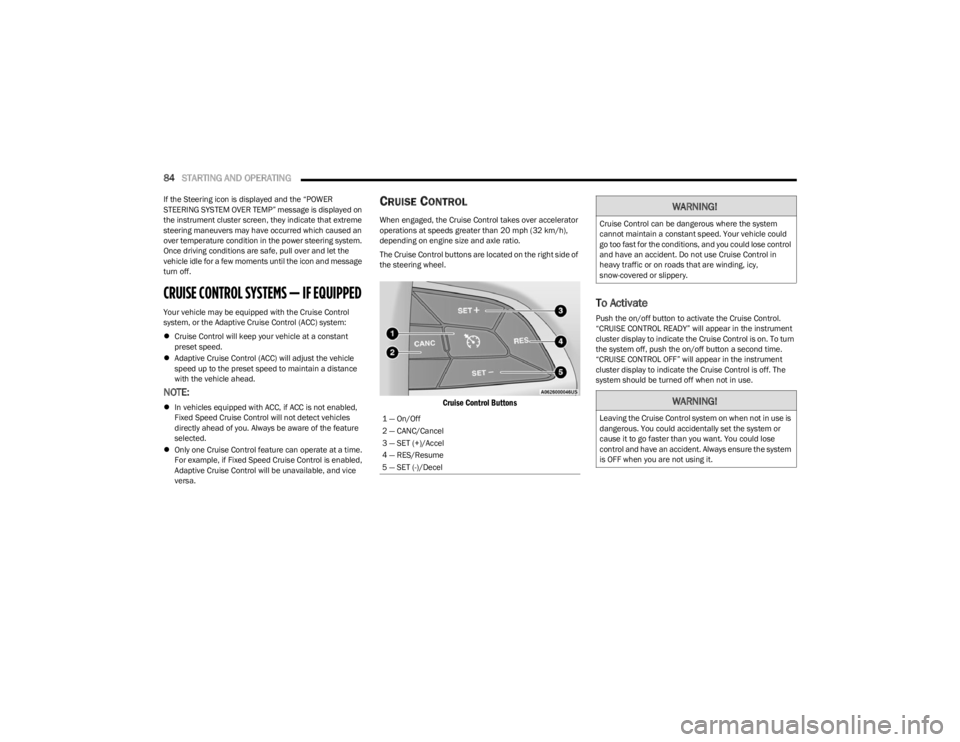
The Cruise Control buttons are located on the right side of
the steering wheel.
Cruise Control Buttons
To Activate
Push the on/off button to activate the Cruise Control.
“CRUISE CONTROL READY” will appear in the instrument
cluster display to indicate the Cruise Control is on. To turn
the system off, push the on/off button a second time.
“CRUISE CONTROL OFF” will appear in the instrument
cluster display to indicate the Cruise Control is off. The
system should be turned off when not in use.
1 — On/Off
2 — CANC/Cancel
3 — SET (+)/Accel
4 — RES/Resume
5 — SET (-)/Decel
WARNING!
Cruise Control can be dangerous where the system
cannot maintain a constant speed. Your vehicle could
go too fast for the conditions, and you could lose control
and have an accident. Do not use Cruise Control in
heavy traffic or on roads that are winding, icy,
snow-covered or slippery.
WARNING!
Leaving the Cruise Control system on when not in use is
dangerous. You could accidentally set the system or
cause it to go faster than you want. You could lose
control and have an accident. Always ensure the system
is OFF when you are not using it.
23_LA_OM_EN_USC_t.book Page 84
Page 88 of 300
86STARTING AND OPERATING
(Continued)
NOTE:
If the ACC sensor detects a vehicle ahead, ACC will
apply limited braking or acceleration (not to exceed the
original set speed) automatically to maintain a preset
following distance, while matching the speed of the
vehicle ahead.
Any chassis/suspension or tire size modifications to
the vehicle will affect the performance of the Adaptive
Cruise Control and Forward Collision Warning system.
Fixed Speed Cruise Control (ACC not enabled) will not
detect vehicles directly ahead of you. Always be aware
of the feature selected
Úpage 284.
Adaptive Cruise Control (ACC) Operation
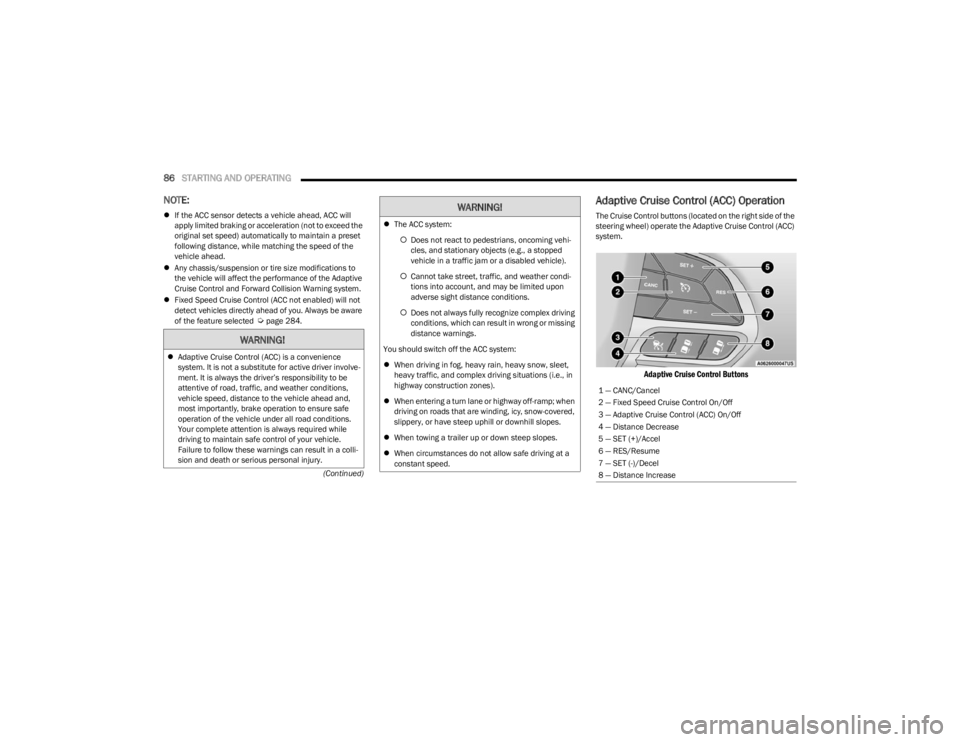
The Cruise Control buttons (located on the right side of the
steering wheel) operate the Adaptive Cruise Control (ACC)
system.
Adaptive Cruise Control Buttons
WARNING!
Adaptive Cruise Control (ACC) is a convenience
system. It is not a substitute for active driver involve -
ment. It is always the driver’s responsibility to be
attentive of road, traffic, and weather conditions,
vehicle speed, distance to the vehicle ahead and,
most importantly, brake operation to ensure safe
operation of the vehicle under all road conditions.
Your complete attention is always required while
driving to maintain safe control of your vehicle.
Failure to follow these warnings can result in a colli -
sion and death or serious personal injury.
The ACC system:
Does not react to pedestrians, oncoming vehi -
cles, and stationary objects (e.g., a stopped
vehicle in a traffic jam or a disabled vehicle).
Cannot take street, traffic, and weather condi -
tions into account, and may be limited upon
adverse sight distance conditions.
Does not always fully recognize complex driving
conditions, which can result in wrong or missing
distance warnings.
You should switch off the ACC system:
When driving in fog, heavy rain, heavy snow, sleet,
heavy traffic, and complex driving situations (i.e., in
highway construction zones).
When entering a turn lane or highway off-ramp; when
driving on roads that are winding, icy, snow-covered,
slippery, or have steep uphill or downhill slopes.
When towing a trailer up or down steep slopes.
When circumstances do not allow safe driving at a
constant speed.
WARNING!
1 — CANC/Cancel
2 — Fixed Speed Cruise Control On/Off
3 — Adaptive Cruise Control (ACC) On/Off
4 — Distance Decrease
5 — SET (+)/Accel
6 — RES/Resume
7 — SET (-)/Decel
8 — Distance Increase
23_LA_OM_EN_USC_t.book Page 86
Page 98 of 300
96STARTING AND OPERATING
PARKVIEW REAR BACK UP CAMERA
The ParkView Rear Back Up Camera allows you to see an
on-screen image of the rear surroundings of your vehicle
whenever the gear selector is put into REVERSE. The
ParkView camera is located on the rear of the vehicle
above the rear license plate. The image will be displayed
in the touchscreen display along with a caution note to
“Check Entire Surroundings” across the top of the screen.
After five seconds, this note will disappear.
NOTE:The ParkView Rear Back Up Camera has programmable
modes of operation that may be selected through the
Uconnect system
Úpage 107.
If your vehicle is equipped with the Camera Delay feature
and it is turned on, the rear camera image will be
displayed for up to 10 seconds when the vehicle is shifted
out of REVERSE. However, this feature is canceled if the
forward vehicle speed exceeds 8 mph (13 km/h), the
transmission is shifted into PARK, the vehicle's ignition is
placed in the OFF position, or by pressing the touchscreen
X button.
When the vehicle is shifted out of REVERSE with Camera
Delay turned off, the rear camera mode is exited and the
last touchscreen appears again.
When enabled, active guidelines are overlaid on the image
to illustrate the width of the vehicle and its projected back
up path based on the steering wheel position. The active
guidelines will show separate zones that will help indicate
the distance to the rear of the vehicle. If the vehicle speed remains below 8 mph (13 km/h), the
rear view camera image will continue to be displayed until
the transmission is shifted into PARK, the vehicle’s
ignition is placed in the OFF position, or the touchscreen X
button is pressed.
Different colored zones indicate the distance to the rear of
the vehicle.
The following table shows the approximate distances for
each zone:NOTE:If snow, ice, mud, or any foreign substance builds up on
the camera lens, clean the lens, rinse with water, and dry
with a soft cloth. Do not cover the lens.
REFUELING THE VEHICLE
The gas cap is located behind the fuel filler door on the left
side of the vehicle. Use a finger to pull open the door. If the
gas cap is lost or damaged, be sure to use the correct
replacement cap for this vehicle.
1. Open the fuel filler door.
2. Remove the fuel cap by rotating it counterclockwise.
Zone
Distance To The Rear Of The
Vehicle
Red 0 - 1 ft
(0 - 30 cm)
Yellow 1 ft - 6.5 ft
(30 cm - 2 m)
Green 6.5 ft or greater
(2 m or greater)
WARNING!
Drivers must be careful when backing up even when
using the ParkView Rear Back Up Camera. Always
check carefully behind your vehicle, and be sure to
check for pedestrians, animals, other vehicles,
obstructions, or blind spots before backing up. You are
responsible for the safety of your surroundings and
must continue to pay attention while backing up.
Failure to do so can result in serious injury or death.
CAUTION!
To avoid vehicle damage, ParkView should only be
used as a parking aid. The ParkView camera is
unable to view every obstacle or object in your drive
path.
To avoid vehicle damage, the vehicle must be driven
slowly when using ParkView to be able to stop in time
when an obstacle is seen. It is recommended that
the driver look frequently over his/her shoulder when
using ParkView.
23_LA_OM_EN_USC_t.book Page 96
Page 101 of 300
STARTING AND OPERATING99
COMMON TOWING DEFINITIONS
The following trailer towing related definitions will assist
you in understanding the following information:
Gross Vehicle Weight Rating (GVWR)
The GVWR is the total allowable weight of your vehicle.
This includes driver, passengers, cargo and tongue
weight. The total load must be limited so that you do not
exceed the GVWR
Úpage 97.
Gross Trailer Weight (GTW)
The GTW is the weight of the trailer plus the weight of all
cargo, consumables, and equipment (permanent or
temporary) loaded in or on the trailer in its "loaded and
ready for operation" condition.
The recommended way to measure GTW is to put your fully
loaded trailer on a vehicle scale. The entire weight of the
trailer must be supported by the scale.
Gross Combination Weight Rating (GCWR)
The GCWR is the total allowable weight of your vehicle and
trailer when weighed in combination.
Gross Axle Weight Rating (GAWR)
The GAWR is the maximum capacity of the front and rear
axles. Distribute the load over the front and rear axles
evenly. Make sure that you do not exceed either front or
rear GAWR
Úpage 97.
Tongue Weight (TW)
The TW is the downward force exerted on the hitch ball by
the trailer. You must consider this as part of the load on
your vehicle.
Trailer Frontal Area
The frontal area is the maximum height multiplied by the
maximum width of the front of a trailer.
Trailer Sway Control (TSC)
The TSC can be a mechanical telescoping link that can be
installed between the hitch receiver and the trailer tongue
that typically provides adjustable friction associated with
the telescoping motion to dampen any unwanted trailer
swaying motions while traveling.
If equipped, the electronic TSC recognizes a swaying
trailer and automatically applies individual wheel brakes
and/or reduces engine power to attempt to eliminate the
trailer sway.
Weight-Carrying Hitch
A weight-carrying hitch supports the trailer tongue weight,
just as if it were luggage located at a hitch ball or some
other connecting point of the vehicle. These kinds of
hitches are commonly used to tow small and medium
sized trailers.
Weight-Distributing Hitch
A weight-distributing system works by applying leverage
through spring (load) bars. They are typically used for
heavier loads to distribute trailer tongue weight to the tow
vehicle's front axle and the trailer axle(s). When used in
accordance with the manufacturer's directions, it provides
for a more level ride, offering more consistent steering and
brake control thereby enhancing towing safety. The
addition of a friction/hydraulic sway control also dampens
sway caused by traffic and crosswinds and contributes
positively to tow vehicle and trailer stability. Trailer sway
control and a weight distributing (load equalizing) hitch
are recommended for heavier Tongue Weights (TW) and
may be required depending on vehicle and trailer
configuration/loading to comply with Gross Axle Weight
Rating (GAWR) requirements.WARNING!
It is important that you do not exceed the maximum
front or rear GAWR. A dangerous driving condition can
result if either rating is exceeded. You could lose control
of the vehicle and have a collision.
WARNING!
An improperly adjusted Weight Distributing Hitch
system may reduce handling, stability, braking
performance, and could result in a collision.
Weight Distributing Systems may not be compatible
with Surge Brake Couplers. Consult with your hitch
and trailer manufacturer or a reputable Recreational
Vehicle dealer for additional information.
4
23_LA_OM_EN_USC_t.book Page 99
Page 103 of 300
STARTING AND OPERATING101
(Continued)
TRAILER AND TONGUE WEIGHT
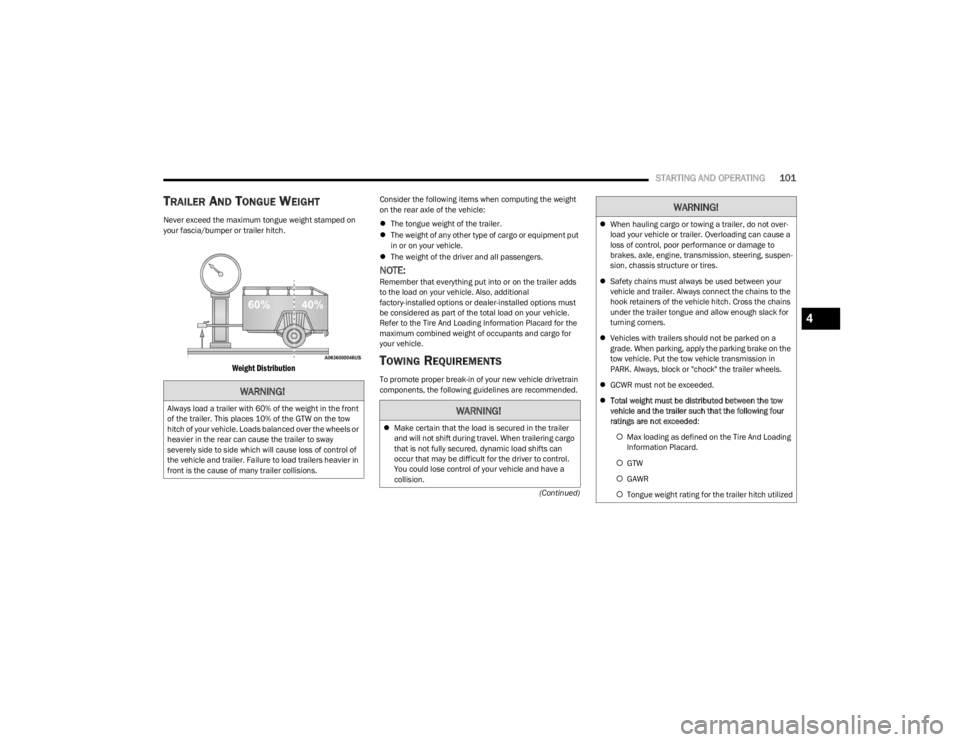
Never exceed the maximum tongue weight stamped on
your fascia/bumper or trailer hitch.
Weight Distribution
Consider the following items when computing the weight
on the rear axle of the vehicle:
The tongue weight of the trailer.
The weight of any other type of cargo or equipment put
in or on your vehicle.
The weight of the driver and all passengers.
NOTE:Remember that everything put into or on the trailer adds
to the load on your vehicle. Also, additional
factory-installed options or dealer-installed options must
be considered as part of the total load on your vehicle.
Refer to the Tire And Loading Information Placard for the
maximum combined weight of occupants and cargo for
your vehicle.
TOWING REQUIREMENTS
To promote proper break-in of your new vehicle drivetrain
components, the following guidelines are recommended.
WARNING!
Always load a trailer with 60% of the weight in the front
of the trailer. This places 10% of the GTW on the tow
hitch of your vehicle. Loads balanced over the wheels or
heavier in the rear can cause the trailer to sway
severely side to side which will cause loss of control of
the vehicle and trailer. Failure to load trailers heavier in
front is the cause of many trailer collisions.WARNING!
Make certain that the load is secured in the trailer
and will not shift during travel. When trailering cargo
that is not fully secured, dynamic load shifts can
occur that may be difficult for the driver to control.
You could lose control of your vehicle and have a
collision.
When hauling cargo or towing a trailer, do not over -
load your vehicle or trailer. Overloading can cause a
loss of control, poor performance or damage to
brakes, axle, engine, transmission, steering, suspen -
sion, chassis structure or tires.
Safety chains must always be used between your
vehicle and trailer. Always connect the chains to the
hook retainers of the vehicle hitch. Cross the chains
under the trailer tongue and allow enough slack for
turning corners.
Vehicles with trailers should not be parked on a
grade. When parking, apply the parking brake on the
tow vehicle. Put the tow vehicle transmission in
PARK. Always, block or "chock" the trailer wheels.
GCWR must not be exceeded.
Total weight must be distributed between the tow
vehicle and the trailer such that the following four
ratings are not exceeded :
Max loading as defined on the Tire And Loading
Information Placard.
GTW
GAWR
Tongue weight rating for the trailer hitch utilized
WARNING!
4
23_LA_OM_EN_USC_t.book Page 101
Page 115 of 300

MULTIMEDIA113
Mirrors & Wipers
Electric Power Steering This setting will adjust the Electric Power Steering modes. Setting options are “Normal”,
“Sport”, and “Comfort”.
Hill Start Assist This setting will turn the Hill Start Assist system on or off.
ParkView Backup Camera Active Guidelines This setting will turn the ParkView Backup Camera Active Guidelines on or off.
ParkView Backup Camera Delay This setting will add a delay to the ParkView Backup Camera when shifting out of
REVERSE.
Rain Sensing Auto Wipers This setting will turn the Rain Sensing Auto Wipers on or off.
Tilt Mirrors In Reverse This setting will tilt the mirrors when the vehicle is placed in REVERSE.
Setting Name Description
When the Mirrors & Wipers button is pressed on the touchscreen, the system displays the options related to the vehicle’s mirrors and wipers.
NOTE:Depending on the vehicle’s options, feature settings may vary.
Setting NameDescription
Tilt Side Mirrors in ReverseThis Setting will tilt the mirrors when the vehicle is placed in REVERSE. Setting options
are “On” and “Off”.
Rain Sensing Auto Wipers This setting will turn the Rain Sensing Auto Wipers on or off.
Headlights with Wipers This setting will turn the headlights on when the wipers are activated. Setting options are
“On” and “Off”.
5
23_LA_OM_EN_USC_t.book Page 113
Page 118 of 300

116MULTIMEDIA
Seats & Comfort/Auto-On Comfort
Key Off/Engine Off Options
When Seats & Comfort/Auto-On Comfort button is pressed on the touchscreen, the system displays the option related to the vehicle’s comfort systems when remote start has been
activated or the vehicle has been started.
NOTE:Depending on the vehicle’s options, feature settings may vary.
Setting Name Description
Auto-On Driver Heated/Ventilated Seat & Steering Wheel With Vehicle Start This setting will activate the vehicle’s comfort system and heated seats or heated
steering wheel when the vehicle is remote started or ignition is started. The “Off” setting will not activate the comfort systems. The “Remote Start” setting will only activate the
comfort systems when using Remote Start. The “All Start” setting will activate the comfort systems whenever the vehicle is started.
Easy Exit Seat This setting will automatically move the driver seat rearward when the engine is shut off.
The available settings are “On” and “Off”.
When the Key Off/Engine Off Options button is pressed on the touchscreen, the system displays the options related to vehicle shut off. These settings will only activate when the
ignition is set to OFF.
NOTE:Depending on the vehicle’s options, feature settings may vary.
Setting Name Description
Easy Exit SeatThis setting will automatically move the driver seat rearward when the engine is shut off.
The available settings are “On” and “Off”.
23_LA_OM_EN_USC_t.book Page 116
Page 125 of 300
MULTIMEDIA123
DRAG & DROP MENU BAR
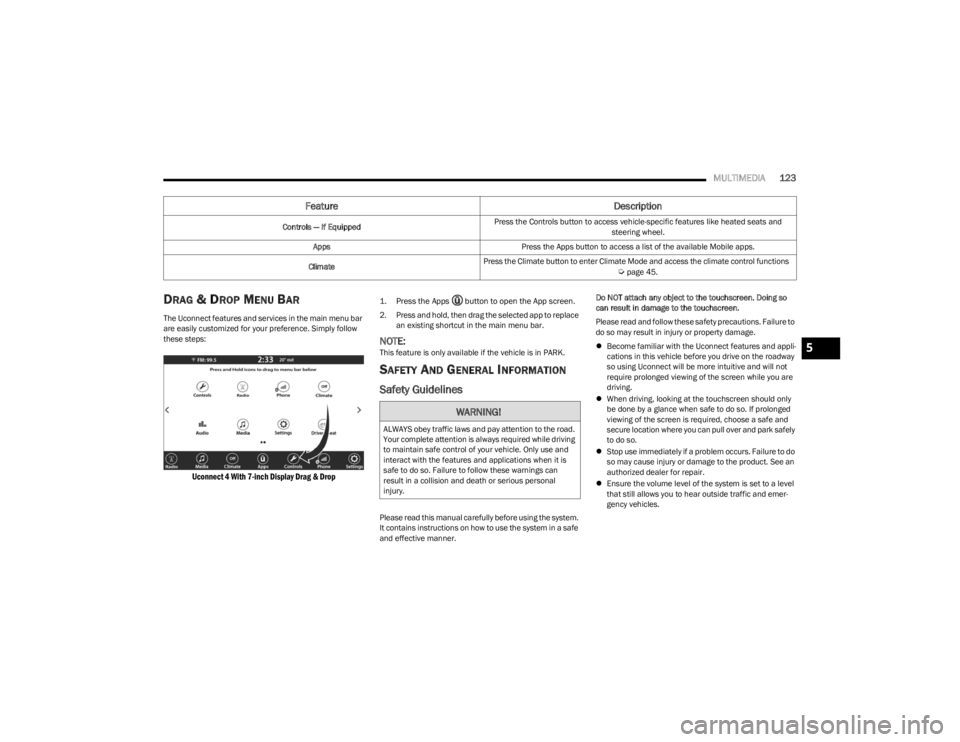
The Uconnect features and services in the main menu bar
are easily customized for your preference. Simply follow
these steps:
Uconnect 4 With 7-inch Display Drag & Drop
1. Press the Apps button to open the App screen.
2. Press and hold, then drag the selected app to replace
an existing shortcut in the main menu bar.
NOTE:This feature is only available if the vehicle is in PARK.
SAFETY AND GENERAL INFORMATION
Safety Guidelines
Please read this manual carefully before using the system.
It contains instructions on how to use the system in a safe
and effective manner. Do NOT attach any object to the touchscreen. Doing so
can result in damage to the touchscreen.
Please read and follow these safety precautions. Failure to
do so may result in injury or property damage.
Become familiar with the Uconnect features and appli -
cations in this vehicle before you drive on the roadway
so using Uconnect will be more intuitive and will not
require prolonged viewing of the screen while you are
driving.
When driving, looking at the touchscreen should only
be done by a glance when safe to do so. If prolonged
viewing of the screen is required, choose a safe and
secure location where you can pull over and park safely
to do so.
Stop use immediately if a problem occurs. Failure to do
so may cause injury or damage to the product. See an
authorized dealer for repair.
Ensure the volume level of the system is set to a level
that still allows you to hear outside traffic and emer -
gency vehicles.
Feature Description
Controls — If EquippedPress the Controls button to access vehicle-specific features like heated seats and
steering wheel.
Apps Press the Apps button to access a list of the available Mobile apps.
Climate Press the Climate button to enter Climate Mode and access the climate control functions
Úpage 45.
WARNING!
ALWAYS obey traffic laws and pay attention to the road.
Your complete attention is always required while driving
to maintain safe control of your vehicle. Only use and
interact with the features and applications when it is
safe to do so. Failure to follow these warnings can
result in a collision and death or serious personal
injury.
5
23_LA_OM_EN_USC_t.book Page 123
Page 126 of 300
124MULTIMEDIA
Safe Usage Of The Uconnect System
The Uconnect system is a sophisticated electronic
device. Do not let young children use the system.
Permanent hearing loss may occur if you play your
music or sound system at loud volumes. Exercise
caution when setting the volume on the system.
Keep drinks, rain and other sources of moisture away
from the system. Besides damage to the system,
moisture can cause electric shocks as with any
electronic device.
NOTE:Many features of this system are speed dependent.
For your own safety, it is not possible to use some of the
touchscreen features while the vehicle is in motion.
Care And Maintenance
Do not press the touchscreen with any hard or sharp
objects (pen, USB stick, jewelry, etc.), which could
scratch the surface.
Do not spray any liquid or chemicals directly on the
screen! Use a clean and dry microfiber lens cleaning
cloth in order to clean the touchscreen.
If necessary, use a lint-free cloth dampened with a
cleaning solution, such as isopropyl alcohol or an
isopropyl alcohol and water solution ratio of 50:50. Be
sure to follow the solvent manufacturer's precautions
and directions
Úpage 284.
UCONNECT MODES
STEERING WHEEL AUDIO CONTROLS
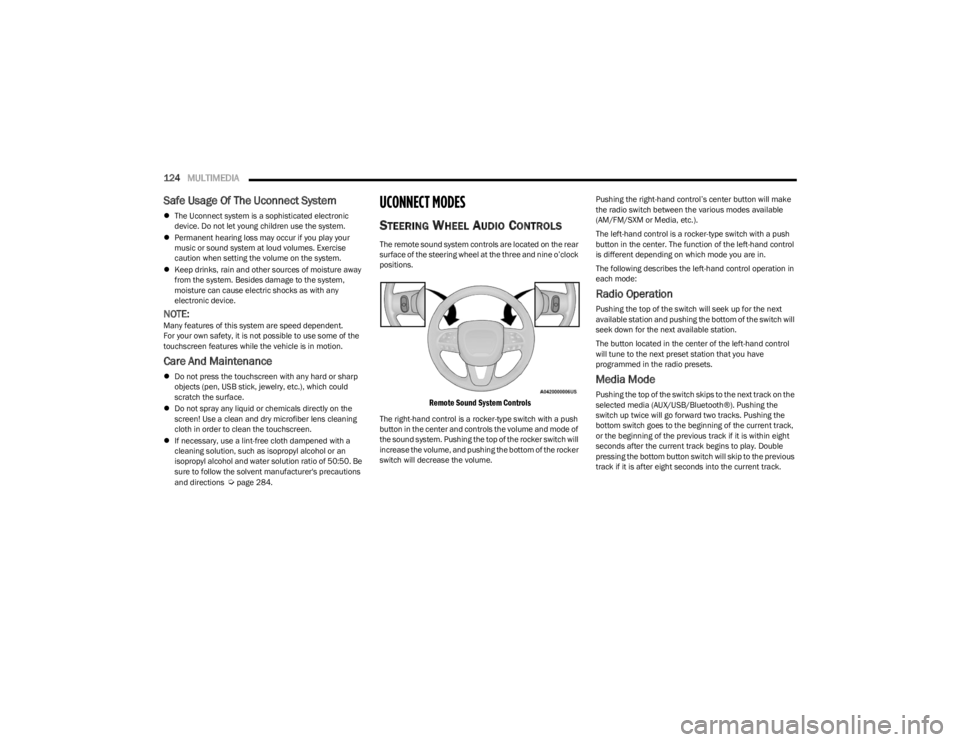
The remote sound system controls are located on the rear
surface of the steering wheel at the three and nine o’clock
positions.
Remote Sound System Controls
The right-hand control is a rocker-type switch with a push
button in the center and controls the volume and mode of
the sound system. Pushing the top of the rocker switch will
increase the volume, and pushing the bottom of the rocker
switch will decrease the volume. Pushing the right-hand control’s center button will make
the radio switch between the various modes available
(AM/FM/SXM or Media, etc.).
The left-hand control is a rocker-type switch with a push
button in the center. The function of the left-hand control
is different depending on which mode you are in.
The following describes the left-hand control operation in
each mode:
Radio Operation
Pushing the top of the switch will seek up for the next
available station and pushing the bottom of the switch will
seek down for the next available station.
The button located in the center of the left-hand control
will tune to the next preset station that you have
programmed in the radio presets.
Media Mode
Pushing the top of the switch skips to the next track on the
selected media (AUX/USB/Bluetooth®). Pushing the
switch up twice will go forward two tracks. Pushing the
bottom switch goes to the beginning of the current track,
or the beginning of the previous track if it is within eight
seconds after the current track begins to play. Double
pressing the bottom button switch will skip to the previous
track if it is after eight seconds into the current track.
23_LA_OM_EN_USC_t.book Page 124