light DODGE CHALLENGER 2023 Workshop Manual
[x] Cancel search | Manufacturer: DODGE, Model Year: 2023, Model line: CHALLENGER, Model: DODGE CHALLENGER 2023Pages: 300, PDF Size: 12.82 MB
Page 115 of 300

MULTIMEDIA113
Mirrors & Wipers
Electric Power Steering This setting will adjust the Electric Power Steering modes. Setting options are “Normal”,
“Sport”, and “Comfort”.
Hill Start Assist This setting will turn the Hill Start Assist system on or off.
ParkView Backup Camera Active Guidelines This setting will turn the ParkView Backup Camera Active Guidelines on or off.
ParkView Backup Camera Delay This setting will add a delay to the ParkView Backup Camera when shifting out of
REVERSE.
Rain Sensing Auto Wipers This setting will turn the Rain Sensing Auto Wipers on or off.
Tilt Mirrors In Reverse This setting will tilt the mirrors when the vehicle is placed in REVERSE.
Setting Name Description
When the Mirrors & Wipers button is pressed on the touchscreen, the system displays the options related to the vehicle’s mirrors and wipers.
NOTE:Depending on the vehicle’s options, feature settings may vary.
Setting NameDescription
Tilt Side Mirrors in ReverseThis Setting will tilt the mirrors when the vehicle is placed in REVERSE. Setting options
are “On” and “Off”.
Rain Sensing Auto Wipers This setting will turn the Rain Sensing Auto Wipers on or off.
Headlights with Wipers This setting will turn the headlights on when the wipers are activated. Setting options are
“On” and “Off”.
5
23_LA_OM_EN_USC_t.book Page 113
Page 116 of 300

114MULTIMEDIA
Lights
When the Lights button is pressed on the touchscreen, the system displays the options related to the vehicle’s exterior and interior lights.
NOTE:
When the “Daytime Running Lights” feature is selected, the daytime running lights can be turned On or Off. This feature is only allowed by law in the country of the vehicle purchase.
Depending on the vehicle’s options, feature settings may vary.
Setting Name Description
Headlight Off DelayThis setting will allow you to set the amount of time it takes for the headlights to shut off
after the vehicle is turned off. The available settings are “0 sec”, “30 sec”, “60 sec”, and “90 sec”.
Headlight Illumination On Approach This setting will allow you to set the amount of time it takes for the headlights to shut off
after the vehicle is unlocked. The available settings are “0 sec”, “30 sec”, “60 sec”, and “90 sec”.
Headlights with Wipers This setting will turn the headlights on when the wipers are activated.
Daytime Running Lights This setting will allow you to turn the Daytime Running Lights on or off.
Flash Lights With Lock This setting will allow you to turn on or off the flashing of the lights when the Lock button
is pushed on the key fob. Available settings are “On” and “Off”.
Auto Dim High Beams This setting will allow you to turn the Auto Dim High Beams on or off.
23_LA_OM_EN_USC_t.book Page 114
Page 117 of 300

MULTIMEDIA115
Doors & Locks
When the Doors & Locks button is pressed on the touchscreen, the system displays the options related to locking and unlocking the vehicle’s doors.
NOTE:Depending on the vehicle’s options, feature settings may vary.
Setting Name Description
Auto Unlock On ExitThis setting will unlock the doors when any of the doors are opened from the inside.
Flash Lights With Lock This setting will allow you to turn on or off the flashing of the lights when the Lock button
is pushed on the key fob. Available settings are “On” and “Off”.
Sound Horn With Lock This setting will sound the horn when the Lock button is pushed on the key fob. The “Off”
setting will not sound the horn when the Lock button is pushed. The “1st Press” setting will sound the horn when the Lock button is pushed once. The “2nd Press” setting will sound the horn when the Lock button is pushed twice.
Sound Horn With Remote Start This setting will sound the horn when the remote start is activated from the key fob.
Remote Door Unlock/1st Press of Key Fob Unlocks This setting will change how many pushes of the Unlock button on the key fob are needed
to unlock all the doors. The “Driver Door” setting will only unlock the driver door on the first push on the Unlock button. The “All Doors” setting will unlock all doors on the first push of the Unlock button.
Passive Entry This setting will allow you to turn the Passive Entry feature (Keyless Enter ‘n Go™)
on or off.
Personal Settings Linked To Key Fob This setting will recall preset radio stations and driver seat position that have been linked
to the key fob.
5
23_LA_OM_EN_USC_t.book Page 115
Page 119 of 300

MULTIMEDIA117
Audio
Key Off/Engine Off Power Delay This setting will keep certain electrical features running after the engine is turned off.
When any door is opened, the electronics will deactivate. The available settings are “0 sec”, “45 sec”, “5 min”, and “10 min”.
Headlight Off Delay This setting will allow you to set the amount of time it takes for the headlights to shut off
after the vehicle is turned off. The available settings are “0 sec”, “30 sec”, “60 sec”, and “90 sec”.
Setting Name Description
When the Audio button is pressed on the touchscreen, the system displays options related to the vehicle’s sound system. These settings can change the audio location within the
vehicle, adjust the bass or treble levels, and auto-play settings from an audio device or smartphone.
NOTE:Depending on the vehicle’s options, feature settings may vary.
Setting NameDescription
Balance/FadeThis setting will adjust audio levels from specific speakers in the front/back and left/right
of the vehicle. The Speaker icon can be moved to set audio location.
Equalizer This setting will adjust the “Bass”, “Mid”, and “Treble” ranges of the audio.
Speed Adjusted Volume This setting will adjust audio volume as speeds increase. At a higher setting, the volume
will increase more as the vehicle speeds up. The available settings are “Off”, “1”, “2”, and “3”.
Surround Sound This setting will turn the Surround Sound system on or off.
AUX Volume Offset This setting will tune the audio levels from a device connected through the AUX port.
The available settings are “+” and “-”.
Auto Play This setting will automatically begin playing audio from a connected device.
5
23_LA_OM_EN_USC_t.book Page 117
Page 124 of 300
122MULTIMEDIA
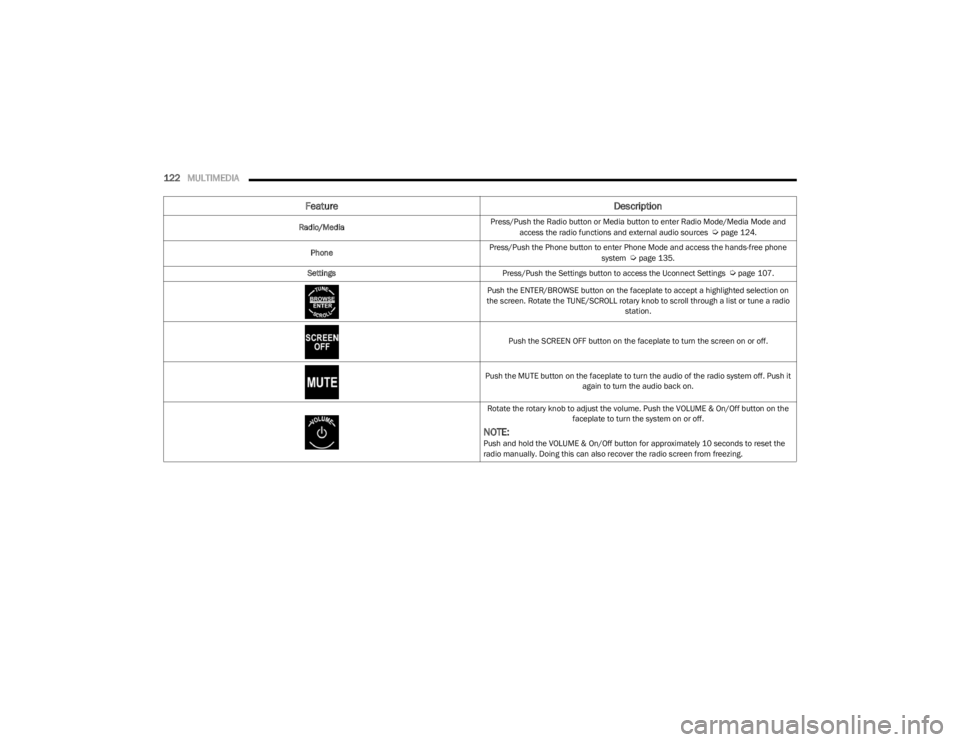
Feature Description
Radio/MediaPress/Push the Radio button or Media button to enter Radio Mode/Media Mode and
access the radio functions and external audio sources Úpage 124.
Phone Press/Push the Phone button to enter Phone Mode and access the hands-free phone
system
Úpage 135.
Settings Press/Push the Settings button to access the Uconnect Settings
Úpage 107.
Push the ENTER/BROWSE button on the faceplate to accept a highlighted selection on
the screen. Rotate the TUNE/SCROLL rotary knob to scroll through a list or tune a radio station.
Push the SCREEN OFF button on the faceplate to turn the screen on or off.
Push the MUTE button on the faceplate to turn the audio of the radio system off. Push it again to turn the audio back on.
Rotate the rotary knob to adjust the volume. Push the VOLUME & On/Off button on the faceplate to turn the system on or off.
NOTE:Push and hold the VOLUME & On/Off button for approximately 10 seconds to reset the
radio manually. Doing this can also recover the radio screen from freezing.
23_LA_OM_EN_USC_t.book Page 122
Page 129 of 300
MULTIMEDIA127
This functionality is only available for radios equipped with
a Satellite receiver. In order to receive satellite radio, the
vehicle needs to be outside with a clear view to the sky.
If the screen shows “Acquiring Signal”, you might have to
change the vehicle’s position in order to receive a signal.
In most cases, the satellite radio does not receive a signal
in underground parking garages or tunnels.
No Subscription
Radios equipped with a Satellite receiver require a
subscription to the SiriusXM® Service. When the radio
does not have the necessary subscription, the radio is
able to receive the Preview channel only.
Acquiring SiriusXM® Subscription
To activate the SiriusXM® Satellite Radio subscription, US
residents visit https://www.siriusxm.com/phx/getlogin or
call: 1-800-643-2112
Canadian residents visit https://www.siriusxm.ca/ or call:
1-888-539-7474.
NOTE:You will need to provide the SiriusXM® ID (RID) located at
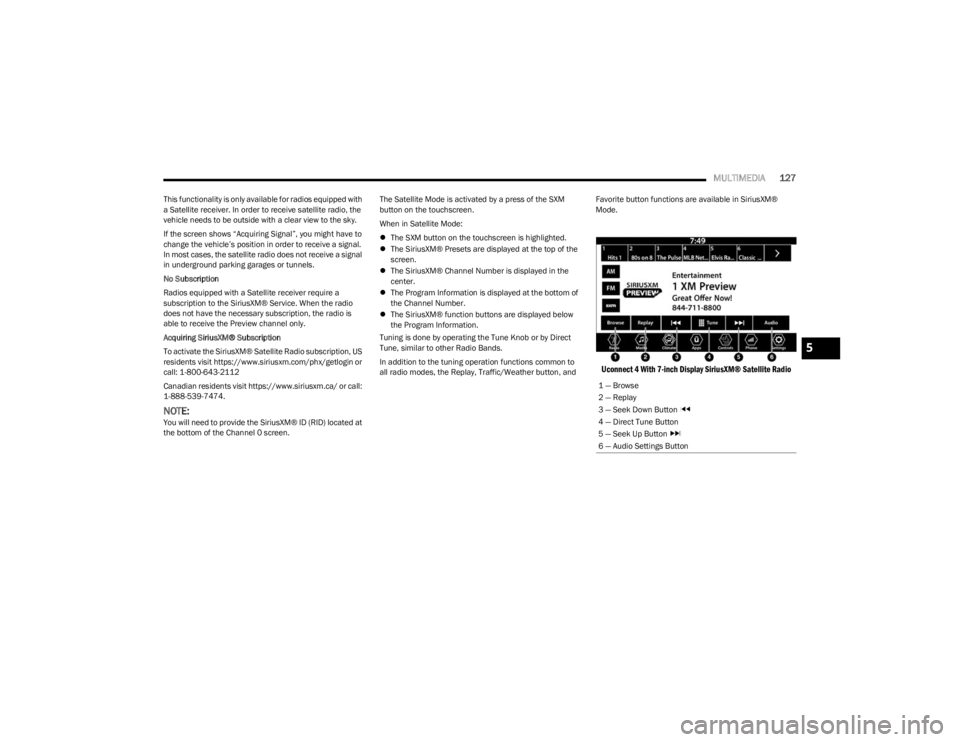
the bottom of the Channel 0 screen. The Satellite Mode is activated by a press of the SXM
button on the touchscreen.
When in Satellite Mode:
The SXM button on the touchscreen is highlighted.
The SiriusXM® Presets are displayed at the top of the
screen.
The SiriusXM® Channel Number is displayed in the
center.
The Program Information is displayed at the bottom of
the Channel Number.
The SiriusXM® function buttons are displayed below
the Program Information.
Tuning is done by operating the Tune Knob or by Direct
Tune, similar to other Radio Bands.
In addition to the tuning operation functions common to
all radio modes, the Replay, Traffic/Weather button, and Favorite button functions are available in SiriusXM®
Mode.
Uconnect 4 With 7-inch Display SiriusXM® Satellite Radio
1 — Browse
2 — Replay
3 — Seek Down Button
4 — Direct Tune Button
5 — Seek Up Button
6 — Audio Settings Button
5
23_LA_OM_EN_USC_t.book Page 127
Page 132 of 300

130MULTIMEDIA
Preset Selection
A preset can be selected by pressing any of the listed
Presets, or by pushing the ENTER/BROWSE button on the
TUNE/SCROLL knob to select the currently highlighted
Preset. When selected, the Radio tunes to the station
stored in the Preset.
Deleting A Preset
A preset can be deleted in the Presets Browse screen by
pressing the Trash Can icon for the corresponding preset.
Favorites
Press the Favorites button on the Browse screen.
The Favorites menu provides a means to edit the Favorites
list and to configure the Alert Settings, along with
providing a list of Channels currently airing any of the
items in the Favorites list.
You can scroll the Favorites list by pressing the Up and
Down arrows located at the right side of the screen.
Scrolling can also be done by operating the TUNE/SCROLL
knob as well. Remove Favorites
Press the Remove Favorites tab at the top of the screen.
Press the Delete All button on the touchscreen to delete
all of the Favorites or press the Trash Can icon next to the
Favorite to be deleted.
Alert Settings
Press the Alert Settings tab at the top of the Favorites
screen. The Alert Settings menu allows you to choose from
a visual alert or audible and visual alert when one of your
favorites is airing on any of the SiriusXM® channels.
Game Zone
Press the Game Zone button, located at the left of the
Browse screen. This feature provides you with the ability to
select teams, edit the selection, and set alerts.
On-Air
Press the On-Air tab at the top of the screen. The On-Air list
provides a list of Channels currently airing any of the items
in the Selections list, and pressing any of the items in the
list tunes the radio to that channel.Select Team — If Equipped
Press the Select Team button on the touchscreen to
activate the League Scroll list. Press the chosen league
and a scroll list of all teams within the league will appear,
then you can select a team by pressing the corresponding
box. A check mark appears for all teams that are chosen.
Remove Selection/Trash Can Icon
Press the Remove Selection tab at the top of the screen.
Press the Delete All button on the touchscreen to delete
all of the selections or press the Trash Can icon next to the
selection to be deleted.
Alert Settings
Press the Alert Setting tab at the top of the screen.
The Alert Settings menu allows you to choose from “Alert
me to on-air games upon start” or “Alert upon score
update” or both when one or more of your selections is
airing on any of the SiriusXM® channels.
Tune Start
Tune Start begins playing the current song from the
beginning when you tune to a music channel using one of
the 12 presets. This feature occurs the first time the
preset is selected during that current song.
23_LA_OM_EN_USC_t.book Page 130
Page 133 of 300
MULTIMEDIA131
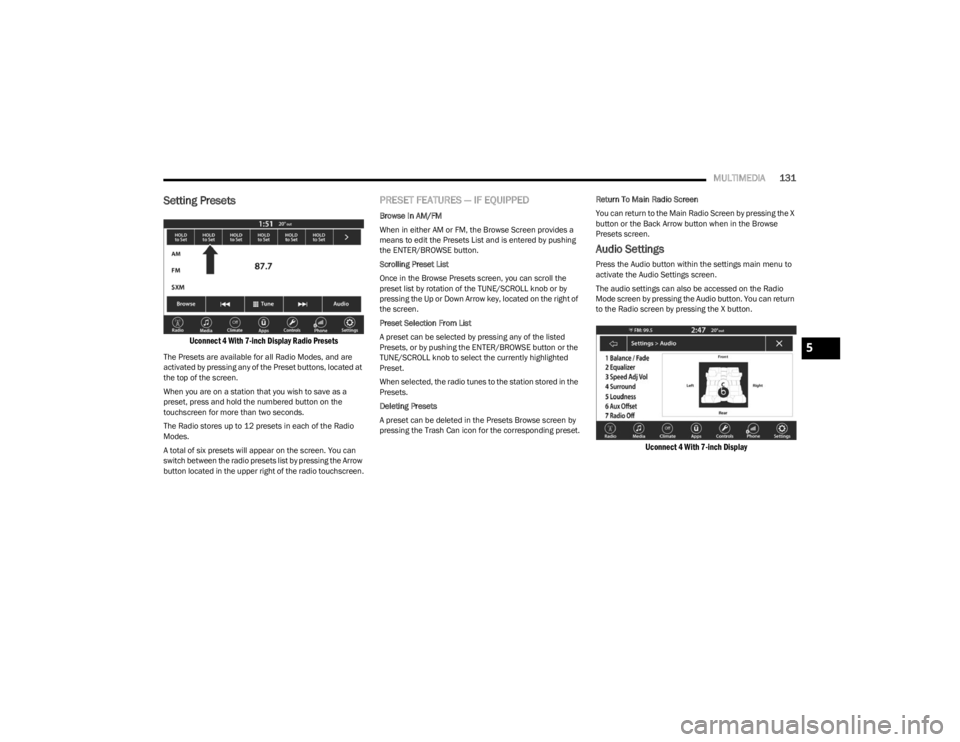
Setting Presets
Uconnect 4 With 7-inch Display Radio Presets
The Presets are available for all Radio Modes, and are
activated by pressing any of the Preset buttons, located at
the top of the screen.
When you are on a station that you wish to save as a
preset, press and hold the numbered button on the
touchscreen for more than two seconds.
The Radio stores up to 12 presets in each of the Radio
Modes.
A total of six presets will appear on the screen. You can
switch between the radio presets list by pressing the Arrow
button located in the upper right of the radio touchscreen.
PRESET FEATURES — IF EQUIPPED
Browse In AM/FM
When in either AM or FM, the Browse Screen provides a
means to edit the Presets List and is entered by pushing
the ENTER/BROWSE button.
Scrolling Preset List
Once in the Browse Presets screen, you can scroll the
preset list by rotation of the TUNE/SCROLL knob or by
pressing the Up or Down Arrow key, located on the right of
the screen.
Preset Selection From List
A preset can be selected by pressing any of the listed
Presets, or by pushing the ENTER/BROWSE button or the
TUNE/SCROLL knob to select the currently highlighted
Preset.
When selected, the radio tunes to the station stored in the
Presets.
Deleting Presets
A preset can be deleted in the Presets Browse screen by
pressing the Trash Can icon for the corresponding preset. Return To Main Radio Screen
You can return to the Main Radio Screen by pressing the X
button or the Back Arrow button when in the Browse
Presets screen.
Audio Settings
Press the Audio button within the settings main menu to
activate the Audio Settings screen.
The audio settings can also be accessed on the Radio
Mode screen by pressing the Audio button. You can return
to the Radio screen by pressing the X button.
Uconnect 4 With 7-inch Display
5
23_LA_OM_EN_USC_t.book Page 131
Page 136 of 300

134MULTIMEDIA
AUX MODE
Overview
Auxiliary Mode (AUX) is entered by inserting an AUX device
using a cable with a 3.5 mm audio jack into the AUX port,
or by pressing the AUX button on the left side of the
touchscreen or under the Source Select button (if
equipped).
To insert an Auxiliary device, gently insert the Auxiliary
device cable into the AUX port. If you insert an Auxiliary
device with the ignition and the radio on, the unit will
switch to AUX Mode and begin to play.
Controlling The Auxiliary Device
Auxiliary Mode (AUX) is entered by inserting an AUX device
using a cable with a 3.5 mm audio jack into the AUX port
or by pressing the AUX button on the left side of the
touchscreen, or under the Source Select button (if
equipped).
NOTE:The radio unit is acting as the amplifier for audio output
from the Auxiliary device. Therefore, if the volume control
on the Auxiliary device is set too low, there will be insuffi -
cient audio signal for the radio unit to play the music on
the device.
Seek Up /Seek Down
In USB Mode, press the Seek Up button on the
touchscreen for the next selection on the USB device.
Press and release the Seek Down button on the
touchscreen to return to the beginning of the current
selection, or to return to the beginning of the previous
selection if the USB device is within the first three seconds
of the current selection. In Bluetooth® Mode, press and release the Seek Up
button on the touchscreen for the next selection on the
Bluetooth® device. Press and release the Seek Down
button on the touchscreen to return to the beginning of
the current selection, or return to the beginning of the
previous selection if the Bluetooth® device is within the
first second of the current selection.
Browse
In USB Mode, press the Browse button on the touchscreen
to display the browse window. In USB Mode, the left side
of the browse window displays a list of ways you can
browse through the contents of the USB device. If
supported by the device, you can browse by Folder, Artist,
Playlist, Album, Song, etc. Press the desired button on the
touchscreen on the left side of the screen. The center of
the browse window shows items and their sub-functions,
which can be scrolled through by pressing the Up and
Down buttons to the right. The TUNE/SCROLL knob can
also be used to scroll.
Media Mode
In USB Mode, press the Media button on the touchscreen
to select the desired audio source: USB.
In Bluetooth® Mode, press the Media button on the
touchscreen to select the desired audio source:
Bluetooth®.
In AUX Mode, press the Media button on the touchscreen
to select the desired audio source: AUX.
Repeat
In USB Mode, press the Repeat button on the touchscreen
to toggle the repeat functionality. The Repeat button on
the touchscreen is highlighted when active. The Radio will
continue to play the current track, repeatedly, as long as
the repeat is active. Press the Repeat button again to
enter Repeat All. The radio will continue to play all the
current tracks, repeatedly, as long as the repeat function
is active. To cancel Repeat, press the Repeat button a
third time.
Shuffle
In USB Mode, press the Shuffle button on the touchscreen
to play the selections on the USB device in random order
to provide an interesting change of pace. Press the Shuffle
button on the touchscreen a second time to turn this
feature off.
Audio
Audio settings can be accessed by pressing the Audio
button Úpage 125.
Info
In USB Mode, press the Info button on the touchscreen to
display the current track information. Press the Info or X
button on the touchscreen a second time to cancel this
feature.
23_LA_OM_EN_USC_t.book Page 134
Page 137 of 300

MULTIMEDIA135
Tracks
In USB Mode, press the Tracks button on the touchscreen
to display a pop-up with the Song List. The song currently
playing is indicated by an arrow and lines above and below
the song title. When in the Tracks List screen you can
rotate the TUNE/SCROLL knob to highlight a track
(indicated by the line above and below the track name)
and then push the ENTER/BROWSE knob to start playing
that track.
In Bluetooth® Mode, if the Bluetooth® device supports
this feature, press the Tracks button on the touchscreen
to display a pop-up with the Song List. The currently
playing song is indicated by a red arrow and lines above
and below the song title.
Pressing the Tracks button on the touchscreen while the
pop-up is displayed will close the pop-up.
MEDIA VOICE COMMANDS
Uconnect offers connections via USB, Bluetooth®, and
auxiliary (AUX) ports. Voice operation is only available for
connected USB and AUX devices. Push the VR button located on the steering wheel.
After the beep, say one of the following commands and
follow the prompts to switch your media source or choose
an artist:
“Change source to Bluetooth®”
“Change source to AUX”
“Change source to USB”
“Play artist Beethoven”; “ Play album Greatest Hits”;
“ Play song Moonlight Sonata”; “ Play genre Classical”
Did You Know: Press the Browse button on the
touchscreen to see all of the music on your USB device.
Your Voice Command must match exactly how the artist,
album, song, and genre information is displayed.
PHONE MODE
Overview
Uconnect Phone is a voice-activated, hands-free,
in-vehicle communications system. It allows you to dial a
phone number with your mobile phone.
The feature supports the following:
Voice Activated Features
Hands-Free dialing via Voice (“Call John Smith Mobile”
or “Dial 248-555-1212”).
Hands-Free text-to-speech listening of your incoming
SMS messages.
Hands-Free Text Message Replying: Forward one of
18 predefined SMS messages to incoming calls/text
messages.
Redialing last dialed numbers (“Redial”).
Calling Back the last incoming call number
(“Call Back”).
Viewing call logs on screen (“Show Incoming Calls,”
“Show Outgoing Calls,” “Show Missed Calls,” or “Show
Recent Calls”).
Searching Contacts phone number
(“Search for John Smith Mobile”).
Screen Activated Features
Dialing via Keypad using touchscreen.
Viewing and Calling contacts from Phonebooks
displayed on the touchscreen.
Setting Favorite Contact phone numbers so they are
easily accessible on the Main Phone screen.
Viewing and Calling contacts from Recent Call logs.
Reviewing your recent Incoming SMS Messages.
Pairing up to 10 phones/audio devices for easy access
to connect to them quickly.
NOTE:Your phone must be capable of SMS messaging via Blue -
tooth® for messaging features to work properly.
Your mobile phone’s audio is transmitted through your
vehicle’s audio system; the system will automatically mute
your radio when using the Uconnect Phone.
5
23_LA_OM_EN_USC_t.book Page 135