MPG DODGE CHALLENGER SRT 2019 Owners Manual
[x] Cancel search | Manufacturer: DODGE, Model Year: 2019, Model line: CHALLENGER SRT, Model: DODGE CHALLENGER SRT 2019Pages: 500, PDF Size: 4.73 MB
Page 114 of 500
Push the SET + or the SET- button (located on the steering
wheel) and the following will display in the instrument
cluster display:
ACC SET
When ACC is set, the set speed will display in the
instrument cluster.
The ACC screen may display once again if any ACC
activity occurs, which may include any of the following:
•Distance Setting Change
• System Cancel
• Driver Override
• System Off
• ACC Proximity Warning
• ACC Unavailable Warning
• The instrument cluster display will return to the last
display selected after five seconds of no ACC display
activity.
For further information, refer to “Adaptive Cruise Control
(ACC) — If Equipped” in “Starting And Operating.”Fuel Economy
Two submenu pages; one with Current Value (instanta-
neous calculation of the fuel economy) displayed and one
without the Current Value displayed (toggle the leftor
right arrow button to select one):
• Current Fuel Economy (MPG, L/100 km, or km/L).
• Range To Empty (miles or km).
• Average Fuel Economy (MPG, L/100 km, or km/L).
• The Max and Min values will correspond to the particu-
lar engine requirements.
• Lower end of gauge will be displayed in an amber color
and turn green as Fuel Economy improves.
• Hold the OKbutton to reset average fuel economy
information.
Trip Info
Push and release the upordown arrow button until the
Trip Menu item is displayed in the instrument cluster
display. Toggle the leftorright arrow button to select Trip
A or Trip B. The Trip information will display the follow-
ing:
112 GETTING TO KNOW YOUR INSTRUMENT PANEL
Page 115 of 500
•Distance – Shows the total distance (mi or km) traveled
for Trip A or Trip B since the last reset.
• Average Fuel Economy – Shows the average fuel
economy (MPG, L/100km or km/L) of Trip A or Trip B
since the last reset.
• Elapsed Time – Shows the total elapsed time of travel
since the last reset.
Hold the OKbutton to reset feature information.
Audio
This menu displays the Audio information of the currently
playing audio source (e.g. FM radio).
Messages
This feature shows the number of stored warning mes-
sages, if any. Pushing the rightorleft arrow button will
allow you to scroll through the stored messages.
Screen Setup
Push and release the upordown arrow button until the
Screen Setup Menu displays in the instrument cluster
display. Push and release the OKbutton to enter the
submenus. The Screen Setup feature allows you to change
what information is displayed in the instrument cluster as
well as the location that information is displayed. 1. Upper Left
•Compass (default)
• Outside Temp.
• Time (default)
• Range to Empty (default)
• Average (MPG, L/100 km, or km/L)
• Current (MPG, L/100 km, or km/L)
• Trip A Distance
• Trip B Distance
• None
2. Upper Right •Compass
• Outside Temp (default)
• Time
• Range to Empty
• Average (MPG, L/100 km, or km/L)
• Current (MPG, L/100 km, or km/L)
• Trip A Distance
• Trip B Distance
• None
4
GETTING TO KNOW YOUR INSTRUMENT PANEL 113
Page 116 of 500
3. Center•Menu Title (default)
• Compass
• Outside Temp.
• Time
• Range to Empty
• Average (MPG, L/100 km, or km/L)
• Current (MPG, L/100 km, or km/L)
• Trip A Distance
• Trip B Distance
• Audio Information
• Digital Speed
• None
4. Current Gear •On
• Off (default)
5. Odometer •Show (default)
• Hide
6. Gear Display •Full (default) •
Single
7. Restore Defaults •Ok
• Cancel
Diagnostics
This feature allows the driver to view engine and emission
vehicle faults.
• Push OKto have the most recent fault code sent.
• There is a delay when the next diagnostic code is
requested during which the following message is dis-
played:
• “Checking System for Diagnostic Codes.”
• Driver must push the OKbutton again to see the next
Pcode otherwise current message remains displayed.
• Driver exits when they cycle to another submenu (up or
down).
• Faults are displayed from newest to the oldest.
• If the menu is exited before the end of codes is reached
- when the driver re-enters the list will be restarted from
the beginning.
114 GETTING TO KNOW YOUR INSTRUMENT PANEL
Page 411 of 500
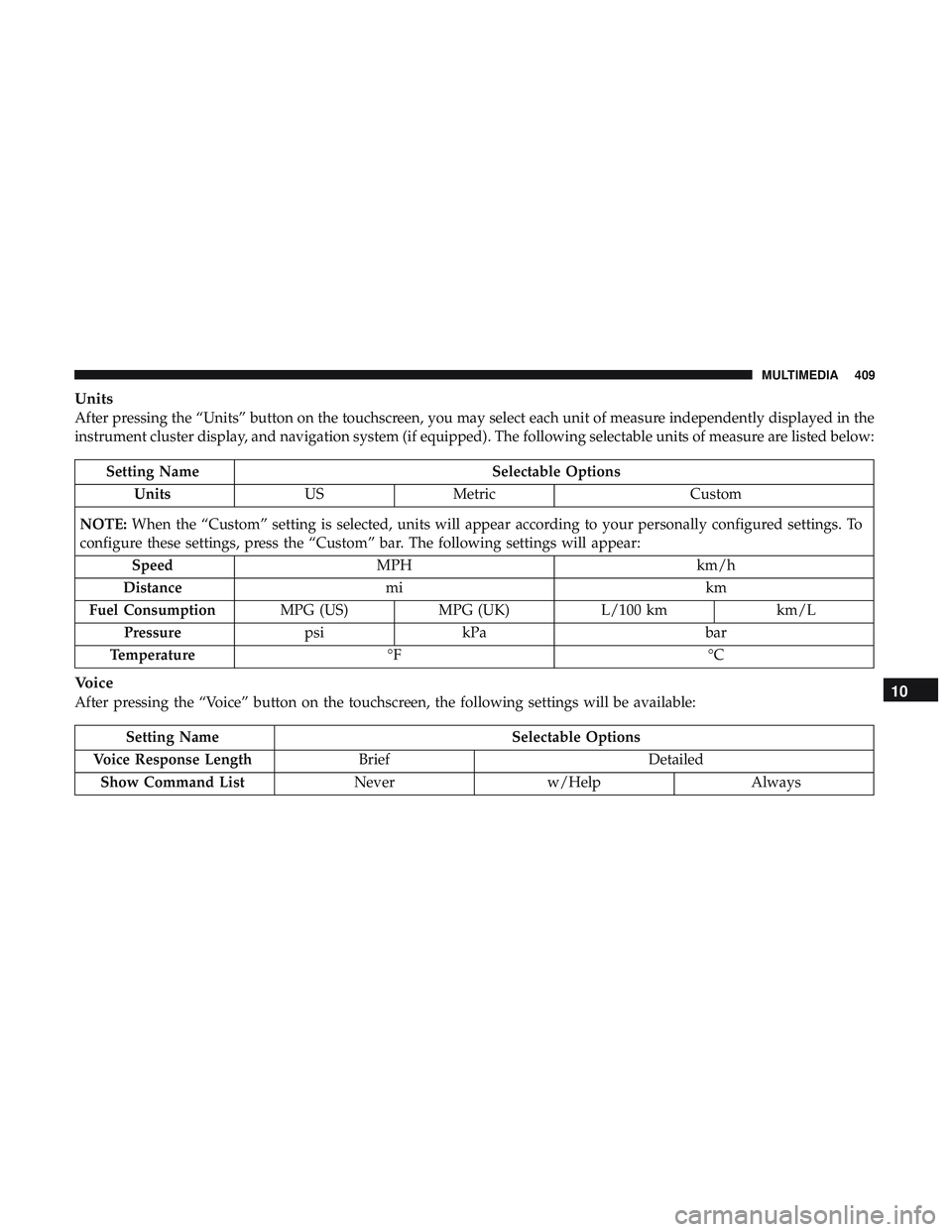
Units
After pressing the “Units” button on the touchscreen, you may select each unit of measure independently displayed in the
instrument cluster display, and navigation system (if equipped). The following selectable units of measure are listed below:
Setting NameSelectable Options
Units USMetric Custom
NOTE: When the “Custom” setting is selected, units will appear according to your personally configured settings. To
configure these settings, press the “Custom” bar. The following settings will appear:
Speed MPH km/h
Distance mi km
Fuel Consumption MPG (US)MPG (UK) L/100 km km/L
Pressure psikPa bar
Temperature °F °C
Voice
After pressing the “Voice” button on the touchscreen, the following settings will be available:
Setting Name Selectable Options
Voice Response Length Brief Detailed
Show Command List Neverw/Help Always
10
MULTIMEDIA 409