lock DODGE CHARGER 2013 7.G Owner's Manual
[x] Cancel search | Manufacturer: DODGE, Model Year: 2013, Model line: CHARGER, Model: DODGE CHARGER 2013 7.GPages: 132, PDF Size: 4.77 MB
Page 24 of 132
TILT/TELESCOPING STEERING COLUMN
Manual Tilt/Telescoping Steering Column
• The tilt/telescoping control handle is located below the steering wheel at the end of thesteering column.
• To unlock the steering column, push the lever downward (toward the floor).
• To tilt the steering column, move the steering wheel upward or downward as
desired. To lengthen or shorten the steer-
ing column, pull the steering wheel out-
ward or push it inward as desired.
• To lock the steering column in position, push the lever upward until fully engaged.
Power Tilt/Telescoping Steering Column
• The power tilt/telescoping steering control is located below the turn signal/wiper/ washer/high beam lever on the steering
column.
• To tilt the steering column, move the power tilt/telescoping control up or down
as desired. To lengthen or shorten the
steering column, pull the control toward
you or push the control away from you as
desired.
WARNING!
• Do not adjust the steering wheel while driving. The tilt/telescoping adjustment must
be locked while driving. Adjusting the steering wheel while driving or driving without
the tilt/telescoping adjustment locked could cause the driver to lose control of the
vehicle. Failure to follow this warning may result in you and others being severely
injured or killed.
• Moving the steering column while the vehicle is moving is dangerous. Without a
stable steering column, you could lose control of the vehicle and have a collision.
Adjust the column only while the vehicle is stopped.
GETTING STARTED
22
Page 32 of 132
ELECTRONIC SHIFTER – 3.6L ENGINE
• Your new vehicle is equipped with a stateof the art, fuel efficient 8 speed transmis-
sion. The electronic shift lever in this ve-
hicle does not slide like a conventional
shifter. Instead, the shift lever is spring
loaded and moves forward and rearward,
always returning to the center position
after each gear is selected.
•
The transmission gear (PRND) is displayed
both on the shift lever and in the Electronic
Vehicle Information Center (EVIC).
Shifting From PARK to DRIVE
• Firmly depress the brake pedal, press the lock button on the shift lever, then pull
and hold the shift lever fully rearward until
“D” is displayed in the EVIC.
• To shift back into PARK from DRIVE, bring the vehicle to a complete stop, fully de-
press the brake pedal, press the lock but-
ton on the shift lever, then push and hold
the shift lever fully forward until “P” is
displayed in the EVIC.
Shifting From REVERSE to NEUTRAL
• Pull the shift lever rearward to the first detent and release. “N” will display in the
EVIC.
• To shift back into REVERSE from NEU- TRAL, firmly depress the brake pedal, press the lock button on the shift lever, then push
the shift lever forward to the first detent and release. “R” will display in the EVIC.
OPERATING YOUR VEHICLE
30
Page 33 of 132
Shifting From NEUTRAL to DRIVE
• Firmly depress the brake pedal, press the lock button on the shift lever, then pull the shiftlever rearward and release. “D” will display in the EVIC.
• To shift back into NEUTRAL from DRIVE, firmly depress the brake pedal, press the lock button on the shift lever, then push the shift lever forward and release. “N” will display in
the EVIC.
Shifting From REVERSE to DRIVE
•
Bring the vehicle to a complete stop, firmly depress the brake pedal, press the lock button
on the shift lever, then pull the shift lever rearward and release when “D” is displayed in the
EVIC.
• To shift back into REVERSE from DRIVE, bring the vehicle to a complete stop, firmly depress the brake pedal, press the lock button on the shift lever, then push the shift lever
forward and release when “R” is displayed in the EVIC.
Shifting From DRIVE to SPORT/LOW
Vehicles Equipped with SPORT Mode
• To shift from DRIVE to SPORT, pull the shift lever rearward until “S” is displayed in the EVIC.
• To shift back into DRIVE from SPORT, pull the shift lever rearward until “D” is displayed in the EVIC.
Vehicles Equipped with LOW Mode
• To shift from DRIVE to LOW, pull the shift lever rearward until “L” is displayed in the EVIC.
• To shift back into DRIVE from LOW, pull the shift lever rearward until “D” is displayed in the EVIC.
OPERATING YOUR VEHICLE
31
Page 43 of 132
Uconnect® 4.3 & 4.3S AT A GLANCE
Displaying the Time
• If the time is not currently displayed at the top of the screen when in Radio mode, pressthe Settings button, then touch clock. Select Show Time, then touch On.
Setting the Time
• Press the Settings hard-key, then touch the Clock soft-key.
• Touch the Time soft-key.
• Touch the up or down soft-keys to adjust the hours, minutes or AM/PM.
NOTE:
12hr format and 24hr format can also be set.
• Once the time is set press the "Done" soft-key to exit the time screen.
Audio Settings
• Press the SETTINGS hard-key on the right side of the unit.
• Then scroll down and press the Audio soft-key to get to the Audio menu.
• The Audio Menu shows the following options for you to customize your audio settings. • Equalizer
• Balance/Fade
• Speed Adjust Volume
• Touch the Exit soft-key to exit from the Audio Menu.
ELECTRONICS
41
Page 44 of 132
Equalizer
• Touch the Equalizer soft-key to adjust the Bass, Mid and Treble. Use the + or - soft-key toadjust the equalizer to your desired settings. Press the Done soft-key when done.
Balance/Fade
• Touch the Balance/Fade soft-key to adjust the sound from the speakers. Use the arrow soft-key to adjust the sound level from the front and rear or right and left side speakers.
Touch the center "C" soft-key to reset the balance and fade to the factory setting. Press
the Done soft-key when done.
Speed Adjust Volume
• Touch the Speed Adjust Volume soft-key to select between OFF, 1, 2 or 3. This will decrease the radio volume relative to a decrease in vehicle speed. Press the Done
soft-key when done.
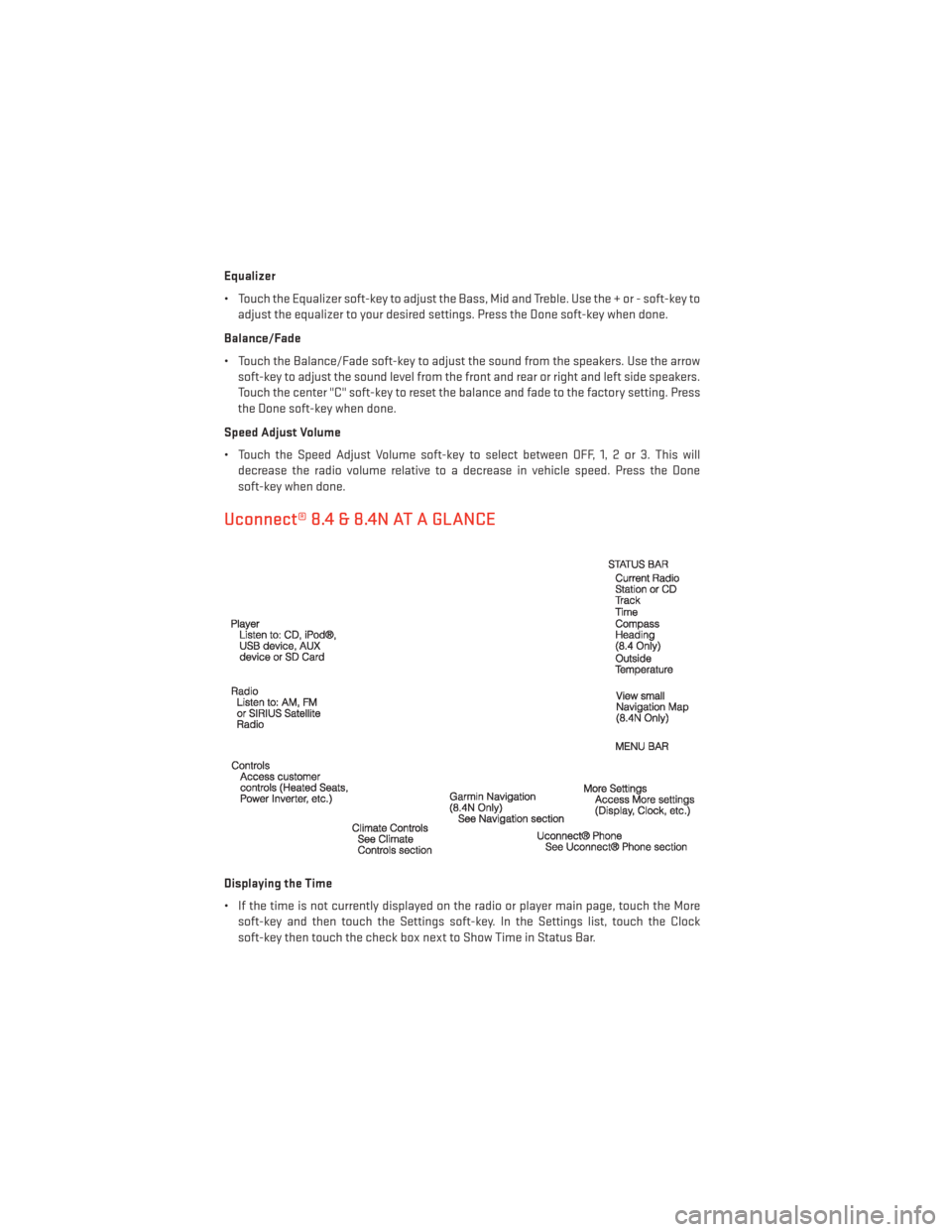
Uconnect® 8.4 & 8.4N AT A GLANCE
Displaying the Time
• If the time is not currently displayed on the radio or player main page, touch the Moresoft-key and then touch the Settings soft-key. In the Settings list, touch the Clock
soft-key then touch the check box next to Show Time in Status Bar.
ELECTRONICS
42
Page 45 of 132
Setting the Time
• Model 8.4N synchronizes time automatically via GPS, so should not require any timeadjustment. If you do need to set the time manually, follow the instructions below for
Model 8.4.
• For Model 8.4, turn the unit on, then touch the time display at the top of the screen. Touch Yes.
• If the time is not displayed at the top of the screen, touch More soft-key and then Settings soft-key. In the Settings screen, touch the Clock soft-key, then check or uncheck this
option.
• Touch + or – next to Set Time Hours and Set Time Minutes to adjust the time.
• If these features are not available, uncheck the Sync with GPS box.
• Touch X to save your settings and exit out of the Clock Setting screen.
Audio Settings
• Touch the Audio soft-key to activate the Audio settings screen to adjust Balance\Fade, Equalizer, and Speed Adjusted Volume.
• You can return to the Radio screen by touching the X located at the top right.
Balance/Fade
• Touch the Balance/Fade soft-key to Balance audio between the front speakers or fade the audio between the rear and front speakers.
• Touching the Front, Rear, Left, or Right soft-keys or touch and drag the red Speaker Icon to adjust the Balance/Fade.
Equalizer
• Touch the Equalizer soft-key to activate the Equalizer screen.
• Touch the + or - soft-keys, or by touching and dragging over the level bar for each of the equalizer bands. The level value, which spans between ±9, is displayed at the bottom of
each of the Bands.
Speed Adjusted Volume
• Touch the Speed Adjusted Volume soft-key to activate the Speed Adjusted Volume screen. The Speed Adjusted Volume is adjusted by touching the + and - buttons or by
touching and dragging over the level bar. This alters the automatic adjustment of the
audio volume with variation to vehicle speed.
ELECTRONICS
43
Page 48 of 132
Selecting SiriusXM Satellite Channels
Seek Up/Seek Down
• Touch the Seek arrow soft-keys for less than two seconds to seek through channels inSAT mode.
• Touch and hold either arrow soft-key for more than two seconds to bypass channels without stopping. The radio will stop at the next listenable channel once the arrow
soft-key is released.
Direct Tune
• Tune directly to a SAT channel by pressing the “Tune” button on the screen, and entering the desired station number.
Info (4.3S Only)
• Provides detailed information about the current SiriusXM Satellite Radio channel.
More... (4.3S Only)
• Access more menus: Audio, Favorites, Game Zone, and Replay.
Jump (8.4 & 8.4N Only)
• Automatically tells you when Traffic & Weather for a favorite city is available, and gives you the option to switch to that channel. Touch Jump to activate the feature. After
listening to Traffic and Weather, touch Jump again to return to the previous channel.
Fav (8.4 & 8.4N Only)
• Activates the favorites menu. You can add up to 50 favorite artists or songs. Just touch Add Fav Artist or Add Fav Song while the song is playing. You will then be alerted any time
one of these songs, or works by these artists, is playing on other SiriusXM Satellite Radio
channels.
SiriusXM Parental Controls
• You can skip or hide certain channels from view if you do not want access to them. Press the Settings hard-key (4.3S) or touch the More soft-key, then the Settings soft-key (8.4 &
8.4N), next touch the SiriusXM Satellite Radio Setup soft-key, then select Channel Skip.
Touch the channel(s) to be skipped (4.3S) or touch the box, check-mark, next to the
channel you want skipped (8.4 & 8.4N). They will not show up in normal usage.
• SiriusXM Satellite Radio also offers the option to permanently block selected channels. Call 1-888-539-7474 and request the Family Package.
Browse
• Lets you browse the SiriusXM Satellite Radio channel listing, Favorites, Genres, Game Zone, and Weather channels. Jump setting, and also provides the SiriusXM Satellite
Radio channel list. Browse contains many sub-menus.
ELECTRONICS
46
Page 67 of 132
Uconnect® 4.3 Customer Programmable Features
•
The Uconnect® 4.3 system allows you to access Customer Programmable feature settings
such as Display, Clock, Safety/Assistance, Lights, Doors & Locks, Heated Seats, Engine
Off Operation, Compass Settings, Audio, Phone/Bluetooth and SiriusXM Setup through
hard-keys and soft-keys.
• Press the Settings hard-key to on the right side of the unit to access the Settings screen, use the Page Up/Down soft-keys to scroll through the following settings. The following
feature settings are available:
• Display • Clock
• Safety / Assistance • Doors & Locks
• Heated Seats • Engine Off Options
• Compass Settings • Audio
• Phone / Bluetooth • SiriusXM Setup
• Auto-On Comfort & Remote Start • Lights
Uconnect® 8.4 Customer Programmable Features
• The Uconnect® 8.4 system allows you to access Customer Programmable feature set- tings such as Display, Clock, Safety/Assistance, Lights, Doors & Locks, Heated Seats,
Engine Off Operation, Compass Settings, Audio, Phone/Bluetooth and SiriusXM Setup
through soft-keys.
• Touch the More soft-key on the bottom of the screen, then touch the Settings soft-key to access the Settings screen. When making a selection, scroll up or down until the
preferred setting is highlighted, then press and release the preferred setting until a
check-mark appears next to the setting, showing that setting has been selected. The
following feature settings are available:
• Display • Clock
• Safety / Assistance • Doors & Locks
• Auto-On Comfort & Remote Start • Engine Off Options
• Compass Settings • Audio
• Phone / Bluetooth • SiriusXM Setup
ELECTRONICS
65
Page 70 of 132
Using HomeLink®
•
To operate, press and release the programmed HomeLink® button. Activation will now
occur for the programmed device (i.e., garage door opener, gate operator, security system,
entry door lock, home/office lighting, etc.,). The hand-held transmitter of the device may
also be used at any time.
WARNING!
• Your motorized door or gate will open and close while you are programming the
universal transceiver. Do not program the transceiver if people or pets are in the path
of the door or gate.
• Do not run your vehicle in a closed garage or confined area while programming the
transceiver. Exhaust gas from your vehicle contains Carbon Monoxide (CO) which is
odorless and colorless. Carbon Monoxide is poisonous when inhaled and can cause
you and others to be severely injured or killed.
POWER OUTLET
• There are three 12 Volt electrical outletson this vehicle.
• The front 12 Volt power outlet has power available only when the ignition is placed
in the ACC or RUN position.
• The center console outlet is powered di- rectly from the battery (power available at
all times). Items plugged into this outlet
may discharge the battery and/or prevent
the engine from starting.
• There is also a 12 volt power outlet located on the back of the center console for rear passengers. This power outlet has power
available only when the ignition is placed in the ACC or RUN position.
ELECTRONICS
68
Page 80 of 132
BRAKE- Brake Warning Light
• The Brake Warning light illuminates when there is either a system malfunction or the parking brake is applied. If the light is on and the parking brake is not applied, it indicates
a possible brake hydraulic malfunction, brake booster problem or an Anti-Lock Brake
System problem.
• Please have your vehicle serviced immediately.
WARNING!
Driving a vehicle with the red brake light on is dangerous. Part of the brake system may
have failed. It will take longer to stop the vehicle. You could have a collision. Have the
vehicle checked immediately.
- Malfunction Indicator Light (MIL)
• Certain conditions, such as a poor fuel quality, etc., may illuminate the MIL after engine start. The vehicle should be serviced if the light stays on through several typical driving
cycles. In most situations, the vehicle will drive normally and not require towing.
• If the MIL flashes when the engine is running, serious conditions may exist that could lead to immediate loss of power or severe catalytic converter damage. We recommend
you do not operate the vehicle. Have the vehicle serviced immediately.
- Electronic Stability Control (ESC) OFF Indicator Light
• This light indicates the Electronic Stability Control (ESC) is off.
- Charging System Light
•
This light shows the status of the electrical charging system. If the charging system light
remains on, it means that the vehicle is experiencing a problem with the charging system.
• We recommend you do not continue driving if the charging system light is on. Have the vehicle serviced immediately.
- Oil Pressure Warning Light
• This light indicates low engine oil pressure. If the light turns on while driving, stop the vehicle and shut off the engine as soon as possible. A chime will sound when this light
turns on.
• We recommend you do not operate the vehicle or engine damage will occur. Have the vehicle serviced immediately.
- Anti-Lock Brake (ABS) Light
• This light monitors the Anti-Lock Brake System (ABS).
• If the light is not on during starting, stays on, or turns on while driving, we recommend you drive to the nearest service center and have the vehicle serviced immediately.
WHAT TO DO IN EMERGENCIES
78