ESP DODGE CHARGER 2015 7.G Owner's Manual
[x] Cancel search | Manufacturer: DODGE, Model Year: 2015, Model line: CHARGER, Model: DODGE CHARGER 2015 7.GPages: 638, PDF Size: 16.56 MB
Page 231 of 638
WARNING!
Drivers must be careful when backing up even when
using the ParkView® Rear Back Up Camera. Always
check carefully behind your vehicle, and be sure to
check for pedestrians, animals, other vehicles, ob-
structions, or blind spots before backing up. You are
responsible for the safety of your surroundings and
must continue to pay attention while backing up.
Failure to do so can result in serious injury or death.
CAUTION!
•To avoid vehicle damage, ParkView® should only
be used as a parking aid. The ParkView® camera is
unable to view every obstacle or object in your
drive path.
(Continued)
CAUTION!(Continued)
•To avoid vehicle damage, the vehicle must be
driven slowly when using ParkView® to be able to
stop in time when an obstacle is seen. It is recom-
mended that the driver look frequently over his/her
shoulder when using ParkView®.
NOTE:If snow, ice, mud, or any foreign substance builds
up on the camera lens, clean the lens, rinse with water,
and dry with a soft cloth. Do not cover the lens.
3
UNDERSTANDING THE FEATURES OF YOUR VEHICLE 229
Page 242 of 638
WARNING!
•Vehicle exhaust contains carbon monoxide, a dan-
gerous gas. Do not run your vehicle in the garage
while programming the transceiver. Exhaust gas
can cause serious injury or death.
•Your motorized door or gate will open and close
while you are programming the universal trans-
ceiver. Do not program the transceiver if people,
pets or other objects are in the path of the door or
gate. Only use this transceiver with a garage door
opener that has a “stop and reverse” feature as
required by Federal safety standards. This includes
most garage door opener models manufactured
after 1982. Do not use a garage door opener without
these safety features. Call toll-free 1-800-355-3515
or, on the Internet at HomeLink.com for safety
information or assistance.
General Information
This device complies with FCC rules Part 15 and Industry
Canada RSS-210. Operation is subject to the following
two conditions:
1. This device may not cause harmful interference.
2. This device must accept any interference that may be
received including interference that may cause unde-
sired operation.
NOTE:
•The transmitter has been tested and it complies with FCC
and IC rules. Changes or modifications not expressly
approved by the party responsible for compliance could
void the user ’s authority to operate the device.
•The term IC before the certification/registration num-
ber only signifies that Industry Canada technical speci-
fications were met.
240 UNDERSTANDING THE FEATURES OF YOUR VEHICLE
Page 268 of 638
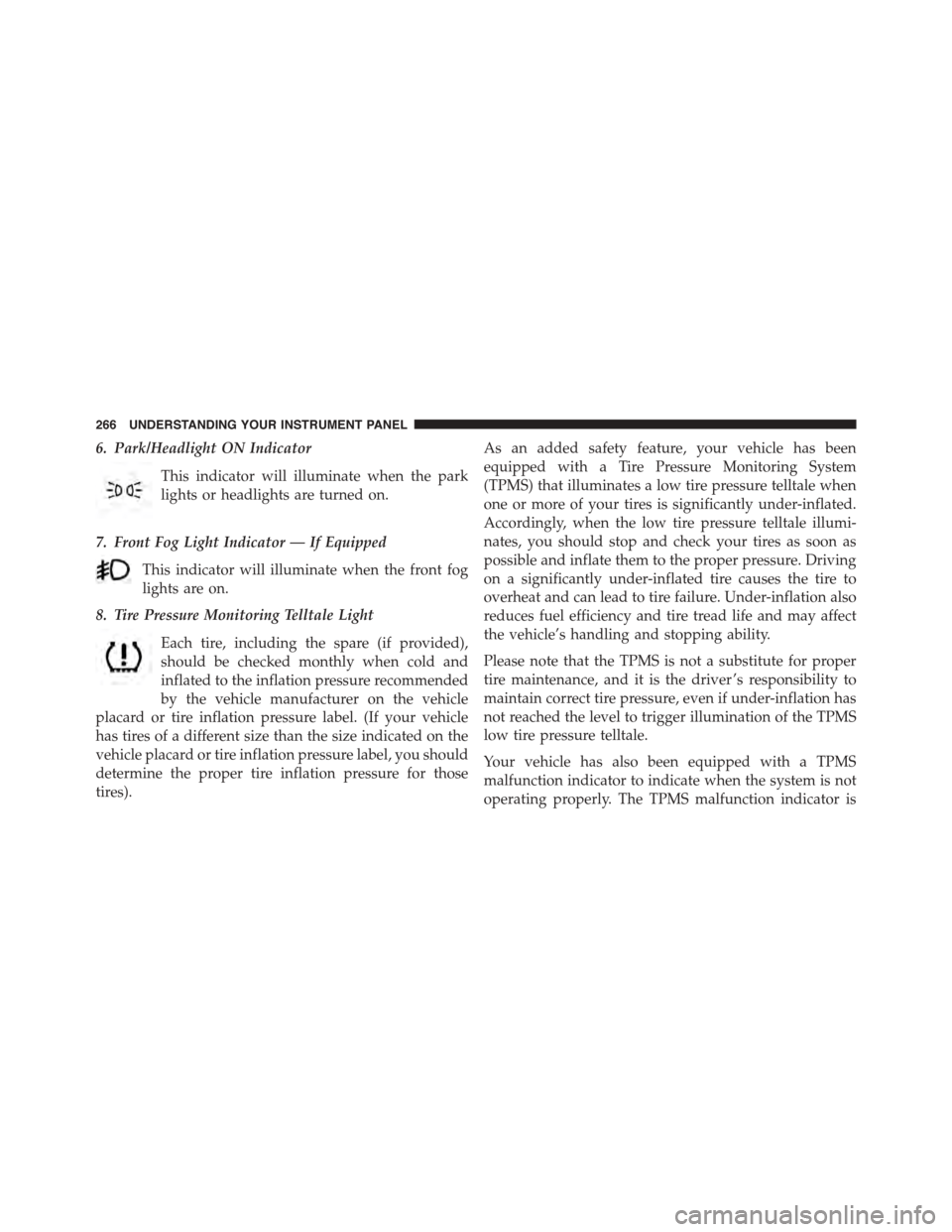
6. Park/Headlight ON Indicator
This indicator will illuminate when the park
lights or headlights are turned on.
7. Front Fog Light Indicator — If Equipped
This indicator will illuminate when the front fog
lights are on.
8. Tire Pressure Monitoring Telltale Light
Each tire, including the spare (if provided),
should be checked monthly when cold and
inflated to the inflation pressure recommended
by the vehicle manufacturer on the vehicle
placard or tire inflation pressure label. (If your vehicle
has tires of a different size than the size indicated on the
vehicle placard or tire inflation pressure label, you should
determine the proper tire inflation pressure for those
tires).
As an added safety feature, your vehicle has been
equipped with a Tire Pressure Monitoring System
(TPMS) that illuminates a low tire pressure telltale when
one or more of your tires is significantly under-inflated.
Accordingly, when the low tire pressure telltale illumi-
nates, you should stop and check your tires as soon as
possible and inflate them to the proper pressure. Driving
on a significantly under-inflated tire causes the tire to
overheat and can lead to tire failure. Under-inflation also
reduces fuel efficiency and tire tread life and may affect
the vehicle’s handling and stopping ability.
Please note that the TPMS is not a substitute for proper
tire maintenance, and it is the driver ’s responsibility to
maintain correct tire pressure, even if under-inflation has
not reached the level to trigger illumination of the TPMS
low tire pressure telltale.
Your vehicle has also been equipped with a TPMS
malfunction indicator to indicate when the system is not
operating properly. The TPMS malfunction indicator is
266 UNDERSTANDING YOUR INSTRUMENT PANEL
Page 281 of 638
NOTE:
•Even if power steering assistance is no longer opera-
tional, it is still possible to steer the vehicle. Under
these conditions there will be a substantial increase in
steering effort, especially at very low vehicle speeds
and during parking maneuvers.
•If the condition persists, see your authorized dealer for
service.
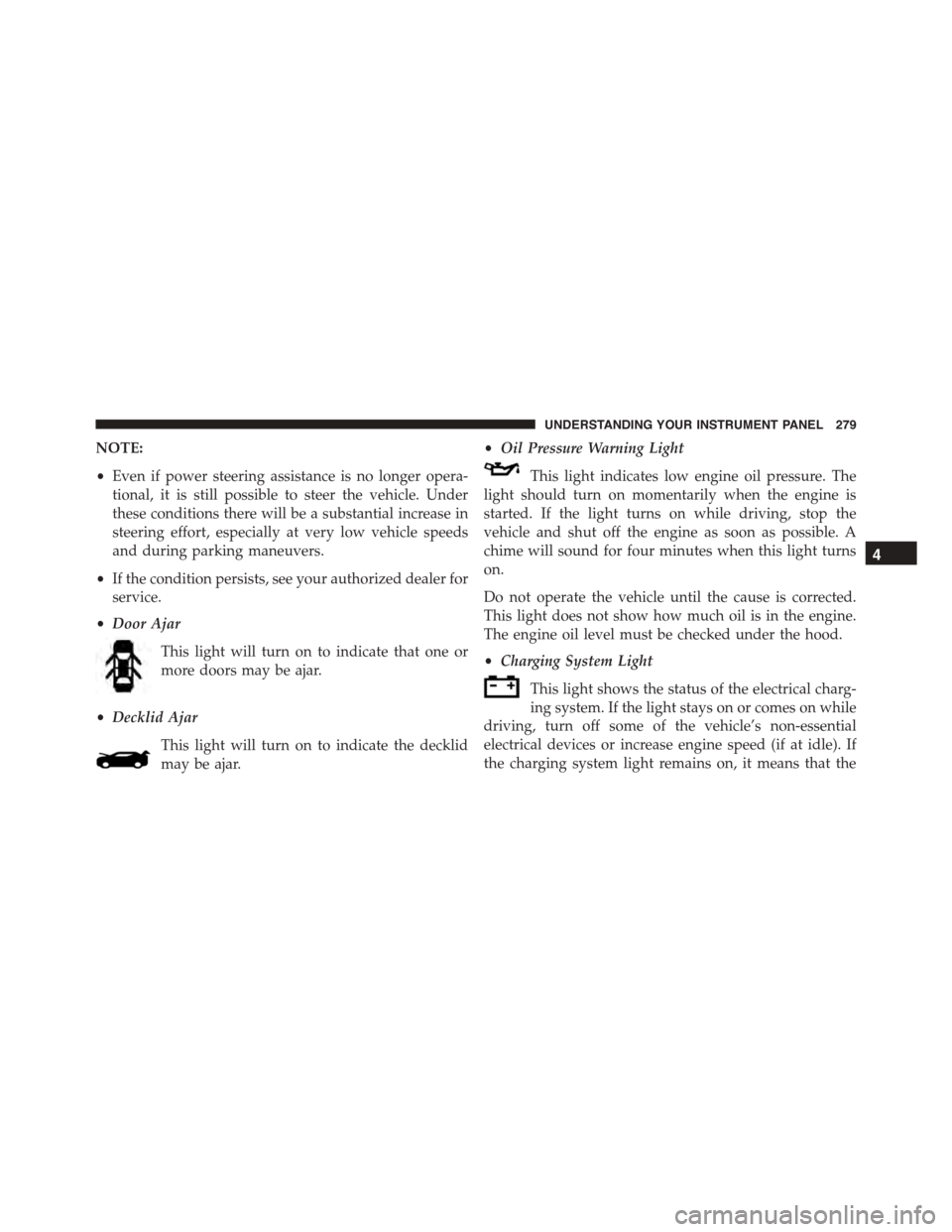
•Door Ajar
This light will turn on to indicate that one or
more doors may be ajar.
•Decklid Ajar
This light will turn on to indicate the decklid
may be ajar.
•Oil Pressure Warning Light
This light indicates low engine oil pressure. The
light should turn on momentarily when the engine is
started. If the light turns on while driving, stop the
vehicle and shut off the engine as soon as possible. A
chime will sound for four minutes when this light turns
on.
Do not operate the vehicle until the cause is corrected.
This light does not show how much oil is in the engine.
The engine oil level must be checked under the hood.
•Charging System Light
This light shows the status of the electrical charg-
ing system. If the light stays on or comes on while
driving, turn off some of the vehicle’s non-essential
electrical devices or increase engine speed (if at idle). If
the charging system light remains on, it means that the
4
UNDERSTANDING YOUR INSTRUMENT PANEL 279
Page 291 of 638
The ACC screen may display once again if any ACC
activity occurs, which may include any of the following:
•Distance Setting Change
•System Cancel
•Driver Override
•System Off
•ACC Proximity Warning
•ACC Unavailable Warning
•The DID will return to the last display selected after
five seconds of no ACC display activity.
For further information, refer to “Adaptive Cruise Con-
trol (ACC) — If Equipped” in “Understanding The
Features Of Your Vehicle.”
LaneSense — If Equipped
The DID displays the current LaneSense system settings.
The information displayed depends on LaneSense sys-
tem status and the conditions that need to be met. For
further information, refer to “LaneSense — If Equipped”
in “Understanding The Features Of Your Vehicle.”
Fuel Economy
Push and release the UP or DOWN arrow button until
the Fuel Economy Menu item is highlighted in the DID.
•Two sub menu pages one with Current value dis-
played and one without the Current Value displayed:
– Current MPG (or L/100 km)
– Range (miles or km)
– Average MPG (or L/100 km)
– The Max and Min values will correspond to the
particular engine requirements
4
UNDERSTANDING YOUR INSTRUMENT PANEL 289
Page 293 of 638
Performance Shift Indicator (PSI) – If Equipped
The Performance Shift Indicator (PSI) is enabled on
vehicles with manual transmission, or when a vehicle
with automatic transmission is in manual shift mode. The
PSI provides the driver with a visual indication within
the DID display when the driver configured gear shift
point has been reached and the driver is still accelerating.
This indication notifies the driver to change gear corre-
sponding to the configured RPMs in the head unit. When
the shift up indicator is shown on the display, the PSI is
advising the driver to engage a higher gear.
The PSI indicator in the DID display remains illuminated
until the driver changes gear, or the driving conditions
return to a situation where changing gear is not required,
corresponding to the configured RPMs in the head unit.
Uconnect® SETTINGS
The Uconnect® system uses a combination of buttons on
the touchscreen and buttons on the faceplate located on
the center of the instrument panel that allows you to
access and change the customer programmable features.
CAUTION!
Do NOT attach any object to the touchscreen, doing
so can result in damage to the touchscreen.
4
UNDERSTANDING YOUR INSTRUMENT PANEL 291
Page 296 of 638
When making a selection, press the button on the touch-
screen to enter the desired mode. Once in the desired mode,
select the preferred setting. Once the setting is complete,
either press the Back Arrow/Done button on the touch-
screen or the Back button on the faceplate to return to the
previous menu or press the “X” button on the touchscreen to
close out of the settings screen. Pressing the Up or Down
Arrow buttons on the right side of the screen will allow you
to toggle up or down through the available settings.
Display
After pressing the “Display” button on the touchscreen
the following settings will be available:
•Display Mode
When in this display you may select the Auto or Manual
display settings. To change Mode status, press and re-
lease the “Auto” or “Manual” button on the touchscreen.
Press the back arrow/Done button on the touchscreen to
return to the previous menu.
•Set Language
When in this display, you may select one of multiple
languages (English/Français/Español) for all display no-
menclature, including the trip functions and the naviga-
tion system (if equipped). Press the “Language” button
on the touchscreen and select from “English,” “Français,”
or “Español.” Press the back arrow/Done button on the
touchscreen to return to the previous menu.
•Touchscreen Beep
When in this display, you may turn on or shut off the
sound heard when a touchscreen button is pressed. To
change the Mode status, press and release the “On” or
“Off” button on the touchscreen. Press the back arrow/
Done button on the touchscreen to return to the previous
menu.
294 UNDERSTANDING YOUR INSTRUMENT PANEL
Page 297 of 638
Units
After pressing the “Units” button on the touchscreen you
may select each unit of measure independently displayed
in the Driver Information Display (DID), and navigation
system (if equipped). The following selectable units of
measure are listed below:
•Speed
Select from: “MPH” or “km/h.”
•Distance
Select from: “mi” or “km.”
•Fuel Consumption
Select from: “MPG” (US), “MPG” (UK), “L/100 km” or
“km/L.”
•Pressure
Select from: “psi,” “kPa,” or “bar.”
•Temperature
Select from: “°C,” or “°F.”
•Power
Select from: “HP” (US), “HP” (UK), and “kW.”
•Torque
Select from: “lb-ft” or “Nm.”
After the desired setting has been selected, press the back
arrow/Done button on the touchscreen to return to the
previous menu.
Voice
After pressing the “Voice” button on the touchscreen the
following settings will be available:
•Voice Response Length
When in this display, you may change the Voice Re-
sponse Length settings. To change mode status, press and
4
UNDERSTANDING YOUR INSTRUMENT PANEL 295
Page 298 of 638
release the “Brief” or “Long” button on the touchscreen.
Press the back arrow/Done button on the touchscreen to
return to the previous menu.
•Show Command List
When in this display, you may change the Show Com-
mand List settings. To change the mode status, press and
release the “Always,” “With Help,” or “Never” button on
the touchscreen. Press the back arrow/Done button on
the touchscreen to return to the previous menu.
Clock & Date
After pressing the “Clock & Date” button on the touch-
screen the following settings will be available:
•Set Time
When in this display, you may set the time and format
manually. Press the “Set Time” button then choose from
a 12 hour or 24 hour format. Press the corresponding
arrow above and below the current time to adjust, then
select “AM” or “PM.” Press the back arrow/Done button
on the touchscreen to return to the previous menu.
•Show Time Status
When in this display, you may turn on or shut off the
digital clock in the status bar. To change the Show Time
Status setting press the “Show Time Status” button on the
touchscreen and select from “ON” or “OFF.” Press the
back arrow/Done button on the touchscreen to return to
the previous menu.
•Set Date
When in this display, you may set the date manually.
Press the “Set Date” button on the touchscreen then press
the corresponding arrows above and below the current
date to adjust. Press the back arrow/Done button on the
touchscreen to return to the previous menu.
296 UNDERSTANDING YOUR INSTRUMENT PANEL
Page 313 of 638
point on the scale between the “+” and “–” buttons on the
touchscreen. Then press the back arrow button on the
touchscreen.
NOTE:To make changes to the#Display Brightness with
Headlights ON#setting, the headlights must be on and
the interior dimmer switch must not be in the#party#or
#parade#positions.
•Display Brightness With Headlights OFF
When in this display, you may select the brightness with
the headlights off. Adjust the brightness with the “+” and
“–” setting buttons on the touchscreen or by selecting any
point on the scale between the “+” and “–” buttons on the
touchscreen. Then press the back arrow button on the
touchscreen.
NOTE:To make changes to the#Display Brightness with
Headlights OFF#setting, the headlights must be off and
the interior dimmer switch must not be in the#party#or
#parade#positions.
•Set Theme — If Equipped
This feature will allow you to choose a theme for the
display screen. The theme will change the background
color, highlight color, and button color of the display
screen.
•Set Language
When in this display, you may select one of multiple
languages (English / Français / Español) for all display
nomenclature, including the trip functions and the naviga-
tion system (if equipped). Press the Set Language button on
the touchscreen, then press the desired language button on
the touchscreen until a check-mark appears next to the
language, showing that setting has been selected. Press the
back arrow button on the touchscreen to return to the
previous menu.
4
UNDERSTANDING YOUR INSTRUMENT PANEL 311