change time DODGE CHARGER 2015 7.G Owner's Manual
[x] Cancel search | Manufacturer: DODGE, Model Year: 2015, Model line: CHARGER, Model: DODGE CHARGER 2015 7.GPages: 638, PDF Size: 16.56 MB
Page 306 of 638
Auto Comfort Systems — If Equipped
After pressing the “Auto-On Comfort & Remote Start”
button on the touchscreen the following settings will be
available:
•Auto-On Driver Heated/Ventilated Seat & Steering
Wheel With Vehicle Start — If Equipped
When this feature is selected the driver’s heated seat and
heated steering wheel will automatically turn ON when
temperatures are below 40° F (4.4° C). When tempera-
tures are above 80° F (26.7° C) the driver vented seat will
turn ON. To make your selection, press the “Auto Heated
Seats” button on the touchscreen then select either “Off,”
“Remote Start” or “All Starts.” Press the back arrow/
Done button on the touchscreen to return to the previous
menu.
Engine Off Options
After pressing the “Engine Off Options” button on the
touchscreen the following settings will be available.
•Headlight Off Delay
When this feature is selected, the driver can choose to
have the headlights remain on for 0, 30, 60, or 90 seconds
when exiting the vehicle. To change the Headlight Off
Delay status press the “Headlight Off Delay” button on
the touchscreen and select from “0,” “30,” “60,” or “90”
buttons on the touchscreen to select your desired time
interval. Press the back arrow/Done button on the touch-
screen to return to the previous menu.
•Engine Off Power Delay
When this feature is selected, the power window
switches, radio, Uconnect® phone system (if equipped),
DVD video system (if equipped), power sunroof (if
equipped), and power outlets will remain active for up to
304 UNDERSTANDING YOUR INSTRUMENT PANEL
Page 312 of 638
Engine Off Options, Audio, Phone/Bluetooth®, Siri-
usXM Setup, Restore Settings, Clear Personal Data and
System Information.
NOTE:
•Only one touchscreen area may be selected at a time.
•Depending on the vehicles options, feature settings
may vary.
When making a selection, press the button on the touch-
screen to enter the desired mode. Once in the desired
mode, press and release the preferred setting until a
check-mark appears next to the setting, showing that
setting has been selected. Once the setting is complete,
either press the Back Arrow button on the touchscreen to
return to the previous menu, or press the “X” button on
the touchscreen to close out of the settings screen. Press-
ing the Up or Down Arrow button on the right side of the
screen will allow you to toggle up or down through the
available settings.
Display
After pressing the “Display” button on the touchscreen
the following settings will be available:
•Display Mode
When in this display you may select one of the auto
display settings. To change Mode status, press and re-
lease the “Manual” or “Auto” button on the touchscreen.
Then press the back arrow button on the touchscreen.
NOTE:When Day or Night is selected for the Display
Mode, the usage of the Parade Mode feature will cause
the radio to activate the Display Brightness Day control
even though the headlights are on.
•Display Brightness With Headlights ON
When in this display, you may select the brightness with
the headlights on. Adjust the brightness with the “+” and
“–” setting buttons on the touchscreen or by selecting any
310 UNDERSTANDING YOUR INSTRUMENT PANEL
Page 316 of 638
settings, press the “Always,” “With Help” or “Never”
button on the touchscreen until a check-mark appears
next to the setting, showing that setting has been se-
lected. Press the back arrow button on the touchscreen to
return to the previous menu.
Clock
After pressing the “Clock” button on the touchscreen the
following settings will be available:
•Sync Time With GPS
This feature will allow you to automatically have the
radio set the time. To change the Sync Time setting, press
the “Sync time with GPS” button on the touchscreen until
a check-mark appears next to the setting, showing that
setting has been selected. Press the back arrow button on
the touchscreen to return to the previous menu.
•Set Time Hours
This feature will allow you to adjust the hours. The “Sync
time with GPS” button on the touchscreen must be
unchecked. To make your selection, press the “+” or “–”
buttons on the touchscreen to adjust the hours up or
down. Press the back arrow button on the touchscreen to
return to the previous menu.
•Set Time Minutes
This feature will allow you to adjust the minutes. The
“Sync time with GPS” button on the touchscreen must be
unchecked. To make your selection, press the “+” or “–”
buttons on the touchscreen to adjust the minutes up or
down. Press the back arrow button on the touchscreen to
return to the previous menu.
314 UNDERSTANDING YOUR INSTRUMENT PANEL
Page 317 of 638
•Time Format
This feature will allow you to select the time format
display setting. Press the “Time Format” button on the
touchscreen until a check-mark appears next to the 12hrs
or 24hrs setting, showing that setting has been selected.
Press the back arrow button on the touchscreen to return
to the previous menu.
•Show Time In Status Bar — If Equipped
This feature will allow you to turn on or shut off the
digital clock in the status bar. To change the Show Time
Status setting press the “Show Time in Status Bar” button
on the touchscreen until a check-mark appears next to
setting, indicating that the setting has been selected. Press
the back arrow button on the touchscreen to return to the
previous menu or press the “X” button on the touch-
screen to close out of the settings screen.
Safety & Driving Assistance
After pressing the “Safety & Driving Assistance” button
on the touchscreen the following settings will be avail-
able:
•Forward Collision Warning — If Equipped
The Front Collision Warning (FCW) feature provides an
audible and/or visual warning to potential forward
collisions. The feature can be can be set to Far, or set to
Near. The default status of FCW is the Far setting. This
means the system will warn you of a possible collision
with the vehicle in front of you when you are farther
away. This gives you the most reaction time. To change
the setting for more dynamic driving, select the Near
setting. This warns you of a possible collision when you
are much closer to the vehicle in front of you. To change
the FCW status, press and release the “Near” or “Far”
button. Then press the back arrow button on the touch-
screen.
4
UNDERSTANDING YOUR INSTRUMENT PANEL 315
Page 322 of 638
•Rain Sensing Auto Wipers
When this feature is selected, the system will automati-
cally activate the windshield wipers if it senses moisture
on the windshield. To make your selection, press the
“Rain Sensing Auto Wipers” button on the touchscreen,
until a check-mark appears next to setting, indicating that
the setting had been selected. Press the back arrow button
on the touchscreen to return to the previous menu.
•Hill Start Assist — If Equipped
When this feature is selected, the Hill Start Assist (HSA)
system is active. Refer to “Electronic Brake Control
System” in “Starting And Operating” for system function
and operating information. To make your selection, press
the “Hill Start Assist” button on the touchscreen, until a
check-mark appears next to setting, indicating that the
setting had been selected. Press the back arrow button on
the touchscreen to return to the previous menu.
Lights
After pressing the “Lights” button on the touchscreen the
following settings will be available.
•Headlight Off Delay
When this feature is selected, it allows adjustment of the
amount of time the headlights remain on after the engine
is shut off. To change the Headlights Off Delay setting,
press the “+” or “-” button on the touchscreen to select
your desired time interval, and choose either 0 sec, 30 sec,
60 sec or 90 seconds. Press the back arrow button on the
touchscreen to return to the previous menu, or push the
back button on the faceplate.
•Headlight Illumination On Approach
When this feature is selected, the headlights will activate
and remain on for 0, 30, 60, or 90 seconds when the doors
are unlocked with the Remote Keyless Entry (RKE)
transmitter. To change the Illuminated Approach status,
320 UNDERSTANDING YOUR INSTRUMENT PANEL
Page 328 of 638
•Engine Off Power Delay
When this feature is selected, the power window
switches, radio, Uconnect® Phone system (if equipped),
DVD video system (if equipped), power sunroof (if
equipped), and power outlets will remain active for up to
10 minutes after the ignition is cycled to OFF. Opening
either front door will cancel this feature. To change the
Engine Off Power Delay setting, press the “+” or “-”
button on the touchscreen to select your desired time
interval, and choose from “0 seconds,” “45 seconds,” “5
minutes” or “10 minutes.” Press the back arrow button
on the touchscreen to return to the previous menu.
•Headlight Off Delay
When this feature is selected, the driver can choose to have
the headlights remain on for 0, 30, 60, or 90 seconds when
exiting the vehicle. To change the Headlight Off Delay
status press the “+” or “–” button on the touchscreen to
select your desired time interval. Press the back arrow
button on the touchscreen to return to the previous menu.
Audio
After pressing the “Audio” button on the touchscreen the
following settings will be available.
•Balance/Fade
This feature allows you to adjust the Balance and Fade
settings. Press and drag the speaker icon, use the arrows
to adjust, or tap the ‘C’ icon to readjust to the center. Press
the back arrow button on the touchscreen to return to the
previous menu.
•Equalizer
This feature allows you to adjust the Bass, Mid and Treble
settings. Adjust the settings with the “+” and “–” setting
buttons on the touchscreen or by selecting any point on
326 UNDERSTANDING YOUR INSTRUMENT PANEL
Page 356 of 638
4. Front Defrost Button
Push and release to change the current airflow setting to
Defrost mode. The indicator illuminates when this fea-
ture is ON. Air comes from the windshield and side
window demist outlets. When the defrost button is
selected, the blower level will increase. Use Defrost mode
with maximum temperature settings for best windshield
and side window defrosting and defogging.
5. Rear Defrost Button
Push and release this button to turn on the rear window
defroster and the heated outside mirrors (if equipped).
An indicator will illuminate when the rear window
defroster is on. The rear window defroster automatically
turns off after 10 minutes. For each additional push of
this button, five additional minutes will be added to the
timer function.
CAUTION!
Failure to follow these cautions can cause damage to
the heating elements:
•Use care when washing the inside of the rear
window. Do not use abrasive window cleaners on
the interior surface of the window. Use a soft cloth
and a mild washing solution, wiping parallel to the
heating elements. Labels can be peeled off after
soaking with warm water.
•Do not use scrapers, sharp instruments, or abrasive
window cleaners on the interior surface of the
window.
•Keep all objects a safe distance from the window.
354 UNDERSTANDING YOUR INSTRUMENT PANEL
Page 398 of 638
ENGINE START/STOP Button Functions — With
Driver ’s Foot OFF The Brake Pedal (In PARK Or
NEUTRAL Position)
The ENGINE START/STOP button operates similar to an
ignition switch. It has three positions, OFF, ACC, RUN.
To change the ignition switch positions without starting
the vehicle and use the accessories follow these steps:
1. Starting with the ignition in the OFF position:
2. Press the ENGINE START/STOP button once to
change the ignition to the ACC position.
3. Press the ENGINE START/STOP button a second time
to change the ignition to the RUN position.
4. Press the ENGINE START/STOP button a third time
to return the ignition to the OFF position.
Extreme Cold Weather (Below –20°F Or−29°C)
To ensure reliable starting at these temperatures, use of
an externally powered electric engine block heater (avail-
able from your authorized dealer) is recommended.
If Engine Fails To Start
WARNING!
•Never pour fuel or other flammable liquid into the
throttle body air inlet opening in an attempt to start
the vehicle. This could result in flash fire causing
serious personal injury.
(Continued)
396 STARTING AND OPERATING
Page 542 of 638
Change Engine Oil
The oil change indicator system will remind you that it is
time to take your vehicle in for scheduled maintenance.
Refer to the “Maintenance Schedule” for further informa-
tion.
NOTE: Under no circumstances should oil change in-
tervals exceed 10,000 miles (16,000 km) or twelve
months, whichever occurs first.
Engine Oil Selection
For best performance and maximum protection under all
types of operating conditions, the manufacturer only
recommends engine oils that are API Certified and meet
the requirements of Chrysler Material Standard MS-6395.
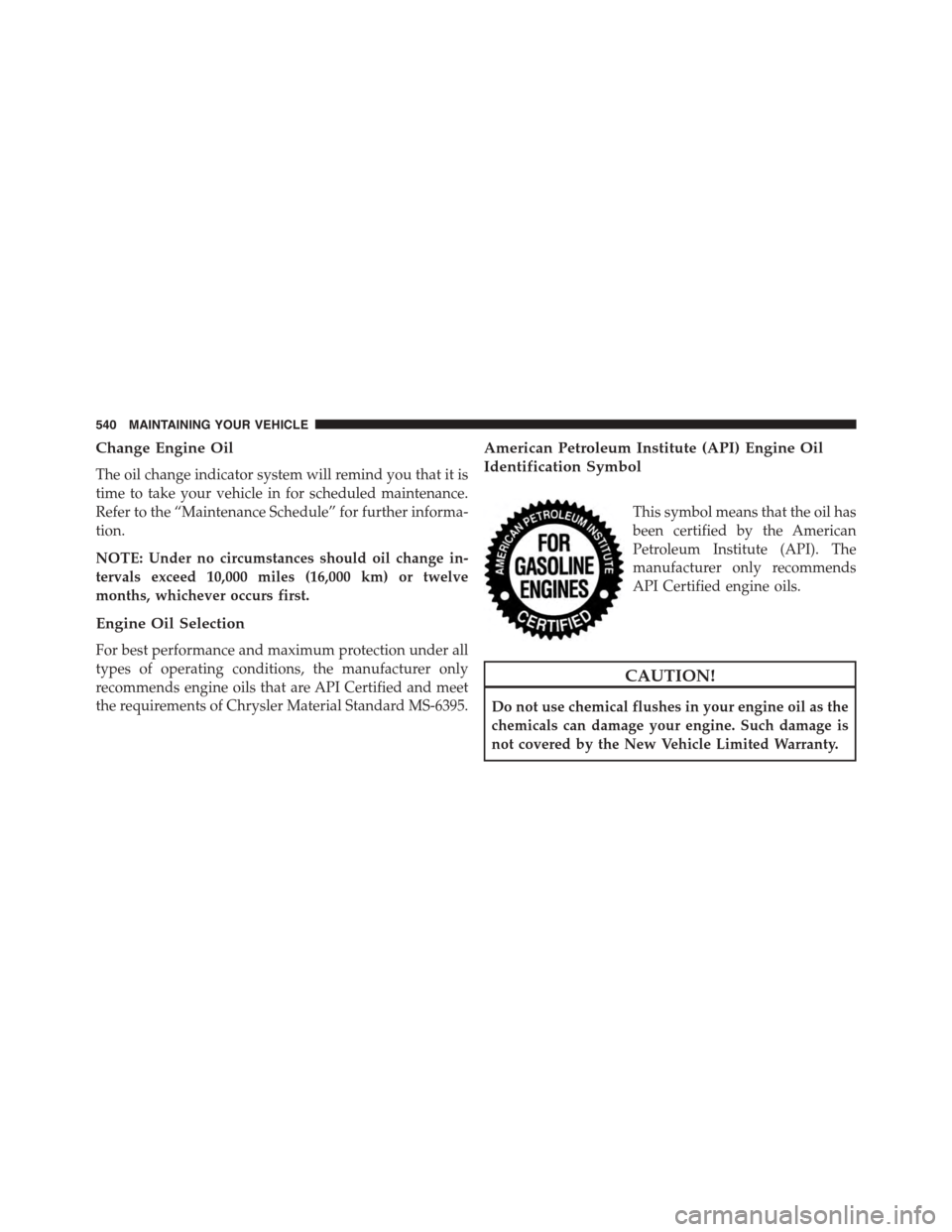
American Petroleum Institute (API) Engine Oil
Identification Symbol
This symbol means that the oil has
been certified by the American
Petroleum Institute (API). The
manufacturer only recommends
API Certified engine oils.
CAUTION!
Do not use chemical flushes in your engine oil as the
chemicals can damage your engine. Such damage is
not covered by the New Vehicle Limited Warranty.
540 MAINTAINING YOUR VEHICLE
Page 552 of 638
The fluid reservoir will hold nearly 1 gal (4 L) of washer
fluid when the message “Low Washer Fluid” appears in
the Driver Information Display (DID).
WARNING!
Commercially available windshield washer solvents
are flammable. They could ignite and burn you. Care
must be exercised when filling or working around
the washer solution.
Exhaust System
The best protection against carbon monoxide entry into
the vehicle body is a properly maintained engine exhaust
system.
If you notice a change in the sound of the exhaust system;
or if the exhaust fumes can be detected inside the vehicle;
or when the underside or rear of the vehicle is damaged;
have an authorized technician inspect the complete ex-
haust system and adjacent body areas for broken, dam-
aged, deteriorated, or mispositioned parts. Open seams
or loose connections could permit exhaust fumes to seep
into the passenger compartment. In addition, have the
exhaust system inspected each time the vehicle is raised
for lubrication or oil change. Replace as required.
WARNING!
•Exhaust gases can injure or kill. They contain
carbon monoxide (CO), which is colorless and
odorless. Breathing it can make you unconscious
and can eventually poison you. To avoid breathing
CO, refer to “Safety Tips/Exhaust Gas” in “Things
To Know Before Starting Your Vehicle” for further
information.
(Continued)
550 MAINTAINING YOUR VEHICLE