display DODGE CHARGER 2015 7.G Manual PDF
[x] Cancel search | Manufacturer: DODGE, Model Year: 2015, Model line: CHARGER, Model: DODGE CHARGER 2015 7.GPages: 638, PDF Size: 16.56 MB
Page 317 of 638
•Time Format
This feature will allow you to select the time format
display setting. Press the “Time Format” button on the
touchscreen until a check-mark appears next to the 12hrs
or 24hrs setting, showing that setting has been selected.
Press the back arrow button on the touchscreen to return
to the previous menu.
•Show Time In Status Bar — If Equipped
This feature will allow you to turn on or shut off the
digital clock in the status bar. To change the Show Time
Status setting press the “Show Time in Status Bar” button
on the touchscreen until a check-mark appears next to
setting, indicating that the setting has been selected. Press
the back arrow button on the touchscreen to return to the
previous menu or press the “X” button on the touch-
screen to close out of the settings screen.
Safety & Driving Assistance
After pressing the “Safety & Driving Assistance” button
on the touchscreen the following settings will be avail-
able:
•Forward Collision Warning — If Equipped
The Front Collision Warning (FCW) feature provides an
audible and/or visual warning to potential forward
collisions. The feature can be can be set to Far, or set to
Near. The default status of FCW is the Far setting. This
means the system will warn you of a possible collision
with the vehicle in front of you when you are farther
away. This gives you the most reaction time. To change
the setting for more dynamic driving, select the Near
setting. This warns you of a possible collision when you
are much closer to the vehicle in front of you. To change
the FCW status, press and release the “Near” or “Far”
button. Then press the back arrow button on the touch-
screen.
4
UNDERSTANDING YOUR INSTRUMENT PANEL 315
Page 319 of 638
•Power Steering — If Equipped
When your vehicle is not equipped with Performance
Control, the Steering Feel Options feature will allow you
to adjust the steering effort and feel. Press the “Sport”
button on the touchscreen to provide the greatest amount
of steering feel, requiring the highest amount of steering
effort. Press the “Normal” button on the touchscreen to
provide greater steering feel, requiring greater steering
effort. Press the “Comfort” button on the touchscreen to
provide a balance of steering feel and steering effort.
Press the back arrow button on the touchscreen to return
to the previous menu.
•ParkSense®
The ParkSense® system will scan for objects behind the
vehicle when the transmission shift lever is in REVERSE
and the vehicle speed is less than 11 mph (18 km/h). It
will provide an alert (audible and/or visual) to indicate
the proximity to other objects. The system can be enabled
with Sound Only, or Sound and Display. To change the
ParkSense® status, press and release the “Sound Only”
or “Sound and Display” button. Then press the back
arrow button on the touchscreen. Refer to “ParkSense®”
in “Understanding The Features Of Your Vehicle” for
system function and operating information.
•Front ParkSense® Volume
The Front ParkSense® Chime Volume settings can be
selected from the DID or Uconnect® System. The chime
volume settings include LOW, MEDIUM, and HIGH. The
factory default volume setting is MEDIUM. To make
your selection, press the “Front ParkSense® Vol.” button
on the touchscreen, until a check-mark appears next to
setting, indicating that the setting had been selected.
Press the back arrow button on the touchscreen to return
to the previous menu. ParkSense® will retain its last
known configuration state through ignition cycles.
4
UNDERSTANDING YOUR INSTRUMENT PANEL 317
Page 321 of 638
NOTE:If your vehicle has experienced any damage in
the area where the sensor is located, even if the fascia is
not damaged, the sensor may have become misaligned.
Take your vehicle to an authorized dealer to verify sensor
alignment. Having a sensor that is misaligned will result
in the BSM not operating to specification.
•ParkView® Backup Camera Active Guidelines
Your vehicle may be equipped with the ParkView® Rear
Back Up Camera Active Guidelines that allows you to see
active guidelines over the ParkView Back up camera
display whenever the shift lever is put into REVERSE.
The image will be displayed on the radio touchscreen
display along with a caution note to “check entire sur-
roundings” across the top of the screen. After five sec-
onds, this note will disappear. To make your selection,
press the “ParkView Backup Camera Active Guidelines”
button on the touchscreen, until a check-mark appears
next to setting, indicating that the setting had been
selected. Press the back arrow button on the touchscreen
to return to the previous menu.
•ParkView® Backup Camera Delay
When the vehicle is shifted out of REVERSE (with camera
delay turned OFF), the rear camera mode is exited and
the navigation or audio screen appears again. When the
vehicle is shifted out of REVERSE (with camera delay
turned ON), the rear view image with dynamic grid lines
will be displayed for up to 10 seconds after shifting out of
“REVERSE” unless the forward vehicle speed exceeds
8 mph (12 km/h), the transmission is shifted into
“PARK” or the ignition is switched to the OFF position.
To set the ParkView® Backup Camera Delay press the
“Controls” button on the touchscreen, the “settings”
button on the touchscreen, then the “Safety & Driving
Assistance” button on the touchscreen. Press the
“Parkview Backup Camera Delay” button on the touch-
screen to turn the ParkView® Delay ON or OFF.
4
UNDERSTANDING YOUR INSTRUMENT PANEL 319
Page 331 of 638
Press the “Subscription Info” button on the touchscreen
to access the Subscription Information screen.
Write down the SIRIUS ID numbers for your receiver. To
reactivate your service, either call the number listed on
the screen or visit the provider online.
NOTE:SiriusXM Travel Link is a separate subscription
and is available for U.S. residents only.
Restore Settings
After pressing the “Restore Settings” button on the
touchscreen the following settings will be available:
•Restore Settings
When this feature is selected it will reset the Display,
Clock, Audio, and Radio Settings to their default settings.
To restore the settings to their default setting, press the
Restore Settings button. A pop-up will appear asking
#Are you sure you want to reset your settings to default?”
select “Yes” to restore, or “Cancel” to exit. Once the
settings are restored, a pop up appears stating#settings
reset to default.#Press the okay button on the touchscreen
to exit.
Clear Personal Data
After pressing the “Clear Personal Data Settings” button
on the touchscreen the following settings will be avail-
able:
•Clear Personal Data
When this feature is selected it will remove personal data
including Bluetooth® devices and presets. To remove
personal information, press the “Clear Personal Data”
button and a pop-up will appear asking#Are you sure
you want to clear all personal data?” select “OK” to
Clear, or “Cancel” to exit. Once the data has been cleared,
a pop up appears stating#Personal data cleared”. Press
the back arrow button on the touchscreen to return to the
previous menu.
4
UNDERSTANDING YOUR INSTRUMENT PANEL 329
Page 332 of 638
System Information
After pressing the “System Information” button on the
touchscreen the following information will be available:
•System Information
When System Information is selected, a System Informa-
tion screen will appear displaying the system software
version.
Performance Pages — If Equipped
Performance Pages is an application that provides a
display for performance indicators, as received from the
Instrument Cluster, that will help you gain familiarity
with the capabilities of your vehicle in real-time.
To access the Performance Pages, press the “Apps”
button on the touchscreen then press the “Performance
Pages” button on the touchscreen. Press the desired
button on the touchscreen to access that specific Perfor-
mance Page.
WARNING!
Measurement of vehicle statistics with the Perfor-
mance Pages is intended for off-highway or off-road
use only and should not be done on any public
roadways. It is recommended that these features be
used in a controlled environment and within the
limits of the law. The capabilities of the vehicle as
measured by the Performance Pages must never be
exploited in a reckless or dangerous manner, which
can jeopardize the user ’s safety or the safety of
others. Only a safe, attentive, and skillful driver can
prevent accidents.
330 UNDERSTANDING YOUR INSTRUMENT PANEL
Page 334 of 638
•A left and right arrow to allow the user to scroll
through vehicle images.
•A short-cut to the Performance Control feature.
Timers
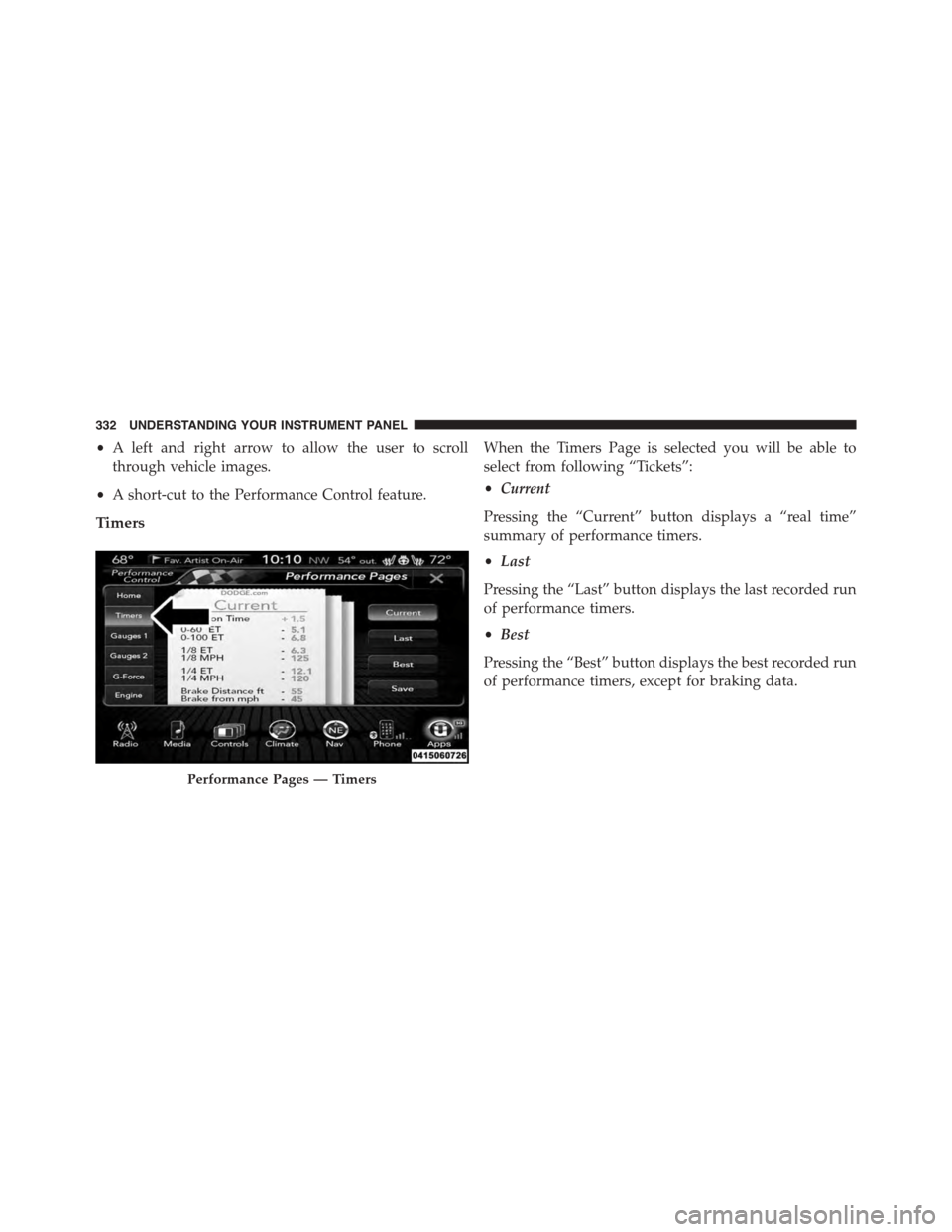
When the Timers Page is selected you will be able to
select from following “Tickets”:
•Current
Pressing the “Current” button displays a “real time”
summary of performance timers.
•Last
Pressing the “Last” button displays the last recorded run
of performance timers.
•Best
Pressing the “Best” button displays the best recorded run
of performance timers, except for braking data.
Performance Pages — Timers
332 UNDERSTANDING YOUR INSTRUMENT PANEL
Page 335 of 638
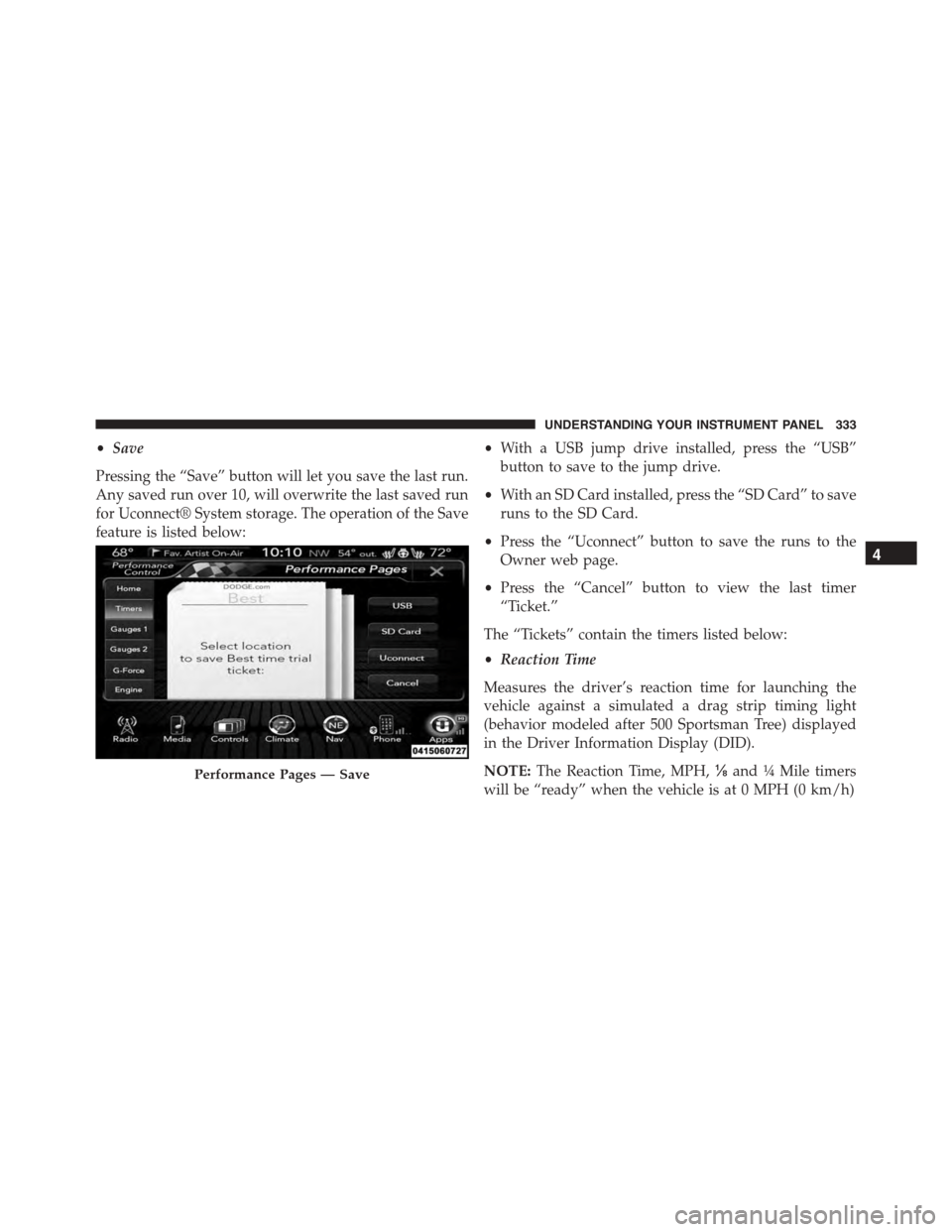
•Save
Pressing the “Save” button will let you save the last run.
Any saved run over 10, will overwrite the last saved run
for Uconnect® System storage. The operation of the Save
feature is listed below:
•With a USB jump drive installed, press the “USB”
button to save to the jump drive.
•With an SD Card installed, press the “SD Card” to save
runs to the SD Card.
•Press the “Uconnect” button to save the runs to the
Owner web page.
•Press the “Cancel” button to view the last timer
“Ticket.”
The “Tickets” contain the timers listed below:
•Reaction Time
Measures the driver’s reaction time for launching the
vehicle against a simulated a drag strip timing light
(behavior modeled after 500 Sportsman Tree) displayed
in the Driver Information Display (DID).
NOTE:The Reaction Time, MPH,⅛and¼Mile timers
will be “ready” when the vehicle is at 0 MPH (0 km/h)
Performance Pages — Save
4
UNDERSTANDING YOUR INSTRUMENT PANEL 333
Page 336 of 638
•0-60 MPH (0-100 km/h)
Displays the time it takes for the vehicle to go from 0 to
60 mph (0 to 100 km/h).
•0-100 MPH (0-160 km/h)
Displays the time it takes for the vehicle to go from 0 to
100 mph (0 to 160 km/h).
•⅛Mile (200 meter)
Displays the time it takes for the vehicle to go an⅛mile
(200 meters).
•¼Mile (400 meter)
Displays the time it takes for the vehicle to go an¼mile
(400 meters).
•Brake Distance
Displays the distance it takes the vehicle to make a full
stop.
NOTE:The distance measurement will be aborted if the
brake pedal is released or the parking brake is engaged,
before the vehicle comes to a complete stop.
•Brake Speed
Displays the speed the vehicle is traveling when the
brake pedal is depressed.
NOTE:Brake Distance and Speed timers will only dis-
play#ready#when vehicle is traveling at greater than 30
MPH (48 km/h).
334 UNDERSTANDING YOUR INSTRUMENT PANEL
Page 337 of 638
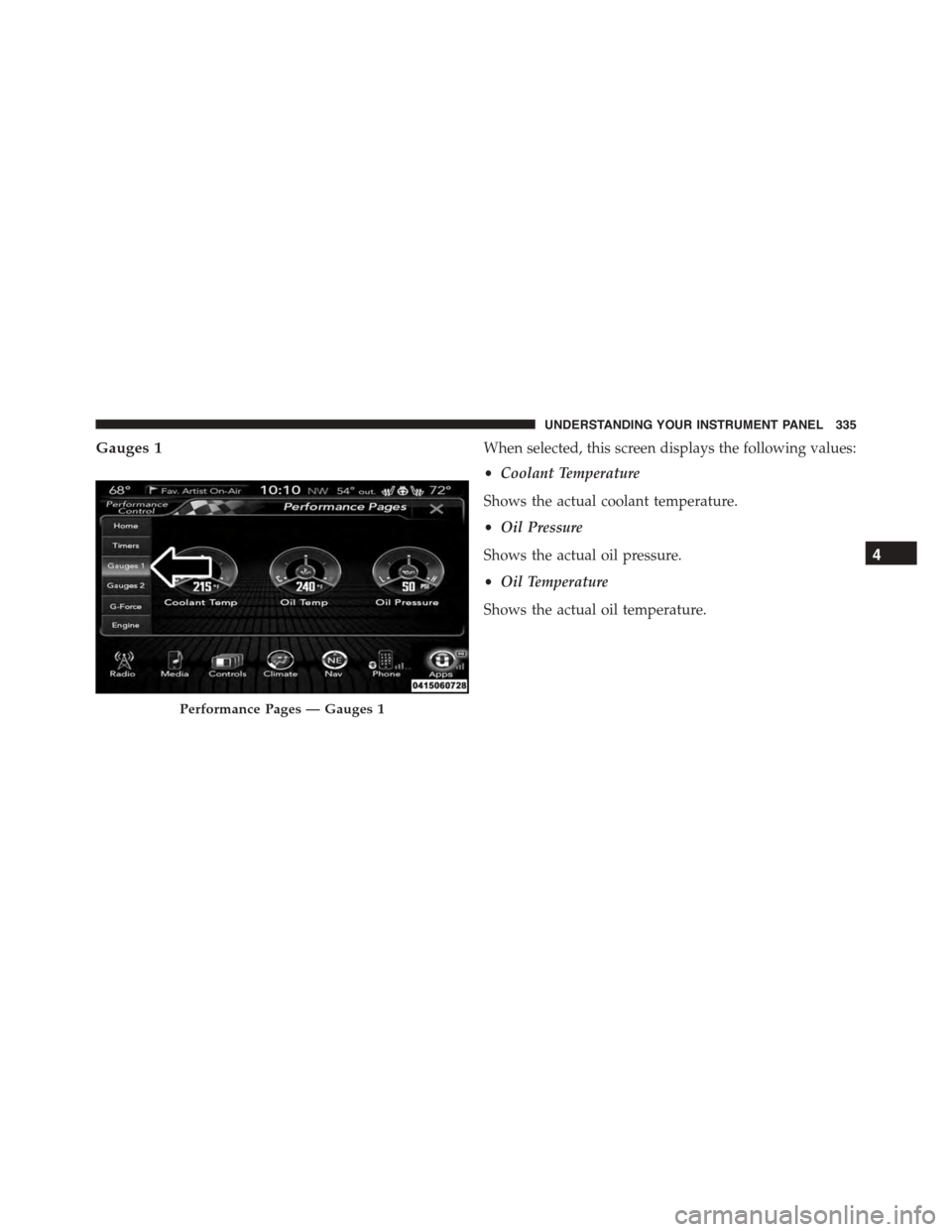
Gauges 1When selected, this screen displays the following values:
•Coolant Temperature
Shows the actual coolant temperature.
•Oil Pressure
Shows the actual oil pressure.
•Oil Temperature
Shows the actual oil temperature.
Performance Pages — Gauges 1
4
UNDERSTANDING YOUR INSTRUMENT PANEL 335
Page 338 of 638
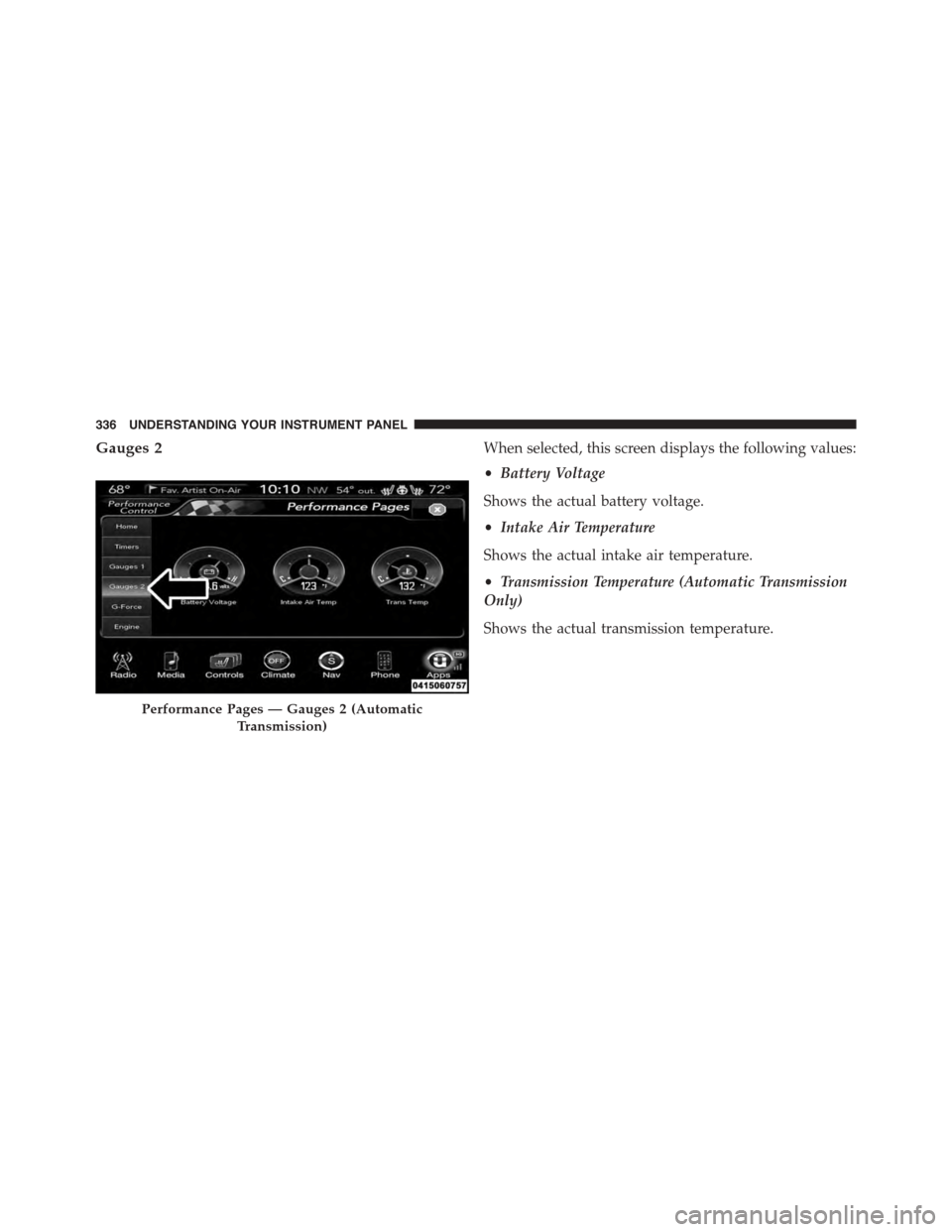
Gauges 2When selected, this screen displays the following values:
•Battery Voltage
Shows the actual battery voltage.
•Intake Air Temperature
Shows the actual intake air temperature.
•Transmission Temperature (Automatic Transmission
Only)
Shows the actual transmission temperature.
Performance Pages — Gauges 2 (Automatic
Transmission)
336 UNDERSTANDING YOUR INSTRUMENT PANEL