ad blue DODGE CHARGER 2015 7.G Owners Manual
[x] Cancel search | Manufacturer: DODGE, Model Year: 2015, Model line: CHARGER, Model: DODGE CHARGER 2015 7.GPages: 638, PDF Size: 16.56 MB
Page 249 of 638
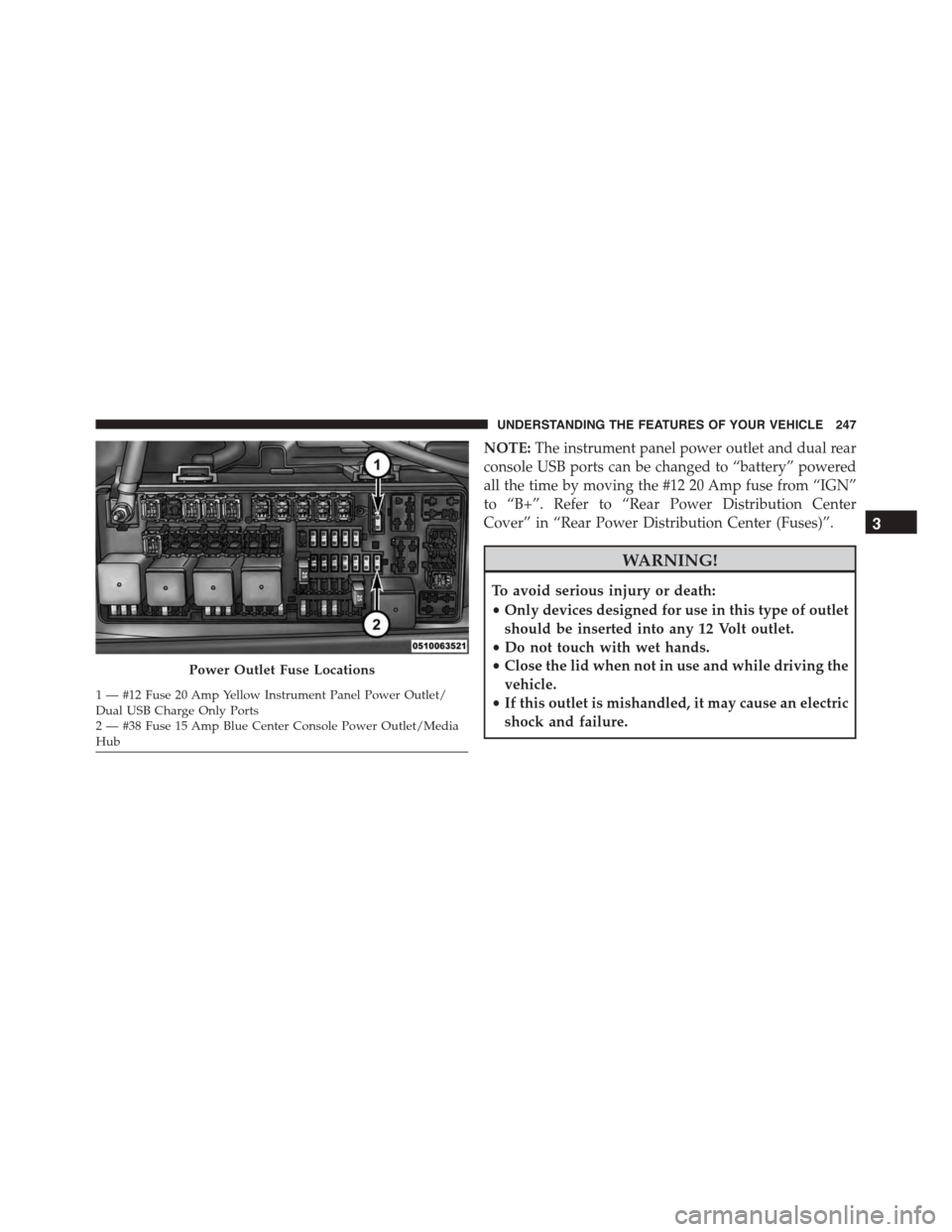
NOTE:The instrument panel power outlet and dual rear
console USB ports can be changed to “battery” powered
all the time by moving the #12 20 Amp fuse from “IGN”
to “B+”. Refer to “Rear Power Distribution Center
Cover” in “Rear Power Distribution Center (Fuses)”.
WARNING!
To avoid serious injury or death:
•Only devices designed for use in this type of outlet
should be inserted into any 12 Volt outlet.
•Do not touch with wet hands.
•Close the lid when not in use and while driving the
vehicle.
•If this outlet is mishandled, it may cause an electric
shock and failure.
Power Outlet Fuse Locations
1—#12Fuse20AmpYellowInstrumentPanelPowerOutlet/Dual USB Charge Only Ports2—#38Fuse15AmpBlueCenterConsolePowerOutlet/MediaHub
3
UNDERSTANDING THE FEATURES OF YOUR VEHICLE 247
Page 295 of 638
Buttons On The Faceplate
Buttons on the faceplate are located below the Uconnect®
system in the center of the instrument panel. In addition,
there is a Scroll/Enter control knob located on the right
side. Turn the control knob to scroll through menus and
change settings (i.e., 30, 60, 90), push the center of the
control knob one or more times to select or change a
setting (i.e., ON, OFF).
Your Uconnect® system may also have a Screen Off and
Back buttons on the faceplate.
Push the Screen Off button on the faceplate to turn off the
Uconnect® screen. Push the Screen Off button on the
faceplate a second time to turn the screen on.
Push the Back button on the faceplate to exit out of a
Menu or certain option on the Uconnect® system.
Buttons On The Touchscreen
Buttons on the touchscreen are accessible on the
Uconnect® touchscreen.
Customer Programmable Features — Uconnect®
5.0 Settings
Push the + MORE button on the faceplate and then press
the “Settings” button on the touchscreen to display the
menu setting screen. In this mode the Uconnect® system
allows you to access programmable features that may be
equipped such as Display, Units, Voice, Clock, Safety/
Assistance, Lights, Doors & Locks, Auto-On Comfort &
Remote Start, Engine Off Options, Compass Settings,
Audio, Phone/Bluetooth®, SiriusXM Setup, Restore Set-
tings, Clear Personal Data and System Information.
NOTE:Only one touchscreen area may be selected at a
time.
4
UNDERSTANDING YOUR INSTRUMENT PANEL 293
Page 309 of 638
•Surround Sound — If Equipped
This feature provides simulated surround sound mode.
To make your selection, press the “Surround Sound”
button on the touchscreen, select “On” or “Off.” Press the
back arrow/Done button on the touchscreen to return to
the previous menu.
•AUX Volume Offset — If Equipped
This feature provides the ability to tune the audio level
for portable devices connected through the AUX input.
To make your selection, press the “AUX Volume Offset”
button on the touchscreen, select “On” or “Off.” Press the
back arrow/Done button on the touchscreen to return to
the previous menu.
•Loudness — If Equipped
This feature improves sound quality at lower volumes.
To make your selection, press the “Loudness” button on
the touchscreen, select “On” or “Off.” Press the back
arrow/Done button on the touchscreen to return to the
previous menu.
Phone/Bluetooth®
After pressing the “Phone/Bluetooth®” button on the
touchscreen the following settings will be available:
•Paired Phones
This feature shows which phones are paired to the
Phone/Bluetooth® system. For further information, refer
to the Uconnect® Supplement Manual.
•Paired Audio Sources
This feature shows which audio devices are paired to the
Phone/Bluetooth® system. For further information, refer
to the Uconnect® Supplement Manual.
4
UNDERSTANDING YOUR INSTRUMENT PANEL 307
Page 311 of 638
sure you want to reset your settings to default?” select
“Yes” to restore, or “Cancel” to exit. Press back arrow/
Done button to return to the previous menu.
Clear Personal Data
After pressing the “Clear Personal Data Settings” button
on the touchscreen the following settings will be avail-
able:
•Clear Personal Data
When this feature is selected it will remove all personal
data including Bluetooth® devices and presets. To re-
move all personal information, press the “Clear Personal
Data” button and select from “Yes” or “No.” If “Yes” is
selected a pop-up will appear asking#Are you sure you
want to clear all personal data?” select “Yes” to Clear, or
“Cancel” to exit. Press the back arrow/Done button on
the touchscreen to return to the previous menu.
System Information
After pressing the “System Information” button on the
touchscreen the following information will be available:
•System Information
When System Information is selected, a System Informa-
tion screen will appear displaying the system software
version.
Customer Programmable Features — Uconnect®
8.4 Settings
Press the “Apps,” or the “Controls,” button on the
touchscreen, then press the “Settings” button on the
touchscreen to display the menu setting screen. In this
mode the Uconnect® system allows you to access pro-
grammable features that may be equipped such as Dis-
play, Units, Voice, Clock, Safety & Driving Assistance,
Lights, Doors & Locks, Auto-On Comfort & Remote Start,
4
UNDERSTANDING YOUR INSTRUMENT PANEL 309
Page 312 of 638
Engine Off Options, Audio, Phone/Bluetooth®, Siri-
usXM Setup, Restore Settings, Clear Personal Data and
System Information.
NOTE:
•Only one touchscreen area may be selected at a time.
•Depending on the vehicles options, feature settings
may vary.
When making a selection, press the button on the touch-
screen to enter the desired mode. Once in the desired
mode, press and release the preferred setting until a
check-mark appears next to the setting, showing that
setting has been selected. Once the setting is complete,
either press the Back Arrow button on the touchscreen to
return to the previous menu, or press the “X” button on
the touchscreen to close out of the settings screen. Press-
ing the Up or Down Arrow button on the right side of the
screen will allow you to toggle up or down through the
available settings.
Display
After pressing the “Display” button on the touchscreen
the following settings will be available:
•Display Mode
When in this display you may select one of the auto
display settings. To change Mode status, press and re-
lease the “Manual” or “Auto” button on the touchscreen.
Then press the back arrow button on the touchscreen.
NOTE:When Day or Night is selected for the Display
Mode, the usage of the Parade Mode feature will cause
the radio to activate the Display Brightness Day control
even though the headlights are on.
•Display Brightness With Headlights ON
When in this display, you may select the brightness with
the headlights on. Adjust the brightness with the “+” and
“–” setting buttons on the touchscreen or by selecting any
310 UNDERSTANDING YOUR INSTRUMENT PANEL
Page 330 of 638
Phone/Bluetooth®
After pressing the “Phone/Bluetooth®” button on the
touchscreen the following settings will be available:
•Paired Phones
This feature shows which phones are paired to the
Phone/Bluetooth® system. For further information, refer
to the Uconnect® Supplement Manual.
•Paired Audio Sources
This feature shows which audio devices are paired to the
Phone/Bluetooth® system. For further information, refer
to the Uconnect® Supplement Manual.
SiriusXM Setup — If Equipped
After pressing the “SiriusXM Setup” button on the touch-
screen, the following settings will be available:
•Channel Skip
SiriusXM can be programmed to designate a group of
channels that are the most desirable to listen to or to
exclude undesirable channels while scanning. To make
your selection, press the “Channel Skip” button on the
touchscreen, select the channels you would like to skip
followed by pressing the back arrow button on the
touchscreen.
•Subscription Information
New vehicle purchasers or lessees will receive a free
limited time subscription to SiriusXM Satellite Radio
with your radio. Following the expiration of the free
services, it will be necessary to access the information on
the Subscription Information screen to re-subscribe.
328 UNDERSTANDING YOUR INSTRUMENT PANEL
Page 331 of 638
Press the “Subscription Info” button on the touchscreen
to access the Subscription Information screen.
Write down the SIRIUS ID numbers for your receiver. To
reactivate your service, either call the number listed on
the screen or visit the provider online.
NOTE:SiriusXM Travel Link is a separate subscription
and is available for U.S. residents only.
Restore Settings
After pressing the “Restore Settings” button on the
touchscreen the following settings will be available:
•Restore Settings
When this feature is selected it will reset the Display,
Clock, Audio, and Radio Settings to their default settings.
To restore the settings to their default setting, press the
Restore Settings button. A pop-up will appear asking
#Are you sure you want to reset your settings to default?”
select “Yes” to restore, or “Cancel” to exit. Once the
settings are restored, a pop up appears stating#settings
reset to default.#Press the okay button on the touchscreen
to exit.
Clear Personal Data
After pressing the “Clear Personal Data Settings” button
on the touchscreen the following settings will be avail-
able:
•Clear Personal Data
When this feature is selected it will remove personal data
including Bluetooth® devices and presets. To remove
personal information, press the “Clear Personal Data”
button and a pop-up will appear asking#Are you sure
you want to clear all personal data?” select “OK” to
Clear, or “Cancel” to exit. Once the data has been cleared,
a pop up appears stating#Personal data cleared”. Press
the back arrow button on the touchscreen to return to the
previous menu.
4
UNDERSTANDING YOUR INSTRUMENT PANEL 329
Page 359 of 638
temperature settings or on the touchscreen, press and
slide the temperature bar button into the red area for
warmer temperature settings.
NOTE:In Sync mode, this button will also automatically
adjust the passenger temperature setting at the same
time.
11. Temperature Control
Press the temperature button on the touchscreen to
regulate the temperature of the air inside the passenger
compartment. Moving the temperature bar into the red
area, indicates warmer temperatures. Moving the tem-
perature bar into the blue area indicates cooler tempera-
tures.
12. SYNC
Press the Sync button on the touchscreen to toggle the
Sync feature On/Off. The Sync indicator is illuminated
when this feature is enabled. Sync is used to synchronize
the passenger temperature setting with the driver tem-
perature setting. Changing the passenger temperature
setting while in Sync will automatically exit this feature.
13. Passenger Temperature Control Down Button
Provides the passenger with independent temperature
control. Push the button on the faceplate for cooler
temperature settings or on the touchscreen, press and
slide the temperature bar button into the blue area for
cooler temperature settings.
NOTE:In Sync mode, this button will also automatically
adjust the passenger temperature setting at the same
time.
14. Driver Temperature Control Down Button
Provides the passenger with independent temperature
control. Push the button on the faceplate for cooler
4
UNDERSTANDING YOUR INSTRUMENT PANEL 357
Page 360 of 638
temperature settings or on the touchscreen, press and
slide the temperature bar button into the blue area for
cooler temperature settings.
NOTE:In Sync mode, this button will also automatically
adjust the passenger temperature setting at the same
time.
Climate Control Functions
A/C (Air Conditioning)
The Air Conditioning (A/C) button allows the operator
to manually activate or deactivate the air conditioning
system. When the air conditioning system is turned on,
cool dehumidified air will flow through the outlets into
the cabin. For improved fuel economy, press the A/C
button to turn off the air conditioning and manually
adjust the blower and airflow mode settings. Also, make
sure to select only Panel, Bi-Level or Floor modes.
NOTE:
•For Manual Climate Controls, if the system is in Mix,
Floor or Defrost Mode, the A/C can be turned off, but
the A/C system shall remain active to prevent fogging
of the windows.
•If fog or mist appears on the windshield or side glass,
select Defrost mode and adjust blower speed if
needed.
•If your air conditioning performance seems lower than
expected, check the front of the A/C condenser (lo-
cated in front of the radiator), for an accumulation of
dirt or insects. Clean with a gentle water spray from
behind the radiator and through the condenser. Fabric
front fascia protectors may reduce airflow to the
condenser, reducing air conditioning performance.
358 UNDERSTANDING YOUR INSTRUMENT PANEL
Page 365 of 638
8. Passenger Temperature Control Down Button
(Uconnect® 8.4 Radio Only)
Provides the passenger with independent temperature
control. Push the button on the faceplate for cooler
temperature settings or on the touchscreen, press and
slide the temperature bar button towards the blue arrow
for cooler temperature settings.
NOTE:Pressing this button while in Sync mode will
automatically exit Sync.
9. SYNC
Press the Sync button on the touchscreen to toggle the
Sync feature On/Off. The Sync indicator is illuminated
when this feature is enabled. Sync is used to synchronize
the passenger temperature setting with the driver tem-
perature setting. Changing the passenger temperature
setting while in Sync will automatically exit this feature.
10. Blower Control
Blower control is used to regulate the amount of air forced
through the climate system. There are seven blower speeds
available. Adjusting the blower will cause automatic mode
to switch to manual operation. The speeds can be selected
using either the blower control knob on the faceplate or the
buttons on the touchscreen as follows:
Blower Control Knob On The Faceplate
The blower speed increases as you turn the blower
control knob clockwise from the lowest blower setting.
The blower speed decreases as you turn the blower
control knob counterclockwise.
Button On The Touchscreen
Use the small blower icon to reduce the blower setting
and the large blower icon to increase the blower setting.
Blower can also be selected by pressing the blower bar
area between the icons.
4
UNDERSTANDING YOUR INSTRUMENT PANEL 363