light DODGE CHARGER 2018 Owners Manual
[x] Cancel search | Manufacturer: DODGE, Model Year: 2018, Model line: CHARGER, Model: DODGE CHARGER 2018Pages: 553, PDF Size: 5.3 MB
Page 428 of 553
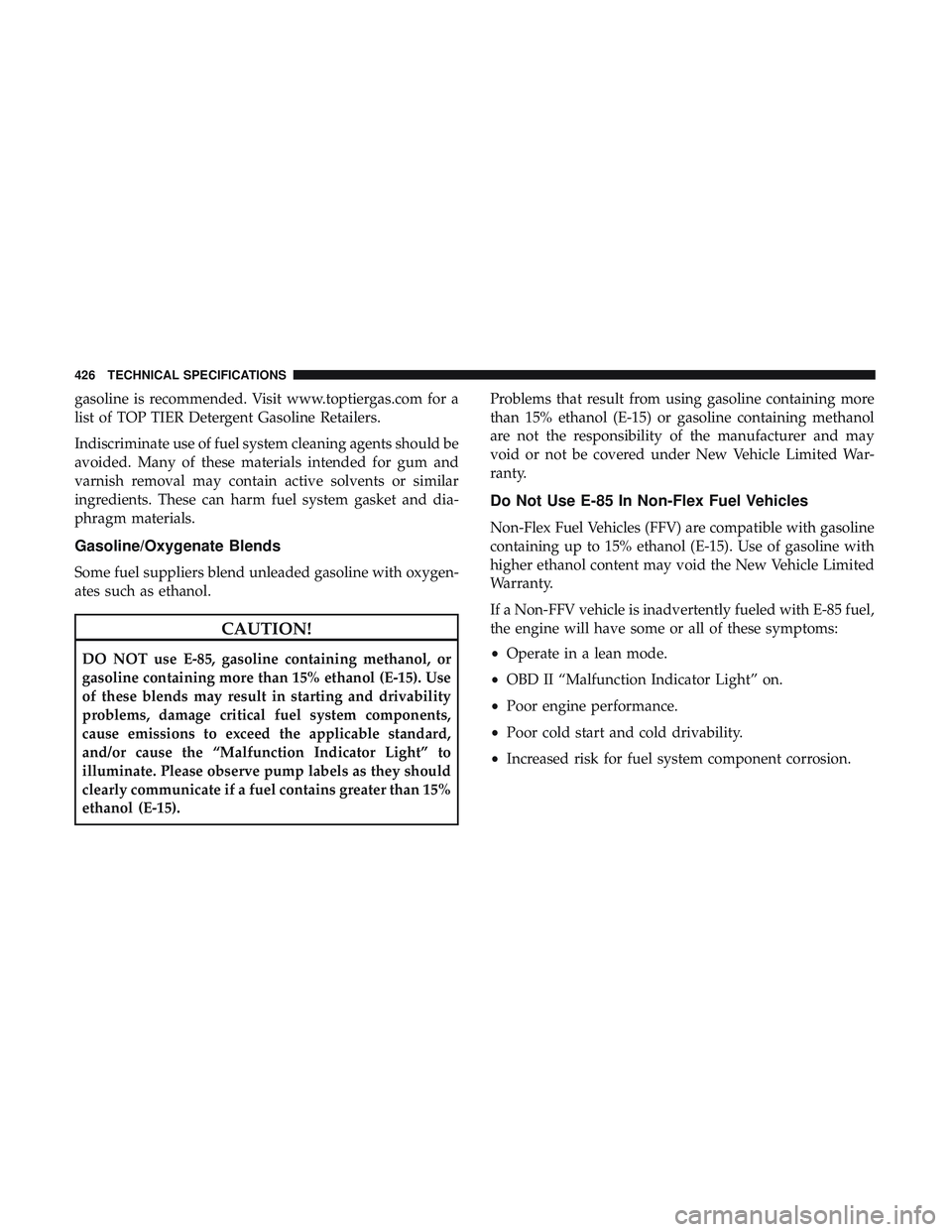
gasoline is recommended. Visit www.toptiergas.com for a
list of TOP TIER Detergent Gasoline Retailers.
Indiscriminate use of fuel system cleaning agents should be
avoided. Many of these materials intended for gum and
varnish removal may contain active solvents or similar
ingredients. These can harm fuel system gasket and dia-
phragm materials.
Gasoline/Oxygenate Blends
Some fuel suppliers blend unleaded gasoline with oxygen-
ates such as ethanol.
CAUTION!
DO NOT use E-85, gasoline containing methanol, or
gasoline containing more than 15% ethanol (E-15). Use
of these blends may result in starting and drivability
problems, damage critical fuel system components,
cause emissions to exceed the applicable standard,
and/or cause the “Malfunction Indicator Light” to
illuminate. Please observe pump labels as they should
clearly communicate if a fuel contains greater than 15%
ethanol (E-15).Problems that result from using gasoline containing more
than 15% ethanol (E-15) or gasoline containing methanol
are not the responsibility of the manufacturer and may
void or not be covered under New Vehicle Limited War-
ranty.
Do Not Use E-85 In Non-Flex Fuel Vehicles
Non-Flex Fuel Vehicles (FFV) are compatible with gasoline
containing up to 15% ethanol (E-15). Use of gasoline with
higher ethanol content may void the New Vehicle Limited
Warranty.
If a Non-FFV vehicle is inadvertently fueled with E-85 fuel,
the engine will have some or all of these symptoms:
•
Operate in a lean mode.
• OBD II “Malfunction Indicator Light” on.
• Poor engine performance.
• Poor cold start and cold drivability.
• Increased risk for fuel system component corrosion.
426 TECHNICAL SPECIFICATIONS
Page 429 of 553
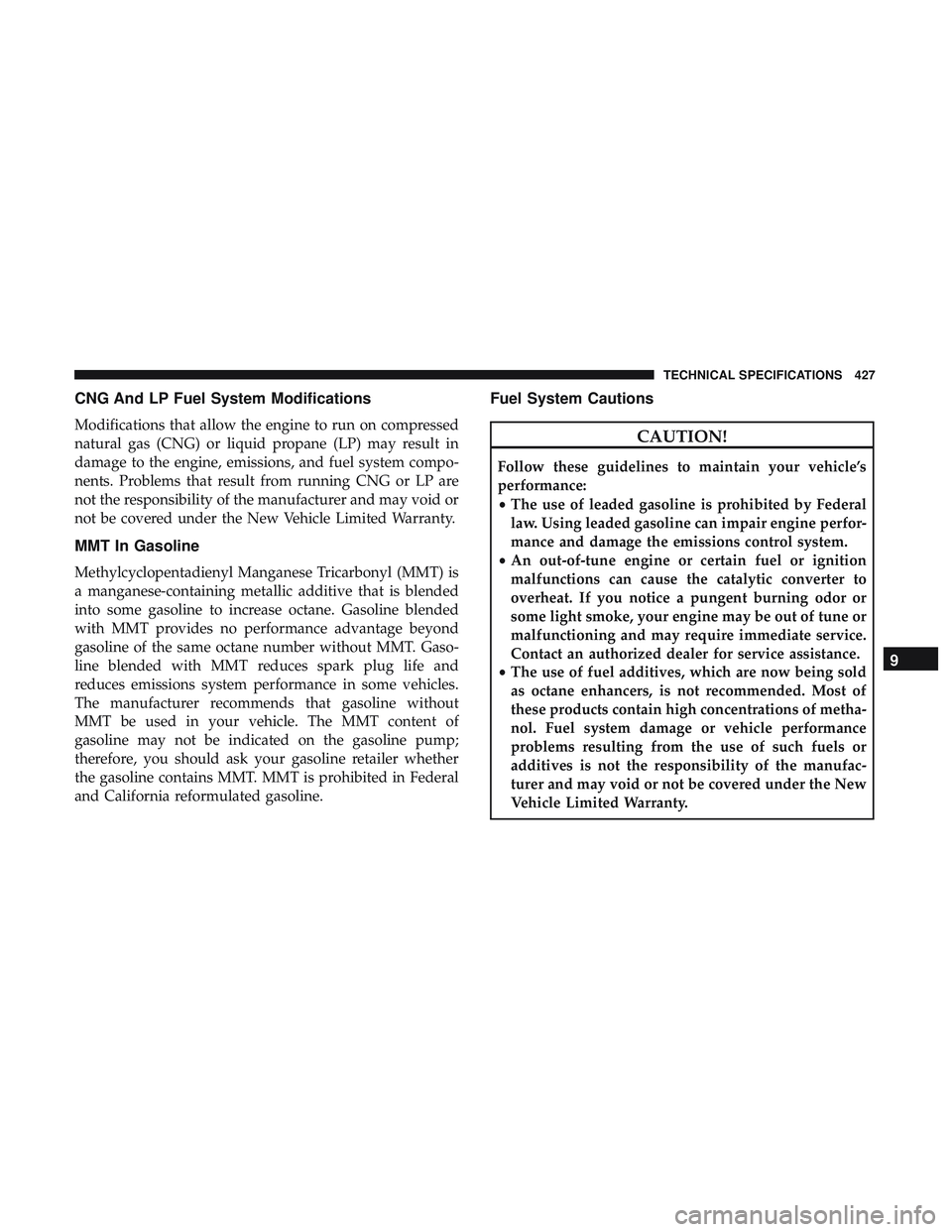
CNG And LP Fuel System Modifications
Modifications that allow the engine to run on compressed
natural gas (CNG) or liquid propane (LP) may result in
damage to the engine, emissions, and fuel system compo-
nents. Problems that result from running CNG or LP are
not the responsibility of the manufacturer and may void or
not be covered under the New Vehicle Limited Warranty.
MMT In Gasoline
Methylcyclopentadienyl Manganese Tricarbonyl (MMT) is
a manganese-containing metallic additive that is blended
into some gasoline to increase octane. Gasoline blended
with MMT provides no performance advantage beyond
gasoline of the same octane number without MMT. Gaso-
line blended with MMT reduces spark plug life and
reduces emissions system performance in some vehicles.
The manufacturer recommends that gasoline without
MMT be used in your vehicle. The MMT content of
gasoline may not be indicated on the gasoline pump;
therefore, you should ask your gasoline retailer whether
the gasoline contains MMT. MMT is prohibited in Federal
and California reformulated gasoline.
Fuel System Cautions
CAUTION!
Follow these guidelines to maintain your vehicle’s
performance:
•The use of leaded gasoline is prohibited by Federal
law. Using leaded gasoline can impair engine perfor-
mance and damage the emissions control system.
• An out-of-tune engine or certain fuel or ignition
malfunctions can cause the catalytic converter to
overheat. If you notice a pungent burning odor or
some light smoke, your engine may be out of tune or
malfunctioning and may require immediate service.
Contact an authorized dealer for service assistance.
• The use of fuel additives, which are now being sold
as octane enhancers, is not recommended. Most of
these products contain high concentrations of metha-
nol. Fuel system damage or vehicle performance
problems resulting from the use of such fuels or
additives is not the responsibility of the manufac-
turer and may void or not be covered under the New
Vehicle Limited Warranty.
9
TECHNICAL SPECIFICATIONS 427
Page 443 of 553
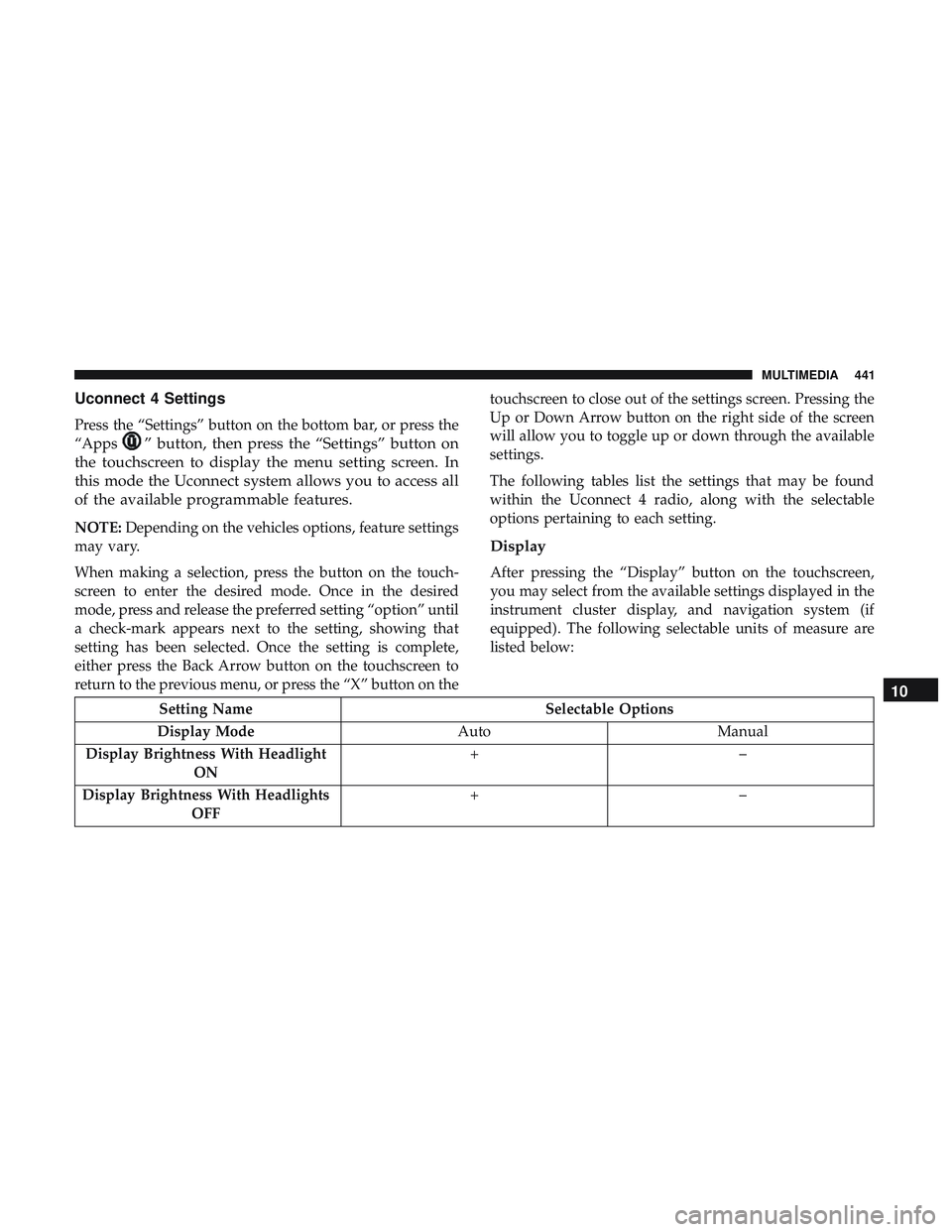
Uconnect 4 Settings
Press the “Settings” button on the bottom bar, or press the
“Apps
” button, then press the “Settings” button on
the touchscreen to display the menu setting screen. In
this mode the Uconnect system allows you to access all
of the available programmable features.
NOTE: Depending on the vehicles options, feature settings
may vary.
When making a selection, press the button on the touch-
screen to enter the desired mode. Once in the desired
mode, press and release the preferred setting “option” until
a check-mark appears next to the setting, showing that
setting has been selected. Once the setting is complete,
either press the Back Arrow button on the touchscreen to
return to the previous menu, or press the “X” button on the touchscreen to close out of the settings screen. Pressing the
Up or Down Arrow button on the right side of the screen
will allow you to toggle up or down through the available
settings.
The following tables list the settings that may be found
within the Uconnect 4 radio, along with the selectable
options pertaining to each setting.
Display
After pressing the “Display” button on the touchscreen,
you may select from the available settings displayed in the
instrument cluster display, and navigation system (if
equipped). The following selectable units of measure are
listed below:
Setting Name
Selectable Options
Display Mode AutoManual
Display Brightness With Headlight ON +–
Display Brightness With Headlights OFF +–
10
MULTIMEDIA 441
Page 450 of 553
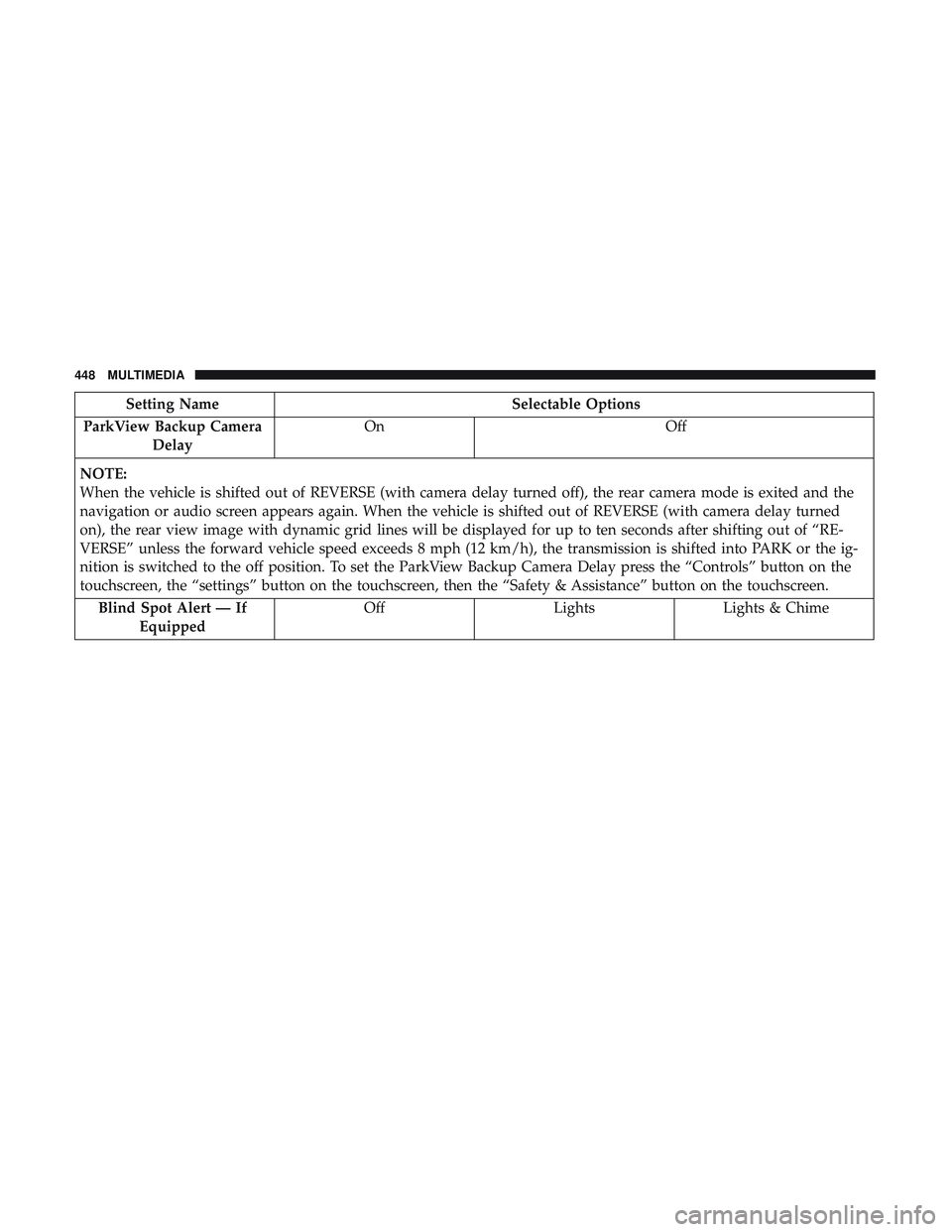
Setting NameSelectable Options
ParkView Backup Camera Delay On
Off
NOTE:
When the vehicle is shifted out of REVERSE (with camera delay turned off), the rear camera mode is exited and the
navigation or audio screen appears again. When the vehicle is shifted out of REVERSE (with camera delay turned
on), the rear view image with dynamic grid lines will be displayed for up to ten seconds after shifting out of “RE-
VERSE” unless the forward vehicle speed exceeds 8 mph (12 km/h), the transmission is shifted into PARK or the ig-
nition is switched to the off position. To set the ParkView Backup Camera Delay press the “Controls” button on the
touchscreen, the “settings” button on the touchscreen, then the “Safety & Assistance” button on the touchscreen. Blind Spot Alert — If Equipped Off
LightsLights & Chime
448 MULTIMEDIA
Page 451 of 553
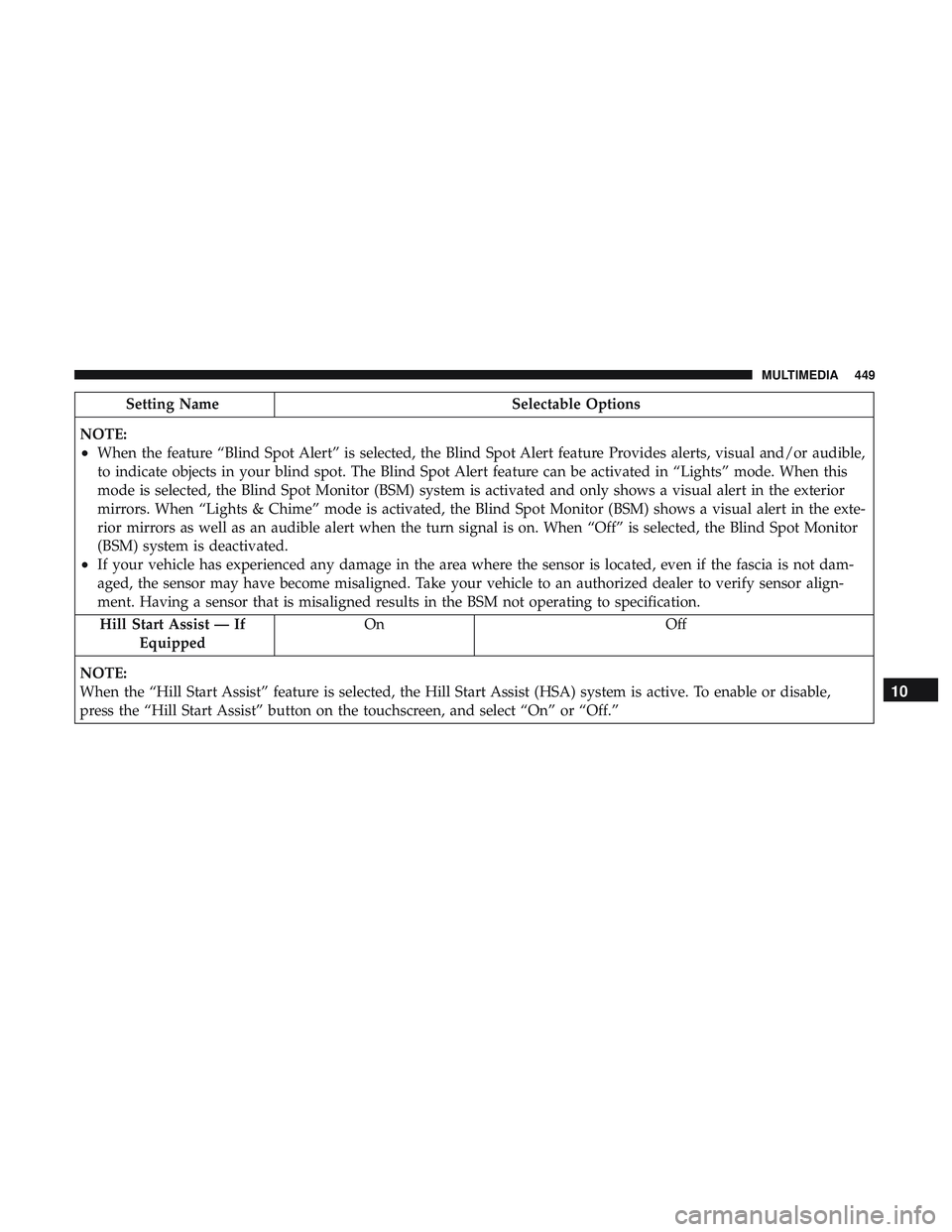
Setting NameSelectable Options
NOTE:
•When the feature “Blind Spot Alert” is selected, the Blind Spot Alert feature Provides alerts, visual and/or audible,
to indicate objects in your blind spot. The Blind Spot Alert feature can be activated in “Lights” mode. When this
mode is selected, the Blind Spot Monitor (BSM) system is activated and only shows a visual alert in the exterior
mirrors. When “Lights & Chime” mode is activated, the Blind Spot Monitor (BSM) shows a visual alert in the exte-
rior mirrors as well as an audible alert when the turn signal is on. When “Off” is selected, the Blind Spot Monitor
(BSM) system is deactivated.
•If your vehicle has experienced any damage in the area where the sensor is located, even if the fascia is not dam-
aged, the sensor may have become misaligned. Take your vehicle to an authorized dealer to verify sensor align-
ment. Having a sensor that is misaligned results in the BSM not operating to specification. Hill Start Assist — If Equipped On Off
NOTE:
When the “Hill Start Assist” feature is selected, the Hill Start Assist (HSA) system is active. To enable or disable,
press the “Hill Start Assist” button on the touchscreen, and select “On” or “Off.”
10
MULTIMEDIA 449
Page 452 of 553
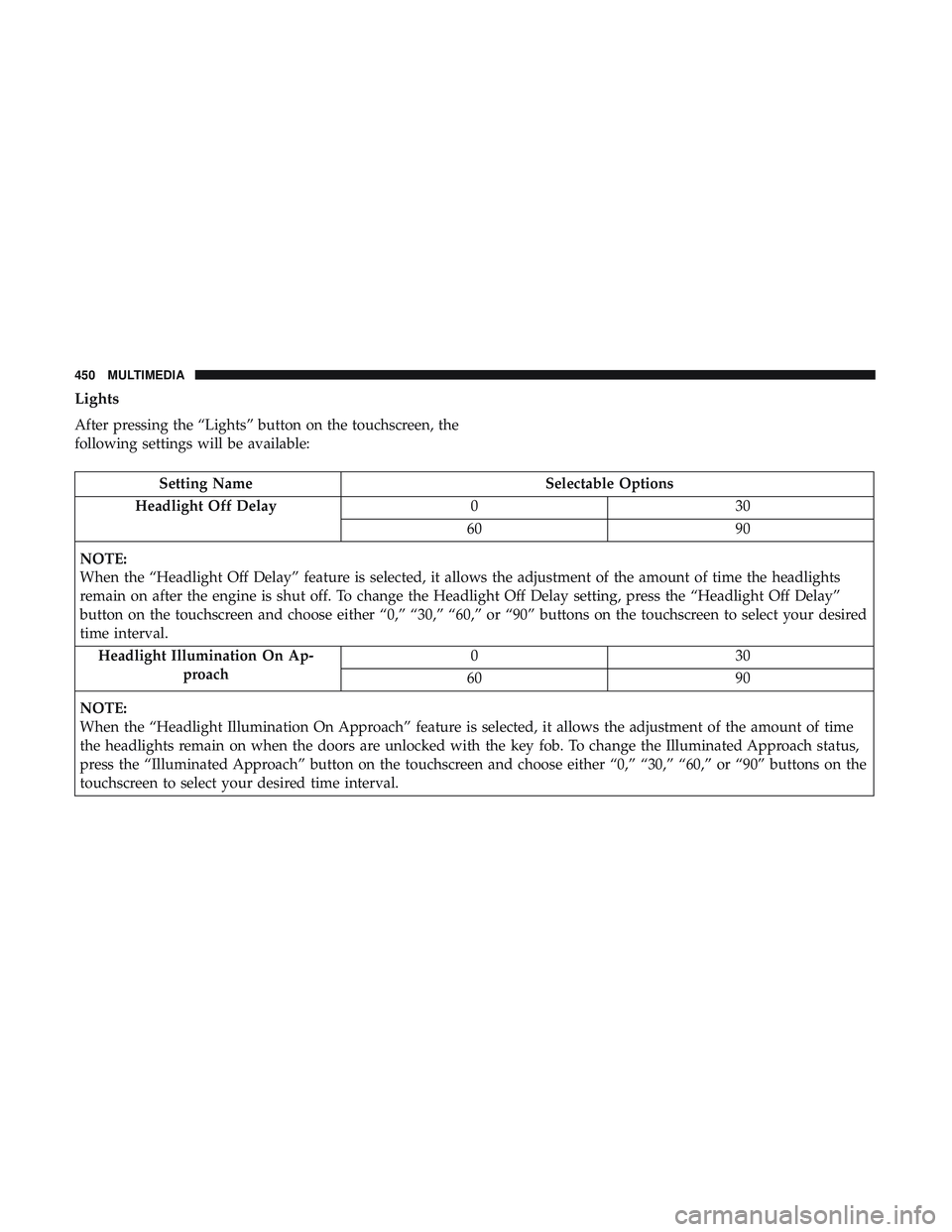
Lights
After pressing the “Lights” button on the touchscreen, the
following settings will be available:
Setting NameSelectable Options
Headlight Off Delay 030
60 90
NOTE:
When the “Headlight Off Delay” feature is selected, it allows the adjustment of the amount of time the headlights
remain on after the engine is shut off. To change the Headlight Off Delay setting, press the “Headlight Off Delay”
button on the touchscreen and choose either “0,” “30,” “60,” or “90” buttons on the touchscreen to select your desired
time interval. Headlight Illumination On Ap- proach 03
0
60 90
NOTE:
When the “Headlight Illumination On Approach” feature is selected, it allows the adjustment of the amount of time
the headlights remain on when the doors are unlocked with the key fob. To change the Illuminated Approach status,
press the “Illuminated Approach” button on the touchscreen and choose either “0,” “30,” “60,” or “90” buttons on the
touchscreen to select your desired time interval.
450 MULTIMEDIA
Page 453 of 553
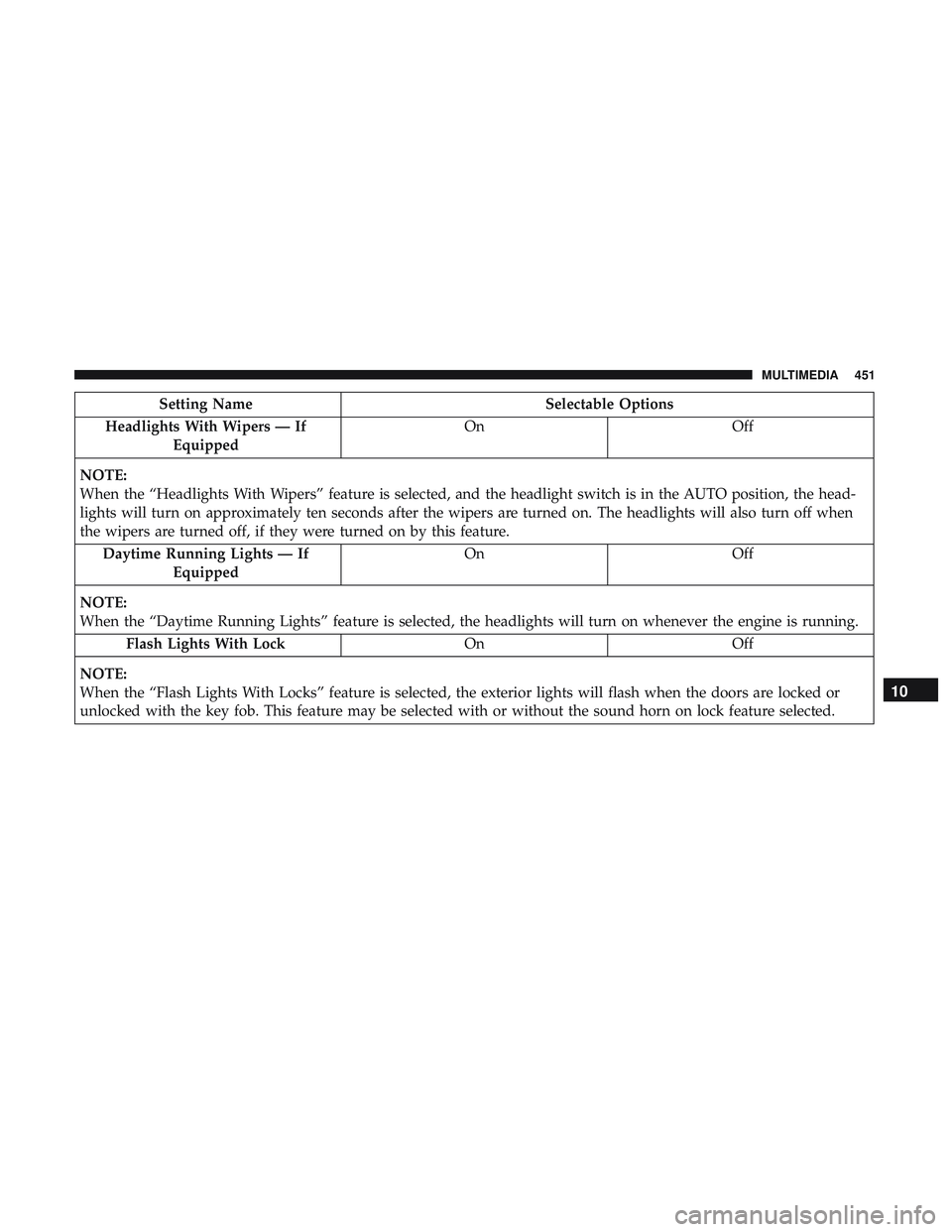
Setting NameSelectable Options
Headlights With Wipers — If Equipped On
Off
NOTE:
When the “Headlights With Wipers” feature is selected, and the headlight switch is in the AUTO position, the head-
lights will turn on approximately ten seconds after the wipers are turned on. The headlights will also turn off when
the wipers are turned off, if they were turned on by this feature. Daytime Running Lights — If Equipped On
Off
NOTE:
When the “Daytime Running Lights” feature is selected, the headlights will turn on whenever the engine is running. Flash Lights With Lock OnOff
NOTE:
When the “Flash Lights With Locks” feature is selected, the exterior lights will flash when the doors are locked or
unlocked with the key fob. This feature may be selected with or without the sound horn on lock feature selected.
10
MULTIMEDIA 451
Page 454 of 553
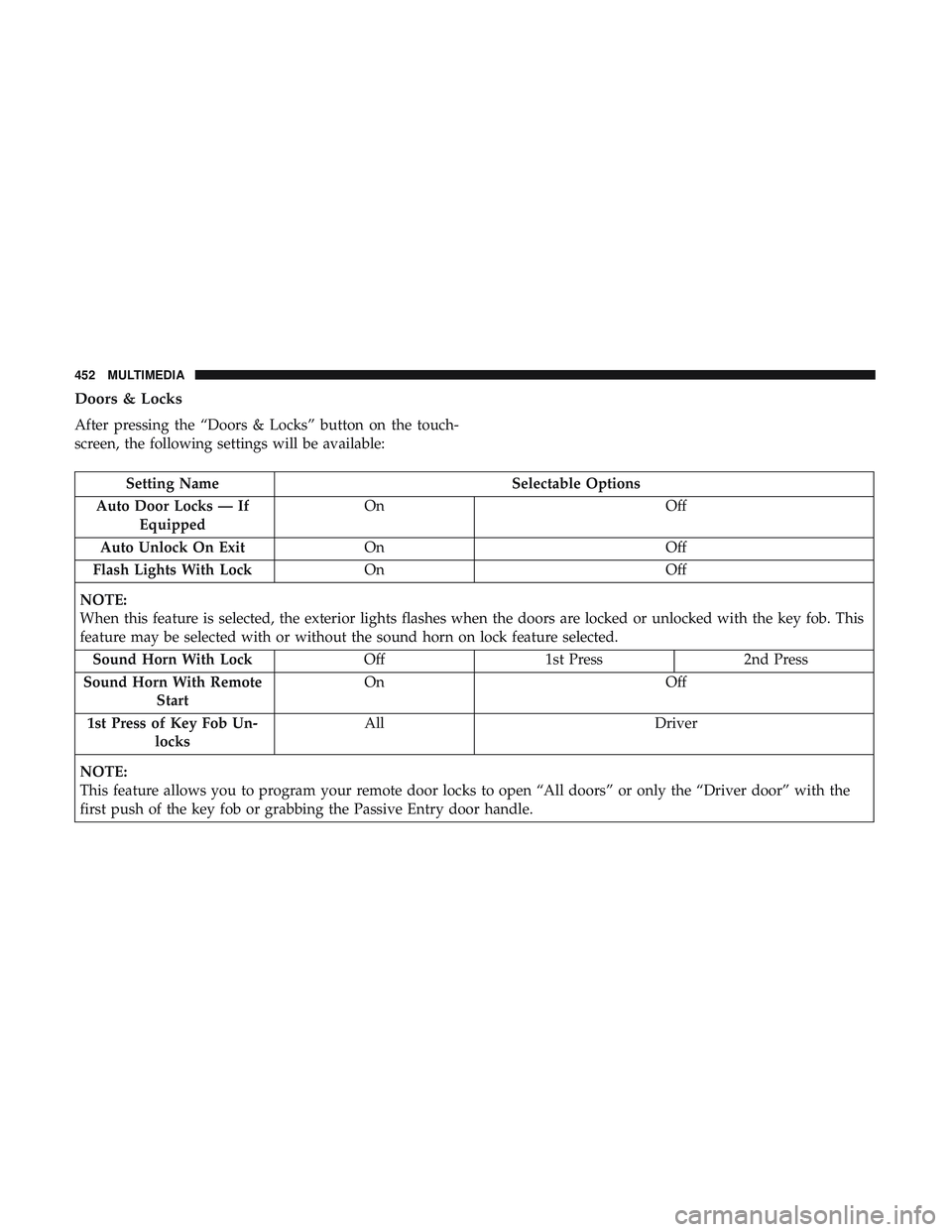
Doors & Locks
After pressing the “Doors & Locks” button on the touch-
screen, the following settings will be available:
Setting NameSelectable Options
Auto Door Locks — If Equipped On
Off
Auto Unlock On Exit On Off
Flash Lights With Lock On Off
NOTE:
When this feature is selected, the exterior lights flashes when the doors are locked or unlocked with the key fob. This
feature may be selected with or without the sound horn on lock feature selected. Sound Horn With Lock Off1st Press 2nd Press
Sound Horn With Remote Start On
Off
1st Press of Key Fob Un- locks All
Driver
NOTE:
This feature allows you to program your remote door locks to open “All doors” or only the “Driver door” with the
first push of the key fob or grabbing the Passive Entry door handle.
452 MULTIMEDIA
Page 456 of 553
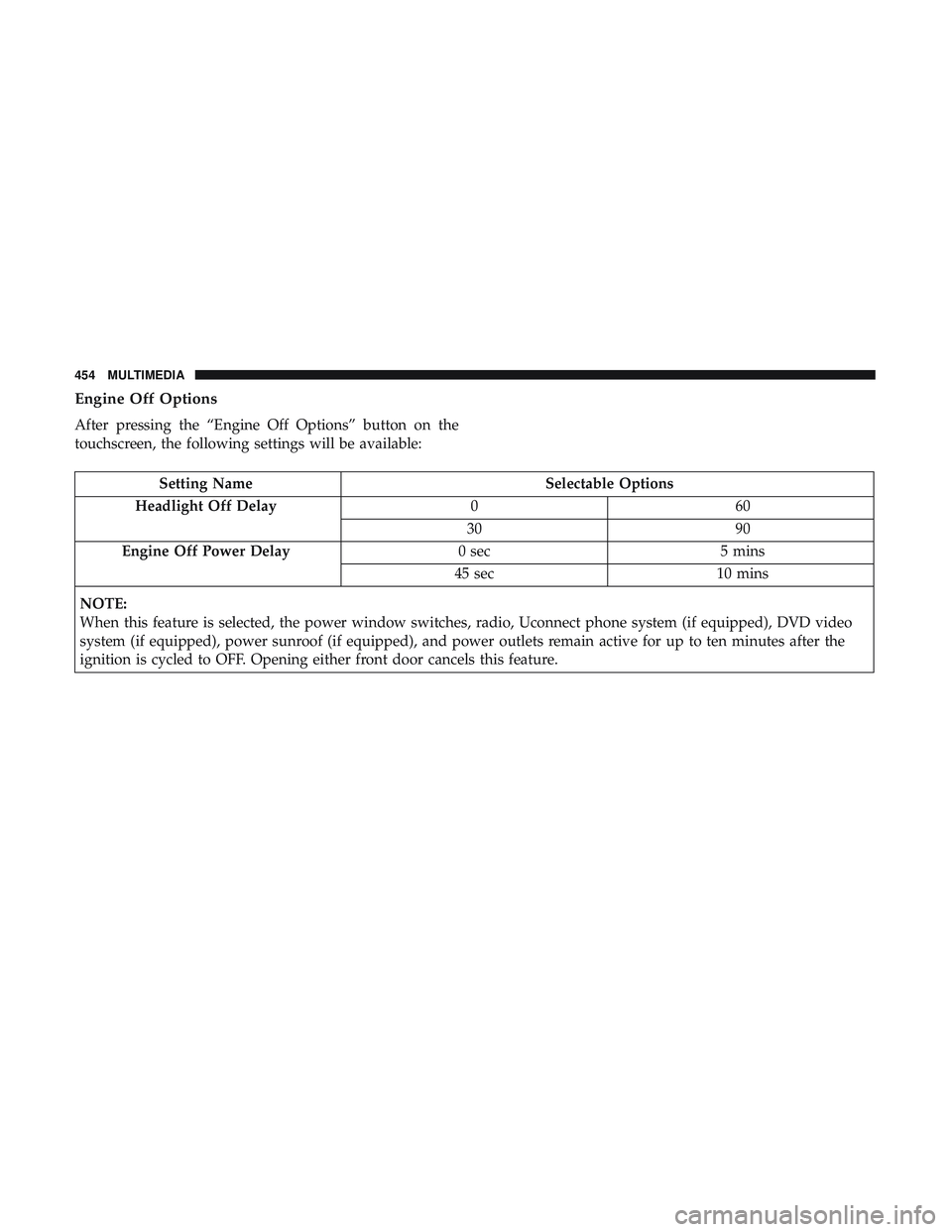
Engine Off Options
After pressing the “Engine Off Options” button on the
touchscreen, the following settings will be available:
Setting NameSelectable Options
Headlight Off Delay 060
30 90
Engine Off Power Delay 0 sec5 mins
45 sec 10 mins
NOTE:
When this feature is selected, the power window switches, radio, Uconnect phone system (if equipped), DVD video
system (if equipped), power sunroof (if equipped), and power outlets remain active for up to ten minutes after the
ignition is cycled to OFF. Opening either front door cancels this feature.
454 MULTIMEDIA
Page 465 of 553
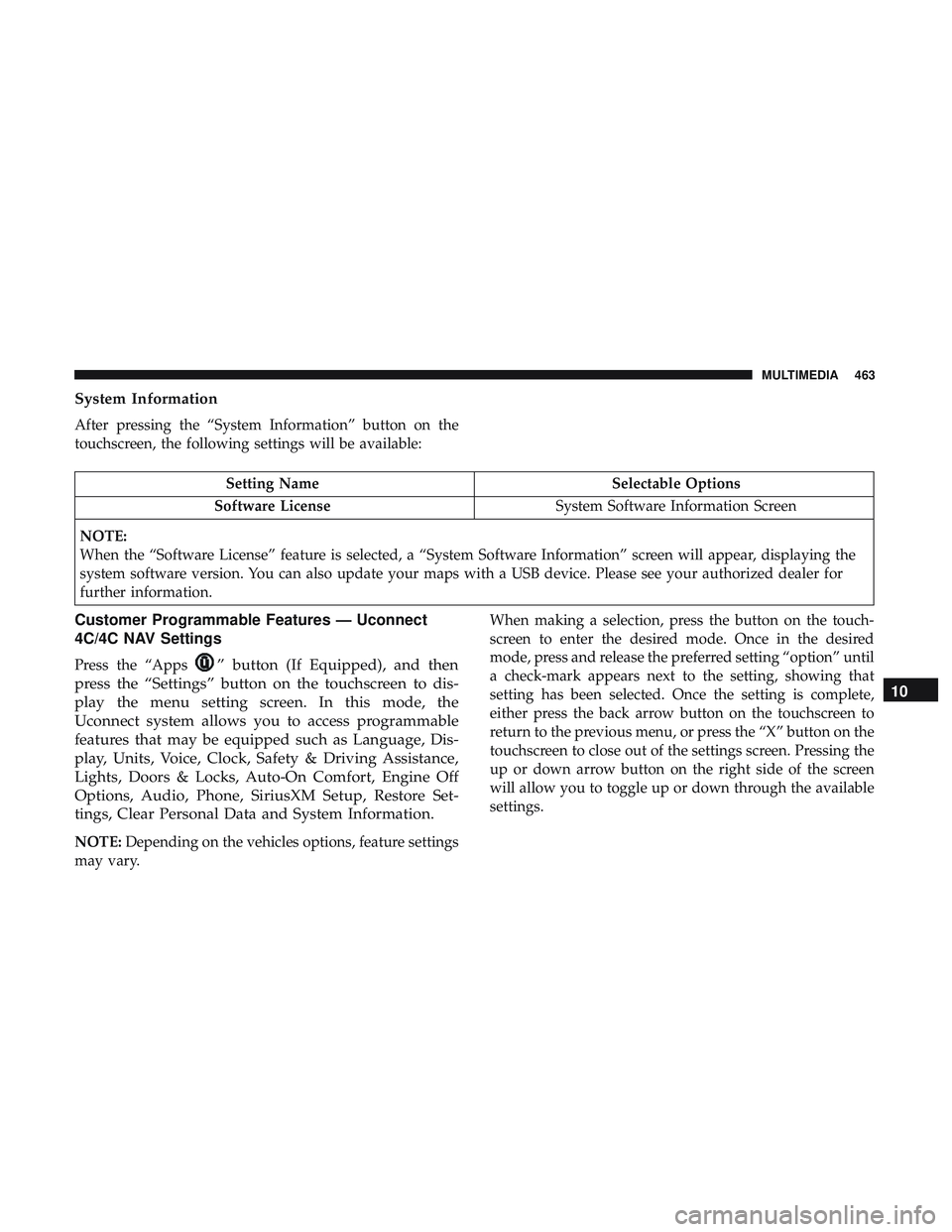
System Information
After pressing the “System Information” button on the
touchscreen, the following settings will be available:
Setting NameSelectable Options
Software License System Software Information Screen
NOTE:
When the “Software License” feature is selected, a “System Software Information” screen will appear, displaying the
system software version. You can also update your maps with a USB device. Please see your authorized dealer for
further information.
Customer Programmable Features — Uconnect
4C/4C NAV Settings
Press the “Apps” button (If Equipped), and then
press the “Settings” button on the touchscreen to dis-
play the menu setting screen. In this mode, the
Uconnect system allows you to access programmable
features that may be equipped such as Language, Dis-
play, Units, Voice, Clock, Safety & Driving Assistance,
Lights, Doors & Locks, Auto-On Comfort, Engine Off
Options, Audio, Phone, SiriusXM Setup, Restore Set-
tings, Clear Personal Data and System Information.
NOTE: Depending on the vehicles options, feature settings
may vary. When making a selection, press the button on the touch-
screen to enter the desired mode. Once in the desired
mode, press and release the preferred setting “option” until
a check-mark appears next to the setting, showing that
setting has been selected. Once the setting is complete,
either press the back arrow button on the touchscreen to
return to the previous menu, or press the “X” button on the
touchscreen to close out of the settings screen. Pressing the
up or down arrow button on the right side of the screen
will allow you to toggle up or down through the available
settings.
10
MULTIMEDIA 463