steering wheel DODGE CHARGER 2018 Workshop Manual
[x] Cancel search | Manufacturer: DODGE, Model Year: 2018, Model line: CHARGER, Model: DODGE CHARGER 2018Pages: 553, PDF Size: 5.3 MB
Page 480 of 553
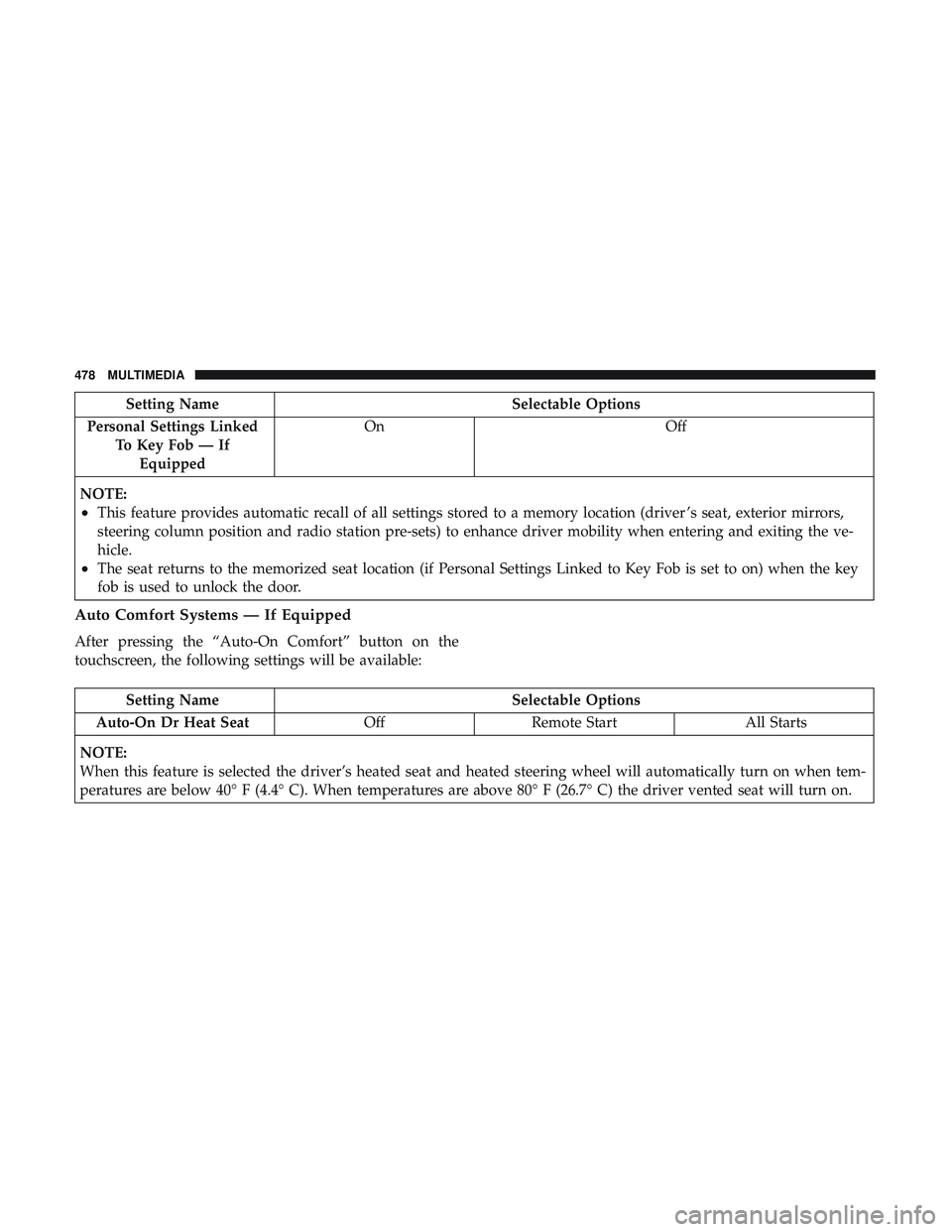
Setting NameSelectable Options
Personal Settings Linked To Key Fob — IfEquipped On
Off
NOTE:
•This feature provides automatic recall of all settings stored to a memory location (driver ’s seat, exterior mirrors,
steering column position and radio station pre-sets) to enhance driver mobility when entering and exiting the ve-
hicle.
•The seat returns to the memorized seat location (if Personal Settings Linked to Key Fob is set to on) when the key
fob is used to unlock the door.
Auto Comfort Systems — If Equipped
After pressing the “Auto-On Comfort” button on the
touchscreen, the following settings will be available:
Setting Name Selectable Options
Auto-On Dr Heat Seat OffRemote Start All Starts
NOTE:
When this feature is selected the driver’s heated seat and heated steering wheel will automatically turn on when tem-
peratures are below 40° F (4.4° C). When temperatures are above 80° F (26.7° C) the driver vented seat will turn on.
478 MULTIMEDIA
Page 495 of 553
When G-Force is selected, the following features will be
available:
•Vehicle Speed:
Measures the current speed of the vehicle in either mph
or km/h, starting at zero with no maximum value.
• Front G-Force:
Measures the force on the front of the vehicle.
• Right G-Force:
Measures the force on the right side of the vehicle.
• Left G-Forces:
Measures the force on the left of the vehicle. •
Rear G-Forces:
Measures the force on the rear of the vehicle.
NOTE: Front, Right, Left, and Rear G-Froces are all peak
values. These readings can be reset by clearing peak
G-Force on the instrument cluster
• Steering Wheel Angle
Steering Wheel Angle utilizes the steering angle sensor to
measure the degree of the steering wheel relative to zero.
The zero degree measurement indicates a steering wheel
straight ahead position. When the steering angle value is
negative, this indicates a turn to the left, and when the
steering angle value is positive, a turn to the right.
The friction circle display shows instantaneous G-Force as
a highlight and previous G-Force as dots within the circle.
The system records previous G-Force for three minutes. If
there are multiple samples at a given point, the color of the
dot will darken from blue to red. Vectors more frequent
will show in red; infrequent vectors will show in blue.
10
MULTIMEDIA 493
Page 501 of 553
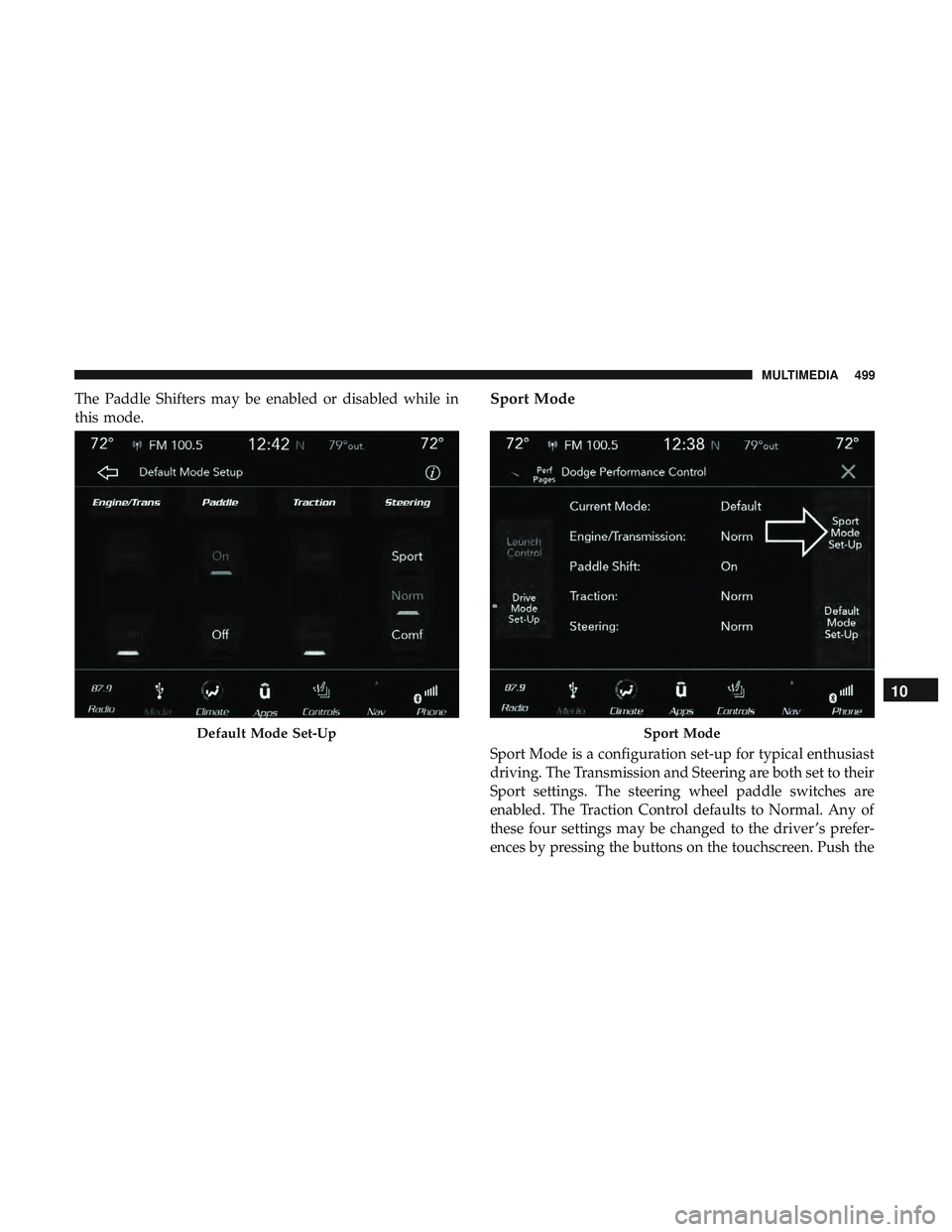
The Paddle Shifters may be enabled or disabled while in
this mode.Sport Mode
Sport Mode is a configuration set-up for typical enthusiast
driving. The Transmission and Steering are both set to their
Sport settings. The steering wheel paddle switches are
enabled. The Traction Control defaults to Normal. Any of
these four settings may be changed to the driver ’s prefer-
ences by pressing the buttons on the touchscreen. Push the
Default Mode Set-UpSport Mode
10
MULTIMEDIA 499
Page 504 of 553
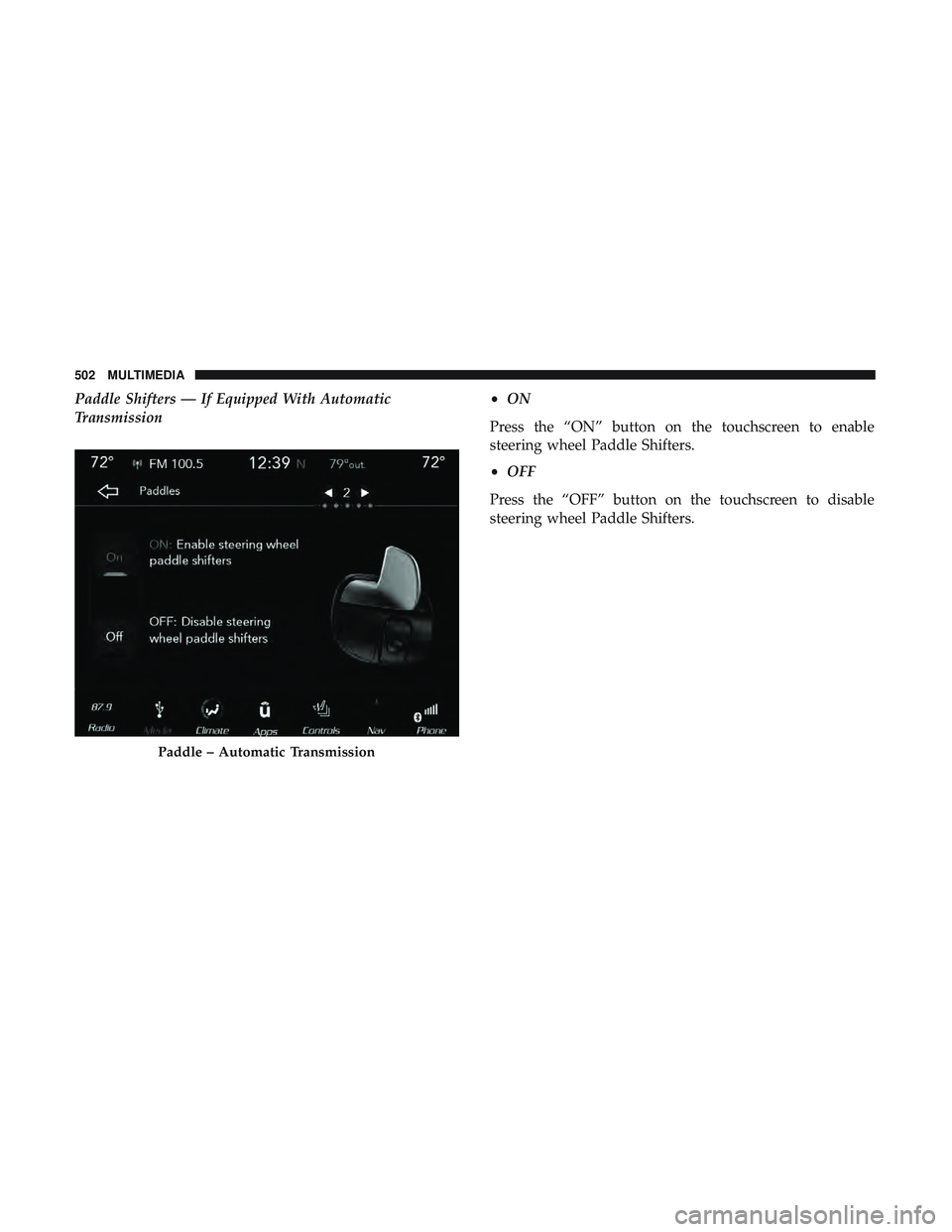
Paddle Shifters — If Equipped With Automatic
Transmission•
ON
Press the “ON” button on the touchscreen to enable
steering wheel Paddle Shifters.
• OFF
Press the “OFF” button on the touchscreen to disable
steering wheel Paddle Shifters.
Paddle – Automatic Transmission
502 MULTIMEDIA
Page 506 of 553
•SPORT
Press the “Sport” button on the touchscreen to provide an
increased amount of steering feel, requiring a higher
amount of steering effort.
• NORMAL
Press the “Norm” button on the touchscreen to provide a
balanced steering feel and steering effort. This is also your
vehicles pre-set steering setting.
• COMFORT
Press the “Comf” button on the touchscreen to provide a
lower steering effort.
STEERING WHEEL AUDIO CONTROLS — IF
EQUIPPED
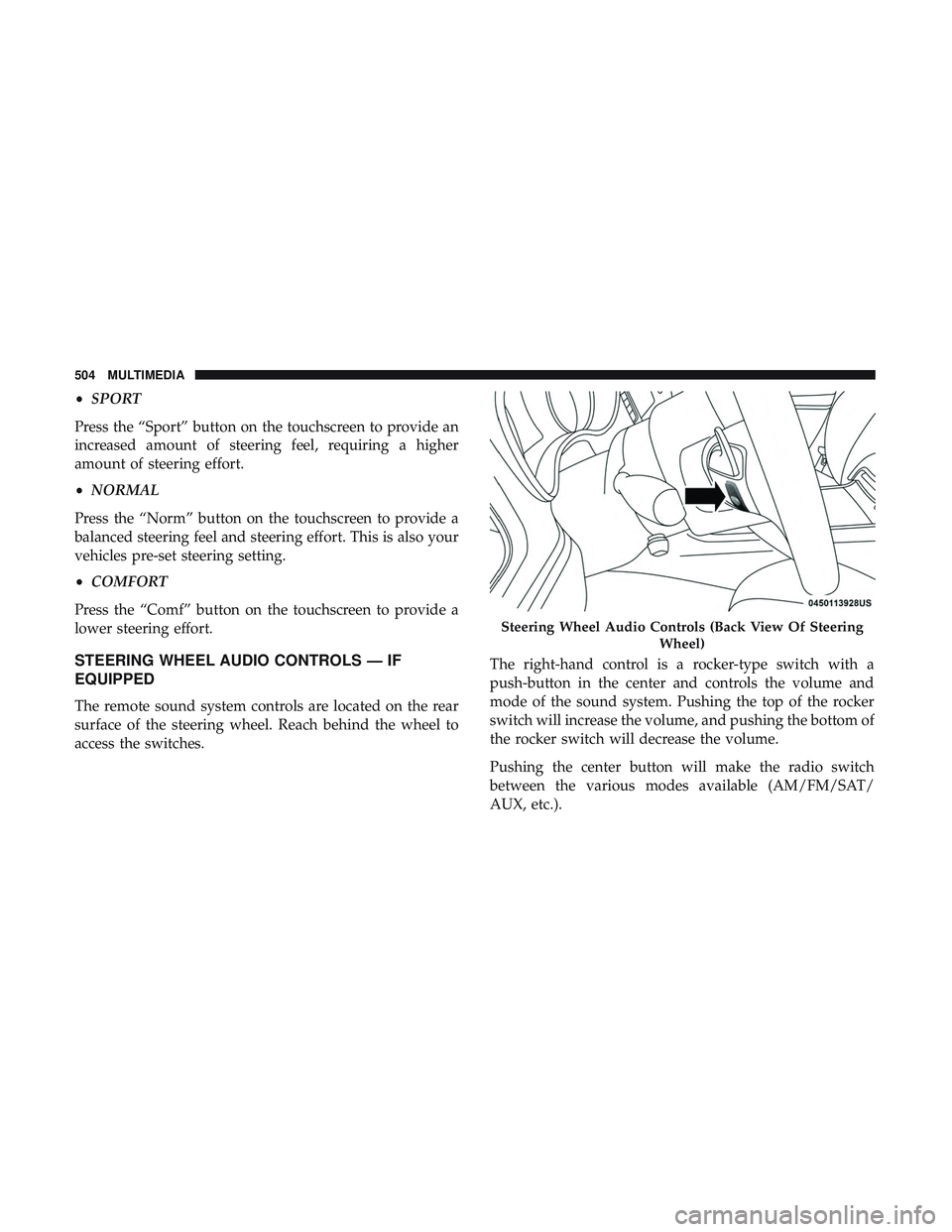
The remote sound system controls are located on the rear
surface of the steering wheel. Reach behind the wheel to
access the switches. The right-hand control is a rocker-type switch with a
push-button in the center and controls the volume and
mode of the sound system. Pushing the top of the rocker
switch will increase the volume, and pushing the bottom of
the rocker switch will decrease the volume.
Pushing the center button will make the radio switch
between the various modes available (AM/FM/SAT/
AUX, etc.).
Steering Wheel Audio Controls (Back View Of Steering
Wheel)
504 MULTIMEDIA
Page 511 of 553
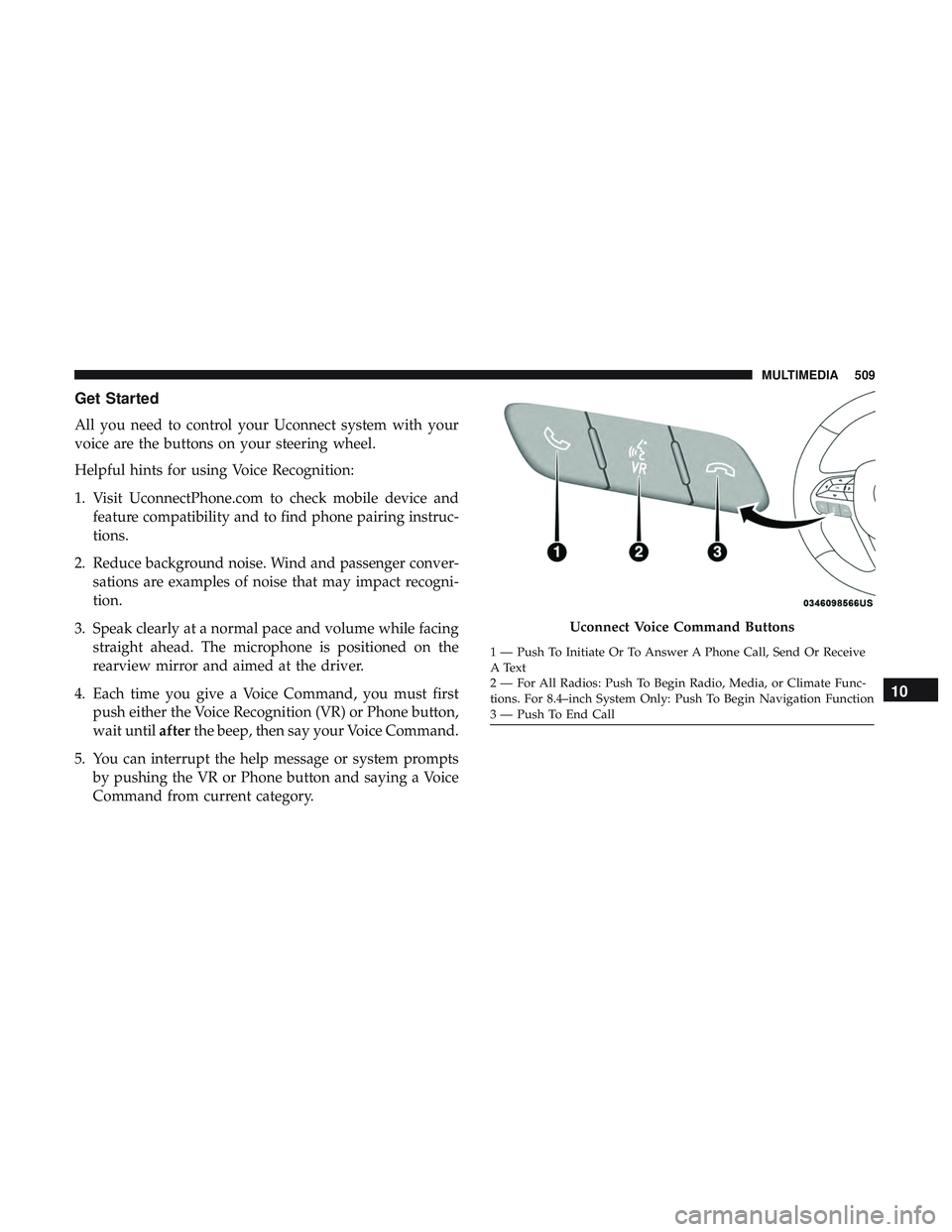
Get Started
All you need to control your Uconnect system with your
voice are the buttons on your steering wheel.
Helpful hints for using Voice Recognition:
1. Visit UconnectPhone.com to check mobile device andfeature compatibility and to find phone pairing instruc-
tions.
2. Reduce background noise. Wind and passenger conver- sations are examples of noise that may impact recogni-
tion.
3. Speak clearly at a normal pace and volume while facing straight ahead. The microphone is positioned on the
rearview mirror and aimed at the driver.
4. Each time you give a Voice Command, you must first push either the Voice Recognition (VR) or Phone button,
wait until afterthe beep, then say your Voice Command.
5. You can interrupt the help message or system prompts by pushing the VR or Phone button and saying a Voice
Command from current category.
Uconnect Voice Command Buttons
1 — Push To Initiate Or To Answer A Phone Call, Send Or Receive
A Text
2 — For All Radios: Push To Begin Radio, Media, or Climate Func-
tions. For 8.4–inch System Only: Push To Begin Navigation Function
3 — Push To End Call
10
MULTIMEDIA 509
Page 518 of 553
TIP:Voice Text Reply is not compatible with iPhone, but if
your vehicle is equipped with Siri Eyes Free, you can use
your voice to send a text message.
Climate
Too hot? Too cold? Adjust vehicle temperatures hands-free
and keep everyone comfortable while you keep moving
ahead. (If vehicle is equipped with climate control.)
Push the VR button
. After the beep, say one of the
following commands:
• “Set driver temperature to 70degrees”
• “Set passenger temperature to 70degrees”
TIP: Voice Command for Climate may only be used to
adjust the interior temperature of your vehicle. Voice
Command will not work to adjust the heated seats or
steering wheel if equipped.
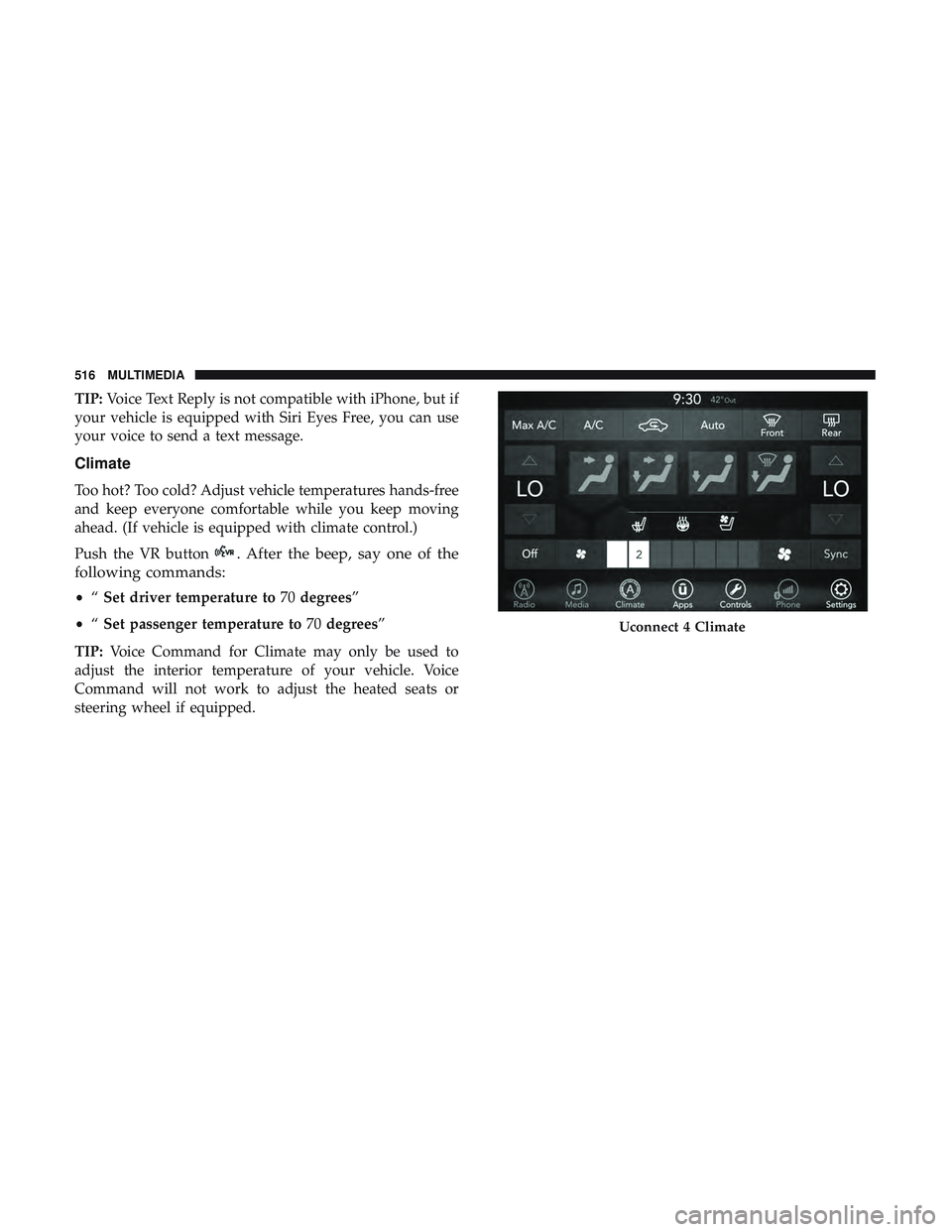
Uconnect 4 Climate
516 MULTIMEDIA
Page 523 of 553
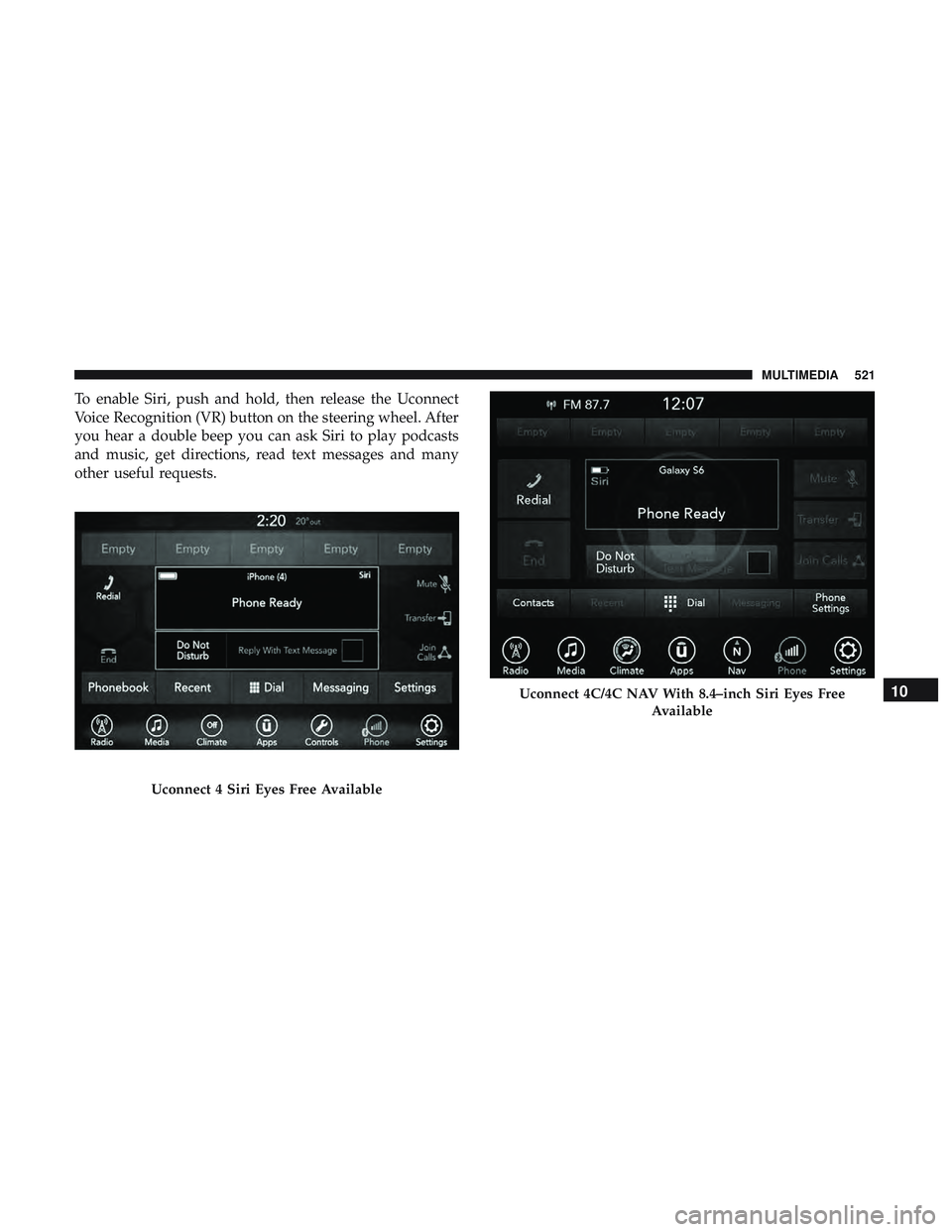
To enable Siri, push and hold, then release the Uconnect
Voice Recognition (VR) button on the steering wheel. After
you hear a double beep you can ask Siri to play podcasts
and music, get directions, read text messages and many
other useful requests.
Uconnect 4 Siri Eyes Free Available
Uconnect 4C/4C NAV With 8.4–inch Siri Eyes FreeAvailable10
MULTIMEDIA 521
Page 524 of 553
Do Not Disturb
With Do Not Disturb, you can disable notifications from
incoming calls and texts, allowing you to keep your eyes
on the road and hands on the wheel. For your convenience,
there is a counter display to keep track of your missed calls
and text messages while you were using Do Not Disturb.
Do Not Disturb can automatically reply with a text mes-
sage, a call or both, when declining an incoming call and
send it to voicemail.
Automatic reply messages can be:
•“I am driving right now, I will get back to you shortly.”
• Create a custom auto reply message up to 160 characters.
NOTE: Only the first 25 characters can be seen on the
touchscreen while typing a custom message. While in Do Not Disturb, Conference Call can be selected
so you can still place a second call without being inter-
rupted by incoming calls.
NOTE:
•
Reply with text message is not compatible with iPhones.
• Auto reply with text message is only available on
phones that support Bluetooth MAP.
Android Auto — If Equipped
NOTE: Feature availability depends on your carrier and
mobile phone manufacturer. Some Android Auto features
may or may not be available in every region and/or
language.
Android Auto allows you to use your voice to interact with
Android’s best-in-class speech technology through your
vehicle’s voice recognition system, and use your smart-
phone’s data plan to project your Android powered smart-
phone and a number of its apps onto your Uconnect
touchscreen. Connect your Android 5.0 (Lollipop), or
higher, to one of the media USB ports, using the factory-
provided USB cable, and press the new Android Auto icon
that replaces your “Phone” icon on the main menu bar to
begin Android Auto. Push and hold the VR button on the
steering wheel, or press and hold the “Microphone” icon
522 MULTIMEDIA
Page 526 of 553
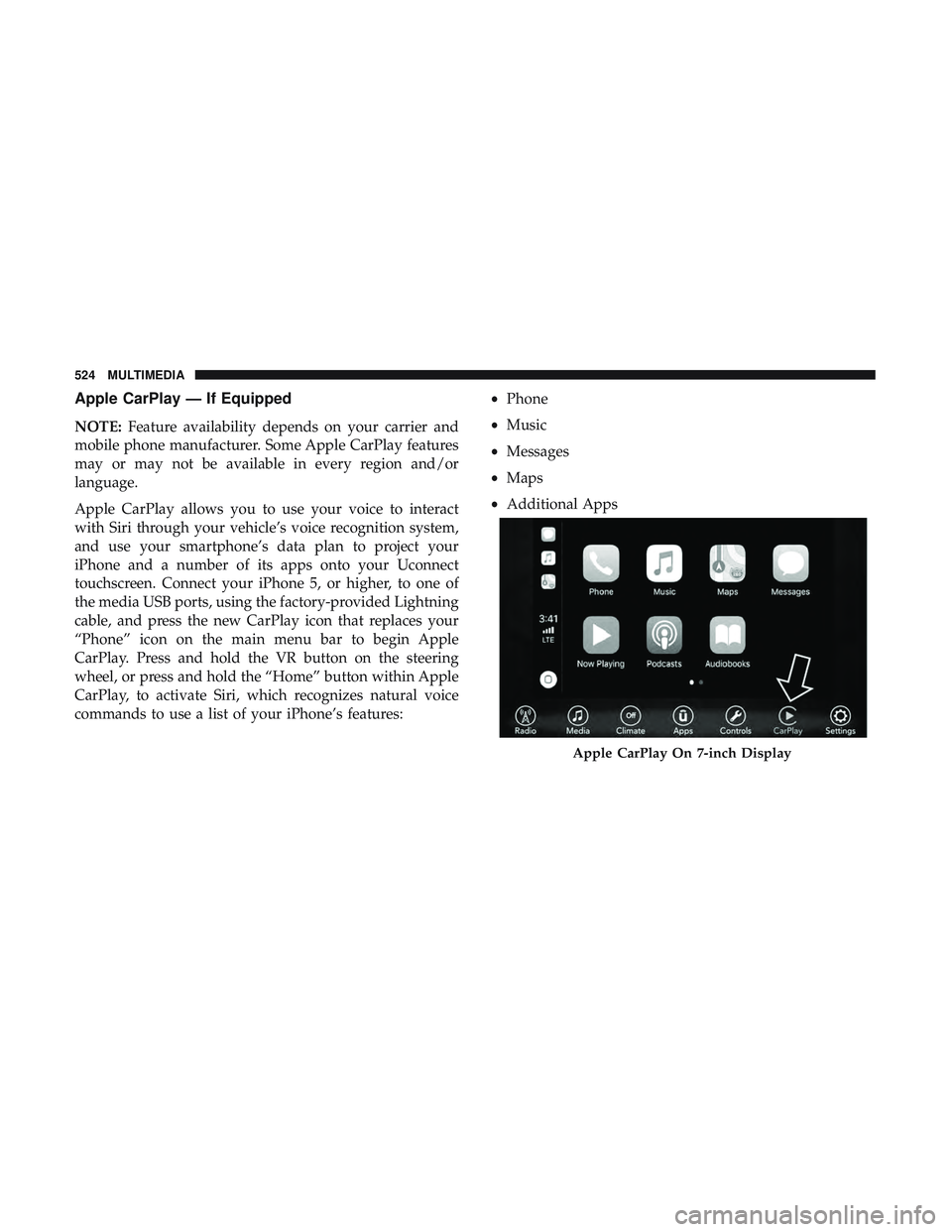
Apple CarPlay — If Equipped
NOTE:Feature availability depends on your carrier and
mobile phone manufacturer. Some Apple CarPlay features
may or may not be available in every region and/or
language.
Apple CarPlay allows you to use your voice to interact
with Siri through your vehicle’s voice recognition system,
and use your smartphone’s data plan to project your
iPhone and a number of its apps onto your Uconnect
touchscreen. Connect your iPhone 5, or higher, to one of
the media USB ports, using the factory-provided Lightning
cable, and press the new CarPlay icon that replaces your
“Phone” icon on the main menu bar to begin Apple
CarPlay. Press and hold the VR button on the steering
wheel, or press and hold the “Home” button within Apple
CarPlay, to activate Siri, which recognizes natural voice
commands to use a list of your iPhone’s features: •
Phone
• Music
• Messages
• Maps
• Additional Apps
Apple CarPlay On 7-inch Display
524 MULTIMEDIA