light DODGE CHARGER 2020 Owners Manual
[x] Cancel search | Manufacturer: DODGE, Model Year: 2020, Model line: CHARGER, Model: DODGE CHARGER 2020Pages: 412, PDF Size: 18.96 MB
Page 360 of 412
358MULTIMEDIA
Preset Selection From List
A Preset can be selected by pressing any of the
listed Presets or by pushing the ENTER/
BROWSE button on the TUNE/SCROLL knob to
select the currently highlighted Preset.
When selected, the radio tunes to the station
stored in the Preset and returns to the main
radio screen.
Deleting Presets
A Preset can be deleted in the Presets Browse
screen by pressing the Trash Can icon for the
corresponding Preset.
Return To Main Radio Screen
You can return to the Main Radio Screen, by
pressing the X button on the touchscreen when
in the Browse Presets screen.
SiriusXM® Satellite Radio Mode —
If Equipped
SiriusXM® Satellite Radio uses direct
satellite-to-receiver broadcasting technology to
provide clear, coast-to-coast radio content.
SiriusXM® is a subscription based service. SiriusXM® All Access Package
All satellite radio-equipped vehicles come with a
one-year trial to the SiriusXM® All Access
package, providing over 160 channels of the best
programming for all the places life takes you.
In your vehicle — You’ll get every channel
available on your radio, including all the
premium programming like Howard Stern,
every NFL® game, every MLB® game, every
NASCAR® race, Oprah Radio, and more.
On the go — With a SiriusXM® Internet Radio
subscription included with the All Access trial,
you’ll get SiriusXM® on your computer,
smartphone, or tablet. Including:
A huge On Demand catalog
Xtra Channels featuring SiriusXM®
Latino – a collection of Spanish-language
channels
MySXM – allowing you to personalize
your favorite music channels
Go to siriusxm.com/getallaccess for more
information
SiriusXM® services require subscriptions, sold
separately after the 12-month trial included
with the new vehicle purchase. If you decide to continue your service at the end of your trial
subscription, the plan you choose will
automatically renew and bill at then-current
rates until you call SiriusXM® at 866-635-2349
to cancel. See SiriusXM® Customer Agreement
for complete terms at www.siriusxm.com. All
fees and programming subject to change. Our
satellite service is available only to those at
least 18 and older in the 48 contiguous USA
and D.C. Our SiriusXM® satellite service is also
available in PR (with coverage limitations). Our
Internet radio service is available throughout
our satellite service area and in AK. © 202
1
SiriusXM® Radio Inc. Sirius, XM and all related
marks and logos are trademarks of SiriusXM®
Radio Inc. Service available in Canada; see
www.siriusxm.ca.
This functionality is only available for radios
equipped with a Satellite receiver. In order to
receive satellite radio, the vehicle needs to be
outside with a clear view to the sky.
If the screen shows Acquiring Signal, you might
have to change the vehicle’s position in order to
receive a signal. In most cases, the satellite
radio does not receive a signa l in underground
parking garages or tunnels.
20_LD_OM_EN_USC_t.book Page 358
Page 361 of 412
MULTIMEDIA359
No Subscription
Radios equipped with a Satellite receiver,
require a subscription to the SiriusXM® Service.
When the Radio does not have the necessary
subscription, the Radio is able to receive the
Pre-View channel only.
Acquiring SiriusXM® Subscription
To activate the SiriusXM® Satellite Radio
subscription, US residents call:
1-800-643-2112
Canadian residents call:
1-877-438-9677
NOTE:
You will need to provide the SiriusXM® ID (RID)
located at the bottom of the Channel 0 screen.
The Satellite Mode is activated by a press of the
SXM button on the touchscreen.
When in Satellite mode:
The SXM button on the touchscreen is high -
lighted.
The SiriusXM® Presets are displayed at the
top of the screen.
The Genre is displayed below the Presets
Bar.
The SiriusXM® Channel Number is displayed
in the center.
The Program Information is displayed at the
bottom of the Channel Number.
The SiriusXM® function buttons are
displayed below the Program Information.
Tuning is done by operating the Tune Knob or by
Direct Tune, similar to other Radio Bands, see
Presets, browse, Tune Knob, and Direct Tune.
In addition to the tuning Operation functions
common to all Radio modes, the replay, Traffic/
Weather Jump, and fav button functions are
available in SiriusXM® Mode.
Replay
The replay function provides a means to store
and replay up to 22 minutes of music audio and
48 minutes of talk radio. Once the channel is
switched, content in replay memory is lost.
Press the Replay button on the touchscreen.
The play/pause, rewind/forward and live
buttons will display at the top of the screen,
along with the replay time. You can exit by pressing the Replay button on
the touchscreen, any time during the Replay
mode.
Play/Pause
Press the Pause/Play button on the
touchscreen to pause the playing of live or
rewound content at any time. Play can be
resumed again by pressing of the Pause/Play
button on the touchscreen.
Rewind
Press the RW button on the touchscreen to
rewind the content in steps of five seconds.
Pressing the RW button on the touchscreen for
more than two seconds rewinds the content.
The Radio begins playing the content at the
point at which the press is released.
Forward
Each press of the FW button on the touchscreen
forwards the content in steps of five seconds.
Forwarding of the content can only be done
when the content is previously rewound, and
therefore, can not be done for live content. A
continuous press of the FW button on the
touchscreen also forwards the content. The
Radio begins playing the content at the point at
which the press is released.
9
20_LD_OM_EN_USC_t.book Page 359
Page 362 of 412
360MULTIMEDIA
Live
Press the Live button on the touchscreen to
resume playing of Live content.
Favorites
Press the Fav button on the touchscreen to
activate the favorites menu, which will time out
in five seconds in absence of user interaction.
You can exit the Favorites Menu by a press of
the X in the top right corner.
The favorites feature enables you to set a
favorite artist, or song that is currently playing.
The Radio then uses this information to alert
you when either the favorite song, or favorite
artist are being played at any time by any of the
SiriusXM® Channels.
The maximum number of favorites that can be
stored in the Radio is 50.
Fav. Artist: While the song is playing to set a
Favorite Artist, press the Fav button on the
touchscreen and then the Fav. Artist button on
the touchscreen. Fav. Song:
While the song is playing to set a
Favorite Song, press the Fav button on the
touchscreen and then the Fav Song button on
the touchscreen.
Browse In SXM
Press the Browse button on the touchscreen to
edit Presets, Favorites, Game Zone, and Jump
settings, along with providing the SiriusXM®
Channel List.
This Screen contains many submenus. You can
exit a sub menu to return to a parent menu by
pressing the Back Arrow.
All
Press the All button at the left of the Browse
Screen.
Channel List
Press the Channel List, or Genre, to display all
the SiriusXM® Channel Numbers. You can
scroll the Channel list by pressing the Up and
Down arrows, located on the right side of the
screen. Scrolling can also be done by operating
the TUNE/SCROLL knob. Genre
Press the Genre button on the touchscreen to
display a list of Genres. You can select any
desired Genre by pressing the Genre list, the
Radio tunes to a channel with the content in the
selected Genre.
Presets
Press the Presets button located at the left of
the Browse screen.
You can scroll the Presets list pressing the up
and down arrows located at the right side of the
screen. Scrolling can also be done by operating
the TUNE/SCROLL knob as well.
Preset Selection
A Preset can be selected by pressing any of the
listed Presets, or by pushing the ENTER/
BROWSE button on the TUNE/SCROLL knob to
select the currently highlighted Preset. When
selected, the Radio tunes to the station stored
in the Preset, and returns to the main Radio
screen.
20_LD_OM_EN_USC_t.book Page 360
Page 367 of 412
MULTIMEDIA365
Browse
Press the Browse button on the touchscreen to
display the browse window. The left side of the
browse window displays a list of ways you can
browse through the contents of the USB device/
iPod®. If supported by the device, you can
browse by Folders, Artists, Playlists, Albums,
Songs, etc. Press the desired button on the left
side of the screen. The center of the browse
window shows items and its sub-functions,
which can be scrolled by pressing the Up and
Down buttons to the right. The Tune/Scroll knob
can also be used to scroll.
Media Mode
Press the Media button on the touchscreen to
select the desired audio source: USB.
Repeat
Press the Repeat button on the touchscreen to
toggle the repeat functionality. The Repeat
button on the touchscreen is highlighted when
active. The Radio will continue to play the current
track, repeatedly, as long as the repeat is active.
Press the Repeat button on the touchscreen a
second time to turn this feature off.
Shuffle
Press the Shuffle button on the touchscreen to
play the selections on the USB/iPod® device in
random order to provide an interesting change of
pace. Press the Shuffle button on the touchscreen
a second time to turn this feature off.
Info
Press the Info button on the touchscreen to
display the current track information. Press the
Info button on the touchscreen a second time to
cancel this feature.
Tracks
Press the Tracks button on the touchscreen to
display a pop-up with the Song List. The
currently playing song is indicated by an arrow
and lines above and below the song title. When
in the Tracks List screen, you can rotate the
Tune/Scroll knob to highlight a track (indicated
by the line above and below the track name)
and then push the Enter/Browse knob to start
playing that track.
Pressing the Tracks button on the touchscreen
while the pop-up is displayed will close the
pop-up.Audio
Refer to “Radio Mode” for adjusting the audio
settings.
AUX Mode
Overview
AUX (Auxiliary Mode) is entered by inserting an
AUX device using a cable with a 3.5 mm audio
jack into the AUX port or by pressing the AUX
button on the left side of the display.
Inserting Auxiliary Device
Gently insert the Auxiliary device cable into the
AUX Port. If you insert an Auxiliary device with
the ignition and the radio on, the unit will switch
to AUX mode and begin to play when you insert
the device cable.
Controlling The Auxiliary Device
The control of the auxiliary device (e.g.,
selecting playlists, play, fast forward, etc.)
cannot be provided by the radio; use the device
controls instead. Adjust the volume with the
Volume/Mute rotary knob, or with the volume of
the attached device.
9
20_LD_OM_EN_USC_t.book Page 365
Page 371 of 412
MULTIMEDIA369
Apple CarPlay® Integration
NOTE:
Feature availability depends on your carrier and
mobile phone manufacturer. Some Apple
CarPlay® features may or may not be available
in every region and/or language.
Uconnect works seamlessly with Apple
CarPlay®, the smarter, more secure way to use
your iPhone® in the car, and stay focused on
the road. Use your Uconnect Touchscreen
display, the vehicle's knobs and controls, and
your voice with Siri to get access to Apple
Music®, Maps, Messages, and more.
To use Apple CarPlay®, make sure you are
using iPhone® 5 or later, have Siri enabled in
Settings, ensure your iPhone® is unlocked for
the very first connection only, and then use the
following procedure:
1. Connect your iPhone® to one of the media
USB ports in your vehicle.
NOTE:
Be sure to use the factory-provided Lightning
cable that came with your phone, as after -
market cables may not work.
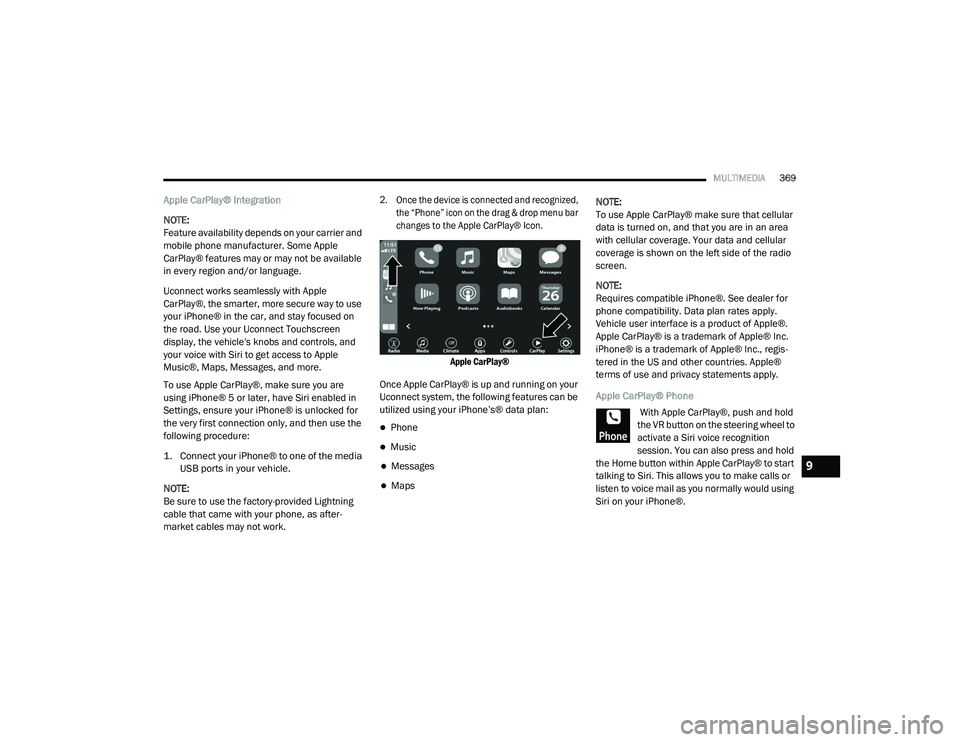
2. Once the device is connected and recognized, the “Phone” icon on the drag & drop menu bar
changes to the Apple CarPlay® Icon.
Apple CarPlay®
Once Apple CarPlay® is up and running on your
Uconnect system, the following features can be
utilized using your iPhone’s® data plan:
Phone
Music
Messages
Maps NOTE:
To use Apple CarPlay® make sure that cellular
data is turned on, and that you are in an area
with cellular coverage. Your data and cellular
coverage is shown on the left side of the radio
screen.
NOTE:
Requires compatible iPhone®. See dealer for
phone compatibility. Data plan rates apply.
Vehicle user interface is a product of Apple®.
Apple CarPlay® is a trademark of Apple® Inc.
iPhone® is a trademark of Apple® Inc., regis
-
tered in the US and other countries. Apple®
terms of use and privacy statements apply.
Apple CarPlay® Phone
With Apple CarPlay®, push and hold
the VR button on the steering wheel to
activate a Siri voice recognition
session. You can also press and hold
the Home button within Apple CarPlay® to start
talking to Siri. This allows you to make calls or
listen to voice mail as you normally would using
Siri on your iPhone®.
9
20_LD_OM_EN_USC_t.book Page 369
Page 388 of 412
386MULTIMEDIA
Each time you give a Voice Command, you
must first push either the Voice Recognition
(VR) or Phone button, wait until after the
beep, then say your Voice Command.
You can interrupt the help message or
system prompts by pushing the VR or Phone
button and saying a Voice Command from
the current category.
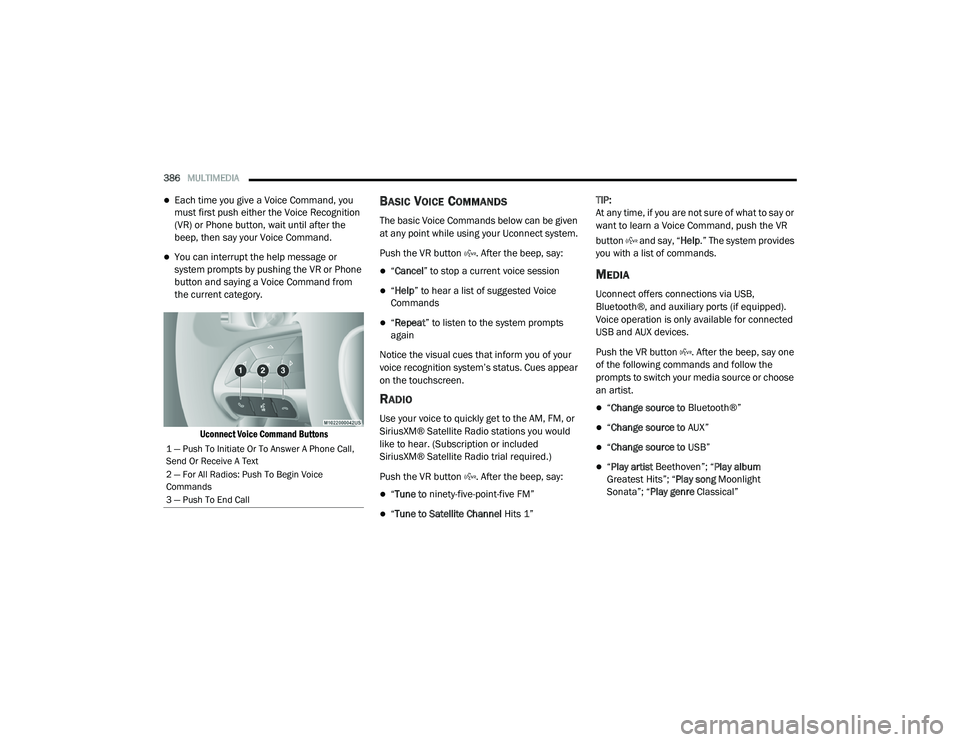
Uconnect Voice Command Buttons
BASIC VOICE COMMANDS
The basic Voice Commands below can be given
at any point while using your Uconnect system.
Push the VR button . After the beep, say:
“Cancel ” to stop a current voice session
“Help ” to hear a list of suggested Voice
Commands
“ Repeat ” to listen to the system prompts
again
Notice the visual cues that inform you of your
voice recognition system’s status. Cues appear
on the touchscreen.
RADIO
Use your voice to quickly get to the AM, FM, or
SiriusXM® Satellite Radio stations you would
like to hear. (Subscription or included
SiriusXM® Satellite Radio trial required.)
Push the VR button . After the beep, say:
“ Tune to ninety-five-point-five FM”
“Tune to Satellite Channel Hits 1”TIP:
At any time, if you are not sure of what to say or
want to learn a Voice Command, push the VR
button and say, “
Help.” The system provides
you with a list of commands.
MEDIA
Uconnect offers connections via USB,
Bluetooth®, and auxiliary ports (if equipped).
Voice operation is only available for connected
USB and AUX devices.
Push the VR button . After the beep, say one
of the following commands and follow the
prompts to switch your media source or choose
an artist.
“ Change source to Bluetooth®”
“Change source to AUX”
“Change source to USB”
“Play artist Beethoven”; “ Play album
Greatest Hits”; “ Play song Moonlight
Sonata”; “ Play genre Classical”
1 — Push To Initiate Or To Answer A Phone Call,
Send Or Receive A Text
2 — For All Radios: Push To Begin Voice
Commands
3 — Push To End Call
20_LD_OM_EN_USC_t.book Page 386
Page 391 of 412
MULTIMEDIA389
NOTE:
Reply with text message is not compatible
with iPhones®.
Auto reply with text message is only available
on phones that support Bluetooth® MAP.
ANDROID AUTO™ — IF EQUIPPED
NOTE:
Feature availability depends on your carrier and
mobile phone manufacturer. Some Android
Auto™ features may or may not be available in
every region and/or language.
Android Auto™ allows you to use your voice to
interact with Android’s™ best-in-class speech
technology through your vehicle’s voice
recognition system, and use your smartphone’s
data plan to project your Android™-powered
smartphone and a number of its apps onto your
Uconnect touchscreen. Connect your Android™
5.0 or higher to one of the media USB ports,
using the factory-provided USB cable, and press
the new Android Auto™ icon that replaces your
“Phone” icon on the main menu bar to begin
Android Auto™. Push and hold the VR button on
the steering wheel, or press and hold the Microphone icon within Android Auto™, to
activate Android’s™ VR, which recognizes
natural voice commands, to use a list of your
smartphone’s features:
Maps
Music
Phone
Text Messages
Additional Apps
Refer to your Uconnect Owner’s Manual
Supplement for further information.
NOTE:
Requires compatible smartphone running
Android™ 5.0 or higher and download app on
Google Play. Android™, Android Auto™, and
Google Play are trademarks of Google Inc.
APPLE CARPLAY® — IF EQUIPPED
NOTE:
Feature availability depends on your carrier and
mobile phone manufacturer. Some Apple
CarPlay® features may or may not be available
in every region and/or language. Apple CarPlay® allows you to use your voice to
interact with Siri through your vehicle’s voice
recognition system, and use your smartphone’s
data plan to project your iPhone® and a
number of its apps onto your Uconnect
touchscreen. Connect your iPhone® 5 or higher
to one of the media USB ports, using the
factory-provided Lightning cable, and press the
new Apple CarPlay® icon that replaces your
Phone icon on the main menu bar to begin
Apple CarPlay®. Push and hold the VR button
on the steering wheel, or press and hold the
Home button within Apple CarPlay®, to activate
Siri, which recognizes natural voice commands
to use a list of your iPhone’s® features:
Phone
Music
Messages
Maps (if equipped)
Additional Apps (if equipped)
Refer to your Uconnect Owner’s Manual
Supplement for further information.9
20_LD_OM_EN_USC_t.book Page 389
Page 395 of 412
CUSTOMER ASSISTANCE393
The manufacturer will not stand behind any
service contract that is not the manufacturer's
service contract. It is not responsible for any
service contract other than the manufacturer's
service contract. If you purchased a service
contract that is not a manufacturer's service
contract, and you require service after the
manufacturer's New Vehicle Limited Warranty
expires, please refer to the contract documents,
and contact the person listed in those
documents.
We appreciate that you have made a major
investment when you purchased the vehicle. An
authorized dealer has also made a major
investment in facilities, tools, and training to
assure that you are absolutely delighted with
the ownership experience. You will be pleased
with their sincere efforts to resolve any warranty
issues or related concerns.
WARRANTY INFORMATION
See the Warranty Information for the terms and
provisions of FCA US LLC warranties applicable
to this vehicle and market. Refer to
www.mopar.com/om for further information.
MOPAR PARTS
Mopar original equipment parts & accessories
and factory filled fluids are available from an
authorized dealer. They are recommended for
your vehicle to keep it operating at its best and
maintain its original condition.
REPORTING SAFETY DEFECTS
IN THE 50 UNITED STATES AND
W
ASHINGTON, D.C.
If you believe that your vehicle has a
defect that could cause a crash or cause
injury or death, you should immediately
inform the National Highway Traffic
Safety Administration (NHTSA) in
addition to notifying FCA US LLC.
WARNING!
Engine exhaust (internal combustion engines
only), some of its constituents, and certain
vehicle components contain, or emit,
chemicals known to the State of California to
cause cancer and birth defects, or other
reproductive harm. In addition, certain fluids
contained in vehicles and certain products of
component wear contain, or emit, chemicals
known to the State of California to cause
cancer and birth defects, or other
reproductive harm.
10
20_LD_OM_EN_USC_t.book Page 393
Page 397 of 412
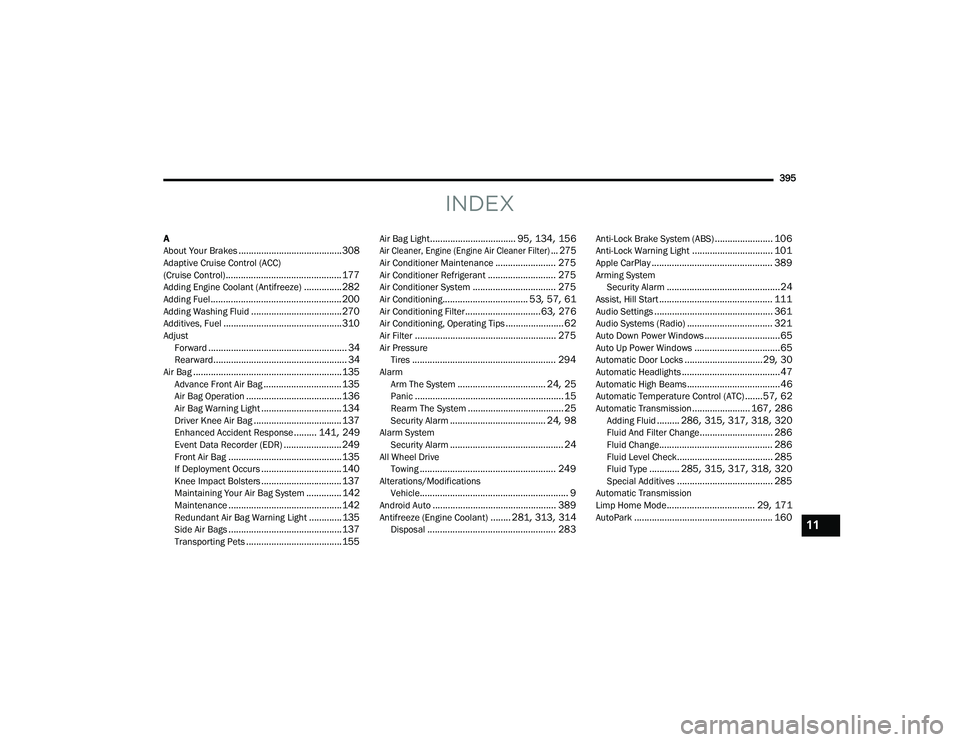
395
INDEX
A
About Your Brakes......................................... 308Adaptive Cruise Control (ACC)
(Cruise Control).............................................. 177Adding Engine Coolant (Antifreeze)............... 282Adding Fuel.................................................... 200Adding Washing Fluid.................................... 270Additives, Fuel............................................... 310AdjustForward....................................................... 34Rearward..................................................... 34Air Bag........................................................... 135Advance Front Air Bag............................... 135Air Bag Operation...................................... 136Air Bag Warning Light................................ 134Driver Knee Air Bag................................... 137Enhanced Accident Response......... 141, 249Event Data Recorder (EDR)....................... 249Front Air Bag............................................. 135If Deployment Occurs................................ 140Knee Impact Bolsters................................ 137Maintaining Your Air Bag System.............. 142Maintenance............................................. 142Redundant Air Bag Warning Light.............135Side Air Bags............................................. 137Transporting Pets...................................... 155
Air Bag Light.................................. 95, 134, 156
Air Cleaner, Engine (Engine Air Cleaner Filter)... 275
Air Conditioner Maintenance........................ 275Air Conditioner Refrigerant........................... 275Air Conditioner System................................. 275Air Conditioning.................................. 53, 57, 61Air Conditioning Filter..............................63, 276Air Conditioning, Operating Tips....................... 62Air Filter........................................................ 275Air PressureTires......................................................... 294AlarmArm The System................................... 24, 25Panic........................................................... 15Rearm The System...................................... 25Security Alarm...................................... 24, 98Alarm SystemSecurity Alarm............................................. 24All Wheel DriveTowing...................................................... 249Alterations/ModificationsVehicle........................................................... 9Android Auto................................................. 389Antifreeze (Engine Coolant)........ 281, 313, 314Disposal................................................... 283
Anti-Lock Brake System (ABS)....................... 106Anti-Lock Warning Light................................ 101Apple CarPlay................................................ 389Arming SystemSecurity Alarm.............................................24Assist, Hill Start............................................. 111Audio Settings............................................... 361Audio Systems (Radio).................................. 321Auto Down Power Windows..............................65Auto Up Power Windows..................................65Automatic Door Locks...............................29, 30Automatic Headlights.......................................47Automatic High Beams.....................................46Automatic Temperature Control (ATC).......57, 62Automatic Transmission....................... 167, 286Adding Fluid......... 286, 315, 317, 318, 320Fluid And Filter Change............................. 286Fluid Change............................................. 286Fluid Level Check...................................... 285Fluid Type............ 285, 315, 317, 318, 320Special Additives...................................... 285Automatic Transmission
Limp Home Mode................................... 29, 171AutoPark....................................................... 16011
20_LD_OM_EN_USC_t.book Page 395
Page 398 of 412
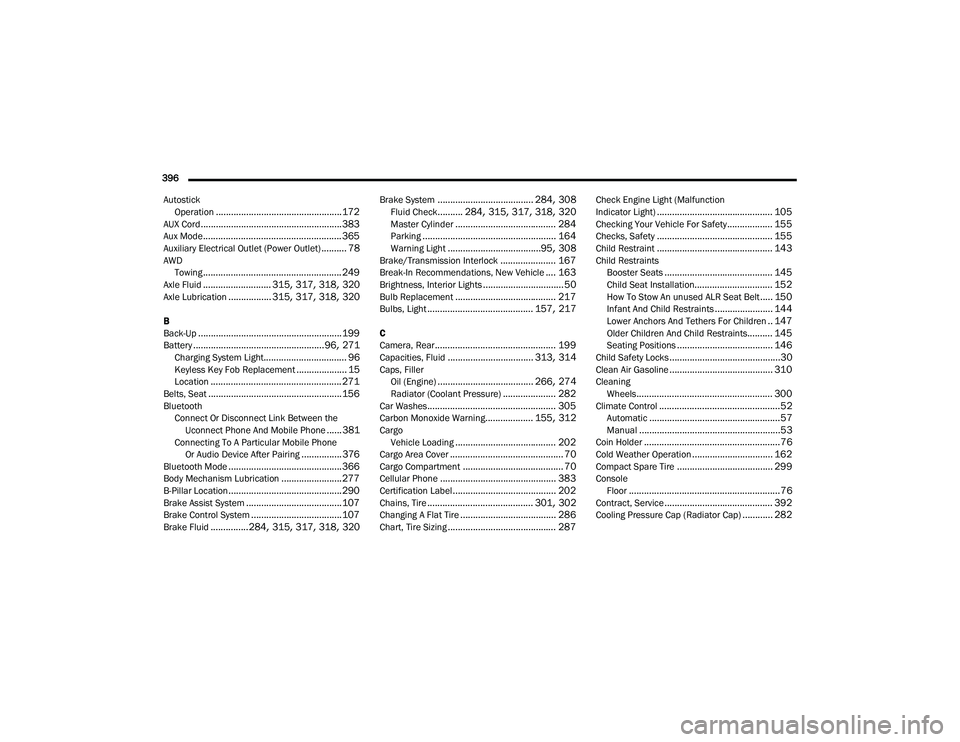
396 Autostick Operation
.................................................. 172AUX Cord........................................................ 383Aux Mode....................................................... 365Auxiliary Electrical Outlet (Power Outlet).......... 78AWDTowing....................................................... 249Axle Fluid........................... 315, 317, 318, 320Axle Lubrication................. 315, 317, 318, 320
B
Back-Up......................................................... 199Battery.................................................... 96, 271Charging System Light................................. 96Keyless Key Fob Replacement.................... 15Location.................................................... 271Belts, Seat..................................................... 156BluetoothConnect Or Disconnect Link Between the Uconnect Phone And Mobile Phone
...... 381Connecting To A Particular Mobile Phone Or Audio Device After Pairing................376Bluetooth Mode............................................. 366Body Mechanism Lubrication........................ 277B-Pillar Location............................................. 290Brake Assist System...................................... 107Brake Control System.................................... 107Brake Fluid...............284, 315, 317, 318, 320
Brake System...................................... 284, 308Fluid Check.......... 284, 315, 317, 318, 320Master Cylinder........................................ 284Parking..................................................... 164Warning Light.....................................95, 308Brake/Transmission Interlock...................... 167Break-In Recommendations, New Vehicle.... 163Brightness, Interior Lights................................ 50Bulb Replacement........................................ 217Bulbs, Light.......................................... 157, 217
C
Camera, Rear................................................ 199Capacities, Fluid.................................. 313, 314Caps, FillerOil (Engine)...................................... 266, 274Radiator (Coolant Pressure)..................... 282Car Washes................................................... 305Carbon Monoxide Warning................... 155, 312CargoVehicle Loading........................................ 202Cargo Area Cover............................................. 70Cargo Compartment........................................ 70Cellular Phone.............................................. 383Certification Label......................................... 202Chains, Tire.......................................... 301, 302Changing A Flat Tire...................................... 286Chart, Tire Sizing........................................... 287
Check Engine Light (Malfunction
Indicator Light).............................................. 105Checking Your Vehicle For Safety.................. 155Checks, Safety.............................................. 155Child Restraint.............................................. 143Child RestraintsBooster Seats........................................... 145Child Seat Installation............................... 152How To Stow An unused ALR Seat Belt..... 150Infant And Child Restraints....................... 144Lower Anchors And Tethers For Children.. 147Older Children And Child Restraints.......... 145Seating Positions...................................... 146Child Safety Locks............................................30Clean Air Gasoline......................................... 310CleaningWheels...................................................... 300Climate Control................................................52Automatic....................................................57Manual........................................................53Coin Holder......................................................76Cold Weather Operation................................ 162Compact Spare Tire...................................... 299ConsoleFloor............................................................76Contract, Service........................................... 392Cooling Pressure Cap (Radiator Cap)............ 282
20_LD_OM_EN_USC_t.book Page 396