phone DODGE CHARGER 2020 User Guide
[x] Cancel search | Manufacturer: DODGE, Model Year: 2020, Model line: CHARGER, Model: DODGE CHARGER 2020Pages: 412, PDF Size: 18.96 MB
Page 337 of 412
MULTIMEDIA335
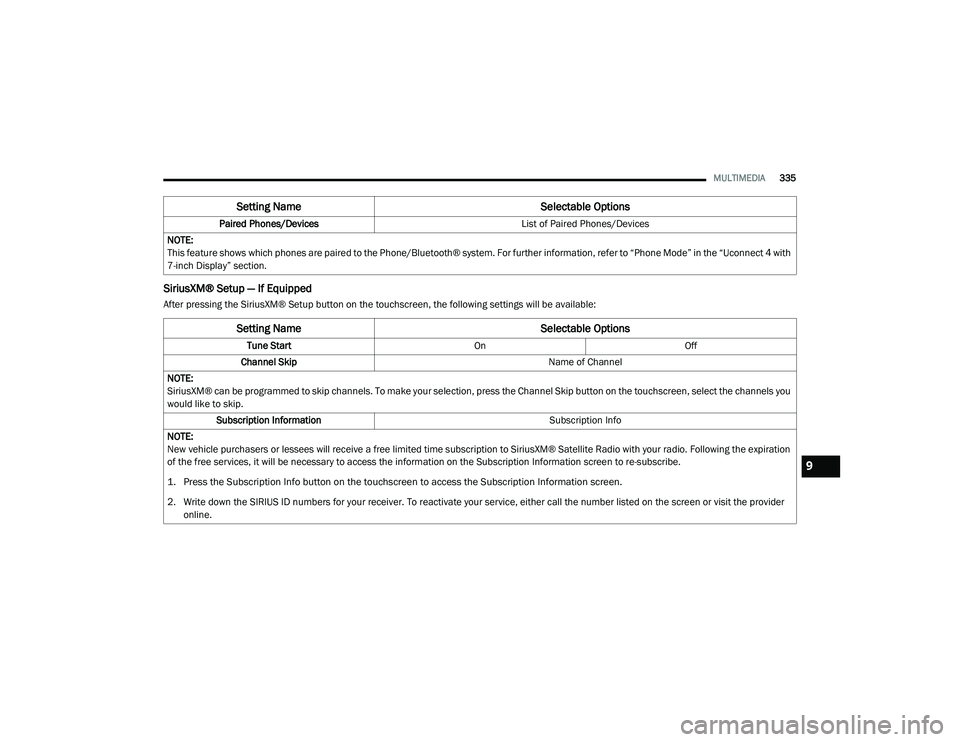
SiriusXM® Setup — If Equipped
After pressing the SiriusXM® Setup button on the touchscreen, the following settings will be available:Paired Phones/Devices
List of Paired Phones/Devices
NOTE:
This feature shows which phones are paired to the Phone/Bluetooth® system. For further information, refer to “Phone Mode” in the “Uconnect 4 with
7-inch Display” section.
Setting Name Selectable Options
Setting NameSelectable Options
Tune StartOnOff
Channel Skip Name of Channel
NOTE:
SiriusXM® can be programmed to skip channels. To make your selection, press the Channel Skip button on the touchscreen, select the channels you
would like to skip. Subscription Information Subscription Info
NOTE:
New vehicle purchasers or lessees will receive a free limited time subscription to SiriusXM® Satellite Radio with your radio. Following the expiration
of the free services, it will be necessary to access the information on the Subscription Information screen to re-subscribe.
1. Press the Subscription Info button on the touchscreen to access the Subscription Information screen.
2. Write down the SIRIUS ID numbers for your receiver. To reactivate your service, either call the number listed on the screen or visit the provider online.
9
20_LD_OM_EN_USC_t.book Page 335
Page 339 of 412
MULTIMEDIA337
Clear Personal Data
After pressing the Clear Personal Data button on the touchscreen, the following setting will be available:
CUSTOMER PROGRAMMABLE FEATURES
— U
CONNECT 4C/4C NAV SETTINGS
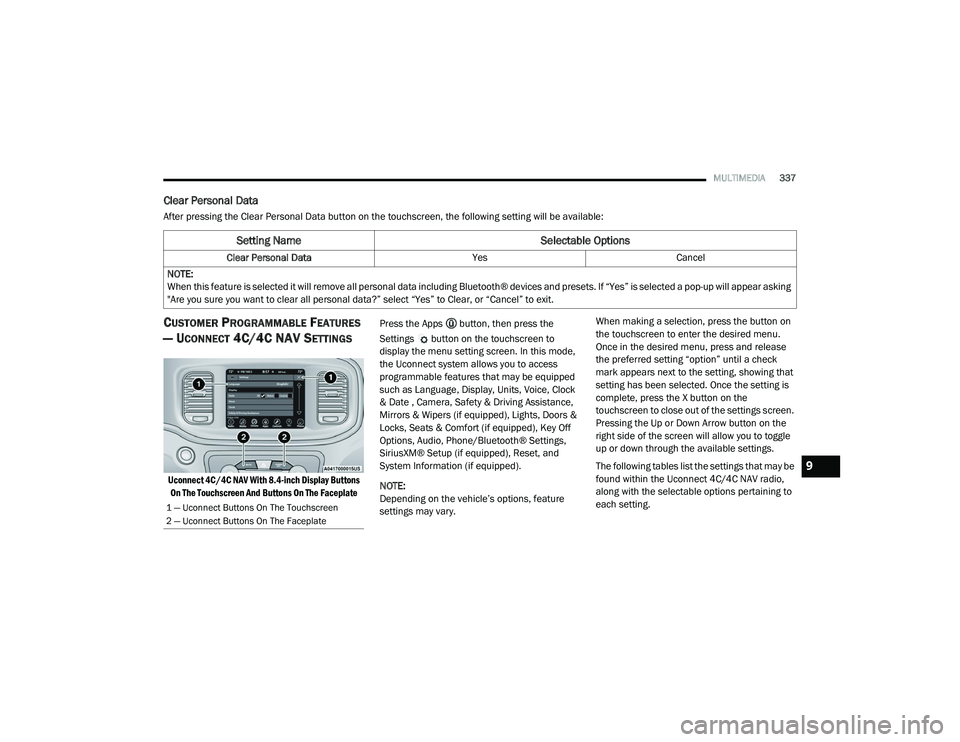
Uconnect 4C/4C NAV With 8.4-inch Display Buttons
On The Touchscreen And Buttons On The Faceplate
Press the Apps button, then press the
Settings button on the touchscreen to
display the menu setting screen. In this mode,
the Uconnect system allows you to access
programmable features that may be equipped
such as Language, Display, Units, Voice, Clock
& Date , Camera, Safety & Driving Assistance,
Mirrors & Wipers (if equipped), Lights, Doors &
Locks, Seats & Comfort (if equipped), Key Off
Options, Audio, Phone/Bluetooth® Settings,
SiriusXM® Setup (if equipped), Reset, and
System Information (if equipped).
NOTE:
Depending on the vehicle’s options, feature
settings may vary. When making a selection, press the button on
the touchscreen to enter the desired menu.
Once in the desired menu, press and release
the preferred setting “option” until a check
mark appears next to the setting, showing that
setting has been selected. Once the setting is
complete, press the X button on the
touchscreen to close out of the settings screen.
Pressing the Up or Down Arrow button on the
right side of the screen will allow you to toggle
up or down through the available settings.
The following tables list the settings that may be
found within the Uconnect 4C/4C NAV radio,
along with the selectable options pertaining to
each setting.
Setting Name
Selectable Options
Clear Personal DataYesCancel
NOTE:
When this feature is selected it will remove all personal data including Bluetooth® devices and presets. If “Yes” is selected a pop-up will appear asking
"Are you sure you want to clear all personal data?” select “Yes” to Clear, or “Cancel” to exit.
1 — Uconnect Buttons On The Touchscreen
2 — Uconnect Buttons On The Faceplate
9
20_LD_OM_EN_USC_t.book Page 337
Page 350 of 412
348MULTIMEDIA
Seats & Comfort — If Equipped
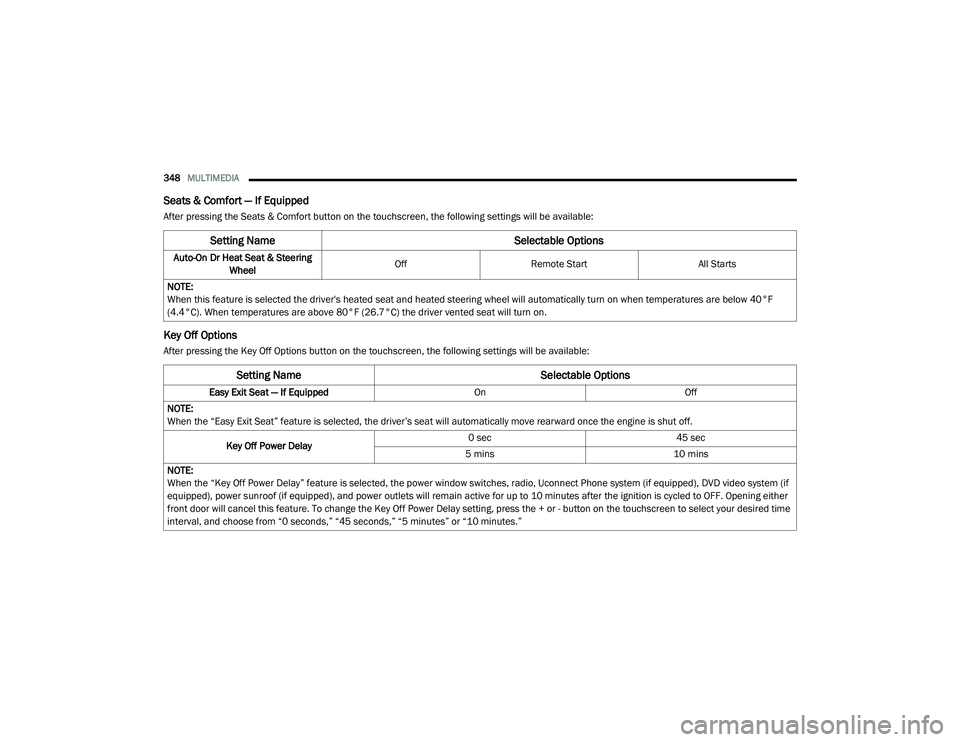
After pressing the Seats & Comfort button on the touchscreen, the following settings will be available:
Key Off Options
After pressing the Key Off Options button on the touchscreen, the following settings will be available:
Setting Name Selectable Options
Auto-On Dr Heat Seat & Steering
Wheel Off
Remote Start All Starts
NOTE:
When this feature is selected the driver's heated seat and heated steering wheel will automatically turn on when temperatures are below 40°F
(4.4°C). When temperatures are above 80°F (26.7°C) the driver vented seat will turn on.
Setting Name Selectable Options
Easy Exit Seat — If EquippedOnOff
NOTE:
When the “Easy Exit Seat” feature is selected, the driver’s seat will automatically move rearward once the engine is shut off.
Key Off Power Delay 0 sec
45 sec
5 mins 10 mins
NOTE:
When the “Key Off Power Delay” feature is selected, the power window switches, radio, Uconnect Phone system (if equipped), DVD video system (if
equipped), power sunroof (if equipped), and power outlets will remain active for up to 10 minutes after the ignition is cycled to OFF. Opening either
front door will cancel this feature. To change the Key Off Power Delay setting, press the + or - button on the touchscreen to select your desired time
interval, and choose from “0 seconds,” “45 seconds,” “5 minutes” or “10 minutes.”
20_LD_OM_EN_USC_t.book Page 348
Page 352 of 412
350MULTIMEDIA
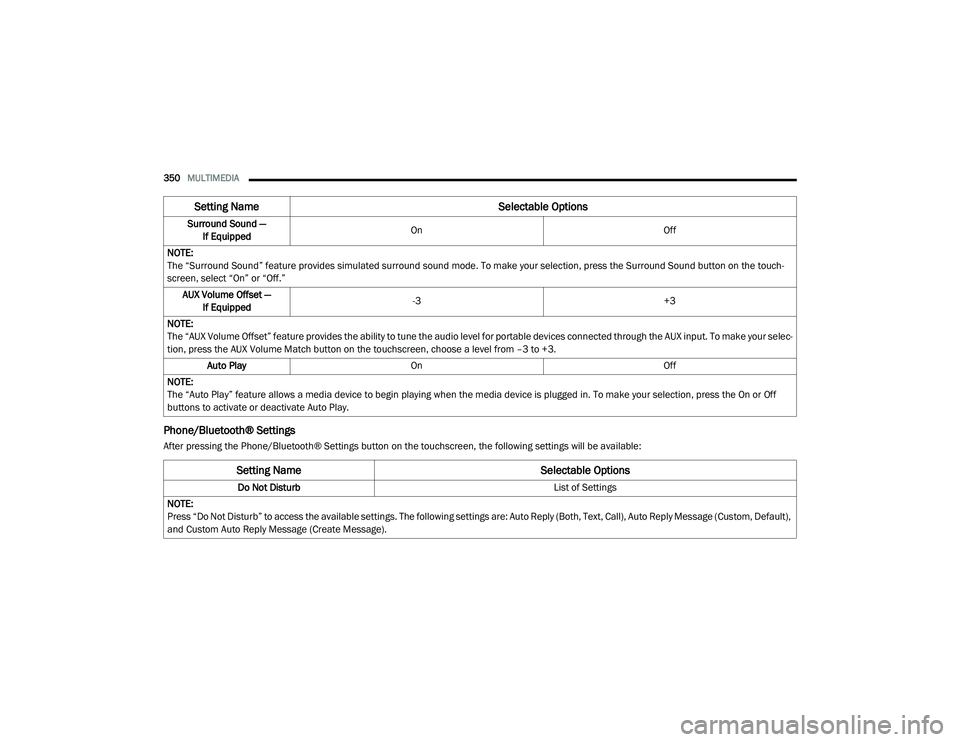
Phone/Bluetooth® Settings
After pressing the Phone/Bluetooth® Settings button on the touchscreen, the following settings will be available:Surround Sound —
If Equipped On
Off
NOTE:
The “Surround Sound” feature provides simulated surround sound mode. To make your selection, press the Surround Sound button on the touch -
screen, select “On” or “Off.”
AUX Volume Offset — If Equipped -3
+3
NOTE:
The “AUX Volume Offset” feature provides the ability to tune the audio level for portable devices connected through the AUX input. To make your selec -
tion, press the AUX Volume Match button on the touchscreen, choose a level from –3 to +3.
Auto Play On Off
NOTE:
The “Auto Play” feature allows a media device to begin playing when the media device is plugged in. To make your selection, press the On or Off
buttons to activate or deactivate Auto Play.
Setting Name Selectable Options
Setting NameSelectable Options
Do Not Disturb List of Settings
NOTE:
Press “Do Not Disturb” to access the available settings. The following settings are: Auto Reply (Both, Text, Call), Auto Reply Message (Custom, Default),
and Custom Auto Reply Message (Create Message).
20_LD_OM_EN_USC_t.book Page 350
Page 353 of 412
MULTIMEDIA351
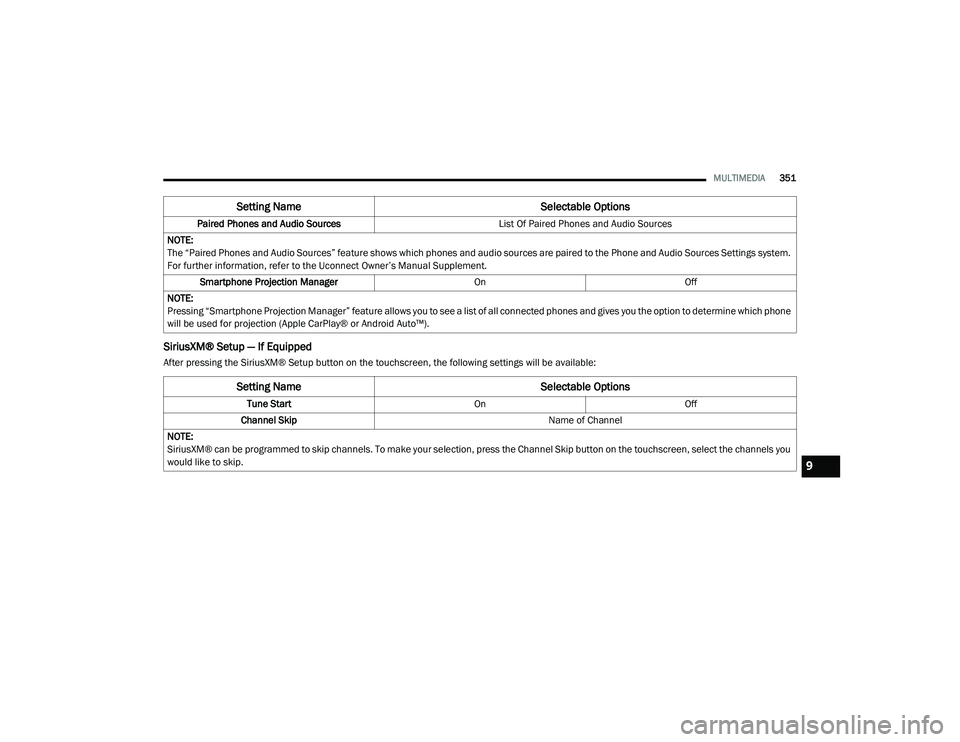
SiriusXM® Setup — If Equipped
After pressing the SiriusXM® Setup button on the touchscreen, the following settings will be available:Paired Phones and Audio Sources
List Of Paired Phones and Audio Sources
NOTE:
The “Paired Phones and Audio Sources” feature shows which phones and audio sources are paired to the Phone and Audio Sources Settings system.
For further information, refer to the Uconnect Owner’s Manual Supplement. Smartphone Projection Manager OnOff
NOTE:
Pressing “Smartphone Projection Manager” feature allows you to see a list of all connected phones and gives you the option to determine which phone
will be used for projection (Apple CarPlay® or Android Auto™).
Setting Name Selectable Options
Setting NameSelectable Options
Tune StartOnOff
Channel Skip Name of Channel
NOTE:
SiriusXM® can be programmed to skip channels. To make your selection, press the Channel Skip button on the touchscreen, select the channels you
would like to skip.
9
20_LD_OM_EN_USC_t.book Page 351
Page 356 of 412
354MULTIMEDIA
SAFETY AND GENERAL INFORMATION
SAFETY GUIDELINES
Ensure that all persons read this manual
carefully before using the system. It contains
instructions on how to use the system in a safe
and effective manner.
Do NOT attach any object to the touchscreen.
Doing so can result in damage to the
touchscreen.
Please read and follow these safety
precautions. Failure to do so may result in injury
or property damage.
Glance at the screen only when safe to do so.
If prolonged viewing of the screen is required,
park in a safe location and set the parking
brake.
Stop use immediately if a problem occurs.
Failure to do so may cause injury or damage
to the product. Return it to an authorized
dealer for repair.
Ensure the volume level of the system is set
to a level that still allows you to hear outside
traffic and emergency vehicles.
Safe Usage Of The Uconnect System
Read all instructions in this manual carefully
before using your system to ensure proper
usage.
The Uconnect system is a sophisticated elec -
tronic device. Do not let young children use
the system.
Permanent hearing loss may occur if you play
your music or the system at loud volumes.
Exercise caution when setting the volume on
the system.
Keep drinks, rain and other sources of mois -
ture away from the system. Besides damage
to the system, moisture can cause electric
shocks as with any electronic device. NOTE:
Many features of this system are speed depen
-
dent. For your own safety, it is not possible to
use some of the touchscreen features while the
vehicle is in motion.
Exposure To Radio Frequency Radiation
The internal wireless radio operates within
guidelines found in radio frequency safety
standards and recommendations, which reflect
the consensus of the scientific community. The
radio manufacturer believes the internal
wireless radio is safe for use by consumers. The
level of energy emitted is far less than the
electromagnetic energy emitted by wireless
devices such as mobile phones. However, the
use of wireless radios may be restricted in some
situations or environments, such as aboard
airplanes. If you are unsure of restrictions, you
are encouraged to ask for authorization before
turning on the wireless radio.Care And Maintenance
Touchscreen
Do not press the touchscreen with any hard
or sharp objects (pen, USB stick, jewelry,
etc.), which could scratch the touchscreen
surface!
WARNING!
ALWAYS drive safely with your hands on the
steering wheel. You have full responsibility
and assume all risks related to the use of the
Uconnect features and applications in this
vehicle. Only use Uconnect when it is safe to
do so. Failure to do so may result in an
accident involving serious injury or death.
20_LD_OM_EN_USC_t.book Page 354
Page 357 of 412
MULTIMEDIA355
Do not spray any liquid or caustic chemicals
directly on the screen! Use a clean and dry
microfiber lens cleaning cloth in order to
clean the touchscreen.
If necessary, use a lint-free cloth dampened
with a cleaning solution, such as isopropyl
alcohol or an isopropyl alcohol and water
solution ratio of 50:50. Be sure to follow the
solvent manufacturer's precautions and
directions.
UCONNECT 4 WITH 7-INCH DISPLAY
INTRODUCTION
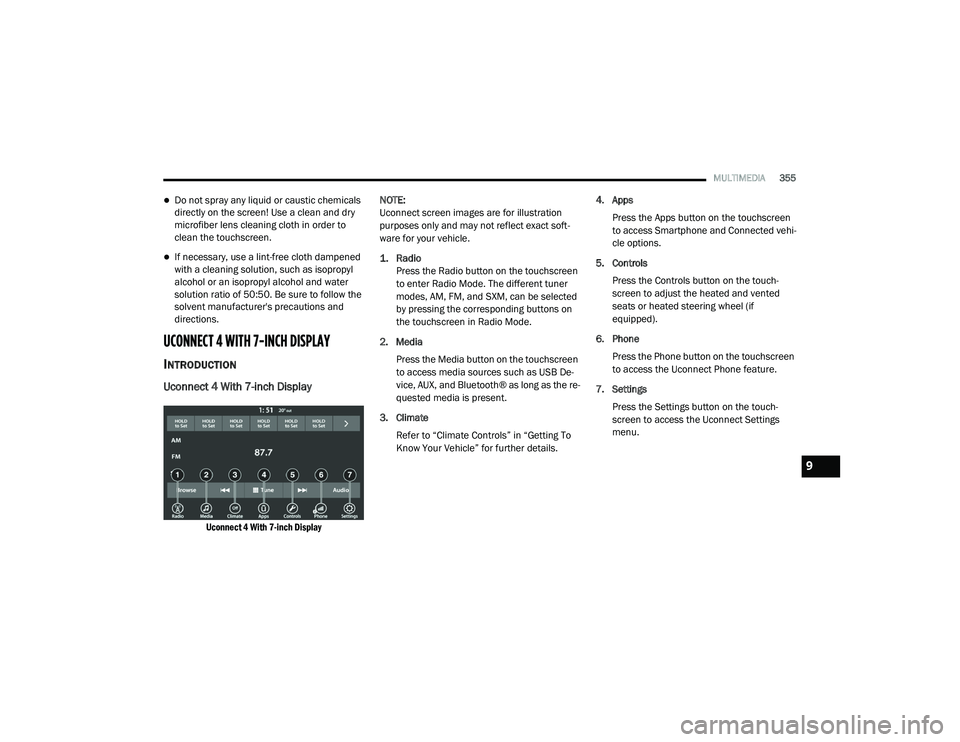
Uconnect 4 With 7-inch Display
Uconnect 4 With 7-inch Display
NOTE:
Uconnect screen images are for illustration
purposes only and may not reflect exact soft
-
ware for your vehicle.
1. Radio
Press the Radio button on the touchscreen
to enter Radio Mode. The different tuner
modes, AM, FM, and SXM, can be selected
by pressing the corresponding buttons on
the touchscreen in Radio Mode.
2. Media Press the Media button on the touchscreen
to access media sources such as USB De -
vice, AUX, and Bluetooth® as long as the re -
quested media is present.
3. Climate Refer to “Climate Controls” in “Getting To
Know Your Vehicle” for further details. 4. Apps
Press the Apps button on the touchscreen
to access Smartphone and Connected vehi -
cle options.
5. Controls Press the Controls button on the touch -
screen to adjust the heated and vented
seats or heated steering wheel (if
equipped).
6. Phone Press the Phone button on the touchscreen
to access the Uconnect Phone feature.
7. Settings Press the Settings button on the touch -
screen to access the Uconnect Settings
menu.
9
20_LD_OM_EN_USC_t.book Page 355
Page 360 of 412
358MULTIMEDIA
Preset Selection From List
A Preset can be selected by pressing any of the
listed Presets or by pushing the ENTER/
BROWSE button on the TUNE/SCROLL knob to
select the currently highlighted Preset.
When selected, the radio tunes to the station
stored in the Preset and returns to the main
radio screen.
Deleting Presets
A Preset can be deleted in the Presets Browse
screen by pressing the Trash Can icon for the
corresponding Preset.
Return To Main Radio Screen
You can return to the Main Radio Screen, by
pressing the X button on the touchscreen when
in the Browse Presets screen.
SiriusXM® Satellite Radio Mode —
If Equipped
SiriusXM® Satellite Radio uses direct
satellite-to-receiver broadcasting technology to
provide clear, coast-to-coast radio content.
SiriusXM® is a subscription based service. SiriusXM® All Access Package
All satellite radio-equipped vehicles come with a
one-year trial to the SiriusXM® All Access
package, providing over 160 channels of the best
programming for all the places life takes you.
In your vehicle — You’ll get every channel
available on your radio, including all the
premium programming like Howard Stern,
every NFL® game, every MLB® game, every
NASCAR® race, Oprah Radio, and more.
On the go — With a SiriusXM® Internet Radio
subscription included with the All Access trial,
you’ll get SiriusXM® on your computer,
smartphone, or tablet. Including:
A huge On Demand catalog
Xtra Channels featuring SiriusXM®
Latino – a collection of Spanish-language
channels
MySXM – allowing you to personalize
your favorite music channels
Go to siriusxm.com/getallaccess for more
information
SiriusXM® services require subscriptions, sold
separately after the 12-month trial included
with the new vehicle purchase. If you decide to continue your service at the end of your trial
subscription, the plan you choose will
automatically renew and bill at then-current
rates until you call SiriusXM® at 866-635-2349
to cancel. See SiriusXM® Customer Agreement
for complete terms at www.siriusxm.com. All
fees and programming subject to change. Our
satellite service is available only to those at
least 18 and older in the 48 contiguous USA
and D.C. Our SiriusXM® satellite service is also
available in PR (with coverage limitations). Our
Internet radio service is available throughout
our satellite service area and in AK. © 202
1
SiriusXM® Radio Inc. Sirius, XM and all related
marks and logos are trademarks of SiriusXM®
Radio Inc. Service available in Canada; see
www.siriusxm.ca.
This functionality is only available for radios
equipped with a Satellite receiver. In order to
receive satellite radio, the vehicle needs to be
outside with a clear view to the sky.
If the screen shows Acquiring Signal, you might
have to change the vehicle’s position in order to
receive a signal. In most cases, the satellite
radio does not receive a signa l in underground
parking garages or tunnels.
20_LD_OM_EN_USC_t.book Page 358
Page 368 of 412
366MULTIMEDIA
NOTE:
The radio unit is acting as the amplifier for audio
output from the Auxiliary device. Therefore, if
the volume control on the Auxiliary device is set
too low, there will be insufficient audio signal for
the radio unit to play the music on the device.
Media Mode
Press the Media button on the touchscreen to
select the desired audio source: AUX.
Audio
Refer to “Radio Mode” for adjusting the audio
settings.
BLUETOOTH® MODE
Overview
Bluetooth® Streaming Audio (BTSA) or
Bluetooth® Mode is entered by pairing a
Bluetooth® device, containing music, to the
Uconnect System.
Before proceeding, the Bluetooth® device must
be paired to the Uconnect Phone to
communicate with the Uconnect System.
NOTE:
See the pairing procedure in the Uconnect
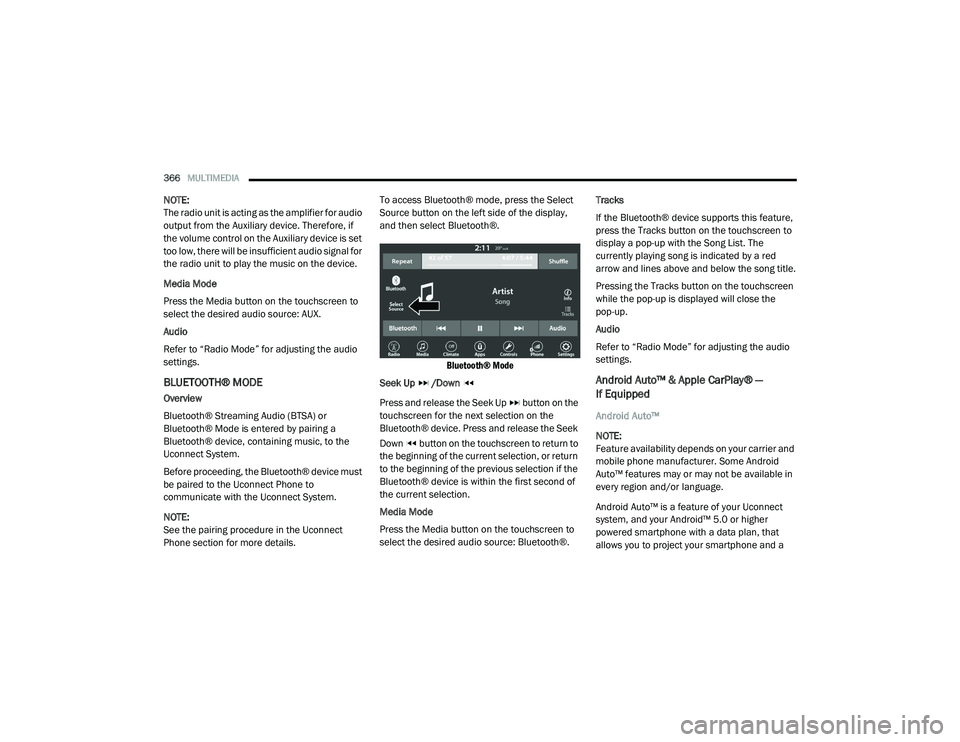
Phone section for more details. To access Bluetooth® mode, press the Select
Source button on the left side of the display,
and then select Bluetooth®.
Bluetooth® Mode
Seek Up /Down
Press and release the Seek Up button on the
touchscreen for the next selection on the
Bluetooth® device. Press and release the Seek
Down button on the touchscreen to return to
the beginning of the current selection, or return
to the beginning of the previous selection if the
Bluetooth® device is within the first second of
the current selection.
Media Mode
Press the Media button on the touchscreen to
select the desired audio source: Bluetooth®. Tracks
If the Bluetooth® device supports this feature,
press the Tracks button on the touchscreen to
display a pop-up with the Song List. The
currently playing song is indicated by a red
arrow and lines above and below the song title.
Pressing the Tracks button on the touchscreen
while the pop-up is displayed will close the
pop-up.
Audio
Refer to “Radio Mode” for adjusting the audio
settings.
Android Auto™ & Apple CarPlay® —
If Equipped
Android Auto™
NOTE:
Feature availability depends on your carrier and
mobile phone manufacturer. Some Android
Auto™ features may or may not be available in
every region and/or language.
Android Auto™ is a feature of your Uconnect
system, and your Android™ 5.0 or higher
powered smartphone with a data plan, that
allows you to project your smartphone and a
20_LD_OM_EN_USC_t.book Page 366
Page 369 of 412
MULTIMEDIA367
number of its apps onto the touchscreen radio
display. Android Auto™ automatically brings you
useful information, and organizes it into simple
cards that appear just when they are needed.
Android Auto™ can be used with Google's
best-in-class speech technology, the steering
wheel controls, the knobs and buttons on your
radio faceplate, and the radio display’s
touchscreen to control many of your apps. To
use Android Auto™, follow the following
procedure:
1. Download the Android Auto™ app from the
Google Play store on your
Android™-powered smartphone.
2. Connect your Android™-powered smartphone to one of the media USB ports
in your vehicle. If the Android Auto™ app
was not downloaded, the first time you plug
your device in, the app will begin to
download.
NOTE:
Be sure to use the factory-provided USB cable
that came with your phone, as aftermarket
cables may not work.
3. Once the device is connected and recognized, the “Phone” icon on the drag & drop menu bar
changes to the Android Auto™ Icon.
Once Android Auto™ is up and running on your
Uconnect system, the following features can be
utilized using your smartphone’s data plan:
Google Maps™ for navigation
Google Play Music, Spotify, iHeart Radio, etc.
for music
Hands-free Calling and Texting for communi -
cation
Hundred of compatible apps
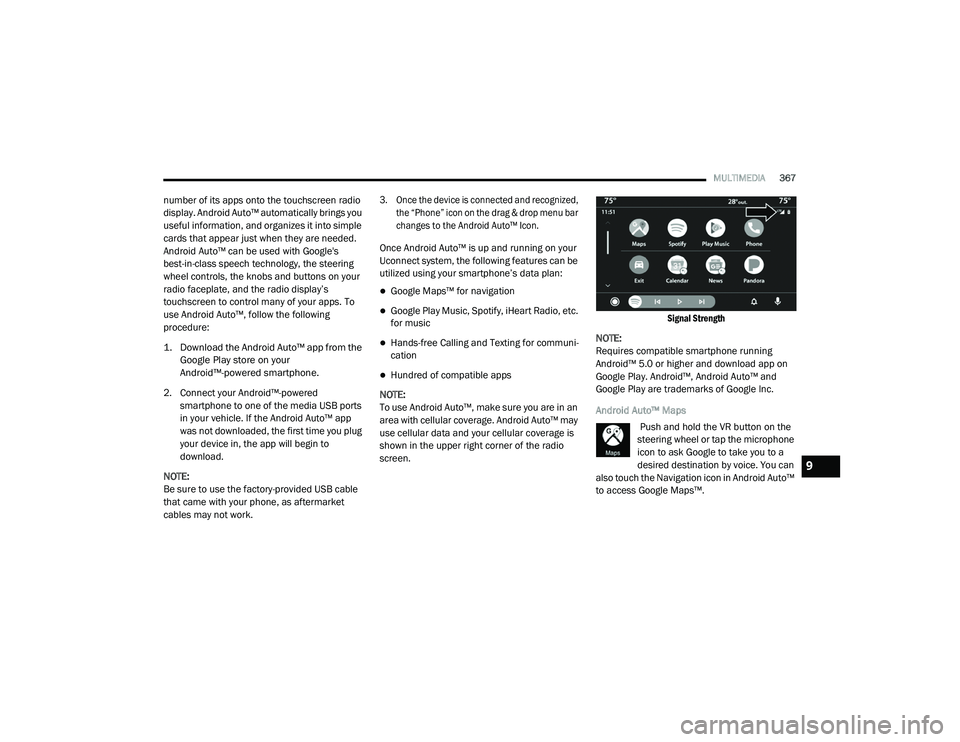
NOTE:
To use Android Auto™, make sure you are in an
area with cellular coverage. Android Auto™ may
use cellular data and your cellular coverage is
shown in the upper right corner of the radio
screen.
Signal Strength
NOTE:
Requires compatible smartphone running
Android™ 5.0 or higher and download app on
Google Play. Android™, Android Auto™ and
Google Play are trademarks of Google Inc.
Android Auto™ Maps Push and hold the VR button on the
steering wheel or tap the microphone
icon to ask Google to take you to a
desired destination by voice. You can
also touch the Navigation icon in Android Auto™
to access Google Maps™.
9
20_LD_OM_EN_USC_t.book Page 367