display DODGE CHARGER 2021 Repair Manual
[x] Cancel search | Manufacturer: DODGE, Model Year: 2021, Model line: CHARGER, Model: DODGE CHARGER 2021Pages: 320, PDF Size: 20.61 MB
Page 137 of 320
MULTIMEDIA135
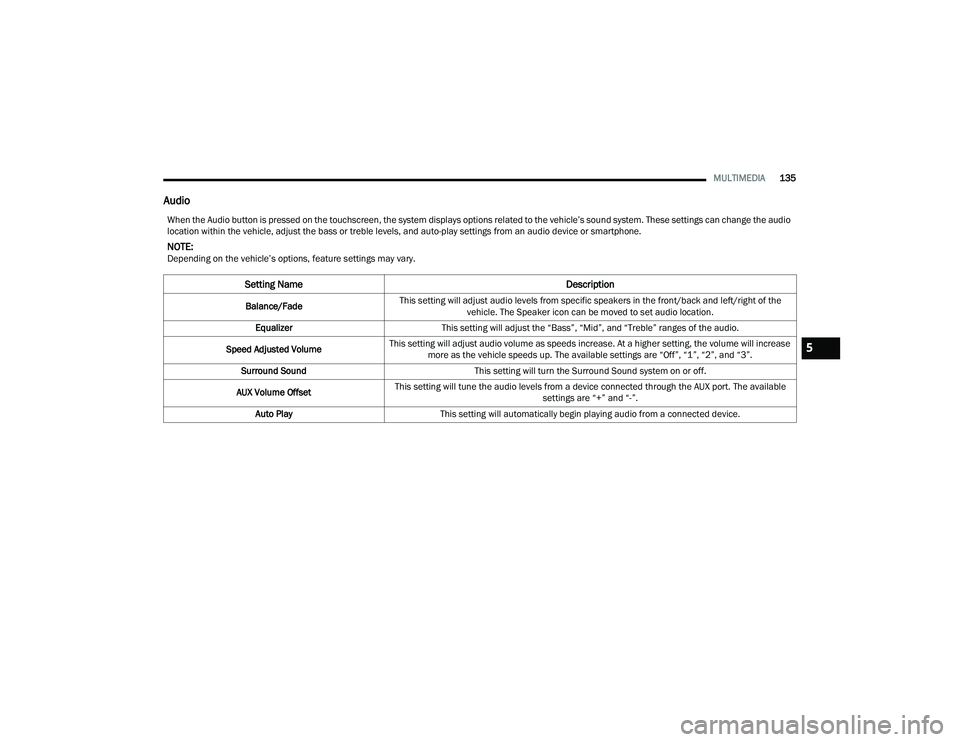
Audio
When the Audio button is pressed on the touchscreen, the system displays options related to the vehicle’s sound system. These settings can change the audio
location within the vehicle, adjust the bass or treble levels, and auto-play settings from an audio device or smartphone.
NOTE:Depending on the vehicle’s options, feature settings may vary.
Setting Name Description
Balance/FadeThis setting will adjust audio levels from specific speakers in the front/back and left/right of the
vehicle. The Speaker icon can be moved to set audio location.
Equalizer This setting will adjust the “Bass”, “Mid”, and “Treble” ranges of the audio.
Speed Adjusted Volume This setting will adjust audio volume as speeds increase. At a higher setting, the volume will increase
more as the vehicle speeds up. The available settings are “Off”, “1”, “2”, and “3”.
Surround Sound This setting will turn the Surround Sound system on or off.
AUX Volume Offset This setting will tune the audio levels from a device connected through the AUX port. The available
settings are “+” and “-”.
Auto Play This setting will automatically begin playing audio from a connected device.
5
21_LD_OM_EN_USC_t.book Page 135
Page 138 of 320
136MULTIMEDIA
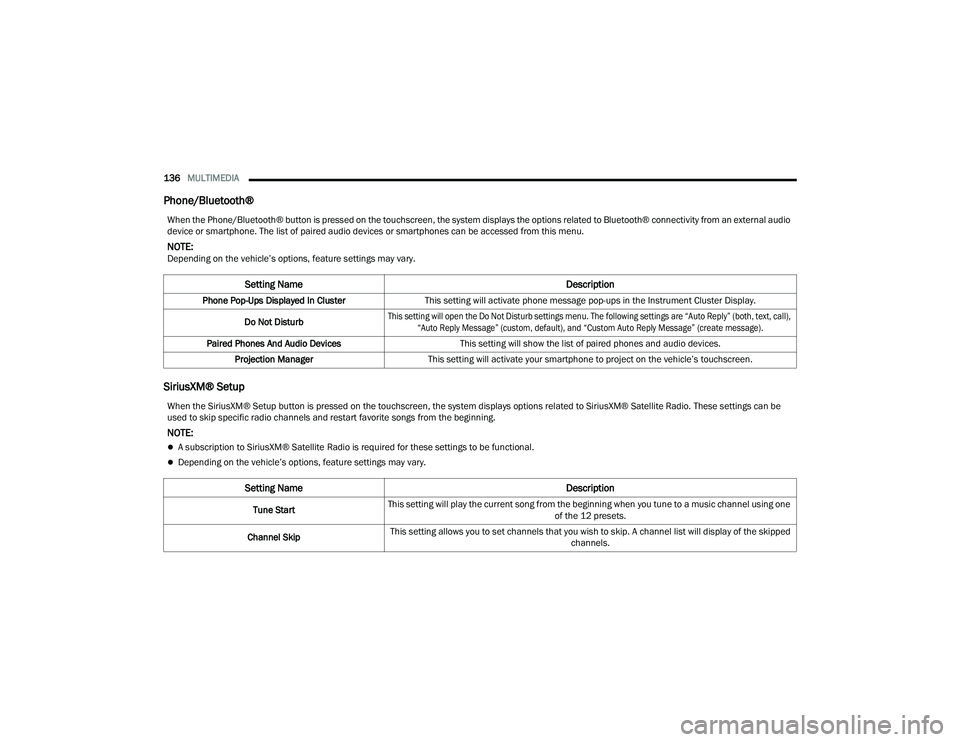
Phone/Bluetooth®
SiriusXM® Setup
When the Phone/Bluetooth® button is pressed on the touchscreen, the system displays the options related to Bluetooth® connectivity from an external audio
device or smartphone. The list of paired audio devices or smartphones can be accessed from this menu.
NOTE:Depending on the vehicle’s options, feature settings may vary.
Setting Name Description
Phone Pop-Ups Displayed In ClusterThis setting will activate phone message pop-ups in the Instrument Cluster Display.
Do Not Disturb
This setting will open the Do Not Disturb settings menu. The following settings are “Auto Reply” (both, text, call),
“Auto Reply Message” (custom, default), and “Custom Auto Reply Message” (create message).
Paired Phones And Audio Devices This setting will show the list of paired phones and audio devices.
Projection Manager This setting will activate your smartphone to project on the vehicle’s touchscreen.
When the SiriusXM® Setup button is pressed on the touchscreen, the system displays options related to SiriusXM® Satellite Radio. These settings can be
used to skip specific radio channels and restart favorite songs from the beginning.
NOTE:
A subscription to SiriusXM® Satellite Radio is required for these settings to be functional.
Depending on the vehicle’s options, feature settings may vary.
Setting Name Description
Tune StartThis setting will play the current song from the beginning when you tune to a music channel using one
of the 12 presets.
Channel Skip This setting allows you to set channels that you wish to skip. A channel list will display of the skipped
channels.
21_LD_OM_EN_USC_t.book Page 136
Page 139 of 320
MULTIMEDIA137
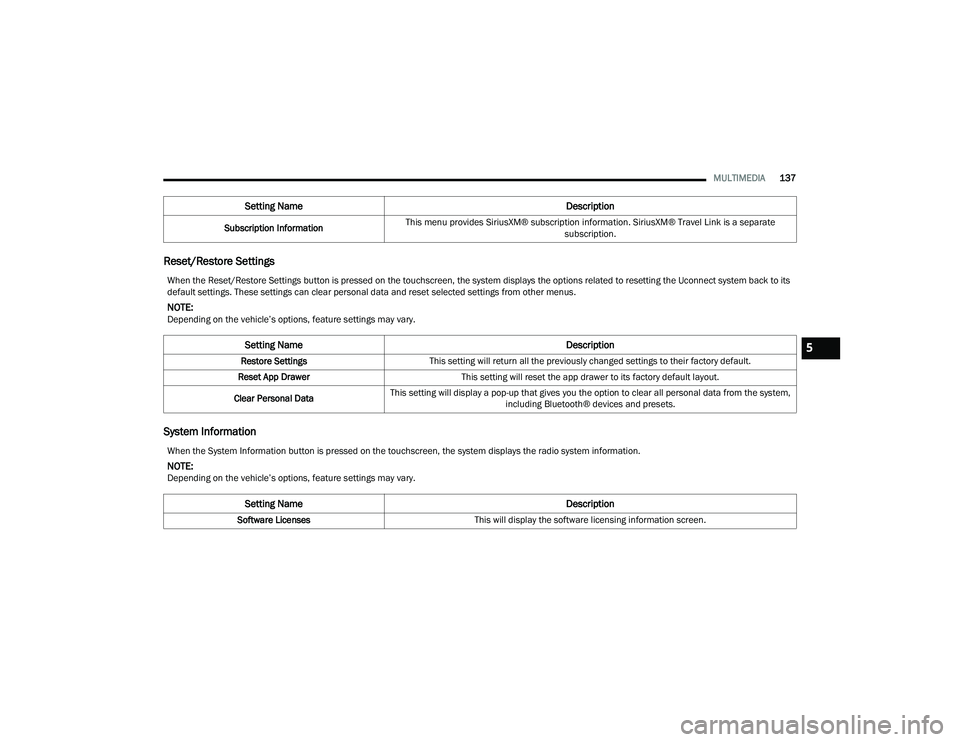
Reset/Restore Settings
System Information
Subscription Information This menu provides SiriusXM® subscription information. SiriusXM® Travel Link is a separate
subscription.
Setting Name Description
When the Reset/Restore Settings button is pressed on the touchscreen, the system displays the options related to resetting the Uconnect system back to its
default settings. These settings can clear personal data and reset selected settings from other menus.
NOTE:Depending on the vehicle’s options, feature settings may vary.
Setting NameDescription
Restore SettingsThis setting will return all the previously changed settings to their factory default.
Reset App Drawer This setting will reset the app drawer to its factory default layout.
Clear Personal Data This setting will display a pop-up that gives you the option to clear all personal data from the system,
including Bluetooth® devices and presets.
When the System Information button is pressed on the touchscreen, the system displays the radio system information.
NOTE:Depending on the vehicle’s options, feature settings may vary.
Setting Name Description
Software LicensesThis will display the software licensing information screen.
5
21_LD_OM_EN_USC_t.book Page 137
Page 140 of 320
138MULTIMEDIA
UCONNECT INTRODUCTION
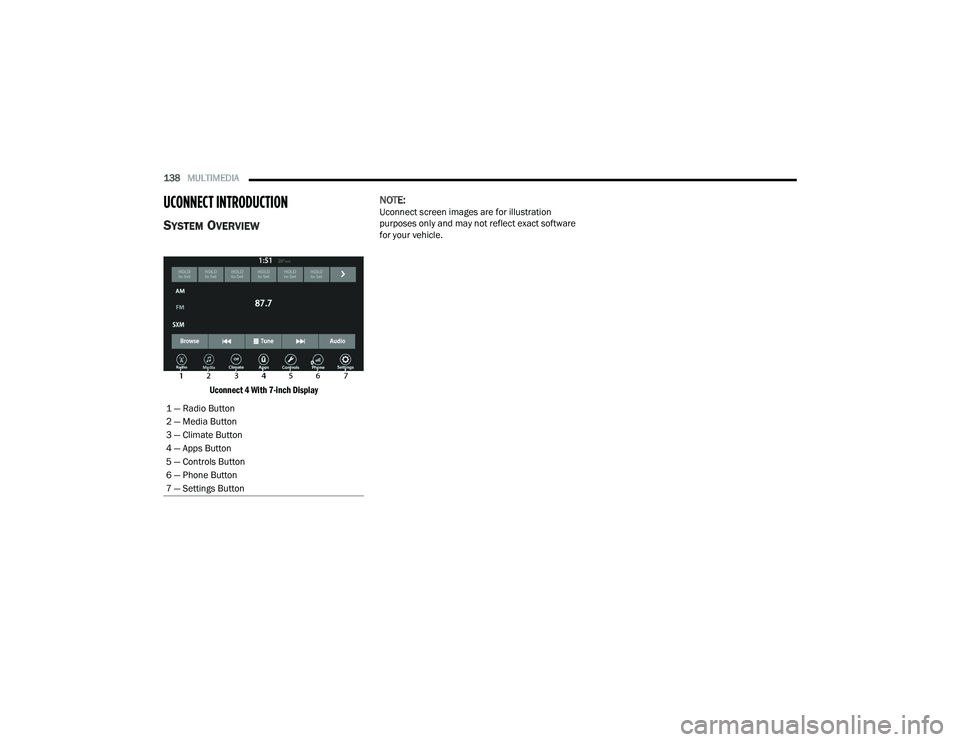
SYSTEM OVERVIEW
Uconnect 4 With 7-inch Display
NOTE:Uconnect screen images are for illustration
purposes only and may not reflect exact software
for your vehicle.
1 — Radio Button
2 — Media Button
3 — Climate Button
4 — Apps Button
5 — Controls Button
6 — Phone Button
7 — Settings Button
21_LD_OM_EN_USC_t.book Page 138
Page 142 of 320
140MULTIMEDIA
DRAG & DROP MENU BAR
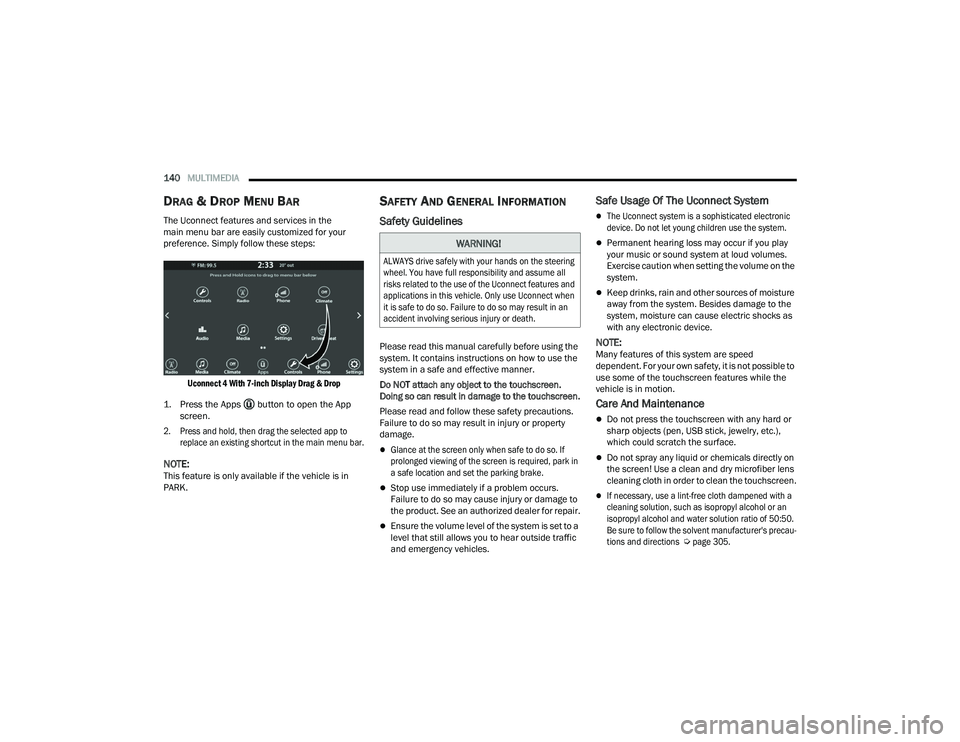
The Uconnect features and services in the
main menu bar are easily customized for your
preference. Simply follow these steps:
Uconnect 4 With 7-inch Display Drag & Drop
1. Press the Apps button to open the App screen.
2. Press and hold, then drag the selected app to replace an existing shortcut in the main menu bar.
NOTE:This feature is only available if the vehicle is in
PARK.
SAFETY AND GENERAL INFORMATION
Safety Guidelines
Please read this manual carefully before using the
system. It contains instructions on how to use the
system in a safe and effective manner.
Do NOT attach any object to the touchscreen.
Doing so can result in damage to the touchscreen.
Please read and follow these safety precautions.
Failure to do so may result in injury or property
damage.
Glance at the screen only when safe to do so. If
prolonged viewing of the screen is required, park in
a safe location and set the parking brake.
Stop use immediately if a problem occurs.
Failure to do so may cause injury or damage to
the product. See an authorized dealer for repair.
Ensure the volume level of the system is set to a
level that still allows you to hear outside traffic
and emergency vehicles.
Safe Usage Of The Uconnect System
The Uconnect system is a sophisticated electronic
device. Do not let young children use the system.
Permanent hearing loss may occur if you play
your music or sound system at loud volumes.
Exercise caution when setting the volume on the
system.
Keep drinks, rain and other sources of moisture
away from the system. Besides damage to the
system, moisture can cause electric shocks as
with any electronic device.
NOTE:Many features of this system are speed
dependent. For your own safety, it is not possible to
use some of the touchscreen features while the
vehicle is in motion.
Care And Maintenance
Do not press the touchscreen with any hard or
sharp objects (pen, USB stick, jewelry, etc.),
which could scratch the surface.
Do not spray any liquid or chemicals directly on
the screen! Use a clean and dry microfiber lens
cleaning cloth in order to clean the touchscreen.
If necessary, use a lint-free cloth dampened with a
cleaning solution, such as isopropyl alcohol or an
isopropyl alcohol and water solution ratio of 50:50.
Be sure to follow the solvent manufacturer's precau -
tions and directions
Ú
page 305.
WARNING!
ALWAYS drive safely with your hands on the steering
wheel. You have full responsibility and assume all
risks related to the use of the Uconnect features and
applications in this vehicle. Only use Uconnect when
it is safe to do so. Failure to do so may result in an
accident involving serious injury or death.
21_LD_OM_EN_USC_t.book Page 140
Page 143 of 320
MULTIMEDIA141
UCONNECT MODES
STEERING WHEEL AUDIO CONTROLS
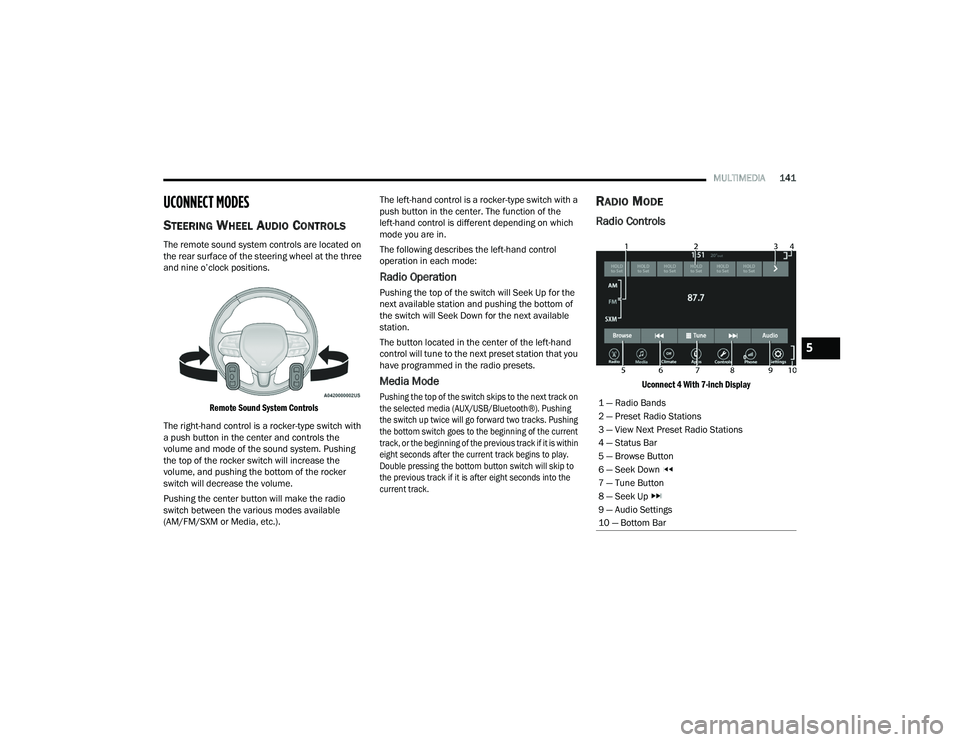
The remote sound system controls are located on
the rear surface of the steering wheel at the three
and nine o’clock positions.
Remote Sound System Controls
The right-hand control is a rocker-type switch with
a push button in the center and controls the
volume and mode of the sound system. Pushing
the top of the rocker switch will increase the
volume, and pushing the bottom of the rocker
switch will decrease the volume.
Pushing the center button will make the radio
switch between the various modes available
(AM/FM/SXM or Media, etc.). The left-hand control is a rocker-type switch with a
push button in the center. The function of the
left-hand control is different depending on which
mode you are in.
The following describes the left-hand control
operation in each mode:
Radio Operation
Pushing the top of the switch will Seek Up for the
next available station and pushing the bottom of
the switch will Seek Down for the next available
station.
The button located in the center of the left-hand
control will tune to the next preset station that you
have programmed in the radio presets.
Media Mode
Pushing the top of the switch skips to the next track on
the selected media (AUX/USB/Bluetooth®). Pushing
the switch up twice will go forward two tracks. Pushing
the bottom switch goes to the beginning of the current
track, or the beginning of the previous track if it is within
eight seconds after the current track begins to play.
Double pressing the bottom button switch will skip to
the previous track if it is after eight seconds into the
current track.
RADIO MODE
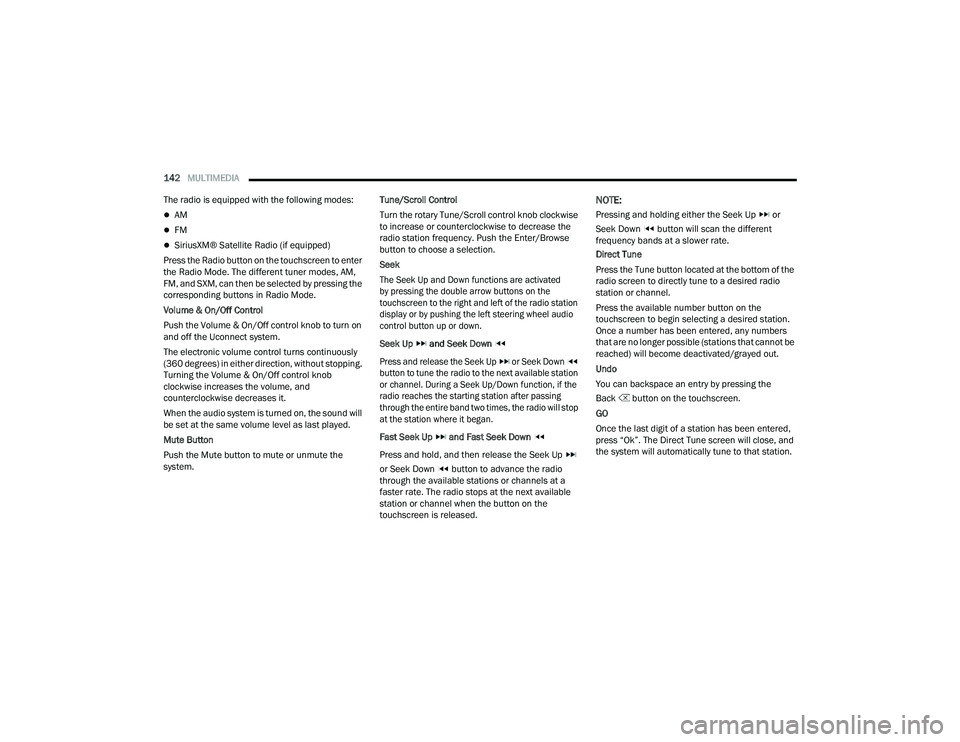
Radio Controls
Uconnect 4 With 7-inch Display
1 — Radio Bands
2 — Preset Radio Stations
3 — View Next Preset Radio Stations
4 — Status Bar
5 — Browse Button
6 — Seek Down
7 — Tune Button
8 — Seek Up
9 — Audio Settings
10 — Bottom Bar
5
21_LD_OM_EN_USC_t.book Page 141
Page 144 of 320
142MULTIMEDIA
The radio is equipped with the following modes:
AM
FM
SiriusXM® Satellite Radio (if equipped)
Press the Radio button on the touchscreen to enter
the Radio Mode. The different tuner modes, AM,
FM, and SXM, can then be selected by pressing the
corresponding buttons in Radio Mode.
Volume & On/Off Control
Push the Volume & On/Off control knob to turn on
and off the Uconnect system.
The electronic volume control turns continuously
(360 degrees) in either direction, without stopping.
Turning the Volume & On/Off control knob
clockwise increases the volume, and
counterclockwise decreases it.
When the audio system is turned on, the sound will
be set at the same volume level as last played.
Mute Button
Push the Mute button to mute or unmute the
system. Tune/Scroll Control
Turn the rotary Tune/Scroll control knob clockwise
to increase or counterclockwise to decrease the
radio station frequency. Push the Enter/Browse
button to choose a selection.
Seek
The Seek Up and Down functions are activated
by pressing the double arrow buttons on the
touchscreen to the right and left of the radio station
display or by pushing the left steering wheel audio
control button up or down.
Seek Up and Seek Down
Press and release the Seek Up or Seek Down
button to tune the radio to the next available station
or channel. During a Seek Up/Down function, if the
radio reaches the starting station after passing
through the entire band two times, the radio will stop
at the station where it began.
Fast Seek Up and Fast Seek Down
Press and hold, and then release the Seek Up
or Seek Down button to advance the radio
through the available stations or channels at a
faster rate. The radio stops at the next available
station or channel when the button on the
touchscreen is released.
NOTE:
Pressing and holding either the Seek Up or
Seek Down button will scan the different
frequency bands at a slower rate.
Direct Tune
Press the Tune button located at the bottom of the
radio screen to directly tune to a desired radio
station or channel.
Press the available number button on the
touchscreen to begin selecting a desired station.
Once a number has been entered, any numbers
that are no longer possible (stations that cannot be
reached) will become deactivated/grayed out.
Undo
You can backspace an entry by pressing the
Back button on the touchscreen.
GO
Once the last digit of a station has been entered,
press “Ok”. The Direct Tune screen will close, and
the system will automatically tune to that station.
21_LD_OM_EN_USC_t.book Page 142
Page 145 of 320
MULTIMEDIA143
RADIO VOICE COMMANDS
Use your voice to quickly get to the AM, FM, or
SiriusXM® Satellite Radio stations you would like
to hear. (Subscription or included SiriusXM®
Satellite Radio trial required.)
Push the VR button on the steering wheel and
wait for the beep to say a command. See an
example below:
“Tune to ninety-five-point-five FM”
“Tune to Satellite Channel Hits 1”
Did You Know: At any time, if you are not sure of
what to say or want to learn a Voice Command,
push the VR button and say “ Help”. The system
provides you with a list of commands.
SiriusXM® Satellite Radio Mode —
If Equipped
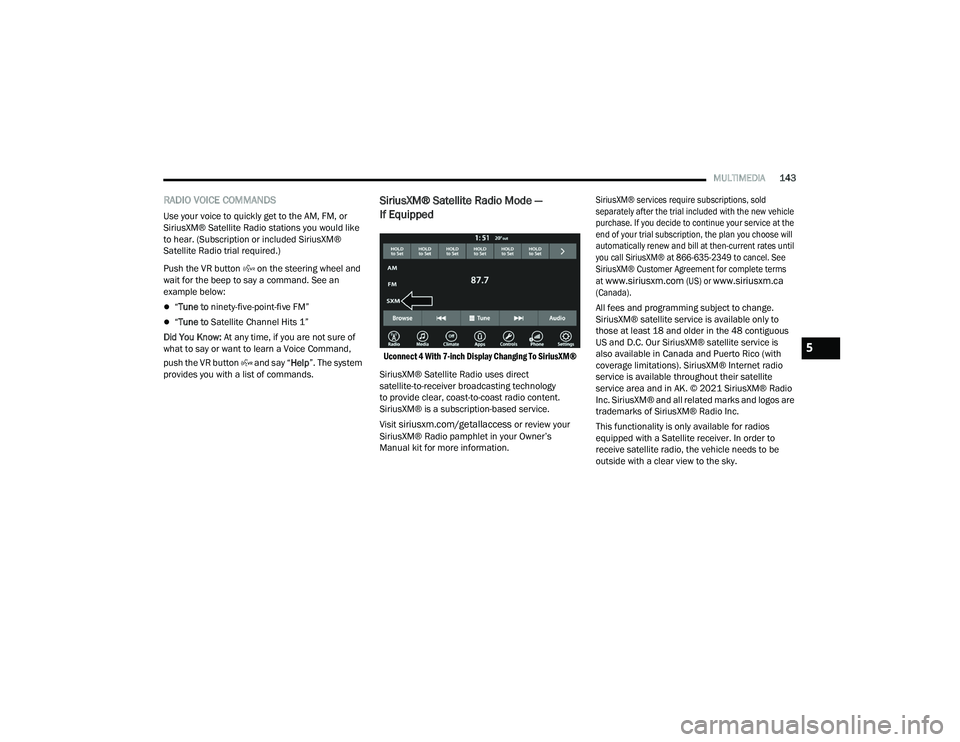
Uconnect 4 With 7-inch Display Changing To SiriusXM®
SiriusXM® Satellite Radio uses direct
satellite-to-receiver broadcasting technology
to provide clear, coast-to-coast radio content.
SiriusXM® is a subscription-based service.
Visit
siriusxm.com/getallaccess or review your
SiriusXM® Radio pamphlet in your Owner’s
Manual kit for more information.
SiriusXM® services require subscriptions, sold
separately after the trial included with the new vehicle
purchase. If you decide to continue your service at the
end of your trial subscription, the plan you choose will
automatically renew and bill at then-current rates until
you call SiriusXM® at 866-635-2349 to cancel. See
SiriusXM® Customer Agreement for complete terms
at
www.siriusxm.com
(US) or
www.siriusxm.ca
(Canada).
All fees and programming subject to change.
SiriusXM® satellite service is available only to
those at least 18 and older in the 48 contiguous
US and D.C. Our SiriusXM® satellite service is
also available in Canada and Puerto Rico (with
coverage limitations). SiriusXM® Internet radio
service is available throughout their satellite
service area and in AK. © 2021 SiriusXM® Radio
Inc. SiriusXM® and all related marks and logos are
trademarks of SiriusXM® Radio Inc.
This functionality is only available for radios
equipped with a Satellite receiver. In order to
receive satellite radio, the vehicle needs to be
outside with a clear view to the sky.
5
21_LD_OM_EN_USC_t.book Page 143
Page 146 of 320
144MULTIMEDIA
If the screen shows “Acquiring Signal”, you might
have to change the vehicle’s position in order to
receive a signal. In most cases, the satellite radio
does not receive a signal in underground parking
garages or tunnels.
No Subscription
Radios equipped with a Satellite receiver require a
subscription to the SiriusXM® Service. When the
radio does not have the necessary subscription,
the radio is able to receive the Preview channel
only.
Acquiring SiriusXM® Subscription
To activate the SiriusXM® Satellite Radio
subscription, US residents visit
siriusxm.com/
getallaccess or call: 1-800-643-2112
Canadian residents visit
https://
www.siriusxm.ca/ or call: 1-888-539-7474.
NOTE:You will need to provide the SiriusXM® ID (RID)
located at the bottom of the Channel 0 screen.
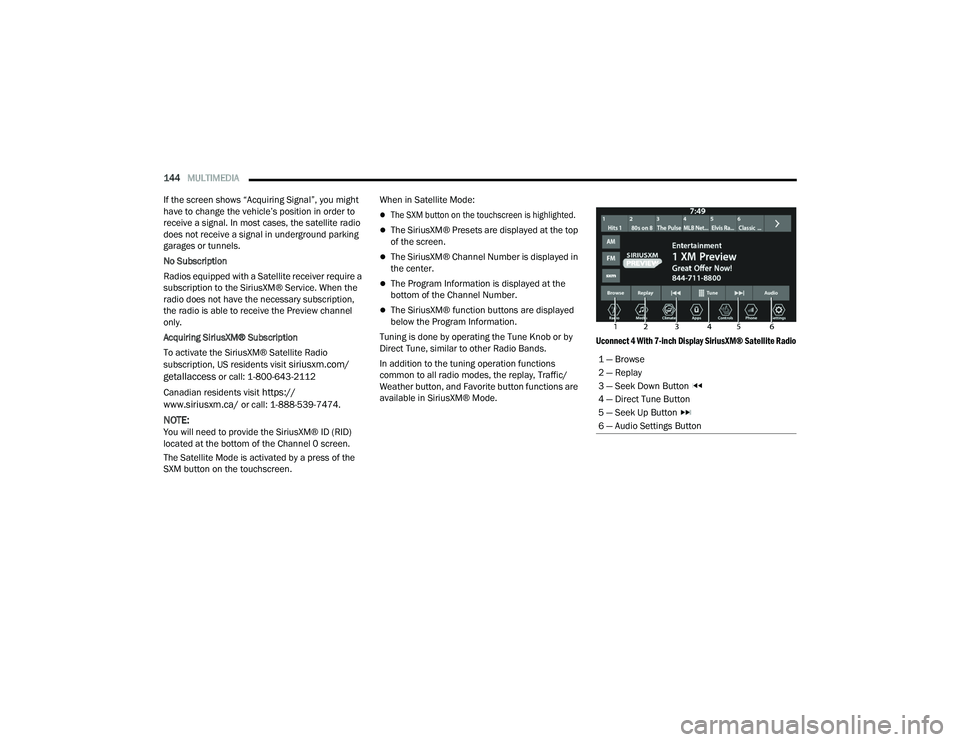
The Satellite Mode is activated by a press of the
SXM button on the touchscreen. When in Satellite Mode:
The SXM button on the touchscreen is highlighted.
The SiriusXM® Presets are displayed at the top
of the screen.
The SiriusXM® Channel Number is displayed in
the center.
The Program Information is displayed at the
bottom of the Channel Number.
The SiriusXM® function buttons are displayed
below the Program Information.
Tuning is done by operating the Tune Knob or by
Direct Tune, similar to other Radio Bands.
In addition to the tuning operation functions
common to all radio modes, the replay, Traffic/
Weather button, and Favorite button functions are
available in SiriusXM® Mode.
Uconnect 4 With 7-inch Display SiriusXM® Satellite Radio
1 — Browse
2 — Replay
3 — Seek Down Button
4 — Direct Tune Button
5 — Seek Up Button
6 — Audio Settings Button
21_LD_OM_EN_USC_t.book Page 144
Page 147 of 320
MULTIMEDIA145
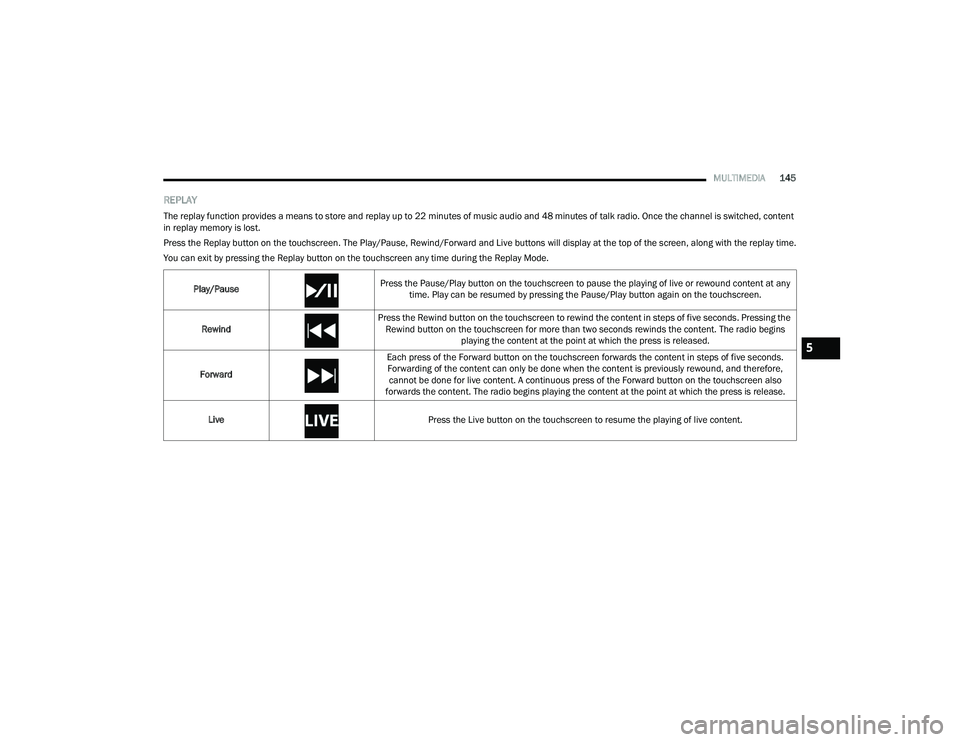
REPLAY
The replay function provides a means to store and replay up to 22 minutes of music audio and 48 minutes of talk radio. Once the channel is switched, content
in replay memory is lost.
Press the Replay button on the touchscreen. The Play/Pause, Rewind/Forward and Live buttons will display at the top of the screen, along with the replay time.
You can exit by pressing the Replay button on the touchscreen any time during the Replay Mode.
Play/Pause Press the Pause/Play button on the touchscreen to pause the playing of live or rewound content at any
time. Play can be resumed by pressing the Pause/Play button again on the touchscreen.
Rewind Press the Rewind button on the touchscreen to rewind the content in steps of five seconds. Pressing the
Rewind button on the touchscreen for more than two seconds rewinds the content. The radio begins playing the content at the point at which the press is released.
Forward Each press of the Forward button on the touchscreen forwards the content in steps of five seconds.
Forwarding of the content can only be done when the content is previously rewound, and therefore, cannot be done for live content. A continuous press of the Forward button on the touchscreen also
forwards the content. The radio begins playing the content at the point at which the press is release.
Live Press the Live button on the touchscreen to resume the playing of live content.
5
21_LD_OM_EN_USC_t.book Page 145